How to Build a Docker Image for Karma Tests with Headless Chrome
Build a repeatable Docker image for Karma and Headless Chrome, configure browser paths and sandboxing, and fix common CI failures.
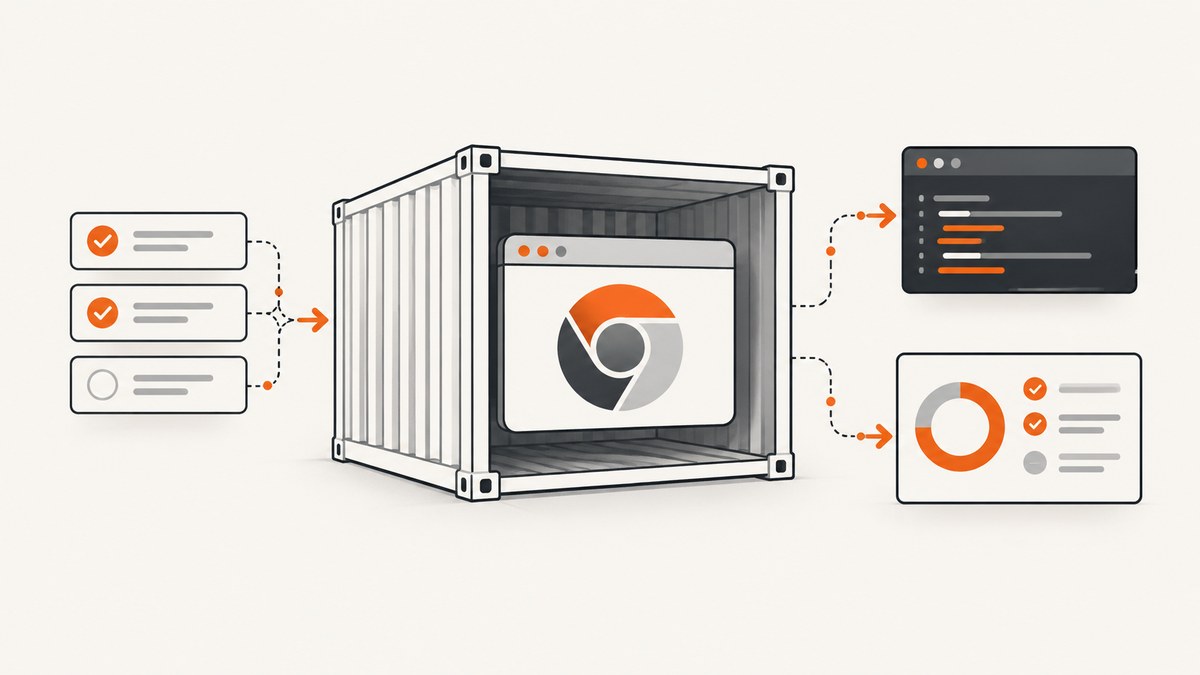
Direct answer: build the image with your project dependencies, a Chrome or Chromium executable, and every shared library that browser needs. Set CHROME_BIN (or CHROMIUM_BIN) to the executable inside the final image, configure Karma with ChromeHeadless, and run Karma in single-run mode so the container exits with the test result.
Headless Chrome still executes tests in a real browser context. That catches browser behavior that a Node-only test runner cannot reproduce. Chrome for Developers describes this as running JavaScript in the same environment users of the site use. See the Chrome Headless documentation.
1. Prepare the project
Install Karma, the Chrome launcher, your test framework, and its Karma adapter as development dependencies. Keep the lockfile in version control and install from it during the image build.
npm install --save-dev karma karma-chrome-launcher
# Add the framework and adapter used by your project, for example:
npm install --save-dev jasmine-core karma-jasmine
The exact framework packages depend on your application. The karma-chrome-launcher documentation lists the launcher configuration and executable environment variables.
A minimal karma.conf.js looks like this:
module.exports = function (config) {
  config.set({
    frameworks: ['jasmine'],
    files: [
      'src/**/*.js',
      'test/**/*.spec.js'
    ],
    reporters: ['progress'],
    browsers: ['ChromeHeadless'],
    singleRun: true,
    autoWatch: false
  });
};
Replace jasmine and the file globs with your project’s framework and test files.
2. Choose a browser image strategy
Use Puppeteer’s published image
The official Puppeteer Docker image includes Chrome for Testing and the libraries it requires. This reduces the amount of browser installation work in your Dockerfile, but you must follow the current image tag and runtime requirements. The image expects sandboxed Chrome and requires the container’s SYS_ADMIN capability.
Read the current requirements in the Puppeteer Docker guide before selecting a tag. Use this route when its Node and Linux base fits your project and your CI runner can provide the required capability.
Build from another base image
A custom image gives you control over the Node version, Linux distribution, and browser build. You are responsible for installing a compatible Chrome or Chromium package and all of its shared libraries. The browser executable must exist in the final runtime image, not only in an intermediate build stage.
Do not copy a dependency list from one distribution or Chrome release into another without checking it. Missing libraries usually appear as a browser startup error rather than a clear package installation error.
3. Example custom Dockerfile
This Dockerfile is a structure to adapt. It assumes the selected base image already provides Chrome at /usr/bin/google-chrome. If it does not, install Chrome or Chromium and its dependencies, or use the Puppeteer image instead.
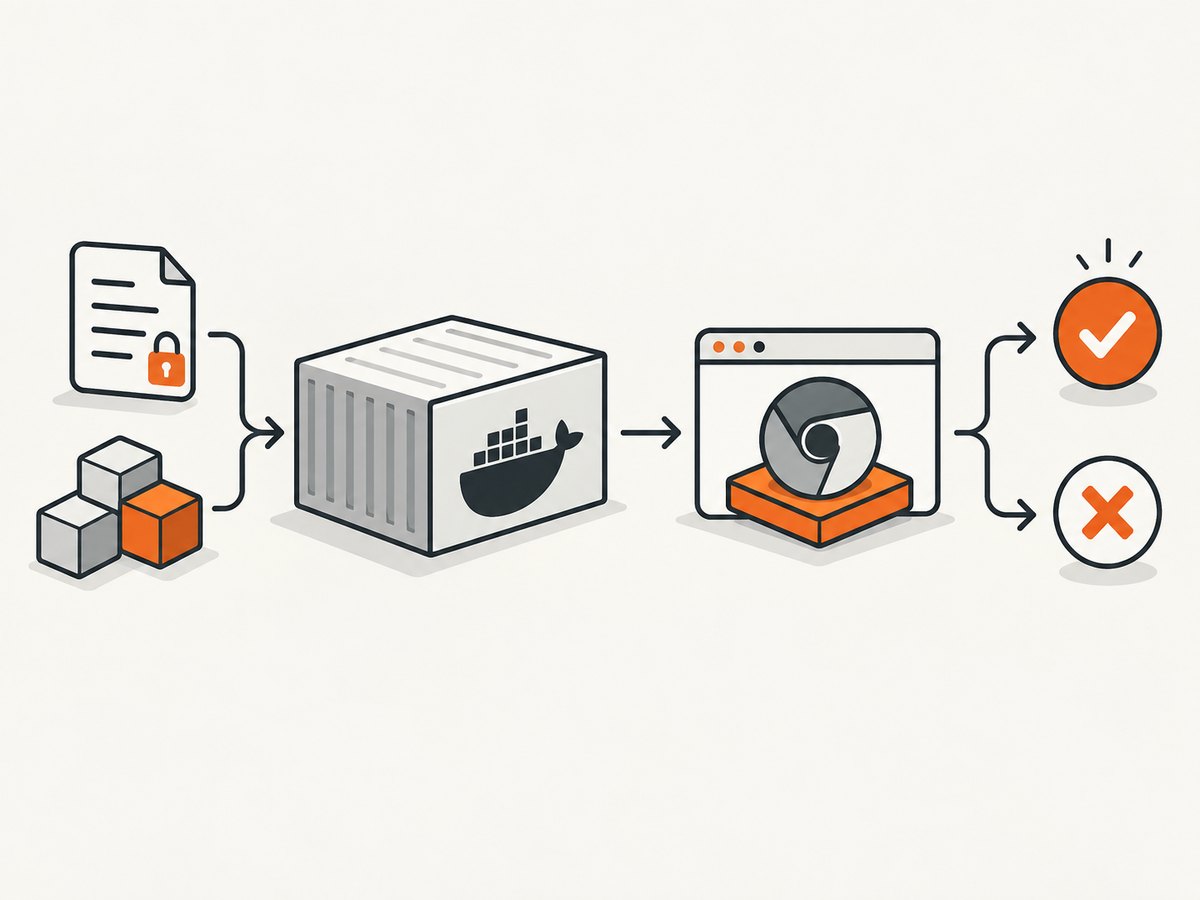
FROM node:22-bookworm

WORKDIR /app

# Install dependencies reproducibly.
COPY package.json package-lock.json ./
RUN npm ci

# Copy application and tests after dependency installation for better layer reuse.
COPY . .

# Change this to the path in your final image.
ENV CHROME_BIN=/usr/bin/google-chrome

CMD ["npm", "test", "--", "--single-run", "--browsers=ChromeHeadless"]
Your package.json can expose the same command:
{
  "scripts": {
    "test": "karma start karma.conf.js"
  }
}
Build and run it with an init process:
docker build -t karma-headless-tests .
docker run --rm --init karma-headless-tests
Puppeteer recommends docker run --init or an equivalent entry point so processes started by Chrome are reaped and cleaned up correctly.
4. Supplying Chrome through Puppeteer
If Puppeteer downloads and manages the browser, set Karma’s executable path from Puppeteer before calling config.set. This avoids hard-coding a distribution-specific path.
process.env.CHROME_BIN = require('puppeteer').executablePath();

module.exports = function (config) {
  config.set({
    frameworks: ['jasmine'],
    files: ['src/**/*.js', 'test/**/*.spec.js'],
    browsers: ['ChromeHeadless'],
    singleRun: true,
    autoWatch: false
  });
};
The Puppeteer browser must be installed in the image that runs this file. Installing it in a build stage and omitting it from the final stage leaves executablePath() pointing at a file that is not present.
5. Sandbox and container permissions
Prefer a sandboxed browser when the container runtime supports it. The official Puppeteer image documents a sandboxed setup that requires SYS_ADMIN. For example:
docker run --rm --init --cap-add=SYS_ADMIN karma-headless-testsSome CI environments cannot provide that capability. In those environments teams sometimes configure a custom launcher with --no-sandbox. This disables a Chrome isolation layer, so use it only when the runtime requires it and constrain the container appropriately.
module.exports = function (config) {
  config.set({
    browsers: ['ChromeHeadlessNoSandbox'],
    customLaunchers: {
      ChromeHeadlessNoSandbox: {
        base: 'ChromeHeadless',
        flags: ['--no-sandbox']
      }
    },
    singleRun: true,
    autoWatch: false
  });
};
Start with the built-in ChromeHeadless launcher. Add flags only for a demonstrated runtime problem.
6. CI command and caching
Use single-run mode in CI so Karma reports success or failure and exits:
npm ci
npx karma start karma.conf.js --single-run --browsers ChromeHeadless
Keep package-lock.json (or the lockfile for your package manager) in the build context. Copy dependency manifests before source files so Docker can reuse the dependency layer when application files change. Cache Docker layers and the package manager’s download cache in CI, but do not cache a browser executable independently of the image that expects it.
7. Troubleshooting
Chrome executable not found
Cause: Chrome is absent from the final image, or the environment variable points to the wrong path.
Fix: inspect the final image, verify the executable path, and set CHROME_BIN or CHROMIUM_BIN accordingly. With Puppeteer, use require('puppeteer').executablePath() and ensure its browser download is present at runtime.
Missing shared library errors
Cause: the browser binary is present but a Linux library required by Chrome is not.
Fix: identify the missing library for the exact base distribution and Chrome build, then install it in the final image. Puppeteer’s dependency examples are environment-specific; do not paste an old package list into a different distribution without checking it.
“No usable sandbox” or browser startup failure
Cause: the runtime does not provide the permissions required by the browser sandbox.
Fix: run the sandboxed image with the documented capability, or use a deliberately configured no-sandbox launcher when the CI environment cannot provide it. Treat the latter as a security-sensitive runtime decision.
Zombie or lingering Chrome processes
Cause: the container has no init process to reap child processes.
Fix: add --init to docker run or use an entry point that supplies an init process.
Karma never exits
Cause: watch mode is enabled or single-run mode was not passed through the npm script.
Fix: set singleRun: true, autoWatch: false, or pass --single-run and verify the argument reaches Karma rather than your package manager.
Headless Chrome starts and then disconnects
Cause: an incompatible browser and launcher version, missing libraries, insufficient container resources, or an invalid custom flag.
Fix: remove custom flags, confirm the browser and karma-chrome-launcher versions are compatible, inspect the first Chrome error in the container logs, and verify the image has the required libraries and permissions.
8. Reliability, performance and cost considerations
- Pin compatible versions: keep Node, Karma packages, the browser source and the Linux base under controlled version updates. Rebuild deliberately when changing one of them.
- Use one browser per test process: a single-run container is easier to diagnose than a long-lived watcher in CI.
- Reuse image layers: copy lockfiles before source files and use a CI layer cache.
- Keep the runtime image complete: the final stage must contain the browser, libraries, test dependencies and Karma configuration.
- Control parallelism: running many Chrome processes increases memory pressure. Match worker count to the CI runner rather than assuming more parallel browsers are faster.
- Keep logs: preserve Karma output and the first Chrome startup error when a job fails; later disconnect messages are often secondary symptoms.
- Budget build time: downloading a browser and installing system libraries happens during image builds. A reusable image moves that work out of every test invocation.
9. A practical checklist
-
karma-chrome-launcherand the project’s framework adapter are development dependencies. - The lockfile is copied and used by
npm cior the equivalent reproducible install. - Chrome or Chromium exists in the final image.
- The browser’s required shared libraries are installed for the selected Linux base.
-
CHROME_BIN,CHROMIUM_BIN, or Puppeteer’s executable path resolves inside the container. - Karma uses
ChromeHeadlessand single-run mode. - The container runs with
--initor an equivalent init entry point. - Sandbox permissions are explicit and match the CI runtime.
10. Or skip the browser setup
If your goal is to capture pages rather than run your own Karma tests, ScreenshotNeo provides a website screenshot API and MCP server. One request returns a PNG, JPEG, WebP or PDF without maintaining a Chrome image yourself.

See the ScreenshotNeo API documentation for request options. A minimal call is:
curl -G "https://api.screenshotneo.com/v1/shot" -d access_key=YOUR_API_KEY --data-urlencode url=https://stripe.com -o shot.webpimport requests
r = requests.get("https://api.screenshotneo.com/v1/shot", params={"access_key": "YOUR_API_KEY", "url": "https://stripe.com"}, timeout=90)
open("shot.webp", "wb").write(r.content)const q = new URLSearchParams({ access_key: 'YOUR_API_KEY', url: 'https://stripe.com' });
const res = await fetch(`https://api.screenshotneo.com/v1/shot?${q}`);Cookie and consent banners, newsletter popups and chat widgets are removed before the shot. Bot checks, blank pages and failed loads are never billed, and response headers identify the page verdict and whether it was billed. The MCP server lets Claude, Cursor and other MCP clients use take_screenshot, get_page_info and capture_pdf. The Free plan includes 1,000 screenshots a month with no card; paid plans start at $5 for 3,000 screenshots.
Create a free ScreenshotNeo account to get started.
FAQ
Does ChromeHeadless test real browser APIs?
Yes. Karma launches Chrome or Chromium, so tests execute in a browser context rather than only inside Node.
Can I use Chromium instead of Google Chrome?
Yes. Install Chromium and set CHROMIUM_BIN to its path, or configure the launcher with the executable path used by your image.
Should I always pass --no-sandbox?
No. Prefer the sandboxed configuration. Use no-sandbox only when the container runtime cannot provide the required sandbox capability.
Why does the Dockerfile need browser libraries?
The Chrome executable dynamically loads Linux shared libraries. A binary copied into an otherwise minimal image is not sufficient.
Why use an init process?
Chrome creates child processes. An init process reaps them and helps the container shut down cleanly.


