BlogScreenshots on your device
Does Chrome Have a Snipping Tool? Desktop and Chromebook Guide
Chrome has screenshot tools, but the steps differ between desktop Chrome and ChromeOS. Learn how to capture areas, viewports, full pages, and more.
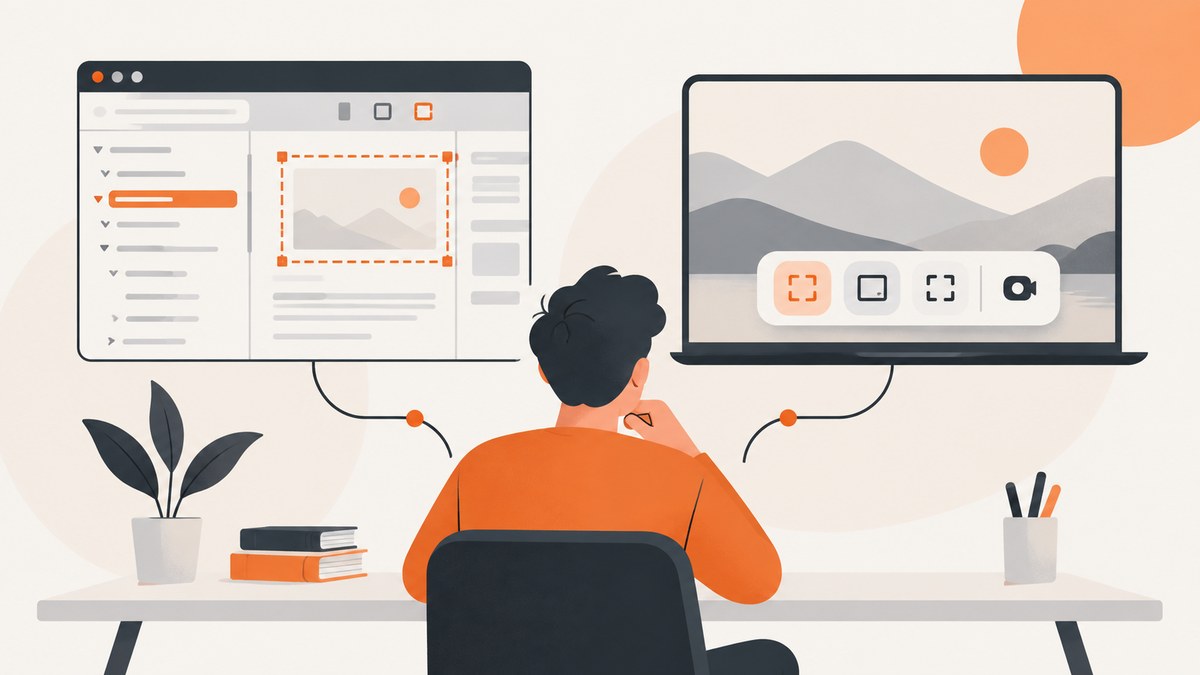
Yes, but Chrome does not have one universal Snipping Tool window. On a Windows, macOS, or Linux computer, Chrome’s built-in screenshot commands are in DevTools. On a Chromebook, ChromeOS includes a user-facing Screen Capture tool for full-screen, partial-area, and window screenshots.
That distinction determines the right instructions. This guide covers both systems, explains how to capture part of a webpage or an entire page, and shows when a browser-based workflow is better than a local screenshot.
Desktop Chrome versus ChromeOS
| Device | Built-in route | Best for |
|---|---|---|
| Windows, macOS, or Linux with Chrome | Chrome DevTools and its Command Menu | Viewport, page area, and full-size webpage captures |
| Chromebook | ChromeOS Screen Capture | Full screen, a selected region, a window, and screen recording |
Desktop Chrome’s commands capture webpage content. Your operating system may also have its own screen-snipping shortcut, but that normally captures visible pixels rather than the complete document. ChromeOS Screen Capture is an operating-system feature, so it can capture Chrome or another application window.
How to screenshot part of a webpage in desktop Chrome
- Open the page you want to capture in Chrome.
- Open DevTools with
Ctrl+Shift+Ion Windows or Linux, orCommand+Option+Ion macOS. - Open the Command Menu with
Ctrl+Shift+Pon Windows or Linux, orCommand+Shift+Pon macOS. - Type
screenshot. - Choose Capture area screenshot.
- Drag over the region to save.
Chrome for Developers documents area capture in DevTools. Keep DevTools docked while using this command; area capture does not work when DevTools is undocked. The resulting file contains the selected webpage area rather than the browser tabs, address bar, or other desktop windows. See the Chrome DevTools screenshot documentation for the command list.
Capturing one element
If you need a card, hero image, or table rather than an arbitrary rectangle, inspect the element first. Right-click the page and choose Inspect, or use the element picker in DevTools. Once the target node is selected, use the DevTools screenshot commands available for that selection. Element capture is more repeatable than dragging because it follows the element’s bounds, but responsive layouts and hidden overflow can change those bounds.
How to capture the current viewport
A viewport screenshot records the page area currently visible inside Chrome’s content area. Open the Command Menu, search for screenshot, and select Capture screenshot. This is useful for a bug report that references exactly what is visible at a particular scroll position and viewport size.
Before capturing, set the viewport deliberately. You can resize the DevTools device toolbar, choose a device preset, or leave the browser at its normal desktop dimensions. Check zoom, scroll position, sticky headers, and any open overlays before saving the image. A viewport capture does not automatically include content below the fold.
How to capture a full webpage in desktop Chrome
- Open DevTools and then the Command Menu.
- Search for
screenshot. - Choose Capture full size screenshot.
Chrome renders the document beyond the visible viewport and saves one tall image. This is different from an operating-system snip, which normally captures only the screen area currently displayed. Full-size output can be very tall, so image viewers, issue trackers, and messaging tools may resize it. If the page contains lazy-loaded images, scroll through the page first when you need every image to be present; some sites load media only after an element approaches the viewport.
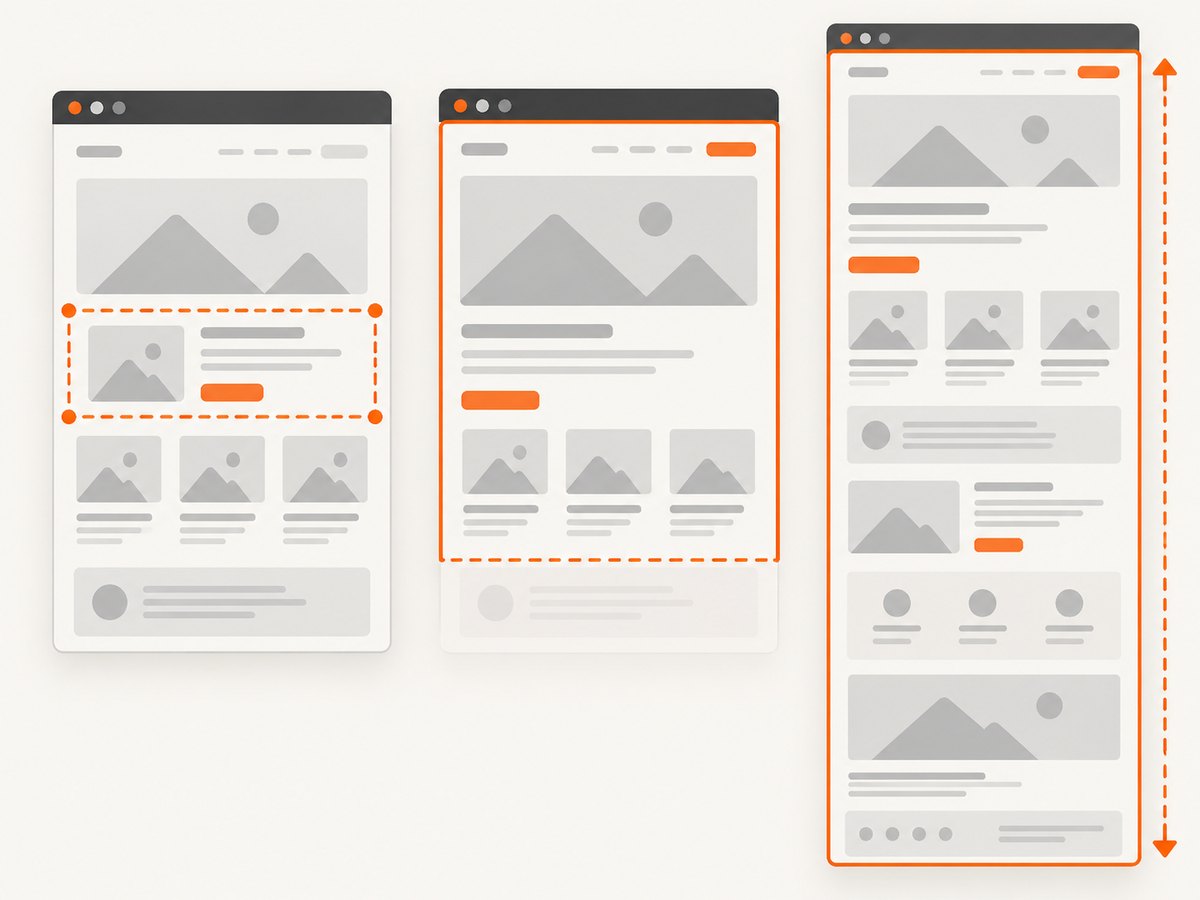
Why a full-page capture may differ from what you see
- Lazy loading: images or embeds may not exist until scrolling triggers them.
- Sticky and fixed elements: headers can repeat or overlap content during a long render.
- Animations: a carousel or transition can be captured between states.
- Responsive breakpoints: changing the viewport width can alter navigation, columns, and text wrapping.
- Cross-origin frames: content inside an iframe may follow different rendering rules.
For a reproducible result, use a fixed viewport, disable or wait for animations where possible, and record the page URL and capture dimensions with the image.
How to take a screenshot on a Chromebook
ChromeOS provides a dedicated Screen Capture interface. Open it from the shelf or time menu, press the device’s Screenshot key when one is available, or use Shift+Ctrl+Show windows. On devices without a Screenshot key, Google also documents opening Settings and searching for Screen Capture.
The toolbar offers three still-image modes:
- Full screen: captures the entire display.
- Partial screen: lets you drag a rectangle around the area to save.
- Window: captures one application window.
ChromeOS normally copies screenshots to the clipboard and saves them in Downloads. You can change the destination folder in the Screen Capture controls. This route captures the device screen, so browser chrome, another application, or a dialog can be included depending on the selected mode. Google’s instructions are in Take a screenshot or record your screen.
Screenshot key and keyboard shortcut
Chromebook keyboard layouts vary. If your device has a dedicated Screenshot key, pressing it opens the capture controls. The Shift+Ctrl+Show windows shortcut works when there is no dedicated key. The Show windows key is the rectangle-with-lines key in the top row.
Still image or screen recording?
Screen Capture also offers recording. Press Shift+Ctrl+Show windows, switch to Screen record, and choose full screen, partial screen, or a window. Recording settings can include audio and camera options. A partial recording can be saved as WebM video or a GIF; GIF output does not contain audio or video input. Use a still screenshot command when the deliverable is an image for documentation or a ticket.
Extensions: when they help and what to check
An extension can add scrolling capture, annotations, file naming, or cloud sharing when the built-in commands do not fit your workflow. Treat extensions as optional. Google advises reviewing requested data permissions and installing only extensions you trust. Work and school administrators may block extensions or restrict which sites they can access. In Chrome’s extension settings, review site access and limit it where practical. Do not install an extension solely because it appears high in a search result.
Automating screenshots for a website or test pipeline
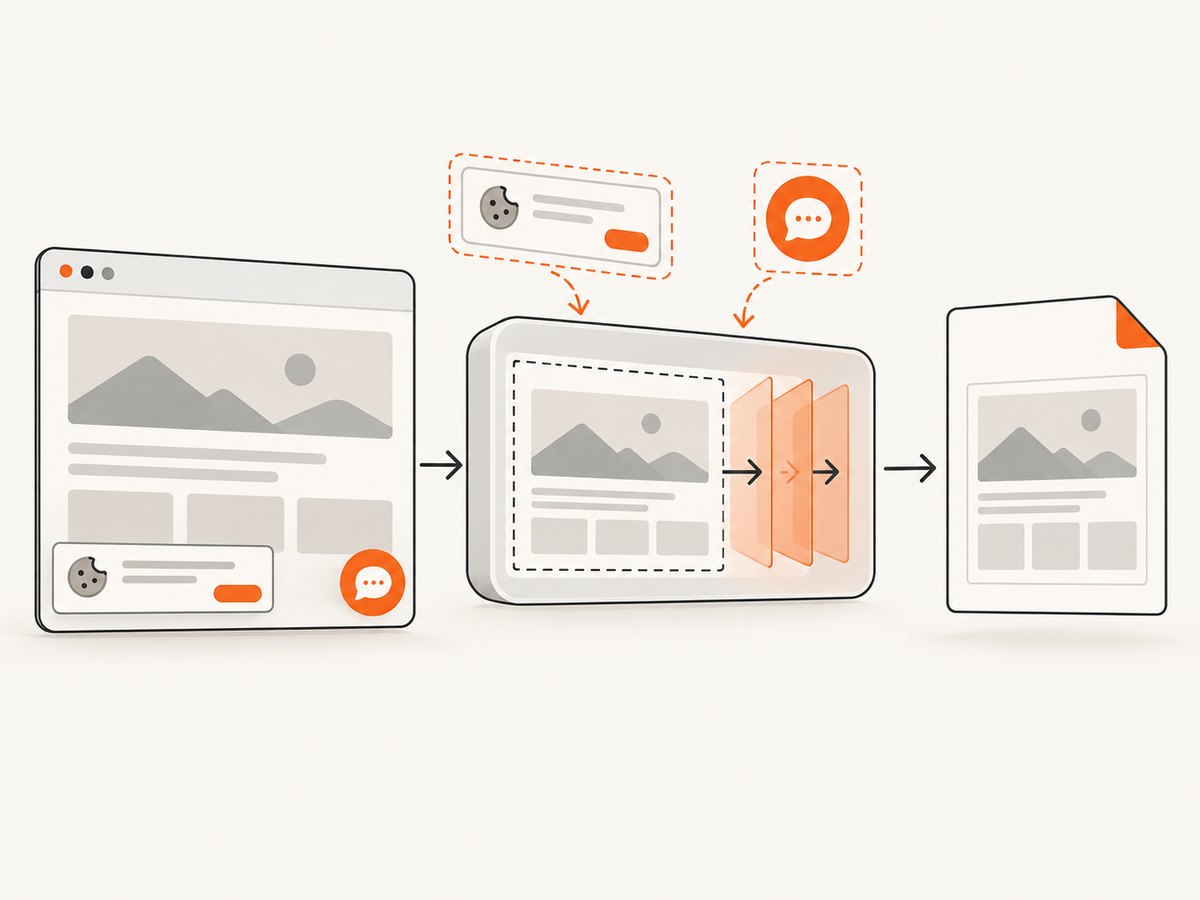
DevTools is convenient for an occasional capture, but repeated captures need a controlled browser environment. A typical automated pipeline must launch a browser, select a viewport, wait for page readiness, handle cookie banners, load lazy content, capture an image, and shut down the browser. Headless automation libraries can do this, but you must maintain the browser binary, fonts, sandbox settings, timeouts, and authentication state.
For an internal script, define these inputs explicitly:
- Target URL and redirect policy
- Viewport width, height, and device scale factor
- Full-page or viewport mode
- Wait condition, such as a selector, fixed delay, or network idle
- Cookie, header, user-agent, and authentication handling
- Output format, quality, and storage path
Use bounded timeouts and save the HTTP status, final URL, and error details with each artifact. A screenshot that silently captured a login page or an error document is usually worse than a failed job that can be retried.
Or skip the browser setup
ScreenshotNeo provides a website screenshot API and MCP server. One GET request returns a PNG, JPEG, WebP, or PDF. Cookie and consent banners are accepted and removed before capture, along with more than 60 known consent platforms, newsletter popups, and chat widgets; each cleanup step can be turned off. Bot checks, CAPTCHAs, blank pages, timeouts, failed loads, and cache hits are not billed, and the response reports the page verdict and billing result in X-Page-Verdict and X-Billed headers.
Read the complete parameter reference in the ScreenshotNeo documentation. The following examples are runnable after replacing YOUR_API_KEY.
cURL
curl -G "https://api.screenshotneo.com/v1/shot" \
  -d access_key=YOUR_API_KEY \
  --data-urlencode url=https://stripe.com \
  -o shot.webp
Python
import requests

r = requests.get(
    "https://api.screenshotneo.com/v1/shot",
    params={"access_key": "YOUR_API_KEY", "url": "https://stripe.com"},
    timeout=90,
)
r.raise_for_status()
open("shot.webp", "wb").write(r.content)
Node.js
const q = new URLSearchParams({
  access_key: 'YOUR_API_KEY',
  url: 'https://stripe.com'
});
const res = await fetch(`https://api.screenshotneo.com/v1/shot?${q}`);
if (!res.ok) throw new Error(`HTTP ${res.status}`);
const buffer = Buffer.from(await res.arrayBuffer());
await require('node:fs').promises.writeFile('shot.webp', buffer);
Useful capture options
ScreenshotNeo supports full-page capture with lazy images loaded, a single element selected by CSS selector, dark mode, 12 device presets or any custom viewport, retina scale, custom CSS and JavaScript, and clicking an element before capture. You can wait for a selector, a delay, or network idle; hide selectors; block ads, trackers, requests, or resource types; and provide custom headers, cookies, a user agent, or an Authorization header. Timezone and geolocation controls help pages render consistently for localized testing.
For output and delivery, it supports transparent backgrounds, image resizing, PDF paper size, margins, landscape mode, and page ranges. Caching uses a TTL you choose. Signed links work for public <img> tags. Async jobs provide signed webhooks, bulk capture accepts up to 100 URLs per call, and a usage API and OpenAPI specification support integration work. The parameter names used by other screenshot APIs also work, which can simplify migration.
Troubleshooting
| Problem | Likely cause | Fix |
|---|---|---|
| Capture area is unavailable | DevTools is undocked | Dock DevTools to the browser, reopen the Command Menu, and run the command again. |
| Only the visible portion was saved | A viewport command or OS snip was used | Use Capture full size screenshot for a webpage, or Screen Capture’s full-screen mode for the Chromebook display. |
| Images are missing | Lazy loading has not fired | Scroll through the page first, wait for the images, then capture; in automation, wait for a selector or network idle. |
| Text or layout is different | Viewport, zoom, fonts, or device scale changed | Set fixed dimensions, browser zoom, fonts, and scale; repeat under the same environment. |
| Cookie dialog covers content | The site requires an interaction before rendering | Accept or dismiss it manually, automate the click, or use ScreenshotNeo’s consent cleanup. |
| Extension cannot be installed | Managed browser policy blocks it | Ask the administrator about approved extensions or use built-in DevTools/ChromeOS capture. |
| ScreenshotNeo request times out | The target is slow, blocked, or waiting on an event | Set a practical wait condition, remove unnecessary resources, retry transient failures, and inspect the verdict headers. |
Performance, reliability, and cost
For local captures, the main cost is operator time and the variability of the machine running Chrome. Large full-page images consume memory and can be awkward to upload. Reduce unnecessary width, capture an element when a full document is not required, and avoid repeated manual captures for a monitoring job.
For automated work, reuse a browser session when appropriate, cache stable pages, use bounded waits, and retry only failures that are likely transient. Keep screenshots and metadata together so a later reviewer can identify the URL, viewport, timestamp, and capture mode.
ScreenshotNeo’s Free plan includes 1,000 shots per month with no card. Paid plans are Starter $5 for 3,000, Growth $15 for 15,000, Pro $39 for 60,000, Scale $99 for 250,000, and Business $249 for 1,000,000; yearly billing gives two months free. Every feature is included on every plan. Clean shots are the billable unit, while bot checks, blank pages, timeouts, failed loads, and cache hits cost nothing.
FAQ
Does desktop Chrome have a Snipping Tool?
It has screenshot commands in DevTools, including area, viewport, and full-size webpage capture. It is not a standalone Snipping Tool window in the normal browser interface.
Can Chrome screenshot an entire webpage?
Yes. Open DevTools, search the Command Menu for screenshot, and choose Capture full size screenshot.
How do I screenshot only part of a webpage?
Use Capture area screenshot in desktop DevTools, or Partial screen in ChromeOS Screen Capture.
Where are Chromebook screenshots saved?
They are copied to the clipboard and saved to Downloads by default. ChromeOS lets you change the folder.
Can a Chromebook record instead of taking a screenshot?
Yes. Screen Capture includes full-screen, partial, and window recording modes, with optional audio and camera settings.
Choose the right route
Use desktop DevTools for a quick webpage area or full-page image, and ChromeOS Screen Capture when you need a device-level screenshot or recording. For repeatable captures across many URLs, a screenshot API removes browser setup and makes waits, cleanup, output, and billing visible. Create a free ScreenshotNeo account to get 1,000 screenshots each month with no card. Cookie banners, popups, and chat widgets are removed before the shot; failed loads and bot checks are never billed; and the MCP server lets AI agents take screenshots.


