How to Create an Image From the DOM Using Web Workers
Learn how to turn a DOM element into a downloadable image with html2canvas, OffscreenCanvas, and a Web Worker—without freezing the UI.
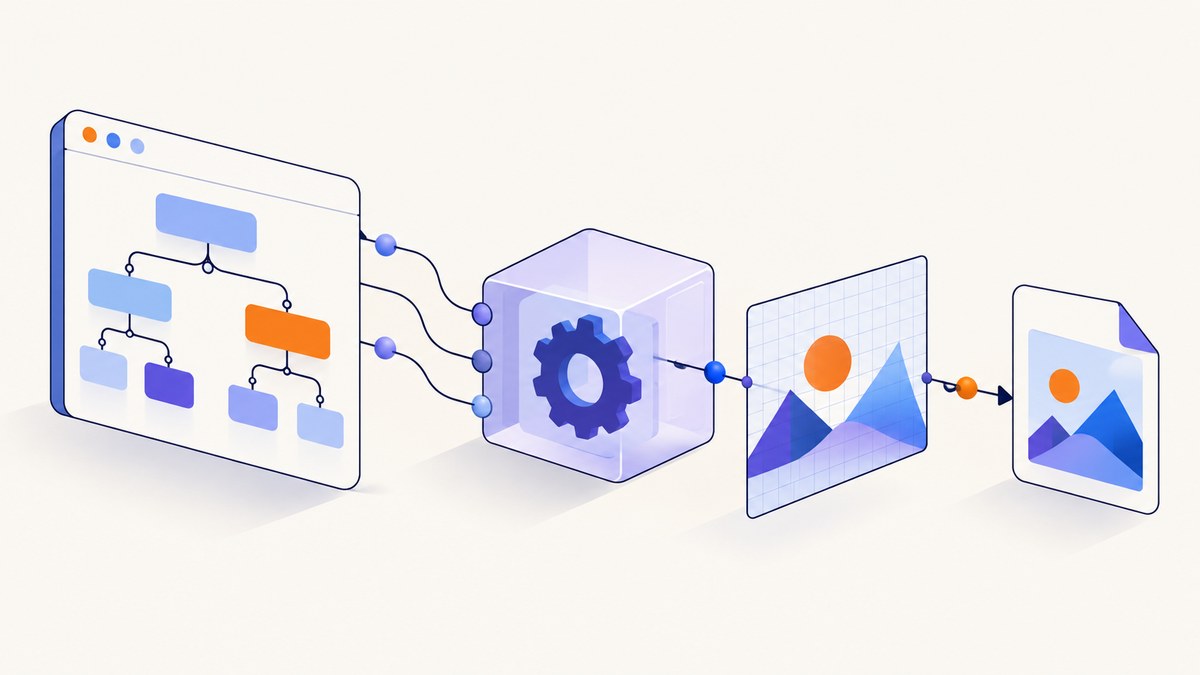
Short answer: a Web Worker cannot read or manipulate the DOM directly. Select the element and wait for its fonts and images on the main thread, render it with html2canvas, then transfer the rendered pixels or an OffscreenCanvas to a worker. The worker can resize, filter, composite, and encode the result with convertToBlob() or return an ImageBitmap.
This split matters because DOM inspection and layout require the browser’s main thread, while pixel processing can be expensive. Moving the latter work to a worker keeps interactions responsive, but it does not make DOM capture itself free or instantaneous.
What a worker can and cannot do
Workers run in a separate JavaScript context. They have no document, cannot query selectors, and cannot change elements in the parent page. MDN summarizes the boundary in its Web Workers guide: the main thing you cannot do in a worker is directly affect the parent page.
The practical pipeline is:
- The main thread finds the target element.
- The main thread waits for fonts and images so layout is stable.
html2canvas()reconstructs the element into a canvas.- The canvas pixels, an
ImageBitmap, or a transferredOffscreenCanvasgo to a dedicated worker. - The worker performs drawing, filtering, resizing, and encoding.
- The worker posts a
BloborImageBitmapback to the main thread.
html2canvas is a DOM renderer, not a browser compositor screenshot. Its documentation warns that the output is based on information available in the DOM and may not exactly match the browser’s real rendering. CSS features, cross-origin content, and embedded frames therefore need special care.
Complete example: capture a card and encode it in a worker
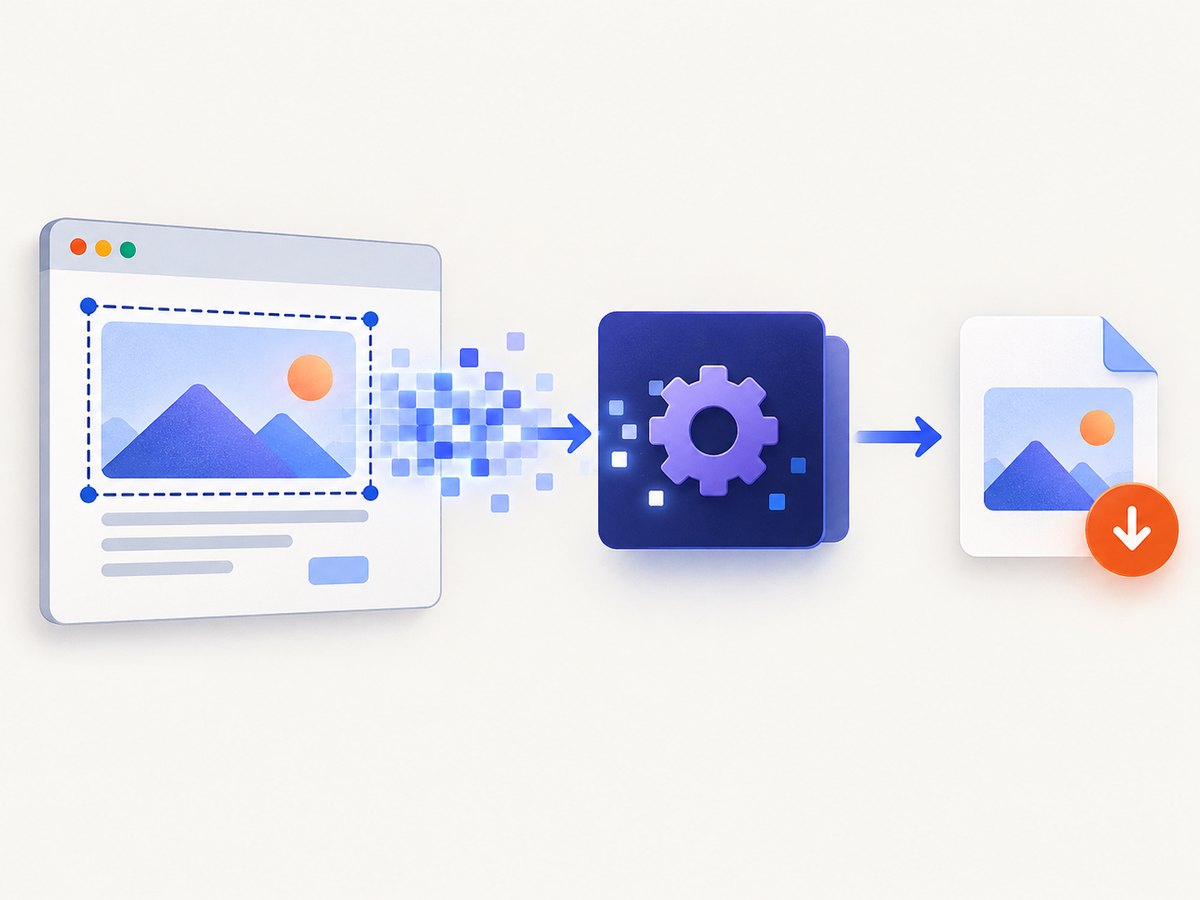
The following example uses an HTML page, html2canvas, a module worker, and OffscreenCanvas. It captures the element on the main thread and lets the worker produce a PNG.
1. HTML
<!doctype html>
<html lang='en'>
<head>
  <meta charset='utf-8'>
  <meta name='viewport' content='width=device-width, initial-scale=1'>
  <title>Worker image export</title>
  <style>
    body { font: 16px system-ui; margin: 2rem; background: #eef1f6; }
    #capture { width: 720px; padding: 32px; background: white; border-radius: 18px; }
    #preview { max-width: 100%; display: block; margin-top: 1rem; }
  </style>
</head>
<body>
  <article id='capture'>
    <h1>Weekly report</h1>
    <p>This card will be exported without blocking the interface during encoding.</p>
  </article>
  <button id='export'>Export PNG</button>
  <a id='download' hidden>Download image</a>
  <img id='preview' alt='Rendered export preview'>
  <script src='https://cdn.jsdelivr.net/npm/html2canvas@1.4.1/dist/html2canvas.min.js'></script>
  <script type='module' src='./main.js'></script>
</body>
</html>
2. Main-thread capture
const source = document.querySelector('#capture');
const exportButton = document.querySelector('#export');
const download = document.querySelector('#download');
const preview = document.querySelector('#preview');
const worker = new Worker('./render-worker.js', { type: 'module' });

function waitForImages(root) {
  return Promise.all([...root.querySelectorAll('img')].map((img) => {
    if (img.complete) return img.decode?.().catch(() => {}) ?? Promise.resolve();
    return new Promise((resolve) => {
      img.addEventListener('load', resolve, { once: true });
      img.addEventListener('error', resolve, { once: true });
    });
  }));
}

async function capture() {
  exportButton.disabled = true;
  try {
    if (document.fonts?.ready) await document.fonts.ready;
    await waitForImages(source);

    const rendered = await html2canvas(source, {
      backgroundColor: '#ffffff',
      scale: Math.min(window.devicePixelRatio || 1, 2),
      useCORS: true,
      logging: false
    });

    const output = document.createElement('canvas');
    output.width = rendered.width;
    output.height = rendered.height;
    const offscreen = output.transferControlToOffscreen();

    worker.postMessage({ canvas: offscreen, bitmap: rendered.transferToImageBitmap() }, [offscreen]);
  } catch (error) {
    console.error('Capture failed', error);
  } finally {
    exportButton.disabled = false;
  }
}

worker.addEventListener('message', ({ data }) => {
  if (data.type !== 'blob') return;
  const url = URL.createObjectURL(data.blob);
  preview.src = url;
  download.href = url;
  download.download = 'capture.png';
  download.hidden = false;
});

worker.addEventListener('error', (event) => console.error('Worker failed', event.message));
exportButton.addEventListener('click', capture);
3. Worker code
self.addEventListener('message', async ({ data }) => {
  const { canvas, bitmap } = data;
  try {
    const context = canvas.getContext('2d');
    if (!context) throw new Error('2D context is unavailable');

    canvas.width = bitmap.width;
    canvas.height = bitmap.height;
    context.drawImage(bitmap, 0, 0);
    bitmap.close?.();

    const blob = await canvas.convertToBlob({
      type: 'image/png'
    });
    self.postMessage({ type: 'blob', blob });
  } catch (error) {
    self.postMessage({ type: 'error', message: error.message });
  }
});
The destination canvas is sized before drawing. The visible canvas must be transferred with transferControlToOffscreen() before a rendering context is created on it; after transfer, the worker owns that canvas. Transferable objects belong in the transfer list of postMessage() so the browser can move ownership instead of copying large buffers.
Waiting for stable DOM content
Capturing immediately after inserting an element often produces missing fonts, blank images, or a layout that has not settled. Wait for document.fonts.ready, decode already-complete images, and resolve both load and error events for images that are still pending. If your page loads data asynchronously, wait for the application’s own ready signal or a specific selector.
Animations and transitions can change pixels during capture. Temporarily disable them with a capture class, freeze a clock-driven component, or capture after the desired state is visible. For lazy-loaded content, scroll the element into view first and wait for the image requests to finish.
Choosing the transfer format
| Transfer | Use it when | Trade-off |
|---|---|---|
ImageBitmap |
The worker only needs to draw or transform pixels. | Efficient for display and drawing; call close() when finished. |
ImageData |
You need direct per-pixel access. | Simple to inspect, but large buffers can consume memory and transfer time. |
OffscreenCanvas |
The worker should own the destination canvas. | Requires browser support and correct transfer order. |
Blob |
The final encoded file is ready. | Convenient for downloads; encoding must happen before returning it. |
Use transferToImageBitmap() when the result will be displayed repeatedly through a bitmap renderer. Use convertToBlob() for a downloadable PNG, JPEG, or WebP. JPEG and WebP can be smaller than PNG for photographic content; PNG preserves sharp text and transparency. For JPEG, provide a quality value such as { type: 'image/jpeg', quality: 0.9 }.
OffscreenCanvas options and browser details
OffscreenCanvas decouples canvas rendering from the DOM. A worker can request a 2D context with getContext('2d'); support for other contexts varies by browser. Feature-detect the APIs before enabling the worker path:
const canUseWorkerCanvas =
  'Worker' in window &&
  'OffscreenCanvas' in window &&
  'transferControlToOffscreen' in HTMLCanvasElement.prototype &&
  'convertToBlob' in OffscreenCanvas.prototype;
Keep a main-thread fallback for older browsers: run the same draw and encoding operations on a normal canvas, or offer the rendered canvas as the download. A fallback also helps when a browser imposes a canvas size or memory limit.
Cross-origin images, iframes, and canvas tainting
Cross-origin resources are the most common reason a DOM image differs from the page. An image needs an appropriate CORS response header and a compatible crossOrigin attribute before it is loaded. html2canvas’s useCORS: true requests this cooperation; it cannot grant permission that the server does not provide.
Cross-origin iframes cannot be inspected by html2canvas. You can capture the iframe’s own page only from code running in that origin, or use a server-side browser screenshot service that loads the complete page. A canvas containing an unreadable cross-origin image becomes tainted, and pixel reads or exports then fail with a security exception. Proxy permitted assets through an origin you control, configure CORS correctly, or omit those assets.
Scaling, memory, and performance
Capture cost grows with pixel count. A 1,440 by 900 element at device-pixel ratio 2 requires roughly four times the pixels of the same CSS size at scale 1. Set an explicit scale, cap it on high-density displays, and avoid exporting an unnecessarily large full-page canvas. Resize in the worker when the consumer needs a thumbnail.
Transferring ownership avoids copying, but the source canvas and destination bitmap can briefly coexist. Release bitmaps with close(), revoke object URLs after a download or replacement, and avoid retaining old Blobs in application state. For repeated exports, reuse one worker and serialize jobs rather than creating a worker per click.
A worker prevents encoding and pixel loops from blocking input, but html2canvas still performs DOM traversal and layout-dependent work on the main thread. Break very large jobs into explicit user actions, show progress between stages, and cancel stale requests when the user changes the target.
Reliability checklist
- Wait for fonts, images, data, and lazy content.
- Freeze animations and use deterministic state.
- Set canvas dimensions before drawing.
- Transfer OffscreenCanvas exactly once.
- Handle worker errors and rejected
convertToBlob()promises. - Close ImageBitmaps and revoke object URLs.
- Feature-detect and retain a main-thread fallback.
- Test pages with web fonts, SVG, video, iframes, shadows, filters, and cross-origin images.
Common errors and fixes
| Error or symptom | Cause | Fix |
|---|---|---|
document is not defined |
DOM code was placed in the worker. | Select and prepare nodes on the main thread; send pixels or serializable data. |
InvalidStateError during transfer |
The canvas already has a rendering context or was transferred twice. | Call transferControlToOffscreen() first and transfer each canvas once. |
| Blank or missing images | Capture ran before image decoding or lazy loading completed. | Await image load/decode and trigger lazy content before capture. |
| Security error on export | A cross-origin asset tainted the canvas. | Use CORS-enabled assets, a permitted proxy, or omit the asset. |
| Iframe content is absent | Cross-origin iframe isolation. | Capture from the iframe’s origin or use a server-side browser capture. |
convertToBlob() returns null or rejects |
Unsupported format, invalid dimensions, or resource pressure. | Try PNG, reduce dimensions, check context creation, and release prior buffers. |
| Worker appears slower | The image is small, or transfer and startup dominate. | Reuse a worker and reserve it for large pixel operations. |
Or skip the browser setup
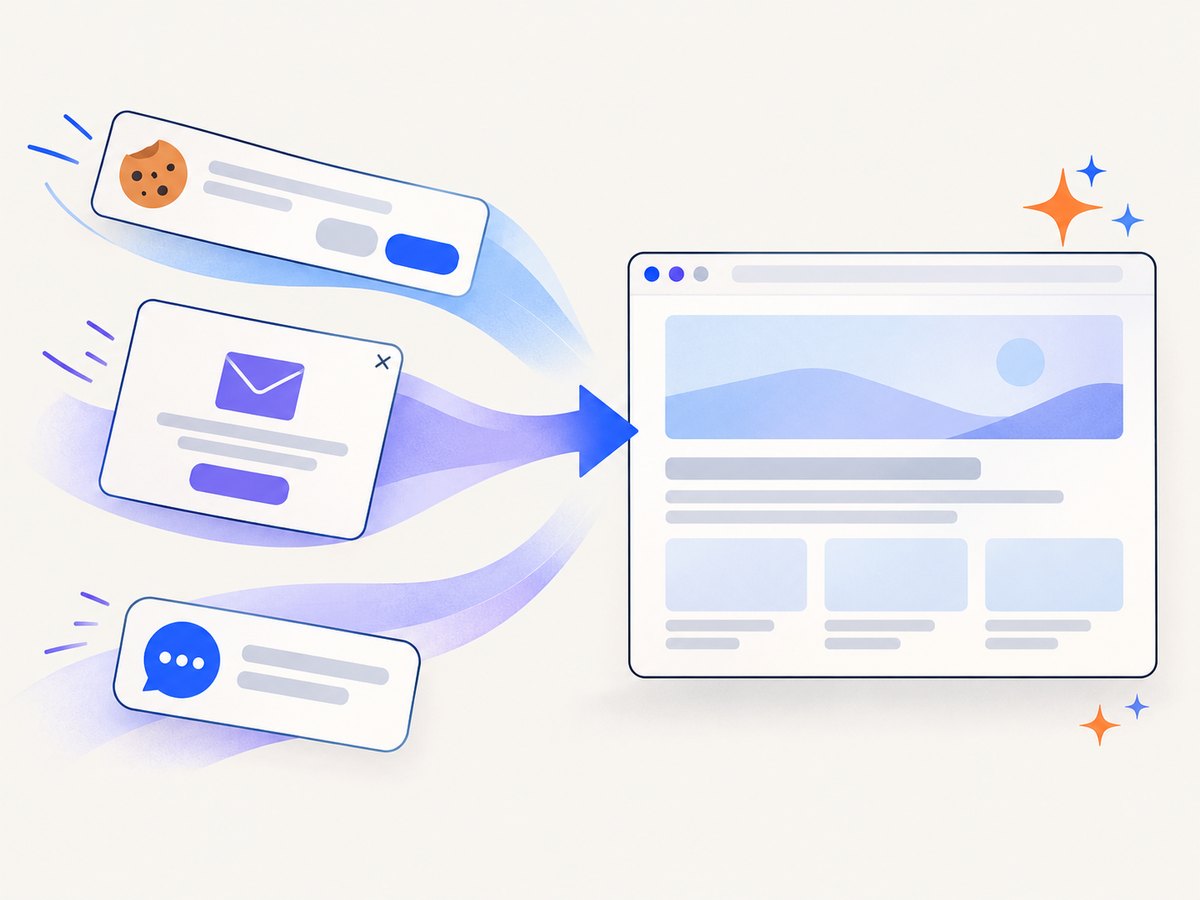
If you need a reliable URL-to-image result rather than a DOM implementation inside your own page, ScreenshotNeo provides a single GET request for PNG, JPEG, WebP, or PDF. Its capture flow accepts cookie and consent banners, removes more than 60 known consent platforms plus newsletter popups and chat widgets, and lets you turn each cleanup step off. Bot checks, blank pages, timeouts, failed loads, and cache hits are not billed; response headers identify the page verdict and billing status.
See the complete parameter list in the ScreenshotNeo API documentation. The minimal calls are:
curl -G 'https://api.screenshotneo.com/v1/shot' -d access_key=YOUR_API_KEY --data-urlencode url=https://stripe.com -o shot.webpimport requests
r = requests.get('https://api.screenshotneo.com/v1/shot', params={'access_key': 'YOUR_API_KEY', 'url': 'https://stripe.com'}, timeout=90)
open('shot.webp', 'wb').write(r.content)const q = new URLSearchParams({ access_key: 'YOUR_API_KEY', url: 'https://stripe.com' });
const res = await fetch(`https://api.screenshotneo.com/v1/shot?${q}`);You can also request full-page captures with lazy images loaded, an element selected by CSS, dark mode, device presets or custom viewports, retina scale, custom CSS and JavaScript, waits, blocked resources, headers, cookies, user agents, authorization, timezone, geolocation, transparent backgrounds, resizing, caching with your own TTL, signed image links, asynchronous jobs with signed webhooks, bulk capture of up to 100 URLs per call, and PDF output. Its MCP server exposes take_screenshot, get_page_info, and capture_pdf to Claude, Cursor, and other MCP clients.
The Free plan includes 1,000 screenshots each month without a card. Paid plans start at $5 for 3,000 shots; yearly billing provides two months free, and every feature is available on every plan. Create a free ScreenshotNeo account and try the API with the included monthly shots.
FAQ
Can a Web Worker call html2canvas?
Not for a normal page DOM. html2canvas needs DOM and layout information, so run it on the main thread and send its result to the worker.
Does OffscreenCanvas create a more accurate screenshot?
No. It changes where canvas work runs. Accuracy still depends on the DOM renderer and its handling of CSS and external resources.
Should every export use a worker?
No. For small images, worker startup and transfer overhead may exceed the encoding time. Reuse a worker for repeated or large exports.
Can I capture a cross-origin page entirely in browser JavaScript?
Not when it contains inaccessible cross-origin frames or assets. Browser security boundaries still apply; use CORS cooperation or a server-side capture service.
Which output format should I choose?
Use PNG for text, diagrams, and transparency; JPEG for photographs; WebP when your delivery pipeline supports it and you want a smaller modern image.


