Why dom-to-image Downloads Empty Files for Large DOM Content
Large dom-to-image captures can fail during cloning, resource loading, canvas export, or download. Use this diagnostic guide to find the failing stage.
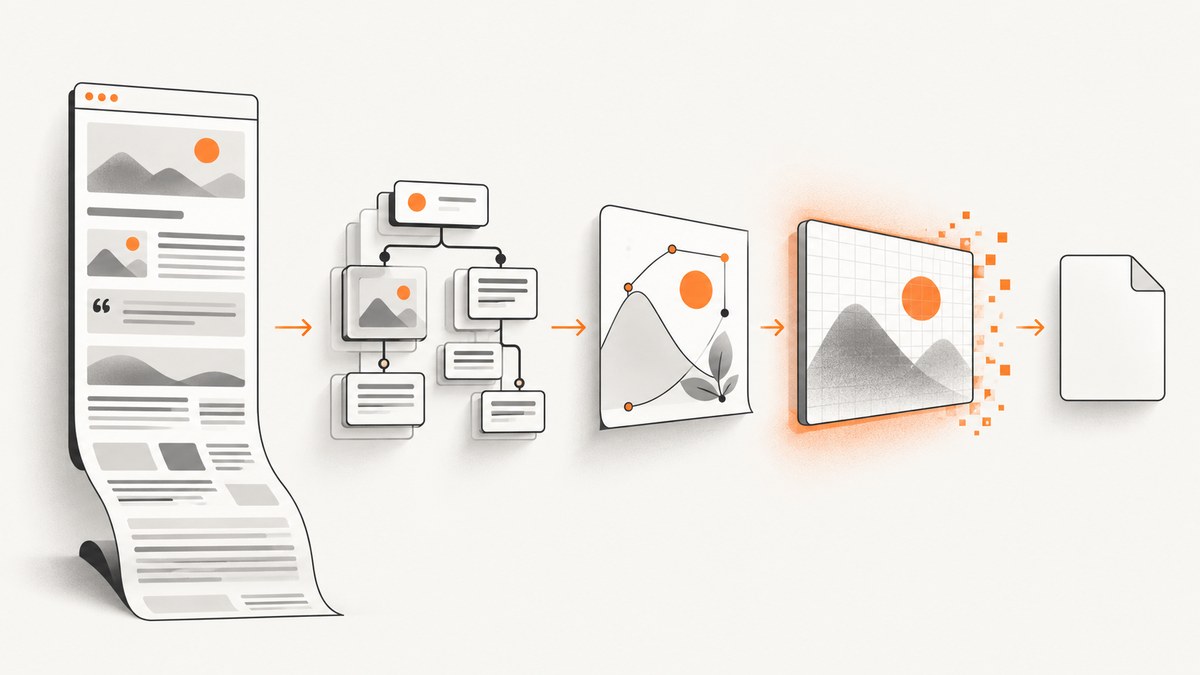
Short answer: an empty dom-to-image download does not identify one universal cause. A large capture can fail while dom-to-image clones the node, loads fonts and images, builds its SVG, rasterizes that SVG on an off-screen canvas, exports a PNG or JPEG, or writes the result to a file. Browser canvas size limits are one documented possibility, but they are not proven to explain every blank dom-to-image result.
The original tsayen/dom-to-image project converts a DOM node to SVG and can then rasterize it through an off-screen canvas. Its documentation also calls out tainted embedded canvases and a Firefox issue involving some external stylesheets. The html2canvas FAQ documents blank or partial output when canvas dimensions exceed browser limits and describes cross-origin image restrictions. Those are useful browser-canvas comparisons, not proof that html2canvas options fix dom-to-image.
What an empty file tells you
A zero-byte or blank file can come from several different stages:
| Stage | Typical symptom | What to inspect |
|---|---|---|
| DOM cloning | Missing nodes or styles in the intermediate result | Clone logic, filters, computed styles |
| Resource loading | Missing images, fonts, or stylesheet-dependent content | Network panel and console |
| SVG creation | Empty or malformed SVG data | Intermediate SVG output |
| Canvas rasterization | Blank or partially painted bitmap, often at large dimensions | Effective pixel width and height |
| Export | Promise rejects or produces an unusable data URL/Blob | Returned value and error |
| Download code | File is zero bytes despite a successful capture | Blob size, object URL, response headers |
Because these stages are separate, reducing the page size may only show that dimensions matter; it does not prove that a particular browser limit caused the original failure.
A repeatable diagnosis
- Record the inputs. Save the selected node’s measured CSS width and height, any explicit
widthorheightoptions, the browser’sdevicePixelRatio, and the package name and version. - Calculate effective raster dimensions. A rough estimate is
outputWidth = CSS width × requested scale × devicePixelRatioand the same for height. The pixel count is width multiplied by height. Larger values make canvas limits more plausible. - Capture a smaller region. Try a child node or a reduced width and height. Then reduce any scale or high-density rendering setting your wrapper applies. If the smaller result works, size pressure is a plausible cause.
- Inspect intermediate output. If the library exposes an SVG method, save that SVG before asking for PNG or JPEG. An empty SVG points toward cloning, styles, or resources; a correct SVG followed by a blank bitmap points toward rasterization or export.
- Check the console and network panel. Look for failed image, font, and stylesheet requests, security errors, and canvas warnings. The original project specifically documents tainted embedded canvases and a Firefox external-stylesheet problem.
- Validate the value before downloading. Confirm that the promise fulfilled, the data URL contains data after its comma, or the Blob has a nonzero
size. Do not create a download link until this check passes. - Repeat in the target browser. Record browser version, operating system, viewport, and device pixel ratio. A result that works in one browser does not establish that the same limits or resource rules apply in another.
Minimal diagnostic capture
import domtoimage from 'dom-to-image';

const node = document.querySelector('#report');
if (!node) throw new Error('Missing #report');

const rect = node.getBoundingClientRect();
const dpr = window.devicePixelRatio || 1;
console.table({
  cssWidth: rect.width,
  cssHeight: rect.height,
  devicePixelRatio: dpr,
  estimatedPixelsAtDpr: Math.round(rect.width * dpr) + ' × ' + Math.round(rect.height * dpr)
});

try {
  const dataUrl = await domtoimage.toPng(node, {
    bgcolor: '#ffffff'
  });

  const comma = dataUrl.indexOf(',');
  const payloadLength = comma === -1 ? 0 : dataUrl.length - comma - 1;
  console.log({ dataUrlPrefix: dataUrl.slice(0, comma), payloadLength });

  if (payloadLength === 0) throw new Error('dom-to-image returned an empty data URL');

  const link = document.createElement('a');
  link.download = 'report.png';
  link.href = dataUrl;
  link.click();
} catch (error) {
  console.error('dom-to-image capture failed', error);
}
This example deliberately checks the returned data before starting the download. Adapt the import to the package and bundler you use.
Reducing the raster size
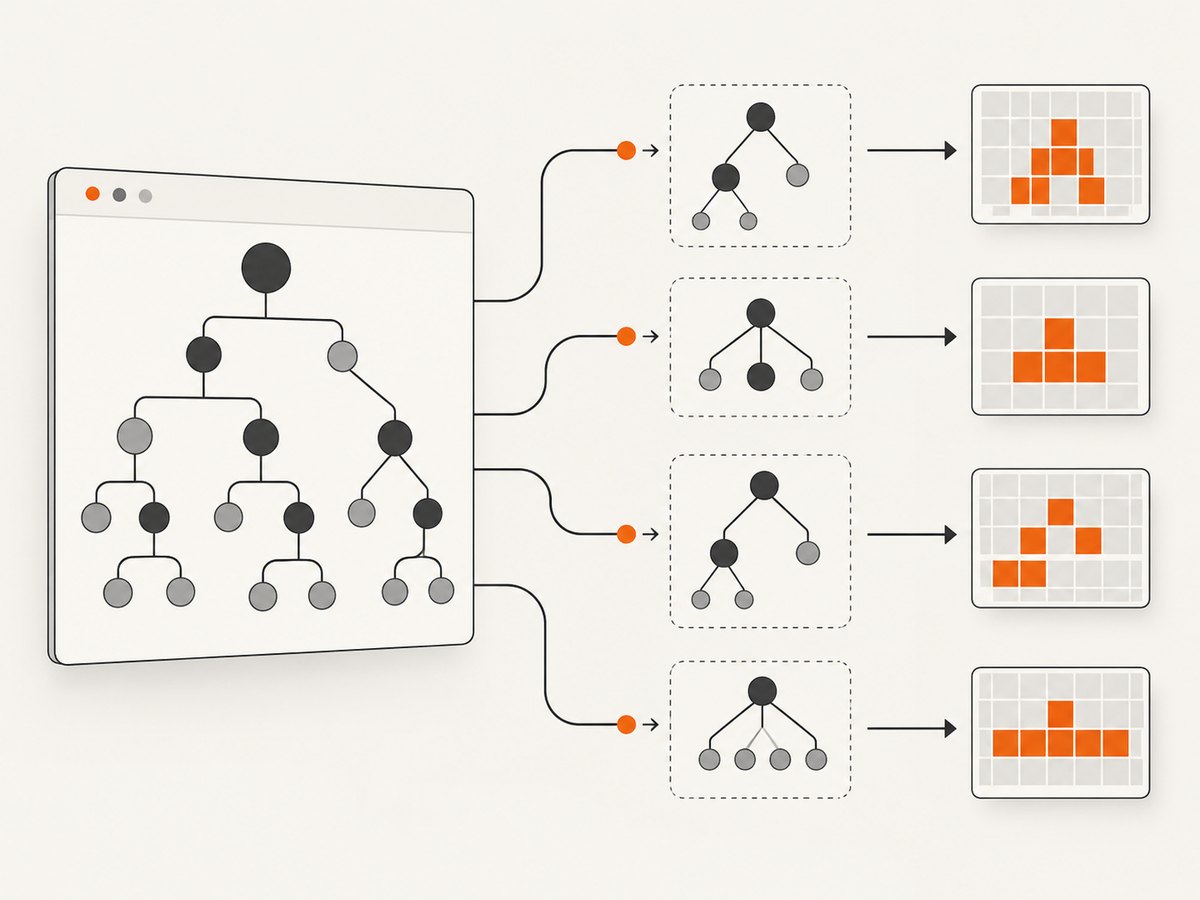
Start with the least invasive change: capture a smaller element. If the design permits it, split a long report into sections and capture each section separately, then assemble the images in a later step. Also remove accidental dimensions such as an absolutely positioned child extending far beyond the visible report.
When your integration adds a scale or multiplier, lower it for diagnosis. A lower scale reduces output pixels and memory use, but it also reduces sharpness. Use the smallest value that meets your delivery requirement. If you set explicit output dimensions, keep their aspect ratio aligned with the source node to avoid unexpected stretching.
Do not assume that a fork’s behavior exists in the original package. The dom-to-image-more documentation describes clamping its multiplier when requested canvas dimensions exceed browser limits and logging a warning. Confirm the installed package and version before relying on that behavior.
Cross-origin images, fonts, and canvases
External resources can fail independently of page size. An image may be blocked by CORS, a font may not have finished loading, or a canvas nested inside the selected node may already be tainted. A tainted canvas cannot be read back safely by browser APIs. Check the resource response headers and whether the asset is available to the page’s origin.
Wait for resources that your page controls before capturing:
await document.fonts.ready;

await Promise.all(
  [...document.images].map(img => {
    if (img.complete) return Promise.resolve();
    return new Promise(resolve => {
      img.addEventListener('load', resolve, { once: true });
      img.addEventListener('error', resolve, { once: true });
    });
  })
);

const png = await domtoimage.toPng(document.querySelector('#report'));
This waits for completion but cannot grant cross-origin permission or repair a failed response. Avoid treating an option from another renderer, such as html2canvas’s useCORS, as a universal dom-to-image fix.
Stylesheets and browser differences
Capture the same page in Chromium and Firefox when the result differs. The original project documents a Firefox issue involving some external stylesheets. Inline critical styles for a diagnostic run, or temporarily remove the stylesheet suspected of causing the problem. If the inline version works, narrow the issue to stylesheet access or parsing before changing canvas dimensions.
Download handling mistakes
A successful renderer call can still be followed by a broken download. Check that you are not revoking an object URL before the browser starts reading it, truncating a data URL, or converting binary data to text.
const blob = await domtoimage.toBlob(document.querySelector('#report'));
if (!blob || blob.size === 0) {
  throw new Error('Capture produced an empty Blob');
}
const url = URL.createObjectURL(blob);
const link = document.createElement('a');
link.href = url;
link.download = 'report.png';
document.body.appendChild(link);
link.click();
link.remove();
setTimeout(() => URL.revokeObjectURL(url), 1000);
Common errors and fixes
| Symptom | Likely cause | Fix |
|---|---|---|
| Blank output only for very tall pages | Effective canvas dimensions or memory pressure | Reduce scale, capture sections, or reduce the selected region; compare dimensions before and after. |
| Images disappear | Cross-origin response, blocked request, or image not loaded | Inspect the request, serve the asset with suitable CORS headers, and wait for images. |
| Exception mentioning a tainted canvas | A nested canvas contains pixels the page cannot read | Remove or replace that canvas, or make its source same-origin and permitted. |
| Works in Chromium but not Firefox | Browser-specific stylesheet or rendering behavior | Test with critical styles inlined and check the project’s documented Firefox limitation. |
| Promise succeeds but file is zero bytes | Download code received an empty data URL or Blob | Log payload length or Blob size before creating the link. |
| Fork behaves differently from examples | Different package or version | Check the exact dependency and read that version’s documentation; do not transfer fork-specific clamping to the original. |
Performance and reliability
- Measure before changing settings. Keep a record of node dimensions, scale, browser, package version, and output format.
- Prefer several bounded captures over one enormous bitmap when the consumer accepts multiple images.
- Wait for fonts and important images, but set your own application timeout so a stuck resource does not hold the UI indefinitely.
- Free object URLs after downloads and avoid retaining large data URLs in application state.
- Run captures away from animation. Pause transitions and caret blinking so repeated captures are deterministic.
- Use a server-side screenshot service when captures must run without a user’s browser, need consistent PDF output, or routinely exceed practical browser memory.
Or skip the browser setup
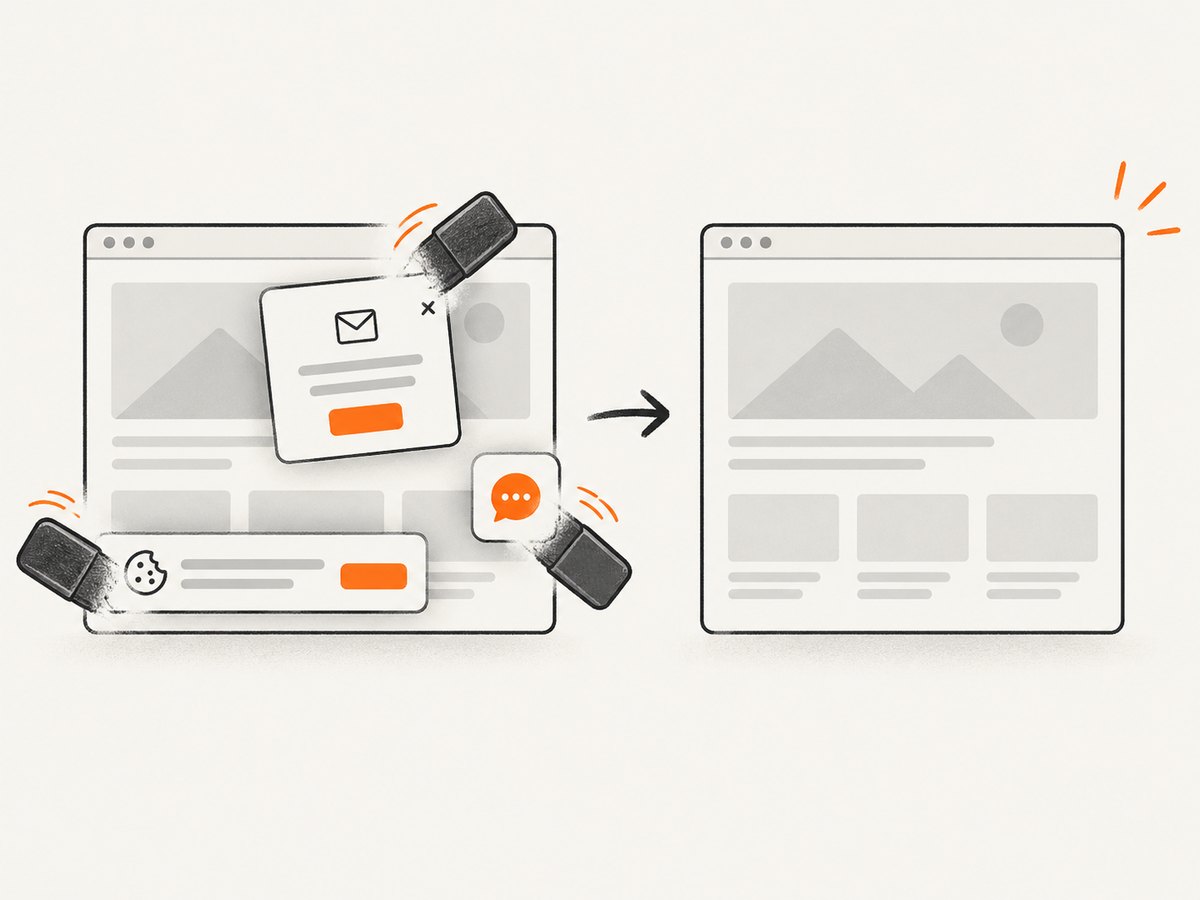
ScreenshotNeo provides a website screenshot API and MCP server. It accepts a URL and returns PNG, JPEG, WebP, or PDF. Cookie and consent banners are accepted or removed before capture, along with more than 60 known consent platforms, newsletter popups, and chat widgets; each cleanup step can be turned off. Bot checks, blank pages, timeouts, failed loads, and cache hits are not billed, and response headers identify the page verdict and whether the request was billed.
See the ScreenshotNeo API docs for all options. A one-call capture looks like this:
curl -G "https://api.screenshotneo.com/v1/shot" -d access_key=YOUR_API_KEY --data-urlencode url=https://stripe.com -o shot.webpimport requests
r = requests.get("https://api.screenshotneo.com/v1/shot", params={"access_key": "YOUR_API_KEY", "url": "https://stripe.com"}, timeout=90)
open("shot.webp", "wb").write(r.content)const q = new URLSearchParams({ access_key: 'YOUR_API_KEY', url: 'https://stripe.com' });
const res = await fetch(`https://api.screenshotneo.com/v1/shot?${q}`);It also supports full-page and element captures, lazy-image loading, dark mode, device presets or custom viewports, retina scale, custom CSS and JavaScript, waits, request blocking, headers, cookies, user agents, authorization, timezone, geolocation, transparent backgrounds, resizing, caching, signed links, asynchronous jobs, webhooks, bulk capture, usage reporting, and PDFs. An MCP server lets Claude, Cursor, and other MCP clients call take_screenshot, get_page_info, and capture_pdf. The free plan includes 1,000 screenshots per month with no card; paid plans start at $5 for 3,000.
Create a free ScreenshotNeo account and start with the 1,000 included screenshots.
FAQ
Is canvas size definitely the cause?
No. It is a documented possibility for browser canvas workflows. Confirm it by recording effective dimensions and testing a smaller capture, then inspect earlier pipeline stages.
Should I switch to dom-to-image-more?
That depends on your compatibility and maintenance requirements. Its documentation describes multiplier clamping, but verify the installed fork and version before depending on it.
Will waiting for images fix a blank file?
It can fix missing resources, but it cannot repair a tainted canvas, blocked cross-origin response, malformed SVG, or an oversized raster.
Why is the downloaded file empty when the page looks correct?
The page can render normally while the cloned node, intermediate SVG, canvas export, or final Blob fails. Log each stage instead of judging only by the live page.


