BlogScreenshots on your device
How to Download a Webpage Section as an Image for Desktop and Mobile
Save one webpage section as an image on desktop, iPhone, or Android with exact steps, cropping advice, troubleshooting, and an API option.
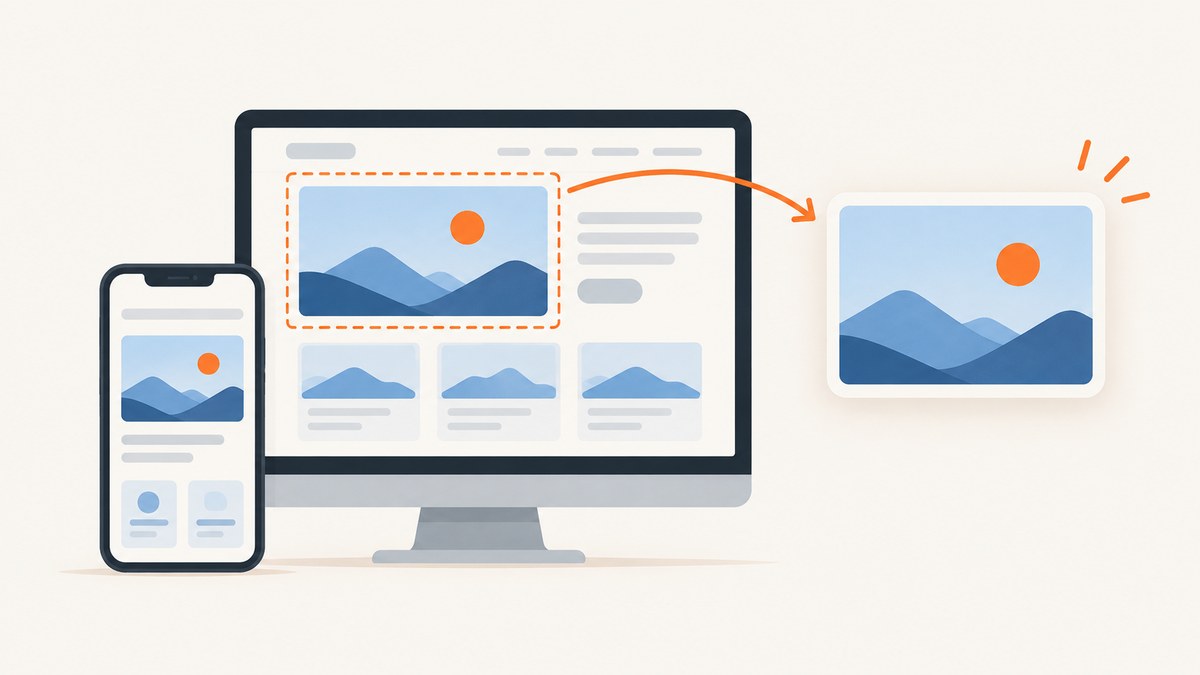
Direct answer: capture the rendered webpage with your browser or device screenshot tool, select the section you need (or capture the full page and crop it), then save the result as PNG, JPEG, or another image format. Firefox can select a page region directly; Windows Snipping Tool captures a visible rectangle; iPhone Safari and many Android devices can create a scrolling capture that you crop afterward.
Choose the right capture method
| Situation | Best method | What you get |
|---|---|---|
| The section is visible on screen | Firefox selection or Windows Snipping Tool | A tightly framed image of the visible area |
| The section continues below the fold | Full-page or scrolling screenshot, then crop | A longer image that can include the target section |
| You need the same section from many URLs | Screenshot API | Repeatable, scriptable captures |
| You need the original embedded asset | Download the image file itself | The source file, not a screenshot of the rendered page |
A screenshot records how the page is rendered, including backgrounds, spacing, text, and any visible surrounding elements. It does not create editable webpage content or download the original image embedded in the page.
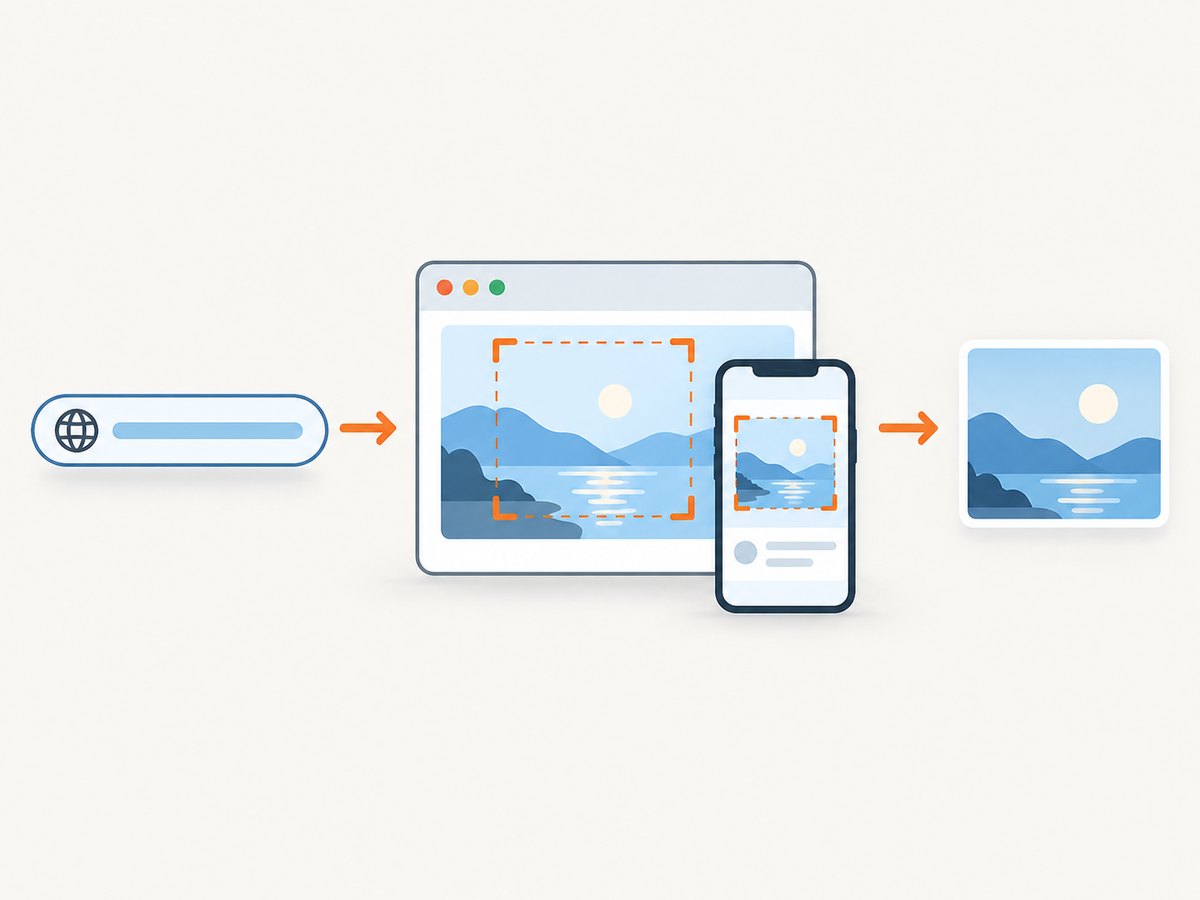
Desktop instructions
Firefox: select a webpage section directly
- Open the page in Firefox.
- Right-click an empty area and choose Take Screenshot. You can also use
Ctrl + Shift + Son Windows/Linux orCommand + Shift + Son macOS. - Choose a region, an automatically highlighted page part, the visible page, or the full page.
- Adjust the selection handles if needed, then choose Download. Firefox saves the image to your configured download location; it can also copy the capture to the clipboard.
Firefox’s selection tool is useful when the exact section is visible because you do not need a separate crop step. Shortcut behavior can vary with platform and user settings. Mozilla’s screenshot instructions describe the available choices.
Windows: Snipping Tool
- Open Snipping Tool, or press
Windows logo key + Shift + S. - Choose rectangular snip mode.
- Drag around the visible webpage section.
- Open the preview, choose Save as Image, and select a filename and location.
Snipping Tool captures the visible screen area. For content below the viewport, scroll and make additional captures or use a browser full-page feature. Microsoft’s guide documents the screen-area workflow.
iPhone instructions
Safari full-page screenshot and crop
- Open the webpage in Safari.
- Take a normal screenshot using your iPhone’s screenshot buttons.
- In the screenshot editor, choose Full Page when that option is offered.
- Use Crop and drag the handles around the section you want.
- Save or share the resulting image.
Apple documents capturing an entire webpage in Safari and cropping a smaller portion of the full-page result. The full-page option may not appear for every page or browser view. See Apple’s iPhone screenshot guide.
Android instructions
System scrolling screenshot
- Open the page and take a screenshot. The usual Android shortcut is Power + Volume Down, although button combinations vary by manufacturer.
- On Android 12 or later, tap Capture more when it appears.
- Move the crop guidelines until the intended section is included.
- Review, edit, share, or save the image from your screenshot collection.
Google’s general instructions apply to most screens that allow scrolling on Android 12 and later. Device makers can provide different controls. Read Google Android Help for the supported flow.
Chrome for Android: Long screenshot
- Open the page in Chrome.
- Tap More > Share > Long screenshot.
- Drag the crop handles to select the required length.
- Tap Confirm, then save or share the image.
If Long screenshot is missing, use the device’s system screenshot controls or the phone maker’s instructions. Chrome documents this route in Chrome Help.
Get a cleaner, more precise result
- Scroll to the section first for a visible-area capture, or capture the full page and crop when the section extends below the fold.
- Close menus and overlays before capturing. Cookie notices, newsletter popups, and chat bubbles can become part of the image.
- Check responsive layout. A desktop viewport and a mobile viewport can wrap text and rearrange cards differently.
- Keep a small margin around the section while selecting, then crop tightly in the editor.
- Inspect the saved file. Confirm it is an image, opens correctly, and contains only the intended content.
- Remember what a screenshot includes. Fixed headers, browser zoom, scrollbars, and adjacent content inside the selection remain visible.
Or skip the browser setup
ScreenshotNeo captures a URL through one GET request and can return PNG, JPEG, WebP, or PDF. Its element capture option lets you target one CSS selector instead of manually cropping a screen.

See the ScreenshotNeo API documentation for all parameters and response details.
cURL
curl -G "https://api.screenshotneo.com/v1/shot" \
  -d access_key=YOUR_API_KEY \
  --data-urlencode url=https://stripe.com \
  -o shot.webp
Python
import requests

r = requests.get(
    "https://api.screenshotneo.com/v1/shot",
    params={"access_key": "YOUR_API_KEY", "url": "https://stripe.com"},
    timeout=90,
)
r.raise_for_status()
open("shot.webp", "wb").write(r.content)
Node.js
const q = new URLSearchParams({
  access_key: 'YOUR_API_KEY',
  url: 'https://stripe.com'
});
const res = await fetch(`https://api.screenshotneo.com/v1/shot?${q}`);
if (!res.ok) throw new Error(`HTTP ${res.status}`);
const data = Buffer.from(await res.arrayBuffer());
require('fs').writeFileSync('shot.webp', data);
For a section, add the element selector option documented by ScreenshotNeo. Other useful controls include full-page capture with lazy images loaded, viewport and device presets, retina scale, dark mode, custom CSS or JavaScript, click actions, hide selectors, waits, blocked resources, headers, cookies, user agent, timezone, geolocation, resizing, caching, signed links, asynchronous jobs, bulk capture, and PDF output.
Cookie banners, newsletter popups, and chat widgets are removed before the shot. Bot checks, blank pages, timeouts, failed loads, and cache hits are not billed, and response headers identify the page verdict and billing result. An MCP server provides take_screenshot, get_page_info, and capture_pdf for Claude, Cursor, and other MCP clients. The free plan includes 1,000 screenshots each month with no card; paid plans start at $5 for 3,000 shots. Create a free ScreenshotNeo account.
Troubleshooting
| Problem | Likely cause | Fix |
|---|---|---|
| The section is cut off | The content extends below the viewport or selection | Use a full-page/scrolling capture, then crop, or select the section after scrolling it into view. |
| A popup appears in the image | A consent, newsletter, or chat overlay was open | Dismiss it before capturing, wait for it to close, or use ScreenshotNeo’s cleanup and hide-selector options. |
| Text looks too small | The full page was scaled into one image | Capture only the section, increase viewport or retina scale, or crop from a higher-resolution full-page image. |
| Mobile layout differs from desktop | Responsive CSS changed the rendered page | Capture at the intended device width and verify the result at that viewport. |
| Android has no scrolling option | The device, app, or page does not support it | Try Chrome’s Long screenshot, the manufacturer’s screenshot tool, or a desktop browser. |
| Full-page capture stops early | The page uses lazy loading or content appears only after interaction | Scroll through the page first, wait for content, or use an API wait condition and full-page capture. |
| ScreenshotNeo returns an error | Invalid key, URL, timeout, or blocked page | Check the access key and URL encoding, increase the wait/timeout settings, inspect the HTTP status and X-Page-Verdict/X-Billed headers, and retry transient failures. |
Performance, reliability, and cost notes
- Speed: visible-area screenshots are usually quicker than full-page captures. Full-page mode may need extra time for lazy-loaded images and below-the-fold content.
- Consistency: use the same browser, viewport, zoom, color mode, and crop boundaries when creating repeatable documentation.
- Reliability: wait for a selector, a delay, or network idle when the section is rendered asynchronously. For many URLs, asynchronous jobs, signed webhooks, caching with a chosen TTL, and bulk capture can reduce repeated work.
- Cost: local browser and phone screenshots have no API usage charge. ScreenshotNeo bills only clean shots; bot checks, blank pages, timeouts, failed loads, and cache hits cost nothing. Every plan includes every feature: Free 1,000/month, Starter $5 for 3,000, Growth $15 for 15,000, Pro $39 for 60,000, Scale $99 for 250,000, and Business $249 for 1,000,000; yearly billing gives two months free.
FAQ
Is a webpage screenshot the same as downloading an image?
No. A screenshot is a rasterized view of the rendered page. Downloading an image retrieves the original file referenced by the page.
Can I save only one HTML element?
Yes. Select it manually in Firefox or a crop editor, or use ScreenshotNeo’s CSS-selector element capture for repeatable requests.
Which format should I choose?
PNG is useful for crisp text and transparency, JPEG for smaller photographic files, and WebP when supported by your workflow and you want efficient compression.
Why does my capture include a fixed header?
Fixed headers remain visible while you scroll. Crop them out, hide the selector, or capture the element itself.
Will a full-page screenshot always include every section?
No. Lazy loading, infinite scroll, login requirements, and content revealed by interaction can prevent a browser from rendering everything. Scroll, wait, or configure the capture process for the page’s behavior.


