Dynamic Image Templates for Developers
Learn when to use reusable image templates or transformation URLs, with implementation patterns, code, tradeoffs, and production guidance.

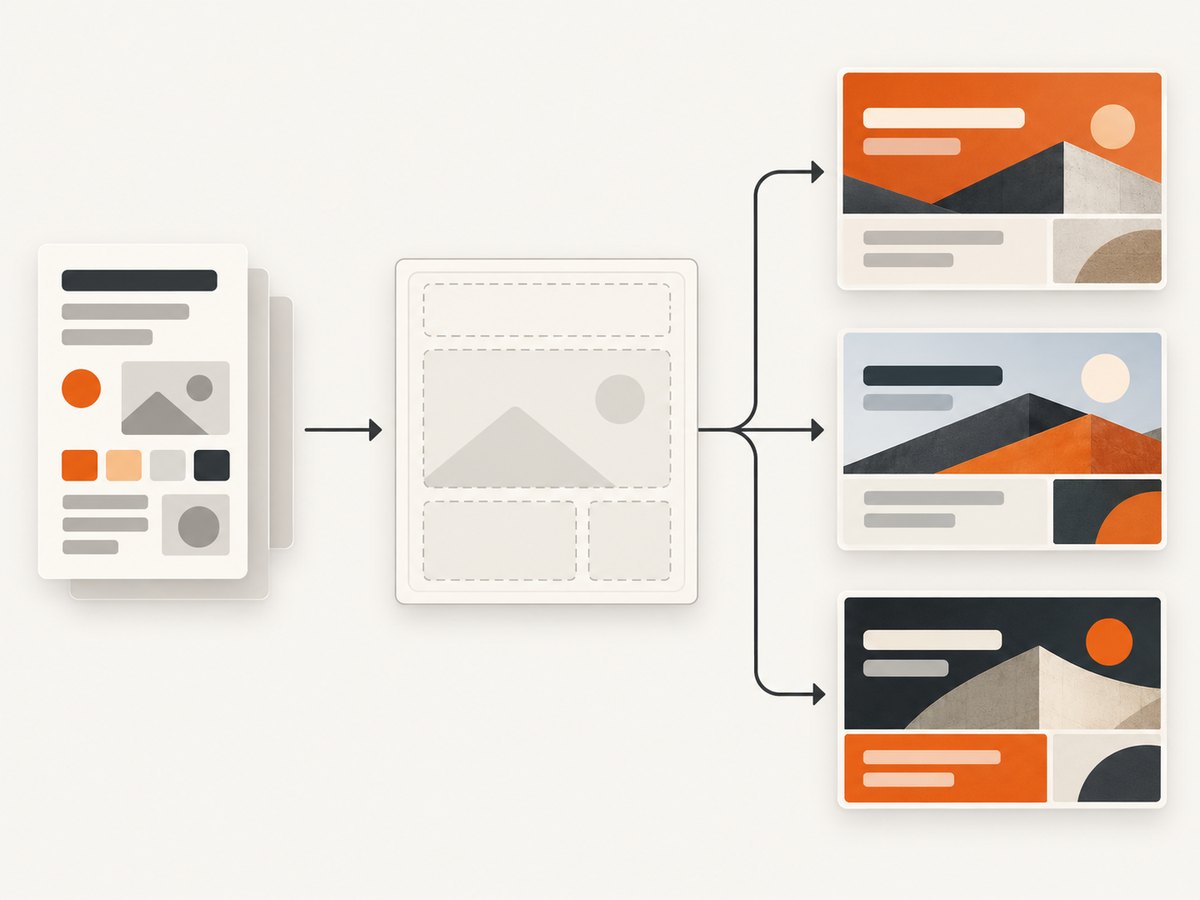
Direct answer: a dynamic image template is a reusable visual layout with fields or layers that your application fills with changing data. Use a template-based API when the design is stable and your inputs are text, images, colors, ratings, or other named layers. Use a transformation-first workflow when you already have source images and need URL or SDK operations such as resizing, cropping, overlays, or format conversion.
The distinction matters because the two workflows start from different assets. A template system treats the layout as the product and the data as variables. A transformation system treats an existing image as the product and applies operations to it. Bannerbear and Placid document template-driven generation; Cloudinary documents URL and SDK transformations, including programmatic text overlays. These are related approaches, but their controls and integration models are not identical.
What a dynamic image template contains
A template normally has a fixed composition and a set of mutable layers. Typical layers include:
- Text: a title, price, author, score, or call to action.
- Media: a product photo, avatar, thumbnail, or background image.
- Color: brand colors, badges, gradients, or status indicators.
- Shapes and decoration: panels, borders, icons, and separators.
- Fit rules: behavior when text is longer than expected or an image has a different aspect ratio.
Your application supplies a data object, the rendering service resolves each variable, and the service returns an image (and, depending on the product, another format such as PDF). The stable design can then be reused for hundreds or millions of records without rebuilding a canvas for every request.
Choose the right architecture
| Question | Template-based generation | Transformation-first workflow |
|---|---|---|
| Starting point | An authored layout with named layers | An existing high-quality source image |
| Design control | Visual editor, layer configuration, or structured template | Transformation syntax or SDK methods |
| Variable content | Text, images, colors, ratings, media and other layer values | Crop, resize, format, effects, and overlays applied to a source |
| Integration | Render API, parameterized URL, or SDK | Dynamic URL or SDK-generated URL |
| Delivery | Often a render request; some systems also expose dynamic URLs | Usually a URL that is resolved when requested |
Ask which object your team wants to own. If designers own a reusable composition and developers provide values, start with templates. If your content team already manages source photography and developers need predictable image operations, transformations may be simpler.
Pattern 1: render a reusable template with Bannerbear
Bannerbear’s V5 API reference documents image generation by POSTing a template UID and requested modifications. Modifications can change text, images, and colors. The reference documents JPG and PNG output, with PDF available when requested. It also documents image-template management endpoints and Instant URLs tied to one template. An Instant URL can render by appending parameters instead of issuing a separate API request for every image; production use should account for the documented signing mechanism and store the signing key when it is created because the key is returned only once. See the Bannerbear V5 API reference for the exact request schema.
Represent the data separately from the design
Keep a record such as this in your application database:
{
  "template_uid": "template_uid_from_your_project",
  "title": "Rain shell jacket",
  "price": "$129",
  "photo_url": "https://cdn.example.com/rain-shell.jpg",
  "accent": "#1769AA"
}
Map each property to a layer by its stable layer name or identifier. Do not make a user’s title part of your template identifier. That keeps design revisions independent from content records.
Request generation from your server
const response = await fetch('https://api.bannerbear.com/v2/images', {
  method: 'POST',
  headers: {
    'Content-Type': 'application/json',
    'Authorization': `Bearer ${process.env.BANNERBEAR_API_KEY}`
  },
  body: JSON.stringify({
    template: 'template_uid_from_your_project',
    modifications: [
      { name: 'title', text: 'Rain shell jacket' },
      { name: 'price', text: '$129' },
      { name: 'photo', image_url: 'https://cdn.example.com/rain-shell.jpg' },
      { name: 'accent', color: '#1769AA' }
    ]
  })
});
if (!response.ok) throw new Error(`Render failed: ${response.status}`);
const result = await response.json();
console.log(result);
Use the response fields documented by your account’s API version to obtain the rendered asset. Treat this as an asynchronous boundary if your workflow needs to process many records: persist the request identifier, poll or receive the documented completion event, and retry only requests that are safe to repeat.
When an Instant URL fits
An Instant URL is useful for a page that needs a dynamic image URL rather than a server-side render step. Keep the template fixed, encode only approved variables, and sign production URLs according to the API documentation. Validate and constrain user-controlled values before putting them into a URL. For private or sensitive content, prefer a server-side request and a controlled delivery path.
Pattern 2: generate from structured data with Placid
Placid describes an Image Automation API with REST and URL APIs for generating images from templates and structured data. Its dynamic-template documentation describes data placeholders and dynamic text, images, and videos that resize to fit. The versioned Placid 2.0 template documentation models a template as layers such as text, shapes, media, ratings, and subtitles that can be changed through the API. Check the version of the documentation that matches your project before copying field names.
Define a stable payload
{
  "template": "product-card",
  "data": {
    "headline": "Rain shell jacket",
    "price": "$129",
    "image": "https://cdn.example.com/rain-shell.jpg",
    "rating": 4.8
  }
}
The important design decision is fit behavior. Decide what happens when a headline is 20 characters and when it is 120. A template can resize text, wrap it, clip it, or expose a second layout. Test those rules with the longest values your product permits, including non-Latin scripts and emoji.
Pattern 3: transform an existing image with Cloudinary
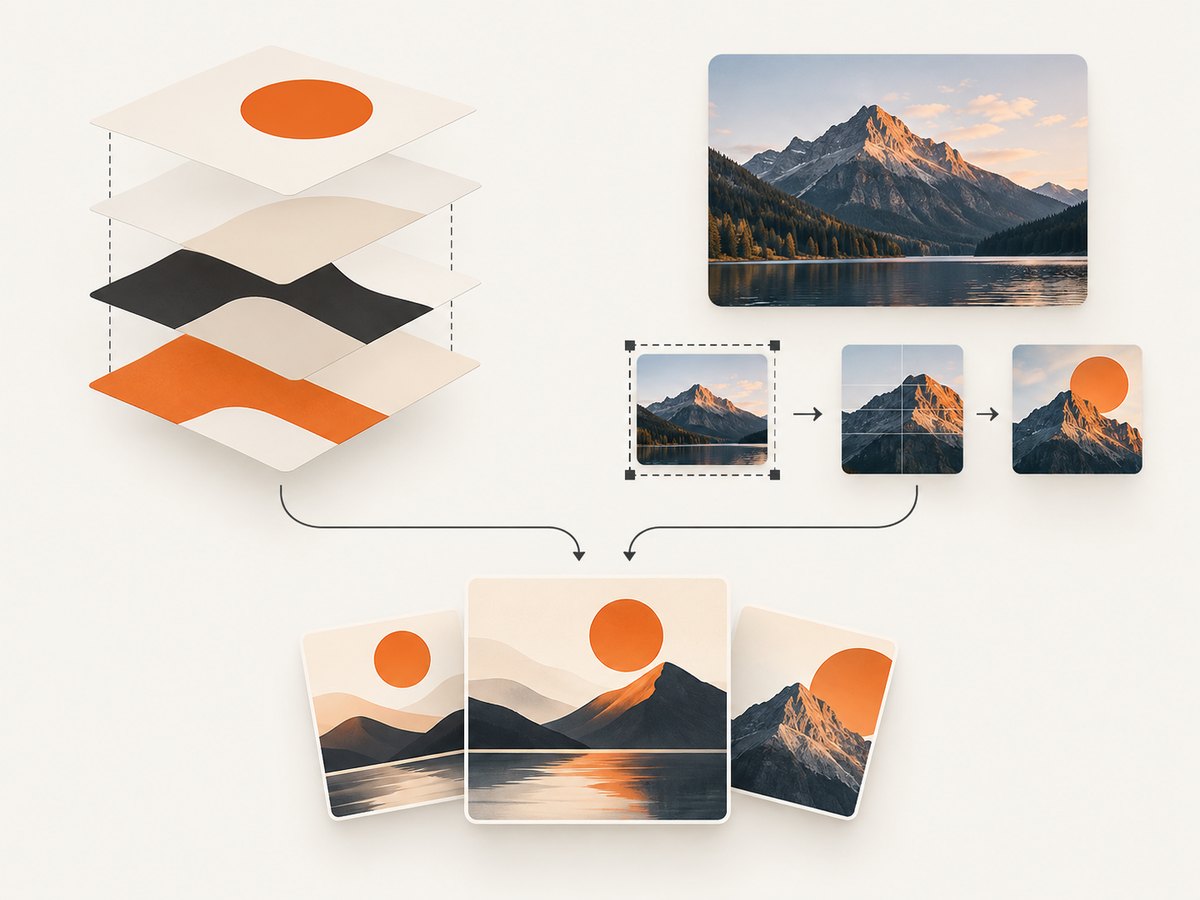
Cloudinary documents dynamic URL transformations that create variations from high-quality original images. You can construct transformation URLs manually or generate them with an SDK. Its text-image documentation also covers creating images from text through the Upload API and adding dynamic text overlays. This route is a better fit when the source image is already the main visual and your application needs repeatable operations around it. See Cloudinary’s transformation documentation and its text-image documentation for the syntax supported by your account.
Keep transformations composable
Build a transformation from small, ordered operations: resize, crop, overlay, then format or quality settings. Store the logical recipe in application code rather than scattering long URLs through templates. Generate URLs with the official SDK when escaping, signing, or conditional transformations would be error-prone by hand.
// Illustrative SDK-style structure; use the current Cloudinary SDK for your language.
const imageUrl = cloudinary.url('rain-shell', {
  transformation: [
    { width: 1200, height: 630, crop: 'fill', gravity: 'auto' },
    { overlay: { text: 'Rain shell jacket' }, gravity: 'south', y: 48 },
    { fetch_format: 'webp' }
  ]
});
The exact option names and escaping rules are version-specific. Treat the provider’s current SDK reference as authoritative and write an integration test that checks the generated URL shape.
Designing a production data contract
- Give every variable a type. Distinguish plain text, URL, color, number, and boolean values before rendering.
- Set length limits. Reject or shorten values that cannot fit the design. Preserve the original value for accessibility or a detail page.
- Validate remote media. Check that image URLs use allowed hosts and return an expected content type.
- Define missing-value behavior. Use a fallback image, hide the layer, or fail the render explicitly.
- Version templates. Store the template version with each generated asset so a later redesign does not silently change historical images.
- Make requests idempotent. Derive an idempotency key from the record ID, template version, and normalized input.
Output formats and delivery choices
Choose an output based on where the asset will be used. PNG is useful when lossless edges or transparency matter. JPEG is common for photographic cards. WebP can reduce transfer size where your consumers support it. PDF is appropriate for document-like output when the selected template API supports it. Decide whether the image is generated during a user request, in a background job, or lazily from a URL.
For Open Graph images, generate ahead of time or use a signed dynamic URL with a cacheable response. For ecommerce catalogs, queue renders and persist the resulting URL. For an editor preview, a dynamic URL or short-lived render endpoint can reduce waiting while a user changes fields.
Reliability, performance, and cost planning
- Cache by input. A key containing template version and normalized data prevents duplicate renders.
- Separate retries. Retry network failures and rate-limit responses with exponential backoff. Do not retry validation errors unchanged.
- Bound concurrency. Use a queue and provider-specific limits rather than launching an unbounded batch from a web request.
- Track lifecycle states. Store queued, rendering, complete, and failed states with the provider request ID.
- Measure your workload. The supplied research does not establish comparable latency, uptime, concurrency, image quality, pricing, or scale limits for Bannerbear, Placid, or Cloudinary. Verify those values for your account and traffic pattern.
- Control source size. Oversized source images increase transfer and processing work. Normalize them before applying expensive operations.
Common errors and fixes
| Symptom | Likely cause | Fix |
|---|---|---|
| Unknown template or layer | The identifier belongs to another project or a renamed layer | Fetch the current template definition and keep stable internal mappings. |
| Text is clipped | Input exceeds the layer’s fit rules | Set a character limit, enable wrapping or resizing, and test worst-case strings. |
| Image layer is empty | Remote URL is private, blocked, expired, or not an image | Use a publicly fetchable, stable URL or upload the asset first; validate content type. |
| Invalid URL signature | Parameters changed after signing or the signing key was mishandled | Sign the final canonical URL and store the one-time key securely. |
| Unexpected colors or fonts | Color values or font resources are not available in the template | Use supported values and confirm the template’s resource configuration. |
| Duplicate charges or assets | Retries created new render requests | Use idempotency keys or deduplicate by a content hash before retrying. |
| Slow page loads | Images render synchronously on the request path | Pre-render, cache, or move work to a background queue. |
Or skip the browser setup
If your input is an existing webpage rather than a designed image template, ScreenshotNeo turns one GET request into a PNG, JPEG, WebP, or PDF screenshot. It is useful for rendering generated previews, Open Graph pages, reports, and other HTML that your application already produces.
See the ScreenshotNeo API documentation for all options. A minimal request is:
curl -G "https://api.screenshotneo.com/v1/shot" -d access_key=YOUR_API_KEY --data-urlencode url=https://stripe.com -o shot.webpimport requests
r = requests.get("https://api.screenshotneo.com/v1/shot", params={"access_key": "YOUR_API_KEY", "url": "https://stripe.com"}, timeout=90)
open("shot.webp", "wb").write(r.content)const q = new URLSearchParams({ access_key: 'YOUR_API_KEY', url: 'https://stripe.com' });
const res = await fetch(`https://api.screenshotneo.com/v1/shot?${q}`);ScreenshotNeo removes cookie banners, newsletter popups, and chat widgets before capture. Bot checks, blank pages, timeouts, failed loads, and cache hits are not billed, and response headers identify the page verdict and billing result. It also provides an MCP server with take_screenshot, get_page_info, and capture_pdf tools for Claude, Cursor, and other MCP clients. The Free plan includes 1,000 shots each month with no card; paid plans start at $5 for 3,000 shots. Create a free ScreenshotNeo account.
Implementation checklist
- Choose template or transformation architecture from the starting asset.
- Define typed variables and missing-value behavior.
- Test maximum text lengths, remote media failures, and alternate scripts.
- Version templates and include the version in cache keys.
- Choose synchronous, asynchronous, or URL-based delivery.
- Implement retries, idempotency, rate-limit handling, and observability.
- Verify current provider limits, pricing, and output support for your workload.
FAQ
Can a transformation URL replace a template editor?
Sometimes, but not automatically. Transformations are strong for operations on an existing image. A template editor or layer model is usually easier when non-developers need to change layout and named fields.
Should generated images be stored permanently?
Store them when they are part of a catalog, audit trail, or published page. For previews and repeatable URLs, cache them and regenerate from the versioned input when necessary.
How do I support several aspect ratios?
Create explicit variants or templates for each destination. Avoid relying on one crop rule for square, portrait, landscape, and social-card dimensions.
What should I compare before selecting a provider?
Compare layer behavior, fit rules, API and URL options, output formats, asynchronous support, security, limits, and pricing using your actual workload. The cited documentation does not provide a head-to-head performance ranking.


