Edge Browser MCP Server
Connect an MCP coding agent to Microsoft Edge, a signed-in profile, or a WebView2 app. Compare launch and auto-connect setups, configure clients, and troubleshoot the connection.
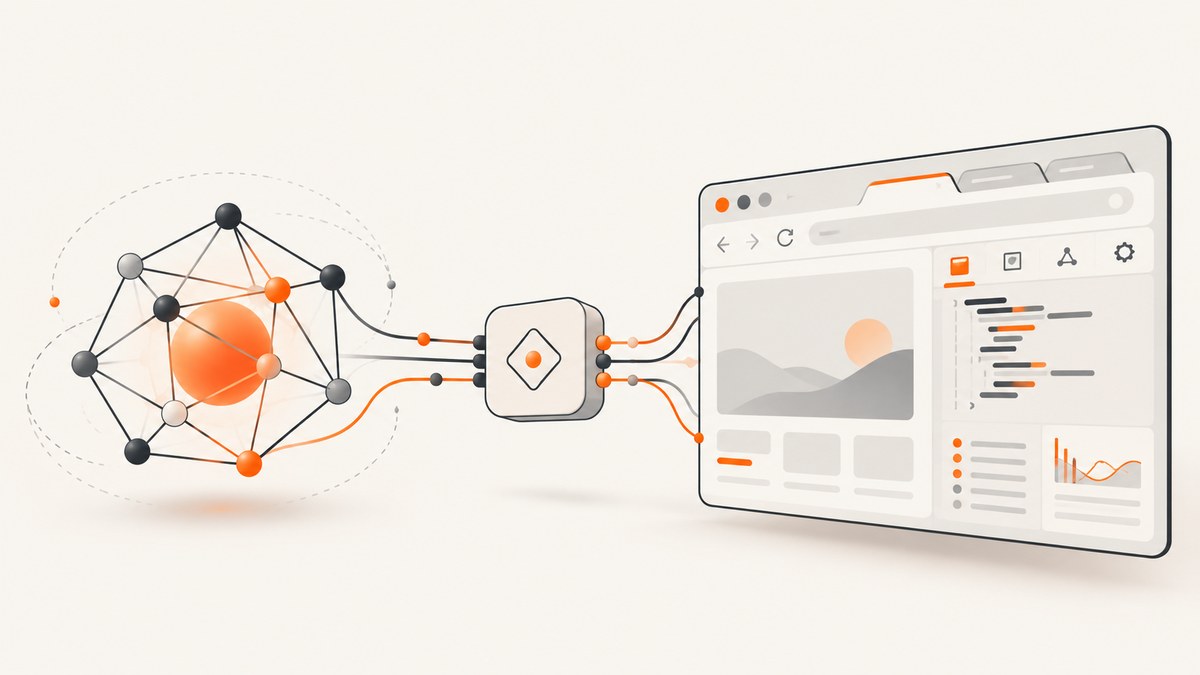
An Edge Browser MCP server lets an MCP-capable coding agent inspect and control Microsoft Edge through browser tools. Microsoft’s guide uses Chrome DevTools for agents (chrome-devtools-mcp): although built for Chrome, it can target Edge when configured with the Edge executable, or connect to an already running Edge browser through its remote debugging endpoint. You can also use it with a WebView2 host app. The key choice is whether the server should launch a clean browser or connect to a profile that may contain a signed-in session.
Use the launch method for isolated testing. Use auto-connect only when preserving browser state is necessary, and only with a trusted agent: the active session may expose cookies, account data, and information available to page JavaScript. Microsoft’s [Edge MCP guide](https://learn.microsoft.com/en-us/microsoft-edge/mcp/) covers supported setup patterns; the [Edge DevTools Protocol overview](https://learn.microsoft.com/en-us/microsoft-edge/devtools/protocol/) explains the underlying browser interface.
1. What the Edge Browser MCP server does
MCP (Model Context Protocol) gives an AI coding agent a standard way to call tools provided by another process. The Chrome DevTools MCP server exposes browser inspection and control capabilities to the agent. Pointed at Edge, it can work with a live Chromium browser and its DevTools Protocol. Microsoft documents the Edge DevTools Protocol APIs as matching the Chrome DevTools Protocol.
This is useful when an agent needs to inspect a page in context, investigate console or network behavior, or work with a browser that is already open. The MCP server is the connection layer; the client (such as VS Code with GitHub Copilot, Claude Code, Copilot CLI, or Cursor) is where you ask the agent to use the available tools.
Do not confuse this with merely asking an agent to fetch a URL. A browser session executes page JavaScript and has browser state, while a simple HTTP request does not reproduce that environment. The exact tools available depend on the server version and client integration.
2. Prerequisites and choose a connection mode
Microsoft’s documented prerequisites are Node.js (latest LTS), npm, a Microsoft Edge channel (Stable, Beta, Dev, or Canary), and an MCP-capable agent. Check that Node and npm are on your PATH before configuring the client.
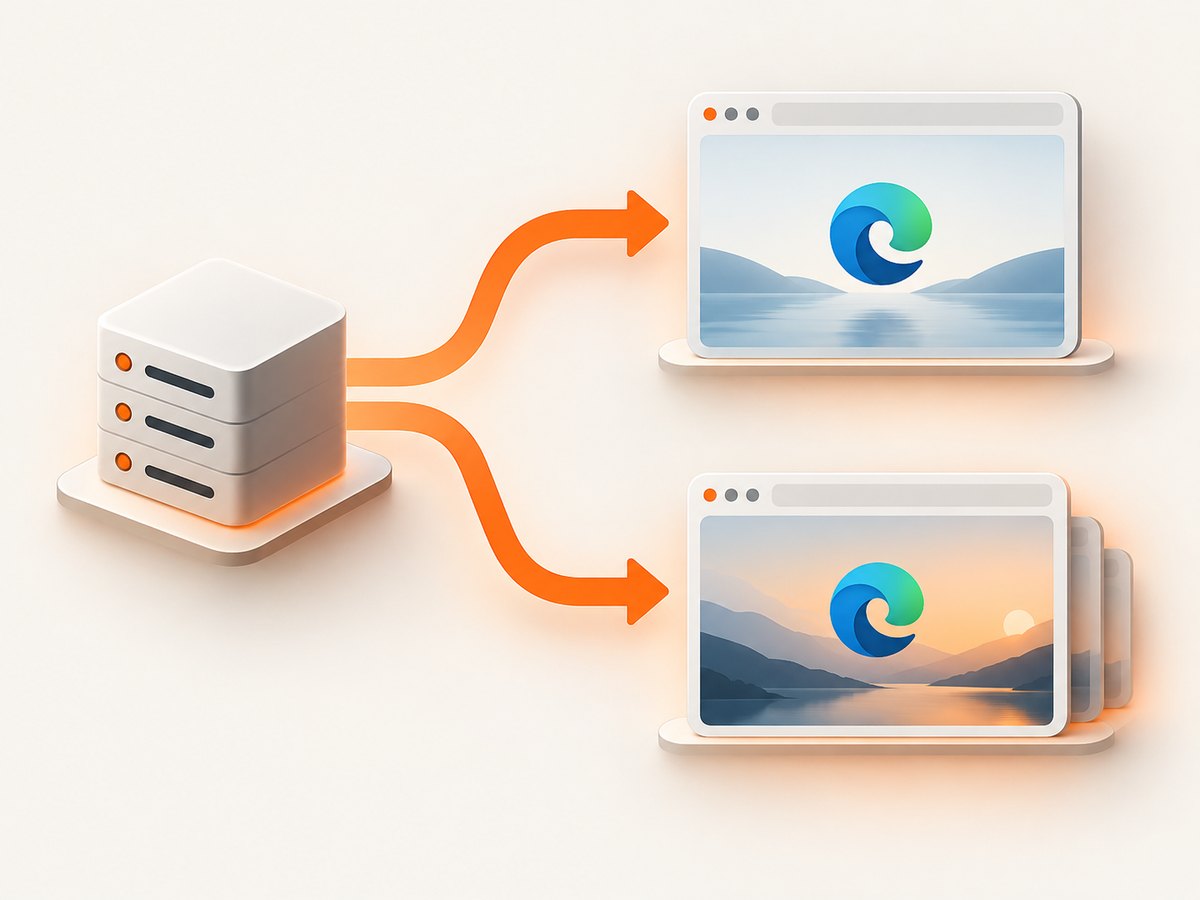
| Mode | What it does | Best fit | State and exposure |
|---|---|---|---|
| Launch Edge | MCP server starts the executable you specify. | Repeatable, isolated inspection. | Choose a dedicated user-data directory for a fresh profile. |
| Auto-connect | Server discovers a running browser’s DevTools endpoint from its user-data directory. | Testing a flow that requires an existing login or browser state. | Agent may access the active profile, including logged-in accounts and cookies. |
| WebView2 | Connects to a host app’s WebView2 browser instance. | Inspecting a desktop app built with WebView2. | Requires remote debugging to be enabled for the host and the correct WebView2 data directory. |
The launch setup is usually the simplest starting point. Auto-connect is useful when session state matters, but it increases the amount of personal or production data the agent can reach. Use a purpose-selected profile, avoid exposing an everyday account, and do not grant access to an agent you do not trust.
3. Configure the server to launch Edge
Find the executable for the Edge channel installed on your system. Common install locations vary by OS and installation method, so use the actual path on your machine rather than relying on a guessed path. The configuration below uses a placeholder; replace it before use.
For a generic MCP client that accepts an mcpServers configuration, add:
{
  "mcpServers": {
    "edge": {
      "command": "npx",
      "args": [
        "-y",
        "chrome-devtools-mcp@latest",
        "--executablePath",
        "/absolute/path/to/msedge"
      ]
    }
  }
}
On Windows, the executable path will typically use Windows path syntax, for example C:\\Program Files (x86)\\Microsoft\\Edge\\Application\\msedge.exe (confirm the installed location). On macOS or Linux, use the path to the installed Edge binary. Keep the JSON valid: escape backslashes in Windows strings and use an absolute path.
- Install Node.js LTS and npm, then confirm
node --versionandnpm --versionwork in the environment that launches your MCP client. - Locate the Edge executable and substitute its full path for the placeholder.
- Save the configuration in the file and format your chosen MCP client expects.
- Restart or reload the client so it starts the server.
- Ask the agent to inspect a harmless page and confirm that it can see the active browser before using a work account.
The command shown invokes the published package through npx. The @latest tag retrieves the latest package version when npx resolves it, which is convenient for setup but means the resolved version can change. For controlled environments, follow the package’s current official guidance to pin a version and manage updates deliberately.
4. Auto-connect to an existing Edge profile
Auto-connect is the right choice when an agent must inspect a browser that is already running or use a selected signed-in session. Microsoft’s setup uses Edge remote debugging and the browser’s user-data directory. The MCP server reads the DevToolsActivePort file in that directory to discover the WebSocket endpoint.
First start Edge with remote debugging enabled and the intended user-data directory. Use a separate directory for the session you are willing to expose. The exact launch mechanism depends on your operating system and how Edge is installed; the conceptual command is:
msedge --remote-debugging-port=9222 --user-data-dir="/path/to/edge-mcp-profile"Replace msedge with the executable path if it is not on PATH. Then configure the MCP server with auto-connect and the same directory:
{
  "mcpServers": {
    "edge": {
      "command": "npx",
      "args": [
        "-y",
        "chrome-devtools-mcp@latest",
        "--autoConnect",
        "--user-data-dir",
        "/path/to/edge-mcp-profile"
      ]
    }
  }
}
Keep the profile path identical in both places. Start the browser with debugging enabled before starting or reconnecting the MCP server. If Edge is already open using a different profile, that does not make it the target automatically; the server needs the user-data directory whose active debugging endpoint it can discover.
Security checklist for auto-connect
- Use an isolated profile or a profile selected for this task.
- Sign in only to the accounts needed for the test; avoid production data where possible.
- Only use a trusted MCP client and agent, since browser-accessible session data may be exposed to its tools.
- Close the debugging browser when the work is finished, and avoid leaving a debugging-enabled session unattended.
5. Connect to a WebView2 host app
WebView2 embeds Edge browser technology inside a desktop host application. Microsoft’s guide says to enable remote debugging for the host, locate the WebView2 user-data directory (which ends in EBWebView), and use the auto-connect pattern with that directory.
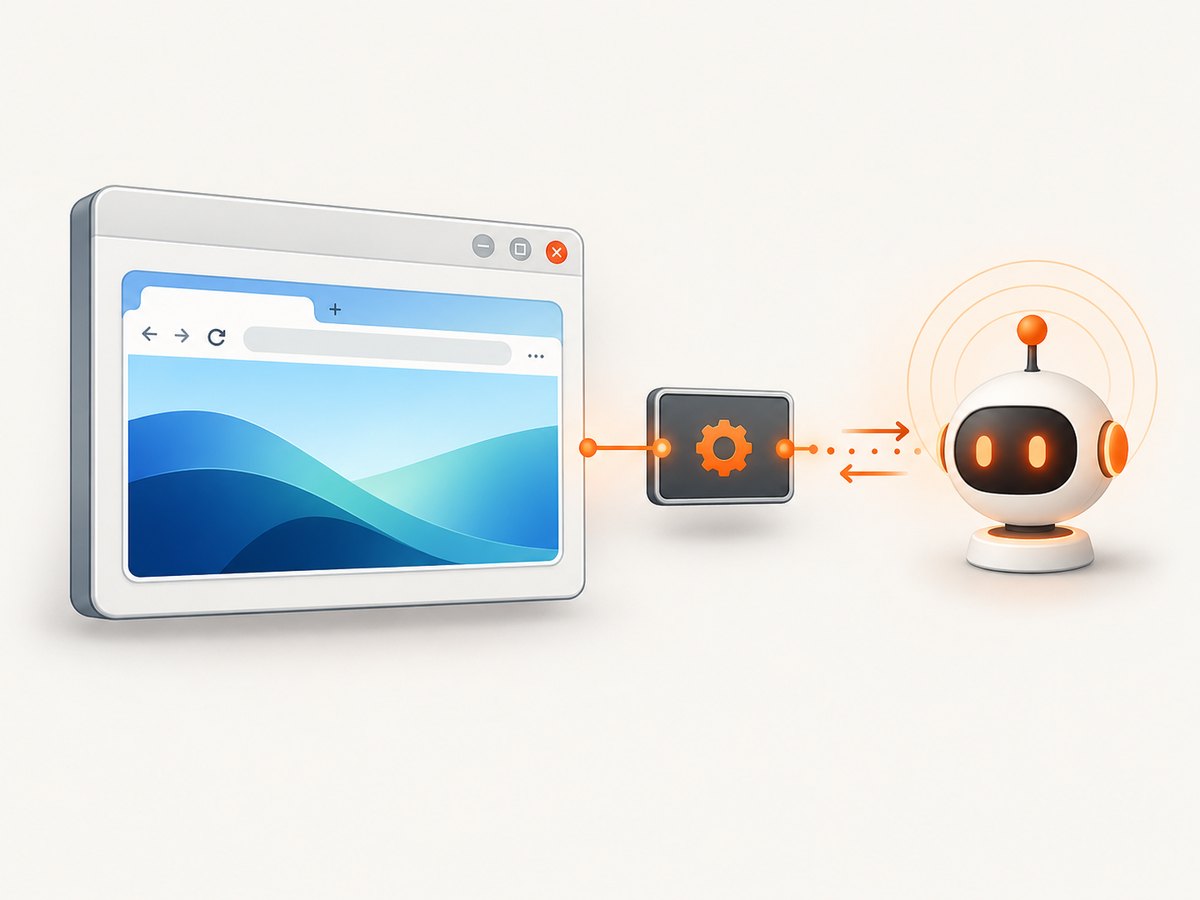
The MCP configuration follows the same shape as the existing-profile example: set --autoConnect and point --user-data-dir at the host’s WebView2 data directory. Do not substitute the ordinary Edge profile directory if the app uses a separate WebView2 directory. The host must expose remote debugging, and the application’s WebView2 instance must be running for discovery to succeed.
Because the directory belongs to the host app, its location and how debugging is enabled depend on that app. Use the host’s documentation or development configuration to identify them; do not assume that every WebView2 app exposes debugging by default.
6. Configure common MCP clients
The server arguments are the same across clients, but configuration file names and JSON nesting differ. Microsoft provides examples for VS Code, Copilot CLI, and generic mcpServers clients, including Claude Code, Cursor, and Gemini CLI. Follow the target client’s current file location and schema.
| Client family | Configuration shape | What to verify |
|---|---|---|
| VS Code with GitHub Copilot | MCP configuration in mcp.json. |
Use the server entry format expected by your VS Code version and workspace or user scope. |
| Copilot CLI | MCP configuration in mcp-config.json. |
Confirm the CLI reads the file from the location documented for your install. |
| Claude Code, Cursor, Gemini CLI, and similar clients | Usually a client-specific configuration containing an mcpServers entry. |
Check whether the client expects project-level or user-level configuration and whether it needs a restart. |
Use the launch or auto-connect server entry from the relevant section as the value for the client’s Edge server. Avoid copying a VS Code wrapper into another client unchanged: the server command and arguments carry over, while the surrounding schema may not.
7. Alternative: Playwright connection to Edge
If your task is browser automation rather than DevTools-oriented agent inspection, Playwright is another route. Its official documentation supports launching Edge by channel name, including msedge, msedge-beta, msedge-dev, and msedge-canary, and connecting to a browser through a CDP endpoint. That is a different workflow from configuring an MCP server: Playwright scripts use its automation APIs, while Chrome DevTools MCP exposes a tool surface to an MCP client.
Use the official [Playwright browser documentation](https://playwright.dev/docs/browsers) for current launch and CDP connection details. Pick the route that matches the task: MCP when an agent needs the DevTools MCP tools, or Playwright when you are writing an explicit automation script and want its accessibility and browser automation workflows.
8. Troubleshooting
| Symptom | Likely cause | Fix |
|---|---|---|
| Client reports that the server command cannot start. | Node/npm missing from the client’s environment, or npx is not on PATH. |
Install Node.js LTS; launch the client from an environment that can resolve Node and npm; check their version commands there. |
| Edge does not launch. | --executablePath is wrong, points to a shortcut rather than the binary, or contains malformed escaping. |
Find the installed Edge executable, use an absolute path, and validate JSON escaping. |
| Auto-connect cannot find a browser. | Edge is not running with remote debugging, the server points at the wrong profile directory, or Edge was started under a different directory. | Restart Edge with remote debugging and the selected --user-data-dir; pass that same directory to the server. |
DevToolsActivePort is absent or endpoint discovery fails. |
The intended browser did not start in debugging mode, the wrong directory was supplied, or the endpoint file is not available yet. | Confirm the debugging-enabled Edge process is running, check the exact data directory, and start the MCP server after Edge is ready. |
| Agent connects but sees the wrong page or no expected login. | It launched a clean profile or connected to a different profile than expected. | Choose launch mode for a clean test, or auto-connect to the specifically prepared profile whose state is required. |
| WebView2 connection fails. | Host remote debugging is off, the host is not running, or the supplied directory is not the app’s EBWebView directory. |
Enable debugging for the host, start it, locate its actual WebView2 user-data directory, then reconnect. |
| Client ignores the server entry. | Configuration is in the wrong file or uses another client’s schema. | Use the client’s official MCP configuration format and restart or reload it. |
| Server behavior changes after setup. | @latest resolved a newer package version. |
Review package updates and use a pinned version in controlled workflows, according to the package’s current instructions. |
9. Performance, reliability, and cost
Launching a new browser is generally easier to reproduce because the server controls the process and profile. Auto-connect avoids replacing the session whose state you need, but adds operational dependencies: the browser must already be running with debugging enabled, the correct user-data directory must be supplied, and the endpoint must be discoverable. A WebView2 connection adds the host app’s lifecycle and configuration to those dependencies.
Keep the browser and MCP client on the same machine or environment unless your setup deliberately makes the debugging endpoint reachable across a boundary. Remote debugging exposes browser control, so network exposure should be treated as access to the browser session. Prefer a local, task-specific profile and close it when done. For repeatable investigations, record which Edge channel, connection mode, and profile directory were used.
The MCP server and Edge setup do not imply a ScreenshotNeo charge: they are separate approaches. If you need rendered screenshot files rather than an interactive agent inspecting a live tab, ScreenshotNeo is an API option. Its documented pricing is 1,000 shots per month free with no card; paid tiers start at $5 for 3,000, with higher plans at $15 for 15,000, $39 for 60,000, $99 for 250,000, and $249 for 1,000,000. Yearly billing gives two months free, and every feature is on every plan. Only clean shots are billed; cache hits and failed or blocked captures are not billed, with response headers identifying the verdict and billing status. See [ScreenshotNeo](https://screenshotneo.com) and its [API documentation](https://screenshotneo.com/docs/).
10. Or skip the browser setup
If you need a screenshot file instead of an agent controlling a live Edge tab, one GET request can return an image or PDF. For example, this cURL request saves a WebP screenshot:
curl -G "https://api.screenshotneo.com/v1/shot" -d access_key=YOUR_API_KEY --data-urlencode url=https://stripe.com -o shot.webpEquivalent Python:
import requests

r = requests.get(
    "https://api.screenshotneo.com/v1/shot",
    params={"access_key": "YOUR_API_KEY", "url": "https://stripe.com"},
    timeout=90,
)
open("shot.webp", "wb").write(r.content)
Equivalent Node.js:
const q = new URLSearchParams({ access_key: 'YOUR_API_KEY', url: 'https://stripe.com' });
const res = await fetch(`https://api.screenshotneo.com/v1/shot?${q}`);
const bytes = new Uint8Array(await res.arrayBuffer());
await import('node:fs/promises').then(fs => fs.writeFile('shot.webp', bytes));
Cookie banners, newsletter popups, and chat widgets are removed before the shot. Bot checks, blank pages, and failed loads are never billed. An MCP server also lets AI agents take screenshots. The free plan includes 1,000 screenshots a month with no card; paid plans start at $5 for 3,000. Read the [ScreenshotNeo docs](https://screenshotneo.com/docs/) and [sign up free](https://screenshotneo.com/account/sign-up/).
11. FAQ
Does this work with Edge Stable only?
No. Microsoft lists Stable, Beta, Dev, and Canary as supported Edge channels, provided the chosen executable or connection target is configured correctly.
Can the agent inspect a page that requires sign-in?
Yes, if it connects to a browser profile with the required session. That also grants the agent access to data exposed by that session, so use a selected profile and trusted client.
Is WebView2 a separate protocol?
The browser technology is Edge-based and uses the DevTools Protocol, but the host app must expose remote debugging and you must target its WebView2 user-data directory.
Should I use MCP or Playwright?
Choose MCP when an MCP agent should inspect and control a browser through DevTools tools. Choose Playwright when you are writing a browser automation script using Playwright’s APIs.


