BlogScreenshots on your device
Why Microsoft Edge Screenshots Do Not Capture the Full Page
Edge full-page screenshots can stop at nested scroll areas, policies, protected content, or platform limits. Learn the cause and reliable fixes.
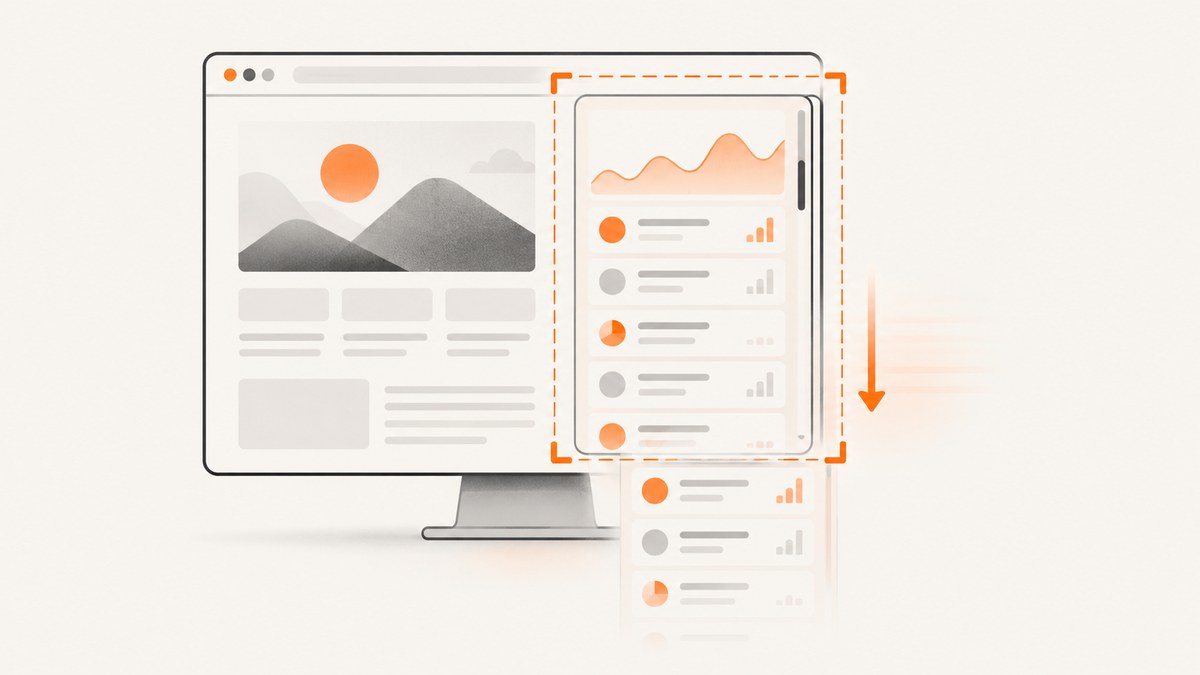
Microsoft Edge is designed to capture an entire webpage, including content below the visible viewport. If your image ends at what you can currently see, the usual cause is that the content scrolls inside a panel or frame, Edge is unavailable or restricted, the page is protected, or the platform and browser version do not support the feature.
Microsoft describes Screenshot as a way to capture “a screenshot of a full webpage, even the parts you would have to scroll to see.” On supported desktop Edge, open the Settings and more menu, choose Screenshot or Web Capture, then select Capture full page. You can also press Ctrl+Shift+S.
Why Edge captures only the visible part
The scrollbar belongs to a panel, not the document
Full-page capture normally follows the document body. Many dashboards, embedded viewers, chat panes, tables, and application shells put their own scrollbar on a nested element such as a panel, iframe, or sidebar. The browser viewport may be short while the inner panel contains the rest of the content. Edge can therefore capture the document and omit the material that requires scrolling inside that element.

This nested-scroll limitation has been reported in Microsoft Community support discussions. It is especially common when:
- A dashboard has a scrollable center column.
- A code editor or document viewer is embedded in an iframe.
- A chat or activity feed has its own scrollbar.
- A table uses a fixed-height container with
overflow: autooroverflow: scroll. - The page uses a single-page application shell that keeps the body height fixed.
Screenshot/Web Capture is disabled or unavailable
Microsoft documents Web Capture for Edge 87 and later on Windows and macOS. The policy documentation lists Android and iOS as unsupported for this feature. On managed computers, an administrator can disable the WebCaptureEnabled policy; when that happens, the command disappears from the browser interface.
The page is protected against screenshots
Some enterprise policies intentionally prevent screenshots of protected content. Edge for Business screenshot-prevention behavior can show a black result instead of the page. Banking, medical, and confidential corporate pages may use this type of control. A black image is therefore different from a page that was merely cut off by a scrolling problem.
Device, market, or browser-version differences
Microsoft notes that Screenshot functionality can vary by device type, market, and browser version, and that features may change. A control present on desktop Windows may be absent on mobile or after an organizational policy change.
Fix Edge full-page screenshots step by step
- Use desktop Edge. Confirm that you are on Windows or macOS and running a supported desktop version.
- Open Web Capture. Use Settings and more → Screenshot or press Ctrl+Shift+S.
- Choose Capture full page. Do not choose Capture area; that mode intentionally captures only a selected region.
- Inspect the scrollbars. Scroll the page and watch which element moves. If the body stays fixed while a panel moves, Edge’s built-in command may not include the panel’s full contents.
- Try DevTools. Open Developer Tools with F12 or Ctrl+Shift+I. Open the command menu, search for Capture a full size screenshot, and run it. Microsoft documents this command as a way to capture the full page, including content outside the viewport.
- Check for protection or policy. If the result is black, or the command is missing, ask your administrator whether screenshot-prevention controls or
WebCaptureEnabledare active.
Capturing pages with internal scrollbars
When the content is inside a nested scroll container, first determine whether you need the whole application or only that panel.
If you need the whole application
- Look for an application setting that expands the panel or exports its data.
- Temporarily zoom out or resize the panel if the application allows it.
- Use the application’s print or export function when available.
- Capture the document and the inner panel separately, then combine the images in an editor if a single composite is required.
If you need one element
DevTools can be more precise than browser UI capture. Inspect the panel, identify its element, and use the element’s own dimensions when creating a screenshot through a browser automation tool. Be aware that expanding an element can change responsive layout, trigger lazy loading, or hide sticky controls.
What each built-in method can and cannot do
| Method | Best for | Common limitation |
|---|---|---|
| Edge Screenshot → Capture full page | Ordinary webpages whose document body owns the scrollbar | Nested panels, frames, policy restrictions, unsupported mobile platforms |
| Edge Screenshot → Capture area | A selected visible region | Does not capture content below the selection automatically |
| DevTools → Capture a full size screenshot | Technical pages where the viewport capture is insufficient | Still affected by protected content and unusual application layouts |
| Application export or print | Reports, tables, and documents with their own export workflows | Output may differ from the rendered screen |
Troubleshooting checklist
| Symptom | Likely cause | Fix |
|---|---|---|
| The image stops at the viewport bottom | Capture area was selected, or the page uses a nested scrollbar | Choose Capture full page, then inspect which element scrolls. Try DevTools full-size capture. |
| A dashboard column is missing | Content is inside a scrollable panel | Expand/export the panel, capture it separately, or use a tool that can target the element. |
| The command is missing | Unsupported platform, old browser, or enterprise policy | Use supported desktop Edge, update Edge, and ask an administrator about WebCaptureEnabled. |
| The screenshot is black | Screenshot-prevention policy or protected content | Contact the page owner or administrator; this may be intentional security behavior. |
| Only the first portion of a long feed appears | Lazy loading or an inner scrolling feed | Scroll the feed to load content, use its export function, or capture the feed element with automation. |
| Results differ between computers | Browser version, device, market, or policy differences | Compare Edge versions and policies and reproduce on supported desktop Edge. |
Performance and reliability considerations
- Long pages take longer. Images, fonts, scripts, and lazy-loaded sections must render before a complete capture is possible.
- Dynamic content can move. A feed, animation, ad slot, or sticky header may change while the screenshot is assembled. Freeze animations or wait for the page to settle when your workflow permits.
- Memory grows with image dimensions. Very tall pages and high-density displays can produce large image files. Crop to the required element or use a lower device scale when quality allows.
- Authentication and privacy matter. A screenshot inherits the logged-in view in the browser. Avoid saving sensitive captures to shared locations.
- Repeatable capture needs controlled inputs. Keep the same viewport, zoom, account state, region, and browser version when comparing screenshots over time.
Or skip the browser setup
For automated or repeatable captures, ScreenshotNeo provides a single GET request that returns a PNG, JPEG, WebP, or PDF. Its full-page capture loads lazy images, and you can target one element by CSS selector when the page has a nested scrolling layout. The API also supports custom CSS and JavaScript, waits, device presets, arbitrary viewports, cookies, headers, user agents, blocking rules, caching, and PDF options. See the ScreenshotNeo API documentation for parameter details.
curl -G "https://api.screenshotneo.com/v1/shot" \
  -d access_key=YOUR_API_KEY \
  --data-urlencode url=https://stripe.com \
  -o shot.webp
import requests
r = requests.get(
"https://api.screenshotneo.com/v1/shot",
params={"access_key": "YOUR_API_KEY", "url": "https://stripe.com"},
timeout=90,
)
r.raise_for_status()
open("shot.webp", "wb").write(r.content)const q = new URLSearchParams({
access_key: 'YOUR_API_KEY',
url: 'https://stripe.com'
});
const res = await fetch(`https://api.screenshotneo.com/v1/shot?${q}`);
if (!res.ok) throw new Error(`HTTP ${res.status}`);
const bytes = Buffer.from(await res.arrayBuffer());
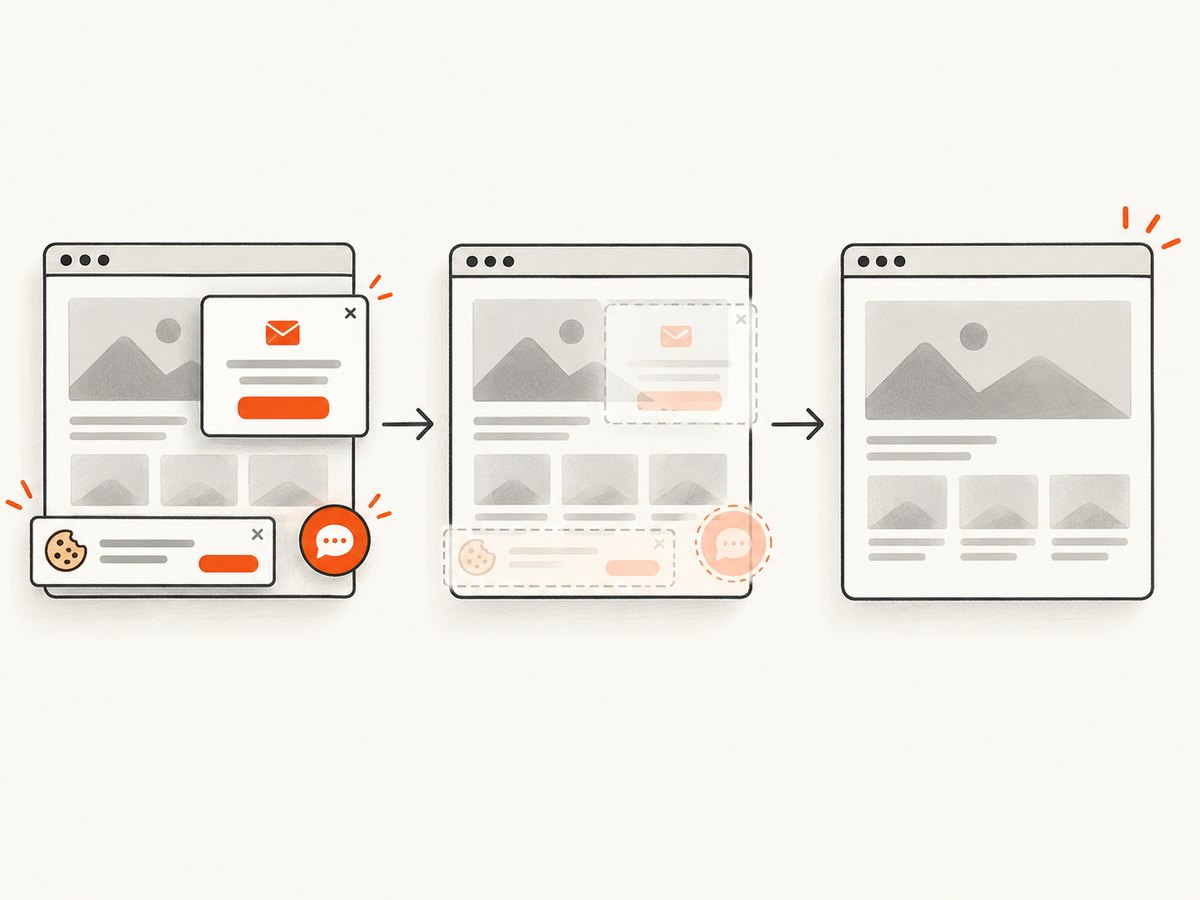
require('fs').writeFileSync('shot.webp', bytes);ScreenshotNeo removes cookie and consent banners, newsletter popups, and chat widgets before the capture. Bot checks, blank pages, timeouts, failed loads, and cache hits are not billed, and the response identifies the result with X-Page-Verdict and X-Billed headers. An MCP server provides take_screenshot, get_page_info, and capture_pdf tools for Claude, Cursor, and other MCP clients. The Free plan includes 1,000 screenshots each month with no card; paid plans start at $5 for 3,000 shots.
Sign up free for ScreenshotNeo and start with 1,000 screenshots a month without a card.
FAQ
Does Edge support full-page screenshots?
Yes. On supported desktop versions, Screenshot/Web Capture includes a Capture full page command intended to include content below the viewport.
Why does Ctrl+Shift+S do nothing?
The shortcut may be unavailable because you are on an unsupported platform, an administrator disabled Web Capture, or the browser version does not expose the feature.
Can Edge capture an iframe’s entire contents?
Not reliably through the normal document capture command. An iframe or inner panel may own its scrollbar, so use the embedded application’s export option, DevTools, or an element-aware capture workflow.
Is a black screenshot caused by a page-height bug?
Usually not. A black result can indicate screenshot-prevention policy or protected content. Check with the page owner or device administrator.
What is the most relevant built-in fallback?
DevTools’ Capture a full size screenshot command is the most direct fallback when Edge’s normal full-page command does not produce the required image.


