BlogScreenshots on your device
Why Microsoft Edge Web Capture Misses Part of a Full Page and How to Fix It
Edge Web Capture can miss nested or dynamically rendered content. Learn why, how to capture the whole page, and when to use DevTools, print, or ScreenshotNeo.
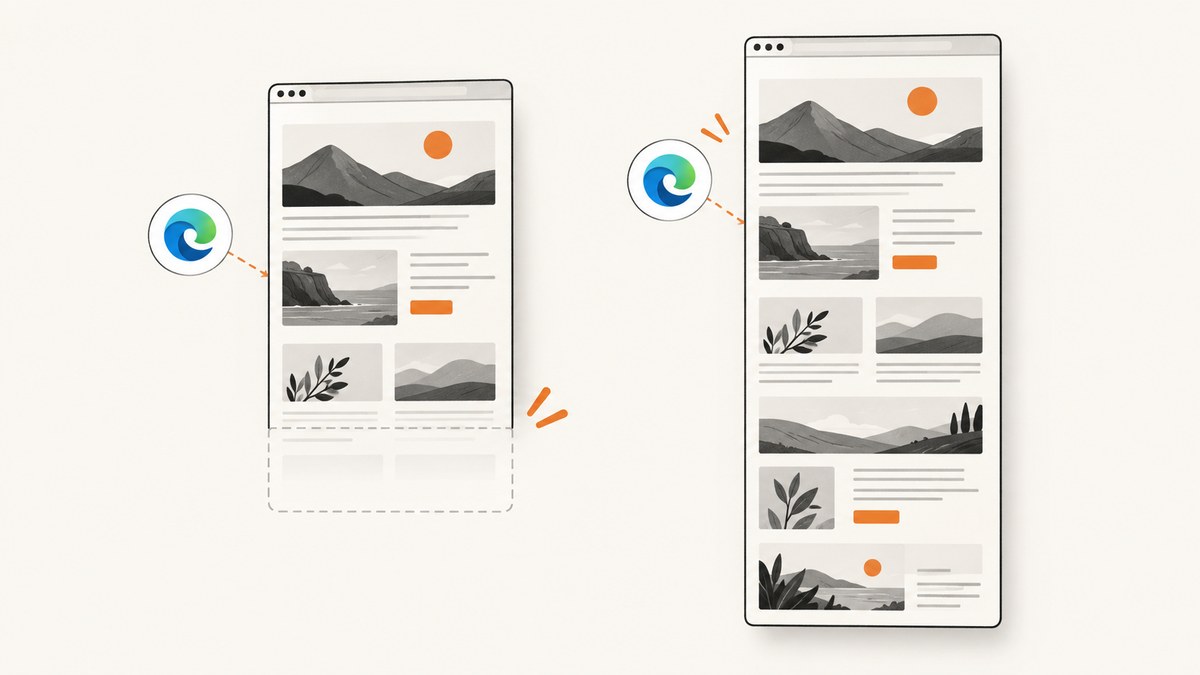
Edge Web Capture can miss the bottom of a page when important content is inside an independently scrolling panel, table, iframe, or dynamically rendered region. Microsoft has not published one universal root cause, maximum page height, or guaranteed fix. Work through the checks below, then use DevTools’ full-size screenshot or a targeted capture when the normal command still omits content.
For occasional captures, Edge’s built-in tools are usually enough. For repeatable captures in scripts, CI, documentation, or AI workflows, ScreenshotNeo can capture the URL without maintaining a browser.
What Edge Web Capture is supposed to do
Open the page in Edge, choose Settings and more (…) > Web capture, or press Ctrl+Shift+S. Select Capture full page, review the result, and save it. This is Microsoft’s documented whole-page workflow.
A full-page result is not always the same as the complete visual state a person can reach by scrolling. A page may contain:
- An outer document with its own scrollbar and an inner table or panel with another scrollbar.
- Rows, images, or cards that render only after scrolling or after JavaScript finishes.
- An iframe or embedded application with a separate rendering surface.
- Sticky headers, virtualized lists, lazy images, or content that changes while the capture is being assembled.
Why the bottom, table, or embedded content is missing
Microsoft Q&A reports describe Web Capture omitting most of a long internally scrollable table, while another report captured a 40,000-pixel documentation page successfully. That difference points to page structure and rendering behavior rather than a single universal length limit.

When the missing material is inside a nested scrolling region, Edge may capture the outer document’s height without traversing the inner region. A virtualized table may also keep only visible rows in the DOM, so there is no complete set of rows for an automatic capture to assemble. These are practical diagnoses based on the reported behavior, not a Microsoft-confirmed explanation for every site.
Fix it step by step
1. Confirm that you selected the full-page mode
- Open the page and wait for its main content to finish loading.
- Press Ctrl+Shift+S, or choose Settings and more (…) > Web capture.
- Select Capture full page, review the preview, and save it.
If the preview already lacks the content, continue with the structural checks below.
2. Look for a second scrollbar
Inspect the area where content is missing. If a table, panel, chat transcript, dashboard, or embedded document has its own scrollbar, scroll that region manually to the required rows and use a targeted capture. An outer full-page command may not expand an application-managed scroll container.
3. Use Capture area and extend it downward
Choose Web capture > Capture area. Drag the selection toward the bottom of the page. Edge’s Web Capture announcement says the page automatically starts scrolling while you extend the selection, allowing you to include content that the automatic full-page mode missed.
This method is useful when you need a particular section or when the page contains a difficult inner region. It is less convenient for a very long page because you must inspect the result and may need several captures.
4. Capture a full-size screenshot in DevTools
- Open DevTools with F12, or choose Settings and more (…) > More tools > Developer tools.
- Enable device mode if the device toolbar is not visible.
- Open the DevTools More options menu.
- Choose Capture screenshot > Capture a full size screenshot.
Microsoft documents this command for capturing content beyond the current viewport. It is the best built-in fallback when Web Capture’s preview stops early.
5. Print the page when a readable record is enough
Press Ctrl+P, or choose Settings and more (…) > Print. Print output is often preferable for an archive, review copy, or searchable record when a pixel-accurate image is not required. If the site supports Immersive Reader, enter it first for a cleaner print layout.
6. Stabilize Edge
Microsoft’s troubleshooting guidance recommends these browser-health steps:
- Update Edge from Settings > About Microsoft Edge.
- Close extra tabs and applications, and pause unnecessary downloads.
- Disable extensions you do not need for the capture.
- Clear cached images and files from History > Delete browsing data.
- Try the page in another browser to determine whether the issue is Edge-specific.
- Use Help and feedback > Send feedback if the behavior is reproducible.
- Repair Edge from Windows Installed apps > Microsoft Edge > Modify > Repair. Microsoft says repair should preserve browser data and settings.
Choosing the right fallback
| Situation | Best option | Trade-off |
|---|---|---|
| Ordinary long article | Web Capture: Capture full page | Fastest built-in workflow |
| Nested table or panel | Capture area, after scrolling the inner region | Requires manual positioning |
| Content below the viewport is missing | DevTools full-size screenshot | More steps, but designed for full document height |
| Readable archive or sharing copy | Print to PDF | Layout may differ from the screen |
| Repeatable automation | Screenshot API | Requires an API key and request handling |
Or skip the browser setup
ScreenshotNeo provides a GET endpoint that returns a PNG, JPEG, WebP, or PDF for a URL. See the ScreenshotNeo API documentation for the complete option list.
cURL
curl -G "https://api.screenshotneo.com/v1/shot" \
  -d access_key=YOUR_API_KEY \
  --data-urlencode url=https://stripe.com \
  -o shot.webp
Python
import requests

r = requests.get(
    "https://api.screenshotneo.com/v1/shot",
    params={"access_key": "YOUR_API_KEY", "url": "https://stripe.com"},
    timeout=90,
)
r.raise_for_status()
open("shot.webp", "wb").write(r.content)
Node.js
const q = new URLSearchParams({
  access_key: 'YOUR_API_KEY',
  url: 'https://stripe.com'
});
const res = await fetch(`https://api.screenshotneo.com/v1/shot?${q}`);
if (!res.ok) throw new Error(`HTTP ${res.status}`);
const fs = await import('node:fs/promises');
await fs.writeFile('shot.webp', Buffer.from(await res.arrayBuffer()));
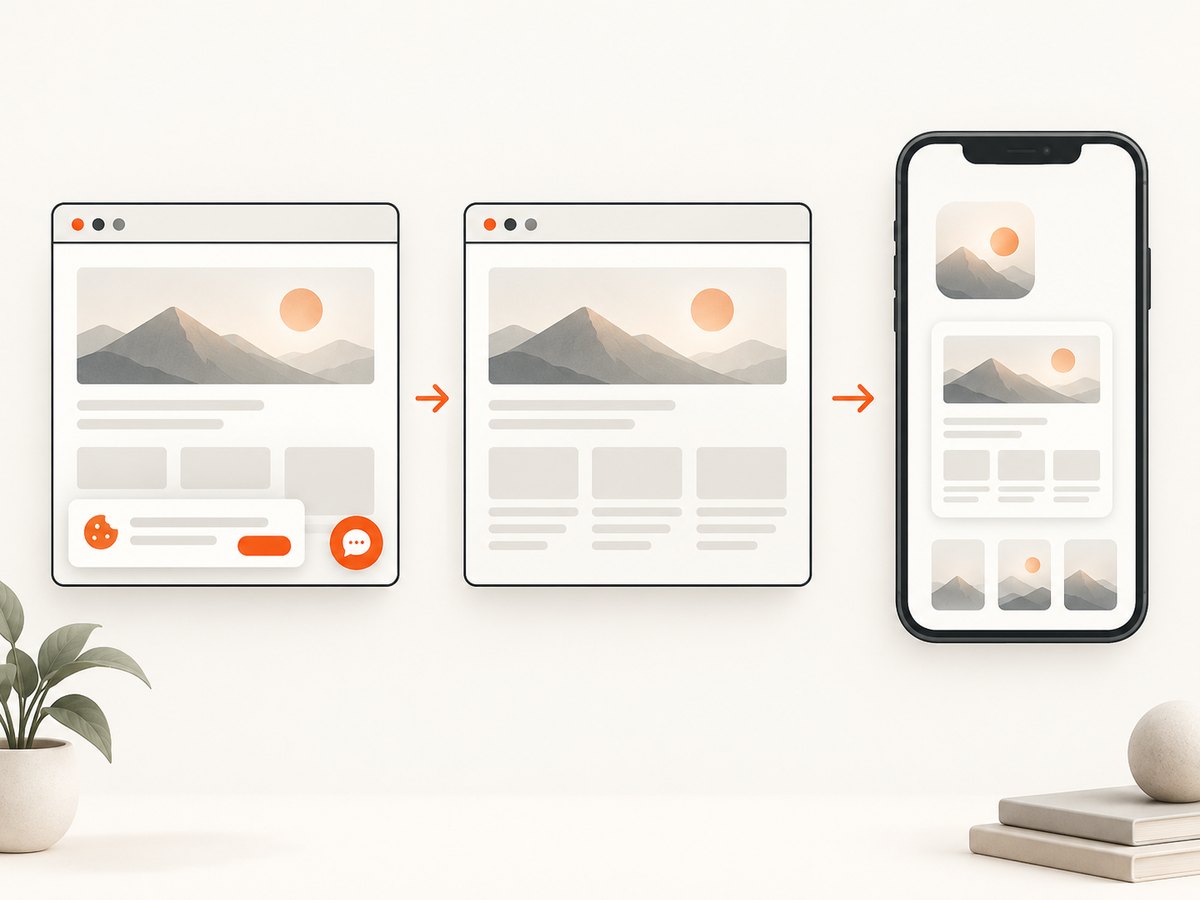
Before capture, ScreenshotNeo accepts cookie and consent banners and removes more than 60 known consent platforms, newsletter popups, and chat widgets. Each step can be turned off. It supports full-page captures with lazy images loaded, a CSS-selector element capture, dark mode, device presets or custom viewports, retina scale, custom CSS and JavaScript, clicks, waits, blocked ads or requests, custom headers and cookies, user agents, authorization, timezone, geolocation, transparent backgrounds, resizing, caching, signed links, asynchronous jobs, webhooks, bulk capture, usage data, and PDF output.
Only clean shots are billed. Bot checks or CAPTCHAs, blank pages, timeouts, failed loads, and cache hits cost nothing, and the response identifies the result with X-Page-Verdict and X-Billed headers. ScreenshotNeo also includes an MCP server with take_screenshot, get_page_info, and capture_pdf tools for Claude, Cursor, and other MCP clients.
There is a free allowance of 1,000 shots per month with no card. Paid plans start at $5 for 3,000 shots; yearly billing gives two months free. Create a free ScreenshotNeo account.
Reliability and performance considerations
- Wait for content: For pages that render asynchronously, wait for a selector, a delay, or network idle before capturing.
- Reduce layout changes: Hide animated or intrusive selectors, and use custom CSS when a banner or sticky element obscures content.
- Control size: A full-page image can be very tall. Use a device preset, viewport, image resizing, or an element capture when you only need one region.
- Avoid repeated work: Choose a cache TTL for unchanged URLs. Cache hits are not billed by ScreenshotNeo.
- Handle failures: Set a client timeout appropriate for the page, inspect HTTP status and response headers, and retry transient network failures with a limit.
- Protect credentials: Keep the access key on a server or in a secret manager. Do not expose it in public browser JavaScript.
Troubleshooting common failures
| Symptom | Likely cause | Fix |
|---|---|---|
| Bottom of page is absent | Nested scrollbar or dynamic rendering | Scroll the inner region, use Capture area, or use DevTools full-size screenshot |
| Table rows are missing | Virtualized or independently scrolling table | Capture the table region after scrolling, or print/export the table |
| Images are blank | Lazy loading or incomplete page load | Wait for images, scroll once, then recapture; for automation, wait for a selector or network idle |
| Capture hangs | Heavy page, blocked request, or browser memory pressure | Close tabs, disable extensions, clear cache, update or repair Edge, then retry |
| Preview differs from the page | Sticky elements, animations, or responsive layout | Use a stable viewport, disable animation with CSS, or capture the relevant element |
| ScreenshotNeo returns a non-clean result | Bot check, CAPTCHA, blank page, timeout, or failed load | Inspect X-Page-Verdict and X-Billed; adjust waits, headers, cookies, or user agent |
FAQ
Does Edge have a maximum full-page height?
The supplied Microsoft sources do not establish a universal maximum height. A 40,000-pixel documentation page was reportedly captured, while other pages failed because of their structure or rendering behavior.
Why does scrolling the page manually sometimes help?
Manual scrolling can trigger lazy images, virtualized rows, and deferred scripts. It may make more content available to a later capture, but it does not guarantee that an inner scrolling container will be included.
Should I use a browser extension?
An extension can be useful for frequent interactive work, but verify its current compatibility and privacy terms. Edge’s Capture area and DevTools commands are better first checks because they are built in.
Can I capture only the missing table?
Yes. Scroll the table to the needed position and use Capture area, or use an element-specific capture in an automation tool. This is often clearer than producing one extremely tall image.
When is PDF better than an image?
Use print or PDF when the goal is reading, searching, or archiving. Use a screenshot when visual fidelity, pixel comparison, or a raster asset matters.


