BlogScreenshots on your device
Can You Save Screenshots Only on Failure with Electron and Playwright?
Yes. Configure Playwright Test to capture Electron screenshots only after failures, or attach custom images with a fixture when you need more control.
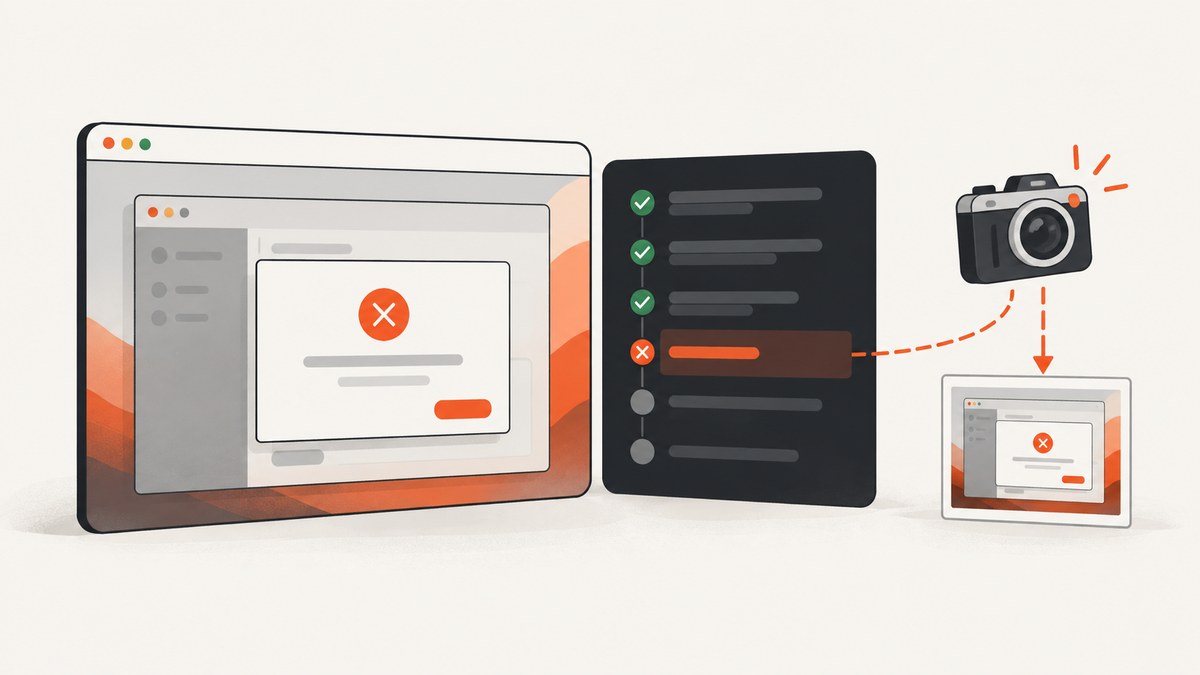
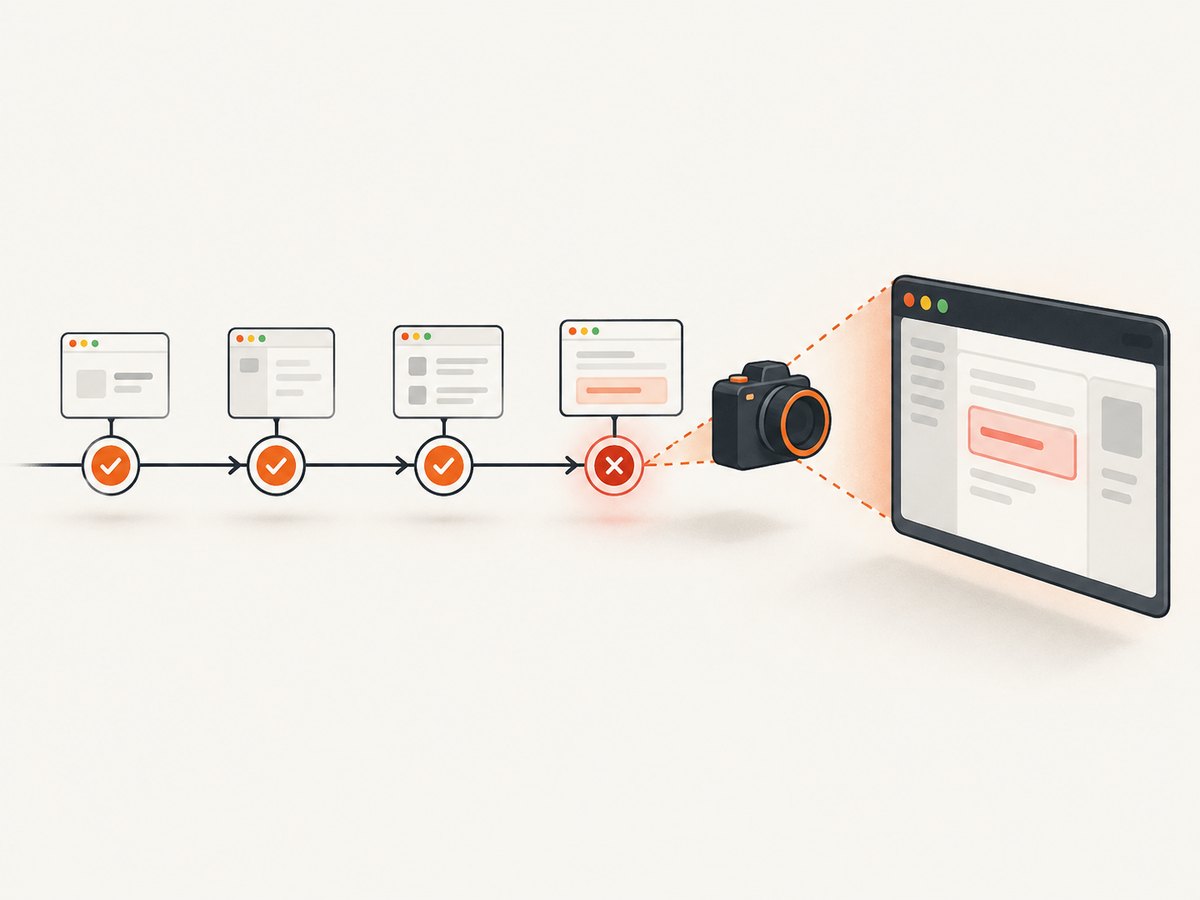
Yes. Playwright Test has a built-in setting for this: use.screenshot: 'only-on-failure'. It captures a screenshot after each failed test and avoids creating screenshots for passing tests. The setting also works when the test launches an Electron application, because Playwright exposes an Electron BrowserWindow as a Page-like object.
// playwright.config.ts
import { defineConfig } from '@playwright/test';

export default defineConfig({
  use: {
    screenshot: 'only-on-failure',
  },
});
This is the right default for CI diagnostics. Use a custom fixture or afterEach hook when you need custom filenames, conditional logic, a screenshot buffer, or a reporter attachment.
What the screenshot modes mean
The Playwright Test option accepts four values:
| Value | Behavior | Typical use |
|---|---|---|
off |
No automatic screenshots. This is the default. | Fast local runs when images are unnecessary. |
on |
Capture after every test. | Visual diagnostics for every case. |
only-on-failure |
Capture after each test failure. | Normal CI failure evidence. |
on-first-failure |
Capture after the first failure of each test. | Retries where repeated screenshots would add noise. |
Playwright documents only-on-failure as “Capture screenshot after each test failure.” See the official TestOptions reference for the current option names and behavior.
Set up an Electron project with Playwright Test
- Install Playwright Test and the Electron package in your project.
- Put the screenshot setting inside
defineConfig({ use: ... }). - Launch the Electron app in a test and obtain its first window.
- Interact with the window. If an assertion fails, Playwright saves the failure screenshot with the test result.
npm install -D @playwright/test
npx playwright install
A minimal configuration can include a test directory, retries, and an output directory:
// playwright.config.ts
import { defineConfig } from '@playwright/test';

export default defineConfig({
  testDir: './tests',
  retries: process.env.CI ? 2 : 0,
  outputDir: 'test-results',
  use: {
    screenshot: 'only-on-failure',
    trace: 'retain-on-failure',
  },
});
The screenshot option belongs under use, not at the top level. Keeping it there lets Playwright apply the setting to every test that uses the Playwright fixtures.
Complete Electron test example
The following test launches an app from the project directory, reads its first window, and deliberately checks a visible heading. When that check fails, the configured mode produces a PNG in the test result output.
// tests/main-window.spec.ts
import { test, expect, _electron as electron } from '@playwright/test';

test('main window shows the welcome heading', async () => {
  const electronApp = await electron.launch({
    args: ['.'],
  });

  try {
    const window = await electronApp.firstWindow();
    await expect(window).toHaveTitle(/My Electron App/);
    await expect(window.getByRole('heading', { name: 'Welcome' })).toBeVisible();
  } finally {
    await electronApp.close();
  }
});
The Electron integration uses the same Page screenshot API as browser tests. The official example launches with electron.launch, gets firstWindow(), and can call window.screenshot(). See the Electron API documentation.
How failure screenshots are stored and reported
Playwright writes artifacts beneath the configured output directory, usually in a per-test result folder. The exact folder name includes the test title and retry information, so do not hard-code a path in tooling that consumes results. HTML, list, blob, and CI reporters can expose the attachment according to their own formats.
Run the suite with:
npx playwright test
npx playwright show-report
On a failure, open the report and select the test. The screenshot is shown alongside other test artifacts. In CI, publish the test-results directory (or your reporter’s artifact directory) so the image remains available after the job finishes.
Manual screenshots when you need custom control
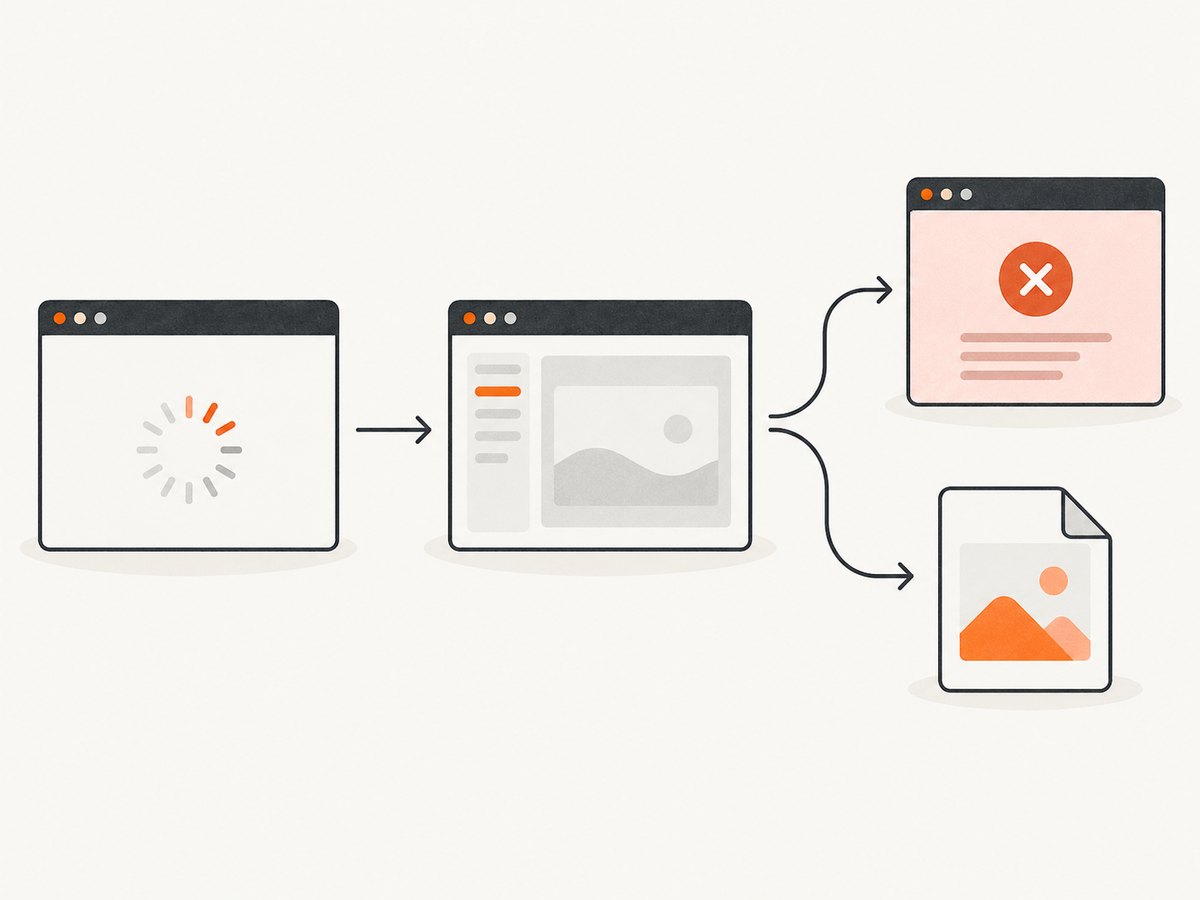
The built-in mode is intentionally simple: it captures at the failure boundary chosen by Playwright Test. A manual hook is useful when you need a semantic filename, a screenshot only for selected errors, a buffer for another system, or multiple images.
Attach a PNG to the Playwright report
import { test as base, expect, _electron as electron } from '@playwright/test';

type Fixtures = {
  electronWindow: Awaited<ReturnType<typeof electron.launch>>;
};

const test = base.extend<{ window: any }>({
  window: async ({}, use, testInfo) => {
    const app = await electron.launch({ args: ['.'] });
    const window = await app.firstWindow();

    try {
      await use(window);
    } finally {
      if (testInfo.status !== testInfo.expectedStatus) {
        const png = await window.screenshot();
        await testInfo.attach('electron-failure', {
          body: png,
          contentType: 'image/png',
        });
      }
      await app.close();
    }
  },
});

export { expect } from '@playwright/test';

// tests/custom-attachment.spec.ts
test('dashboard renders', async ({ window }) => {
  await expect(window.getByTestId('dashboard')).toBeVisible();
});
testInfo.attach makes the buffer visible to reporters. The attachment needs either body or path; when the body is a PNG buffer, set contentType: 'image/png'. The TestInfo API reference documents the attachment contract.
Write a direct file
const window = await electronApp.firstWindow();
await window.screenshot({ path: 'artifacts/main-window.png' });
The same path option is available on a normal Playwright Page and the Electron window object. Create the destination directory before writing if your code does not already do so.
Capture only for selected failures
Use the test result and error information in a fixture or afterEach hook. For example, capture only when the failure is an assertion rather than an expected skip. Keep the cleanup in a finally block so a screenshot failure does not prevent Electron from closing.
Electron details and edge cases
- Multiple windows:
firstWindow()returns the first BrowserWindow. For secondary windows, listen for thewindowevent or select the desired Page before capturing. - Window readiness: Wait for a locator, title, or app-specific ready signal before assertions. A screenshot taken while the renderer is still loading can show a blank or partial state.
- Native dialogs: Playwright controls the renderer BrowserWindow. Native operating-system dialogs are outside the normal Page interception model, so their pixels require a different desktop capture strategy.
- Full page: Electron windows do not always behave like a scrolling browser document. Use
fullPage: trueonly when the renderer content supports it; otherwise capture the viewport or a specific element. - Retina displays: Screenshot dimensions can differ from CSS pixels because of device scale settings. Assert on content or use a controlled CI display when pixel dimensions matter.
- Retries: A retried test can produce one artifact per attempt. Include retry information in any custom filename to avoid overwriting evidence.
- Secrets: Screenshots can contain tokens, customer data, or local paths. Store test artifacts with the same access controls as logs.
Debugging checklist
| Symptom | Likely cause | Fix |
|---|---|---|
| No screenshot after a failure | The option is outside use, or the test is not running under Playwright Test. |
Set use: { screenshot: 'only-on-failure' } in the loaded config and run npx playwright test. |
| Screenshot is blank | The renderer was captured before the app finished loading. | Wait for a stable locator, app-ready event, or expected title before the assertion. |
| Electron never closes | A failed screenshot or assertion skipped cleanup. | Close the app in finally; also make custom attachment code resilient. |
| Attachment is missing from the report | The buffer lacks a content type, or the reporter does not expose attachments. | Pass contentType: 'image/png' and verify the selected reporter’s artifact support. |
| Wrong window captured | The app opened more than one BrowserWindow. | Select the intended Page after observing Electron window events. |
| Files disappear in CI | The job cleans its workspace after completion. | Upload the Playwright output directory as a CI artifact. |
| Different pixels locally and in CI | Fonts, display scale, GPU, or app data differ. | Pin the Playwright/browser version, use deterministic fixtures, and compare the same environment. |
Performance, reliability, and cost considerations
Capturing only on failure reduces disk writes and report size in passing runs. The expensive part is usually launching Electron and waiting for the renderer, not encoding one PNG, but large full-window images still increase CI upload time. Prefer the viewport or a focused element when the failure question does not require the entire page.
For reliable diagnostics, pair the screenshot with a trace retained on failure, console output, and the test error. A screenshot shows pixels, while a trace can reveal the preceding navigation, locator action, and network timing. Keep screenshot assertions independent of animation: disable transitions in test CSS or wait for the UI to settle.
Playwright itself does not charge per screenshot. Your costs come from CI minutes, artifact storage, and bandwidth. Set retention limits for old artifacts and avoid capturing every passing test unless visual review requires it.
Or skip the browser setup
If your goal is a clean image of a URL rather than an Electron test artifact, ScreenshotNeo returns a screenshot from one HTTP request. Its API removes cookie and consent banners, newsletter popups, and chat widgets before capture. Bot checks, blank pages, timeouts, failed loads, and cache hits are not billed, and each response reports the result through X-Page-Verdict and X-Billed headers. It also provides an MCP server with take_screenshot, get_page_info, and capture_pdf for Claude, Cursor, and other MCP clients.
See the ScreenshotNeo API documentation for all options.
cURL
curl -G "https://api.screenshotneo.com/v1/shot" \
  -d access_key=YOUR_API_KEY \
  --data-urlencode url=https://stripe.com \
  -o shot.webp
Python
import requests

r = requests.get(
    "https://api.screenshotneo.com/v1/shot",
    params={"access_key": "YOUR_API_KEY", "url": "https://stripe.com"},
    timeout=90,
)
r.raise_for_status()
open("shot.webp", "wb").write(r.content)
Node.js
const q = new URLSearchParams({
  access_key: 'YOUR_API_KEY',
  url: 'https://stripe.com'
});
const res = await fetch(`https://api.screenshotneo.com/v1/shot?${q}`);
if (!res.ok) throw new Error(`HTTP ${res.status}`);
const body = Buffer.from(await res.arrayBuffer());
await import('node:fs/promises').then(fs => fs.writeFile('shot.webp', body));
You can configure full-page capture with lazy images loaded, CSS element selection, dark mode, device presets or custom viewports, retina scale, custom CSS and JavaScript, clicks, selector or network-idle waits, blocked ads and trackers, headers, cookies, user agents, authorization, timezone, geolocation, transparent backgrounds, resizing, caching with a chosen TTL, signed image links, asynchronous jobs with signed webhooks, bulk capture for up to 100 URLs per call, PDFs, HTML/CSS rendering, and usage reporting. The parameter names used by other screenshot APIs also work, which can simplify a migration.
There is a free plan with 1,000 screenshots per month and no card. Paid plans start at $5 for 3,000 shots; every feature is available on every plan. Create a free ScreenshotNeo account and start with the 1,000 included screenshots.
FAQ
Does only-on-failure work without Electron?
Yes. It is a Playwright Test option and applies to ordinary browser tests as well as tests that use the Electron integration.
Can I change the screenshot format?
Manual page.screenshot calls support the screenshot options documented by your installed Playwright version. The automatic test option follows Playwright Test’s reporter artifact behavior.
Can I attach a screenshot and still use the built-in setting?
Yes, but you may get two images for the same failure. Use the manual hook only when its extra naming or conditional behavior is useful.
Why use testInfo.attach instead of only writing a file?
An attachment is associated with the test result and can be displayed by reporters. A direct file is useful for external processing, but you must preserve and publish its path yourself.
Can Playwright capture an operating-system permission dialog?
The documented Electron screenshot API captures the BrowserWindow. Native OS dialogs are outside that Page-like surface and need another capture approach.


