Events Emitted by Embedded Design Editors
A complete guide to Adobe Embedded Design Editor callbacks, payloads, host actions, publish handling, errors, and integration patterns.
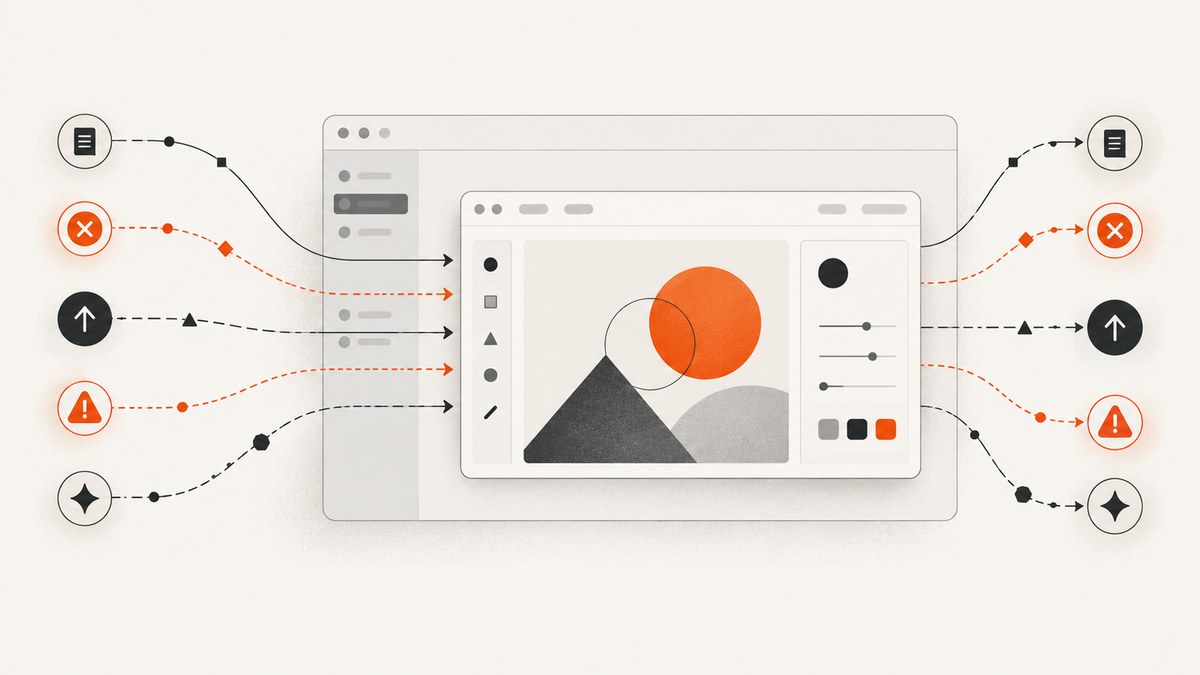
Embedded design editors communicate with the host application through callbacks. In Adobe’s Embedded Design Editor (EDE), the host can observe loading, cancellation, publishing, errors, generic host events, and workflow intent changes through the CC Everywhere Callbacks interface. All callbacks are optional, so implement only the lifecycle events your application needs.
The callbacks most hosts implement are:
onLoadInitandonLoadStartfor loading indicators and timing.onLoadto enable controls after the editor is ready.onCancelto close the editor and record how cancellation happened.onPublishStartandonPublishto track and process exports.onErrorto show an actionable failure and capture diagnostics.onEventfor supported information-style host events.onIntentChangefor transitions between design workflows, although Adobe documents this callback as not currently operational for EDE workflows.
How the Embedded Design Editor fits into a host application
EDE is a configurable creation surface embedded in another application. The two documented module workflows are module.createDesign(), which starts from a template or blank canvas, and module.editDesign(), which reopens an existing document. Both workflows use appConfig, exportConfig, and containerConfig. The edit workflow also receives docConfig describing the document to preload.
Callbacks are supplied as part of the module configuration. A host normally uses them to synchronize its own UI, telemetry, persistence layer, and export pipeline with the editor lifecycle. The editor remains responsible for the design surface; the host responds to state changes.
Complete callback reference
| Callback | When it runs | Payload or return value | Typical host action |
|---|---|---|---|
onLoadInit |
May run when the target application begins loading and its spinner starts. | LoadInitCallback payload. |
Show the initial loading state. |
onLoadStart |
May run when target application loading starts. | LoadStartCallback. |
Start a timer or telemetry span. |
onLoad |
May run after target application loading finishes. | LoadCallback. |
Enable controls that require a ready editor. |
onCancel |
May run when the user cancels the workflow. | isEscapePressed: boolean. |
Close host state and distinguish Escape from another cancel action. |
onPublishStart |
May run when the user starts export by clicking a save button. | Optional exportButtonId: string. |
Mark export as active and identify the selected export action. |
onPublish |
May run after export finishes. | (intent, publishParams); may return void or Promise<PublishStatus>. |
Store the document ID, process the asset, and acknowledge or deny the save. |
onError |
May run for an editor error. | error: CCEverywhereError; returns void. |
Display a useful message and log diagnostics. |
onEvent |
May run for information-style host events. | message: HostEventData; returns void. |
Consume supported host event messages. |
onIntentChange |
Runs when a user moves from one design intent to another, such as Quick action to Express. | (oldIntent, newIntent); may return IntentChangeConfig. |
Adapt app, export, or container configuration when supported. |
Load lifecycle events
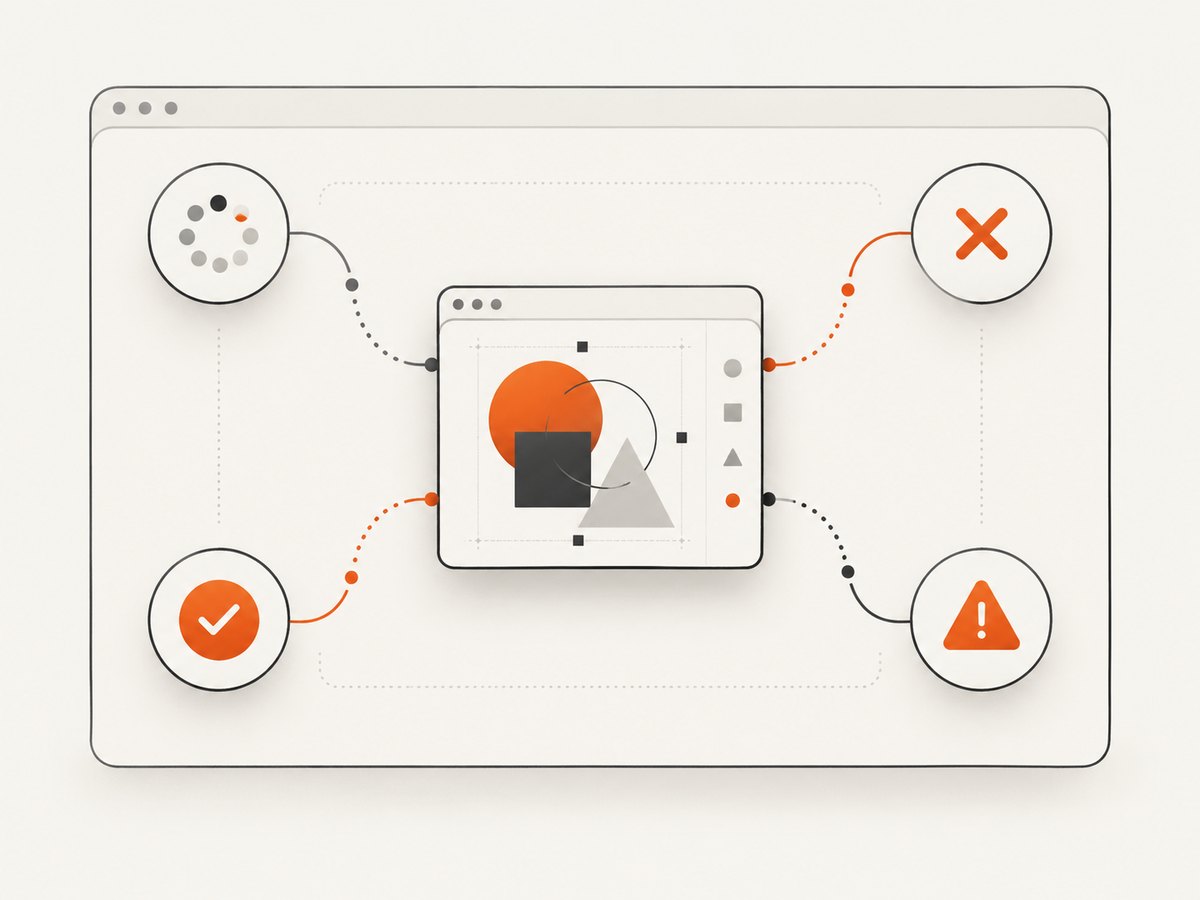
onLoadInit
Use onLoadInit for the earliest loading state. The callback may occur when the target application starts loading and the editor spinner begins. This is a good place to display a host-level skeleton, disable duplicate launch buttons, and create a correlation ID for logs.
onLoadStart
onLoadStart indicates that target application loading has started. Start a timer here if you want to measure the interval until onLoad. Keep this measurement separate from the time required to export a design; they represent different operations.
onLoad
Use onLoad as the readiness boundary for host controls that depend on the editor. For example, you can enable a surrounding “Continue” button, stop a loading timer, or mark the embedded surface ready in telemetry. Do not assume that a host page being mounted means the editor is ready; use the callback supplied by the integration.
const callbacks = {
  onLoadInit() {
    setEditorState('loading');
    telemetry('editor_load_init');
  },
  onLoadStart() {
    loadStartedAt = performance.now();
    telemetry('editor_load_start');
  },
  onLoad() {
    const elapsed = performance.now() - loadStartedAt;
    setEditorState('ready');
    telemetry('editor_load_complete', { elapsedMs: elapsed });
  }
};
Cancellation events
onCancel runs when the user cancels the workflow. Its payload contains isEscapePressed, a Boolean that tells you whether Escape caused the cancellation. Use this to close a modal, release temporary state, and record the user’s exit path. Cancellation is not a publish failure: do not show an error message or retry an export when this callback fires.
onCancel({ isEscapePressed }) {
  closeEditorPanel();
  discardUnsavedHostDraft();
  telemetry('editor_cancel', { method: isEscapePressed ? 'escape' : 'control' });
}
Publish lifecycle and returned data
onPublishStart
This callback may run when the user starts an export by clicking a save button. The optional exportButtonId identifies the selected export action. Set a host-side “publishing” state here, disable duplicate submission, and show progress. Always clear that state in both success and error paths.
onPublish
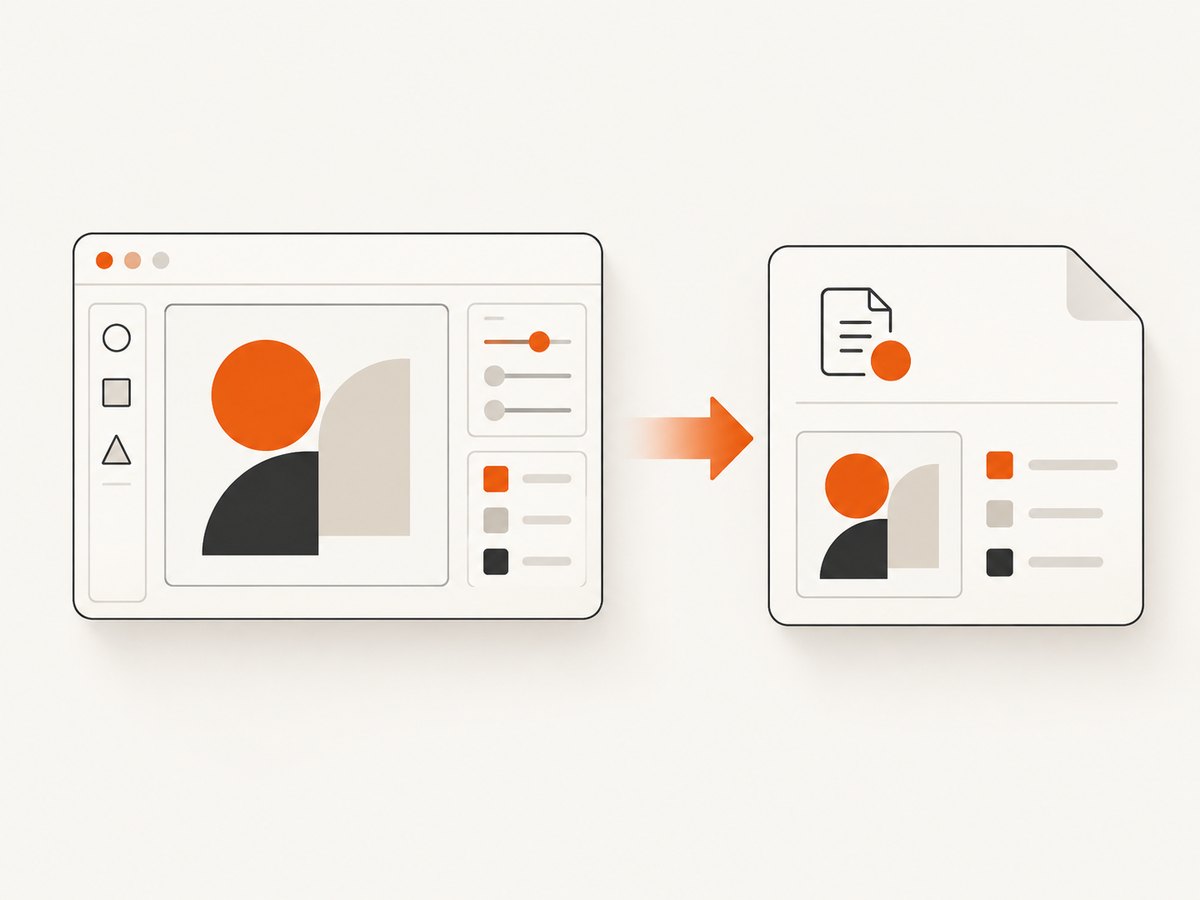
When export finishes, EDE calls onPublish with intent and publishParams. The callback can return nothing or a promise resolving to a PublishStatus. Adobe’s tutorial demonstrates returning { status: "SUCCESS" } to acknowledge the save.
The tutorial also stores publishParams.documentId. Persisting that identifier lets the host reopen the same design later with module.editDesign({ docId }). For a preview, the tutorial reads publishParams.assetPreview[0].data. Treat that preview as a display payload; your production asset workflow should separately decide how full-resolution output is stored or delivered.
Export configuration can expose PDF and PNG publish actions. Full-resolution output may be returned as a URL or blob, while an optional preview may be returned as base64. These are software payload choices, so the host should select the representation that fits its storage and transport path.
const callbacks = {
  async onPublish(intent, publishParams) {
    setPublishing(false);

    const documentId = publishParams.documentId;
    await saveDocumentReference({ documentId, intent });

    const preview = publishParams.assetPreview?.[0]?.data;
    if (preview) {
      showPreview(preview);
    }

    return { status: 'SUCCESS' };
  },

  onPublishStart({ exportButtonId }) {
    setPublishing(true);
    telemetry('editor_publish_start', { exportButtonId });
  }
};
Error handling
onError receives a CCEverywhereError and returns void. Show a message that tells the user what they can do next, while logging the structured error for diagnosis. Avoid exposing raw internal details as the only user-facing message.
onError(error) {
  setPublishing(false);
  setEditorState('error');

  logError('embedded_editor_error', {
    name: error?.name,
    message: error?.message,
    details: error
  });

  showError('The editor could not complete that action. Please try again.');
}
Generic events and intent changes
onEvent
onEvent receives HostEventData for information-style host events. The cited callback type reference does not provide a complete event-name catalog, so do not build behavior around undocumented message names. Log the received message during integration, then handle only event types documented for the version you deploy.
onIntentChange
This callback receives oldIntent and newIntent when a user navigates between design workflows. It may return an IntentChangeConfig that updates application, export, or container configuration. Adobe’s EDE guide currently says this callback is not operational for EDE workflows, so treat it as a forward-compatible hook rather than a required part of today’s EDE control flow.
onIntentChange(oldIntent, newIntent) {
  telemetry('editor_intent_change', { oldIntent, newIntent });

  // Keep this defensive until the callback is operational for your EDE flow.
  if (newIntent === 'supported-host-flow') {
    return {
      appConfig: getAppConfigFor(newIntent),
      exportConfig: getExportConfigFor(newIntent),
      containerConfig: getContainerConfigFor(newIntent)
    };
  }
}
A practical host integration pattern
- Create a host state machine with
idle,loading,ready,publishing,canceled, anderrorstates. - Set loading state in
onLoadInitoronLoadStart; mark the editor ready only inonLoad. - Disable duplicate publish controls in
onPublishStart. - Persist
documentIdinonPublishbefore acknowledging the save. - Use the returned publish status to decide whether the host closes the editor or keeps it open.
- Clear temporary state on both
onCancelandonError. - Include an integration or request ID in telemetry so load and publish records can be correlated.
Troubleshooting common callback problems
| Symptom | Likely cause | Fix |
|---|---|---|
| The host enables controls too early. | Readiness is inferred from iframe mounting. | Enable dependent controls from onLoad. |
| Publish appears stuck. | The host never clears its publishing state on an error. | Reset the state in both onPublish and onError. |
| A canceled design is treated as a failure. | onCancel is routed through error handling. |
Handle cancellation separately and inspect isEscapePressed. |
| The same document cannot be reopened. | publishParams.documentId was not persisted. |
Store the document ID during onPublish and pass it to editDesign. |
| Preview rendering fails. | The host assumes every publish includes a preview. | Check assetPreview and its first item before reading data. |
| Intent-specific configuration never changes. | onIntentChange is not operational for the current EDE workflow. |
Configure the supported workflow up front and do not depend on this callback. |
| Unknown event names break the host. | Undocumented onEvent messages are treated as stable API. |
Log unknown messages and handle only documented event types. |
Performance, reliability, and cost considerations
Measure editor load and export separately. A slow load can come from initialization, authentication, or host configuration; a slow publish can come from export processing or asset transfer. Keep callbacks short and move network writes, image processing, and analytics batching to asynchronous tasks.
Make publish handling idempotent. A retry or duplicate user action should not create conflicting host records for the same documentId. Persist the document reference before starting nonessential preview work, and record the export intent and button identifier when available.
Do not assume every callback fires exactly once or that optional callbacks always run. Design cleanup paths so the host can recover if a user closes the surrounding modal, the embedding page unmounts, or an error interrupts the normal sequence.
Or skip the browser setup
If your goal is to capture the editor or any published page rather than embed an editor yourself, ScreenshotNeo provides a single screenshot API request. It accepts the cookie or consent banner like a visitor, removes more than 60 known consent platforms plus newsletter popups and chat widgets, and bills only clean shots. Bot checks, blank pages, timeouts, failed loads, and cache hits cost nothing, with the result identified by X-Page-Verdict and X-Billed headers. Its MCP server also gives Claude, Cursor, and other MCP clients take_screenshot, get_page_info, and capture_pdf tools.
cURL:
curl -G "https://api.screenshotneo.com/v1/shot" \
  -d access_key=YOUR_API_KEY \
  --data-urlencode url=https://stripe.com \
  -o shot.webp
Python:
import requests

r = requests.get(
    "https://api.screenshotneo.com/v1/shot",
    params={"access_key": "YOUR_API_KEY", "url": "https://stripe.com"},
    timeout=90,
)
open("shot.webp", "wb").write(r.content)
Node.js:
const q = new URLSearchParams({
  access_key: 'YOUR_API_KEY',
  url: 'https://stripe.com'
});
const res = await fetch(`https://api.screenshotneo.com/v1/shot?${q}`);
See the ScreenshotNeo API documentation for the request options. 1,000 screenshots each month are free with no card; paid plans start at $5 for 3,000 shots. Create a free ScreenshotNeo account.
FAQ
Are all callbacks required?
No. Every callback in the CC Everywhere Callbacks interface is optional.
Can onPublish be asynchronous?
Yes. It may return void or a promise resolving to PublishStatus.
What identifies the saved design?
Use publishParams.documentId, then pass that ID to module.editDesign({ docId }) when reopening it.
Does onEvent have a complete public event catalog?
The cited type reference defines the payload but does not provide a complete event-name catalog. Handle documented messages for the version you use.
Should a cancellation be retried?
No. Cancellation is a user decision. Offer a new launch action instead of treating it as an export failure.


