How to Take Fast Website Screenshots with an MCP Tool
Use Playwright MCP to capture a viewport, element, or full page, and learn when a DOM snapshot is faster than an image.

To take a website screenshot with an MCP tool, connect an MCP client to a browser server, navigate to the page, then call browser_take_screenshot. Capture the current viewport by default, pass target for one element, or use fullPage: true for the whole scrollable page. For routine page inspection, use browser_snapshot instead: it returns structured page information without the visual payload of an image.
This guide uses Playwright MCP. It covers setup, fast capture patterns, output options, element selection, full-page edge cases, troubleshooting, and security. If your task only needs a screenshot and not interactive browser control, there is also a one-request alternative below.
1. Set up Playwright MCP
Playwright MCP can be launched from an MCP client’s configuration, or run as a standalone server. One documented standalone command is:
npx @playwright/mcp@latest --port 8931Configure the MCP client to connect to http://localhost:8931/mcp. Exact configuration-file syntax varies by client, so use that client’s current MCP server configuration format and provide the command and arguments above. Once connected, the client should expose browser tools including navigation, snapshots, and screenshots.
Playwright documents support for Chrome, Firefox, WebKit, and Microsoft Edge. The selected browser and its installed dependencies must be available in the environment running the server. If the browser fails to launch, check the server output and install the browser dependencies required by your operating system. [Playwright MCP]
Connect and make one navigation
- Start the MCP server or add it to your MCP client configuration.
- Ask the client to navigate to the target URL.
- Wait for navigation to finish and inspect the page with
browser_snapshot. - Call
browser_take_screenshotwith the desired capture mode.
Reuse the same page and browser session when taking multiple shots of the same site. Repeatedly launching a server or navigating to an identical page adds avoidable setup and load time.
2. Choose a snapshot or a screenshot
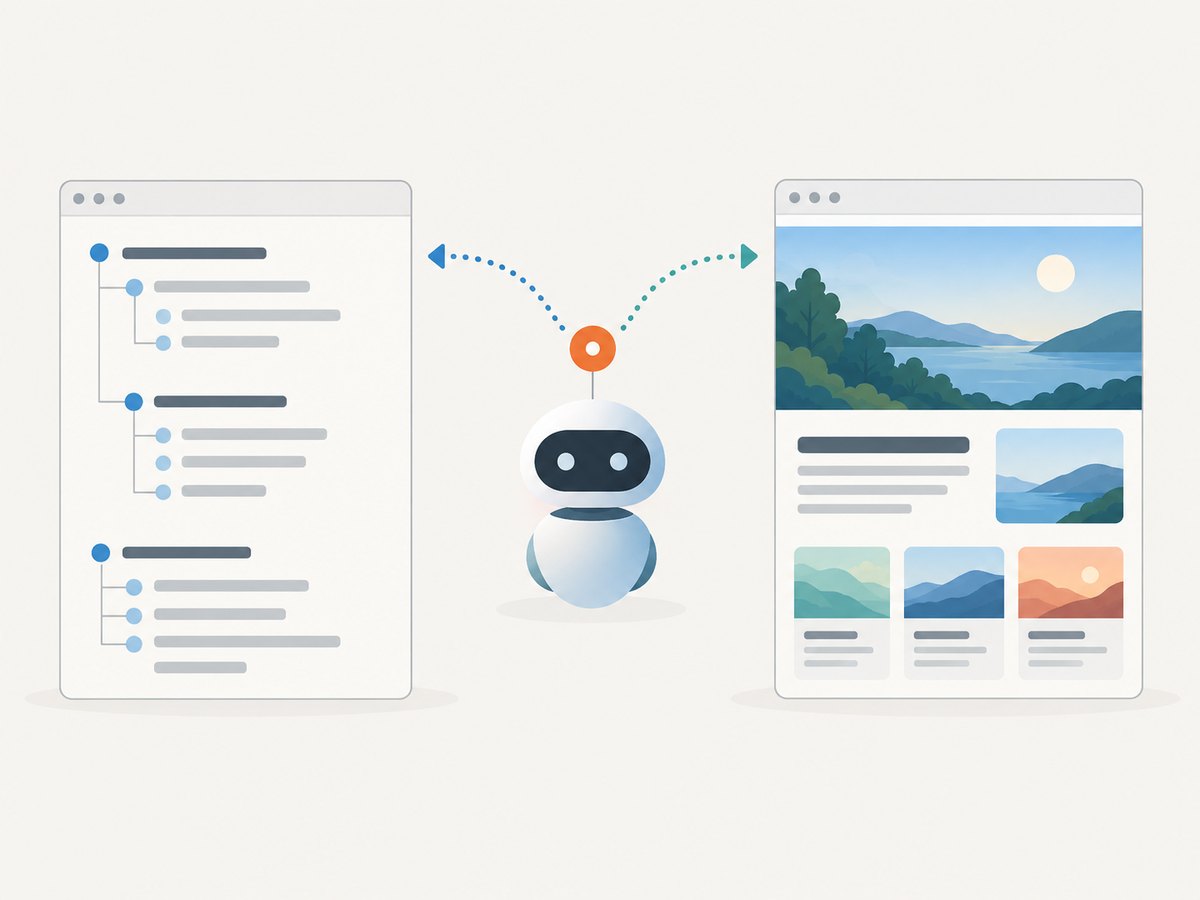
A snapshot and a screenshot answer different questions. A snapshot describes page structure and helps an agent find controls, labels, and element references. A screenshot is a rendered image, useful for visual appearance, responsive layout, canvas or chart output, and visual bug evidence.
| Need | Use | Why |
|---|---|---|
| Find a button or inspect page structure | browser_snapshot |
Structured information supports locating and interacting with elements. |
| Check spacing, styling, or responsive layout | Screenshot | The rendered image preserves visual appearance. |
| Read a canvas or chart visually | Screenshot | Rendered pixels may contain information absent from the DOM. |
| Routine interaction after locating a control | Snapshot and element references | Avoids repeatedly sending large image payloads. |
Playwright describes snapshots as faster because they avoid vision-model inference; screenshots add visual information and can have a higher context cost. Microsoft’s screenshot reference summarizes the distinction: “Screenshots are for looking at, not for acting on — use browser_snapshot to get refs to interact with.” [Playwright screenshots reference] [Playwright MCP]
A useful fast pattern is to take one snapshot to understand the page, interact using its references, and capture an image only when a visual answer is needed. If the image is the requested deliverable, skip the snapshot unless it helps identify a specific element or validate the page state.
3. Capture a viewport, element, or full page
The screenshot tool accepts a small set of important options. A call without a target or full-page setting captures the current viewport. Use an element reference or selector for a single element; use fullPage: true for the whole scrollable page. Full-page mode and target cannot be combined. [Playwright MCP screenshot tool]

| Option | Purpose | Notes |
|---|---|---|
target |
Capture one element | Use an element reference from a snapshot or a supported selector. |
fullPage |
Capture the complete scrollable page | Cannot be combined with target. |
type |
Choose png, jpeg, or webp |
Can be inferred from a filename extension. |
filename |
Save the image to a file | Relative paths resolve from the workspace root. |
scale |
Choose css or device sizing |
css is the default; device follows device pixel ratio. |
Viewport screenshot
Navigate to the page, wait until it is in the state you want, then request a screenshot without a target. For example, ask your MCP client: “Open https://example.com, take a screenshot of the viewport, and save it as homepage.png.” The tool can return the image inline and generate a filename if filename is omitted; supplying a filename saves it relative to the workspace root.
Screenshot one element
To capture one component, first inspect the page snapshot and identify a stable reference or selector. Then ask for that target, for example: “Take a screenshot of the login form.” A stable CSS selector such as #login-form is preferable to a positional selector that can change when the page layout changes.
If the element is missing, it may be below the fold, rendered only after interaction, or inside a frame or shadow root that the selected tool cannot target as expected. Inspect the snapshot, wait for the element or reveal it, and try again with a current reference. Element capture is useful for comparing a component or reducing image dimensions; it does not capture the rest of the page around the element.
Full-page screenshot
Use fullPage: true to capture the entire scrollable page rather than just the visible viewport. Ask: “Take a full-page screenshot and save it as homepage.png.” Do not also supply target. Long pages can produce tall, large files and may take longer to render and transfer. Lazy-loaded content may not appear until it has been scrolled into view; if completeness matters, scroll through the page first, allow content to load, then capture.
4. Select image format, scale, and output
Use PNG when sharp edges, text, or lossless pixel detail matter. JPEG or WebP can produce smaller payloads for photographic or general page captures. Smaller payloads reduce transfer and context size, although the exact result depends on the page and image settings. Chrome DevTools’ configuration guide also exposes quality and maximum width and height controls for its screenshot workflow; those are DevTools controls and should not be assumed to be Playwright MCP parameters. [Chrome DevTools configuration]
Choose scale: "css" for output sized in CSS pixels, which is usually easier to compare to layout measurements. Choose scale: "device" when device-pixel-ratio detail is important; the resulting image may be larger. Match the format to the job rather than defaulting to the largest output.
When a filename is provided, ensure its extension agrees with the selected type or leave type to be inferred from that extension. Without a filename, the tool returns an inline image and generates a filename. For an automated workflow, saving to a predictable filename makes downstream upload or comparison steps easier.
5. A practical fast-capture workflow
- Start the server once. Keep the MCP browser process available while doing related captures.
- Navigate once. Reuse the current page for multiple capture modes or states.
- Wait for the right state. Do not capture during a navigation or before the content you need appears.
- Use a snapshot selectively. Inspect structure when choosing a target or interacting; avoid repeated snapshots when the page state is already known.
- Pick the smallest sufficient capture. A viewport or component is faster to transmit and easier to inspect than a long full-page image.
- Choose a compact format when appropriate. JPEG or WebP often reduce context size compared with PNG.
- Save or return deliberately. Use a workspace-relative filename for a file artifact, or omit it for inline output.
There is no official fixed latency figure in the documentation cited here. Capture time depends on browser startup, navigation, page scripts, network conditions, image dimensions, and output format. Reduce unnecessary work in those stages instead of relying on a promised number.
6. Playwright MCP and Chrome DevTools MCP
Playwright MCP is suited to workflows that benefit from browser automation and structured accessibility snapshots across documented browser engines. Chrome DevTools MCP is oriented around a live Chrome connection and DevTools controls. Consider whether the task needs multiple browser engines, an existing authenticated Chrome session, or DevTools-specific capabilities before choosing. [Playwright MCP] [Chrome DevTools documentation]
A live browser session can expose sensitive page data to an agent. Google’s documentation says, “Chrome DevTools for agents exposes your browser content to your agent.” An agent connected to an authenticated session may be able to act on pages already signed in. Use a dedicated browser profile, close tabs that are not needed, and give the agent only the access required for the task. [Chrome DevTools documentation]
7. Or skip the browser setup
If you need a screenshot rather than an interactive browser session, ScreenshotNeo provides a website screenshot API and MCP server. One GET request can return a PNG, JPEG, WebP, or PDF. The API supports full-page and element captures, custom CSS and JavaScript, viewport and device options, and other capture controls. See the ScreenshotNeo API documentation for parameters and response details.
curl -G "https://api.screenshotneo.com/v1/shot" -d access_key=YOUR_API_KEY --data-urlencode url=https://stripe.com -o shot.webpimport requests
r = requests.get("https://api.screenshotneo.com/v1/shot", params={"access_key": "YOUR_API_KEY", "url": "https://stripe.com"}, timeout=90)
open("shot.webp", "wb").write(r.content)const q = new URLSearchParams({ access_key: 'YOUR_API_KEY', url: 'https://stripe.com' });
const res = await fetch(`https://api.screenshotneo.com/v1/shot?${q}`);Cookie banners, popups, and chat widgets are removed before the shot. Bot checks, blank pages, and failed loads are never billed; response headers report the page verdict and billing status. An MCP server lets AI agents use screenshot tools directly. The free plan includes 1,000 screenshots per month with no card, and paid plans start at $5 for 3,000. Create a free ScreenshotNeo account to get started.
8. Troubleshooting
| Symptom | Likely cause | What to do |
|---|---|---|
| MCP client cannot connect | Server is not running, or client URL/port differs. | Start the server with the documented command and confirm the client points to http://localhost:8931/mcp. |
| Browser fails to launch | Browser binaries or system dependencies are missing. | Read the server error output and install the browser and dependencies required for the chosen engine and operating system. |
| Screenshot shows the previous page | Navigation or client action has not completed. | Wait for navigation and page state to settle before calling the screenshot tool. |
| Element target cannot be found | Stale reference, unstable selector, hidden element, or content not yet rendered. | Take a fresh snapshot, wait for or reveal the element, and use a stable selector or new reference. |
| Full-page request errors | target was included at the same time. |
Remove target; full-page and element capture are mutually exclusive. |
| Image is unexpectedly huge | Full-page capture, device scaling, or a lossless format produces many pixels. | Capture only the needed element or viewport, use CSS scale, or select JPEG/WebP where suitable. |
| Lazy content is absent | It loaded only after scrolling or after an interaction. | Scroll through the page, trigger the needed state, wait for content, then take the full-page image. |
| Saved file is hard to locate | Relative filename resolves from the workspace root. | Use a clear workspace-relative path and ensure the MCP process can write there. |
9. Performance, reliability, and cost
For speed, keep the browser session warm, navigate only when the URL or page state changes, and avoid images when a structured snapshot answers the question. Limit screenshot dimensions to the smallest region that contains the needed evidence. Prefer JPEG or WebP for smaller visual payloads where compression is acceptable. Full-page captures are more expensive in time, pixels, memory, and context than a viewport capture.
For reliability, capture only after the required page state is present. Modern pages can load content incrementally, so a completed navigation does not necessarily mean every image or widget has appeared. If a particular component matters, inspect for it and wait or interact before capture. Use fresh references after navigation or substantial page changes.
Playwright MCP is software you run with a browser; the cited documentation provides no fixed per-screenshot service price or numeric latency guarantee. Your operational cost depends on the machine and browser resources, network usage, and agent context consumed by returning images. If browser infrastructure and image payload management are unnecessary for your use case, compare that setup cost with a screenshot API’s published plan and billing behavior before choosing.
10. FAQ
Can I take screenshots in other browsers?
Playwright documents Chrome, Firefox, WebKit, and Microsoft Edge support. Availability depends on the server environment and installed browser dependencies.
Why does an MCP snapshot feel faster?
A snapshot returns structured page information and avoids image interpretation. Use it for structure and interaction; use a screenshot when the visual pixels are the answer.
Can I capture an element and the entire page in one call?
No. The documented screenshot tool treats target and fullPage: true as mutually exclusive modes. Make separate calls if you need both views.
Should I use a signed-in browser?
Only when the task needs that account state. An agent attached to a live authenticated browser may see private page content and act within the session, so use a dedicated profile and limit open tabs.


