How to Capture Selenium Browser Screenshots Faster with OpenCV
Decode Selenium screenshots in memory with NumPy and OpenCV, remove file I/O, tune capture settings, and troubleshoot common failures.

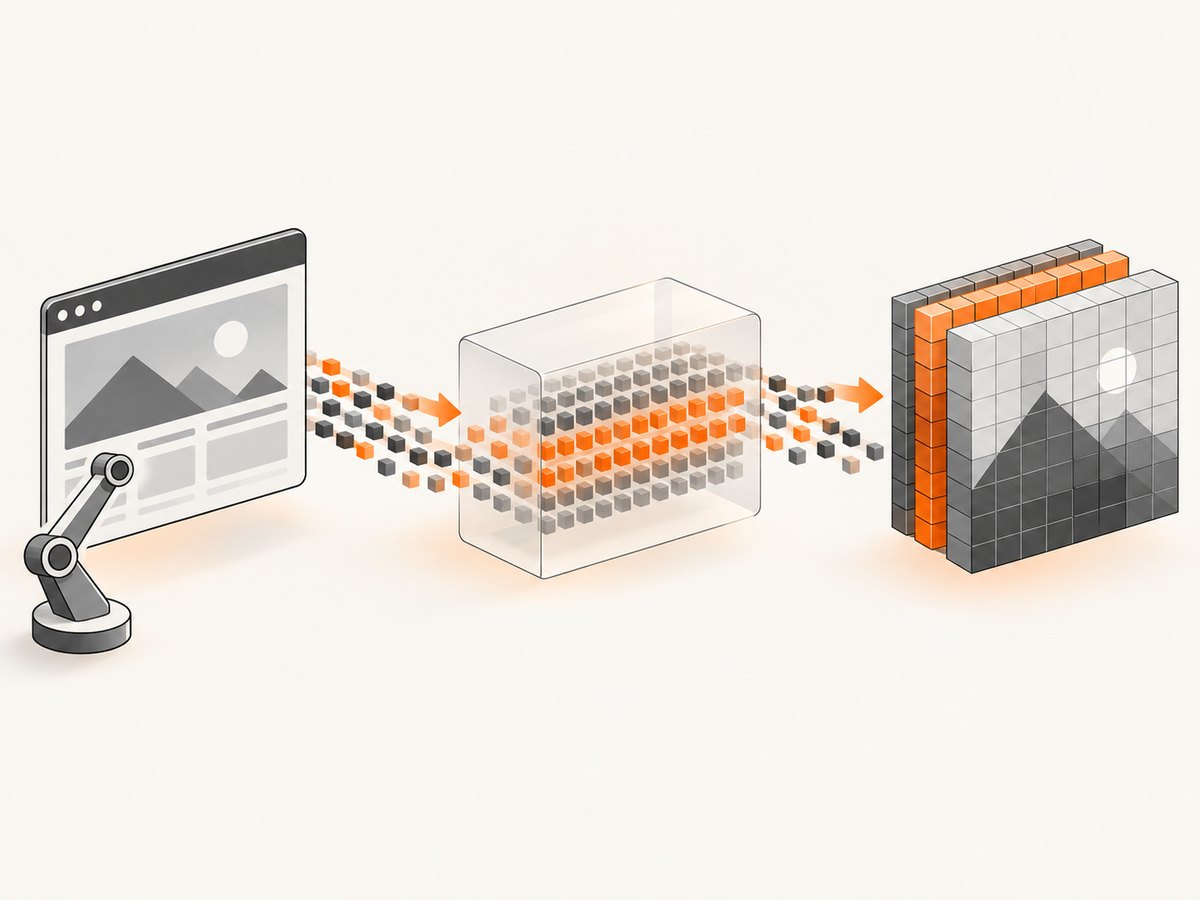
Use Selenium’s binary screenshot method, then decode those bytes in memory with NumPy and OpenCV. This removes the explicit filesystem write and read from the processing path:
WebDriver screenshot → PNG bytes → NumPy buffer → cv2.imdecode()The complete Python pattern is:
import cv2
import numpy as np
from selenium import webdriver


driver = webdriver.Chrome()
try:
    driver.set_window_size(1280, 800)
    driver.get("https://example.com")

    png_bytes = driver.get_screenshot_as_png()
    buffer = np.frombuffer(png_bytes, dtype=np.uint8)
    frame = cv2.imdecode(buffer, cv2.IMREAD_COLOR)

    if frame is None:
        raise ValueError("Selenium returned an undecodable PNG")

    # OpenCV stores decoded color images as BGR.
    print(frame.shape, frame.dtype)
finally:
    driver.quit()
Selenium documents get_screenshot_as_png() as returning the current-window screenshot as binary data. OpenCV documents imdecode as reading an image from a memory buffer; color images use BGR channel order. See the Selenium Python API and OpenCV image codec documentation.
1. Why the in-memory path is faster
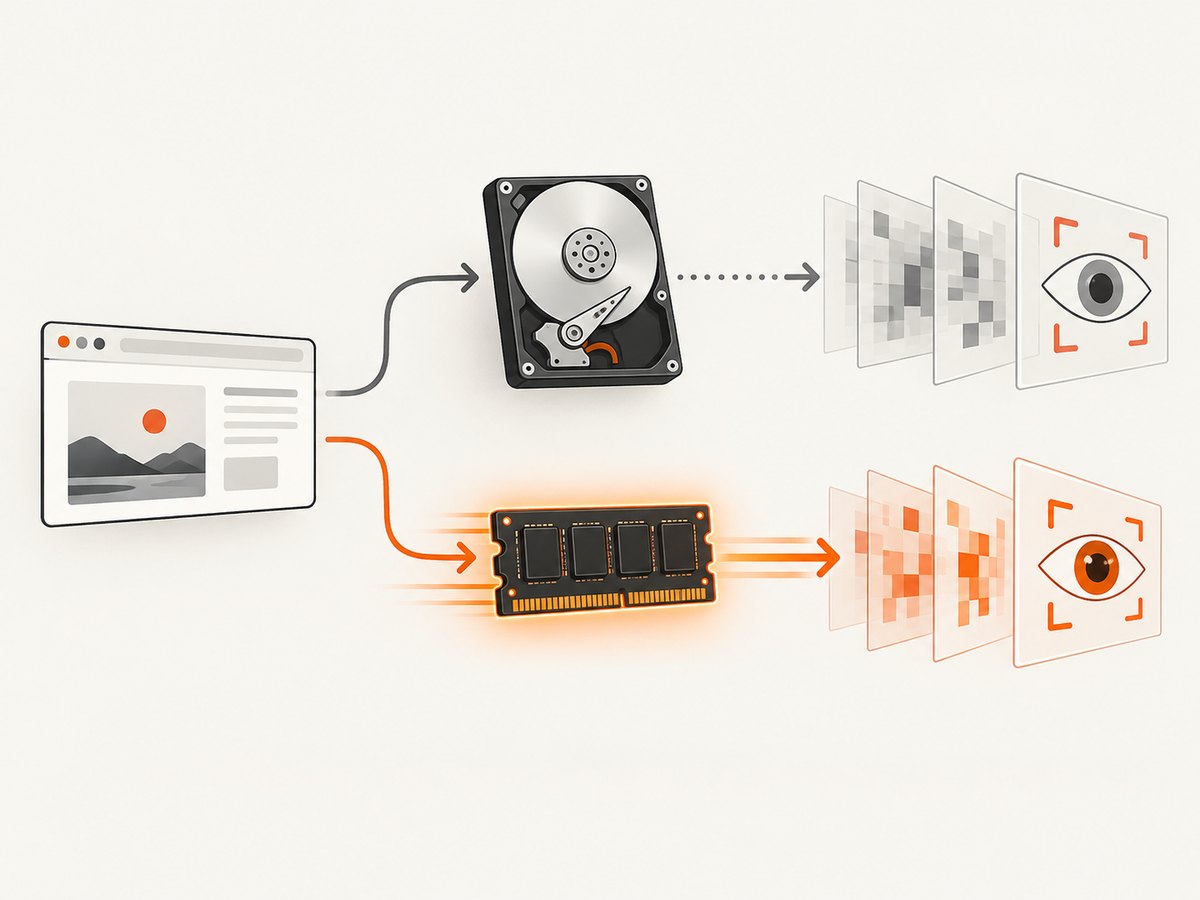
A file-first loop performs a screenshot command, writes a PNG, opens that file again, and decodes it. The in-memory loop keeps the bytes in RAM until OpenCV decodes them. It removes explicit filesystem I/O, directory lookups, file permissions, and storage latency from the hand-off.
This does not make browser navigation or the WebDriver screenshot command free. The browser still has to render the page and encode the PNG, and OpenCV still has to decode it. The documentation does not provide a universal percentage improvement, so measure the complete loop on your browser, driver, screenshot size, CPU, and storage.
2. Complete reusable Selenium and OpenCV example
from contextlib import contextmanager
import time

import cv2
import numpy as np
from selenium import webdriver
from selenium.webdriver.chrome.options import Options


@contextmanager
def chrome_driver(width=1280, height=800, headless=True):
    options = Options()
    if headless:
        options.add_argument("--headless=new")
    options.add_argument("--disable-gpu")
    options.add_argument("--no-sandbox")
    options.add_argument("--window-size=%d,%d" % (width, height))

    driver = webdriver.Chrome(options=options)
    driver.set_window_size(width, height)
    try:
        yield driver
    finally:
        driver.quit()


def screenshot_to_cv(driver, color_mode=cv2.IMREAD_COLOR):
    png_bytes = driver.get_screenshot_as_png()
    if not png_bytes:
        raise ValueError("Selenium returned an empty screenshot")

    encoded = np.frombuffer(png_bytes, dtype=np.uint8)
    image = cv2.imdecode(encoded, color_mode)
    if image is None or image.size == 0:
        raise ValueError("Selenium returned an undecodable PNG")
    return image


with chrome_driver() as driver:
    driver.get("https://example.com")

    start = time.perf_counter()
    frame = screenshot_to_cv(driver)
    decode_seconds = time.perf_counter() - start

    # Example OpenCV operation. Keep BGR unless another API needs RGB.
    edges = cv2.Canny(frame, 100, 200)
    print({
        "shape": frame.shape,
        "dtype": str(frame.dtype),
        "decode_seconds": decode_seconds,
        "edge_pixels": int((edges > 0).sum()),
    })
The function checks both empty bytes and an empty decoded matrix. Those checks turn a later, confusing computer-vision failure into a capture error that can be logged and retried.
3. Capture dimensions and browser setup
Set the viewport once
Call set_window_size before the capture loop and avoid resizing for every screenshot. Fixed dimensions make repeated image processing comparable and avoid repeated browser layout work. Selenium exposes set_window_size, get_window_size, and get_window_rect for this purpose.
driver.set_window_size(1440, 900)
print(driver.get_window_size())
print(driver.get_window_rect())
Wait for the page state you actually need
A screenshot taken before the target content renders can be valid PNG data but still be visually wrong. Wait for a selector, an application-specific ready state, or a known delay before calling the screenshot method. Keep the wait outside your decode benchmark so browser timing and OpenCV timing remain distinguishable.
from selenium.webdriver.common.by import By
from selenium.webdriver.support.ui import WebDriverWait

WebDriverWait(driver, 20).until(
    lambda d: d.find_element(By.CSS_SELECTOR, "main")
)
frame = screenshot_to_cv(driver)
Full-page screenshots are a separate concern
get_screenshot_as_png() captures the current window. If you need a full document, you must use a browser or driver-specific full-page technique, stitch viewport captures, or use a screenshot service. More pixels increase PNG encoding, memory, and OpenCV decode time.
4. Choosing an OpenCV decode mode
| Mode | Result | Use when |
|---|---|---|
cv2.IMREAD_COLOR |
Three-channel BGR image | Most color vision operations |
cv2.IMREAD_GRAYSCALE |
Single-channel grayscale image | Edges, thresholding, or OCR that does not need color |
cv2.IMREAD_UNCHANGED |
Preserves channels such as alpha when present | Transparency or exact channel preservation matters |
gray = cv2.imdecode(buffer, cv2.IMREAD_GRAYSCALE)
unchanged = cv2.imdecode(buffer, cv2.IMREAD_UNCHANGED)
Do not convert BGR to RGB unless the next library requires RGB. Every conversion allocates or touches another full image.
5. Avoiding unnecessary allocations
np.frombuffer creates a NumPy view over the returned bytes, so it is the normal bridge from Selenium to OpenCV:
encoded = np.frombuffer(png_bytes, dtype=np.uint8)
frame = cv2.imdecode(encoded, cv2.IMREAD_COLOR)
OpenCV also documents an imdecode overload that accepts a destination matrix and can save reallocations for repeated images of the same size. Confirm the behavior and benefit in the Python binding and workload you deploy; image dimensions can change and the browser’s PNG output is not guaranteed to have a constant size.
Keep the encoded buffer and decoded matrix alive only as long as needed. In a high-volume worker, release references after processing so Python can reclaim memory:
def process_one(driver):
    png_bytes = driver.get_screenshot_as_png()
    encoded = np.frombuffer(png_bytes, dtype=np.uint8)
    frame = cv2.imdecode(encoded, cv2.IMREAD_COLOR)
    if frame is None:
        raise ValueError("decode failed")
    result = cv2.Canny(frame, 100, 200)
    return result
6. File, base64, and in-memory options
| Option | Data path | Best use | Overhead to measure |
|---|---|---|---|
| In-memory PNG | get_screenshot_as_png → np.frombuffer → imdecode |
Immediate OpenCV processing | WebDriver capture and PNG decode |
| Base64 | get_screenshot_as_base64 → base64 handling → decode |
A transport or HTML embedding requires base64 | Base64 representation and conversion |
| File output | save_screenshot or get_screenshot_as_file → cv2.imread |
Audit artifacts or offline processing | Filesystem write and read latency |
Use base64 only when the receiving interface requires it. Use a file when the artifact itself is required for audit, debugging, or later offline processing. OpenCV’s imwrite persists an image, while imencode compresses an image to memory for a transport layer.
# Save only selected samples or failures
cv2.imwrite("debug-shot.png", frame)

# Encode without creating a file
ok, encoded_png = cv2.imencode(".png", frame)
if not ok:
    raise ValueError("OpenCV could not encode the frame")
png_for_upload = encoded_png.tobytes()
7. Benchmark the whole loop
Benchmark navigation and waits separately from capture, decode, vision processing, and optional writes. A useful local benchmark records a warm-up run and multiple iterations:
import statistics
import time

capture_times = []
decode_times = []

for _ in range(20):
    capture_start = time.perf_counter()
    png_bytes = driver.get_screenshot_as_png()
    capture_times.append(time.perf_counter() - capture_start)

    encoded = np.frombuffer(png_bytes, dtype=np.uint8)
    decode_start = time.perf_counter()
    frame = cv2.imdecode(encoded, cv2.IMREAD_COLOR)
    decode_times.append(time.perf_counter() - decode_start)
    if frame is None:
        raise ValueError("decode failed")

print("capture median", statistics.median(capture_times))
print("decode median", statistics.median(decode_times))
Record browser and driver versions, headless mode, viewport size, device scale factor, page state, CPU, and whether the filesystem path is local or network-backed. Compare medians and tail latency, not just one run. No portable speedup percentage can be inferred without those variables.
8. Reliability and error handling
Empty or undecodable data
Symptom: imdecode returns None or an empty matrix.
Cause: The screenshot bytes are empty, truncated, or not a valid image.
Fix: Check the byte length, capture the exception context, retry the WebDriver command when appropriate, and stop processing that frame instead of passing it to later OpenCV functions.
Stale or incomplete page
Symptom: The image decodes but contains a blank shell, loading spinner, or missing images.
Cause: The screenshot ran before the page reached the state your test needs.
Fix: Wait for a meaningful selector or application-ready signal. A fixed delay can work for a controlled page but is usually less reliable than a state-based wait.
Wrong colors
Symptom: Colors look swapped when passed to another library.
Cause: OpenCV’s color decode is BGR, while many plotting and machine-learning libraries expect RGB.
Fix: Convert only at the boundary:
rgb = cv2.cvtColor(frame, cv2.COLOR_BGR2RGB)Memory growth
Symptom: A long-running worker uses progressively more memory.
Cause: Large decoded frames, retained debug images, unbounded queues, or browser processes that are never closed.
Fix: Bound queues, avoid retaining every frame, write only selected failures, close each driver, and monitor process memory. Reduce viewport or capture frequency when the task permits.
File output fails after switching workflows
Symptom: cv2.imwrite returns false or the expected file is missing.
Cause: The directory does not exist, the process lacks permission, or the extension does not map to a supported encoder.
Fix: Create and validate the directory, use an absolute path during debugging, check the boolean return value, and keep file writing out of the hot path unless it is required.
9. Throughput, reliability, and cost notes
- Throughput: Keep the browser session alive for multiple captures when the page and test isolation allow it. Recreating Chrome for every image adds startup cost.
- CPU: PNG encoding in the browser and PNG decoding in OpenCV both consume CPU. Smaller viewports and fewer unnecessary conversions reduce work.
- Storage: In-memory processing avoids storage latency, but it does not eliminate the memory required for encoded and decoded representations.
- Reliability: Capture after a deterministic page-state signal, validate the decoded matrix, and keep retries bounded so a broken page does not stall a worker forever.
- Cost: Selenium and OpenCV have no per-screenshot API charge in this workflow, but browser CPU, memory, containers, and storage still have infrastructure costs. Measure resource use under the concurrency you plan to run.
10. Or skip the browser setup
If you only need a clean screenshot or PDF, ScreenshotNeo provides a single GET request instead of maintaining Selenium, Chrome, drivers, waits, and image decoding:
ScreenshotNeo API documentation
cURL
curl -G "https://api.screenshotneo.com/v1/shot" -d access_key=YOUR_API_KEY --data-urlencode url=https://stripe.com -o shot.webpPython
import requests

r = requests.get(
    "https://api.screenshotneo.com/v1/shot",
    params={"access_key": "YOUR_API_KEY", "url": "https://stripe.com"},
    timeout=90,
)
r.raise_for_status()
open("shot.webp", "wb").write(r.content)
Node.js
const q = new URLSearchParams({ access_key: 'YOUR_API_KEY', url: 'https://stripe.com' });
const res = await fetch(`https://api.screenshotneo.com/v1/shot?${q}`);
if (!res.ok) throw new Error(`Screenshot failed: ${res.status}`);
const data = Buffer.from(await res.arrayBuffer());
require('fs').writeFileSync('shot.webp', data);
ScreenshotNeo removes cookie and consent banners, newsletter popups, and chat widgets before capture. Bot checks, blank pages, failed loads, timeouts, and cache hits are not billed, and the response reports the page verdict and billing status in X-Page-Verdict and X-Billed headers. Its MCP server provides take_screenshot, get_page_info, and capture_pdf tools for Claude, Cursor, and other MCP clients. You can still process the returned image with OpenCV after downloading it.
The free plan includes 1,000 screenshots per month with no card. Paid plans start at $5 for 3,000 shots, and every feature is available on every plan. Create a free ScreenshotNeo account.
11. Frequently asked questions
Can I pass Selenium’s screenshot directly to OpenCV?
Yes. Use get_screenshot_as_png(), wrap the bytes with np.frombuffer, and call cv2.imdecode.
Should I use get_screenshot_as_base64()?
Only when another interface requires base64. For direct OpenCV processing, binary PNG bytes avoid an unnecessary representation step.
Why does imdecode return None?
The input buffer is empty, invalid, or truncated. Check the Selenium result before decoding and record the failed capture.
Do I need to convert BGR to RGB?
Only when the next library expects RGB. OpenCV’s normal color decode is BGR.
Is in-memory processing always faster?
It removes explicit file I/O, but browser rendering, PNG encoding, decode time, and system load still determine total latency. Benchmark your complete loop.
When should I keep files?
Keep files for audit artifacts, selected failures, reproducible bug reports, or offline processing. Otherwise, process in memory and write only what you need.


