BlogScreenshots on your device
How to Find the Default macOS Screenshot Folder From Python
Find macOS screenshots from Python with pathlib, verify the default Desktop location, and handle custom destinations, clipboard captures, and file formats.

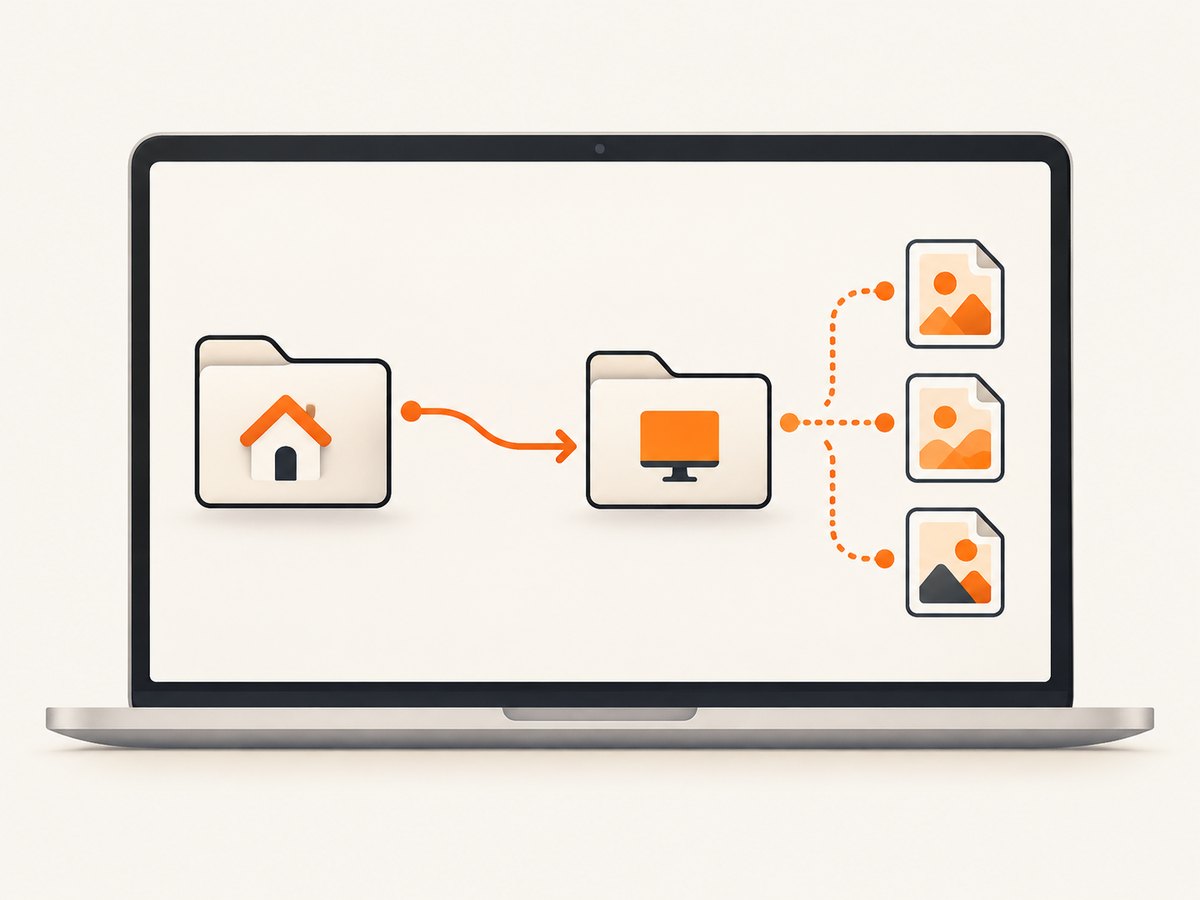
macOS saves screenshots to the current user’s Desktop by default. In Python, build that location with Path.home() / "Desktop" instead of hard-coding a user name:
from pathlib import Path

screenshot_dir = Path.home() / "Desktop"
print(screenshot_dir)
This gives the Desktop path for the account running Python. It describes the default location; it does not read the Screenshot app’s current preference. Apple lets users change the destination from Screenshot’s Options menu, so verify that setting before treating the Desktop as authoritative.
Get the default screenshot folder path
Use Python’s pathlib for a portable, account-aware path:
from pathlib import Path

screenshot_dir = Path.home() / "Desktop"
print(f"Default screenshot folder: {screenshot_dir}")
print(f"Exists: {screenshot_dir.exists()}")
print(f"Is directory: {screenshot_dir.is_dir()}")
On a typical Mac this prints a path similar to /Users/your-name/Desktop, but the account name is resolved at runtime. Do not assume that /Users/alex/Desktop or another fixed path applies to every machine.
List likely screenshot files
Once you have the candidate directory, enumerate files and filter by common image suffixes:
from pathlib import Path

screenshot_dir = Path.home() / "Desktop"

if not screenshot_dir.is_dir():
    raise FileNotFoundError(f"Desktop directory not found: {screenshot_dir}")

image_suffixes = {".png", ".heic", ".jpg", ".jpeg", ".webp"}

for path in sorted(screenshot_dir.iterdir()):
    if path.is_file() and path.suffix.lower() in image_suffixes:
        print(path)
Apple documents the traditional filename pattern as Screen Shot [date] at [time], but filenames can vary with language, macOS behavior, or a user rename. Filtering by suffix is usually more tolerant than matching one exact name. Apple’s current guide also documents PNG and HEIF choices on supported Macs; treat the suffix list as an example rather than a complete guarantee.
Find files recursively
If screenshots may be inside Desktop subfolders, use rglob:
from pathlib import Path

screenshot_dir = Path.home() / "Desktop"
image_suffixes = {".png", ".heic", ".jpg", ".jpeg", ".webp"}

for path in sorted(screenshot_dir.rglob("*")):
    if path.is_file() and path.suffix.lower() in image_suffixes:
        print(path)
Recursive scans can be slower on a Desktop containing many files or mounted locations. Use a nonrecursive iterdir() scan when you only need files directly on the Desktop.
Check or change the macOS save destination
Press Shift+Command+5 to open Screenshot, then open Options. Apple’s Take a screenshot on Mac guide lists the available save destinations and explains that Desktop is the default.
If the user selected another folder, Path.home() / "Desktop" remains a valid Desktop path but is no longer the correct screenshot destination. The documented workflow does not provide a supported Python call for reading the Screenshot app’s customized destination. Ask the user to check Options or pass the chosen folder into your program.
from pathlib import Path

configured_folder = Path("/Users/your-name/Pictures/Captures").expanduser()

if not configured_folder.is_dir():
    raise NotADirectoryError(configured_folder)

print(configured_folder)
For reusable code, accept the folder as a command-line argument and fall back to Desktop:
from pathlib import Path
import argparse

parser = argparse.ArgumentParser()
parser.add_argument("--folder", type=Path, help="Screenshot destination")
args = parser.parse_args()

folder = (args.folder or (Path.home() / "Desktop")).expanduser()
if not folder.is_dir():
    raise NotADirectoryError(f"Not a directory: {folder}")

print(folder)
Why a screenshot may not be in that folder
- Destination changed: Screenshot’s Options menu points to another folder.
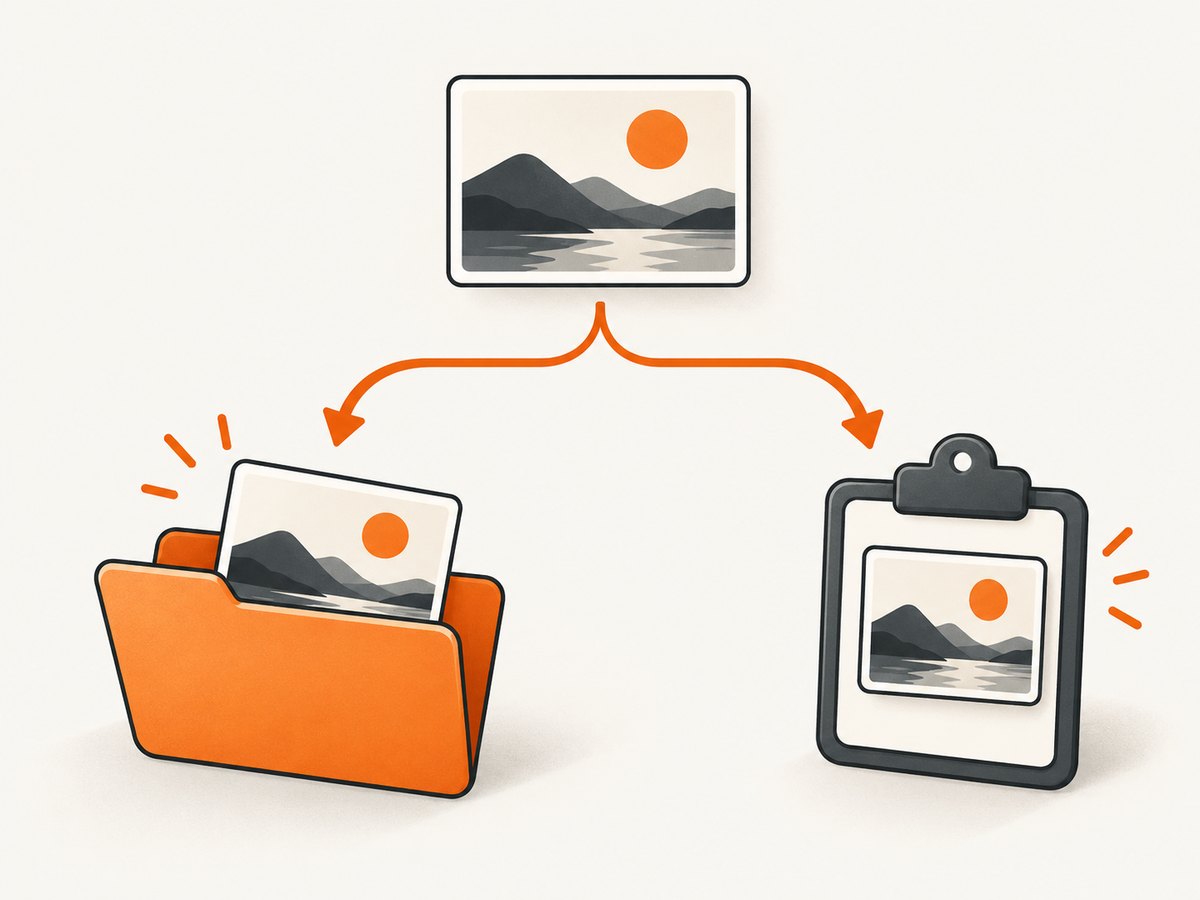
- Clipboard capture: Holding Control while taking a screenshot copies it to the clipboard instead of saving a file. A filesystem scan cannot find that capture.
- Floating thumbnail workflow: The screenshot may still be in the on-screen thumbnail or may have been dragged to another application or folder.
- Different format: Your filter may omit the selected format, such as HEIF.
- Renamed or moved file: Filename matching is only a hint; users can rename or move captures.
- Permissions or unavailable Desktop: Privacy controls, a missing home directory, or a redirected Desktop can prevent access.
A robust finder script
This complete script checks the default candidate, reports useful diagnostics, and lists recent image files without assuming a filename:
#!/usr/bin/env python3
from pathlib import Path
from datetime import datetime

IMAGE_SUFFIXES = {".png", ".heic", ".jpg", ".jpeg", ".webp"}

def find_screenshots(folder: Path):
    if not folder.exists():
        raise FileNotFoundError(folder)
    if not folder.is_dir():
        raise NotADirectoryError(folder)

    files = [
        path for path in folder.iterdir()
        if path.is_file() and path.suffix.lower() in IMAGE_SUFFIXES
    ]
    return sorted(files, key=lambda path: path.stat().st_mtime, reverse=True)

folder = Path.home() / "Desktop"
print(f"Scanning: {folder}")

try:
    screenshots = find_screenshots(folder)
except (FileNotFoundError, NotADirectoryError, PermissionError) as error:
    print(f"Cannot scan folder: {error}")
else:
    if not screenshots:
        print("No matching image files found.")
    for path in screenshots:
        modified = datetime.fromtimestamp(path.stat().st_mtime).isoformat(timespec="seconds")
        print(f"{modified}  {path}")
Troubleshooting
| Symptom | Cause | Fix |
|---|---|---|
Desktop does not exist |
The account uses a different layout, a redirected Desktop, or an unavailable home directory. | Print Path.home(), verify the account, and check Screenshot’s Options destination. |
| Path is correct but no files appear | The destination changed, the capture went to the clipboard, or the suffix filter is too narrow. | Check Options, look for HEIF/PNG and other formats, and confirm the capture was saved as a file. |
PermissionError |
macOS privacy controls restrict access to Desktop or the selected folder. | Grant the terminal or Python host access in macOS Privacy & Security settings, then rerun the script. |
| Only some screenshots are found | Files were moved, renamed, placed in subfolders, or saved with another extension. | Use rglob(), inspect all image suffixes, and avoid relying only on the “Screen Shot” prefix. |
| Wrong user’s Desktop | The script runs under a service account, IDE account, or scheduled-task user. | Print Path.home() and run under the account that took the screenshot. |
Performance and reliability notes
Path.home()and joining one directory are effectively constant-time operations.iterdir()is appropriate for a normal Desktop; recursive scans inspect more entries and can take longer.- Check
exists()andis_dir()before scanning, and handle permission errors so a missing folder does not crash a larger workflow. - Use file modification times only as an ordering hint. A copied or edited image can have a timestamp unrelated to when the screenshot was captured.
- There is no universal Python API in the documented sources that reports Screenshot’s customized save preference. Keep the destination configurable.
Or skip the browser setup
If your goal is to capture a web page rather than locate a screenshot already saved by macOS, ScreenshotNeo provides a single HTTP request for a PNG, JPEG, WebP, or PDF. Before capture it accepts cookie and consent banners and removes more than 60 known consent platforms, newsletter popups, and chat widgets. Bot checks, blank pages, timeouts, failed loads, and cache hits are not billed, and response headers identify the page verdict and billing status. Its MCP server also lets Claude, Cursor, and other MCP clients call screenshot tools.
See the ScreenshotNeo API documentation for options such as full-page capture, CSS selectors, custom CSS and JavaScript, waits, blocking rules, device presets, and PDFs.
cURL
curl -G "https://api.screenshotneo.com/v1/shot" -d access_key=YOUR_API_KEY --data-urlencode url=https://stripe.com -o shot.webpPython
import requests

r = requests.get(
    "https://api.screenshotneo.com/v1/shot",
    params={"access_key": "YOUR_API_KEY", "url": "https://stripe.com"},
    timeout=90,
)
r.raise_for_status()
open("shot.webp", "wb").write(r.content)
Node.js
const q = new URLSearchParams({ access_key: 'YOUR_API_KEY', url: 'https://stripe.com' });
const res = await fetch(`https://api.screenshotneo.com/v1/shot?${q}`);
if (!res.ok) throw new Error(`HTTP ${res.status}`);
const fs = await import('node:fs/promises');
await fs.writeFile('shot.webp', Buffer.from(await res.arrayBuffer()));
Free accounts include 1,000 screenshots per month with no card. Paid plans start at $5 for 3,000 shots. Create a free ScreenshotNeo account.
FAQ
What is the default screenshot path on macOS?
For the account running Python, the default is usually Path.home() / "Desktop".
Can Python read the Screenshot app’s selected folder?
The cited Apple documentation explains how to choose the folder in Screenshot’s Options menu but does not document a supported Python interface for reading that preference.
Are all Mac screenshots PNG files?
No. The selected capture format can vary, including PNG or HEIF on supported Macs, so do not filter for .png alone.
Why does Finder show a screenshot that Python cannot find?
It may have been copied to the clipboard, left in the floating thumbnail, saved elsewhere, moved, renamed, or blocked by macOS permissions.


