BlogScreenshots on your device
How to Find Your Screenshot History on Windows
Find saved screenshots, Snipping Tool captures, clipboard images, and Recall snapshots on Windows 10 or 11—even when the Screenshots folder is empty.

Quick answer: If you pressed Windows+PrtScn, open File Explorer > Pictures > Screenshots. If you used Snipping Tool, check its Screenshots folder and automatic-save setting. If you copied the image instead of saving it, press Windows+V and look in Clipboard history. When none of those locations works, search This PC in File Explorer for image files or terms such as screenshot and screen.
1. First identify where the screenshot was stored
“Screenshot history” can mean two different things:
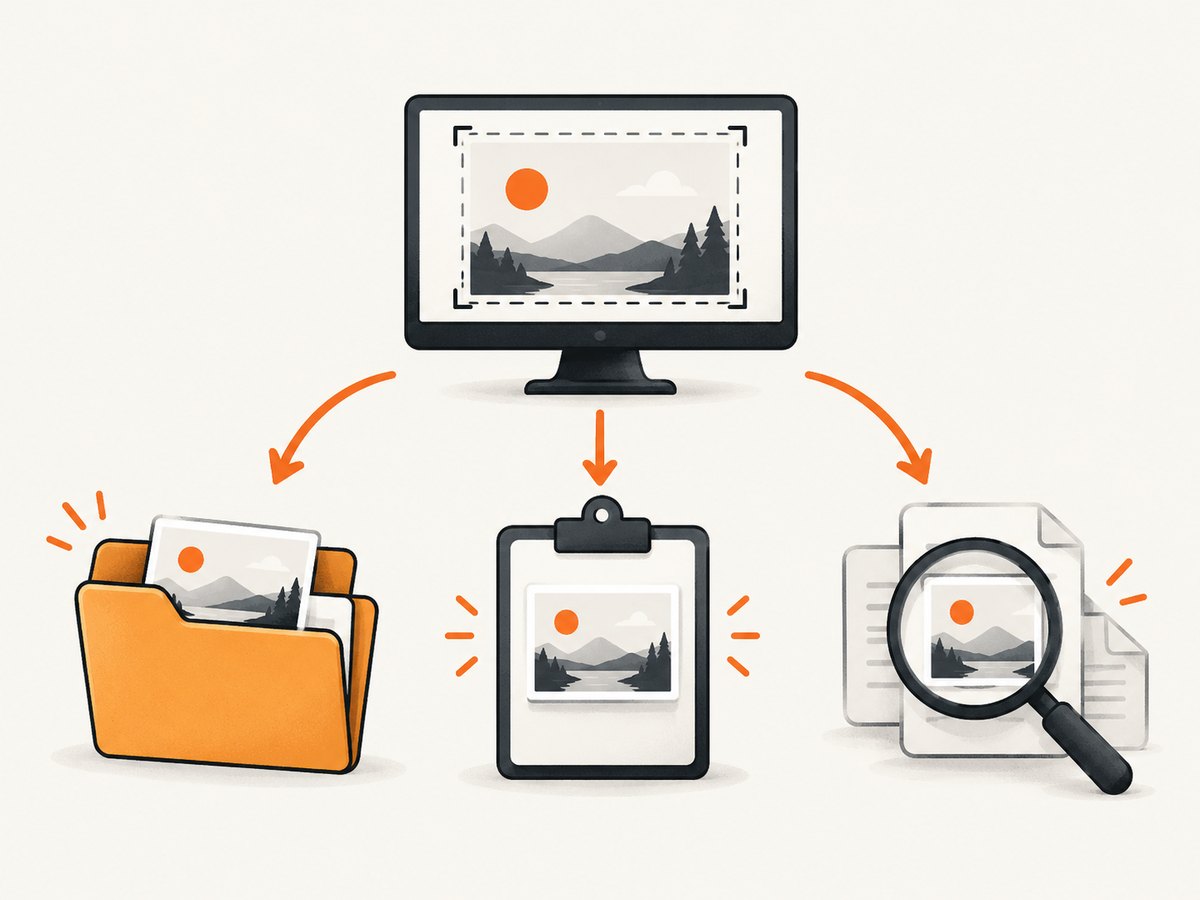
| What you did | Where to look | How durable it is |
|---|---|---|
| Windows+PrtScn | Pictures > Screenshots | A normal image file until deleted or moved |
| Snipping Tool | Its configured Screenshots folder, or the location chosen with Save as | A file only after automatic save or manual save succeeds |
| PrtScn, Alt+PrtScn, or a snip copied to the clipboard | Clipboard history with Windows+V | Temporary: up to 25 entries; cleared on restart except pinned items |
| Recall on a supported Windows 11 Copilot+ PC | Inside the Recall app | Separate, opt-in local snapshots—not ordinary screenshot files |
2. Open the default Screenshots folder
- Open File Explorer (Windows+E).
- In the left navigation pane, select Pictures.
- Open Screenshots.
- Sort by Date modified to find the newest capture.
Microsoft documents this location for captures made with Windows+PrtScn. On a keyboard without a Print Screen key, Microsoft lists Fn+Windows+Spacebar as an alternative. See Microsoft’s Print Screen shortcut documentation.
This path is a default, not a guarantee. You may have moved the Pictures folder, used another capture method, changed Snipping Tool settings, or saved the file elsewhere.
If Pictures or Screenshots is missing
- In File Explorer, select Home or This PC and search for
screenshot. - Check OneDrive’s Pictures > Screenshots if your Pictures folder is backed up or redirected.
- Right-click a likely image and choose Open file location to confirm its actual folder.
3. Check Snipping Tool’s saved captures
Snipping Tool opens with Windows+Shift+S. Microsoft says a captured snip is automatically saved to the Screenshots folder by default, and that the automatic-save behavior and default folder can be changed in Snipping Tool settings. Read Microsoft’s Snipping Tool guide.
- Open Start and search for Snipping Tool.
- Select See more (the three-dot menu), then Settings.
- Review the automatic-save option and the configured Screenshots folder.
- If the capture is still open, choose Save or Save as and select a known folder.
A snip can be copied to the clipboard without becoming a permanent file. If you closed the editor before saving, use the clipboard steps below; if clipboard history was not enabled, the image may no longer be recoverable.
4. Recover a copied screenshot with Clipboard history
- Press Windows+V.
- If Windows asks, select Turn on.
- Look for the image entry and select it to paste into Paint, an image editor, or a document.
- Save the pasted image to a permanent folder.
Clipboard history is limited to 25 copied entries. Older unpinned entries are removed as new items arrive, and the history is cleared when the PC restarts except for pinned items. Microsoft documents these limits in Using the clipboard.
Why Windows+V may not show the screenshot
- History was never enabled: Windows cannot reconstruct older clipboard entries. Turn it on now for future captures.
- The PC restarted: Only pinned entries survive a restart.
- The list is full: Pin important items or save them as files immediately.
- The item was cleared: Clipboard history has a Clear all command, which cannot be undone.
- The bitmap is too large: Microsoft lists a 4 MB per-item size limit.
Clipboard sync across devices is a separate setting tied to a Microsoft or work account. Treat synced clipboard content as sensitive data and enable it only when that trade-off is acceptable.
5. Search the whole PC when the folder is unknown
- Open File Explorer.
- Select This PC for the broadest search, or select a likely folder for a faster search.
- Search for
screenshot,screen,*.png,*.jpg, or*.webp. - Sort results by Date modified and inspect files around the time you took the capture.
Searching This PC is slower but more thorough than searching one folder. Microsoft’s search guidance is available at Find your documents, apps, and more with Search. Do not rely on one filename pattern: Snipping Tool, browsers, chat apps, and third-party utilities may use different names and extensions.
Useful search locations
C:\Users\<you>\Pictures\ScreenshotsC:\Users\<you>\OneDrive\Pictures\Screenshots- Desktop, Downloads, Documents, and any project folder where you normally save images
- Cloud-sync folders and app-specific export folders
6. Understand Recall versus ordinary screenshot files
Windows 11 Recall is an optional feature for supported Copilot+ PCs. When enabled, it saves searchable snapshots and related context locally in encrypted storage; it is not a universal folder containing every screenshot. Microsoft describes Recall’s controls, local storage, and deletion options in Privacy and control over your Recall experience.
Open Recall from Start and search its timeline if you are trying to remember something you saw on screen. In Settings > Privacy & security > Recall & snapshots, you can pause saving, filter apps or sites, delete snapshots, or turn the feature off. Recall cannot recover a Print Screen image that was never saved if Recall was disabled at the time.
Windows Activity history is different again: it records information about apps, files, and websites used. It should not be treated as an archive of screenshot images.
7. Troubleshooting checklist
| Symptom | Likely cause | Fix |
|---|---|---|
| The Screenshots folder is empty | Different capture method, moved folder, or changed Snipping Tool setting | Check Snipping Tool settings, OneDrive Pictures, and search This PC |
| Windows+V is blank | Clipboard history was off, cleared, or reset after restart | Enable it for future captures; check pinned items and save new entries immediately |
| Pressing PrtScn produced no file | PrtScn commonly copies to the clipboard rather than saving a file | Try Windows+V, paste into Paint, and save |
| Snipping Tool capture vanished | The editor was closed before Save as, or automatic save was disabled | Reopen Snipping Tool settings and save the next capture explicitly |
| Search finds too many files | Generic terms match unrelated images | Search a likely folder, filter by image type, and sort by date |
| You expected Recall to contain the image | Recall was off, unsupported, or the app/site was filtered | Use the normal file and clipboard methods; review Recall settings for future snapshots |
8. Prevent the next screenshot from disappearing
- Use Windows+PrtScn when you want an immediate file.
- After Windows+Shift+S, open the notification and choose Save as.
- Turn on Clipboard history only if you need temporary recovery, then pin or save important images.
- Create a predictable folder such as
Pictures\Screenshots\Projectsand use it consistently. - Back up the folder with your normal backup or cloud-sync system.
9. Or skip the browser setup
If you need a fresh screenshot of a website rather than an old Windows capture, ScreenshotNeo returns a PNG, JPEG, WebP, or PDF from one GET request. It removes cookie banners, newsletter popups, and chat widgets before capture; bot checks, blank pages, timeouts, failed loads, and cache hits are not billed. Responses identify the result with X-Page-Verdict and X-Billed headers. Its MCP server lets Claude, Cursor, and other MCP clients call take_screenshot, get_page_info, and capture_pdf.

See the ScreenshotNeo API documentation for authentication and options.
cURL
curl -G "https://api.screenshotneo.com/v1/shot" -d access_key=YOUR_API_KEY --data-urlencode url=https://stripe.com -o shot.webpPython
import requests

r = requests.get(
    "https://api.screenshotneo.com/v1/shot",
    params={"access_key": "YOUR_API_KEY", "url": "https://stripe.com"},
    timeout=90,
)
r.raise_for_status()
open("shot.webp", "wb").write(r.content)
Node.js
const q = new URLSearchParams({ access_key: 'YOUR_API_KEY', url: 'https://stripe.com' });
const res = await fetch(`https://api.screenshotneo.com/v1/shot?${q}`);
if (!res.ok) throw new Error(`HTTP ${res.status}`);
const fs = await import('node:fs/promises');
await fs.writeFile('shot.webp', Buffer.from(await res.arrayBuffer()));
There is a free plan with 1,000 shots per month and no card. Paid plans start at $5 for 3,000 shots, and every feature is included on every plan. Create a free ScreenshotNeo account.
10. FAQ
Where are screenshots saved on Windows?
Windows+PrtScn captures normally appear in Pictures > Screenshots. Snipping Tool uses its configured Screenshots folder.
Can I recover a screenshot copied yesterday?
Only if it remains in Clipboard history. The list holds up to 25 entries and is cleared on restart except pinned items.
Does Windows keep every screenshot automatically?
No. Some shortcuts copy only to the clipboard, Snipping Tool settings can change, and files can be moved or deleted.
Is Recall the same as screenshot history?
No. Recall is an optional Windows 11 feature for supported Copilot+ PCs that stores searchable local snapshots separately from ordinary image files.
What should I do when the Screenshots folder is empty?
Check Snipping Tool settings, Clipboard history, OneDrive Pictures, and then search This PC by date and image type.


