BlogScreenshots on your device
How to Fix Black Pyscreenshot Images on Fedora Linux
Fix black pyscreenshot images on Fedora by matching the capture backend to X11 or Wayland, testing Pillow and portals, and checking common failures.
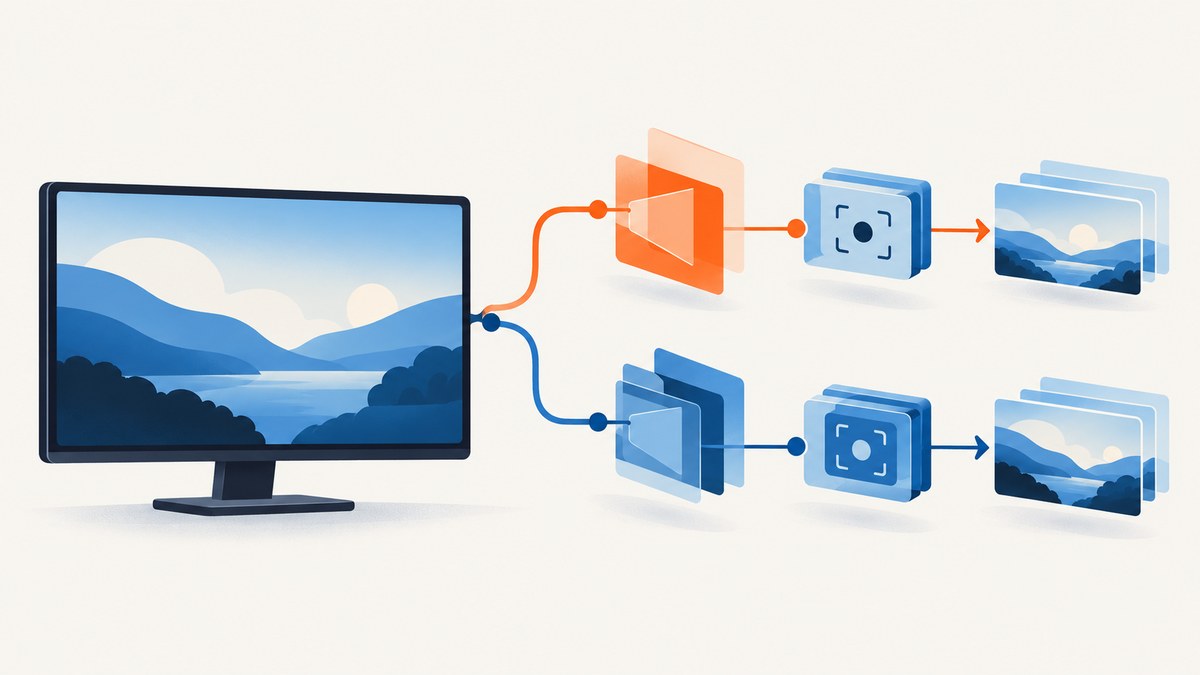
A black pyscreenshot image usually means the capture backend does not match the desktop session. Diagnose whether Fedora is running GNOME Wayland, GNOME Xorg, or another compositor, inspect the backends your installed version detects, then select a backend that your session supports.
A 2019 Fedora report connected one instance of this symptom with GNOME Wayland and said that logging into GNOME Xorg worked. That is a historical, single-user report, not a universal fix. The current pyscreenshot README documents several X11 and Wayland routes and recommends trying Pillow first in many cases.
1. Confirm the symptom with a minimal script
Start with the smallest possible capture. This removes application-specific code from the diagnosis.
#!/usr/bin/env python3
import pyscreenshot as ImageGrab

image = ImageGrab.grab()
image.save("im.png")
print("saved im.png", image.size, image.mode)
Run it from the same graphical login that normally produces the black image:
python3 capture.py
file im.png
Do not run the first diagnosis with sudo. A different user environment can hide the display, portal, or session variables you need, and the matching Fedora report still produced a black image when run with sudo.
2. Identify Fedora’s display session
Run these commands as the logged-in desktop user:
printf 'XDG_SESSION_TYPE=%s\n' "$XDG_SESSION_TYPE"
printf 'DISPLAY=%s\n' "$DISPLAY"
printf 'WAYLAND_DISPLAY=%s\n' "$WAYLAND_DISPLAY"
printf 'XDG_CURRENT_DESKTOP=%s\n' "$XDG_CURRENT_DESKTOP"
loginctl show-session "$XDG_SESSION_ID" -p Type -p Desktop| Result | What it suggests |
|---|---|
XDG_SESSION_TYPE=wayland |
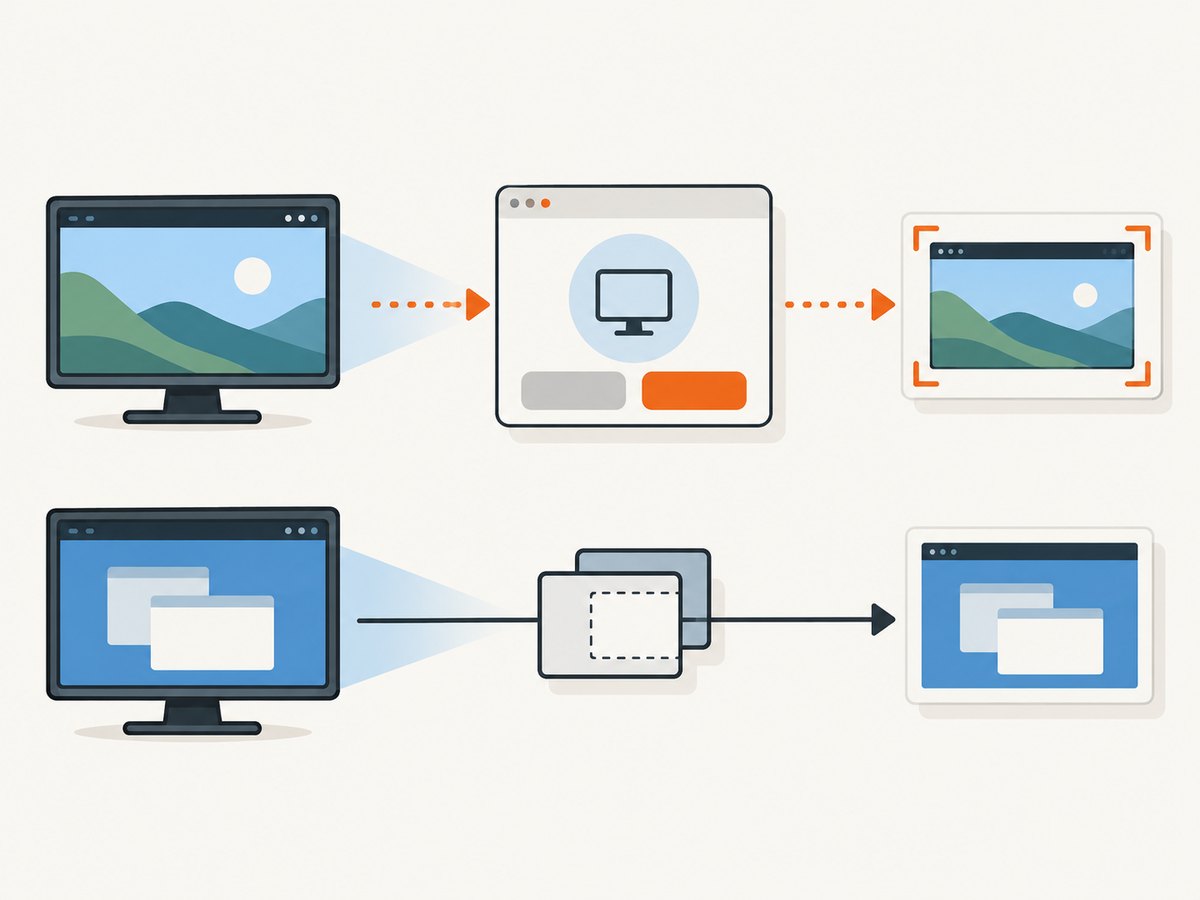
Use a Wayland-capable route such as the XDG Desktop Portal or a desktop-specific D-Bus backend. An X11-only utility may return black or fail. |
XDG_SESSION_TYPE=x11 |
X11 backends such as MSS, scrot, maim, or ImageMagick may work if their executables and display access are available. |
| Missing or contradictory variables | You may be running from a non-graphical shell, SSH session, service, container, or terminal that did not inherit the desktop environment. |
Pyscreenshot’s selection rules can prefer Wayland when both Wayland and X are available; the exact behavior depends on the installed release. Check your installed version instead of assuming that a backend list or preference is identical across releases.
3. Inspect the backends pyscreenshot can see
python3 - <<'PY'
import pyscreenshot as ImageGrab

print("pyscreenshot backends:")
print(ImageGrab.backends())
PY
The returned names are the backends that your installation detected. A backend listed in documentation but absent here is not usable until its dependency is installed and discoverable. Try an available backend explicitly:
#!/usr/bin/env python3
import pyscreenshot as ImageGrab

for name in ImageGrab.backends():
    try:
        image = ImageGrab.grab(backend=name)
        path = f"capture-{name}.png"
        image.save(path)
        print(name, "saved", path, image.size)
    except Exception as exc:
        print(name, "failed:", type(exc).__name__, exc)
Some releases or backends expose slightly different names. Treat the output of backends() as authoritative for your installed version, and read the exception printed for each attempt.
4. Match the backend to Wayland or X11
GNOME Wayland
On GNOME Wayland, check for a portal or GNOME Shell D-Bus capture route. The pyscreenshot documentation lists both. Portal capture is an application request and can display a confirmation or selection dialog. The XDG Desktop Portal Screenshot interface describes Screen, Window, Area, and Active Window targets plus an interactive option.
If a portal prompt appears behind another window, bring it to the front and complete it. A headless script cannot silently approve an interactive dialog unless your desktop and portal implementation provide a non-interactive path.
wlroots-based Wayland compositors
The README lists grim for compositors that support the wlr-screencopy protocol. It also identifies GNOME and KDE as unsupported for that Grim route in its backend notes. Do not select Grim merely because the session says Wayland; first confirm that your compositor supports the protocol.
X11 and Xwayland
For an X11 session, try an X11-oriented backend such as MSS, scrot, maim, ImageMagick, or a toolkit backend that appears in your detected list. Xwayland is not a substitute for an X11 desktop capture path: the pyscreenshot README explains that Xwayland cannot be used for screenshot capture in this context.
5. Try Pillow’s ImageGrab path
The project README recommends Pillow as the starting point for most cases. Pillow’s current ImageGrab documentation says that on Linux it can fall back to gnome-screenshot, grim, or spectacle when the default X11 display does not return a snapshot.
#!/usr/bin/env python3
from PIL import ImageGrab

image = ImageGrab.grab()
image.save("pillow.png")
print("saved pillow.png", image.size, image.mode)
Install the fallback utility that matches your desktop and verify it is on PATH. Package names vary by Fedora release, so check the package manager and the utility’s own help output before scripting around it:
command -v gnome-screenshot || true
command -v grim || true
command -v spectacle || true
command -v scrot || true
command -v maim || true
6. Test GNOME Xorg as a case-specific workaround
If GNOME Wayland remains black and your login screen offers a GNOME Xorg session, sign out, choose that session, sign in, and rerun the minimal script. The historical Fedora report cited above said this fixed that user’s capture. It does not establish that every current Fedora release or hardware setup has the same cause, so record the session type when reporting a persistent bug.
7. Compare the available routes
| Route | Best fit | Interaction | Dependency or service | Session change |
|---|---|---|---|---|
| Pillow ImageGrab | First attempt on many systems | Usually none; fallback behavior depends on desktop | Pillow plus an available fallback utility when needed | No |
| XDG Desktop Portal | Wayland applications requesting a supported capture | May show confirmation or selection | Running desktop portal and Screenshot interface | No |
| GNOME Shell D-Bus route | GNOME Wayland where the backend is available | Desktop-service dependent | GNOME Shell D-Bus service | No |
| Grim | wlroots compositors with wlr-screencopy | Normally none for a direct command | grim and compositor protocol support |
No |
| scrot, maim, MSS, ImageMagick | X11 sessions | Normally none | Corresponding executable or Python package | No |
| GNOME Xorg login | Testing whether the issue is Wayland/backend compatibility | None after login | GNOME Xorg session | Yes |
8. Troubleshooting common failures
The output is completely black but has the expected dimensions
Cause: The selected backend cannot read the current compositor or display. Fix: print XDG_SESSION_TYPE, inspect ImageGrab.backends(), and choose a backend documented for that session. On Wayland, test the portal or GNOME route; on X11, test an X11 backend.
ImageGrab.backends() is empty or missing expected names
Cause: Optional executables, Python modules, or desktop services are not installed or are not on PATH. Fix: install the dependency for the backend you intend to use, open a new shell if needed, and rerun the inspection command.
The portal dialog never appears
Cause: The request is running outside the graphical user session, the portal service is unavailable, or the dialog is hidden behind another window. Fix: run as the logged-in desktop user, verify the portal service for your desktop, and test from a local terminal inside the session.
grim reports an unsupported compositor
Cause: Grim requires the wlr-screencopy protocol. Fix: use a compositor-supported portal or desktop backend. The pyscreenshot README specifically does not list GNOME and KDE as supported by its Grim route.
The script works manually but fails from cron, a service, SSH, or a container
Cause: Those processes commonly lack DISPLAY, WAYLAND_DISPLAY, XDG_RUNTIME_DIR, DBus access, or permission to access the graphical session. Fix: run the capture inside the desktop user’s session, pass only the required environment deliberately, and verify the same user and backend before automating.
Changing permissions or using sudo did not help
Cause: The problem is usually backend/session compatibility rather than filesystem permissions. Fix: return to session detection and backend inspection. Do not treat elevated privileges as a general screenshot repair.
The image is black only for one application window
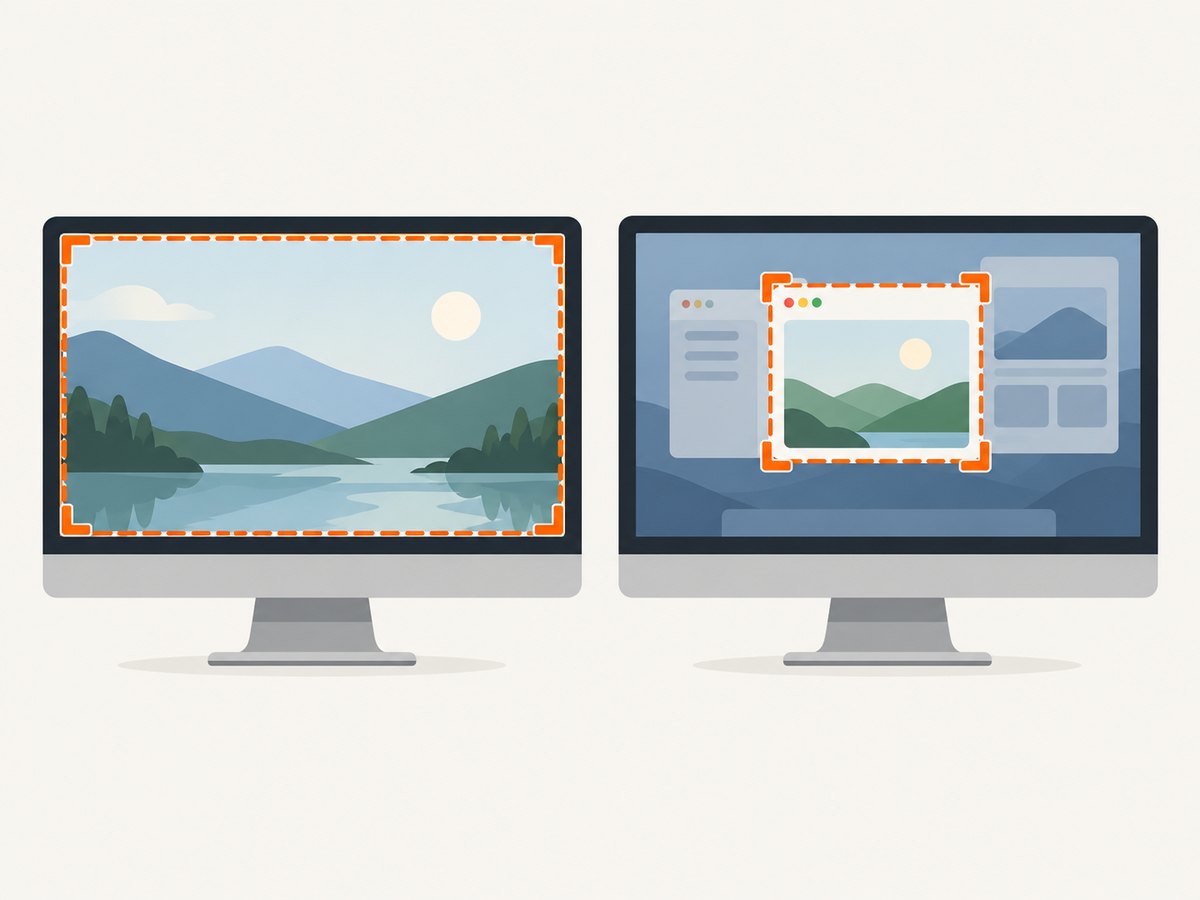
Cause: Some windows use protected or compositor-specific surfaces that a desktop screenshot route cannot read. Fix: test a full-screen capture, then test the portal’s Window target if available. If only that application is affected, report its toolkit, display protocol, and compositor.
9. Make the capture reliable in scripts
- Log
XDG_SESSION_TYPE,DISPLAY,WAYLAND_DISPLAY, the pyscreenshot version, and the selected backend. - Save a fresh file after every backend change and inspect both dimensions and pixel content.
- Use a timeout around external utilities and return a clear failure instead of silently accepting a black file.
- Keep a fallback order appropriate to the session: Pillow first, then a documented portal or desktop backend, then a compositor-specific route.
- Do not assume a backend that works on one Fedora edition, desktop, GPU, or compositor will work on another.
A simple black-image guard can catch obvious failures, although it cannot prove that a non-black image is correct:
from PIL import Image, ImageStat

image = Image.open("im.png").convert("RGB")
mean = ImageStat.Stat(image).mean
if max(mean) < 1:
    raise RuntimeError(f"capture appears black: channel means={mean}")
10. Or skip the browser setup
If you need a website image rather than a screenshot of your local Fedora desktop, ScreenshotNeo avoids desktop display backends entirely. Its API captures a URL with one request; see the ScreenshotNeo documentation for the complete option list.
cURL
curl -G "https://api.screenshotneo.com/v1/shot" -d access_key=YOUR_API_KEY --data-urlencode url=https://stripe.com -o shot.webpPython
import requests
r = requests.get("https://api.screenshotneo.com/v1/shot", params={"access_key": "YOUR_API_KEY", "url": "https://stripe.com"}, timeout=90)
open("shot.webp", "wb").write(r.content)
Node.js
const q = new URLSearchParams({ access_key: 'YOUR_API_KEY', url: 'https://stripe.com' });
const res = await fetch(`https://api.screenshotneo.com/v1/shot?${q}`);
Cookie banners, newsletter popups, and chat widgets are removed before the shot. Bot checks, blank pages, failed loads, timeouts, and cache hits are not billed, and response headers identify the page verdict and billing result. ScreenshotNeo also provides an MCP server so Claude, Cursor, and other MCP clients can take screenshots; 1,000 screenshots per month are free with no card, and paid plans start at $5 for 3,000 shots. Create a free ScreenshotNeo account.
FAQ
Is a black image always a Fedora bug?
No. The symptom can come from the selected backend, compositor, missing dependency, or the environment from which the script runs.
Should I switch permanently to Xorg?
Use GNOME Xorg as a diagnostic or workaround when it is available. First test a Wayland-capable backend if you need to keep Wayland.
Can pyscreenshot capture Wayland without a prompt?
It depends on the backend and desktop. Portal capture can require confirmation; desktop-specific or compositor-specific routes may behave differently.
Why does Pillow matter if the problem is pyscreenshot?
Pyscreenshot wraps multiple backends, while Pillow provides a separate ImageGrab path and documents Linux fallbacks. Testing it helps distinguish a wrapper/backend problem from a broader desktop-capture limitation.
What information should I include in a bug report?
Include Fedora release, desktop and compositor, session type, Python and pyscreenshot versions, the output of ImageGrab.backends(), selected backend, relevant environment variables, and whether Pillow or a direct utility produces a valid image.


