BlogScreenshots on your device
How to Fix Black or Shifted Title Bars in BitBlt Screenshots
Diagnose black or misplaced title bars in Win32 BitBlt captures by checking DC origins, rectangles, DPI, custom frames, layering, and PrintWindow.
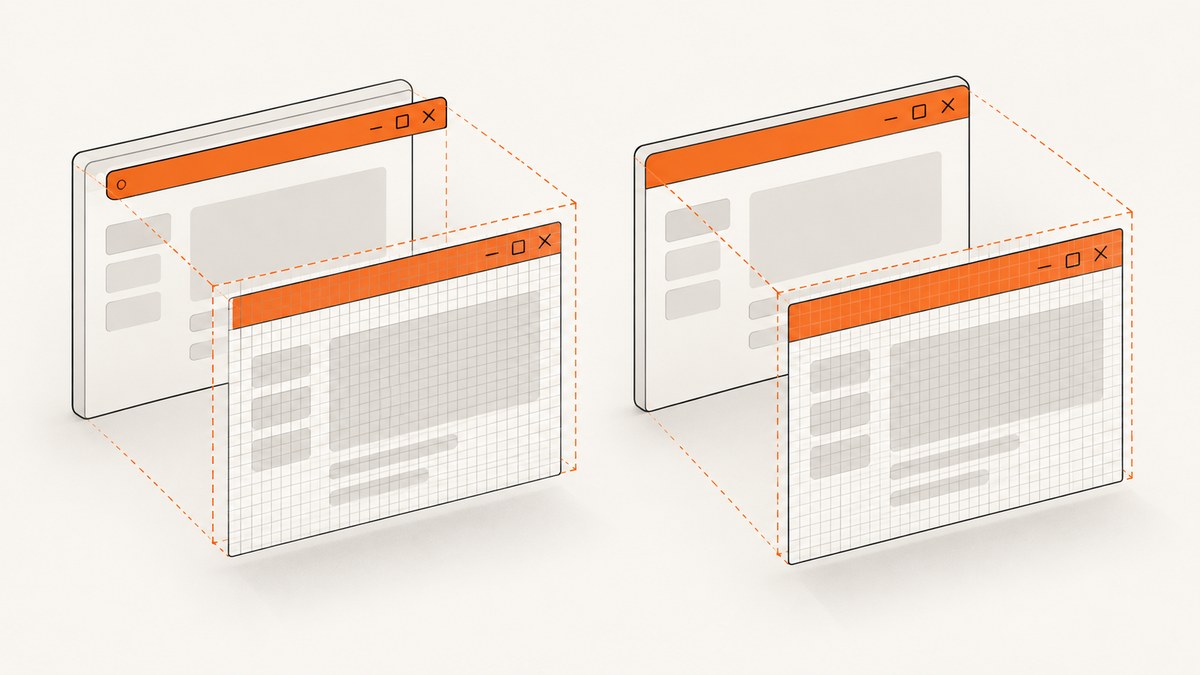
Direct answer: a black or shifted title bar in a BitBlt screenshot usually means the source device context (DC), capture rectangle, and coordinate system do not describe the same surface. BitBlt copies existing pixels; it does not ask the target window to repaint. First decide whether you want the composed screen, the full window, or only the client area. Then log the actual DC type and rectangle, map coordinates into that DC, verify DPI awareness, and check whether the window uses a custom frame or layered rendering. Use PrintWindow only when asking the owning application to render is appropriate.
Windows Vista and later use the Desktop Window Manager (DWM) for the appearance of standard non-client areas such as the title bar. A custom-frame application can extend the client area into that frame or remove the standard frame, in which case the application draws the title itself. Microsoft’s custom-frame documentation describes these two paths.
1. Identify the image you actually want
Write down the intended capture before changing code:
- Composed screen: the pixels currently visible on the monitor, including DWM composition.
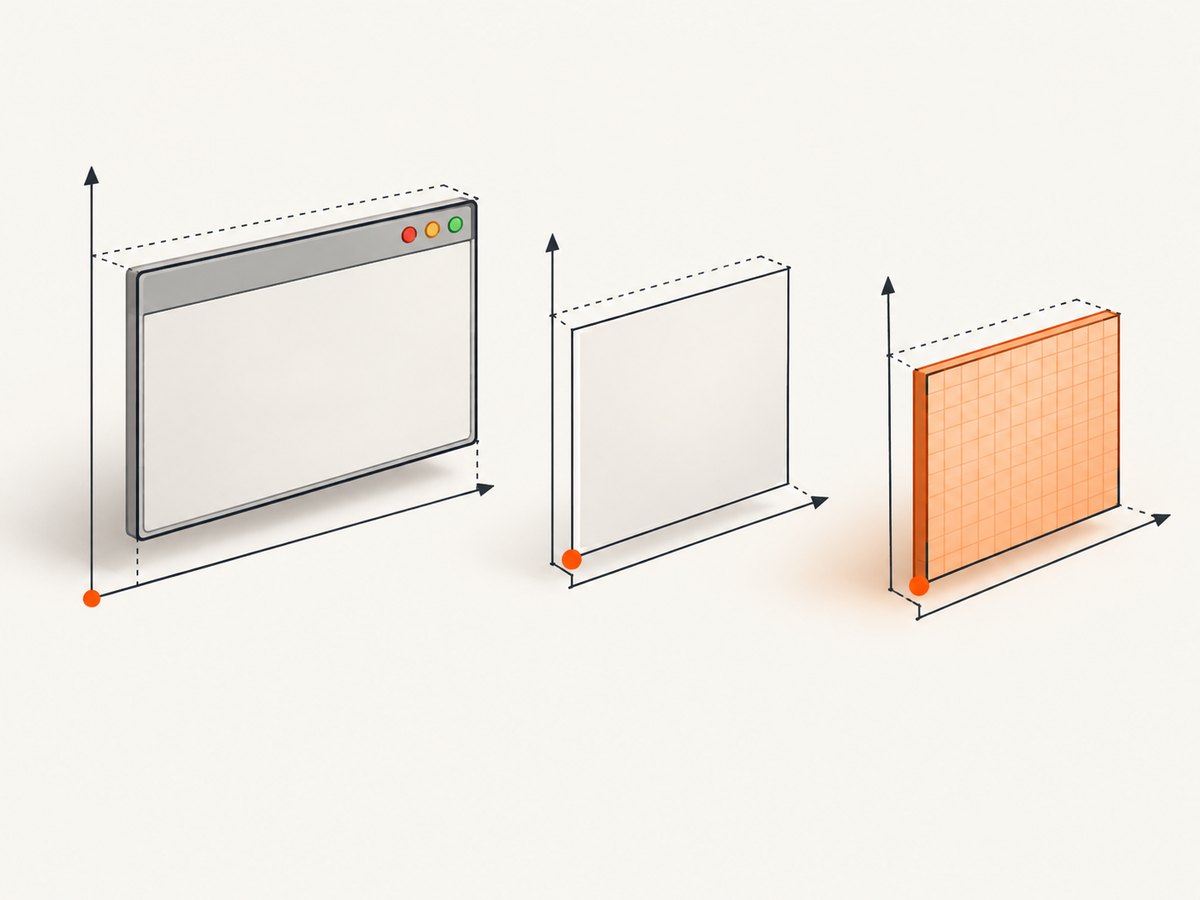
- Full window: the top-level window rectangle, including any non-client frame and title bar.
- Client area: application content inside the frame, with local coordinates beginning at (0,0).
- Application render: pixels the target chooses to draw when requested through PrintWindow.
A standard title bar is non-client content. A custom title bar may be ordinary client content, so a “missing title bar” can be a coordinate error or simply a capture of the client region by design.
2. Log rectangles and DC origins before changing the raster operation
GetWindowRect returns a top-level window rectangle in screen coordinates. GetClientRect returns a client-local rectangle whose top-left is (0,0). Those values cannot be passed interchangeably to every DC. Microsoft also warns that a redirected window DC can use a back-buffer origin rather than the window’s screen location. See GetWindowRect, GetClientRect, and DWM performance considerations.
#include <windows.h>
#include <stdio.h>

static void LogCaptureGeometry(HWND hwnd, HDC source) {
    RECT wr{}, cr{};
    GetWindowRect(hwnd, &wr);
    GetClientRect(hwnd, &cr);

    POINT origin{0, 0};
    DPtoLP(source, &origin, 1); // origin as interpreted by this DC

    printf("window screen rect: (%ld,%ld)-(%ld,%ld)\\n",
           wr.left, wr.top, wr.right, wr.bottom);
    printf("client local rect:  (%ld,%ld)-(%ld,%ld)\\n",
           cr.left, cr.top, cr.right, cr.bottom);
    printf("source DC origin:   (%ld,%ld)\\n", origin.x, origin.y);
}
Also log the width and height you pass to CreateCompatibleBitmap and BitBlt. A one-pixel or DPI-scale mismatch can make a frame appear offset even when the copy succeeds.
3. Use a consistent BitBlt capture
The following example captures a visible top-level window from the screen DC. It deliberately converts the window rectangle into screen coordinates and uses the same width and height for the bitmap and copy.
#include <windows.h>
#include <stdio.h>

int CaptureVisibleWindow(HWND hwnd, HBITMAP* outBitmap) {
    if (!IsWindow(hwnd) || !outBitmap) return 0;

    RECT r{};
    if (!GetWindowRect(hwnd, &r)) return 0;
    const int width = r.right - r.left;
    const int height = r.bottom - r.top;
    if (width <= 0 || height <= 0) return 0;

    HDC screen = GetDC(nullptr);
    if (!screen) return 0;
    HDC memory = CreateCompatibleDC(screen);
    HBITMAP bitmap = CreateCompatibleBitmap(screen, width, height);
    if (!memory || !bitmap) {
        if (bitmap) DeleteObject(bitmap);
        if (memory) DeleteDC(memory);
        ReleaseDC(nullptr, screen);
        return 0;
    }

    HGDIOBJ old = SelectObject(memory, bitmap);
    BOOL ok = BitBlt(memory, 0, 0, width, height,
                     screen, r.left, r.top, SRCCOPY | CAPTUREBLT);
    SelectObject(memory, old);
    DeleteDC(memory);
    ReleaseDC(nullptr, screen);

    if (!ok) {
        DeleteObject(bitmap);
        return 0;
    }
    *outBitmap = bitmap;
    return 1;
}
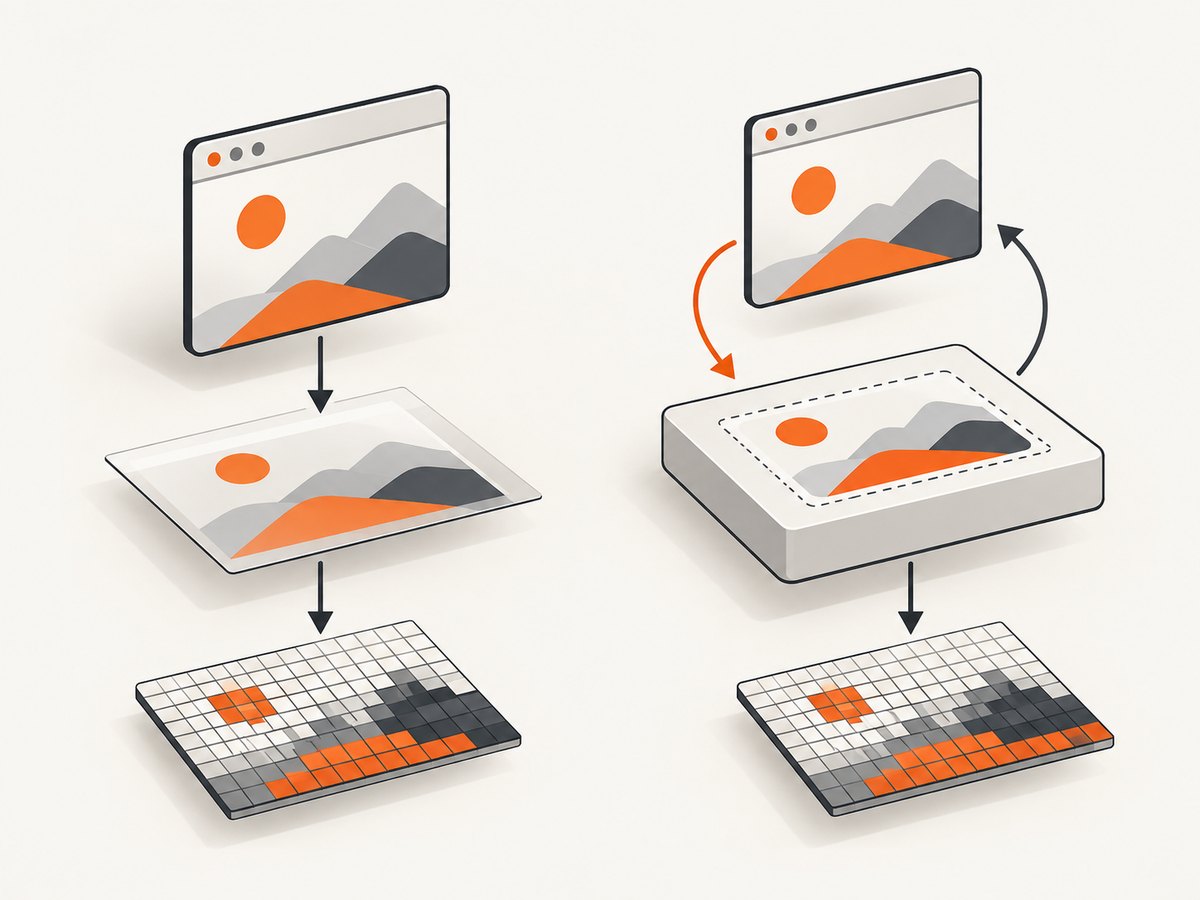
This captures what is on screen. It can include occlusion, minimized-window limitations, and compositor behavior. It is not a request for the target application to redraw.
4. Capture a client region without shifting it
When the desired image is client content, keep the source DC and rectangle in client coordinates. If you start with a screen-relative point, map it explicitly with ScreenToClient or MapWindowPoints.
RECT client{};
GetClientRect(hwnd, &client);
const int w = client.right - client.left;
const int h = client.bottom - client.top;
HDC source = GetDC(hwnd); // window DC; verify its origin for your case
HDC target = CreateCompatibleDC(source);
HBITMAP bitmap = CreateCompatibleBitmap(source, w, h);
HGDIOBJ old = SelectObject(target, bitmap);
BOOL ok = BitBlt(target, 0, 0, w, h, source, 0, 0, SRCCOPY);
SelectObject(target, old);
DeleteDC(target);
ReleaseDC(hwnd, source);
If the title bar is outside the client area, this code correctly omits it. If the application uses a custom frame, the title may be inside the client area and will be included.
5. Check custom frames and force frame recalculation
Applications that call DwmExtendFrameIntoClientArea or handle WM_NCCALCSIZE may draw caption content themselves. After changing frame metrics, Microsoft’s custom-frame example uses SetWindowPos with SWP_FRAMECHANGED so Windows recalculates the non-client region.
SetWindowPos(hwnd, nullptr, 0, 0, 0, 0,
             SWP_NOMOVE | SWP_NOSIZE | SWP_NOZORDER |
             SWP_NOACTIVATE | SWP_FRAMECHANGED);
Inspect WM_NCCALCSIZE, DwmExtendFrameIntoClientArea, hit-testing code, and the paint path. Do not add a guessed title-bar height to a rectangle: the frame can vary with theme, DPI, and window styles.
6. Verify DPI awareness and monitor scaling
Moving a window between monitors with different scale factors can expose mismatched logical and physical dimensions. Check the process or thread DPI-awareness mode and whether the values used by GetWindowRect, bitmap allocation, and BitBlt are in the same unit system. Microsoft recommends declaring DPI awareness for applications that handle scaling; see DWM performance considerations.
- Record the monitor and effective DPI for every reproduction.
- Compare the rectangle width with the bitmap width in device pixels.
- Test at 100% scaling and then at the affected scale.
- Recalculate geometry after WM_DPICHANGED rather than reusing old offsets.
7. Inspect layered-window rendering
Find out whether the window uses SetLayeredWindowAttributes or UpdateLayeredWindow. SetLayeredWindowAttributes redirects legacy painting into off-screen memory for recomposition, while UpdateLayeredWindow supplies the layered window’s shape and content directly. These paths do not guarantee that copying an ordinary window DC reproduces the final composed image. See SetLayeredWindowAttributes and UpdateLayeredWindow.
8. Evaluate PrintWindow when the target should render
PrintWindow sends a render request to the owning application. The application processes WM_PRINT, or WM_PRINTCLIENT when the client-only flag is used, and renders into the supplied DC. The call is synchronous, and the target application controls what it returns. See PrintWindow.
BOOL CaptureWithPrintWindow(HWND hwnd, HDC destination, int width, int height) {
    // destination must already contain a bitmap of width x height.
    // PW_CLIENTONLY excludes the non-client frame.
    return PrintWindow(hwnd, destination, 0);
}
Use a worker thread if the capture must not block a latency-sensitive UI thread. Test both flags: PW_CLIENTONLY for client content and zero for the full window. A target that does not implement the expected WM_PRINT behavior may return incomplete or blank content.
9. Troubleshooting checklist
| Symptom | Likely cause | Fix |
|---|---|---|
| Black title bar only | The copied DC does not contain the DWM-composed non-client pixels, or the target uses a custom frame. | Capture the composed screen, inspect the custom-frame path, or evaluate PrintWindow. |
| Title bar shifted by a constant offset | Screen coordinates were used with a local or redirected DC. | Use GetClientRect with local coordinates, or map points explicitly. |
| Wrong size on a high-DPI monitor | Logical and device-pixel dimensions were mixed. | Verify DPI awareness and recalculate after WM_DPICHANGED. |
| Client content is correct but title is missing | The capture intentionally used the client rectangle or PW_CLIENTONLY. | Capture the full window or use a custom-frame-aware rectangle. |
| PrintWindow returns blank content | The target does not render the requested message, is minimized, or uses a rendering path that is not exposed through WM_PRINT. | Test while visible, remove PW_CLIENTONLY, and fall back to an appropriate composed-screen capture. |
| Layered window differs from the screen | SetLayeredWindowAttributes and UpdateLayeredWindow use different content paths. | Identify the API path and capture the composed result when exact on-screen pixels are required. |
| Capture fails intermittently | The window moved, resized, changed DPI, or was destroyed between geometry and BitBlt. | Acquire geometry immediately before the copy, validate handles, and retry only after re-reading the rectangle. |
10. A repeatable diagnostic sequence
- Define whether the expected image is screen, full-window, client-only, or target-rendered.
- Log GetWindowRect, GetClientRect, bitmap dimensions, DC type, and source origin.
- Reproduce with a standard framed window and a custom-frame window.
- Repeat at 100% scaling and on the affected monitor.
- Check WM_NCCALCSIZE, DwmExtendFrameIntoClientArea, and layered-window APIs.
- Compare BitBlt with PrintWindow while recording whether the window is visible and unobscured.
- Validate the resulting pixels against a known rectangle rather than adding a guessed offset.
11. Performance, reliability, and cost considerations
- BitBlt: a synchronous pixel copy. Keep allocations stable where possible and avoid reading from a display DC in a high-frequency loop; Microsoft documents performance concerns around display-DC reads.
- PrintWindow: synchronous and dependent on target code. Isolate it from UI latency and set an application-level timeout policy around the worker.
- Reliability: windows can resize, move, minimize, change DPI, or disappear between calls. Validate HWNDs and dimensions immediately before copying.
- Cost: local GDI capture has no API charge, but it consumes CPU, memory bandwidth, and engineering time. Remote or browser-based capture adds network and service costs but avoids desktop DC and frame implementation details.
Or skip the browser setup
If the screenshot is of a public web page rather than a native Win32 window, ScreenshotNeo provides a single GET request that returns PNG, JPEG, WebP, or PDF. It removes cookie banners, newsletter popups, and chat widgets before capture; bot checks, blank pages, timeouts, failed loads, and cache hits are not billed; and each response reports its verdict and billing status in X-Page-Verdict and X-Billed headers. Its MCP server provides take_screenshot, get_page_info, and capture_pdf for Claude, Cursor, and other MCP clients.
See the ScreenshotNeo API documentation for the full option list.
curl -G "https://api.screenshotneo.com/v1/shot" -d access_key=YOUR_API_KEY --data-urlencode url=https://stripe.com -o shot.webpimport requests
r = requests.get("https://api.screenshotneo.com/v1/shot", params={"access_key": "YOUR_API_KEY", "url": "https://stripe.com"}, timeout=90)
r.raise_for_status()
open("shot.webp", "wb").write(r.content)const q = new URLSearchParams({ access_key: 'YOUR_API_KEY', url: 'https://stripe.com' });
const res = await fetch(`https://api.screenshotneo.com/v1/shot?${q}`);
if (!res.ok) throw new Error(`HTTP ${res.status}`);
const bytes = Buffer.from(await res.arrayBuffer());
require('fs').writeFileSync('shot.webp', bytes);Free usage includes 1,000 screenshots per month with no card. Paid plans start at $5 for 3,000 shots, and every feature is available on every plan. Create a free ScreenshotNeo account.
FAQ
Does BitBlt repaint a window?
No. It copies pixels already available in the source DC.
Why does GetWindowRect not match GetClientRect?
They describe different spaces: a screen-relative top-level rectangle versus a client-local rectangle beginning at (0,0).
Is PrintWindow always better?
No. It asks the target to render synchronously, and the target may return incomplete content. It is an alternative capture contract, not a universal replacement.
Can a custom title bar be captured as client content?
Yes. If the application extends the client area and draws the caption itself, the title belongs to the client rendering path.
What should I change first?
Log the source DC, rectangle, origin, DPI mode, and frame style before changing offsets or raster operations.


