BlogScreenshots on your device
How to Fix Black Window Captures with xwd and Java Robot on Linux
Fix black xwd and Java Robot screenshots on Linux by checking X11, Wayland portals, permissions, XWayland, and HiDPI coordinates.
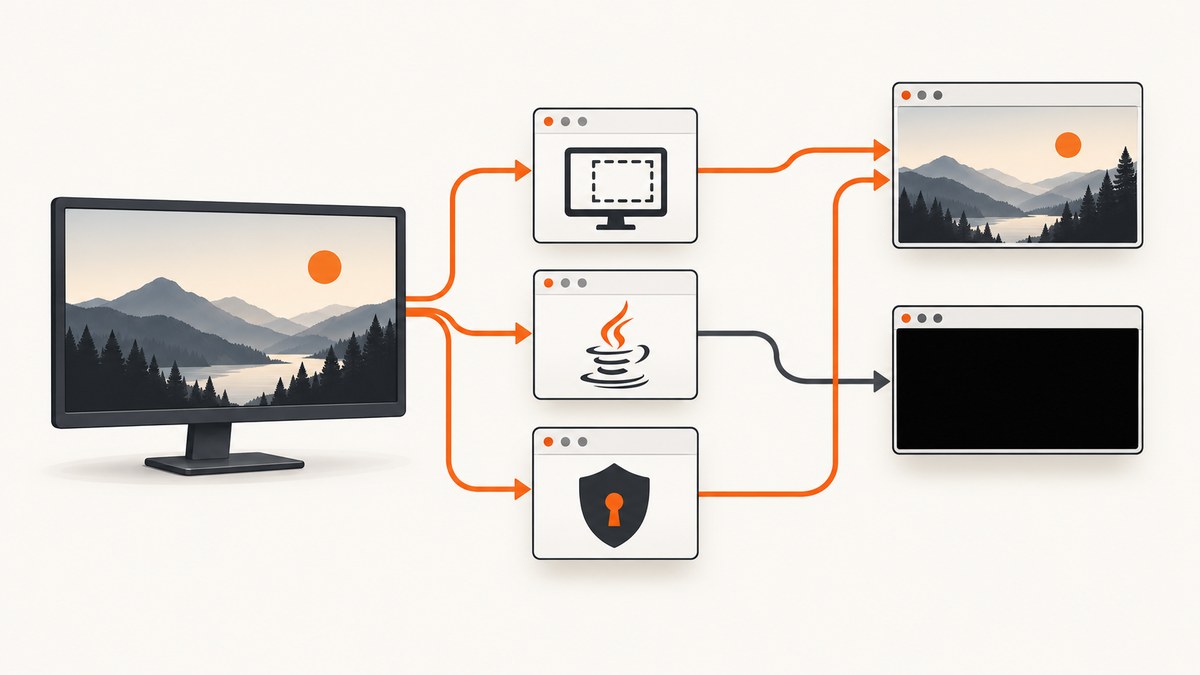
Short answer: a black capture usually means the capture method does not match the session that renders the window. xwd reads X11 windows through DISPLAY; Java Robot also depends on desktop permissions and XTEST when running on X11. Native Wayland content must be captured through the XDG Screenshot or ScreenCast portal, which asks for permission and can return a selected screen, window, area, or active window.
Start by identifying the session, then use the matching path:
echo "$XDG_SESSION_TYPE"
echo "$WAYLAND_DISPLAY"
echo "$DISPLAY"| Session or target | Preferred method | First thing to check |
|---|---|---|
| Native X11 | xwd or Java Robot |
Correct DISPLAY, target window, permissions, and XTEST |
| XWayland application | Runtime Robot integration or X11 compatibility path | Logical versus device-pixel coordinates and runtime support |
| Native Wayland | XDG Screenshot or ScreenCast portal | Portal backend, consent, source selection, and PipeWire setup |
1. Confirm whether the desktop is X11, Wayland, or XWayland
xwd is an X11 window dumping utility. It selects an X display through DISPLAY and can address a window by ID, by name, or the root window. Native Wayland windows are owned by the compositor, so they are not readable through X11’s window-image operation.
printf 'session=%s\n' "$XDG_SESSION_TYPE"
printf 'wayland=%s\n' "$WAYLAND_DISPLAY"
printf 'display=%s\n' "$DISPLAY"session=x11: continue with the xwd or Robot sections below.session=wayland: use a portal for native Wayland content. An X11 client may still appear through XWayland.- An empty
DISPLAYcommonly means the process is running outside the graphical login session, over SSH without X forwarding, or from a service account.
2. Capture and validate an X11 window with xwd
Capture the whole X11 desktop
xwd -root -out screen.xwdConvert the XWD file with an image converter installed on the machine:

convert screen.xwd screen.pngCapture a window by ID
Get the window ID with a desktop utility such as xwininfo, then pass the hexadecimal ID to xwd:
xwininfo
xwd -id 0x3a00007 -out window.xwd
convert window.xwd window.png
Capture by window title
xwd -name "Terminal" -out terminal.xwd
convert terminal.xwd terminal.png
Use root-window screen semantics
When the visible result depends on overlapping windows or independent popup windows, add -screen. This reads through the root window rather than only the selected child window:
xwd -root -screen -out desktop-with-popups.xwd
convert desktop-with-popups.xwd desktop-with-popups.png
If the output is black
- Run the command in the same graphical login session as the target window.
- Check
echo "$DISPLAY". Try the display value used by the desktop, commonly:0, only when you have confirmed it. - Verify the target with
xwininfo; a stale ID can refer to a closed window. - Capture
-rootfirst. If the root image is also black, the display connection or server access is wrong. - Check the X server access policy. A different user, container, or service account may not be allowed to read the display.
- Confirm that the converter can read XWD. Inspect the file type and size before diagnosing the capture itself:
file screen.xwd
ls -lh screen.xwd
identify screen.xwd
3. Capture X11 pixels with Java Robot
Robot.createScreenCapture returns an image containing pixels read from the screen. On X-Window systems, Java can fail when XTEST 2.2 is unsupported or disabled. A security policy can also deny screen reads, return undefined pixels, or throw SecurityException.
Runnable Java example
import java.awt.AWTException;
import java.awt.GraphicsConfiguration;
import java.awt.GraphicsDevice;
import java.awt.GraphicsEnvironment;
import java.awt.Rectangle;
import java.awt.Robot;
import java.awt.image.BufferedImage;
import java.io.File;
import java.io.IOException;
import javax.imageio.ImageIO;

public class CaptureRegion {
    public static void main(String[] args) throws Exception {
        if (GraphicsEnvironment.isHeadless()) {
            throw new IllegalStateException("A graphical desktop is required; this JVM is headless");
        }

        GraphicsDevice device = GraphicsEnvironment
                .getLocalGraphicsEnvironment()
                .getDefaultScreenDevice();
        GraphicsConfiguration configuration = device.getDefaultConfiguration();

        // Use coordinates from the same GraphicsConfiguration. Replace these
        // values with the target window bounds in that coordinate system.
        Rectangle area = new Rectangle(100, 100, 1200, 800);
        Robot robot = new Robot(device);
        BufferedImage image = robot.createScreenCapture(area);

        // A quick diagnostic: count non-black pixels before blaming PNG output.
        int sample = image.getRGB(Math.min(10, image.getWidth() - 1),
                                  Math.min(10, image.getHeight() - 1));
        System.out.printf("sample pixel ARGB=0x%08x%n", sample);

        if (!ImageIO.write(image, "png", new File("robot.png"))) {
            throw new IOException("No PNG writer is available");
        }
        System.out.println("Wrote robot.png using " + configuration);
    }
}
javac CaptureRegion.java
java CaptureRegionRobot checklist
- Run a non-headless JVM inside the graphical session. A server started by systemd, cron, Docker, or SSH often has no usable display.
- Construct
Robotonly after confirming that the graphics environment is available. - Use the target rectangle in the same screen-coordinate system as the selected
GraphicsDevice. - Do not assume window-manager coordinates equal physical device pixels. Scaling and multiple monitors can change the mapping.
- Check desktop permission settings and whether XTEST 2.2 is available and enabled.
- Inspect a pixel from the returned image before investigating PNG encoding. A valid PNG can still contain an all-black frame.
4. Why Java Robot can fail even when the window is visible
| Symptom | Likely cause | Fix |
|---|---|---|
HeadlessException or no graphics devices |
The JVM has no graphical session | Run it inside the desktop session or use a portal/API capture path |
SecurityException |
Screen-read permission was denied | Grant the desktop/runtime permission and retry |
| All pixels are black or undefined | XTEST unavailable, wrong display, or compositor restrictions | Validate DISPLAY, XTEST, and the session type |
| Only part of the window is captured | Logical/device-pixel scaling mismatch | Log monitor scale and convert bounds for the selected device |
| Window moved between locating and capture | Race with the window manager | Locate and capture immediately, then verify the resulting bounds |
5. Capture native Wayland windows with the XDG Screenshot portal
Do not expect xwd‘s X11 image operation to read native Wayland compositor content. The XDG Screenshot portal provides permissioned one-shot captures for a screen, window, area, or active window. The normal flow includes user authorization and source selection, so a background process cannot silently assume that a source is available.
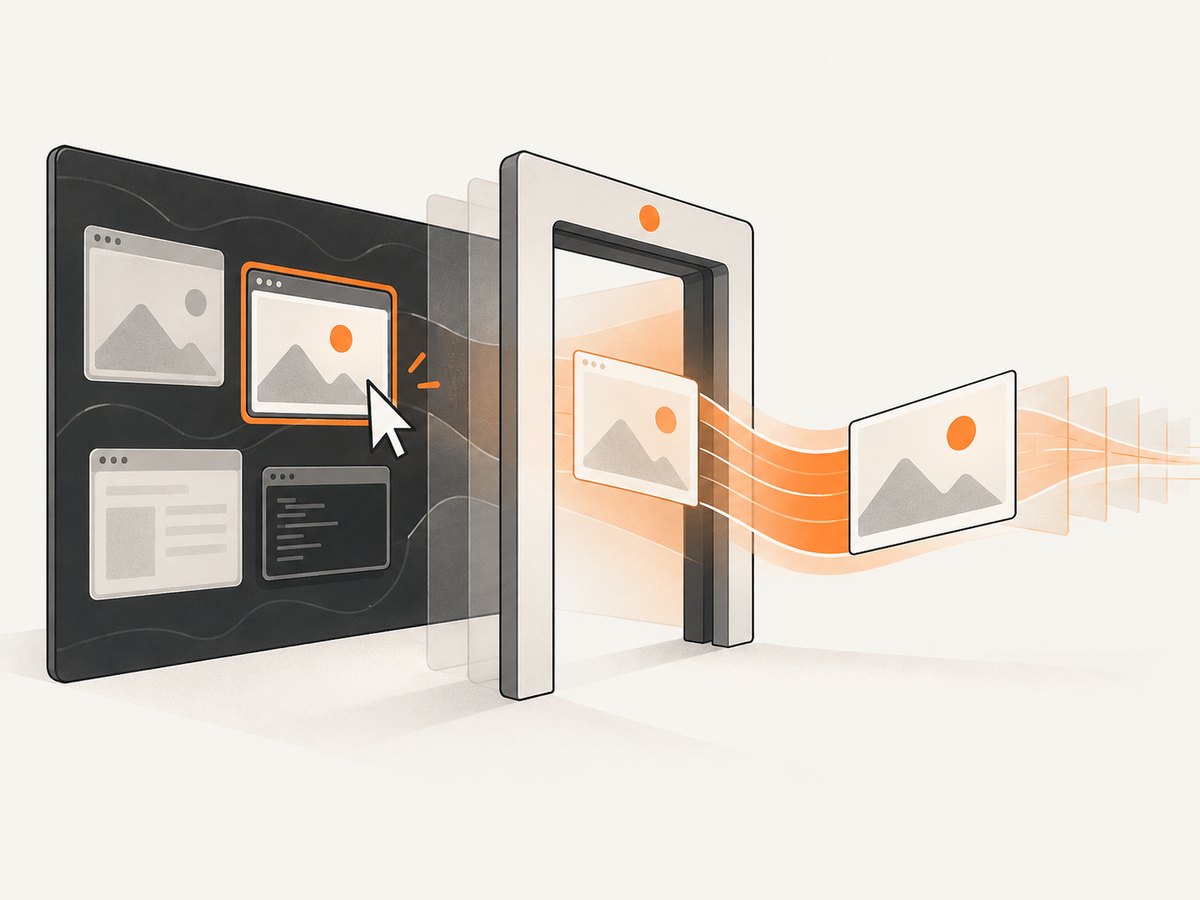
For an application that needs a continuous stream, use the ScreenCast portal. It creates a session, asks the user to select sources, and returns PipeWire streams. This is a different workflow from saving one still image.
Portal troubleshooting
- No portal response: verify that an XDG desktop portal service and a desktop-specific backend are installed and running.
- Permission denied: repeat the request interactively and accept the source-selection dialog.
- Wrong monitor or window: check the selected source rather than assuming the first stream is the desired one.
- ScreenCast stream will not open: inspect the PipeWire session and the portal backend logs.
- Works on one desktop but not another: portal behavior depends on the compositor, backend, and interface versions available in that environment.
6. XWayland and HiDPI coordinate problems
An XWayland application is an X11 client displayed by a Wayland compositor. That compatibility layer can make a window appear addressable through X11 while the compositor still expects portal or logical-coordinate semantics for screen capture.
HiDPI introduces a second failure mode: Java may report bounds in device pixels while a portal or compositor expects logical coordinates. A rectangle can therefore be numerically valid yet select the wrong area or be rejected.
- Identify whether the application is native Wayland or XWayland.
- Log the Java window bounds, graphics-device bounds, and scale factor.
- Compare a capture at scale 1 with a capture at the desktop’s native scale.
- Test the JDK/runtime version used by the application; screencast integration and coordinate fixes vary by runtime build.
- If exact window pixels remain unreliable, use the compositor’s portal selection flow instead of guessing a rectangle.
7. A repeatable diagnostic workflow
- Identify the protocol: record
XDG_SESSION_TYPE,WAYLAND_DISPLAY, andDISPLAY. - Prove the display connection: on X11, capture
xwd -rootbefore targeting a child window. - Prove the target: use
xwininfoand verify the title, ID, and geometry immediately before capture. - Separate capture from encoding: inspect XWD dimensions/file size or sample a Java pixel before writing PNG.
- Check permissions: test as the logged-in desktop user and review screen-capture permission dialogs.
- Check scaling: compare logical and device coordinates on multi-monitor or HiDPI systems.
- Switch paths: use Screenshot or ScreenCast portals for native Wayland; keep xwd/Robot for native X11.
- Record environment details: desktop, compositor, JDK version, X server or portal backend, monitor scale, and whether the process runs locally, over SSH, in a container, or as a service.
8. Reliability, performance, and operational notes
- Reliability: protocol detection should happen at startup, but retry after transient portal denial or a window-manager race. Treat a black image as a failed capture and validate pixels or image statistics.
- Performance: full-screen captures copy more pixels than a window rectangle. Limit the region and avoid repeated captures when a single frame is sufficient.
- Concurrency: portal requests may serialize around user consent. Queue requests and associate each response with its selected source.
- Security: screen capture can expose unrelated windows. Request the smallest area and least persistent stream that satisfies the job.
- Containers and CI: a container needs access to the display or portal session and the correct authentication context; installing
xwdalone does not create a display. - Cost: local xwd and Robot have no API charge, but require desktop setup and maintenance. Hosted capture removes that setup at the cost of an API request and network latency.
Or skip the browser setup
ScreenshotNeo provides a website screenshot API and MCP server. It captures a URL with one request and can return PNG, JPEG, WebP, or PDF. The API accepts options for full-page shots, device presets, custom viewports, retina scale, element selectors, dark mode, waits, custom CSS and JavaScript, cookies, headers, geolocation, blocking, caching, signed links, async jobs, bulk capture, and PDF output.
Cookie banners, newsletter popups, and chat widgets are removed before the shot. Bot checks, blank pages, timeouts, failed loads, and cache hits are not billed, and response headers identify the page verdict and billing status. ScreenshotNeo also provides an MCP server so Claude, Cursor, and other MCP clients can call take_screenshot, get_page_info, and capture_pdf.
See the ScreenshotNeo API documentation for all options. This is a complete call you can run from a shell:
curl -G "https://api.screenshotneo.com/v1/shot" -d access_key=YOUR_API_KEY --data-urlencode url=https://stripe.com -o shot.webpPython:
import requests
r = requests.get("https://api.screenshotneo.com/v1/shot", params={"access_key": "YOUR_API_KEY", "url": "https://stripe.com"}, timeout=90)
open("shot.webp", "wb").write(r.content)
Node.js:
const q = new URLSearchParams({ access_key: 'YOUR_API_KEY', url: 'https://stripe.com' });
const res = await fetch(`https://api.screenshotneo.com/v1/shot?${q}`);
The Free plan includes 1,000 screenshots per month with no card. Paid plans start at $5 for 3,000 screenshots, and every feature is available on every plan. Create a free ScreenshotNeo account.
FAQ
Can xwd capture a Wayland window?
Not a native Wayland window. xwd reads X11 windows. Use the XDG Screenshot portal or ScreenCast portal for native Wayland content.
Why does xwd work for the desktop but not one application?
The child window ID or title may be stale, the application may be native Wayland, or the visible content may be supplied by a compositor surface that X11 cannot read.
Does Java Robot require XTEST?
On X-Window systems, Java Robot can fail when XTEST 2.2 is unsupported or disabled. It also requires a non-headless graphical environment and permission to read the screen.
Why are coordinates wrong only on a HiDPI monitor?
The application, Java graphics device, and compositor can use different logical and physical pixel units. Convert bounds between those coordinate systems or let the portal handle source selection.
Should I use Screenshot or ScreenCast?
Use Screenshot for a one-shot image of a screen, window, area, or active window. Use ScreenCast when the application needs a continuing PipeWire stream.


