How to Fix Random Blank Screenshots with chrome-remote-interface
Fix blank chrome-remote-interface screenshots by validating the target, waiting for rendering, and using the right CDP capture sequence.
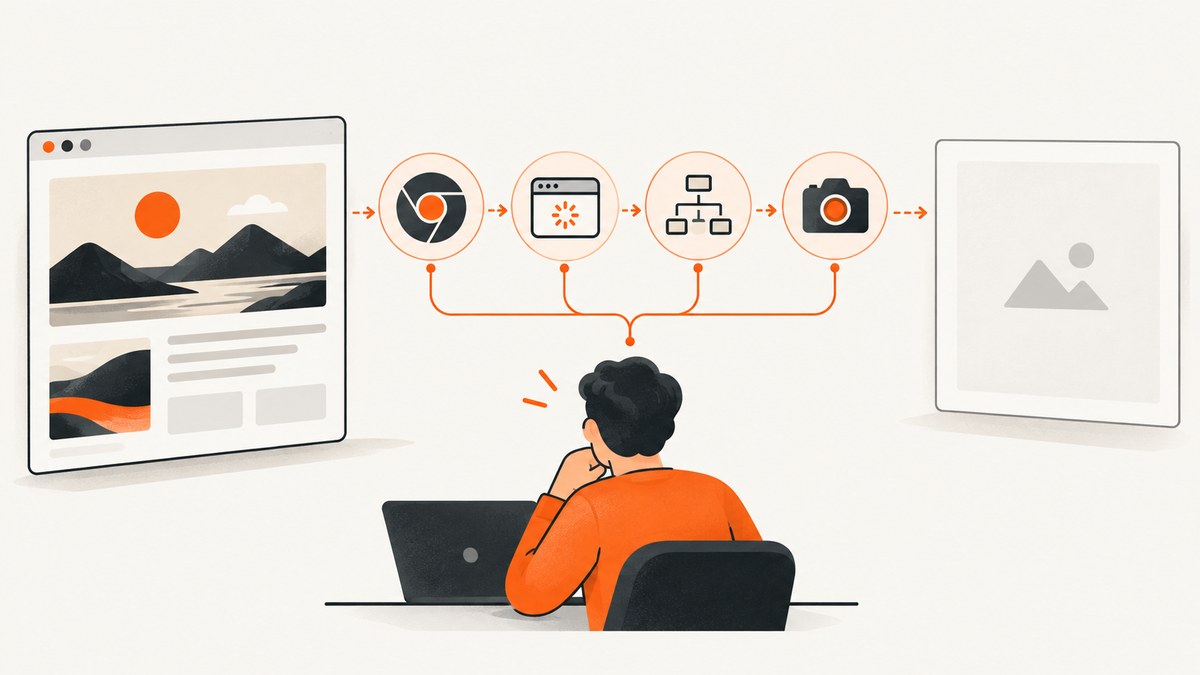
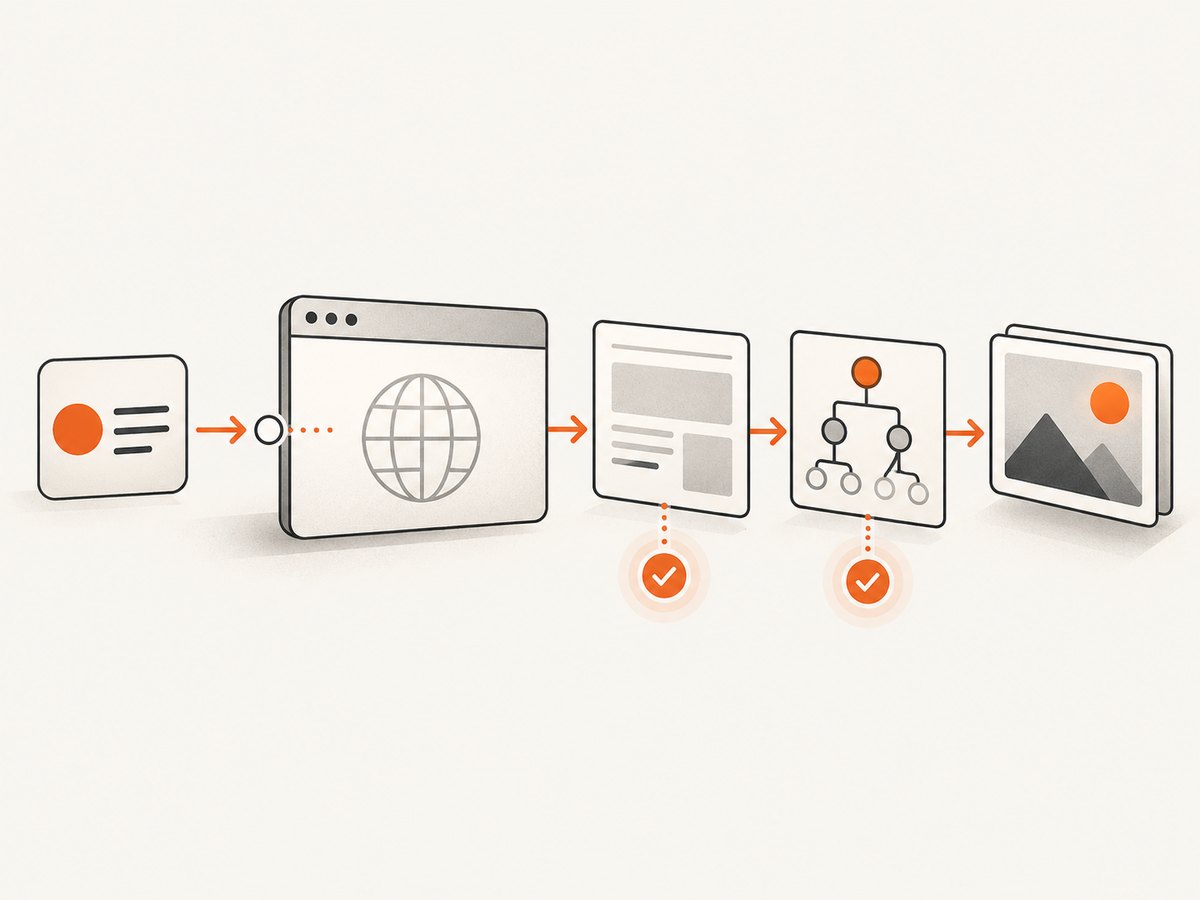
A random blank screenshot from chrome-remote-interface usually means Chrome captured the wrong target or captured before the target rendered. PNG settings, JPEG quality, and full-page flags cannot repair an empty page. First verify the attached target and DOM, then use a strict sequence: enable the Page domain, navigate, wait for loading, confirm the URL and body, and only then call Page.captureScreenshot.
The protocol returns an image as a base64 string. Decode that string before writing the file. For a reproducible diagnosis, log the target ID, Chrome version, URL, ready state, body length, viewport, and capture options.
1. Use a known-good capture sequence
The chrome-remote-interface examples take a PNG of the currently displayed page after the URL finishes loading. This is the smallest reliable baseline:
const CDP = require('chrome-remote-interface');
const fs = require('node:fs');

CDP(async (client) => {
  const { Page } = client;
  try {
    await Page.enable();
    await Page.navigate({ url: 'https://example.com' });
    await Page.loadEventFired();

    const { data } = await Page.captureScreenshot({ format: 'png' });
    fs.writeFileSync('shot.png', Buffer.from(data, 'base64'));
  } finally {
    await client.close();
  }
}).catch(console.error);
Install the client with npm install chrome-remote-interface. Start Chrome with remote debugging enabled, for example:
google-chrome --headless=new --remote-debugging-port=9222 --no-sandboxUse --no-sandbox only in an environment where your container policy requires it. In a normal desktop or properly isolated service, keep Chrome’s sandbox enabled.
Validate the page before saving bytes
A successful CDP command does not prove that the intended page is visible. Evaluate the URL, ready state, title, and body length immediately before capture:
const check = await client.Runtime.evaluate({
  expression: `JSON.stringify({
    href: location.href,
    readyState: document.readyState,
    title: document.title,
    bodyLength: document.body ? document.body.innerHTML.length : 0
  })`,
  returnByValue: true
});

const state = JSON.parse(check.result.value);
console.log(state);

if (state.href === 'about:blank' || state.bodyLength === 0) {
  throw new Error(`Target is not ready: ${JSON.stringify(state)}`);
}
If this check reports about:blank or an empty body, stop debugging image options. Fix target selection, navigation, or the CDP connection first.
2. Confirm that you attached to the intended target
Chrome can expose multiple tabs, extensions, workers, and temporary targets. A client may connect successfully while operating on a blank tab. List targets before connecting and inspect them again after navigation:
const CDP = require('chrome-remote-interface');

const targets = await CDP.List({ port: 9222 });
for (const target of targets) {
  console.log({ id: target.id, type: target.type, url: target.url, title: target.title });
}
Prefer a target whose type is page and whose URL matches the requested site. If you need deterministic selection, connect by target ID:
const client = await CDP({ port: 9222, target: targetId });Log the target immediately before navigation and immediately before capture. If the URL changes back to about:blank, another tab was selected, the target was replaced, or navigation raced with a close or reconnect operation.
3. Wait for the kind of rendering your page uses
Page.loadEventFired means the document’s load event fired. It does not guarantee that a client-rendered application has fetched data or painted its main component. Add a second, application-specific checkpoint when needed.
Wait for a selector
async function waitForSelector(client, selector, timeoutMs = 15000) {
  const started = Date.now();
  while (Date.now() - started < timeoutMs) {
    const result = await client.Runtime.evaluate({
      expression: `Boolean(document.querySelector(${JSON.stringify(selector)}))`,
      returnByValue: true
    });
    if (result.result.value) return;
    await new Promise(resolve => setTimeout(resolve, 100));
  }
  throw new Error(`Selector did not appear: ${selector}`);
}

await waitForSelector(client, '#app');
Wait for network activity to settle
For pages that render after XHR or fetch calls, enable the Network domain and track in-flight requests. Set a maximum wait so a long poll or analytics request cannot block every capture. A selector or a known application state is usually more reliable than an arbitrary sleep.
await client.Network.enable();
await client.Page.enable();
await client.Page.navigate({ url });
await client.Page.loadEventFired();
await waitForSelector(client, '[data-ready="true"]', 20000);
Use a short delay only for animations, fonts, or a layout transition that has no observable selector. A delay changes timing; it does not prove that the correct target loaded.
4. Capture options that affect a valid page
The official Chrome DevTools Protocol Page.captureScreenshot method accepts these options:
| Option | Use | Notes |
|---|---|---|
format |
png, jpeg, or webp |
PNG is lossless and best for debugging. JPEG needs quality. |
quality |
JPEG quality | Ignored for PNG; lower values reduce size and detail. |
clip |
Capture a rectangle | Coordinates are in CSS pixels and must describe rendered content. |
captureBeyondViewport |
Include content outside the viewport | Useful for tall pages, but geometry must still be correct. |
fromSurface |
Capture the compositor surface | The current protocol default is true. |
optimizeForSpeed |
Favor encoding speed | Compare output size and quality before enabling it in a pipeline. |
These parameters control geometry and encoding after content exists. They do not make an empty target render.
5. Capture a full-page screenshot reliably
For a tall page, first measure the rendered document, then set device metrics and the visible size. This avoids capturing only the initial viewport or producing a page whose lower portion is blank.
const CDP = require('chrome-remote-interface');
const fs = require('node:fs');

CDP(async client => {
  const { Page, DOM, Emulation, Runtime } = client;
  try {
    await Promise.all([Page.enable(), DOM.enable()]);
    await Page.navigate({ url: 'https://example.com/long-page' });
    await Page.loadEventFired();
    await waitForSelector(client, 'body');

    const metrics = await Runtime.evaluate({
      expression: `JSON.stringify({
        width: Math.max(document.documentElement.scrollWidth, document.body.scrollWidth),
        height: Math.max(document.documentElement.scrollHeight, document.body.scrollHeight)
      })`,
      returnByValue: true
    });
    const size = JSON.parse(metrics.result.value);
    const width = Math.max(1, Math.ceil(size.width));
    const height = Math.max(1, Math.ceil(size.height));

    await Emulation.setDeviceMetricsOverride({
      width,
      height,
      deviceScaleFactor: 1,
      mobile: false
    });
    await Emulation.setVisibleSize({ width, height });

    const { data } = await Page.captureScreenshot({
      format: 'png',
      captureBeyondViewport: true,
      fromSurface: true
    });
    fs.writeFileSync('full-page.png', Buffer.from(data, 'base64'));
  } finally {
    await client.close();
  }
}).catch(console.error);
Reset the device metrics after the capture if the same browser target serves later requests. Otherwise, the next job may inherit an unexpectedly tall viewport.
6. Diagnose the common blank-image symptoms
| Symptom | Likely cause | Fix |
|---|---|---|
| 81-byte PNG | Capture happened against an empty or invalid surface | Check target URL, DOM state, and connection before changing format. |
| 16 KB blank screenshot | Navigation succeeded at the protocol level but the page stayed empty | Inspect target selection, load waits, and location.href. |
URL is about:blank |
Wrong target, target replacement, or navigation race | List targets, connect to the page target, and verify after navigation. |
| Top renders, lower page is blank | Lazy content was never triggered or capture geometry is too short | Scroll or wait for lazy elements, measure document height, then set metrics. |
| Screenshot is tiny but non-empty | Viewport or clip dimensions are small | Log viewport and clip values; remove clip for a baseline capture. |
| Intermittent failures | Race between navigation, rendering, and capture | Use explicit readiness checks, bounded retries, and per-job target isolation. |
Check the CDP connection state
Record Chrome’s version and the package version in every failing job. Reconnect errors, a closed tab, or a browser restart can leave application code holding a stale client. Close the client in a finally block and create a fresh connection for a replacement target.
Use a direct Chrome control
When possible, compare the same URL with a direct headless Chrome screenshot. If direct Chrome renders correctly but CDP does not, focus on target attachment, event ordering, and runtime checks. A cross-site blank result is evidence against assuming that one website’s anti-bot behavior is the universal cause.
7. Cookies, authentication, and blocked resources
A page can be structurally loaded while its useful content is hidden behind authentication, consent, or a failed API request. Set cookies or headers before navigation, and inspect console and network failures. Do not treat a successful HTTP response as proof that the visible application rendered.
For a protected page, verify that the target has the expected session before capture:
await client.Network.setExtraHTTPHeaders({
  headers: { Authorization: 'Bearer YOUR_TOKEN' }
});
await Page.navigate({ url: 'https://example.com/account' });
await Page.loadEventFired();

const authState = await client.Runtime.evaluate({
  expression: `JSON.stringify({ href: location.href, hasLogin: Boolean(document.querySelector('form[action*="login"]')) })`,
  returnByValue: true
});
console.log(authState.result.value);
Be careful with secrets in logs. Redact authorization headers, cookies, and signed URLs.
8. Reliability and performance practices
- Bound every wait. Set timeouts for navigation, selectors, and network-idle logic.
- Validate before capture. Reject
about:blank, an empty body, and an unexpected hostname. - Keep jobs isolated. Reuse a browser process when useful, but use a fresh page target per job.
- Choose the smallest capture. A viewport or selector clip uses less memory than a full-page image.
- Use PNG for diagnosis. Switch to JPEG or WebP only after the rendered result is correct.
- Measure tall pages. Very large device metrics increase memory use and encoding time; split extremely long documents when your product allows it.
- Retry selectively. Retry a lost connection or target replacement, but do not retry a deterministic selector timeout forever.
There is no general frequency benchmark for random blank screenshots. The documented 81-byte and 16 KB observations belong to separate issue reports and should not be treated as a failure rate.
9. Or skip the browser setup
ScreenshotNeo provides a website screenshot API and MCP server. One GET request returns PNG, JPEG, WebP, or PDF:
curl -G 'https://api.screenshotneo.com/v1/shot' -d access_key=YOUR_API_KEY --data-urlencode url=https://stripe.com -o shot.webpimport requests
r = requests.get('https://api.screenshotneo.com/v1/shot', params={'access_key': 'YOUR_API_KEY', 'url': 'https://stripe.com'}, timeout=90)
open('shot.webp', 'wb').write(r.content)const q = new URLSearchParams({ access_key: 'YOUR_API_KEY', url: 'https://stripe.com' });
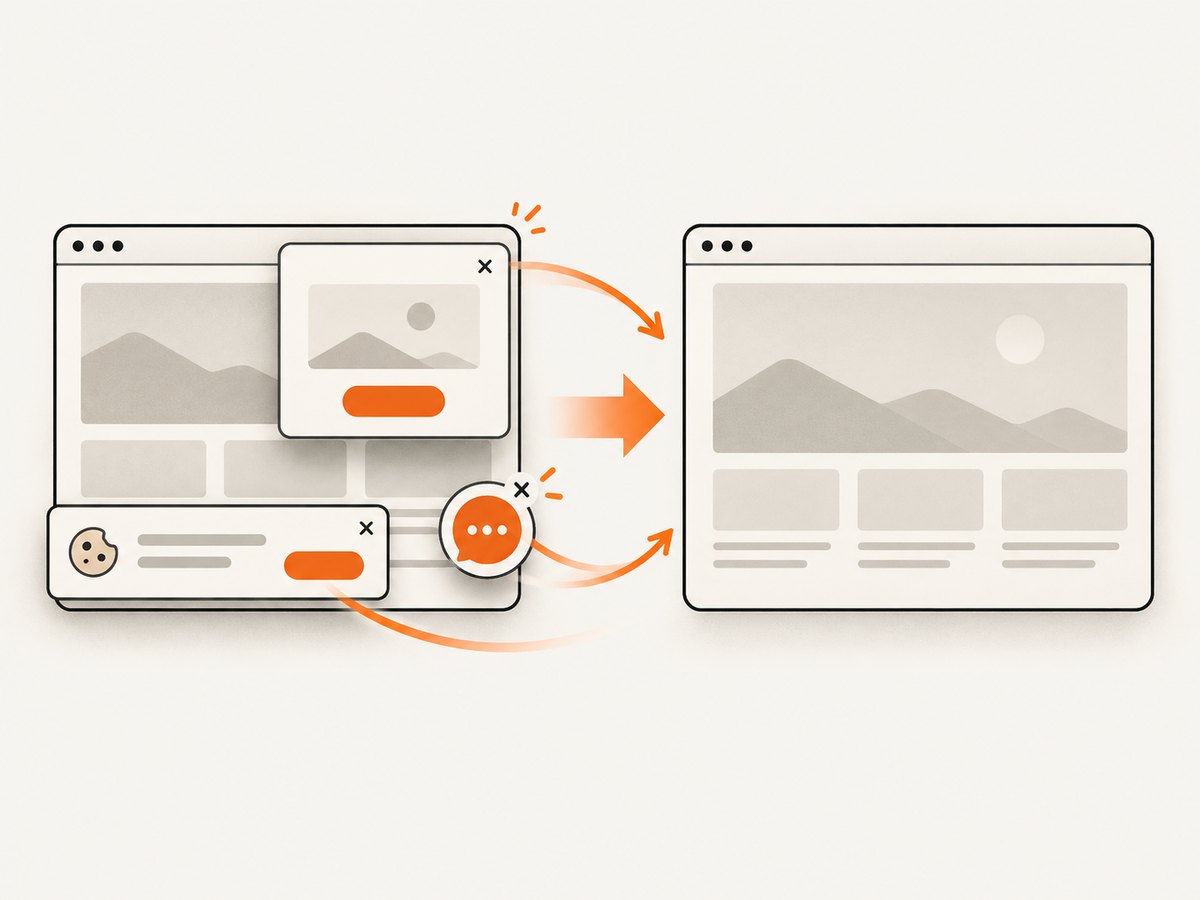
const res = await fetch(`https://api.screenshotneo.com/v1/shot?${q}`);See the ScreenshotNeo API documentation for request options. Cookie and consent banners are accepted and removed before the shot, along with more than 60 known consent platforms, newsletter popups, and chat widgets; each cleanup step can be disabled. Bot checks, blank pages, timeouts, failed loads, and cache hits are not billed, and response headers identify the page verdict and whether it was billed. Its MCP server exposes take_screenshot, get_page_info, and capture_pdf for Claude, Cursor, and other MCP clients. You get 1,000 screenshots per month free without a card; paid plans start at $5 for 3,000 shots.
Create a free ScreenshotNeo account and start with the included 1,000 screenshots.
10. A practical debugging checklist
- Record Chrome, headless mode, package version, target ID, and URL.
- List targets and connect to the intended
pagetarget. - Enable Page before navigation.
- Navigate and wait for the load event or an equivalent lifecycle signal.
- Evaluate
location.href,document.readyState, and body length. - Wait for an application selector or bounded rendering condition.
- Capture a normal viewport PNG with no clip.
- Only then tune full-page geometry, format, quality, or speed.
- Decode the base64 response and verify the output file is non-empty.
- Close the client and clean up the target.
FAQ
Does captureBeyondViewport fix a blank screenshot?
No. It changes capture extent after a page has rendered. Fix an empty target or premature capture first.
Should I always wait for network idle?
No. Applications with analytics, streaming, or long polling may never become idle. Prefer a known selector or application-ready signal with a timeout.
Why does changing PNG to JPEG appear to help?
It can change file size or decoder behavior, but it does not repair an empty page. Validate the DOM and URL with PNG first.
Can a CAPTCHA cause a blank image?
It can prevent useful page content from appearing, but a cross-site about:blank result points first to target selection, navigation, or CDP state. Inspect the page before assigning the cause.
How do I capture one element?
Find its bounding rectangle with getBoundingClientRect(), then pass the coordinates as clip. Ensure the element is visible and wait for its content before capturing.


