Why HTML5 Canvas Screenshots Look Blurry and How to Fix Them
Canvas screenshots blur when the bitmap is smaller than its CSS size or export ratio. Fix Retina scaling, resizing, smoothing and image quality.
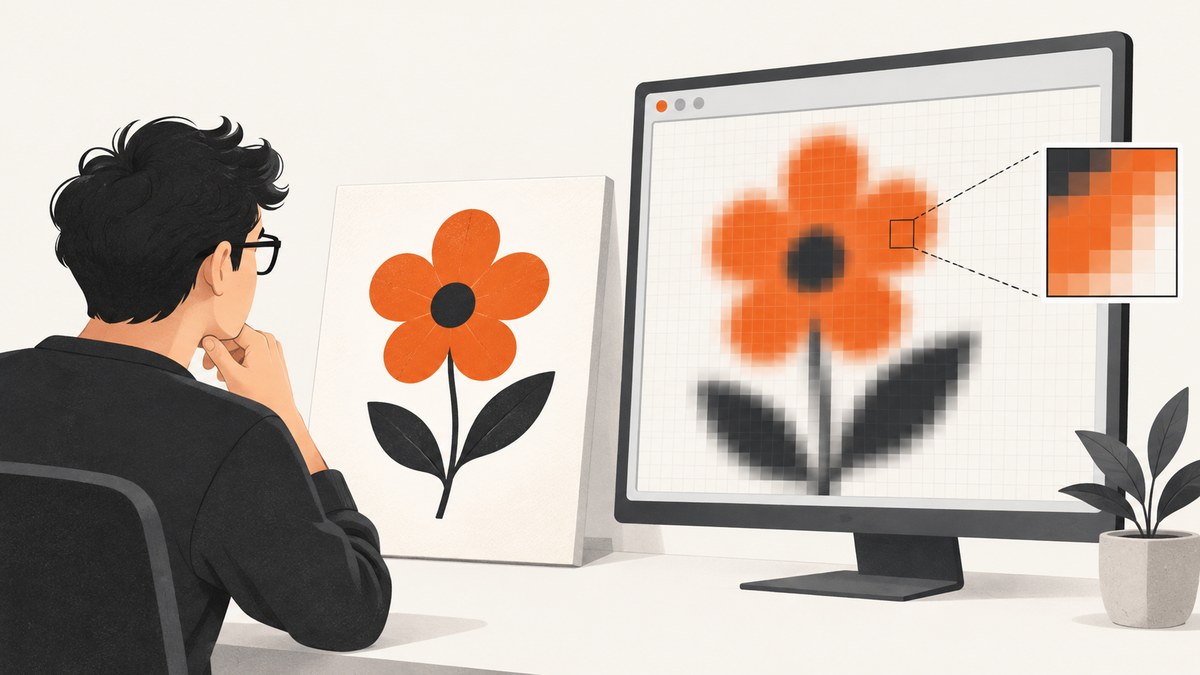
Short answer: a canvas has an internal bitmap and a separate CSS display size. If the bitmap is smaller than the displayed box, the browser interpolates it and the screenshot looks soft. Allocate the backing bitmap at CSS size × devicePixelRatio, draw with one matching transform, and redraw whenever the display size changes. Export PNG for text and line art, and use a larger explicit export ratio when a downloaded image needs more pixels.
The HTML Standard describes the canvas coordinate space and bitmap separately, and the default canvas bitmap is 300 × 150 pixels. A CSS rule can enlarge that bitmap without adding detail. High-density displays also place multiple device pixels into one CSS pixel, so a one-to-one backing store can appear blurred. See the WHATWG canvas specification and Apple’s Canvas Guide.
1. The reliable Retina and high-DPI setup
Use the element’s measured CSS size, multiply it by window.devicePixelRatio, set the bitmap dimensions, then apply one context transform. Draw in CSS-pixel coordinates after that transform.
<canvas id='chart' style='width: 600px; height: 320px'></canvas>
<script>
const canvas = document.querySelector('#chart');
const ctx = canvas.getContext('2d');

function resizeCanvas() {
  const rect = canvas.getBoundingClientRect();
  const ratio = window.devicePixelRatio || 1;
  const pixelWidth = Math.max(1, Math.round(rect.width * ratio));
  const pixelHeight = Math.max(1, Math.round(rect.height * ratio));

  if (canvas.width !== pixelWidth || canvas.height !== pixelHeight) {
    canvas.width = pixelWidth;
    canvas.height = pixelHeight;
    canvas.style.width = `${rect.width}px`;
    canvas.style.height = `${rect.height}px`;
    ctx.setTransform(ratio, 0, 0, ratio, 0, 0);
    draw();
  }
}

function draw() {
  const rect = canvas.getBoundingClientRect();
  ctx.clearRect(0, 0, rect.width, rect.height);
  ctx.fillStyle = '#fff';
  ctx.fillRect(0, 0, rect.width, rect.height);
  ctx.strokeStyle = '#1463ff';
  ctx.lineWidth = 2;
  ctx.beginPath();
  ctx.moveTo(24, rect.height - 28);
  ctx.lineTo(rect.width - 24, 28);
  ctx.stroke();
  ctx.fillStyle = '#111';
  ctx.font = '16px system-ui';
  ctx.fillText('Crisp at the current device pixel ratio', 24, 28);
}

new ResizeObserver(resizeCanvas).observe(canvas);
resizeCanvas();
</script>
Setting canvas.width or canvas.height clears the bitmap and resets the drawing state. Resize first, then restore the transform and redraw. Do not multiply the current width repeatedly; always derive dimensions from the current CSS rectangle.
2. Why CSS resizing creates a soft screenshot
These two sizes are independent:
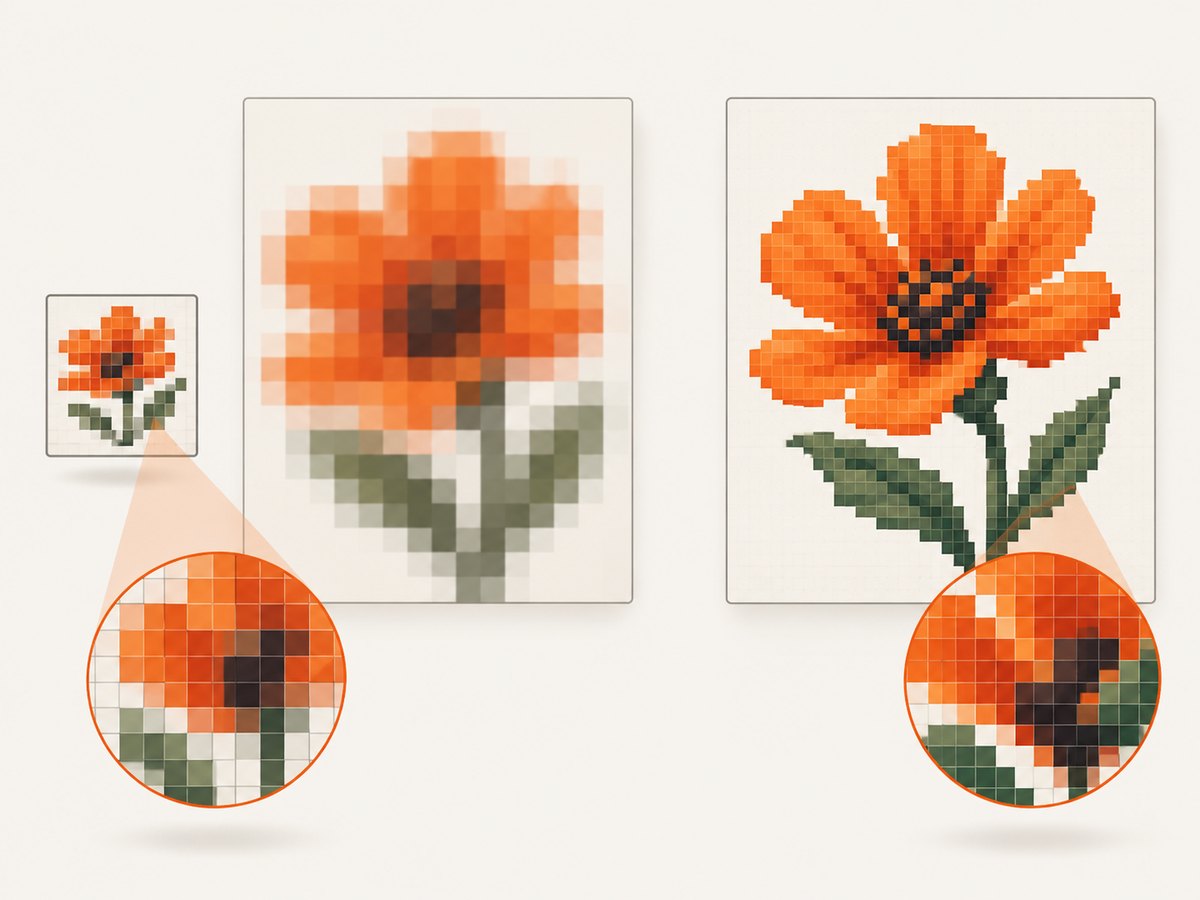
canvas.widthandcanvas.heightare the stored raster dimensions.- CSS
widthandheightdetermine the displayed dimensions in CSS pixels.
This common code leaves the default 300 × 150 bitmap and stretches it:
canvas.style.width = '900px';
canvas.style.height = '450px';
The browser must invent intermediate pixels. Set the backing store to the intended output dimensions instead. If the canvas is responsive, use a ResizeObserver as shown above. If the canvas is hidden when measured, wait until it has a nonzero layout size.
3. Canvas screenshots and downloaded exports
toDataURL() and toBlob() export the stored bitmap. They cannot recover detail that was never allocated. PNG is the safest choice for text, diagrams and UI lines; JPEG introduces lossy compression. The Canvas Guide documents PNG as the default and JPEG quality from 0 to 1. MDN also notes that zero-sized or over-limit canvases can produce data:,.
// Lossless export for a crisp diagram or UI
const pngUrl = canvas.toDataURL('image/png');
const link = document.createElement('a');
link.href = pngUrl;
link.download = 'canvas.png';
link.click();

// Blob export avoids keeping a large base64 string in memory
canvas.toBlob(blob => {
  if (!blob) throw new Error('Canvas export failed');
  const url = URL.createObjectURL(blob);
  const a = document.createElement('a');
  a.href = url;
  a.download = 'canvas.png';
  a.click();
  URL.revokeObjectURL(url);
}, 'image/png');
For a JPEG photograph, pass a quality such as 0.9, but expect artifacts around small text and sharp edges:
canvas.toBlob(blob => save(blob), 'image/jpeg', 0.9);4. Exporting larger than the screen
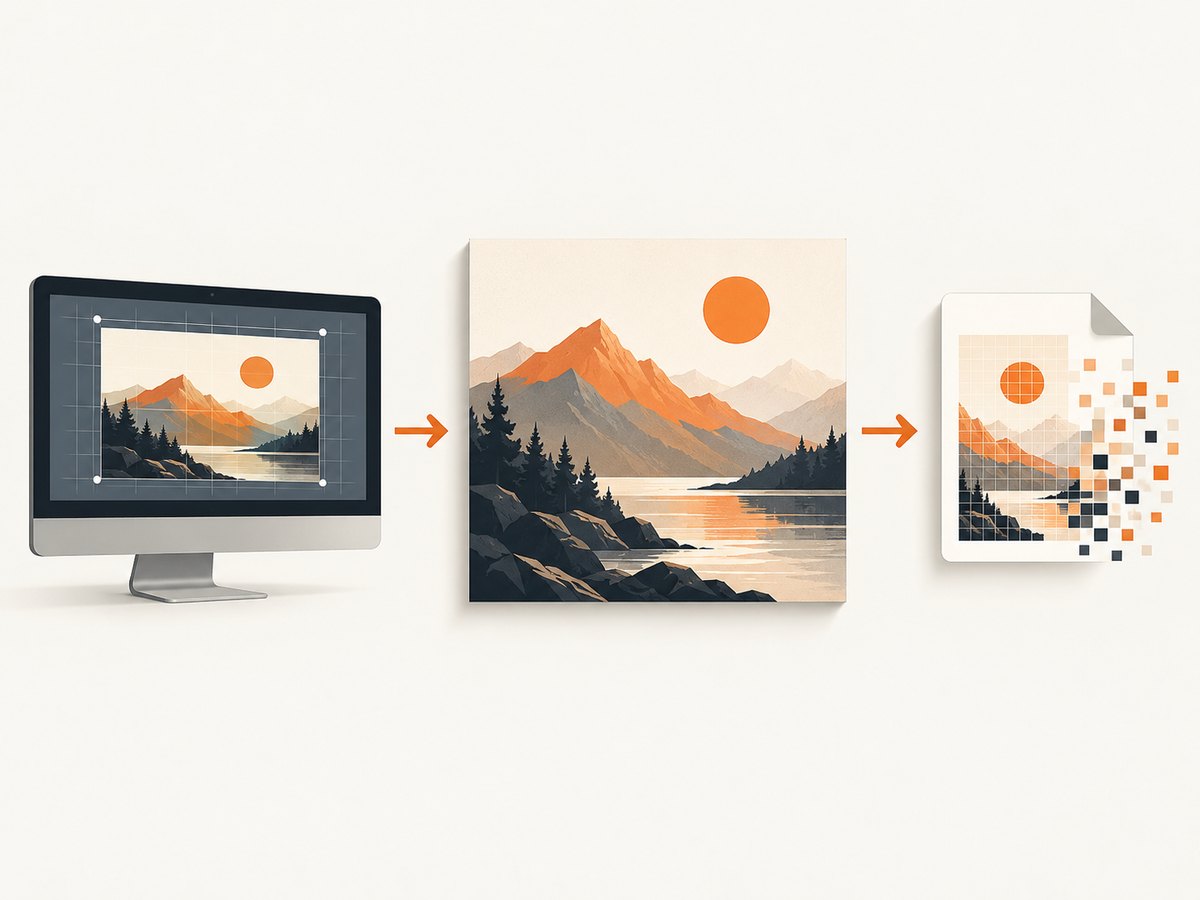
A screen-sized canvas and a print or report export have different requirements. Render into a separate export canvas at the required pixel dimensions rather than enlarging the screen bitmap. Keep drawing coordinates in logical units and scale the export context once.
function exportCanvas(cssWidth, cssHeight, exportRatio = 2) {
  const out = document.createElement('canvas');
  out.width = Math.round(cssWidth * exportRatio);
  out.height = Math.round(cssHeight * exportRatio);
  const outCtx = out.getContext('2d');
  outCtx.setTransform(exportRatio, 0, 0, exportRatio, 0, 0);
  // Reuse the same drawing function with CSS-pixel coordinates.
  drawInto(outCtx, cssWidth, cssHeight);
  return out.toDataURL('image/png');
}
If a canvas library is involved, inspect its export setting separately from the screen setting. For example, Konva documents a pixelRatio option for toDataURL(); its default export ratio is independent of the display’s device-pixel ratio. Request a larger ratio when the downloaded image needs more pixels, while watching memory and browser canvas limits.
5. Smoothing, scaled images and pixel art
imageSmoothingEnabled controls interpolation when images are scaled. It defaults to true, which is appropriate for photographs and normal artwork. For deliberately pixelated sprites, disable it before drawing:
ctx.imageSmoothingEnabled = false;
ctx.drawImage(sprite, x, y, sprite.width * 4, sprite.height * 4);
Disabling smoothing changes the interpolation method to nearest-neighbor; it does not add source detail and does not repair an undersized backing bitmap. For normal UI screenshots, keep smoothing enabled and fix the backing-store ratio instead. See MDN’s imageSmoothingEnabled reference and the HTML Standard’s scaling rules.
6. A complete responsive example
<style>
  #editor { width: min(90vw, 800px); aspect-ratio: 16 / 9; }
  #editor canvas { display: block; width: 100%; height: 100%; }
</style>
<div id='editor'><canvas id='art'></canvas></div>
<script>
const c = document.querySelector('#art');
const context = c.getContext('2d');
const observer = new ResizeObserver(() => {
  const r = c.getBoundingClientRect();
  const dpr = window.devicePixelRatio || 1;
  const w = Math.max(1, Math.round(r.width * dpr));
  const h = Math.max(1, Math.round(r.height * dpr));
  if (c.width === w && c.height === h) return;
  c.width = w;
  c.height = h;
  context.setTransform(dpr, 0, 0, dpr, 0, 0);
  context.clearRect(0, 0, r.width, r.height);
  context.fillStyle = '#f4f6fb';
  context.fillRect(0, 0, r.width, r.height);
  context.fillStyle = '#20242c';
  context.font = 'bold 24px system-ui';
  context.fillText(`${Math.round(r.width)} CSS px`, 24, 40);
});
observer.observe(c);
</script>
7. Debugging checklist
- Log
canvas.width,canvas.height,getBoundingClientRect()anddevicePixelRatio. - Confirm bitmap dimensions are approximately CSS dimensions multiplied by DPR.
- Confirm resizing is followed by a redraw and a single
setTransform(). - Check that a parent element is not scaling the canvas with CSS transforms.
- Use PNG when evaluating text or line sharpness.
- Inspect the exported file’s pixel dimensions, not only its displayed size.
- For image assets, check their intrinsic dimensions and whether
drawImage()scales them. - Test at DPR 1, 1.5, 2 and a resized responsive layout.
8. Common errors and fixes
| Symptom | Cause | Fix |
|---|---|---|
| Everything is blurry after setting CSS width | The bitmap stayed at 300 × 150 or another small size | Allocate width and height from the measured CSS size × DPR, then redraw |
| Sharp on one monitor, soft on Retina | Backing store is only one device pixel per CSS pixel | Multiply by devicePixelRatio and apply one matching transform |
| Lines become huge or shifted after resize | Transforms were multiplied repeatedly | Reset dimensions, call setTransform(), and redraw from logical coordinates |
| Pixel art has halos | Image smoothing is enabled | Set imageSmoothingEnabled = false before scaled draws |
| Downloaded image is soft although preview is sharp | Export uses a one-to-one or library default pixel ratio | Render to a larger export canvas or set the library’s export ratio |
toDataURL() returns data:, |
Zero dimensions or a canvas exceeding browser limits | Verify measured size, cap export dimensions, and use toBlob() for large files |
| Text is fuzzy only in JPEG | Lossy compression damages high-contrast edges | Export PNG for text, diagrams and UI screenshots |
9. Performance, memory and reliability
Backing-store area grows with the square of the pixel ratio. A canvas twice as wide and twice as tall stores four times as many pixels, increasing memory, draw time and export time. Choose the smallest ratio that meets the output requirement, cap user-controlled export sizes, and prefer toBlob() over large base64 data URLs. Redraw only after an actual size change. Avoid repeatedly creating oversized temporary canvases.
Large canvases can hit browser-specific maximum dimensions. There is no portable single maximum to rely on, so handle export failure, test the target browsers, and split very large documents into tiles when necessary. Images loaded from another origin must satisfy CORS rules before they are drawn; otherwise the canvas becomes tainted and export throws a security error. Serve assets with an appropriate Access-Control-Allow-Origin header and set crossOrigin before assigning an image URL.
10. Or skip the browser setup
If your goal is a screenshot of a page containing a canvas, ScreenshotNeo captures the rendered page through one request. It can use a viewport and retina scale, wait for a selector or delay so the canvas finishes drawing, run custom JavaScript, and capture an element or full page. The API also accepts PNG, JPEG or WebP output.
See the ScreenshotNeo API documentation. cURL:
curl -G 'https://api.screenshotneo.com/v1/shot' \
  -d access_key=YOUR_API_KEY \
  --data-urlencode url=https://example.com/canvas-page \
  -o shot.webp
Python:
import requests

r = requests.get(
    'https://api.screenshotneo.com/v1/shot',
    params={
        'access_key': 'YOUR_API_KEY',
        'url': 'https://example.com/canvas-page',
    },
    timeout=90,
)
r.raise_for_status()
open('shot.webp', 'wb').write(r.content)
Node.js:
const q = new URLSearchParams({
  access_key: 'YOUR_API_KEY',
  url: 'https://example.com/canvas-page',
});
const res = await fetch(`https://api.screenshotneo.com/v1/shot?${q}`);
if (!res.ok) throw new Error(`Screenshot failed: ${res.status}`);
const buffer = Buffer.from(await res.arrayBuffer());
require('fs').writeFileSync('shot.webp', buffer);
Cookie banners, newsletter popups and chat widgets are removed before the shot. Bot checks, blank pages and failed loads are never billed, and response headers identify the page verdict and whether it was billed. An MCP server lets AI agents take screenshots. The Free plan includes 1,000 screenshots a month with no card; paid plans start at $5 for 3,000. Create a free ScreenshotNeo account.
11. FAQ
Should I set the canvas width and height attributes or only CSS?
Set both. The attributes define the bitmap; CSS defines its display size. Keep the values synchronized through the DPR sizing function.
Does a higher device-pixel ratio always look better?
It provides more stored pixels, but increases memory and work. Use a ratio appropriate to the target output and browser limits.
Can CSS image-rendering fix a blurry canvas?
It can affect how the final element is scaled, especially for pixel art, but it cannot restore detail missing from the canvas bitmap. Fix the backing store first.
Why is my canvas blank after resizing?
Changing bitmap dimensions clears it. Resize, restore the transform and redraw in that order.


