How to Fix Chrome Headless Unknown Errors in Docker
Treat Chrome’s “unknown error” as a symptom. Use this Docker triage guide to identify version, sandbox, memory, protocol, GPU, and cleanup failures.
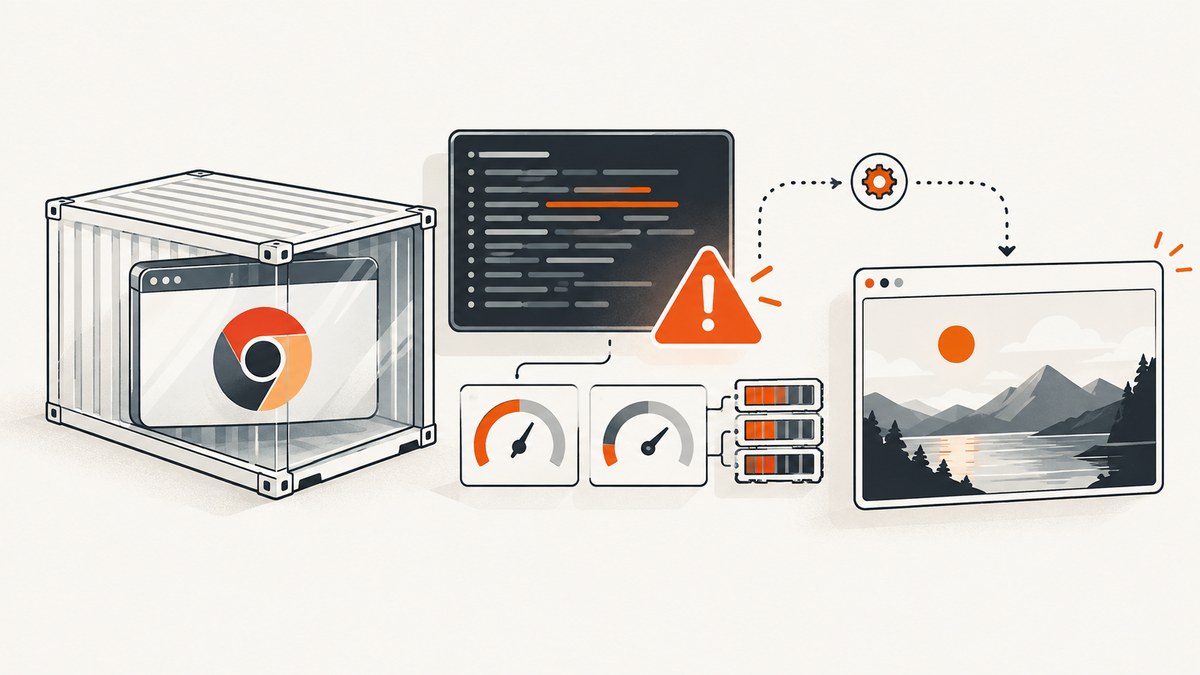
“Unknown error” is not a diagnosis. In a Dockerized headless browser, the same label can mean that Chrome never launched, Chrome launched but the automation client could not connect, a renderer crashed, shared memory was exhausted, a GPU path failed, or child processes were not reaped. The reliable fix is to collect the exact process output and environment details, then follow the branch that matches the evidence.
This guide gives you a repeatable sequence for Chrome, Chromium, ChromeDriver, Puppeteer, Selenium, Playwright, and CDP clients. It also explains current headless behavior, sandbox decisions, /dev/shm, logging, GPU symptoms, and process cleanup.
1. Capture the real failure before changing flags
Start by preserving everything your wrapper normally hides:
- Complete Chrome and ChromeDriver stderr/stdout.
- The automation library’s full exception and stack trace.
- Chrome’s process exit code and signal, if available.
- Chrome/Chromium version and executable path.
- ChromeDriver version, when a driver is involved.
- Puppeteer, Playwright, Selenium, chromedp, or other client version.
- Docker image name and tag, CPU architecture, effective user, entrypoint, and runtime.
- Container memory/CPU limits,
/dev/shmsize, and security profile. - The exact headless mode and launch arguments.
If a framework only reports “unknown error,” enable Chrome’s own logging. Chromium documents --log-level=0 --enable-logging=stderr; newer builds that use VLOG may provide more detail with --v=1. Send the output to your container logs rather than discarding it:
google-chrome \
  --headless \
  --no-first-run \
  --no-default-browser-check \
  --log-level=0 \
  --enable-logging=stderr \
  --v=1 \
  --remote-debugging-port=9222 \
  about:blank
Use only the flags your workload needs. The logging flags are for diagnosis; remove verbose logging after you have enough evidence.
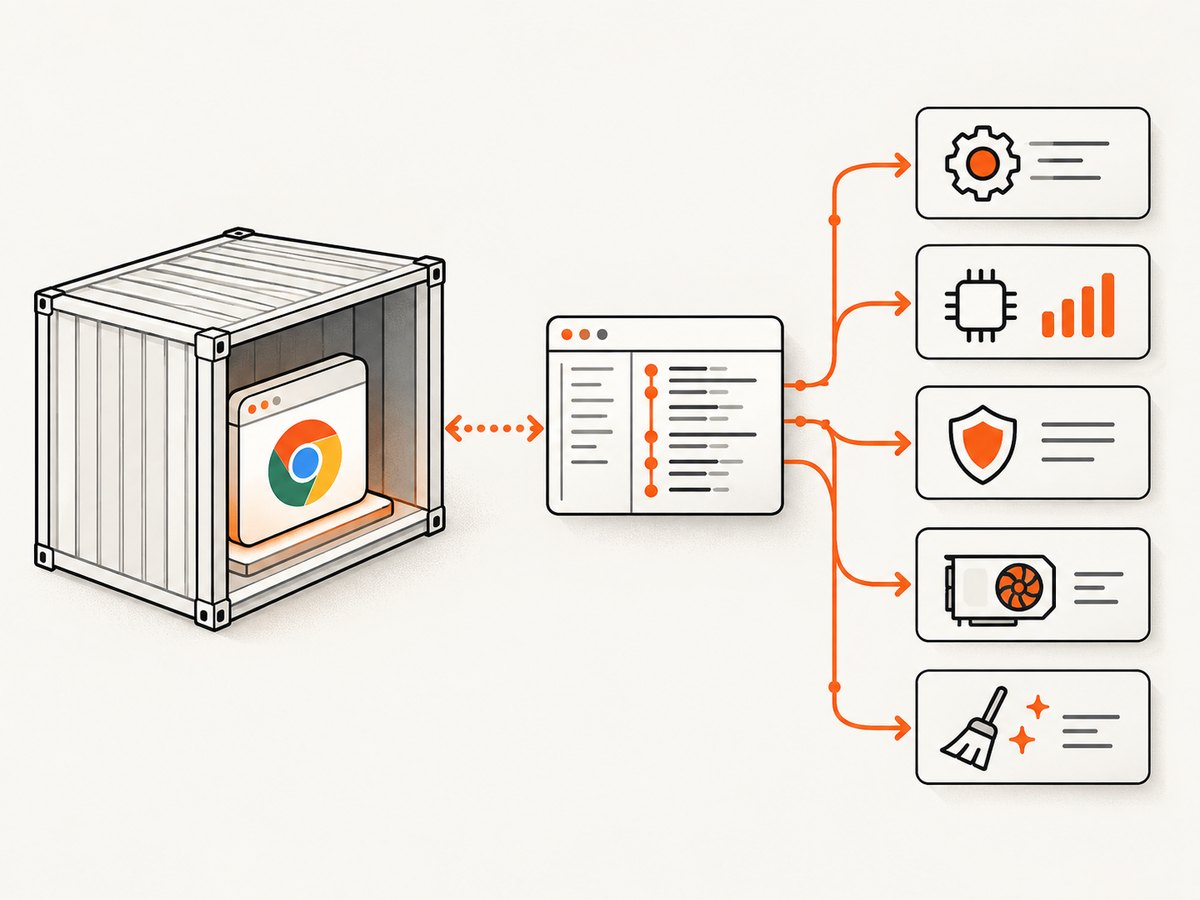
2. Identify which failure family you have
| Observed evidence | Likely family | First check |
|---|---|---|
| Chrome exits immediately; no DevTools endpoint appears | Launch, binary, sandbox, dependency, or resource failure | Version, executable path, user, stderr, and exit code |
| Chrome stays alive but client cannot create a session | Driver/client mismatch or protocol connectivity | Driver version, remote debugging endpoint, port binding |
BUS_ADRERR, renderer crashes, or failures under large pages |
Shared-memory or memory pressure | /dev/shm and container memory limit |
| WebGL, Vulkan, GPU, or rendering errors | Graphics/driver configuration | GPU logs and whether the workload needs hardware acceleration |
| Failures appear after many jobs; orphaned processes accumulate | Process reaping/cleanup | PID 1, child process count, and shutdown handling |
Do not apply a shared-memory, sandbox, or GPU fix just because the wrapper used the words “unknown error.” Match the remedy to the observed branch.
3. Verify the Chrome, headless, and driver versions
Print the versions from inside the same image and as the same user that runs your application:
id
uname -m
which google-chrome || which chromium || which chromium-browser
google-chrome --version 2>/dev/null || chromium --version
chromedriver --version 2>/dev/null || true
python -c "import selenium,sys; print(sys.version); print('selenium', selenium.__version__)" 2>/dev/null || true
node -e "try { console.log(require('puppeteer/package.json').version) } catch (_) {}"
Keep the browser and driver on a compatible release line. Also check the headless mode you request. Chromium’s Headless documentation states that, as of M132, the old headless-shell implementation is no longer part of the Chrome binary; --headless=old has no effect. If you depend on the old implementation, use the separately distributed chrome-headless-shell and confirm its release instructions. The same documentation shows the current headless flow and DevTools connection examples: Chromium Headless documentation.
For Puppeteer, explicitly choose a supported mode rather than copying an old recipe:
import puppeteer from 'puppeteer';

const browser = await puppeteer.launch({
  headless: true,
  args: ['--remote-debugging-port=9222']
});
const page = await browser.newPage();
await page.goto('https://example.com', {waitUntil: 'networkidle2'});
await page.screenshot({path: 'page.png'});
await browser.close();
If your version supports the shell mode and you specifically need it, use the mode documented for that release, for example headless: 'shell'. Do not assume a flag from an older Puppeteer or Chrome guide still selects the same implementation.
4. Check the container user and sandbox safely
Chrome’s sandbox is a security boundary. Chrome’s developer guidance says --no-sandbox is not required when the container is correctly configured with an appropriate user. The chromedp headless-shell image demonstrates running as an unprivileged user such as nobody with a seccomp profile.
Inspect the effective identity and test a least-privilege launch:
docker run --rm --entrypoint sh your-image -c \
  'id; ls -l "$(command -v google-chrome || command -v chromium)"; \
   google-chrome --headless --dump-dom https://example.com'
Prefer a dedicated non-root user in the Dockerfile:
RUN groupadd --system browser && useradd --system --gid browser browser
USER browser
Then verify the Docker or Podman security profile, user namespaces, and kernel/runtime restrictions. If Chrome reports a sandbox initialization error, fix the user and runtime configuration first. Using --no-sandbox can make the process start, but it changes the security posture and should be a deliberate, isolated decision rather than the universal first step.
5. Investigate memory and /dev/shm only when symptoms support it
Containers commonly expose a small shared-memory filesystem. Chromium uses shared memory for browser and renderer coordination, so large pages, many tabs, videos, canvases, and parallel jobs can expose the limit. Inspect both shared memory and the overall container limit:
df -h /dev/shm
free -h
cat /sys/fs/cgroup/memory.max 2>/dev/null || true
ps -eo pid,ppid,rss,stat,cmd | grep -E 'chrome|chromium' | grep -v grep
For the chromedp headless-shell image, its README links BUS_ADRERR crashes to insufficient shared memory and gives --shm-size 2G as an example. That value is image- and workload-specific, not a universal requirement:
docker run --rm --shm-size=2g your-imageIncrease memory gradually while observing the error. Also reduce concurrency, close pages promptly, avoid loading unnecessary resources, and set a container memory limit that leaves room for Chrome’s browser and renderer processes. A bigger /dev/shm cannot repair an incompatible driver or a sandbox failure.
6. Separate protocol connection errors from browser launch errors
If the Chrome process remains alive, confirm that the automation client can reach its DevTools endpoint. Start a diagnostic instance:
google-chrome \
  --headless \
  --remote-debugging-address=0.0.0.0 \
  --remote-debugging-port=9222 \
  about:blank
curl -sS http://127.0.0.1:9222/json/version
curl -sS http://127.0.0.1:9222/json/listInside Docker, 127.0.0.1 refers to the container. If the client runs in another container, use the service name on a shared network. If the port is published to the host, bind and publish it intentionally; do not expose an unauthenticated DevTools port to an untrusted network.
With ChromeDriver, record both sides of the version tuple and enable driver logging. With direct CDP clients, verify the WebSocket URL returned by /json/version. A browser that never creates the endpoint has a launch problem; a browser with a healthy endpoint has a client, network, or session-creation problem.
7. Handle GPU and graphics failures as a separate branch
Headless GPU behavior depends on the Linux display stack and driver configuration. Chromium’s GPU guidance notes that Linux’s default OpenGL driver detection expects an X display in some configurations, while Vulkan can work when explicitly configured. The --enable-gpu flag disables forced software rendering.
Use graphics flags only when logs mention GPU, WebGL, EGL, Vulkan, or renderer initialization. For a workload that does not need hardware acceleration, test a software path and compare the logs. For a workload that does need GPU features, inspect the host driver, device permissions, and runtime device mapping instead of adding random flags.
# Diagnostic software-rendering test; keep only if appropriate for your workload
google-chrome --headless --disable-gpu --enable-logging=stderr --log-level=0 about:blank
Do not treat an X server as a prerequisite for modern headless mode. Older Xvfb recipes are often copied into containers even when the browser can run without a display server.
8. Prevent zombie Chrome processes
If one request works but repeated jobs leave children behind, inspect the process tree and your container’s PID 1:
ps -o pid,ppid,stat,cmd -ax | grep -E 'chrome|chromium' | grep -v grepThe chromedp image documentation recommends an init process for reaping children; older Docker guidance commonly uses tini or dumb-init. Docker can add its built-in init process:
docker run --init --rm your-imageAlternatively, make your entrypoint an init binary and ensure your application closes every browser, context, and page in a finally block. Confirm the runtime and existing entrypoint before adding a second init layer.
9. Add crash evidence when the process actually crashes
When Chrome terminates with a signal, preserve the exact build and enable core dumps where your runtime permits them:
ulimit -c unlimited
ulimit -a
# launch the browser after setting the limit
Chromium notes that sandboxed subprocesses can be exceptions to core-dump collection. Capture the container logs, exit status, architecture, browser build, and a minimal URL or script that reproduces the crash. This evidence is far more useful than the wrapper’s single-line “unknown error.”
10. A minimal, observable Docker setup
Use a small diagnostic program before adding your full application. The following Python example prints the browser identity, enables logging, waits for a page, and always closes the driver:
from selenium import webdriver
from selenium.webdriver.chrome.options import Options

options = Options()
options.add_argument("--headless")
options.add_argument("--no-first-run")
options.add_argument("--no-default-browser-check")
options.add_argument("--enable-logging=stderr")
options.add_argument("--log-level=0")

# Add --no-sandbox only after you have evaluated the container user and security profile.
driver = webdriver.Chrome(options=options)
try:
    driver.get("https://example.com")
    print(driver.title)
    driver.save_screenshot("example.png")
finally:
    driver.quit()
Run this with one browser, one tab, and one URL. Once it is stable, add concurrency, custom flags, proxies, authentication, and large pages one change at a time. That makes the first regression attributable.
11. Troubleshooting checklist
| Symptom or message | Cause to investigate | Fix to try |
|---|---|---|
session not created |
Browser/driver incompatibility or wrong executable | Print both versions and paths; align supported releases. |
| Chrome exits before the client connects | Sandbox, missing dependency, invalid flag, or resource limit | Run as the effective user, preserve stderr, and test a minimal launch. |
BUS_ADRERR or renderer crash |
Shared-memory pressure in the specific image/workload | Inspect /dev/shm; test a larger allocation such as --shm-size=2g. |
| WebSocket/DevTools connection refused | Chrome is down, bound to another address, or unreachable across containers | Query /json/version; check port binding and network service names. |
| WebGL/EGL/Vulkan errors | GPU or display-driver path | Reproduce with explicit graphics diagnostics; choose software or correctly configure GPU. |
| Works once, then degrades | Leaked pages, browser processes, memory, or unreaped children | Close resources, limit concurrency, inspect RSS and add an init process. |
--headless=old has no effect |
Old headless was removed from the Chrome binary in M132 | Use current headless or the separately distributed headless shell. |
12. Performance, reliability, and operating cost
- Concurrency: More tabs multiply renderer memory and shared-memory demand. Establish a safe worker count from observed RSS and error rates.
- Startup: Reusing a browser can reduce launch overhead, but isolate jobs with separate contexts and recycle the browser when memory grows.
- Page weight: Block unnecessary ads, trackers, fonts, or media only when the capture does not require them. This reduces load time but can change page behavior.
- Timeouts: Distinguish navigation timeout, browser startup timeout, and protocol timeout in logs. Retrying a deterministic version or sandbox failure only adds load.
- Reliability: Pin image and browser versions, record architecture, run a minimal smoke capture after upgrades, and retain stderr for failed jobs.
- Cost: Container CPU time, memory, bandwidth, and image maintenance are part of the operating cost. Measure failure retries as well as successful captures.
13. Or skip the browser setup
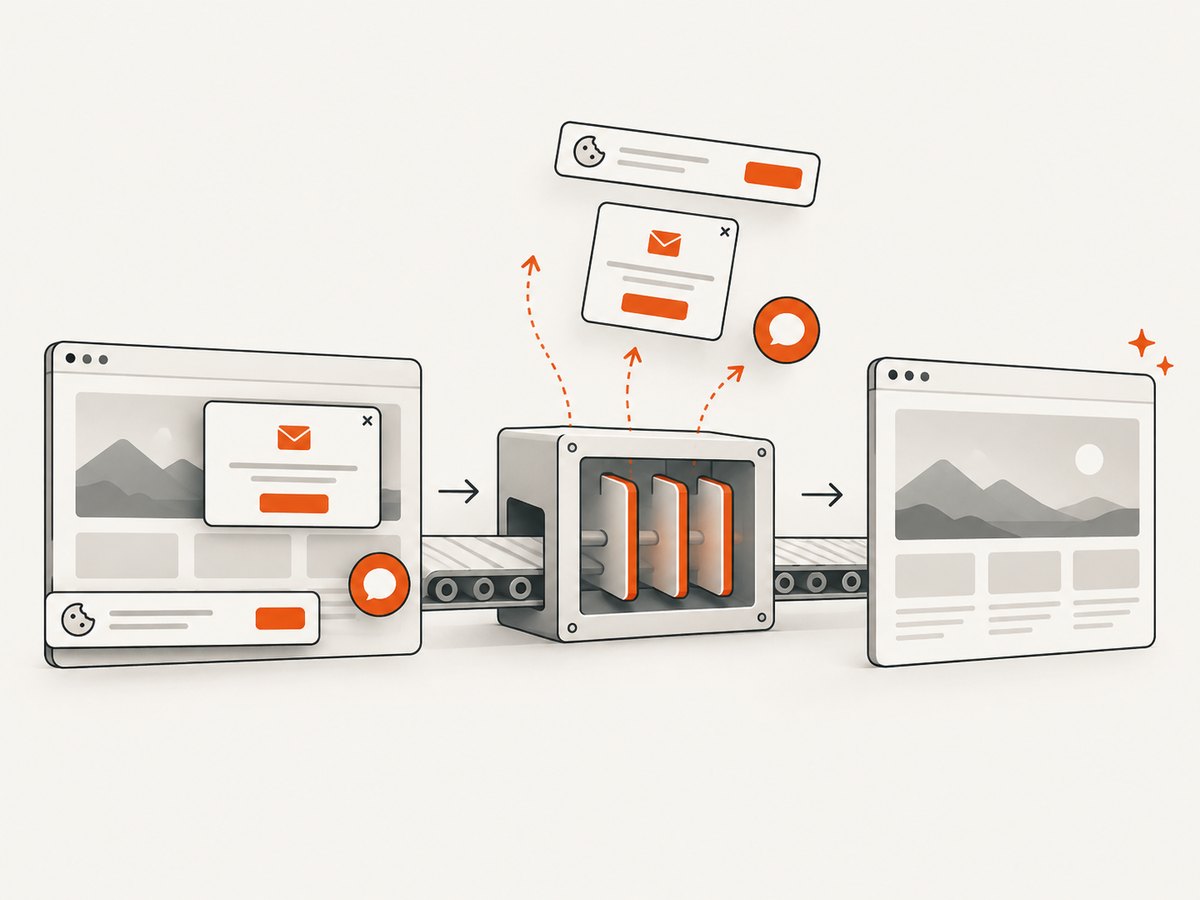
If your goal is a reliable website screenshot rather than maintaining Chrome inside Docker, ScreenshotNeo provides a single GET request for PNG, JPEG, WebP, or PDF. Its capture pipeline accepts cookie and consent banners like a visitor, then removes more than 60 known consent platforms along with newsletter popups and chat widgets before the shot. Each step can be turned off.
Only clean shots are billed. Bot checks or CAPTCHAs, blank pages, timeouts, failed loads, and cache hits cost nothing, and the response identifies the result with X-Page-Verdict and X-Billed headers. An MCP server provides take_screenshot, get_page_info, and capture_pdf tools for Claude, Cursor, and other MCP clients.
See the full parameter reference in the ScreenshotNeo documentation. The same request works from cURL, Python, or Node.js:
curl -G "https://api.screenshotneo.com/v1/shot" -d access_key=YOUR_API_KEY --data-urlencode url=https://stripe.com -o shot.webpimport requests
r = requests.get("https://api.screenshotneo.com/v1/shot", params={"access_key": "YOUR_API_KEY", "url": "https://stripe.com"}, timeout=90)
open("shot.webp", "wb").write(r.content)const q = new URLSearchParams({ access_key: 'YOUR_API_KEY', url: 'https://stripe.com' });
const res = await fetch(`https://api.screenshotneo.com/v1/shot?${q}`);You can request full-page captures with lazy images loaded, a CSS-selected element, dark mode, device presets or any viewport, retina scale, custom CSS and JavaScript, clicks, selector or network-idle waits, blocked resources, headers, cookies, user agents, authorization, timezone, geolocation, transparent backgrounds, resizing, chosen cache TTLs, signed image links, asynchronous jobs with signed webhooks, bulk capture for up to 100 URLs, PDFs, HTML/CSS-to-image, and usage data. Every feature is available on every plan. The free plan includes 1,000 shots per month with no card; paid plans start at $5 for 3,000 shots.
Create a free ScreenshotNeo account and get 1,000 screenshots a month with no card.
14. FAQ
Do I always need --no-sandbox in Docker?
No. First run Chrome as a properly configured unprivileged user and inspect the runtime security profile. Disable the sandbox only as a considered exception.
Is --shm-size=2g a standard Chrome requirement?
No. It is an example from the chromedp headless-shell image for a BUS_ADRERR crash context. Measure your workload and increase shared memory when the evidence points there.
Should I install Xvfb for headless Chrome?
Modern headless Chrome does not generally require Xvfb. Add a display server only when your selected browser mode or graphics workload specifically requires it.
How do I know whether Chrome or the automation library failed?
Check whether Chrome stayed alive and whether /json/version responds. No process or endpoint means launch failure; a healthy endpoint points toward the client, driver, network, or session setup.
When should I use a hosted screenshot API?
Use one when browser installation, sandboxing, shared memory, upgrades, and cleanup are not part of the product you want to operate. ScreenshotNeo is an option when you need those capture controls without running Chrome in your container.


