How to Fix Chromium Startup Failures in AWS Lambda Containers
Fix Chromium startup failures in AWS Lambda containers by matching architecture and libraries, redirecting browser files to /tmp, and validating the Lambda entrypoint.
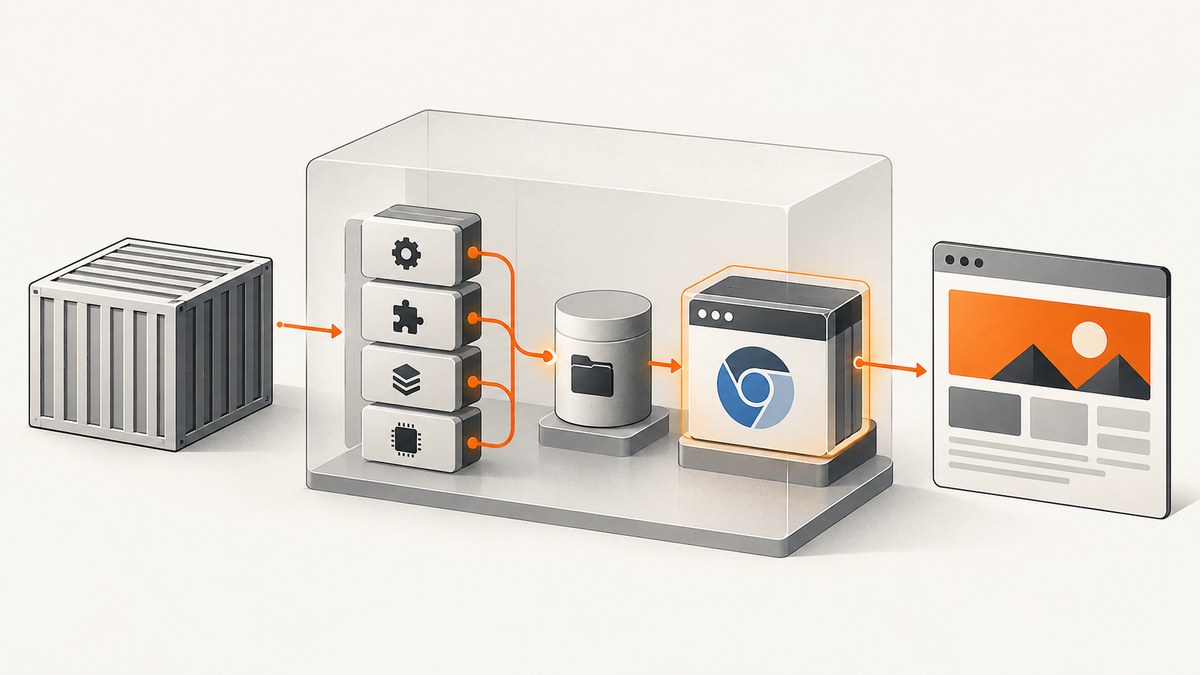
When Chromium fails to start in an AWS Lambda container, first capture its exact stderr and confirm that the browser binary matches the Lambda image’s CPU architecture and Amazon Linux environment. Then check that the binary exists at the configured path, use ldd to find missing shared libraries, redirect browser profiles and caches to writable /tmp paths, and validate the image’s ENTRYPOINT and CMD. Rebuild native dependencies when changing architecture or moving between Amazon Linux 2 and Amazon Linux 2023.
This guide walks through those checks in order, with runnable Node.js and Python examples, deployment considerations, and fixes for common errors such as Failed to launch the browser process, No usable sandbox!, and Runtime.InvalidEntrypoint.
1. Capture the failure details
Do not start by changing several flags at once. Preserve the initialization error and Chromium stderr, then record the environment that produced them. The same symptom can come from an absent executable, an incompatible native library, a read-only profile path, or a container configuration error.
- Lambda runtime family: Amazon Linux 2 (AL2) or Amazon Linux 2023 (AL2023).
- Target architecture:
x86_64orarm64. - Browser distribution and version, plus the automation package and version.
- Image digest and the exact configured command and entrypoint.
- Full browser stderr, not only the higher-level “failed to launch” message.
Reproduce with the same image, architecture, browser build, environment variables, and writable mounts. Diagnose both a cold start and a warm invocation: a browser may launch once and later fail if temporary files accumulate or a profile is left in an unexpected state.
2. Confirm the browser executable
With puppeteer-core, Puppeteer does not supply a browser download for you. Set executablePath to the Chromium binary actually included in the image or browser package. Check that the file exists and is executable inside the deployed image; a path that works on a laptop may not exist in Lambda.
node -e "const fs=require('fs'); const p=process.env.CHROMIUM_PATH; console.log({path:p, exists:!!p && fs.existsSync(p), executable:!!p && fs.existsSync(p) && !!(fs.statSync(p).mode & 0o111)});"Set CHROMIUM_PATH to the actual binary location in the image. If the package exposes a path programmatically, log that value and check it as well. “Executable doesn’t exist” usually means the browser was not copied into the final image, the path differs from the package’s location, or the deployment architecture selected another artifact.
3. Find and install missing shared libraries
A browser binary can exist and still exit immediately when the container lacks a shared library. Puppeteer’s troubleshooting documentation recommends checking the browser’s dynamic dependencies with ldd and installing dependencies reported missing. Run the check in a container based on the exact Lambda image, not on a developer workstation: Puppeteer troubleshooting.
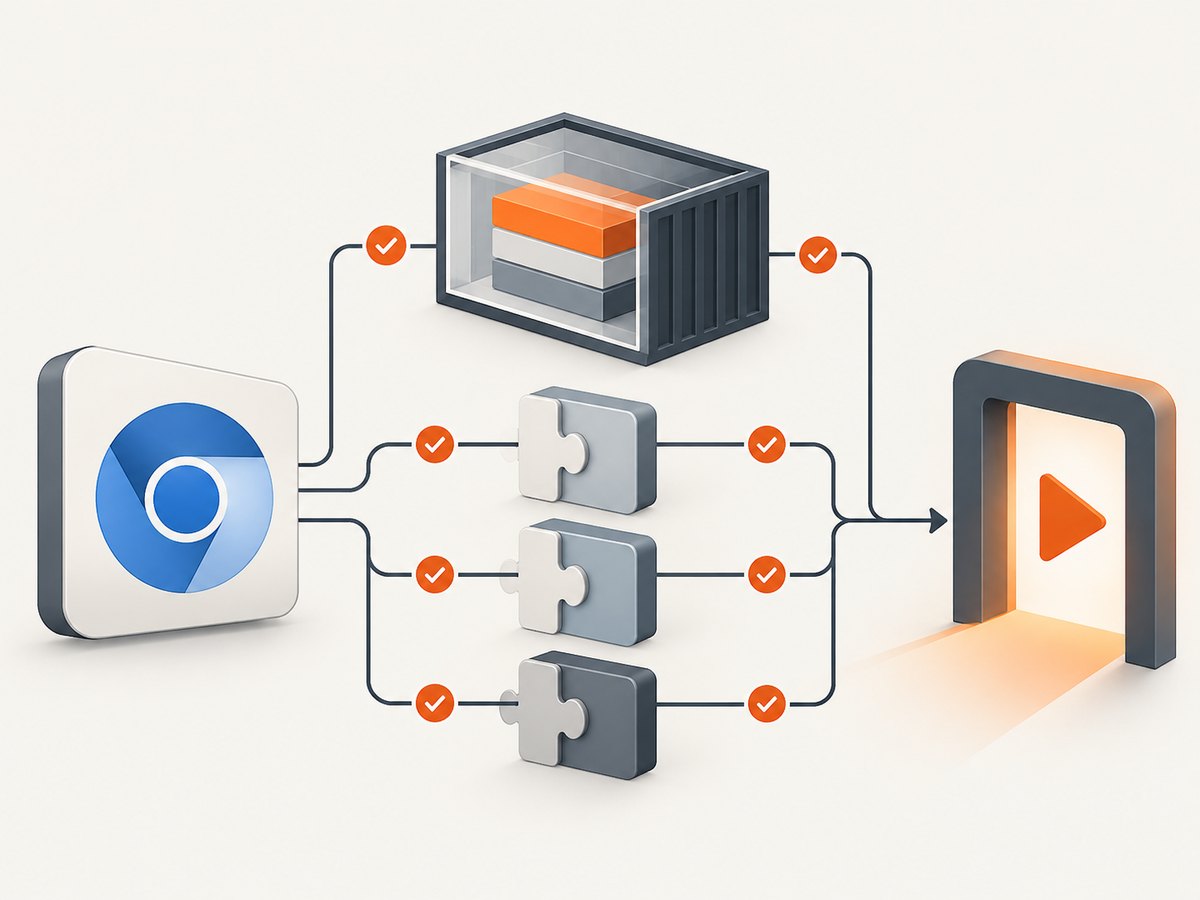
ldd /path/to/chromium | grep 'not found'If the command prints missing libraries, add the corresponding runtime packages to the image and repeat the check until no required library is unresolved. Common Linux dependencies include NSS, GBM, GTK, ALSA, and X11 libraries, such as libnss3, libgbm, libgtk-3, libasound, and libX11-xcb. Package names differ across distributions and releases, so use the package manager and names available in your selected base image. Include fonts needed by the pages you render if missing glyphs or font fallback are part of the symptom.
For an AL2-based image, install packages using the package tools available in that image. For an AL2023 minimal image, use its supported package manager and confirm the package exists in the configured repositories. Don’t copy a package-install line from an AL2 Dockerfile into AL2023 without checking it.
4. Match architecture and Amazon Linux
The Chromium binary, native Node or Python extensions, and Lambda image must agree on architecture and userspace. AWS requires C/C++ extension modules to be built for the same processor architecture and Amazon Linux environment as Lambda. A mismatch can stop execution before browser automation reaches its launch call: AWS Lambda deployment troubleshooting.
Check the image target and inspect the browser binary and native modules from that target environment. If the function is arm64, don’t package an x86_64 Chromium binary or native extension. Rebuild native dependencies for the target architecture rather than copying compiled modules from a workstation or a different Lambda build.
AL2023 Lambda base images use a newer minimal userspace and a different package manager from AL2 images. Treat an AL2-to-AL2023 migration as a dependency rebuild and compatibility exercise: re-resolve system packages, rebuild native modules, verify the browser’s shared libraries, and launch it in the new base image. See AWS Lambda container image documentation and Amazon Linux 2023 package management.
5. Put Chromium’s writable state under /tmp
Container files outside the Lambda temporary directory may be read-only at runtime. Chromium can fail before Puppeteer connects if it cannot create its config, cache, profile, or crash data. Puppeteer documents chrome_crashpad_handler: --database is required among startup problems that can result from this class of environment issue. Point these paths and the user-data directory at writable locations.
export XDG_CONFIG_HOME=/tmp/.chromium/config
export XDG_CACHE_HOME=/tmp/.chromium/cache
mkdir -p "$XDG_CONFIG_HOME" "$XDG_CACHE_HOME" /tmp/.chromium/profile
In application code, pass a writable userDataDir explicitly. Use a per-invocation directory if concurrent browser launches might otherwise share profile files; remove it after closing the browser. Keep cleanup scoped to the directory your function created.
Lambda provides writable /tmp storage configurable from 512 MB to 10,240 MB in 1-MB increments. Choose enough for browser extraction, profiles, crash data, and the pages your function processes. Monitor whether warm invocations leave temporary files behind and remove or cap them to avoid filling the configured storage. See AWS container image and temporary storage documentation.
6. Launch Chromium with Puppeteer
This minimal example uses puppeteer-core and an explicit browser path. Set CHROMIUM_PATH to the binary bundled in the image, and ensure the package is installed in your deployment. The --no-sandbox flag is included only for environments where the chosen browser build cannot use a sandbox; understand and review that container security tradeoff before using it.
import puppeteer from 'puppeteer-core';
import { mkdtemp, rm } from 'node:fs/promises';
import { tmpdir } from 'node:os';
import { join } from 'node:path';

const profile = await mkdtemp(join(tmpdir(), 'chrome-profile-'));
let browser;
try {
  browser = await puppeteer.launch({
    executablePath: process.env.CHROMIUM_PATH,
    headless: true,
    userDataDir: profile,
    args: ['--no-sandbox'] // Use only when required by the runtime and security review.
  });
  const page = await browser.newPage();
  await page.goto('https://example.com', { waitUntil: 'domcontentloaded', timeout: 30000 });
  console.log(await page.title());
} finally {
  if (browser) await browser.close();
  await rm(profile, { recursive: true, force: true });
}
If the browser package requires specific launch arguments, follow that package’s instructions and add only arguments needed for its documented runtime constraints. Flags cannot make an incompatible binary load missing libraries. In particular, treat --no-sandbox as a deliberate security decision, not a universal startup fix.
7. Python example with Selenium
For Python workloads, the same checks apply: install a browser binary and compatible driver if required by the Selenium setup, point Selenium at the actual executable, and put browser state in /tmp. This example expects Selenium and a compatible ChromeDriver to be present in the deployment.
import os
import tempfile
from selenium import webdriver
from selenium.webdriver.chrome.options import Options

os.environ["XDG_CONFIG_HOME"] = "/tmp/.chromium/config"
os.environ["XDG_CACHE_HOME"] = "/tmp/.chromium/cache"
os.makedirs(os.environ["XDG_CONFIG_HOME"], exist_ok=True)
os.makedirs(os.environ["XDG_CACHE_HOME"], exist_ok=True)

profile = tempfile.mkdtemp(prefix="chrome-profile-", dir="/tmp")
options = Options()
options.binary_location = os.environ["CHROMIUM_PATH"]
options.add_argument(f"--user-data-dir={profile}")
options.add_argument("--headless")
# Add --no-sandbox only if required, after reviewing the security tradeoff.
driver = webdriver.Chrome(options=options)
try:
    driver.get("https://example.com")
    print(driver.title)
finally:
    driver.quit()
Ensure ChromeDriver’s version and architecture are compatible with the Chromium binary and target image. If WebDriver itself exits before starting a session, inspect its stderr separately from Chromium’s.
8. Choose a packaging approach
| Approach | Best fit | Tradeoffs to plan for |
|---|---|---|
| Install Chromium and libraries in the Lambda image | You want one self-contained, reproducible deployment artifact. | Image size, package availability on AL2 or AL2023, browser patch cadence, and cold-start cost. |
| Bundle a Lambda-oriented Chromium package or layer | You want a browser distribution designed around Lambda packaging constraints. | Release cadence, browser/package version coupling, architecture support, licensing, and security review. |
| Change base image or architecture | The current userspace lacks compatible libraries or the workload needs another CPU target. | Rebuild effort, native-module compatibility, image availability, and performance and cost implications. |
Puppeteer identifies Sparticuz Chromium as a vendor- and framework-agnostic package used to address Lambda packaging constraints. Check its current release instructions, architecture support, and licensing before adopting it; browser compatibility and package support change over time.
9. Validate the Lambda container entrypoint
If Lambda reports Runtime.InvalidEntrypoint, Chromium may not be the problem: Lambda may not be able to start the container’s configured process. AWS re:Post identifies non-absolute or symlinked entrypoints and mismatches between Dockerfile commands and Lambda configuration as causes. Check that the entrypoint is an absolute, non-symlinked executable path and that ENTRYPOINT, CMD, and the Lambda handler configuration agree: AWS re:Post: Lambda Docker image errors.
Validate the final image, not only an intermediate build stage. Confirm the entrypoint file was copied into the final stage, has execute permissions, and uses a path supported by Lambda. Then run the image locally with the same architecture and configuration to see whether the runtime process starts before investigating browser behavior.
10. Troubleshooting common errors
| Error or symptom | Likely cause | What to check and fix |
|---|---|---|
Failed to launch the browser process |
Generic wrapper around an early Chromium exit. | Read Chromium stderr. Verify executable path, architecture, libraries, writable paths, and browser arguments in that order. |
error while loading shared libraries or not found from ldd |
A required runtime library is absent or incompatible. | Run ldd /path/to/chromium in the exact image, install the missing packages for that OS release, and rerun the check. |
chrome_crashpad_handler: --database is required |
Crash handler or profile state cannot be created at the configured path. | Set XDG config/cache and user-data paths beneath writable /tmp; make sure the directories exist and are unique per concurrent launch. |
No usable sandbox! |
The selected Chromium build cannot find a usable sandbox in the container. | Review the browser build’s supported sandbox configuration. Use --no-sandbox only as a conscious security tradeoff where appropriate. |
| Executable doesn’t exist or permission denied | Incorrect path, missing copied artifact, or file permissions. | Check the path inside the final image, verify execute permission, and confirm the architecture-specific artifact is packaged. |
| Works on AL2, fails on AL2023 | Different userspace, libraries, package manager, or native build assumptions. | Rebuild dependencies for AL2023 and resolve libraries and packages within that image. |
Fails before the handler starts: Runtime.InvalidEntrypoint |
Invalid entrypoint path or Lambda/Docker command mismatch. | Use an absolute, non-symlinked path and reconcile Docker ENTRYPOINT/CMD with Lambda configuration. |
| Cold start succeeds, later invocation fails | Temporary storage is filling or invocations share stale profile files. | Use isolated profile directories, close browsers, clean up owned files, and size /tmp for the workload. |
11. Reliability, performance, and cost
Container images make the browser and its system dependencies part of a reproducible deployment, but also make image size and patch maintenance part of the workload. A bundled package can reduce manual packaging work, while coupling deployments to that package’s release and architecture support. Choose the approach you can rebuild and patch reliably.
Browser extraction and initialization use temporary storage and contribute to startup work. Avoid extracting the browser on every invocation if your packaging approach supports reuse, but ensure warm reuse does not share mutable profile state across concurrent work. Close browser processes, clean only directories your function owns, and test the cold and warm paths. Increasing Lambda’s configured temporary storage can address capacity constraints; it does not fix missing libraries or an incorrect architecture.
There are no benchmark numbers that apply to every page, browser build, image, and Lambda configuration. Measure startup and page work in the target function and account for image size, memory, configured temporary storage, concurrency, browser patching, and the workload’s duration when estimating cost. Keep the browser version and image digest with error logs so a deployment change can be traced to a failure.
12. Or skip the browser setup
If your goal is to capture a website rather than maintain Chromium inside Lambda, ScreenshotNeo provides a website screenshot API and MCP server. One GET request returns a PNG, JPEG, WebP, or PDF. The endpoint accepts an API key and target URL:
curl -G "https://api.screenshotneo.com/v1/shot" -d access_key=YOUR_API_KEY --data-urlencode url=https://stripe.com -o shot.webpSee the ScreenshotNeo API documentation for request options and setup. Cookie and consent banners are accepted or removed before capture, along with known newsletter popups and chat widgets; each cleanup step can be turned off. Bot checks, blank pages, timeouts, failed loads, and cache hits cost nothing, and response headers identify the page verdict and billing status. Its MCP server gives Claude, Cursor, and other MCP clients the take_screenshot, get_page_info, and capture_pdf tools.
The free plan includes 1,000 screenshots a month with no card. Paid plans start at $5 for 3,000 shots; yearly billing gives two months free, and every feature is on every plan. Sign up for 1,000 free screenshots a month with no card.
FAQ
Can I use a browser executable copied from my laptop?
Only if it is compatible with the target Lambda architecture and Amazon Linux userspace and its required libraries are present. Verify it inside the final image rather than assuming workstation compatibility.
Does increasing /tmp fix Chromium startup?
It fixes capacity problems when browser extraction, profiles, or page workloads exhaust temporary storage. It does not resolve an absent executable, incompatible architecture, missing shared libraries, or invalid entrypoint.
Should every Lambda Chromium launch use –no-sandbox?
No. Use flags supported by the chosen browser build and runtime. Puppeteer documents sandbox-related startup failures, but disabling the sandbox is a security tradeoff to evaluate for the specific deployment.
Why did an AL2 image break after moving to AL2023?
The base userspace, packages, and package manager differ. Rebuild native dependencies and re-check the browser’s shared libraries in the AL2023 image.