How to Fix Claude MCP Connection Failures
Fix Claude MCP failures by identifying local versus remote connections, checking settings and reachability, then using Claude’s logs to isolate the cause.

How to Fix Claude MCP Connection Failures starts with one question: is Claude connecting to a local MCP server or to a remote custom connector? These paths use different processes, permissions and network routes, so a fix for one may not apply to the other.
For a local Claude Desktop server or extension, update and restart Claude, check extension settings and credentials, verify file paths and operating-system permissions, and inspect connection status and logs. For a remote connector, confirm that the server is publicly reachable from Anthropic’s infrastructure, verify connector and OAuth setup, and inspect server-side logs.
Official guidance does not identify one universal cause or publish a general failure rate. Use the client type, exact error, configuration and logs to diagnose the incident.
1. Identify which MCP connection is failing
| Question | Local Claude Desktop server or extension | Remote custom connector |
|---|---|---|
| Where does the server run? | On your computer, often configured through Claude Desktop or an installed extension. | On a public server reached by Anthropic’s cloud infrastructure. |
| What usually blocks it? | Outdated app, incomplete settings, bad credentials, missing files, permissions or organization policy. | Private networking, VPN or firewall rules, incorrect connector URL, OAuth setup or server behavior. |
| Where should you look first? | Claude Desktop Connectors, Developer settings and extension logs. | Connector setup, public reachability, authentication and the server’s own logs. |
A local server configured in claude_desktop_config.json is a separate mechanism from a remote MCP connector. Laptop access to a private server does not prove that Anthropic’s service can reach it.

2. Fast triage checklist
- Record whether the server is local or remote.
- Copy the exact error and note whether the server is missing, connected without tools, or failing during a tool call.
- Check Claude’s connection status and logs before changing several settings at once.
- For local setups, update Claude Desktop, restart it and review extension settings.
- For remote setups, test public HTTPS reachability from outside your corporate network and review firewall rules.
- Confirm credentials, OAuth permissions and organization controls.
- Retry one small, read-only tool call and compare the new log entry with the original failure.
3. Fix local Claude Desktop MCP servers and extensions
3.1 Update and restart Claude Desktop
Install the latest Claude Desktop version, then fully quit and reopen the app. Restarting matters when an extension appears installed but its tools are unavailable. A stale process can retain an old configuration or failed child process.
3.2 Review extension settings
Open Settings → Extensions. Complete every required field and recheck API keys, tokens, endpoint values and other credentials. Watch for copied whitespace, expired keys and credentials belonging to a different environment.
If the extension has a reconnect, authenticate or enable control, use it after saving the corrected values. Then check whether the tools appear in a new conversation.
3.3 Verify local paths and permissions
For servers that read local files or directories, confirm that every configured path exists and is spelled exactly as expected. Check that both your account and Claude Desktop can access the path.
- macOS: review the relevant privacy and security permissions for Claude Desktop and the directories it must read.
- Windows and Linux: verify directory permissions, ownership and execution permissions for the server process.
- All systems: avoid relying on a shell-specific path alias that Claude cannot resolve; use an absolute path when the extension requires one.
Do not grant broad access merely to make an error disappear. Give the server the smallest directory and credential scope required by its tools.
3.4 Check organization and enterprise controls
An organization administrator may disable desktop extensions or local developer MCP. Machine-level enterprise controls can override settings shown inside the app. If the controls or extension options are missing, ask the administrator whether a policy is blocking local MCP.
3.5 Confirm the connection in Claude
Click the + button beside the chat box, choose Connectors, and inspect the connected servers and their tools. You can also open Developer settings under the Desktop app to view connection status and server logs. Enable debug logging in Claude Desktop settings when the normal logs do not show enough detail. Extension-specific logs are available from Settings → Extensions.
These views help separate “server never started” from “server started but a tool failed.” If the server is listed but no tools appear, focus on initialization, protocol output and configuration. If tools appear but calls fail, inspect the tool arguments and server-side error.
3.6 Repair an installation failure
If an extension will not install, redownload the extension file in case the original download was corrupted. Confirm that the disk has enough free space, then retry the installation. A successful install does not guarantee a successful connection; continue with settings, permissions and logs.
4. Fix remote custom MCP connectors
4.1 Verify public reachability from Anthropic’s infrastructure
A remote MCP server must be reachable over the public internet from Anthropic’s IP ranges. A URL that works from your laptop can still fail when it is private, VPN-only, restricted to an internal DNS name or blocked by a firewall.
Check the endpoint from a network outside your corporate VPN and confirm that DNS, TLS and routing work without your local network’s special access. If the server is intentionally protected, allowlist Anthropic’s current IP addresses using the ranges in Anthropic’s official documentation. Recheck those ranges before changing firewall rules.
4.2 Recheck connector setup and authentication
Add the server through Claude’s custom connector settings using the exact connector URL. Complete the Connect or authentication step. If OAuth is required, verify the registered redirect and scopes in the server’s documentation and review the permissions requested on the consent screen.
For Team and Enterprise workspaces, an Owner or Primary Owner may need to add the connector at the organization level before members can connect. After setup, make sure the connector is enabled for the conversation where you are testing it.
4.3 Inspect server-side behavior
When network access and connector setup look correct, use the server’s logs and MCP debugging documentation. Look for rejected handshakes, malformed protocol messages, expired tokens, upstream timeouts and tool exceptions. Do not infer a universal OAuth error mapping from one server; authentication details vary by implementation.
4.4 Review permissions before reconnecting
MCP tools can read or modify external data according to the permissions you grant. Connect only to trusted servers, review OAuth scopes and monitor tool actions. Remove a connector you no longer trust instead of leaving it enabled.
5. Why your MCP server is not showing up in Claude Desktop
- Wrong connection type: you configured a remote connector while following local-server instructions, or the reverse. Reclassify the server first.
- App not restarted: update Claude Desktop and restart it after installing or changing an extension.
- Incomplete extension fields: return to Settings → Extensions and fill every required value.
- Invalid credential: replace expired, mistyped or environment-incompatible keys.
- Missing path: use an existing absolute path and verify access for the Claude process.
- Organization policy: ask an administrator whether desktop extensions or local developer MCP are disabled.
- Remote server is private: expose the endpoint through an approved public route and allow Anthropic’s current IP ranges.
- Connector not enabled: enable it for the current conversation after organization setup.
6. How to check whether Claude Desktop is connected
- Open a Claude Desktop conversation.
- Select the + button beside the chat box.
- Choose Connectors.
- Confirm that the server is listed and inspect its available tools.
- Open Desktop app Developer settings for connection status and server logs.
- Enable debug logging and review the extension logs if the status is ambiguous.
A listed server with visible tools indicates that discovery completed. It does not prove that every tool call will succeed; test the specific operation that failed.
7. Troubleshooting by symptom
| Symptom | Likely area | Action |
|---|---|---|
| Extension is installed, but no tools are available | Outdated process, incomplete settings or failed initialization | Update and restart Claude, review extension fields, then inspect Developer settings and extension logs. |
| Server is absent from Connectors | Installation, policy or configuration | Redownload the extension if needed, confirm organization policy and verify the configured local server. |
| Local file tools fail | Path or operating-system permissions | Confirm the path exists and grant the Claude process the required directory access. |
| Remote connector works on a laptop but not in Claude | Cloud reachability | Test public access outside the VPN and check firewall allowlists for Anthropic’s current IP ranges. |
| Authentication stops at Connect | URL, OAuth or organization setup | Verify the connector URL, complete authentication, review requested scopes and confirm workspace owner setup. |
| Tools appear but a call fails | Tool arguments or server behavior | Retry a minimal call and inspect both Claude’s logs and the server’s logs. |
| Installation fails repeatedly | Corrupted package or disk space | Redownload the extension and confirm adequate free disk space. |
8. A repeatable diagnostic procedure
- Capture context: client version, operating system, local or remote type, server version, exact error and time of failure.
- Reduce the test: use one server and one read-only tool with the smallest valid arguments.
- Check the client: inspect Connectors, Developer settings and extension debug logs.
- Check the route: for local servers, validate paths and permissions; for remote servers, validate public DNS, TLS, firewall and Anthropic reachability.
- Check identity: replace credentials or repeat OAuth only after confirming the endpoint and workspace policy.
- Compare logs: match the client timestamp with the server timestamp to determine whether the request arrived.
- Change one variable: retry after one correction so the next log entry identifies the effect.
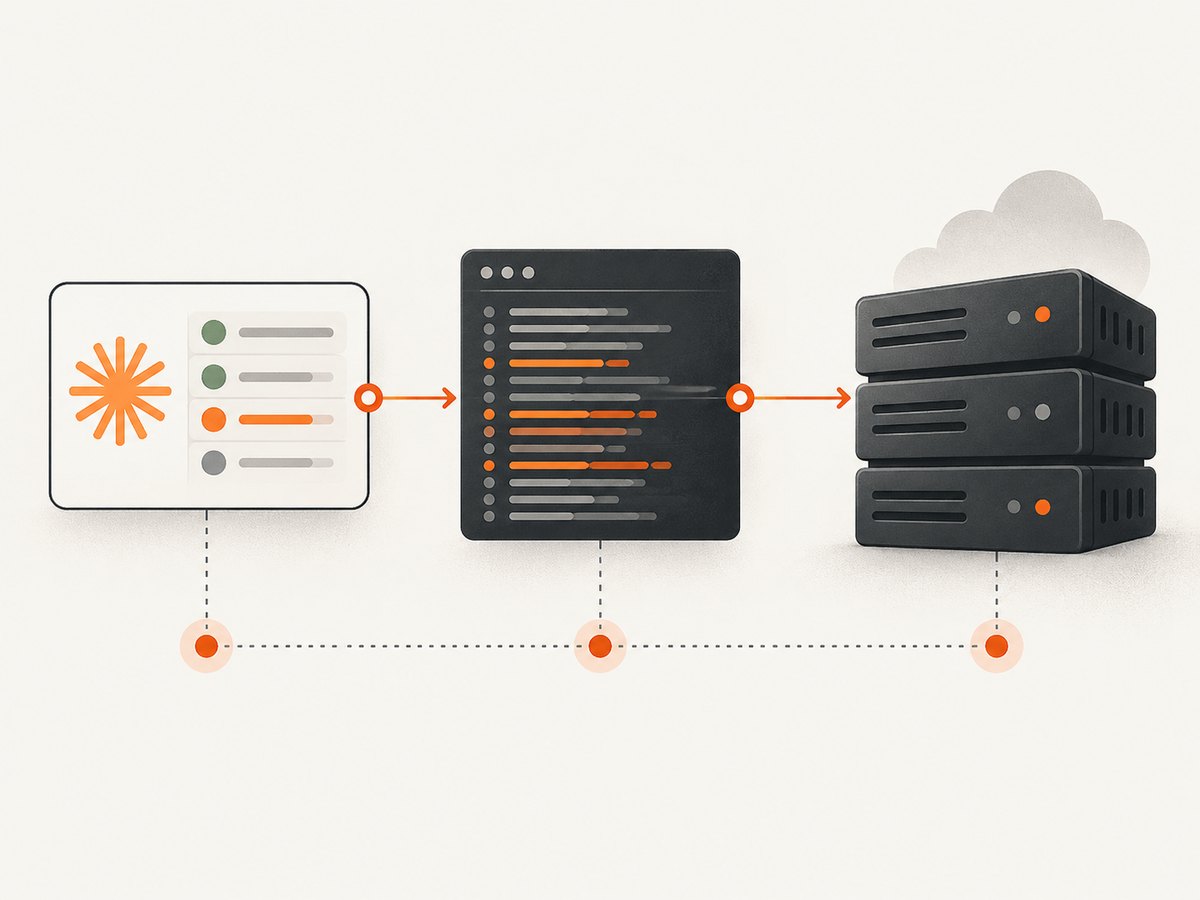
9. Performance, reliability and operational notes
- Keep local MCP startup lightweight. Large dependency installs or slow initialization can make the server appear unavailable while it is still starting.
- Use explicit, stable paths and environment-specific credentials so a desktop update does not silently select a different server.
- For remote servers, monitor TLS expiration, DNS changes, firewall rules and upstream dependencies. Anthropic’s service must be able to reach the endpoint without your VPN.
- Log request IDs, timestamps and tool names without recording secrets. Retain enough detail to correlate Claude logs with server logs.
- Limit OAuth scopes and tool permissions. Separate read-only diagnostics from actions that modify data.
- When a failure is intermittent, compare successful and failed requests by network route, token age, server load and tool arguments rather than repeatedly reinstalling the client.
10. Or skip the browser setup
If your MCP workflow needs reliable website screenshots for an agent, ScreenshotNeo provides an MCP server with take_screenshot, get_page_info and capture_pdf tools for Claude, Cursor and other MCP clients. Its HTTP API is also a single GET request.
Cookie and consent banners are accepted before capture, and more than 60 known consent platforms plus newsletter popups and chat widgets can be removed. Bot checks, blank pages, failed loads, timeouts and cache hits are not billed, and responses identify the result with X-Page-Verdict and X-Billed headers.
See the ScreenshotNeo API documentation for the complete option list, including full-page and element capture, dark mode, device presets, retina scale, custom CSS and JavaScript, waits, request blocking, cookies, headers, geolocation, PDF output, caching, signed links, asynchronous jobs and bulk capture.
cURL
curl -G "https://api.screenshotneo.com/v1/shot" -d access_key=YOUR_API_KEY --data-urlencode url=https://stripe.com -o shot.webpPython
import requests
r = requests.get("https://api.screenshotneo.com/v1/shot", params={"access_key": "YOUR_API_KEY", "url": "https://stripe.com"}, timeout=90)
open("shot.webp", "wb").write(r.content)
Node.js
const q = new URLSearchParams({ access_key: 'YOUR_API_KEY', url: 'https://stripe.com' });
const res = await fetch(`https://api.screenshotneo.com/v1/shot?${q}`);
The Free plan includes 1,000 screenshots each month with no card. Paid plans start at $5 for 3,000 shots, and every feature is available on every plan. Create a free ScreenshotNeo account.
11. FAQ
Can Claude reach a local MCP server through a remote connector?
No. A local Desktop server and a remote custom connector use different connection paths. Configure and troubleshoot the server according to where it runs.
Does a successful browser request prove a remote connector works?
No. Your browser may have VPN or internal-network access that Anthropic’s infrastructure does not. Test public reachability from outside that private route.
Should I reinstall Claude first?
Usually update and restart first, then inspect settings, permissions, policy and logs. Reinstalling does not fix a blocked firewall, invalid OAuth setup or missing directory permission.
Where do I find the most useful evidence?
Use Claude Desktop’s Connectors and Developer settings for client status and logs, extension debug logs for local details, and the remote server’s own logs for requests that reach it.
What if the error has no documented fix?
Record the exact client type, server configuration, error text and correlated logs. MCP implementations differ, so the server documentation and protocol debugging guidance may be required for an incident-specific diagnosis.
Anthropic’s local MCP guidance documents extension setup, permissions, status and logs. Its remote connector guidance explains public reachability, organization setup and authentication. The Model Context Protocol introduction provides protocol background.


