BlogScreenshots on your device
How to Fix a Computer That Won’t Take Screenshots
Screenshots often work but stay in the clipboard. Learn the correct Windows, Mac, and Chromebook shortcuts, save locations, and fixes for blocked captures.
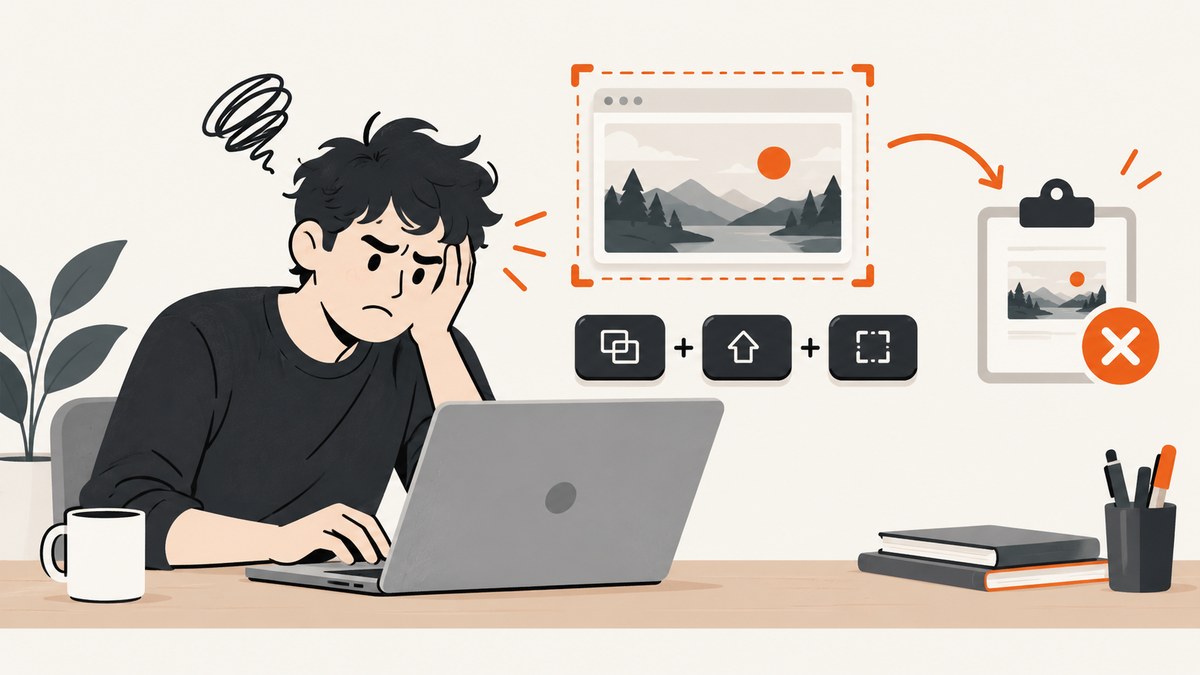
Most screenshot failures are not failures at all: the image was copied to the clipboard instead of saved as a file. Paste it with Ctrl+V (Windows/Chromebook) or use the Mac clipboard option before changing settings.
Then identify your platform and capture target. Windows, macOS, and ChromeOS use different shortcuts, destinations, and rules for protected apps.
Quick diagnosis
- Take a capture with the platform’s built-in tool.
- Paste into Paint, Preview, an email, or another image-capable app.
- Check the expected file location.
- Try the desktop or another ordinary window. If only one app fails, that app may restrict capture.
- If no shortcut responds, open the screenshot utility directly and test another keyboard.
Windows screenshot shortcuts and save locations
| Goal | Shortcut | First destination |
|---|---|---|
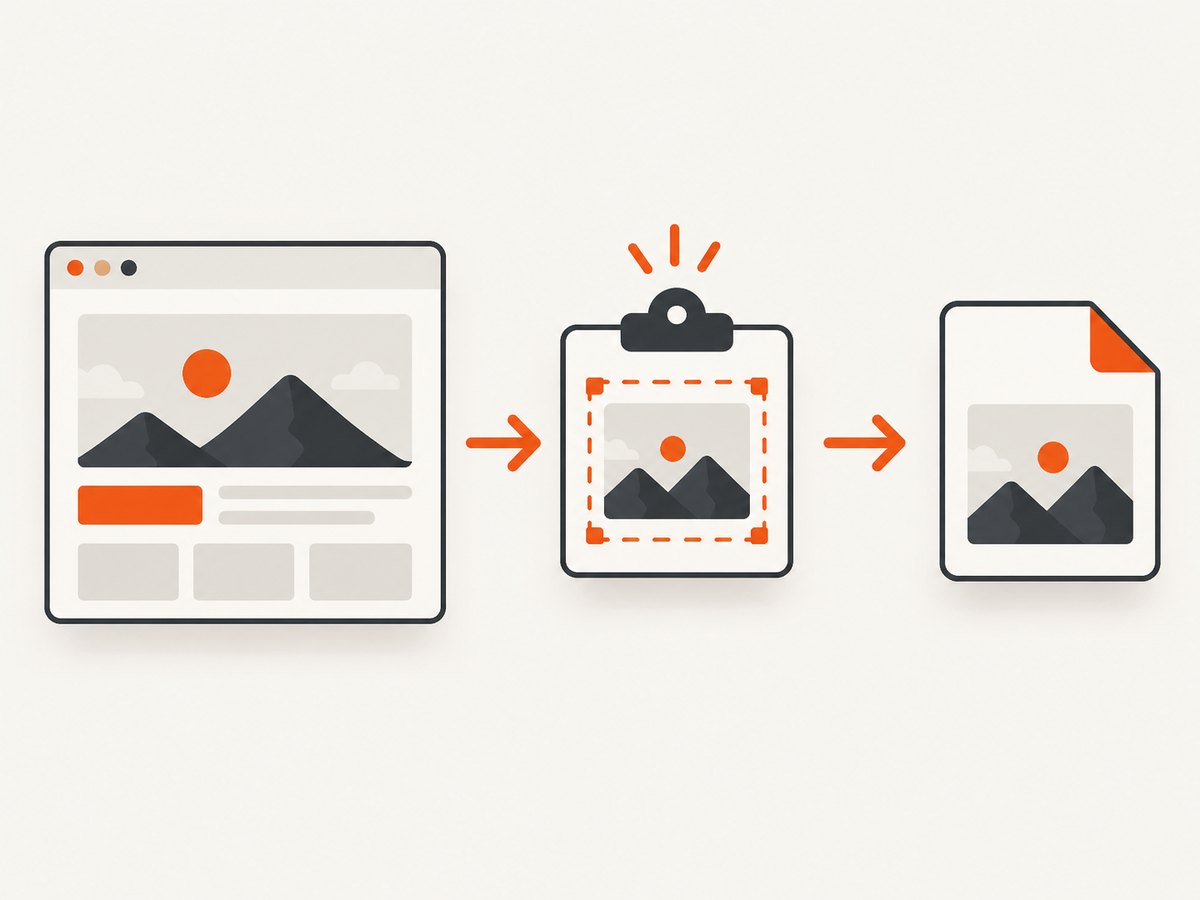
| Select a region, window, or full screen | Windows+Shift+S | Clipboard; notification opens Snipping Tool editor |
| Entire screen | Print Screen/PrtScn | Clipboard |
| Active window | Alt+Print Screen | Clipboard |
| Entire screen saved automatically | Windows+Print Screen | Pictures/Screenshots |
| Hardware without a Print Screen key | Fn+Windows+Space (on applicable hardware) | Depends on the capture workflow |
1. Try Snipping Tool directly
Press Windows+Shift+S. Windows should dim the desktop and show rectangular, free-form, window, and full-screen modes. After selecting an area, the image is copied to the clipboard and a notification opens the editor, where you can annotate, copy, or save it. Microsoft describes Snipping Tool as capturing all or part of the PC screen.
If the screen dims but no file appears, that is expected: paste the result or click the notification and choose Save.
2. Check the clipboard before diagnosing a failure
Press Print Screen, open Paint, Word, an email, or another image-capable app, and press Ctrl+V. Print Screen captures the entire screen to the Clipboard. For only the active window, focus it first and press Alt+Print Screen.
3. Use the save-to-file shortcut
Press Windows+PrtScn, then open Pictures/Screenshots. If your keyboard has no PrtScn key, try Fn+Windows+Space where your hardware supports it.
4. Separate a keyboard problem from a Windows problem
Open Snipping Tool from the Start menu and capture with its on-screen controls. If that works, the capture service is healthy and the shortcut or key is the likely problem. Test a second keyboard. A USB keyboard with a dedicated Print Screen key is an optional workaround when the built-in key is missing or unreliable; it will not bypass protected-app restrictions.
How to screenshot on a Mac
| Goal | Shortcut | Default result |
|---|---|---|
| Entire screen | Shift+Command+3 | Saved to the desktop |
| Selected area | Shift+Command+4, drag, release | Saved to the desktop |
| Window or menu | Shift+Command+4, press Space, click | Saved to the desktop |
| Screenshot controls | Shift+Command+5 | Screenshot app toolbar |
Press Esc to cancel a selected-area capture. The Screenshot app (macOS Mojave 10.14 and later) lets you choose a timer, save destination, floating thumbnail, and pointer visibility. To copy instead of save, hold Control with the shortcut, or Control-click the thumbnail and choose Save to Clipboard. Apple documents these controls in its official screenshot guide.
How to screenshot on a Chromebook
Use the Chromebook Screenshot key when present, or the documented keyboard shortcut for your model. ChromeOS copies screenshots and recordings to the clipboard automatically. Check the clipboard and the Files app before concluding that nothing happened. Look in the usual Downloads or Screenshots location shown by the Files app; the exact location can vary with the capture method and ChromeOS version. Google’s Chromebook screenshot help lists the current shortcuts.
When only one app refuses screenshots
Capture the desktop and another ordinary window. If those work, the operating system and keyboard are functioning. Streaming, banking, remote-desktop, and other protected apps can deliberately block screenshots or return a blank image. Apple warns that some apps, including Apple TV, may not allow screenshots of their windows. Use the app’s own export or sharing function and follow its access policy; changing shortcuts will not remove that restriction.
Troubleshooting: common symptoms, causes, and fixes
| Symptom | Likely cause | Fix |
|---|---|---|
| Print Screen does nothing | Image is only in the clipboard | Paste with Ctrl+V; use Windows+PrtScn to save a file |
| Windows+Shift+S dims the screen but no file appears | Snipping Tool copied the image or opened a notification | Paste it, click the notification, and choose Save |
| No response from any shortcut | Keyboard layer, missing key, or shortcut issue | Open Snipping Tool directly; try Fn combinations or another keyboard |
| Screenshot saved somewhere unexpected | Destination was changed in the tool | Check Snipping Tool or Mac Screenshot Options and search the Files/Finder app |
| Mac capture appears as a thumbnail only | Thumbnail workflow is enabled | Wait for it to save, click it to edit, or change the save destination in Shift+Command+5 |
| Chromebook capture is missing | It was copied to the clipboard | Paste it and inspect Files |
| Only one program produces a blank image | Protected content blocks capture | Test another window; use the program’s export feature |
| Capture works manually but not in an automation script | Script is waiting for the wrong window, selector, or permission | Verify the target, wait for it to render, and log the returned image or error |
Reliability checklist
- Confirm whether you need a clipboard image or a file.
- For a repeatable file, use the explicit save shortcut or choose a fixed destination.
- Capture after menus, animations, and lazy content finish rendering.
- Test a normal desktop window to detect protected-app behavior.
- Keep enough free disk space and verify that your screenshot editor can write to the destination.
Or skip the browser setup
If you need screenshots in a build, documentation job, monitoring script, or AI workflow, ScreenshotNeo returns a screenshot or PDF from one GET request. The API accepts PNG, JPEG, and WebP output and supports full-page or CSS-element capture, device presets, dark mode, retina scale, custom CSS and JavaScript, waits, request blocking, headers, cookies, user agents, geolocation, caching, signed links, asynchronous jobs, bulk capture, and PDF options. See the ScreenshotNeo documentation for parameters.
cURL
curl -G "https://api.screenshotneo.com/v1/shot" -d access_key=YOUR_API_KEY --data-urlencode url=https://stripe.com -o shot.webpPython
import requests
r = requests.get("https://api.screenshotneo.com/v1/shot", params={"access_key": "YOUR_API_KEY", "url": "https://stripe.com"}, timeout=90)
open("shot.webp", "wb").write(r.content)
Node.js
const q = new URLSearchParams({ access_key: 'YOUR_API_KEY', url: 'https://stripe.com' });
const res = await fetch(`https://api.screenshotneo.com/v1/shot?${q}`);
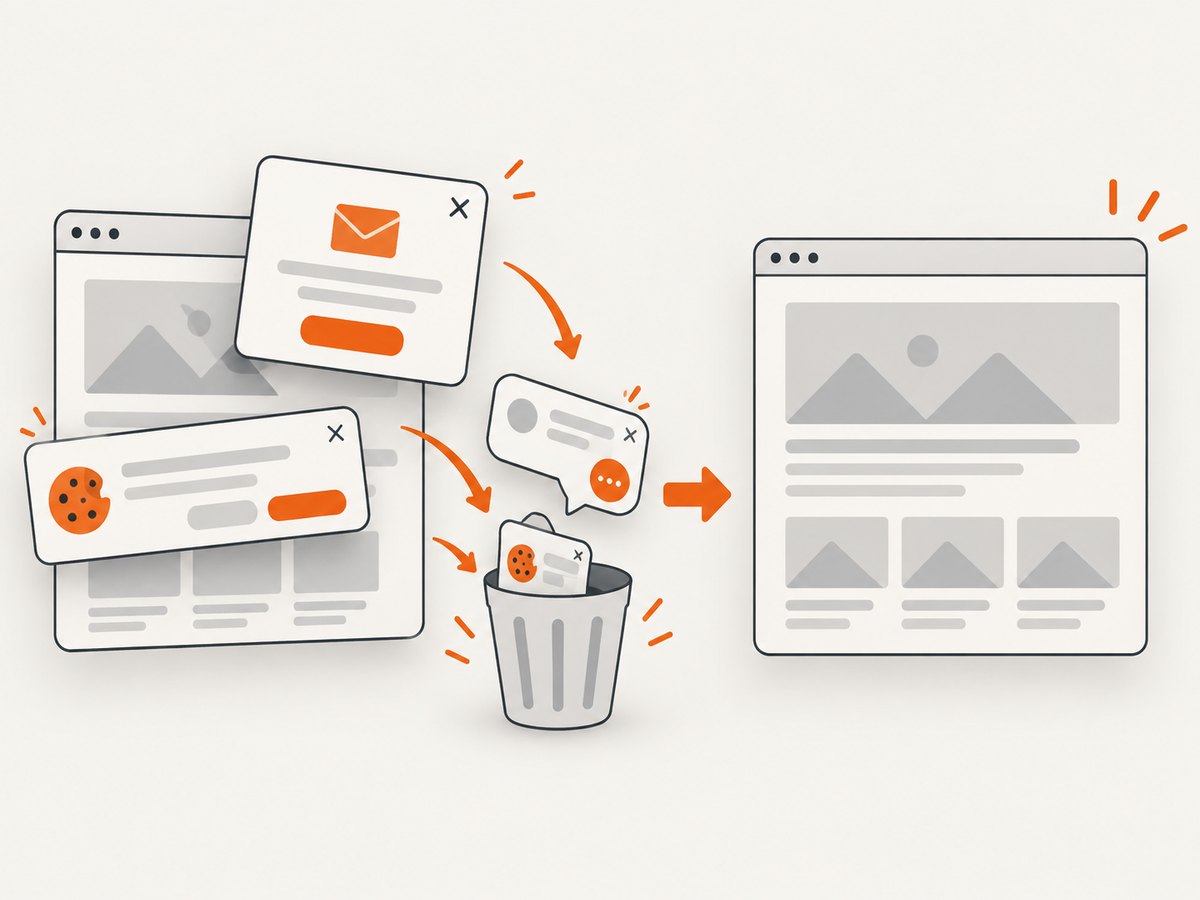
Cookie banners, newsletter popups, and chat widgets are removed before the shot. Bot checks, blank pages, failed loads, timeouts, and cache hits are not billed; response headers identify the page verdict and billing status. An MCP server provides take_screenshot, get_page_info, and capture_pdf for Claude, Cursor, and other MCP clients. The Free plan includes 1,000 screenshots per month with no card; paid plans start at $5 for 3,000. Create a free ScreenshotNeo account.
Performance, reliability, and cost notes
- Clipboard captures are immediate but require a paste or save step.
- Full-page pages with lazy images take longer than a viewport capture; wait for a selector, delay, or network idle when content is dynamic.
- For repeated URLs, choose a cache TTL to reduce work. Use asynchronous jobs and signed webhooks for long pages or batches.
- For API automation, inspect HTTP status and
X-Page-Verdict/X-Billedheaders, save the response body only when it is an image or PDF, and set a client timeout appropriate to the page. - Bulk capture supports up to 100 URLs per call. Every ScreenshotNeo feature is available on every plan; yearly billing gives two months free.
FAQ
Why does Print Screen seem broken?
It normally copies the screen to the clipboard. Paste into an image-capable app or use the Windows save-to-file shortcut.
Where are Mac screenshots stored?
By default, on the desktop. Change the destination in the Screenshot app opened with Shift+Command+5.
Can a keyboard fix a protected app?
No. A second keyboard helps with missing or unreliable keys, but an app can still block capture.
How do I automate screenshots without managing a browser?
Use ScreenshotNeo’s API or MCP server so capture, waiting, cleanup, and delivery happen through a request.


