How to Fix “Could Not Attach to MCP Server Kite”
“Could Not Attach to MCP Server Kite” does not identify the failing layer. Use the client logs to distinguish startup, transport, endpoint, configuration, and authentication problems.

The message “Could Not Attach to MCP Server Kite” does not, by itself, identify what failed. The available research did not find Kite-specific documentation that establishes what “Kite” refers to or confirms a Kite-specific fix. Start with the MCP client’s debug log, identify whether the error comes from process startup, transport or endpoint routing, service-side configuration, or authentication, and then follow the documentation for the specific Kite server and client.
A useful example of this log-first approach comes from Home Assistant’s official MCP Server troubleshooting guide. Its explanations apply to Home Assistant’s own integration only; they do not prove that Kite uses the same endpoint, credentials, or architecture.
1. Identify what “Kite” means in your setup
Before changing settings, pin down which component has the name Kite. It could be the server package, the name of a server entry in a client configuration, or a separate product. The error wording alone does not resolve that identity. Record the client, the server package and version, the transport, and the exact log line around the failure.
- Client: Which MCP client displays the message? For example, the Home Assistant documentation describes a log path for Claude Desktop.
- Server: What executable, package, or remote service is configured under the name Kite?
- Transport: Is the client starting a local process over stdio, or connecting to a remote HTTP endpoint? Do not assume one from the error wording.
- Failure detail: Does the log show a process exit, a connection failure, an HTTP status, or an MCP protocol error?
Keep secrets out of logs you share. Redact access tokens, API keys, cookies, and authorization headers, while retaining the status code, endpoint path, and non-sensitive error text.
2. Read the MCP client’s debug log
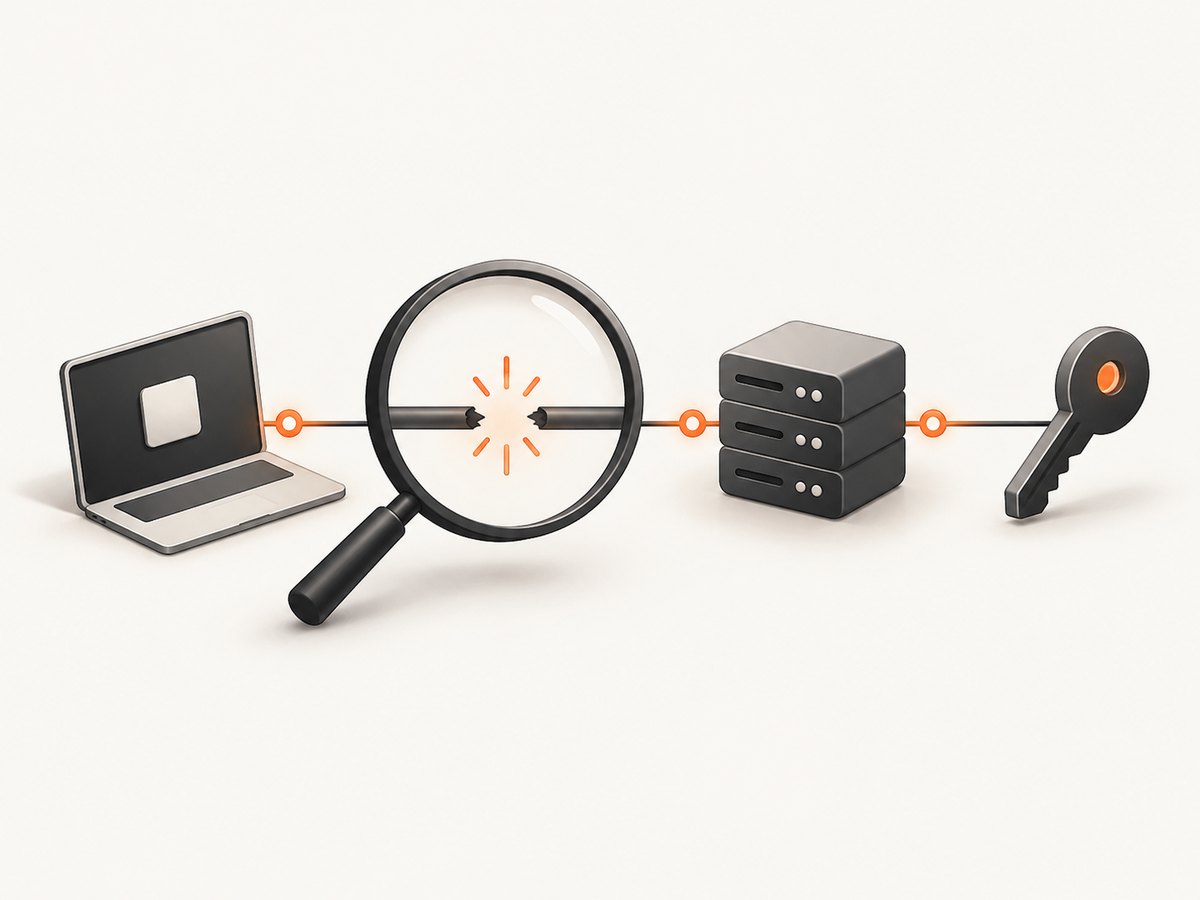
The client log is usually the best evidence for choosing the next step: it can show whether the client launched a process, opened a transport, reached an endpoint, or received an authentication or HTTP error. Don’t apply a 401 remedy to a process that never started, or change an endpoint based only on a generic attach notification.
- Open the MCP client’s developer or diagnostics settings.
- Locate the log for the particular server entry named Kite.
- Reproduce the connection attempt once and inspect the latest relevant lines.
- Classify the first concrete error: startup or command, transport, HTTP status, authentication, or server-side configuration.
- Use the Kite server’s own documentation for its required command, configuration format, endpoint, and credential type.
For its own setup, Home Assistant documents this Claude Desktop path: Settings → Developer → selected MCP server → Open Logs Folder. That is an example for Claude Desktop in the Home Assistant guide, not a universal path for every MCP client.
3. Diagnose by the layer that failed
Process startup or command error
If the log says the server process could not start, exits immediately, or the command is missing, first check the configured command and executable path against the Kite server’s instructions. Confirm that the executable is installed in the environment from which the client launches it. If the command depends on a working directory or environment variables, verify those using the client’s documented configuration method. The research available for this article does not establish Kite’s command, package name, or configuration keys, so there is no safe universal JSON configuration to copy.
For a local stdio server, the client must be able to launch the process and keep its standard input/output stream available for the protocol. For a remote server, process startup on the client may not apply at all. Confirm the transport in the server and client documentation before using transport-specific advice.
Transport or endpoint routing error
If the process starts but the client cannot communicate, check the configured transport and destination. For remote HTTP, verify the host, port, path, and whether the service is reachable from the client’s runtime environment. A path that looks plausible is not evidence that it is correct for Kite. For stdio, check the client’s launch configuration and the server’s startup output for protocol-breaking messages; consult both products’ documentation for the expected stream behavior.
If the log includes an HTTP status, use it to narrow the investigation. A status is more actionable than the generic attach message, but its meaning depends on the service receiving the request.
Service-side MCP integration or endpoint configuration
In Home Assistant’s documented case, HTTP 404 at /api/mcp means the MCP Server integration is not configured. The path and interpretation are specific to that Home Assistant integration. If a different service or a Kite server returns 404, check that product’s documented endpoint and whether its MCP feature is enabled; do not copy /api/mcp into another product’s configuration without a source.
Authentication or authorization error
In the same Home Assistant example, HTTP 401 indicates that the long-lived access token is incorrect. Check that a token is present, current, copied without whitespace or truncation, and belongs to the intended service and account. Follow the service’s instructions for token creation and replacement. Do not send credentials in a public issue or paste unredacted log output into a support request.
Home Assistant also documents checking ip_bans.yaml when IP bans were explicitly enabled and repeated failed sign-ins caused a ban. This applies only to that Home Assistant configuration. For another service, use its own documentation to check rate limits, access controls, or lockout behavior.
4. Follow a safe troubleshooting sequence
- Capture the exact evidence. Note the client, Kite server identity and version, transport, timestamp, and first useful log error.
- Separate launch from connection. Did the client start a process or attempt a remote connection? If startup failed, resolve that before investigating credentials.
- Check the target. For HTTP, compare the configured origin and path with the server’s official instructions. For stdio, compare the command and arguments with the installation guide.
- Interpret the status in context. A 404 may point to a wrong path or missing integration; a 401 may point to credentials. The Home Assistant guide demonstrates these meanings for Home Assistant only.
- Change one thing at a time. Retry after each change and keep the matching log excerpt. This makes it possible to tell whether the change addressed the failing layer.
- Escalate with a minimal report. Include the exact client and server versions, transport, redacted configuration shape, and relevant error. Ask the Kite maintainer which endpoint or startup format applies if its documentation is unclear.
5. Common errors and fixes
| Evidence in the log | What it suggests | Next action |
|---|---|---|
| Command not found, spawn failure, or immediate process exit | The local server may not be launching successfully. | Verify the executable, arguments, runtime environment, and required variables against Kite’s installation instructions. |
| Connection refused, DNS, or timeout | The target may be unreachable or the transport destination may be wrong. | Check host, port, network path, service state, and transport-specific configuration. |
| HTTP 404 | The requested path may not exist or a service-side integration may be absent. | Verify the endpoint in the receiving product’s documentation. In Home Assistant’s example, /api/mcp returns 404 when its integration is not configured. |
| HTTP 401 | The request was not accepted as authenticated. | Verify the correct current credential and its formatting. In Home Assistant’s example, the long-lived access token is incorrect. |
| Repeated failed sign-ins with Home Assistant IP bans enabled | The source may have been banned by that Home Assistant instance. | For that setup, check the configured ip_bans.yaml file as Home Assistant’s guide directs. |
| Only the generic “Could Not Attach” message | The client has not shown enough detail to identify a layer. | Enable or open the client debug log and reproduce the attempt to obtain the underlying error. |
6. Reliability and configuration hygiene
Keep a known-good record of the server’s documented transport, endpoint or command, required variables, and credential type. Store secrets using the client or operating system’s supported secret mechanism rather than committing them to a shared configuration file. When updating the client or server, check release notes and compatibility guidance before changing multiple components together.
For remote services, distinguish a persistent connection problem from an intermittent timeout: capture timestamps and whether retries succeed, then inspect the service and network logs if available. For local processes, note whether the process exits or remains running after the client reports an attach failure. These observations help the server maintainer reproduce the issue without guessing.
7. If your goal is simply to capture a website
If you arrived here while trying to make an AI client capture a webpage, first fix the MCP connection using the evidence above. If your immediate task is a screenshot rather than MCP troubleshooting, a direct screenshot API avoids configuring a browser process and transport. ScreenshotNeo is a website screenshot API and MCP server; its MCP tools include take_screenshot, get_page_info, and capture_pdf. The API accepts one GET request with a URL and can return PNG, JPEG, WebP, or PDF. See the ScreenshotNeo API documentation.

Or skip the browser setup
One API call can return a screenshot. Replace the example URL with the page you want and use your API key:
curl -G "https://api.screenshotneo.com/v1/shot" -d access_key=YOUR_API_KEY --data-urlencode url=https://stripe.com -o shot.webpimport requests
r = requests.get(
"https://api.screenshotneo.com/v1/shot",
params={"access_key": "YOUR_API_KEY", "url": "https://stripe.com"},
timeout=90,
)
open("shot.webp", "wb").write(r.content)const q = new URLSearchParams({ access_key: 'YOUR_API_KEY', url: 'https://stripe.com' });
const res = await fetch(`https://api.screenshotneo.com/v1/shot?${q}`);ScreenshotNeo accepts cookie and consent banners, removes more than 60 known consent platforms, newsletter popups, and chat widgets before capture; each cleanup step can be turned off. Bot checks, blank pages, timeouts, failed loads, and cache hits are not billed, and response headers say which page verdict applied and whether the request was billed. Its MCP server lets AI agents use screenshot, page-info, and PDF tools. The Free plan includes 1,000 screenshots a month with no card; paid plans start at $5 for 3,000 screenshots. Every feature is on every plan. See the docs for configuration and sign up for 1,000 free screenshots a month, with no card.
Frequently asked questions
Does this message prove that Kite is broken?
No. The message alone does not identify which component failed, and the research did not locate Kite-specific documentation or establish what the label refers to. Use the client log and the server’s own documentation.
Should I use Home Assistant’s /api/mcp path?
Only when configuring the Home Assistant integration described in its official guide. That path is not verified for Kite or other services.
What should I include when asking for help?
Share the client and server identity and versions, transport, exact non-sensitive log error, and the configuration shape with secrets removed. Include an HTTP status and endpoint path when present.
Can I use ScreenshotNeo without resolving this MCP error?
Yes, for website screenshots you can call its HTTP API directly. That bypasses using an MCP client for the capture request; it does not repair the separate Kite connection.


