BlogScreenshots on your device
How to Fix C# Screenshots That Stop Before the Screen Edge
Find why C# screenshots stop short of the display edge, then fix target selection, DPI coordinates, multi-monitor bounds, and capture code.
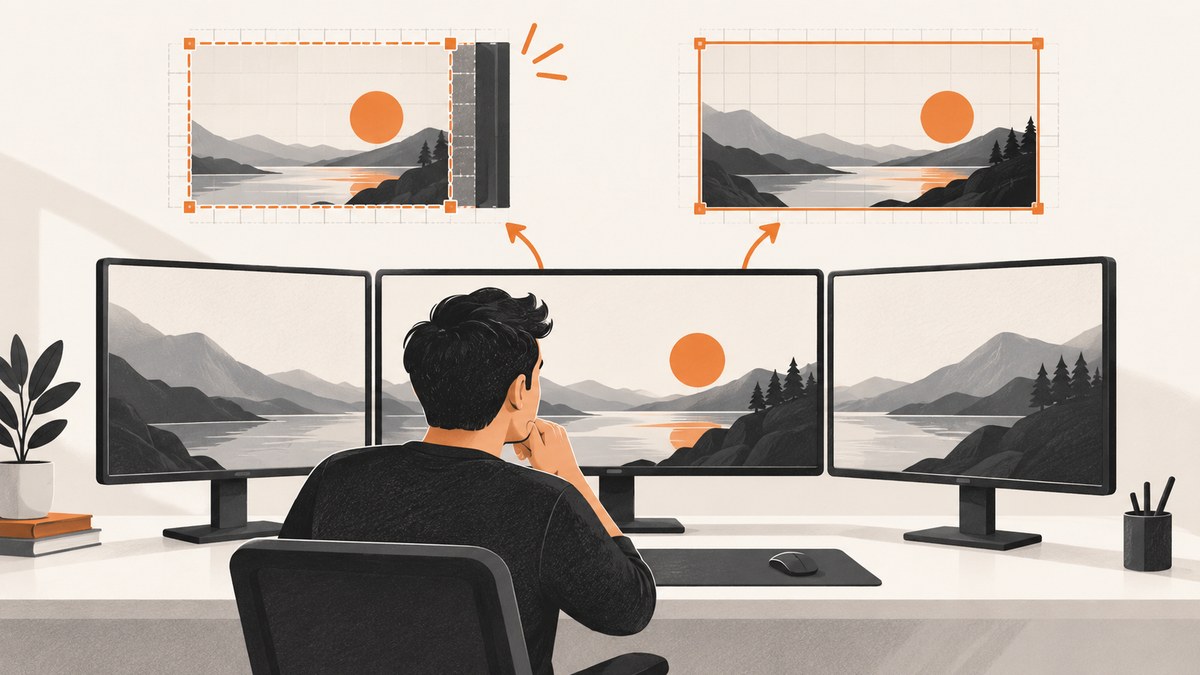
Short answer: a C# screenshot usually stops before the screen edge because the code captured the wrong target or passed capture bounds from the wrong coordinate space. Check whether you selected a window, one display, or the entire virtual desktop; compare the rectangle passed to the capture API with the display’s physical pixel dimensions; then check process DPI awareness and Windows display scaling. Reproduce the result on another monitor or scale setting before changing code.
Windows.Graphics.Capture can capture either a display or an application window. Those are different targets, even though both may be described as “the screen.” The picker returns the item the user selected, and that item’s Size is the documented frame size input. Check support with GraphicsCaptureSession.IsSupported() before starting. Microsoft’s screen-capture documentation describes this flow.
1. Identify what your code means by “screen”
- One display: the bounds of a single monitor, such as
Screen.AllScreens[0].Bounds. - Virtual desktop: the rectangle spanning every monitor. It can begin at a negative X or Y when a monitor is positioned left of or above the primary display.
- Application window: the window rectangle or client area, which is smaller than the display.
- Selected capture item: a display or window returned by
GraphicsCapturePicker.
Before debugging rendering, log the selected target and rectangle:
Console.WriteLine($"Bounds: {bounds}");
Console.WriteLine($"Width x height: {bounds.Width} x {bounds.Height}");
Console.WriteLine($"DPI awareness: {GetDpiAwarenessDescription()}");
2. Compare requested bounds with physical pixels
DPI-unaware and system-DPI-aware desktop code can receive virtualized values, including dimensions represented as though the display were 96 DPI. A rectangle that looks correct in logical units can therefore be smaller than the physical pixel area that you intend to capture. Microsoft documents these DPI and coordinate-space behaviors in High DPI Desktop Application Development on Windows.
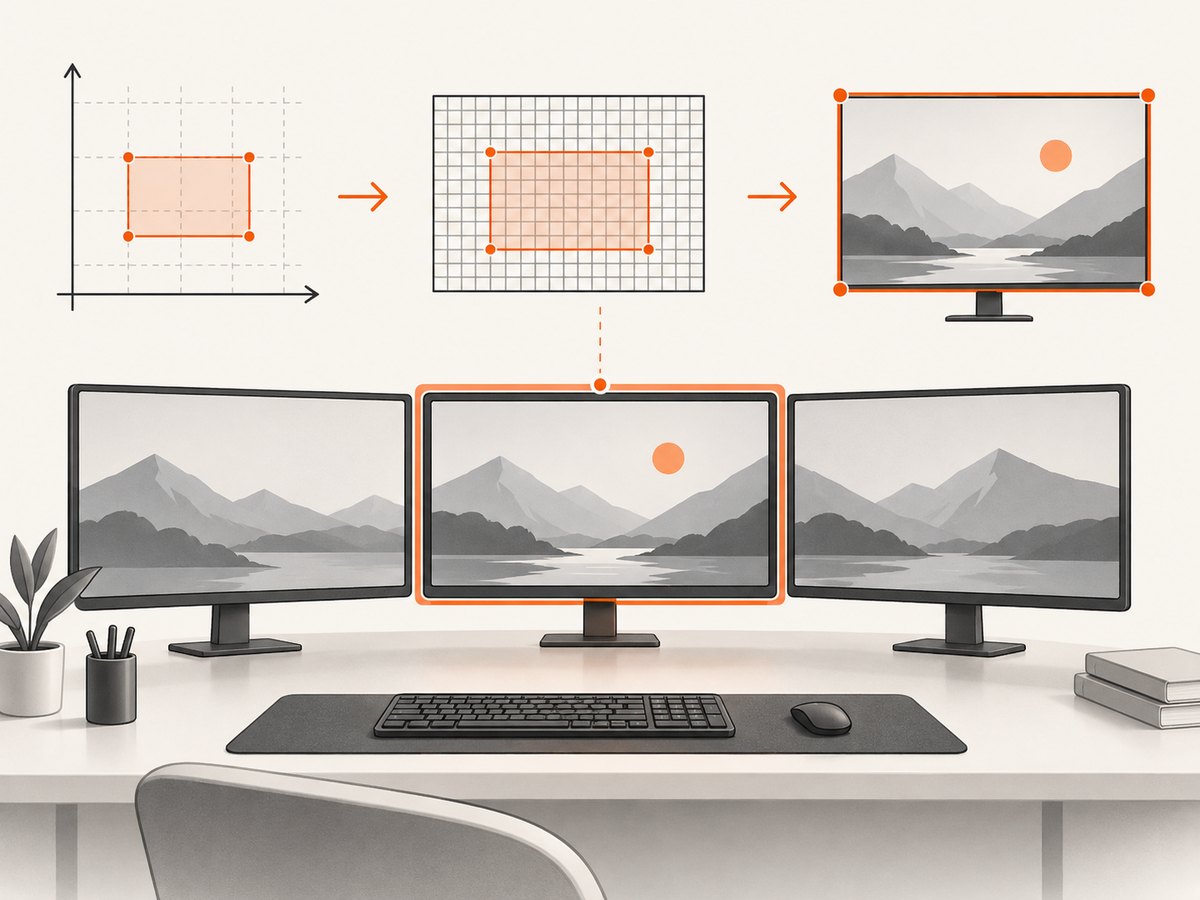
- Record the monitor’s Windows resolution and scale percentage.
- Record the rectangle your code passes to the capture API.
- Check whether that rectangle is in logical coordinates, physical pixels, client coordinates, or virtual-desktop coordinates.
- Move the program to a monitor with a different scale and repeat.
- Dock or undock the machine, or change display scaling while the program is running, and observe whether the bounds change.
DPI is a diagnostic path, not proof of the cause. Microsoft says desktop applications that do not respond to DPI changes may appear blurry or incorrectly sized. Your code still needs to confirm the target and rectangle.
3. Establish a Windows baseline
Use Print Screen or Snipping Tool’s Full screen mode and compare the result with your C# file. Microsoft documents the available Snipping Tool modes, including full-screen capture, in Use Snipping Tool to capture screenshots. If the built-in image reaches the edge but your file does not, investigate your target, bounds, and coordinate conversion.
4. A complete C# full-display capture with WinForms
This example captures one physical display using the monitor bounds reported by WinForms. It enables per-monitor DPI awareness before reading bounds, supports negative monitor coordinates, and writes a PNG. Create a Windows Forms project targeting Windows:
<Project Sdk="Microsoft.NET.Sdk.WindowsDesktop">
  <PropertyGroup>
    <OutputType>Exe</OutputType>
    <TargetFramework>net8.0-windows</TargetFramework>
    <UseWindowsForms>true</UseWindowsForms>
    <ImplicitUsings>enable</ImplicitUsings>
    <Nullable>enable</Nullable>
  </PropertyGroup>
</Project>
using System;
using System.Drawing;
using System.Drawing.Imaging;
using System.Linq;
using System.Runtime.InteropServices;
using System.Windows.Forms;
internal static class Program
{
[DllImport("user32.dll")]
private static extern bool SetProcessDpiAwarenessContext(IntPtr dpiAwarenessContext);
// DPI_AWARENESS_CONTEXT_PER_MONITOR_AWARE_V2 = -4
private static readonly IntPtr PerMonitorAwareV2 = new(-4);
[STAThread]
private static void Main(string[] args)
{
if (!OperatingSystem.IsWindows())
throw new PlatformNotSupportedException("This sample requires Windows.");
SetProcessDpiAwarenessContext(PerMonitorAwareV2);
Screen[] screens = Screen.AllScreens;
if (screens.Length == 0)
throw new InvalidOperationException("Windows reported no displays.");
int index = args.Length == 0 ? 0 : int.Parse(args[0]);
if (index < 0 || index >= screens.Length)
throw new ArgumentOutOfRangeException(nameof(args), "Display index is out of range.");
Rectangle bounds = screens[index].Bounds;
Console.WriteLine($"Display {index}: {screens[index].DeviceName}");
Console.WriteLine($"Bounds in physical pixels: {bounds}");
Console.WriteLine($"Primary: {screens[index].Primary}");
using var bitmap = new Bitmap(bounds.Width, bounds.Height,
PixelFormat.Format32bppPArgb);
using (Graphics graphics = Graphics.FromImage(bitmap))
{
graphics.CopyFromScreen(
sourceX: bounds.Left,
sourceY: bounds.Top,
destinationX: 0,
destinationY: 0,
blockRegionSize: bounds.Size,
copyPixelOperation: CopyPixelOperation.SourceCopy);
}
string output = PathWithTimestamp();
bitmap.Save(output, ImageFormat.Png);
Console.WriteLine($"Saved {output}");
}
private static string PathWithTimestamp() =>
$"screen-{DateTime.Now:yyyyMMdd-HHmmss}.png";
}Run dotnet run -- 0 for the first display, or pass another index. This captures the display rectangle, not an application’s non-client area and not the entire multi-monitor desktop. If the image is still short, print bounds.Width and bounds.Height and compare them with Windows’ displayed resolution in Settings.
5. Capturing the whole virtual desktop
For all monitors in one bitmap, union every screen’s bounds. The origin may be negative, so always translate each monitor into the output bitmap rather than assuming the primary display starts at (0, 0):
Rectangle virtualBounds = Screen.AllScreens
    .Select(s => s.Bounds)
    .Aggregate(Rectangle.Empty, Rectangle.Union);

using var desktop = new Bitmap(virtualBounds.Width, virtualBounds.Height,
    PixelFormat.Format32bppPArgb);
using (Graphics g = Graphics.FromImage(desktop))
{
    g.CopyFromScreen(virtualBounds.Left, virtualBounds.Top, 0, 0,
        virtualBounds.Size, CopyPixelOperation.SourceCopy);
}
desktop.Save("virtual-desktop.png", ImageFormat.Png);
Do not use PrimaryScreen.Bounds when you intend to capture every display. Do not use a window’s ClientSize when you intend to capture the monitor.
6. Windows.Graphics.Capture: choose a display or a window explicitly
For a modern programmatic capture path, use the documented picker flow:
- Call
GraphicsCaptureSession.IsSupported(). - Invoke
GraphicsCapturePicker. - Let the user select a display or application window.
- Use the returned
GraphicsCaptureItem.Sizewhen creating the frame pool. - Handle item size changes and recreate the frame pool when the selected target changes size.
The picker result is authoritative: if the user selected a window, changing a rectangle elsewhere in your program does not turn it into a display capture. The API is documented for supported Windows desktop devices and Windows Mixed Reality immersive headsets; check support at runtime.
using Windows.Graphics.Capture;
using Windows.Graphics.DirectX;

if (!GraphicsCaptureSession.IsSupported())
    throw new PlatformNotSupportedException("Graphics capture is unavailable on this device.");

var picker = new GraphicsCapturePicker();
GraphicsCaptureItem? item = await picker.PickSingleItemAsync();
if (item is null)
    return; // The user cancelled.

SizeInt32 frameSize = item.Size;
Console.WriteLine($"Selected target: {item.DisplayName}");
Console.WriteLine($"Frame size: {frameSize.Width} x {frameSize.Height}");

using Direct3D11CaptureFramePool pool =
    Direct3D11CaptureFramePool.Create(
        device,
        DirectXPixelFormat.B8G8R8A8UIntNormalized,
        2,
        frameSize);
using GraphicsCaptureSession session = pool.CreateCaptureSession(item);
session.StartCapture();
The surrounding Direct3D device and frame-to-file conversion are application-specific. The important diagnostic point is that item.Size, rather than an unrelated monitor rectangle, defines the selected capture target’s frame size.
7. DPI-awareness checks
| Symptom | Likely diagnostic path | What to inspect |
|---|---|---|
| Image is smaller only on a 125% or 150% display | Logical-to-physical conversion | Process DPI mode, monitor DPI, rectangle units |
| Image changes after moving the window between monitors | Per-monitor DPI handling | DPI-change notifications and recalculated bounds |
| Left monitor is missing or shifted | Virtual desktop origin | Negative Left/Top values |
| Only the application appears | Wrong capture target | Picker result or window handle |
| Built-in capture is correct, C# output is not | Application coordinate or rendering issue | Requested rectangle and frame size |
Per-monitor DPI awareness is generally the appropriate model for desktop applications that must render correctly as windows move between displays. The application must respond to DPI notifications and resize or reposition itself as needed. Do not assume that every WinForms or WPF scenario has identical automatic behavior; inspect the framework configuration and capture library you actually use.
8. Troubleshooting checklist
It captures the window instead of the display
Cause: the picker or library selected an application window, or the code used a window rectangle. Fix: select a display item, or use Screen.Bounds for a monitor capture.
The right or bottom edge is cut off at non-100% scaling
Cause: bounds were obtained in virtualized logical units. Fix: set an intentional DPI-awareness mode before reading bounds, log the resulting dimensions, and handle per-monitor DPI changes.
A second monitor is absent
Cause: the code uses the primary screen or a single monitor index. Fix: enumerate Screen.AllScreens or capture the virtual-desktop union.
The image is shifted when a monitor is left of the primary
Cause: code assumes the desktop origin is (0, 0). Fix: preserve the union rectangle’s negative origin and translate each source monitor into the output bitmap.
GraphicsCaptureSession.IsSupported() is false
Cause: the Windows device or environment does not support the API. Fix: check support before presenting the picker and provide a supported fallback such as the WinForms/GDI path or a manual Snipping Tool capture.
The capture is blank or incomplete
Cause: a frame was consumed before it was available, the frame pool size is stale, or the selected item changed size. Fix: process frames asynchronously, recreate the pool after size changes, and log each frame’s dimensions.
It works until docking or changing display scale
Cause: the application kept old monitor bounds or did not react to DPI/display changes. Fix: recalculate the target rectangle and recreate dependent buffers when Windows reports a display or DPI change.
9. Performance, reliability, and file-size considerations
- Allocate the bitmap from the exact capture dimensions; avoid repeatedly allocating large buffers inside a frame loop.
- For a one-off screenshot,
CopyFromScreenis simpler than maintaining a continuous frame pool. - For continuous capture, reuse buffers, process frames off the UI thread, and drop stale frames when the consumer is slower than the producer.
- PNG preserves pixels but can be large. JPEG reduces size but loses detail; choose quality deliberately.
- Always handle display disconnects, resolution changes, picker cancellation, and device/API support failures.
- Log target type, bounds, DPI mode, scale, frame size, and output format. These values make “stops before the edge” reproducible.
10. Or skip the browser setup
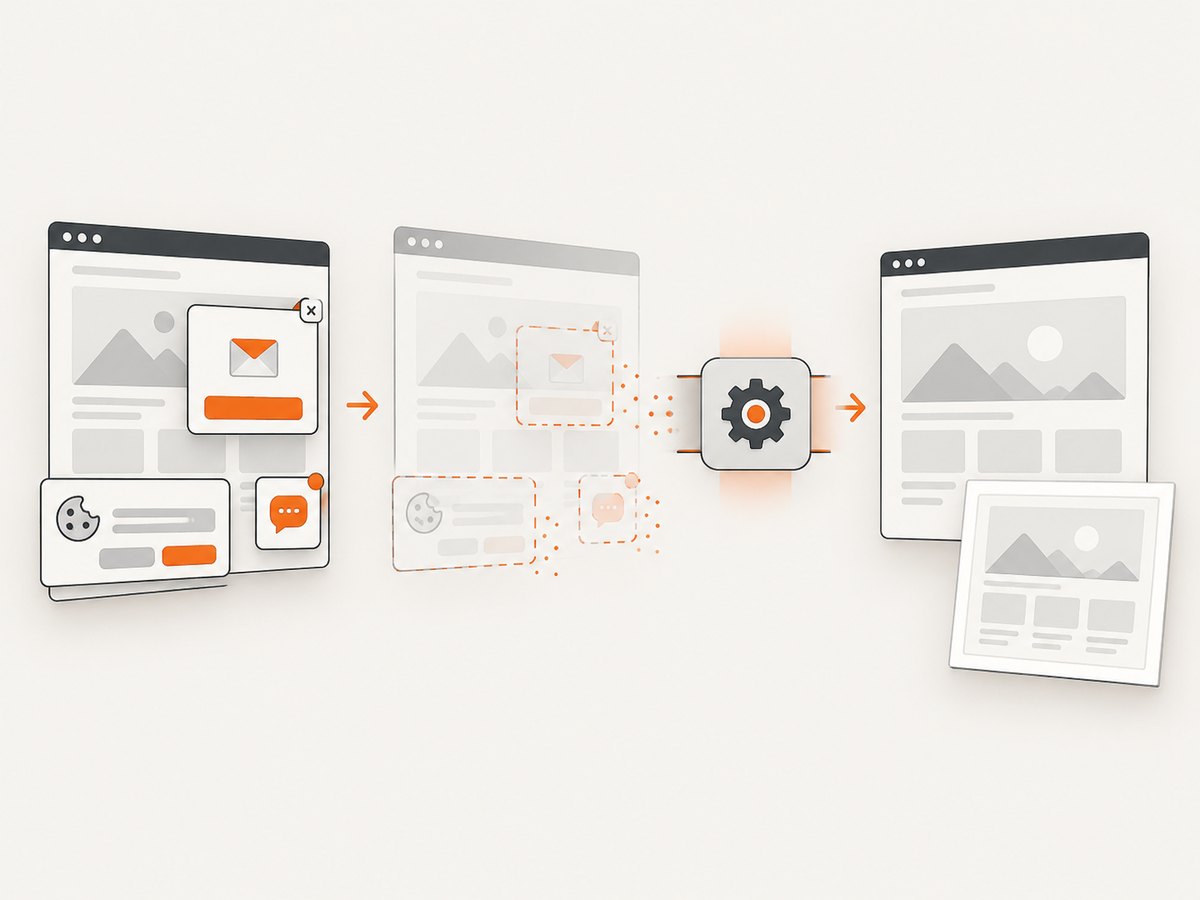
If you need a screenshot of a web page rather than the physical Windows desktop, ScreenshotNeo returns a PNG, JPEG, WebP, or PDF from one request. It removes cookie and consent banners, newsletter popups, and chat widgets before capture. Bot checks, blank pages, failed loads, timeouts, and cache hits are not billed, and the response identifies the result with X-Page-Verdict and X-Billed headers. Its MCP server gives Claude, Cursor, and other MCP clients take_screenshot, get_page_info, and capture_pdf tools.
See the ScreenshotNeo API documentation for request options.
curl -G "https://api.screenshotneo.com/v1/shot" -d access_key=YOUR_API_KEY --data-urlencode url=https://stripe.com -o shot.webpimport requests
r = requests.get("https://api.screenshotneo.com/v1/shot", params={"access_key": "YOUR_API_KEY", "url": "https://stripe.com"}, timeout=90)
open("shot.webp", "wb").write(r.content)const q = new URLSearchParams({ access_key: 'YOUR_API_KEY', url: 'https://stripe.com' });
const res = await fetch(`https://api.screenshotneo.com/v1/shot?${q}`);Every plan includes the capture options: full-page screenshots with lazy images loaded, CSS-selector element capture, dark mode, device presets or custom viewports, retina scale, custom CSS and JavaScript, waits, request blocking, headers and cookies, timezone and geolocation, resizing, caching, signed links, asynchronous webhooks, bulk capture, and usage reporting. The free plan includes 1,000 screenshots per month with no card; paid plans start at $5 for 3,000. Create a free ScreenshotNeo account.
FAQ
Should I set every monitor to 100% scaling?
No. Use DPI-aware code and verify coordinate conversions. Changing all displays to 100% is not a general fix.
Can one screenshot include monitors with different scaling?
Yes, but the virtual desktop contains displays with different physical dimensions and DPI settings. Enumerate each monitor and preserve the virtual origin; test the result on the actual layout.
Why does a screenshot of a browser tab differ from a desktop screenshot?
A browser or window capture targets that window’s content and bounds. A display capture includes the monitor; a virtual-desktop capture can include several monitors.
What details are needed to diagnose a specific bug?
Include the capture API or library, C# framework, Windows build, monitor arrangement, scale percentages, requested rectangle, actual output dimensions, and whether the built-in full-screen capture reaches the edge.


