BlogScreenshots on your device
How to Fix Image Grabbing Failures on Remote Connections
Diagnose black, blank, or failed remote screenshots by separating network, session, display, permission, and camera runtime problems.
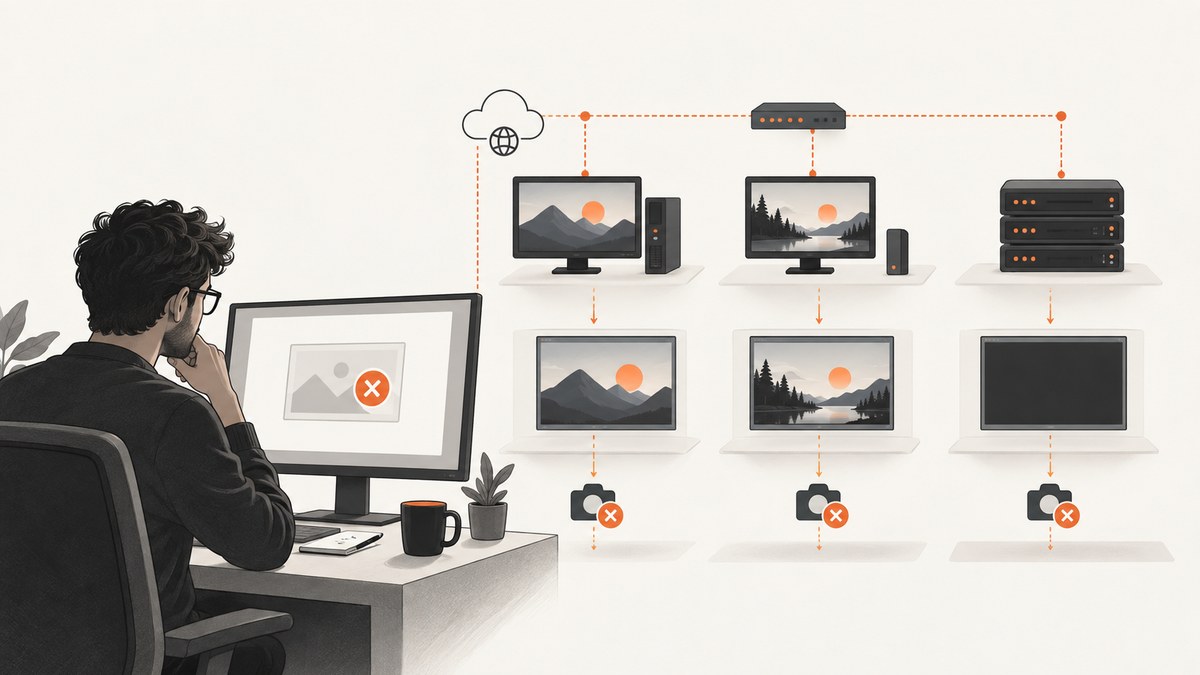
Short answer: identify whether the failure is in the connection, remote session, display renderer, permissions, or image source. A successful RDP or VNC login does not prove that a usable desktop frame exists. Capture the remote host’s local console when possible, then compare it with the blank remote image. That comparison shows whether to fix networking and session policy or the display and capture layer.
1. Classify the failure
Record the protocol (RDP, VNC, SSH-assisted GUI, cloud VM console, or camera runtime), capture operation, exact symptom, host display state, and complete error text.
- Connection never reaches the host: investigate DNS, routing, ports, firewalls, listeners, credentials, and policy.
- Login succeeds but the image is black or blank: investigate display hardware, virtual displays, compositor behavior, permissions, and client rendering.
- Camera capture fails: investigate the runtime IP, device ID, acquisition state, and firewall separately from the desktop viewer.
2. Run the diagnostic sequence
Check the host and network path
- Confirm the VM or workstation is running.
- Check for recent public-IP or DNS changes. Flush stale DNS or connect to the current IP.
- Test the protocol port from the client.
- Inspect the client, VPN or intranet edge, cloud security group, host firewall, and service listener in that order.
# Linux/macOS
nc -vz remote.example.com 3389

# Windows PowerShell
Test-NetConnection remote.example.com -Port 3389
A failed TCP test is a connectivity problem, not an image-rendering problem yet.
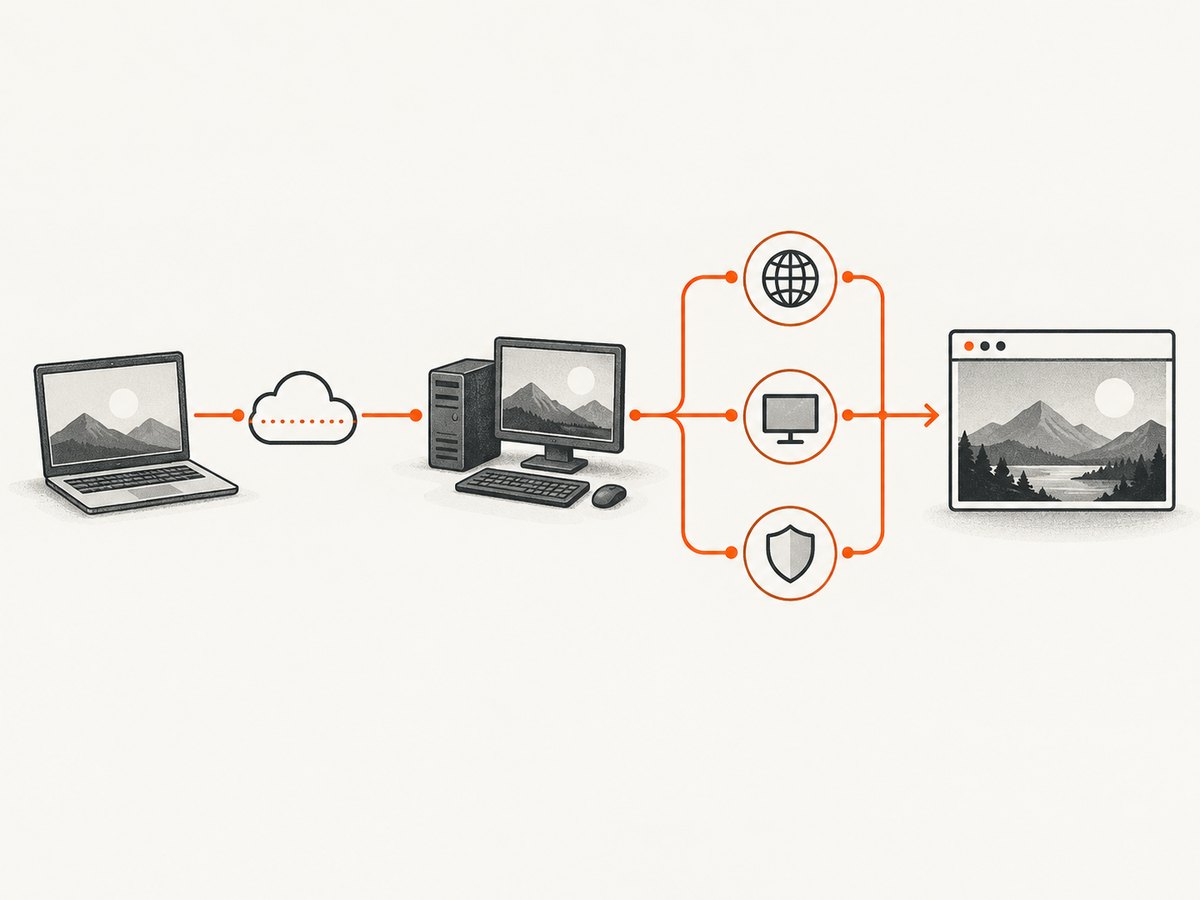
Check listeners, sessions, and policy
On Windows, verify Remote Desktop Services, the listener, session limits, port conflicts, Group Policy, authentication and encryption settings, and certificate state.
sc query TermService
netstat -ano | findstr :3389
qwinsta
Review Terminal Services and System logs. Log off abandoned sessions when limits are reached. If another service owns the port, remove the conflict or change the configured port consistently on the client, firewall, and server.
Compare local-console and remote captures
Cloud VM consoles capture the guest’s local display adapter. Capture once through the local console and once through RDP or VNC.
| Local console | Remote viewer | Likely layer |
|---|---|---|
| Correct | Blank | Remote viewer, display negotiation, virtual channel, or capture tool |
| Blank | Blank | Guest display, application, no monitor, or host-side permission |
| Correct | Stale or partial | Client refresh, bandwidth, compositor, or occlusion |
Console screenshots may expose sensitive desktop or browser data. Restrict access and delete diagnostic files afterward.
3. Fix headless macOS and VNC captures
macOS 10.13 and later can return blank or incorrectly rendered screenshots when no physical display is attached. Attach a real monitor, run the workload in a VM with a virtual display, or use an HDMI dummy plug (headless-display adapter) that emulates a monitor. The adapter does not repair ports, credentials, certificates, firewalls, or accessibility permissions.
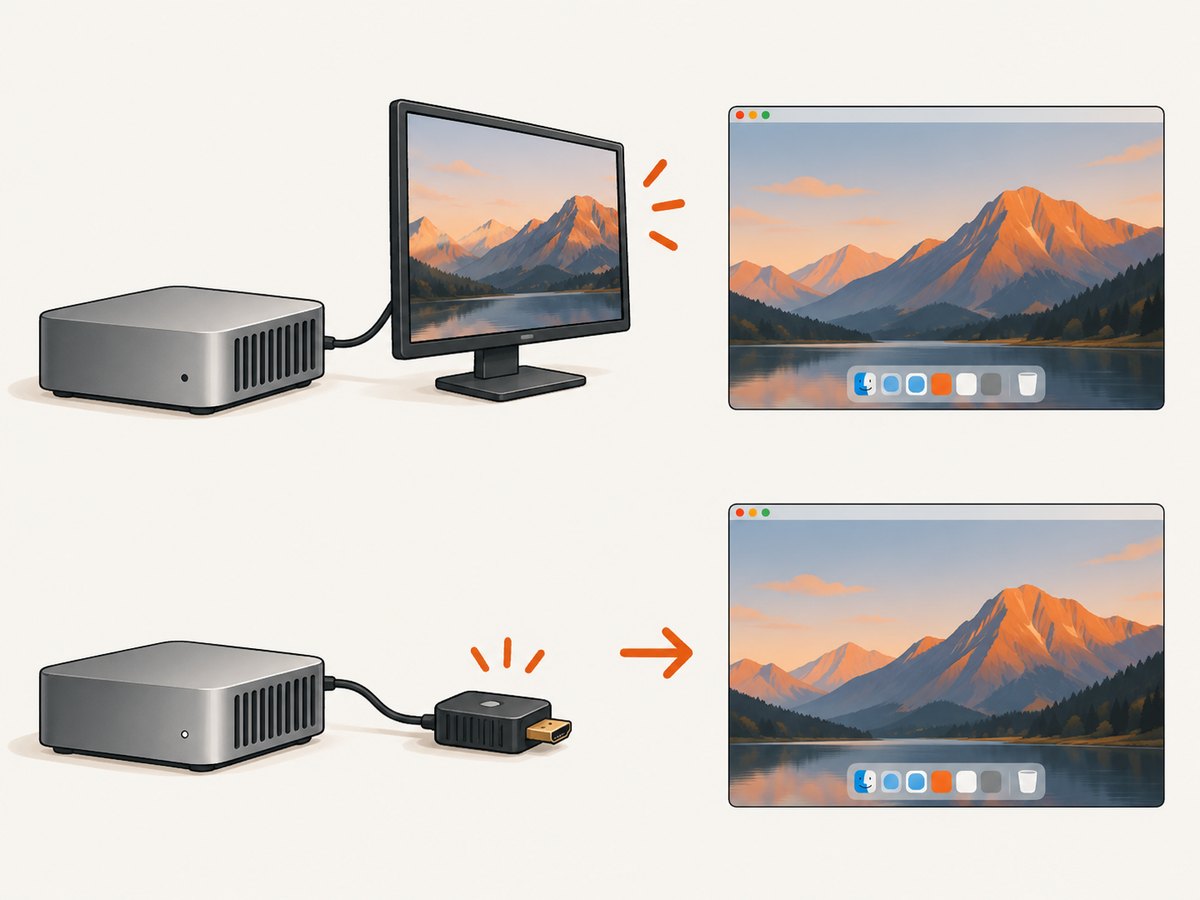
- Attach the display or emulator.
- Log out and back in, or restart the display session if allowed.
- Reconnect VNC and capture a basic desktop window.
- If it remains blank, check Accessibility permission and client focus.
macOS accessibility permission
Screenshot automation may require Accessibility permission for the actual capture process, such as sh in a shell-driven tool. The dialog can be hidden behind the screenshot window.
- Open System Settings → Privacy & Security → Accessibility.
- Enable the terminal, automation runner, and capture process.
- Quit and restart the capture process.
Linux, Wayland, and focus
If a screenshot command hangs in full-screen mode, release keyboard and mouse grabs, leave full-screen mode, and retry. Update the client if it has known keyboard-grab or Wayland issues. Test a simple window with a short timeout.
4. RDP-specific failures
| Symptom | Likely cause | Fix |
|---|---|---|
| Cannot connect | Stopped VM, wrong IP/DNS, blocked 3389, or missing listener | Check VM state, address, TCP test, security group, firewall, and TermService. |
| Login then black image | No usable display, compositor, client renderer, or permission | Compare local-console and RDP captures; provide a display and verify permissions. |
| Disconnects after login | Session limit, policy, certificate, or security mismatch | Inspect qwinsta, Group Policy, logs, and certificate/configuration state. |
| Port responds but client fails | Protocol negotiation or listener conflict | Verify the listener owns the port and client/server security settings agree. |
Microsoft’s generic message, “Remote Desktop Disconnected. This computer can’t connect to the remote computer,” is only a symptom; use the checks above to locate the layer.
5. VNC-specific failures
- Black screen with no monitor: provide a physical or emulated display.
- One application missing: test a basic terminal window and investigate compositor or hardware-accelerated surfaces.
- Stale frame: force refresh, temporarily disable client image caching, and compare another client.
- Capture hangs: exit full-screen and release keyboard or mouse grabs.
- Permission denied: grant permission to the actual VNC or screenshot process, then restart it.
6. Remote camera and machine-vision acquisition
- Confirm the acquisition runtime’s IP from the runtime host.
- Run acquisition directly on that runtime.
- Verify device ID, interface, and camera mode.
- Check the runtime firewall; disable it temporarily only under change control to isolate the cause.
- Capture one frame, then restore normal acquisition and firewall rules.
If direct acquisition works but the viewer is blank, debug viewer transport or rendering. If direct acquisition fails, fix runtime or device configuration first.
7. Capture-tool checks
- Capture a static test window or plain desktop background.
- Temporarily disable overlays and hardware-accelerated browser surfaces.
- Use a fixed viewport and short delay, increasing the delay only when needed.
- Record timestamps, host load, display resolution, protocol, and client version.
- Compare PNG and JPEG output if supported; decoder errors can resemble capture failures.
8. Troubleshooting table
| Error | Cause to test | Fix |
|---|---|---|
| Connection refused or timed out | Wrong address, blocked port, stopped service | Refresh DNS/IP, test TCP, inspect security group and firewall, start service. |
| Authentication or certificate error | Credential, certificate, or encryption mismatch | Check account policy and certificate validity; align security settings. |
| Black image after login | Headless display or renderer failure | Take a local-console screenshot; attach a monitor or configure a virtual display. |
| macOS permission denied | Accessibility permission missing | Enable the exact process, restart it, and retry. |
| Command hangs | Keyboard grab or Wayland client issue | Exit full-screen, release grabs, update client, retry. |
| Camera not found | Wrong runtime IP or device ID | Run acquisition on the runtime and check firewall and device settings. |
9. Reliability, performance, and security
- Add bounded timeouts and retry only transient network errors with exponential backoff.
- Use a smaller viewport while diagnosing and avoid repeated full-desktop captures.
- Monitor CPU, memory, GPU, and network usage on both host and client.
- Protect RDP and VNC behind a VPN or access gateway, restrict source addresses, and rotate credentials.
- Record protocol, resolution, monitor presence, OS, client version, command, and exact error text for reproducibility.
10. Or skip the browser setup
If you need a reliable screenshot of a web page rather than pixels from an entire remote desktop, ScreenshotNeo removes the browser and display-server setup. It accepts one GET request and returns PNG, JPEG, WebP, or PDF. Cookie and consent banners, newsletter popups, and chat widgets are removed before capture. Bot checks, blank pages, failed loads, timeouts, and cache hits are not billed, and X-Page-Verdict and X-Billed headers identify the result. Its MCP server provides take_screenshot, get_page_info, and capture_pdf for Claude, Cursor, and other MCP clients.
See the ScreenshotNeo documentation for options.
curl -G "https://api.screenshotneo.com/v1/shot" -d access_key=YOUR_API_KEY --data-urlencode url=https://stripe.com -o shot.webpimport requests
r = requests.get("https://api.screenshotneo.com/v1/shot", params={"access_key": "YOUR_API_KEY", "url": "https://stripe.com"}, timeout=90)
open("shot.webp", "wb").write(r.content)const q = new URLSearchParams({ access_key: 'YOUR_API_KEY', url: 'https://stripe.com' });
const res = await fetch(`https://api.screenshotneo.com/v1/shot?${q}`);Available options include full-page or element capture, dark mode, device or custom viewport, retina scale, PDF paper and margins, custom CSS and JavaScript, clicks, waits, blocked requests, headers, cookies, user agent, timezone, geolocation, transparent backgrounds, resizing, TTL caching, signed links, async webhooks, bulk capture, and usage reporting. Every feature is on every plan. Free includes 1,000 screenshots per month with no card; paid plans start at $5 for 3,000.
Create a free ScreenshotNeo account and start with 1,000 screenshots per month at no charge.
11. FAQ
Why does RDP connect but the screenshot stay black?
Authentication and display capture are separate layers. Compare an RDP image with a local-console capture, then check for a headless display, compositor issue, or capture permission.
Will an HDMI dummy plug fix every problem?
No. It helps documented headless macOS and VNC scenarios only.
Should camera capture be debugged from the desktop viewer?
No. Run acquisition on the camera runtime, verify its IP and device ID, and check its firewall.
Are cloud VM screenshots safe to share?
They may include desktop or browser content. Restrict access and redact or delete diagnostic captures.
When is an API better than remote desktop capture?
Use an API when the target is a web page and you need repeatable rendering without maintaining a monitor, desktop session, or browser host.


