BlogScreenshots on your device
How to Fix Blank or Gray Java Robot Screenshots over PuTTY
Diagnose blank or gray Java Robot screenshots over PuTTY by checking headless mode, display access, coordinates, permissions, and X11 compositing.
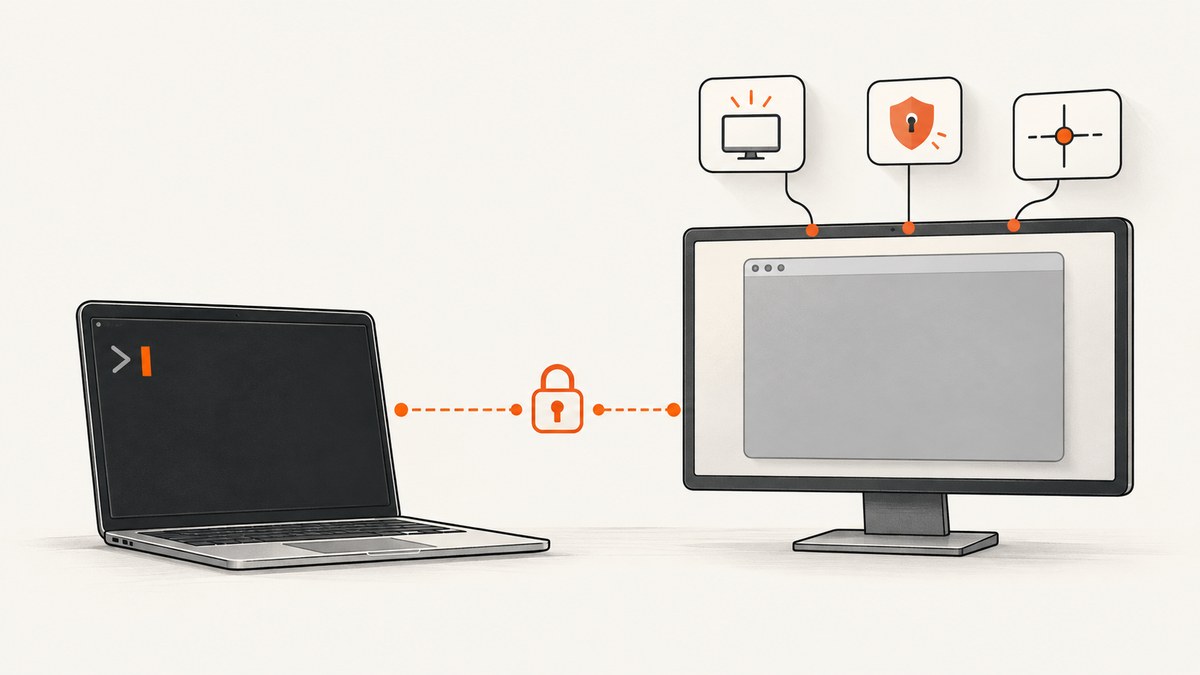
Start with the display session, not PNG or JPEG encoding. java.awt.Robot captures pixels from the screen coordinate system visible to the Java process. Over a PuTTY session, a blank or gray image usually means Java is attached to the wrong display, running headless, denied screen access, using an invalid rectangle, or reading an X11 desktop before compositing has produced the final pixels.
Check these in order:
- Log whether Java is headless and whether
new Robot()succeeds. - Confirm the process can access the display where the target UI is actually rendered.
- Print every graphics device and its bounds, then capture a small known-visible rectangle.
- Inspect pixels in memory before saving the image.
- If the desktop is X11, investigate XTEST support and compositor behavior.
- Only then inspect the particular PuTTY and server session configuration.
What Java Robot actually captures
The Java API describes createScreenCapture(Rectangle) as creating “an image containing pixels read from the screen.” It does not read an application’s internal widget tree or a browser’s document model. The rectangle is expressed in screen coordinates, so a wrong origin, negative monitor offset, zero-sized rectangle, or off-screen region can produce an apparently empty result.
See the Oracle Java Robot API for the constructor, coordinate, exception, and capture behavior.
Run a diagnostic capture first
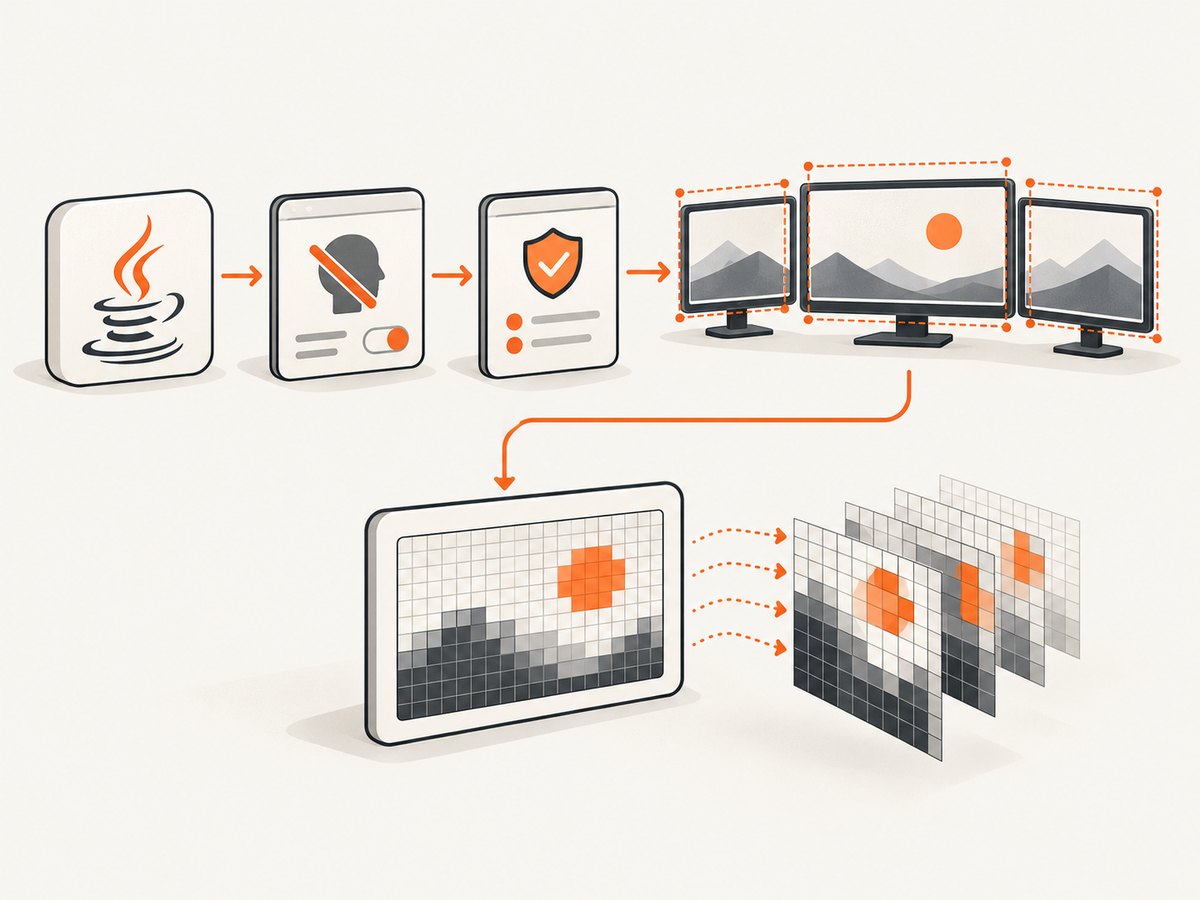
Compile and run this small program in the same PuTTY-launched environment as the failing application. It records headless state, devices, bounds, image dimensions, and sample pixels before writing a PNG.
import java.awt.AWTException;
import java.awt.Color;
import java.awt.GraphicsDevice;
import java.awt.GraphicsEnvironment;
import java.awt.GraphicsConfiguration;
import java.awt.Rectangle;
import java.awt.Robot;
import java.awt.image.BufferedImage;
import javax.imageio.ImageIO;
import java.io.File;

public class RobotDiagnostics {
    public static void main(String[] args) throws Exception {
        System.out.println("java.awt.headless=" + System.getProperty("java.awt.headless"));
        System.out.println("isHeadless=" + GraphicsEnvironment.isHeadless());

        if (GraphicsEnvironment.isHeadless()) {
            System.err.println("No graphical display is available to this Java process.");
            return;
        }

        GraphicsEnvironment ge = GraphicsEnvironment.getLocalGraphicsEnvironment();
        GraphicsDevice[] devices = ge.getScreenDevices();
        System.out.println("screenDevices=" + devices.length);

        for (GraphicsDevice device : devices) {
            GraphicsConfiguration configuration = device.getDefaultConfiguration();
            Rectangle bounds = configuration.getBounds();
            System.out.println("device=" + device.getIDstring()
                    + " bounds=" + bounds
                    + " scale=" + configuration.getDefaultTransform());
        }

        Robot robot;
        try {
            robot = new Robot();
        } catch (AWTException e) {
            System.err.println("Robot construction failed: " + e.getMessage());
            e.printStackTrace();
            return;
        } catch (SecurityException e) {
            System.err.println("Screen access was denied: " + e.getMessage());
            e.printStackTrace();
            return;
        }

        Rectangle bounds = devices[0].getDefaultConfiguration().getBounds();
        int width = Math.min(400, bounds.width);
        int height = Math.min(300, bounds.height);
        Rectangle probe = new Rectangle(bounds.x, bounds.y, width, height);
        System.out.println("capture=" + probe);

        BufferedImage image = robot.createScreenCapture(probe);
        System.out.println("image=" + image.getWidth() + "x" + image.getHeight()
                + " type=" + image.getType());

        int[] points = {
            image.getRGB(0, 0),
            image.getRGB(image.getWidth() / 2, image.getHeight() / 2),
            image.getRGB(image.getWidth() - 1, image.getHeight() - 1)
        };
        for (int i = 0; i < points.length; i++) {
            Color color = new Color(points[i], true);
            System.out.println("pixel" + i + "=" + color);
        }

        ImageIO.write(image, "png", new File("robot-probe.png"));
        System.out.println("wrote robot-probe.png");
    }
}
If the sampled pixels are already uniform or incorrect, the problem is before image encoding. If they look correct but the saved or transmitted file is wrong, isolate the later image pipeline instead of changing PuTTY settings.
Check headless mode and Robot construction
Oracle documents that the Robot constructor throws AWTException when GraphicsEnvironment.isHeadless() is true. A process started without an accessible graphical display cannot use Robot screen capture reliably. A successful Java startup does not prove that a usable desktop is available.
What to record
GraphicsEnvironment.isHeadless()and thejava.awt.headlesssystem property.- JDK vendor and version, operating system, desktop, and display server.
- The exact command used to start Java from PuTTY.
- Whether the target window is visible on the remote desktop at capture time.
- The complete exception, including whether it is
AWTExceptionorSecurityException.
If the process is headless, arrange for a real display session that the process can access, or use an application-level export or test interface. Do not try to fix this by changing PNG compression.
Verify display access and permissions
PuTTY is an SSH and Telnet client; it is one part of the path between your terminal and the remote Java process. The evidence does not establish a universal PuTTY option that fixes every gray capture. First determine which display the Java process can see and whether that display is where the UI is rendered.
Check the session’s display and authorization using the tools appropriate to your operating system and display server. Compare the environment of an interactive shell with the environment used by a service, scheduled job, or wrapper script. A service may start with a different display, user, or authorization context even when the same command works interactively.
The Robot API also documents that restricted desktop access can throw SecurityException or leave captured contents undefined. Treat a returned image as insufficient evidence of valid pixels.
Validate screen coordinates and multi-monitor bounds
Print every GraphicsDevice and its GraphicsConfiguration.getBounds(). Multi-monitor layouts can have a monitor whose origin is negative or whose coordinate space differs from the monitor you expected. Capture a positive-width, positive-height rectangle fully inside one reported device before attempting a full desktop rectangle.
| Observation | Likely first check | Reason |
|---|---|---|
| Only one window or region is missing | Rectangle origin, size, and monitor bounds | Robot reads screen coordinates, not application coordinates. |
| Everything is shifted | Multi-monitor origin and scaling | The requested rectangle may belong to another device or coordinate space. |
| Image dimensions are zero or unexpected | Rectangle construction | Use positive dimensions and log the exact rectangle. |
| Pixels are correct in memory but not in the file | ImageIO and transport code | The display capture has already succeeded; inspect serialization separately. |
Investigate X11, XTEST, and compositing
On X Window systems, Oracle documents XTEST 2.2 support as a possible requirement for low-level Robot input and construction. That is a capability check, not proof that XTEST is the cause of a gray screenshot. If Robot construction or input fails, verify the X server’s supported and enabled capabilities.
Screen capture and input are related but separate paths. A server can permit Robot construction while the captured pixels are still wrong. OpenJDK issue JDK-8150954 records a composited X11 case where “the root window does not contain the final composited desktop,” producing incorrect captures with black areas. Use that as a specific diagnostic hypothesis when a composited desktop has black or stale regions; do not generalize it to every uniform gray image.
PuTTY session checks
- Confirm the Java process is running on the machine that owns the graphical desktop. A shell on a server does not automatically see a developer workstation’s screen.
- Compare the display-related environment and authorization of the PuTTY shell with the process that starts Java.
- Run the diagnostic program while the target desktop is visibly unlocked and showing a known color or window.
- Repeat with a small rectangle on each reported monitor.
- Record whether the desktop uses X11 or Wayland and whether a compositor is enabled.
- Do not assume X11 forwarding is enabled or that it exposes the desktop you intend to capture. Verify the actual display path for this installation.
Troubleshooting common failures
| Error or symptom | Cause to investigate | Fix or next action |
|---|---|---|
AWTException during new Robot() |
Headless Java, unavailable display, or unsupported low-level display capability | Check isHeadless(), display availability, and XTEST capability. Use a display-attached process or an application-level export. |
SecurityException |
Desktop screen access is restricted | Run under the user/session authorized to access the desktop and review the security policy. |
| Uniform gray or blank image, no exception | Wrong display, restricted access with undefined contents, invalid rectangle, or compositor path | Log devices and bounds, capture a known-visible probe, inspect pixels before saving, then investigate X11 compositing. |
| Black areas on a composited X11 desktop | Root window does not contain the final composited desktop in the documented OpenJDK scenario | Compare with the visible desktop and investigate the compositor/server path; do not treat this as a universal PuTTY defect. |
| Only one monitor is wrong | Combined coordinate space or negative monitor origin | Use each device’s reported bounds and capture within one device first. |
| Capture works interactively but fails as a service | Different user, display, authorization, or environment | Log the service environment and run the process in the same graphical session as the target UI. |
| PNG opens as gray after upload | Encoding, transfer, or color conversion after Robot | Hash or inspect the in-memory image and local PNG before sending it. |
Reliability and performance practices
- Capture only the rectangle you need; full desktop images consume more memory and take longer to encode.
- Wait until the target application has rendered the state you need, then capture. A display that is still painting can produce transient results.
- Keep capture, encoding, and upload as separate stages with timestamps and image dimensions in logs.
- Use a bounded retry only for transient rendering or connection conditions. Repeating a capture cannot repair a headless process or an unauthorized display.
- For unattended jobs, make the display/session dependency explicit in deployment documentation and health checks.
- Do not infer success from an HTTP 200 or a non-null image. Check dimensions and representative pixels.
Or skip the browser setup
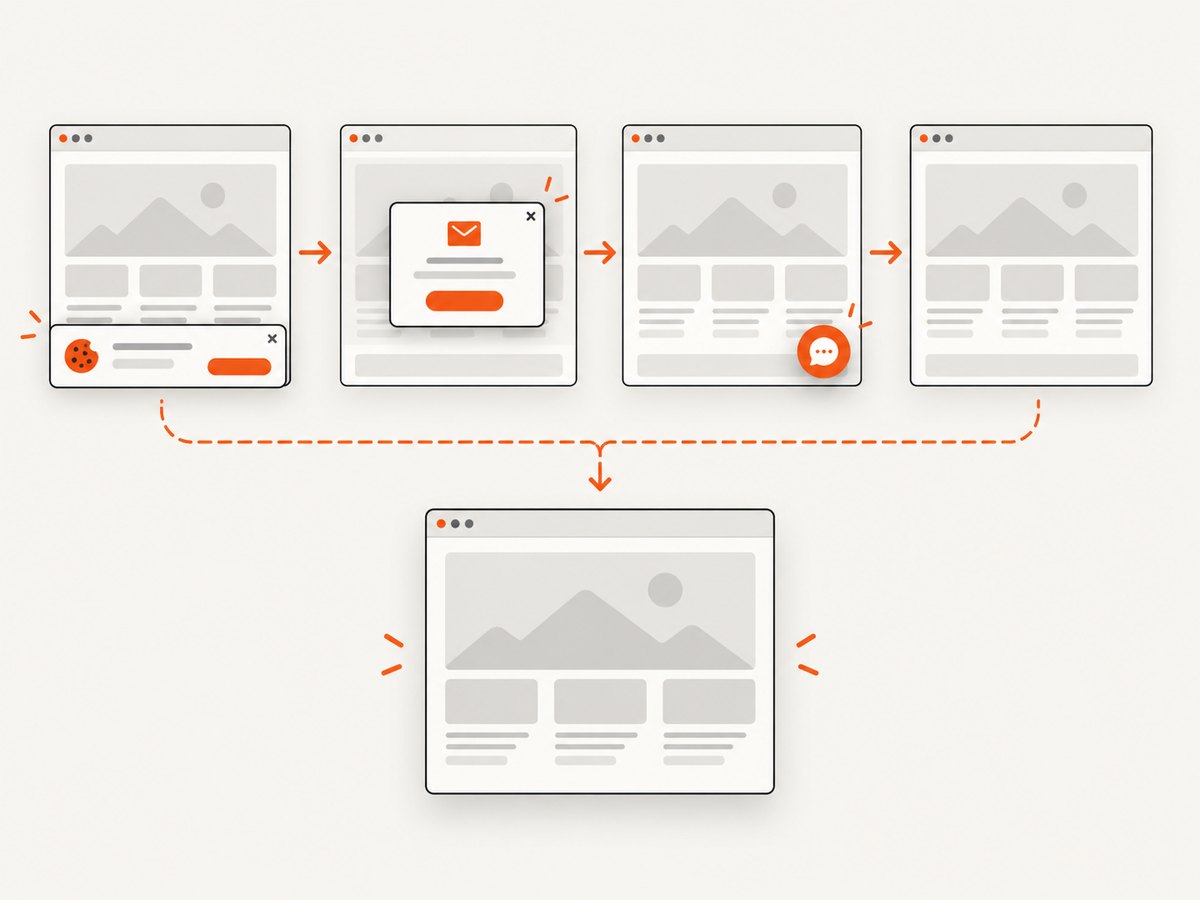
If your goal is a website image rather than a physical desktop snapshot, ScreenshotNeo removes the display-server and PuTTY dependency. Its API accepts a URL and returns PNG, JPEG, WebP, or PDF. Before capture it can accept cookie banners and remove more than 60 known consent platforms, newsletter popups, and chat widgets; each step can be turned off. Bot checks, blank pages, timeouts, failed loads, and cache hits are not billed, and the response identifies the result with X-Page-Verdict and X-Billed headers.
See the ScreenshotNeo API documentation for request options. The following calls are runnable; replace the URL and API key.
cURL
curl -G "https://api.screenshotneo.com/v1/shot" -d access_key=YOUR_API_KEY --data-urlencode url=https://stripe.com -o shot.webpPython
import requests

r = requests.get(
    "https://api.screenshotneo.com/v1/shot",
    params={"access_key": "YOUR_API_KEY", "url": "https://stripe.com"},
    timeout=90,
)
r.raise_for_status()
open("shot.webp", "wb").write(r.content)
Node.js
const q = new URLSearchParams({ access_key: 'YOUR_API_KEY', url: 'https://stripe.com' });
const res = await fetch(`https://api.screenshotneo.com/v1/shot?${q}`);
if (!res.ok) throw new Error(`HTTP ${res.status}`);
const body = Buffer.from(await res.arrayBuffer());
require('fs').writeFileSync('shot.webp', body);
For website captures, relevant controls include full-page shots with lazy images loaded, CSS-element capture, dark mode, 12 device presets or a custom viewport, retina scale, custom CSS and JavaScript, click-before-capture actions, selector hiding, waits for a selector, delay, or network idle, ad/tracker/request/resource blocking, custom headers, cookies, user agent and Authorization, timezone and geolocation, transparent backgrounds, image resizing, configurable caching TTL, signed links, asynchronous jobs with signed webhooks, bulk capture of up to 100 URLs per call, a usage API, and an OpenAPI specification. Parameter names used by other screenshot APIs also work, which can simplify migration.
ScreenshotNeo has an MCP server with take_screenshot, get_page_info, and capture_pdf for Claude, Cursor, and other MCP clients. Plans include 1,000 shots per month free with no card; paid plans start at $5 for 3,000 shots. Only clean shots are billed.
Create a free ScreenshotNeo account and get 1,000 screenshots each month with no card.
FAQ
Why does Robot.createScreenCapture() return a blank image over SSH?
The Java process may be headless, attached to a different display, denied screen access, using an invalid rectangle, or affected by an X11 compositor. Inspect headless state, devices, bounds, and pixels before saving.
Does PuTTY X11 forwarding automatically expose the remote desktop?
No universal behavior can be assumed. Verify which display the Java process sees and whether that display contains the UI you want to capture.
How do I check whether Java is headless?
Call GraphicsEnvironment.isHeadless() and log System.getProperty("java.awt.headless") before constructing Robot.
Can XTEST support alone fix gray screenshots?
No. XTEST is relevant to low-level input and possibly Robot construction on X11. Capture pixels still depend on display access, coordinates, permissions, and the compositor path.
Should I replace Robot with a browser screenshot API?
Use Robot when you need pixels from an actual desktop session. Use a URL screenshot API when you need repeatable website captures without maintaining a graphical session; ScreenshotNeo is the direct option described above.


