BlogScreenshots on your device
How to Fix Java Screen Capture Blocking on macOS
Fix Java Robot screenshots blocked, blank, or stuck on macOS by granting the right recording permission and moving capture off the UI thread.

Java screen capture on macOS usually fails because the app launching the JVM does not have Screen & System Audio Recording permission. Grant that permission to the actual launcher, then retry. If the image is blank or the program appears stuck, also check the capture rectangle and move Robot.createScreenCapture off the AWT Event Dispatch Thread.
Apple calls this permission Screen & System Audio Recording on macOS 13 and later. Older releases use System Preferences terminology. Oracle documents that denied access can cause a SecurityException or a BufferedImage whose contents are undefined, so a blank image is a symptom rather than proof of one specific cause. See the Robot API documentation.
Identify the exact failure
| Symptom | Likely cause | First check |
|---|---|---|
SecurityException |
Screen recording permission is denied or has not been granted. | Enable the launcher under macOS privacy settings. |
| Blank or undefined image | Permission denial, an invalid region, a protected window, or a page that has not rendered. | Log the exception, rectangle, display bounds, and launcher. |
| UI appears frozen | Capture is running on the AWT Event Dispatch Thread; permission acquisition can require user interaction. | Run capture on a worker thread. |
IllegalArgumentException |
Capture rectangle has non-positive width or height. | Print the rectangle before calling Robot. |
| Wrong monitor or cropped result | Coordinates do not match the virtual desktop layout. | Use GraphicsEnvironment bounds and account for negative monitor coordinates. |
Grant screen-capture permission
- Determine which application actually launches the Java process: Terminal, an IDE, a script host, a packaged Java application, or another wrapper.
- On macOS 13 or later, open Apple menu > System Settings > Privacy & Security > Screen & System Audio Recording.
- Enable the launcher that runs the code. If it is absent, use Apple’s Add control to navigate to and add that application. Apple documents this workflow in Control access to screen and system audio recording on Mac.
- Quit and relaunch the launcher or Java application when macOS asks you to do so, then retry the capture.
- On macOS 12 and earlier, look in System Preferences > Security & Privacy > Privacy; names and layout vary by release. Apple’s background on these controls is available in Protecting app access to user data.
Permission is associated with the listed app. The official Apple material does not establish one universal rule for whether every Java workflow appears as Terminal, an IDE, or a bundled Java binary. Add the trusted launcher that actually starts your process, and do not approve an unknown executable merely because its name contains “Java.”
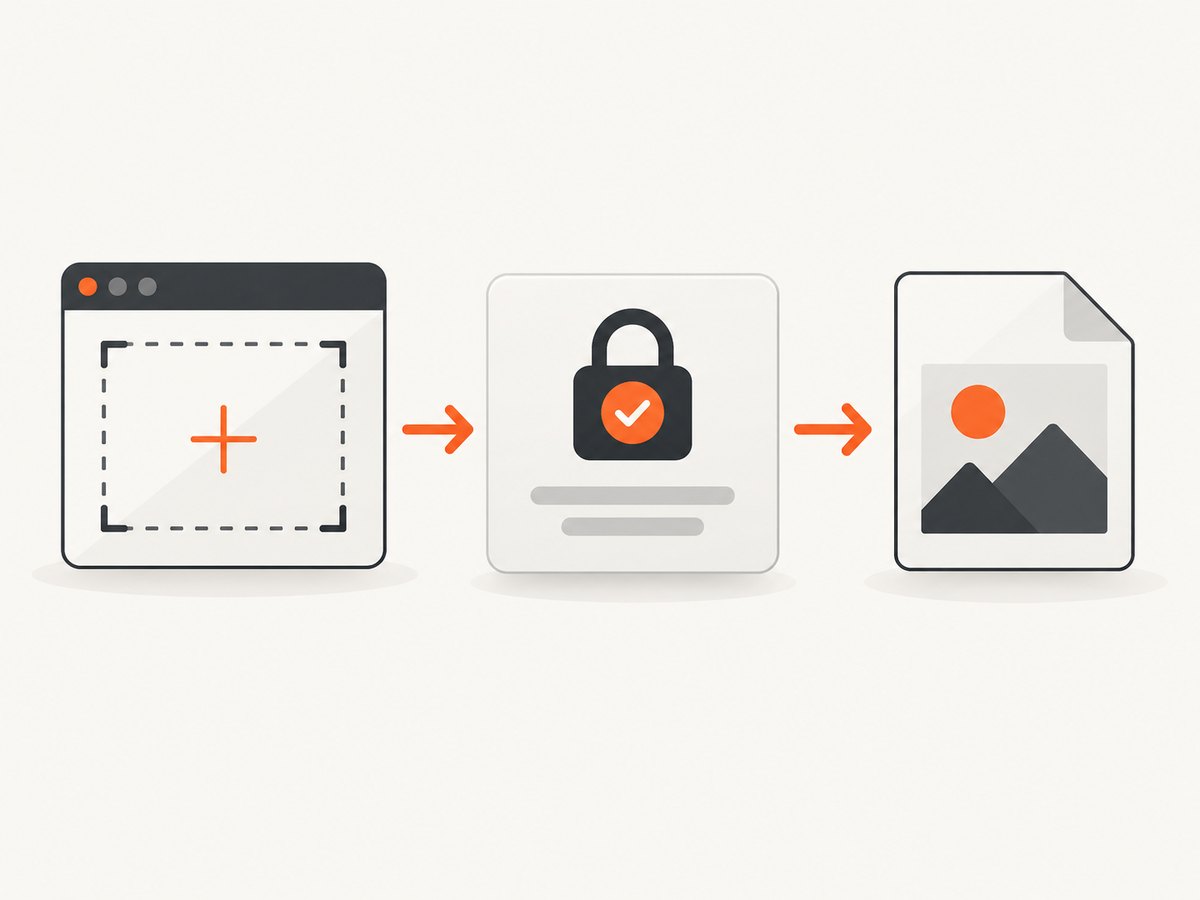
Complete Java example
This example captures the complete virtual desktop, writes a PNG, reports the rectangle, and keeps the capture away from the event-dispatch thread. Compile with a JDK that includes the java.desktop module.
import java.awt.AWTException;
import java.awt.GraphicsConfiguration;
import java.awt.GraphicsDevice;
import java.awt.GraphicsEnvironment;
import java.awt.Rectangle;
import java.awt.Robot;
import java.awt.image.BufferedImage;
import java.io.File;
import java.io.IOException;
import javax.imageio.ImageIO;

public class MacScreenCapture {
    public static void main(String[] args) {
        Thread captureThread = new Thread(() -> {
            try {
                GraphicsEnvironment ge = GraphicsEnvironment.getLocalGraphicsEnvironment();
                Rectangle virtualBounds = new Rectangle();
                for (GraphicsDevice device : ge.getScreenDevices()) {
                    GraphicsConfiguration configuration = device.getDefaultConfiguration();
                    virtualBounds = virtualBounds.union(configuration.getBounds());
                }

                if (virtualBounds.width <= 0 || virtualBounds.height <= 0) {
                    throw new IllegalArgumentException("Screen bounds are not positive: " + virtualBounds);
                }

                Robot robot = new Robot();
                BufferedImage image = robot.createScreenCapture(virtualBounds);
                File output = new File("mac-screen.png");
                ImageIO.write(image, "png", output);
                System.out.println("Saved " + output.getAbsolutePath());
                System.out.println("Captured rectangle: " + virtualBounds);
            } catch (SecurityException e) {
                System.err.println("Screen recording permission denied: " + e.getMessage());
                e.printStackTrace();
            } catch (AWTException | IOException | IllegalArgumentException e) {
                e.printStackTrace();
            }
        }, "screen-capture-worker");

        captureThread.start();
    }
}
Run it from the same launcher whose permission you enabled:
javac MacScreenCapture.java
java MacScreenCapture
Capture one display or a selected region
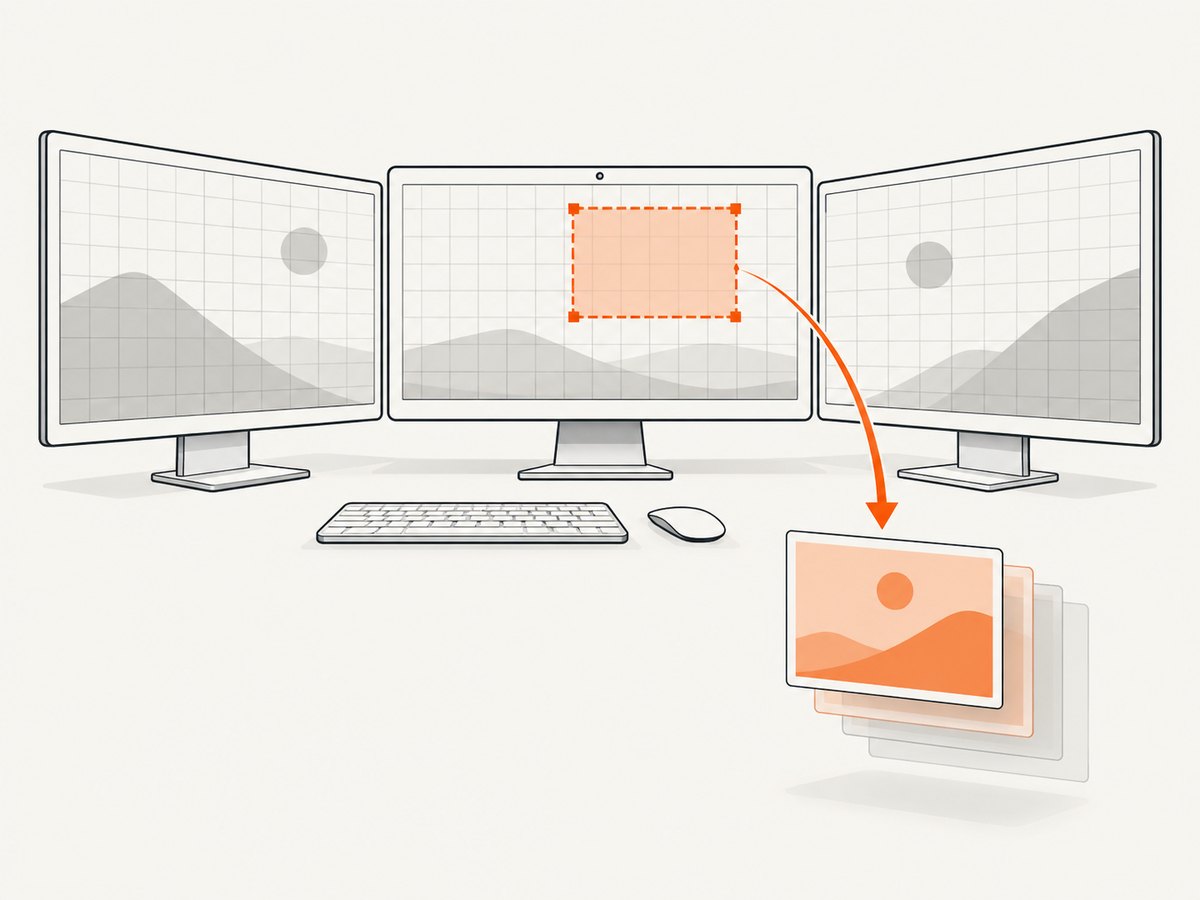
Robot.createScreenCapture accepts a Rectangle in the virtual desktop coordinate space. macOS can place a secondary display to the left or above the primary display, so valid coordinates may be negative.
GraphicsDevice device = GraphicsEnvironment
    .getLocalGraphicsEnvironment()
    .getDefaultScreenDevice();
Rectangle display = device.getDefaultConfiguration().getBounds();
BufferedImage image = new Robot().createScreenCapture(display);
For a region, construct a rectangle with positive width and height:
Rectangle region = new Rectangle(100, 100, 800, 600);
if (region.width <= 0 || region.height <= 0) {
    throw new IllegalArgumentException("Width and height must be positive");
}
BufferedImage image = new Robot().createScreenCapture(region);
On high-resolution displays, Java also provides createMultiResolutionScreenCapture, which can return scaled and native-resolution variants. Choose the variant that matches your downstream image dimensions.
Keep capture responsive and reliable
- Never block the AWT Event Dispatch Thread. Oracle warns that capture can be lengthy, especially when permission acquisition involves user interaction. Use an executor or worker thread and deliver the resulting image back to the UI.
- Request permission before a long workflow. A first capture may pause while macOS waits for a user decision. Treat that as an asynchronous operation.
- Log the environment. Record macOS version, Java vendor and version, launcher path, display bounds, rectangle dimensions, exception text, and whether the launcher is enabled in privacy settings.
- Retry only after a state change. Repeatedly calling the API will not fix a missing permission; ask the user to enable access or select a different trusted launcher.
- Protect output writes. Check the boolean result from
ImageIO.write, handleIOException, and write to a location where the process has permission.
Troubleshooting checklist
1. “I enabled Java, but it still fails”
macOS may have granted access to a different application. Check how the process was started. A run from Terminal needs Terminal enabled; a run from an IDE needs that IDE enabled; a packaged application needs the packaged app enabled. Quit and relaunch after changing the setting.
2. “The program hangs at createScreenCapture”
Move the call to a worker thread. Do not invoke it from an AWT listener or Swing event handler. A permission prompt can make the operation wait for user interaction.
3. “The image is completely blank”
First check for a SecurityException and verify the launcher permission. Then print the rectangle and confirm positive dimensions, capture a known visible region, and test one display at a time. A blank result alone does not prove that permission is the cause.
4. “Only part of the desktop is captured”
Use the target display’s configuration bounds or union all display bounds. Remember that a display positioned left or above the primary display can produce negative x or y coordinates.
5. “The exception mentions the rectangle”
createScreenCapture rejects rectangles with non-positive width or height. Validate dimensions before calling the method and avoid integer calculations that overflow or truncate to zero.
6. “Should I enable Accessibility or Input Monitoring?”
Those permissions govern other forms of interaction. The documented permission for reading screen pixels is Screen & System Audio Recording. Do not treat Accessibility or Input Monitoring as the automatic fix for a screen-capture denial.
Performance, reliability, and cost considerations
Capturing a large multi-monitor desktop allocates a correspondingly large BufferedImage. Capture only the display or region you need, and release references after encoding or saving. PNG preserves pixels but can be larger and slower to write than a lossy format; choose the format required by your workflow.
For unattended jobs, plan for permission state as part of machine setup. A headless or newly created macOS user may not have approved the launcher, and a different launch path can change which app needs approval. Log failures distinctly from file-write errors and invalid geometry so retries do not hide the real cause.
Java’s local capture has no API charge, but it requires a running macOS session and an approved launcher. If your goal is a screenshot of a web page rather than the Mac desktop, a browser capture service avoids desktop permission setup.
Or skip the browser setup
For website screenshots, ScreenshotNeo provides a single GET request that returns PNG, JPEG, WebP, or PDF. Cookie and consent banners, newsletter popups, and chat widgets are removed before the shot; bot checks, blank pages, timeouts, failed loads, and cache hits are not billed; and response headers identify the page verdict and billing status. Its MCP server lets Claude, Cursor, and other MCP clients use take_screenshot, get_page_info, and capture_pdf.
See the ScreenshotNeo API documentation for all options.
curl -G "https://api.screenshotneo.com/v1/shot" -d access_key=YOUR_API_KEY --data-urlencode url=https://stripe.com -o shot.webpimport requests
r = requests.get("https://api.screenshotneo.com/v1/shot", params={"access_key": "YOUR_API_KEY", "url": "https://stripe.com"}, timeout=90)
open("shot.webp", "wb").write(r.content)const q = new URLSearchParams({ access_key: 'YOUR_API_KEY', url: 'https://stripe.com' });
const res = await fetch(`https://api.screenshotneo.com/v1/shot?${q}`);The free plan includes 1,000 screenshots a month with no card. Paid plans start at $5 for 3,000 shots, and every feature is available on every plan. Create a free ScreenshotNeo account.
FAQ
Does a blank screenshot always mean permission is denied?
No. Oracle describes undefined image contents when access is denied, but invalid coordinates, display layout, protected content, or rendering problems can also produce an unusable image.
Do I need to grant permission to the JDK binary?
Grant access to the trusted application that launches the Java process. The correct entry depends on your launch route.
Can Robot capture a browser window without a desktop session?
Robot captures the macOS desktop and requires an interactive session with screen-recording access. It is not a substitute for a server-side webpage screenshot API.
When should I use ScreenshotNeo?
Use it when you need rendered website images or PDFs without configuring macOS desktop permissions, especially in automated jobs or AI-agent workflows.


