BlogScreenshots on your device
How to Fix PIL ImageGrab and BitBlt Capturing Only the Background
Fix Windows screenshots that show only the desktop: choose the right target, include layered windows, check display affinity, and diagnose BitBlt failures.
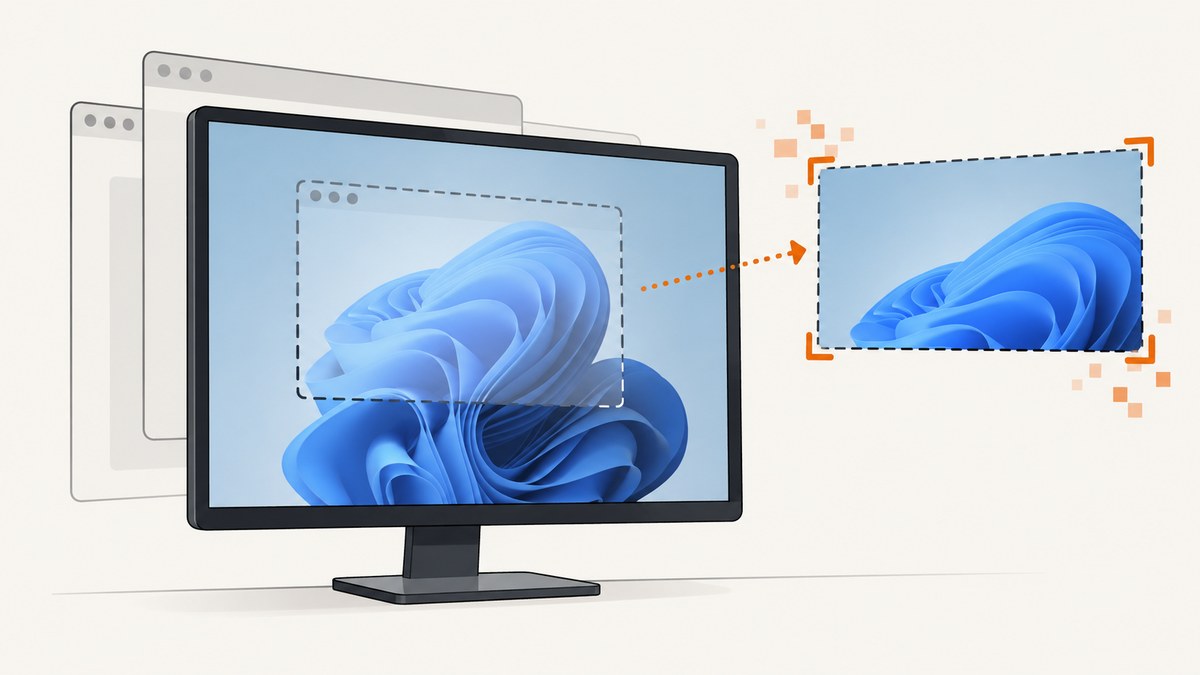
Short answer: a background-only image does not identify one universal bug. First decide whether you need the composed desktop, a screen rectangle, or one window. For a layered window, test Pillow’s Windows-only include_layered_windows=True. For one window, use the documented window=hwnd argument when running Pillow 11.2.1 or newer. If the content is still absent, investigate Windows display affinity and collect the exact versions, flags, target application, and capture goal.
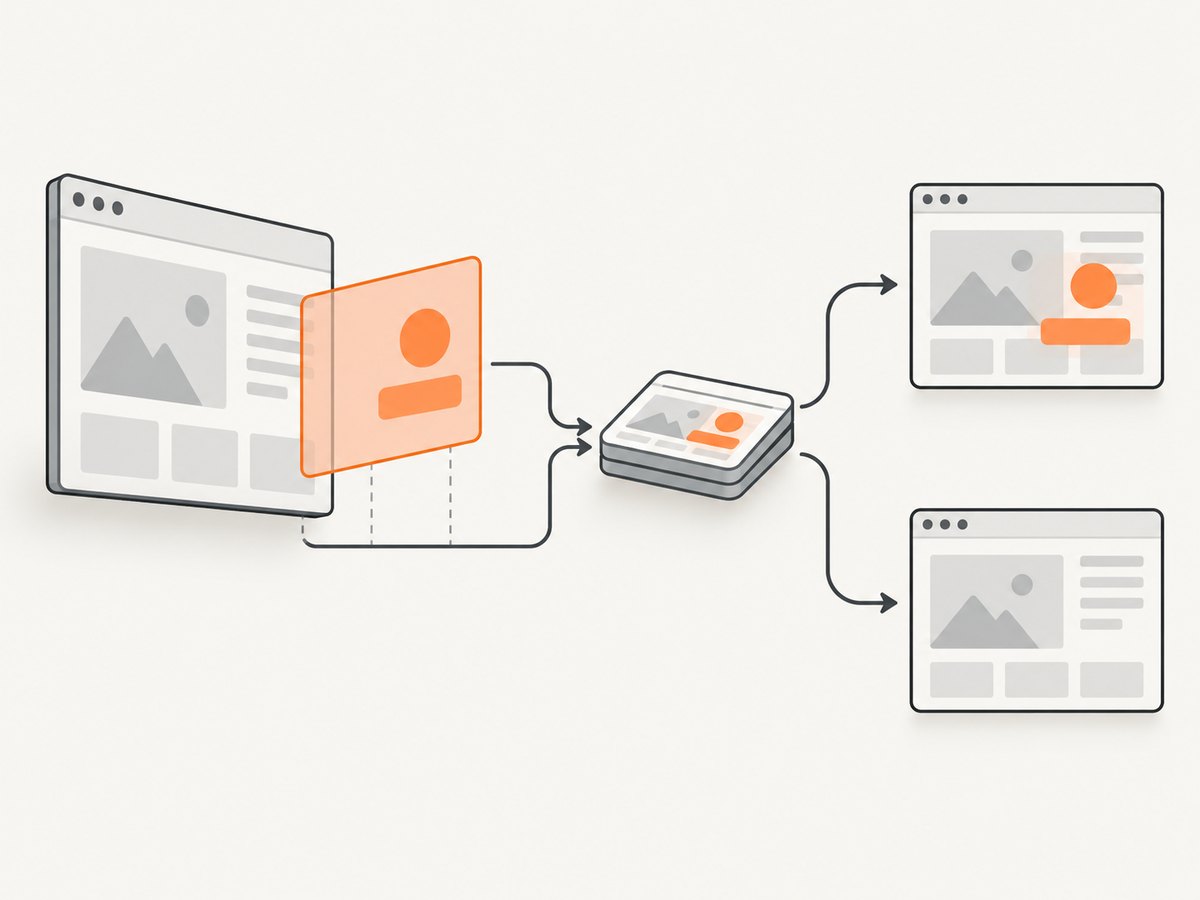
Pillow documents include_layered_windows as defaulting to False; enabling it includes layered windows in a Windows desktop grab. Microsoft describes the corresponding BitBlt behavior with CAPTUREBLT as including “any windows that are layered on top of your window in the resulting image.” Pillow ImageGrab documentation · Microsoft BitBlt documentation
1. Identify what you are trying to capture
These are different operations and have different failure modes:
| Goal | Use | Typical mistake |
|---|---|---|
| All visible monitors | ImageGrab.grab(all_screens=True) |
Assuming a single-monitor coordinate system |
| One screen rectangle | ImageGrab.grab(bbox=(left, top, right, bottom)) |
Using coordinates from the wrong monitor or scale |
| One application window | ImageGrab.grab(window=hwnd) (Pillow 11.2.1+) |
Passing the wrong HWND or using an older Pillow |
| Layered content in a desktop/region grab | include_layered_windows=True |
Leaving the default False |
A full-screen grab records pixels composed by Windows. It does not guarantee that every application will expose its rendered content to that capture path. A window capture is a request for a particular HWND, subject to the same platform and application restrictions.
2. Run a minimal Pillow diagnostic
Install or upgrade Pillow first:
python -m pip install --upgrade PillowRun each case separately and inspect the output dimensions and visible content:
from PIL import ImageGrab

# 1) Primary display, ordinary desktop capture
primary = ImageGrab.grab()
primary.save("primary.png")
print("primary:", primary.size)

# 2) Include layered windows (Windows only)
layered = ImageGrab.grab(include_layered_windows=True)
layered.save("layered.png")
print("layered:", layered.size)

# 3) All monitors. Coordinates can be negative when a monitor is left or above
all_monitors = ImageGrab.grab(all_screens=True, include_layered_windows=True)
all_monitors.save("all-monitors.png")
print("all monitors:", all_monitors.size)

# 4) A known rectangle (left, top, right, bottom)
region = ImageGrab.grab(
    bbox=(0, 0, 1280, 720),
    include_layered_windows=True,
)
region.save("region.png")
include_layered_windows was added in Pillow 6.1.0 and is Windows-only. It is a targeted test for layered content, not a guarantee for fullscreen applications, protected windows, or every rendering technology. See the documented options.
3. Capture one window by HWND
If the requirement is “capture this application,” do not rely on a guessed rectangle. Recent Pillow versions support an HWND argument on Windows; the documentation records Windows support for window as added in Pillow 11.2.1.
With pywin32, you can find a visible top-level window by title and pass its handle to Pillow:
from PIL import ImageGrab
import win32gui

window_title = "Calculator"
hwnd = win32gui.FindWindow(None, window_title)
if not hwnd:
    raise RuntimeError(f"Window not found: {window_title!r}")

image = ImageGrab.grab(window=hwnd)
image.save("window.png")
print("captured HWND", hwnd, "as", image.size)
Install the extra package with python -m pip install pywin32. The title must match the actual top-level window, and a stale or child-window handle can produce an unexpected result. Minimized, hidden, occluded, or specially rendered windows may still fail to provide useful pixels.
4. Understand the BitBlt equivalent
If you call Win32 directly, the layered-window test is the CAPTUREBLT raster-operation flag combined with SRCCOPY. The flag asks BitBlt to include layered windows above the source window.
import ctypes
from ctypes import wintypes

user32 = ctypes.windll.user32
gdi32 = ctypes.windll.gdi32

SRCCOPY = 0x00CC0020
CAPTUREBLT = 0x40000000
rop = SRCCOPY | CAPTUREBLT

# This fragment shows the important flag. A complete production capture
# also needs compatible DCs, a DIB section, row-stride handling, and cleanup.
# Pass `rop` as the dwRop argument to BitBlt rather than SRCCOPY alone.
print(hex(rop))
When reviewing an existing BitBlt routine, check that it is copying from the intended source DC, that the destination bitmap is selected correctly, and that the code uses SRCCOPY | CAPTUREBLT when layered content is required. A correct flag cannot make an application expose pixels that Windows or the application excludes.
5. Check display affinity and capture protection
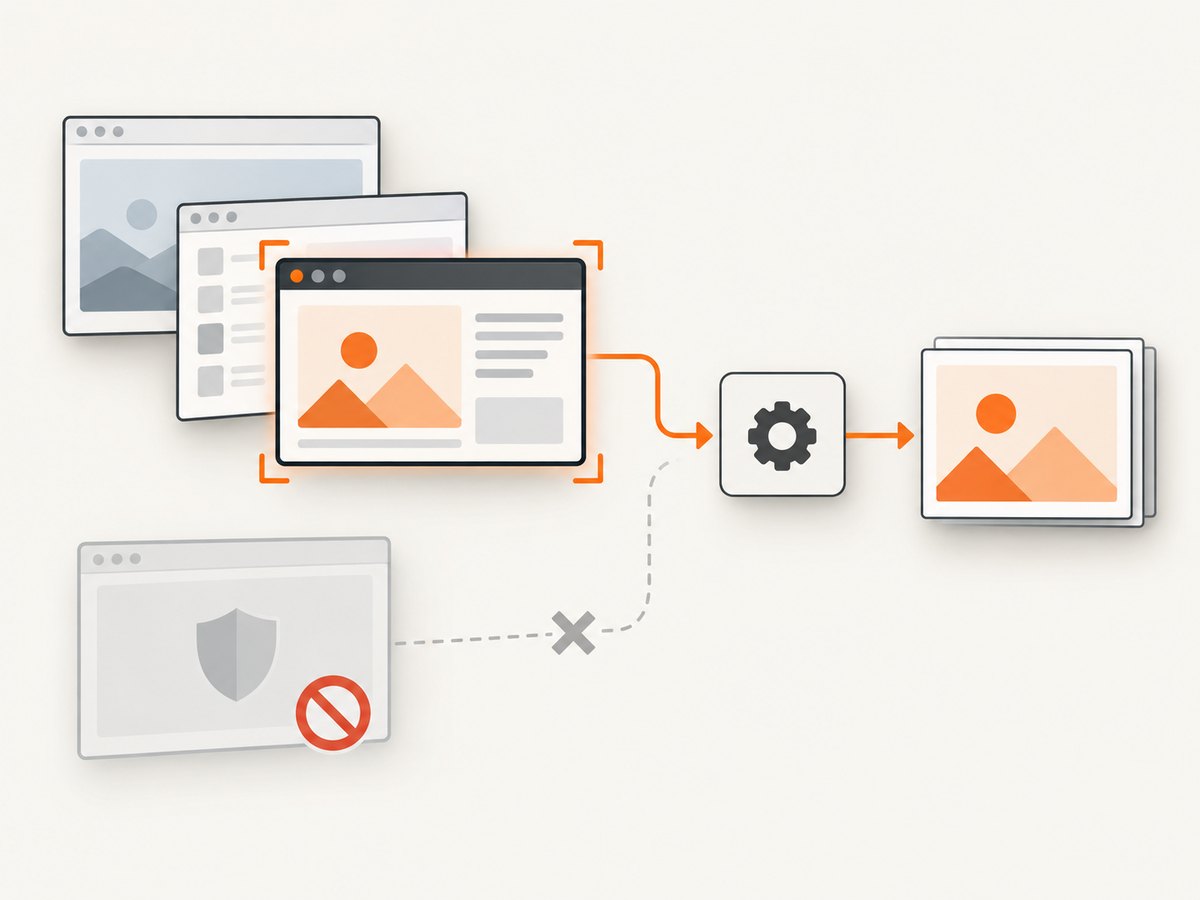
Windows applications can set a top-level window’s display affinity. WDA_EXCLUDEFROMCAPTURE makes a window absent from capture; Microsoft documents support beginning with Windows 10 version 2004. On earlier versions it behaves as WDA_MONITOR. This setting is controlled by the application that owns the window, so a third-party script should treat it as a diagnostic possibility rather than something it can always change.
import ctypes
from ctypes import wintypes

user32 = ctypes.WinDLL("user32", use_last_error=True)
GetWindowDisplayAffinity = user32.GetWindowDisplayAffinity
GetWindowDisplayAffinity.argtypes = [wintypes.HWND, ctypes.POINTER(wintypes.DWORD)]
GetWindowDisplayAffinity.restype = wintypes.BOOL

WDA_NONE = 0
WDA_MONITOR = 1
WDA_EXCLUDEFROMCAPTURE = 0x11

def display_affinity(hwnd: int) -> int:
    value = wintypes.DWORD()
    if not GetWindowDisplayAffinity(hwnd, ctypes.byref(value)):
        raise ctypes.WinError(ctypes.get_last_error())
    return value.value

# Replace with the HWND you are diagnosing.
# print(display_affinity(hwnd))
Microsoft also cautions that display-affinity APIs do not strictly protect windowed content in every circumstance. The same limitation means affinity inspection alone cannot explain every missing window. Read SetWindowDisplayAffinity documentation.
6. A repeatable diagnostic checklist
- Record the Windows version and build.
- Record the Pillow version with
python -c "import PIL; print(PIL.__version__)". - Write down the exact API call,
bbox, HWND, raster-operation flags, and monitor arrangement. - Confirm whether you need desktop pixels, a rectangle, or a specific window.
- Run an ordinary grab and then the same grab with
include_layered_windows=True. - For a window target, verify that the HWND belongs to the intended visible top-level window.
- Test whether the application is fullscreen, minimized, occluded, layered, hardware-rendered, or known to use capture protection.
- Check display affinity when the application may intentionally exclude itself.
- Compare results on the same machine with a simple ordinary window such as Notepad. This separates a general coordinate/API problem from behavior specific to the target application.
7. Common errors and fixes
| Symptom | Likely cause | Fix |
|---|---|---|
| Only wallpaper appears | Layered content was omitted | Try include_layered_windows=True or BitBlt’s CAPTUREBLT. |
| Wrong monitor or empty region | Incorrect coordinates, scaling, or negative multi-monitor origin | Print monitor geometry, test all_screens=True, and verify the bounding box. |
window raises an unexpected-argument error |
Pillow is older than 11.2.1 | Upgrade Pillow or use a documented rectangle/desktop capture. |
| Window capture is blank while desktop capture works | Wrong HWND, minimized/hidden window, or application-specific rendering | Resolve the top-level HWND again, restore the window, and test a standard window. |
| Layered flag changes nothing | The missing content is not a layered-window issue | Investigate display affinity, fullscreen rendering, coordinates, and the application’s capture behavior. |
| BitBlt returns success but pixels are wrong | Wrong source DC, selected bitmap, stride, or raster-operation flags | Validate DC setup and use SRCCOPY | CAPTUREBLT only when layered inclusion is required. |
8. Performance, reliability, and cost
Full-screen and multi-monitor captures copy more pixels than a small rectangle, so use the smallest correct bbox when you do not need the entire desktop. Reusing device contexts and buffers matters in high-frequency BitBlt loops; for occasional diagnostics, correctness and explicit cleanup are more important than micro-optimizations.
Screen capture is inherently stateful: window position, monitor scaling, occlusion, fullscreen mode, and application rendering can change the result between calls. Save the versions and parameters with each diagnostic image so a failure can be reproduced. There is no documented success rate or universal flag that captures every application.
Local Pillow and BitBlt capture have no API charge, but they require a Windows session with the target content available. If you need server-side website images instead of a user’s desktop, use a browser screenshot service.
Or skip the browser setup
For website screenshots, ScreenshotNeo provides a single GET request that returns PNG, JPEG, WebP, or PDF. Cookie and consent banners, newsletter popups, and chat widgets are removed before capture. Bot checks, blank pages, failed loads, timeouts, and cache hits are not billed, and the response identifies the result with X-Page-Verdict and X-Billed headers. Its MCP server lets Claude, Cursor, and other MCP clients call take_screenshot, get_page_info, and capture_pdf.
See the ScreenshotNeo API documentation for all options. This is a complete one-call example:
curl -G "https://api.screenshotneo.com/v1/shot" -d access_key=YOUR_API_KEY --data-urlencode url=https://stripe.com -o shot.webpimport requests
r = requests.get("https://api.screenshotneo.com/v1/shot", params={"access_key": "YOUR_API_KEY", "url": "https://stripe.com"}, timeout=90)
open("shot.webp", "wb").write(r.content)const q = new URLSearchParams({ access_key: 'YOUR_API_KEY', url: 'https://stripe.com' });
const res = await fetch(`https://api.screenshotneo.com/v1/shot?${q}`);ScreenshotNeo includes full-page and element capture, device presets, retina scale, custom CSS and JavaScript, waits, request blocking, headers, cookies, user agents, timezone and geolocation, caching, signed links, asynchronous jobs, bulk capture, PDF controls, and a usage API. The free plan includes 1,000 screenshots per month with no card; paid plans start at $5 for 3,000 shots. Create a free ScreenshotNeo account.
FAQ
Does include_layered_windows=True fix every fullscreen capture?
No. It targets layered-window inclusion. Fullscreen rendering, display affinity, occlusion, and application-specific capture paths can still produce missing content.
Can I force another application’s display affinity?
Do not assume so. The setting belongs to the owning application, and Windows documents limits on the protection guarantee.
Why does all_screens=True produce unusual coordinates?
When monitors are arranged left or above the primary display, the virtual desktop can have negative top-left coordinates. Use the virtual desktop geometry when choosing a bounding box.
Is this a Pillow defect?
The symptom is underdetermined. Verify the target, layered-window behavior, Pillow version, BitBlt flags, and display affinity before assigning one cause.


