BlogScreenshots on your device
How to Fix PIL ImageGrab on a VirtualBox Second Monitor
Fix blank or missing VirtualBox monitor screenshots in Pillow by checking display geometry, X11 support, Guest Additions, and fallback tools.
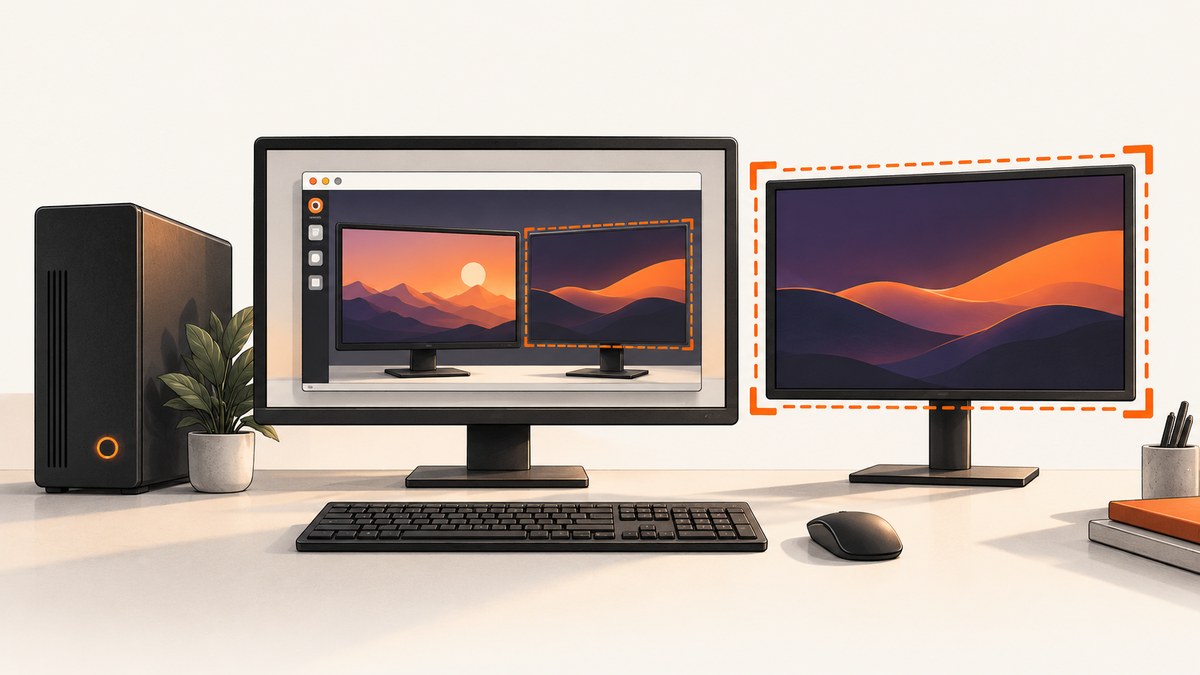
Direct answer: PIL.ImageGrab usually misses a VirtualBox second monitor because the guest display session, Pillow capture backend, and VirtualBox monitor geometry do not agree. On a Linux guest, identify the second monitor’s coordinates, capture it with an explicit bbox, verify Pillow has XCB support, and repair Guest Additions and the virtual graphics setup if the display itself is incomplete. Do not use all_screens=True as a Linux fix; Pillow documents that option for Windows.
This guide covers X11 and Wayland checks, working Python code, VirtualBox settings, fallback utilities, blank and black screenshots, performance, and operational edge cases.
1. Confirm the failure and identify the display layout
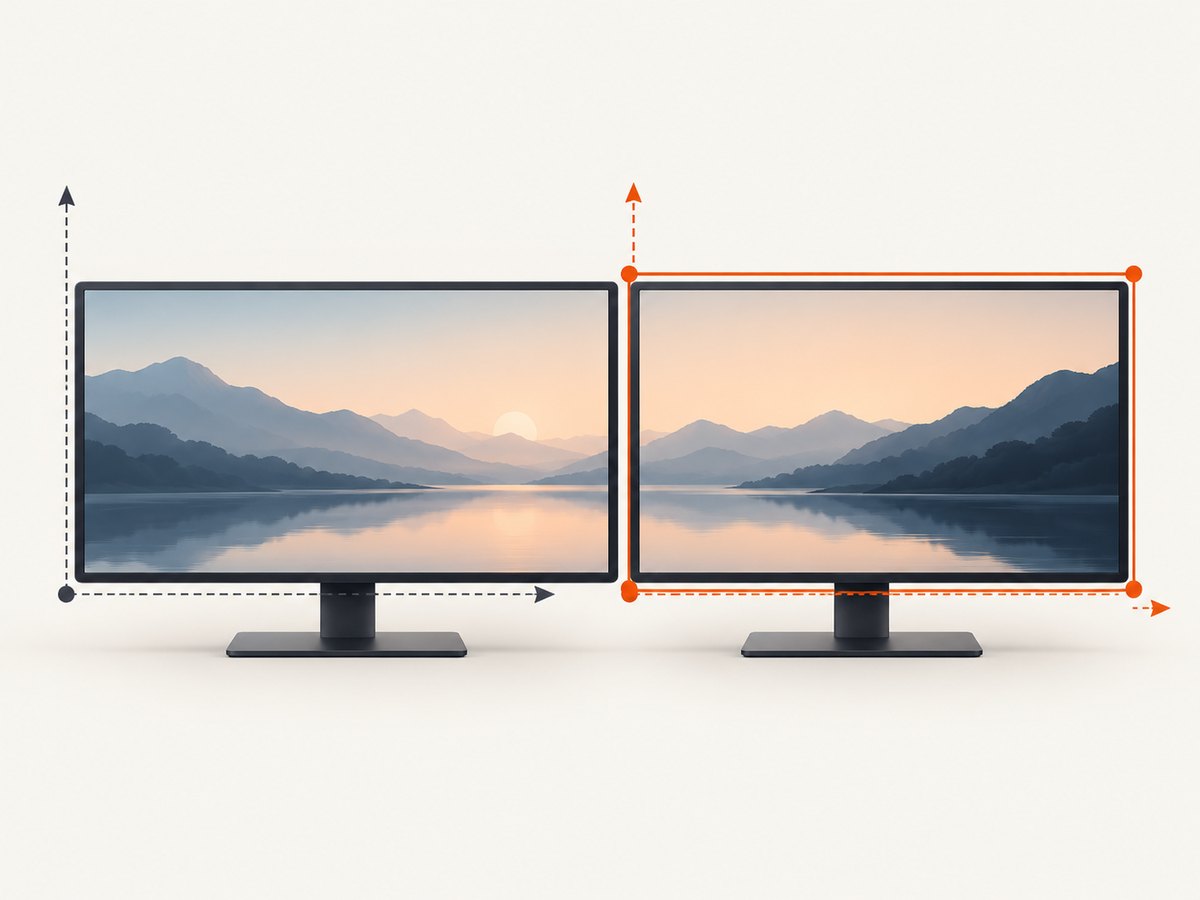
First determine whether the problem is Python code or the virtual display. A second monitor can be arranged to the left, right, above, or below the primary display, so its coordinates may include negative values.
Check the guest session
printf 'session=%s\n' "$XDG_SESSION_TYPE"
printf 'DISPLAY=%s\n' "$DISPLAY"
printf 'WAYLAND_DISPLAY=%s\n' "$WAYLAND_DISPLAY"
For X11, DISPLAY commonly looks like :0. Wayland sessions use WAYLAND_DISPLAY, often wayland-0. Pillow’s native Linux grab and its documented fallback behavior differ between these sessions, so record the result before changing code.
Inspect monitor rectangles
On X11, use xrandr to see each output’s position and size:
xrandr --queryLook for geometry such as 1920x1080+1920+0. That means the monitor begins at (1920, 0) and ends at (3840, 1080). If the second display is on the left, a geometry such as 1920x1080+ -1920+0 (shown by some tools without the space) means the left coordinate is negative.
On a Wayland desktop, use the desktop’s display settings or compositor-specific tools to determine the logical rectangle. A screenshot utility may be required because traditional X11 coordinate tools do not describe every Wayland compositor in the same way.
2. Capture the second monitor with an explicit bounding box
Pillow exposes bbox as the capture rectangle. Replace the example coordinates with the rectangle reported by the guest.
from PIL import ImageGrab, features

print("XCB support:", features.check_feature("xcb"))

# Example: second monitor positioned to the right of a 1920px primary display.
# Replace these values with the guest's actual coordinates.
SECOND_LEFT = 1920
SECOND_TOP = 0
SECOND_RIGHT = 3840
SECOND_BOTTOM = 1080

second = ImageGrab.grab(
    bbox=(SECOND_LEFT, SECOND_TOP, SECOND_RIGHT, SECOND_BOTTOM),
    xdisplay=None,
)
second.save("second-monitor.png")
print("Saved", second.size)
The explicit rectangle avoids ambiguity about which display Pillow should capture. Keep the box entirely inside the second monitor while diagnosing the issue. If the saved image has the wrong dimensions, the coordinate rectangle is wrong or the guest has not applied the VirtualBox monitor topology.
Capture the whole desktop when a fallback is needed
from PIL import ImageGrab

# Leave xdisplay as None so Pillow can use its documented Linux fallback.
image = ImageGrab.grab(xdisplay=None)
image.save("desktop.png")
Pillow documents that Linux can fall back to gnome-screenshot, grim, or spectacle when the default X11 grab does not return an image. Passing xdisplay="" disables that fallback, so do not use an empty string while troubleshooting. See the Pillow ImageGrab documentation.
3. Verify Pillow’s X11 capability
Run Pillow’s feature check from the same environment that runs your capture script:
from PIL import features

print(features.check_feature("xcb"))
If this prints False, or Pillow raises an error stating that it was built without XCB support, the installed build cannot use the X11 capture path. Install a Pillow build with XCB support for your platform, or install a documented screenshot fallback and leave xdisplay=None.
Also check that the process can access the graphical session. A script launched through SSH, cron, a system service, or a container may not inherit DISPLAY, WAYLAND_DISPLAY, or the desktop authorization cookie. Run the script from a terminal inside the guest first.
4. Repair VirtualBox’s two-monitor configuration
VirtualBox supports multiple virtual monitors, up to eight. The guest must be configured to expose the displays before Pillow can capture them.
Set the monitor count and video memory
- Power off the VM.
- Open Settings → Display → Screen.
- Set Monitor Count to
2. - Allocate enough video memory for both resolutions, color depth, and any 3D acceleration. Insufficient video memory can prevent full-screen or multi-monitor operation.
- Choose a graphics controller supported by the guest. Oracle documents VMSVGA for Linux guests; VBoxSVGA and VMSVGA selection require Guest Additions.
- Boot the guest and confirm that the desktop settings show two active displays.
If the guest desktop only reports one monitor, changing Python coordinates cannot fix the problem. Correct the virtual display first.
Keep Guest Additions aligned
Guest Additions provide the display drivers and services used for resizing and monitor topology. Oracle recommends keeping Guest Additions at the same version as the host VirtualBox installation.
Reinstall or update Guest Additions using the package and setup instructions for your Linux distribution, allow the kernel modules to be recompiled, and reboot the guest. When using VBoxVGA or VBoxSVGA, Oracle’s documented setup sequence may require a reboot so the display driver and session services reload. See the VirtualBox Guest Additions documentation.
Understand VMSVGA resize services
For VMSVGA Linux guests, VBoxDRMClient receives host resize hints, while a desktop helper applies primary-screen and multi-monitor actions. If the second display is stale, does not resize, or appears at the wrong position, restart the guest session after correcting Guest Additions. A complete reboot is the simplest diagnostic.
5. Add a documented screenshot fallback
When X11 capture fails, install one utility supported by your desktop:
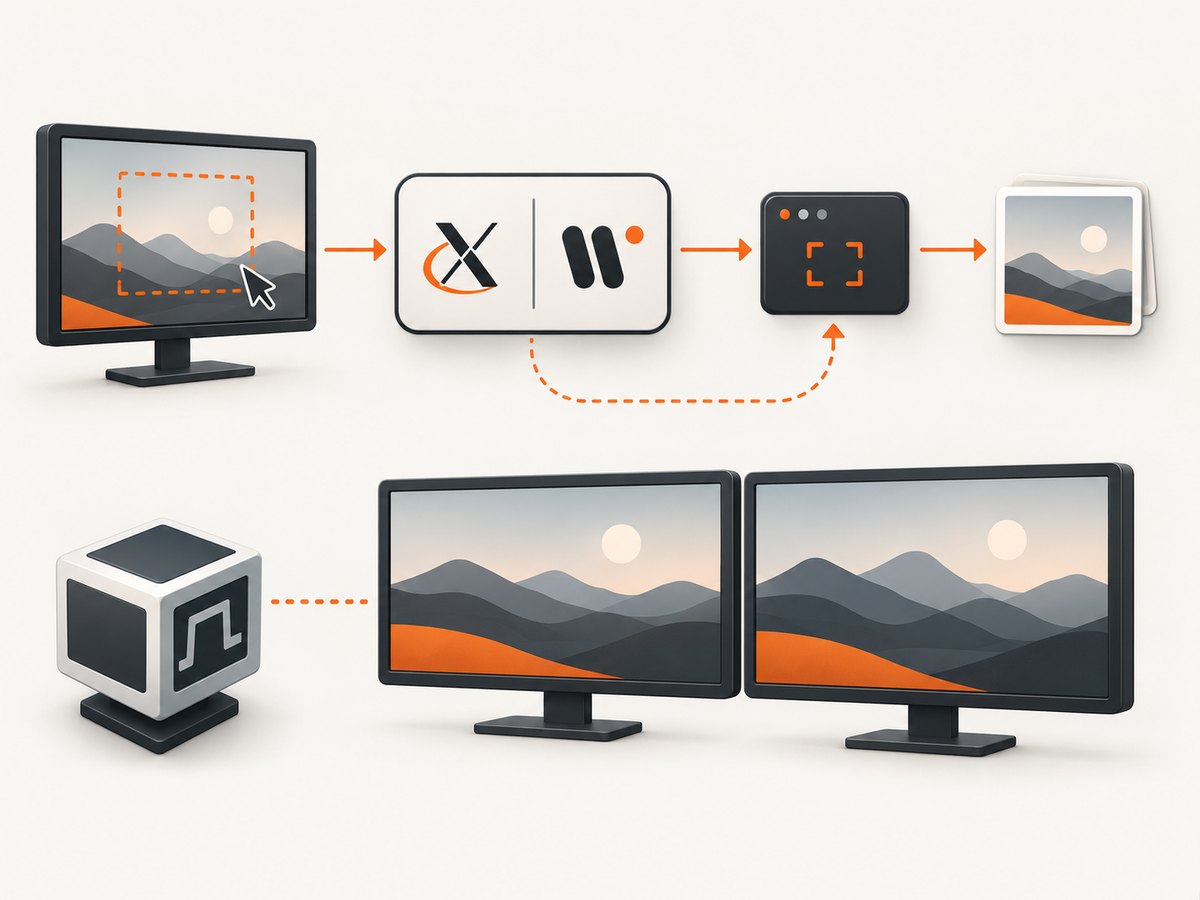
gnome-screenshotfor GNOME environments.grimfor Wayland compositors that support it.spectaclefor KDE Plasma.
Then call:
from PIL import ImageGrab

image = ImageGrab.grab(xdisplay=None)
image.save("fallback-desktop.png")
The fallback must be installed inside the guest, and the process still needs permission to access the active graphical session. A fallback utility cannot capture a monitor that VirtualBox has not exposed to the guest.
6. Diagnose black, blank, or partial images
| Symptom | Likely cause | Fix |
|---|---|---|
| Only monitor 1 appears | Wrong bbox, one virtual monitor exposed, or stale Guest Additions |
Check xrandr and desktop settings, set Monitor Count to 2, update Guest Additions, then recalculate coordinates. |
| Black image | Capture process lacks access to the display, Wayland restrictions, or graphics-driver failure | Run from the active guest session, inspect DISPLAY/WAYLAND_DISPLAY, verify XCB, repair Guest Additions, and try a documented fallback. |
| Blank image with correct size | Desktop has not rendered the second surface or the selected rectangle is outside the active layout | Move a visible window onto monitor 2, confirm its coordinates, restart the session, and capture a smaller rectangle inside the display. |
all_screens=True does nothing |
The option is documented for Windows, not as a Linux multi-monitor solution | Use an explicit Linux bbox. |
xcb feature error |
Pillow build lacks XCB support | Install a build with XCB support or use gnome-screenshot, grim, or spectacle. |
| Capture works interactively but not from a service | Missing display variables or authorization cookie | Run under the desktop user, pass the required environment, and use the session’s display authorization. |
| Second monitor is clipped | bbox extends beyond the guest’s logical rectangle or scaling differs |
Use the exact rectangle from the guest, account for display scaling, and compare the returned image dimensions. |
| Display never resizes | Guest Additions mismatch or missing display helper | Match versions, reinstall additions, recompile modules, and reboot. |
7. Use a repeatable validation script
After repairing the VM, compare both monitors with small captures. This makes coordinate mistakes visible without repeatedly saving full desktop images.
from pathlib import Path
from PIL import ImageGrab

rectangles = {
    "monitor-1": (0, 0, 1920, 1080),
    "monitor-2": (1920, 0, 3840, 1080),
}

out = Path("captures")
out.mkdir(exist_ok=True)

for name, box in rectangles.items():
    image = ImageGrab.grab(bbox=box, xdisplay=None)
    path = out / f"{name}.png"
    image.save(path)
    print(f"{name}: {image.size} -> {path}")
Replace both rectangles with the actual layout. Check that each image has the expected width and height and that visible content appears on the intended monitor. This is a diagnostic procedure based on Pillow’s documented bbox behavior.
8. Performance, reliability, and cost considerations
- Capture area: A full two-monitor image uses more memory and takes longer to encode than one monitor. Capture only the required rectangle when possible.
- Scaling: HiDPI or fractional scaling can make logical coordinates differ from physical pixels. Compare the returned image size with the rectangle you requested.
- Session stability: Run captures after the desktop has finished rendering. A VM that is still resizing or starting its display helper can return stale content.
- Automation: Record the session type, display variables, Pillow version, XCB result, VirtualBox version, Guest Additions version, requested rectangle, and returned size with each failure.
- VirtualBox resources: More monitors, higher resolutions, greater color depth, and acceleration increase video-memory requirements.
- Shared clipboard: VirtualBox shared clipboard image transfer is a separate diagnostic option. It requires current Guest Additions and can move a test image between guest and host, but it does not repair ImageGrab.
- Billing for remote capture: A local Pillow capture has no ScreenshotNeo API charge. If you switch to a hosted capture service, account for request volume, image bytes, retries, and cache behavior.
Or skip the browser setup
If the goal is a reliable screenshot of a web page rather than the VirtualBox desktop itself, ScreenshotNeo captures the URL through one request. It removes cookie and consent banners, newsletter popups, and chat widgets before the shot; bot checks, blank pages, failed loads, timeouts, and cache hits are not billed; and an MCP server lets Claude, Cursor, and other MCP clients take screenshots.
See the ScreenshotNeo API documentation for all options. cURL:
curl -G "https://api.screenshotneo.com/v1/shot" -d access_key=YOUR_API_KEY --data-urlencode url=https://stripe.com -o shot.webpPython:
import requests

r = requests.get(
    "https://api.screenshotneo.com/v1/shot",
    params={"access_key": "YOUR_API_KEY", "url": "https://stripe.com"},
    timeout=90,
)
r.raise_for_status()
open("shot.webp", "wb").write(r.content)
Node.js:
const q = new URLSearchParams({ access_key: 'YOUR_API_KEY', url: 'https://stripe.com' });
const res = await fetch(`https://api.screenshotneo.com/v1/shot?${q}`);
if (!res.ok) throw new Error(`HTTP ${res.status}`);
const data = Buffer.from(await res.arrayBuffer());
require('fs').writeFileSync('shot.webp', data);
You can use full-page capture with lazy images loaded, CSS-selector element capture, dark mode, device presets or custom viewports, retina scale, custom CSS and JavaScript, clicks, waits, blocked requests, headers, cookies, user agents, authorization, timezone, geolocation, transparent backgrounds, resizing, caching, signed links, PDFs, async jobs, bulk capture, and the usage API. Responses identify page verdict and billing with X-Page-Verdict and X-Billed headers.
1,000 screenshots per month are free with no card. Paid plans start at $5 for 3,000 shots, and every feature is included on every plan. Create a free ScreenshotNeo account.
FAQ
Does all_screens=True capture both Linux monitors?
No. Pillow documents all_screens=True for Windows. On Linux, use the second monitor’s explicit coordinate rectangle.
Should I force xdisplay=""?
No. An empty string disables Pillow’s documented Linux fallback. Leave xdisplay=None when you want Pillow to try its fallback utilities.
Can Pillow capture a Wayland second monitor?
It depends on the compositor and available screenshot utility. Check the session type, use a compositor-compatible fallback such as grim where supported, and verify that the guest exposes both monitors.
Can shared clipboard fix the missing monitor?
No. Shared clipboard image transfer can help move a test image between guest and host, but it does not change ImageGrab’s display backend or VirtualBox monitor geometry.
What should I log when this breaks in CI?
Log the guest session type, display variables, Pillow version, features.check_feature("xcb"), VirtualBox and Guest Additions versions, monitor rectangles, requested bbox, and returned image size.


