How to Fix Missing Fonts in Playwright Chromium Production Builds
Fix missing fonts in Playwright Chromium production builds with pinned dependencies, reproducible Docker images, web-font checks, and practical debugging steps.
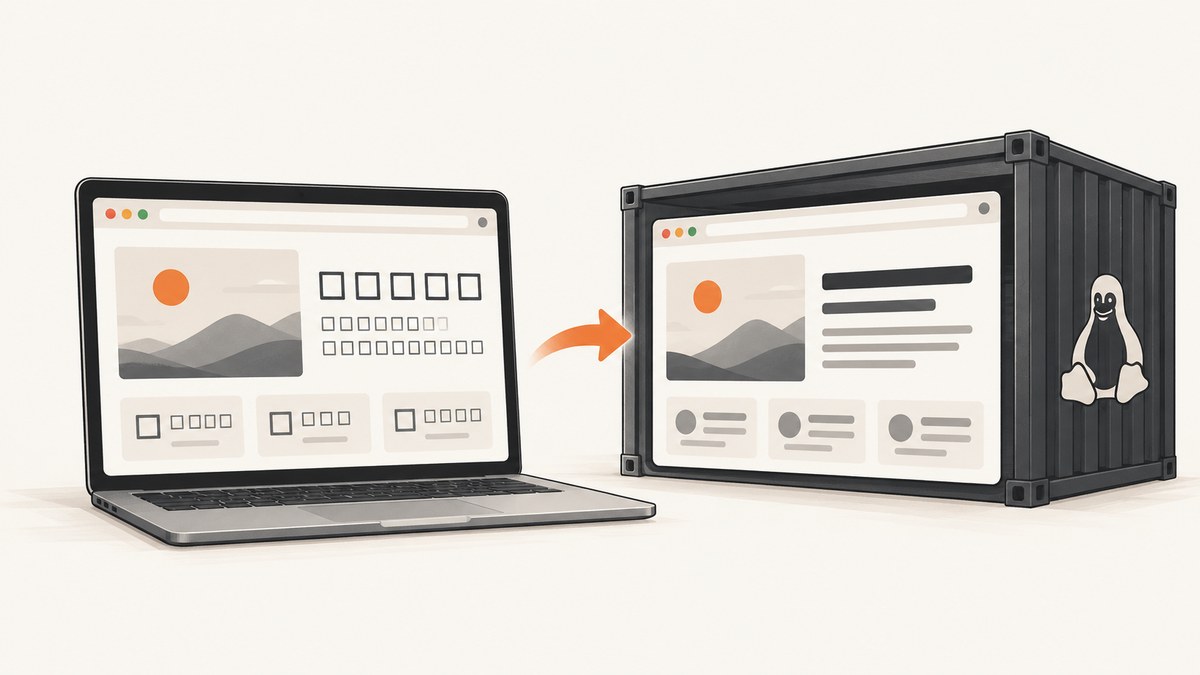
Missing fonts in Playwright Chromium production builds usually come from an environment difference, not from the screenshot code itself. Your production container may be missing system fonts, fontconfig libraries, Chromium dependencies, or the application’s own .woff2 files. The reliable fix is to make the browser environment reproducible: pin the Playwright version, install the matching browser and operating-system dependencies, run the same image in CI and production, and verify that application web fonts are reachable from the production origin.
For Linux CI or a custom image, start with:
npx playwright install --with-depsOr use an official Playwright Docker image whose version matches the Playwright package in your project. Then debug in that exact image with DEBUG=pw:browser. This separates browser launch failures from font-loading and CSS failures.
1. What “missing fonts” means in Chromium
A screenshot can show the wrong typeface even when Chromium launches successfully. There are several different failure modes:
| Symptom | Likely cause | What to inspect |
|---|---|---|
| The page uses a generic serif or sans-serif font | The declared web font was not downloaded, decoded, or applied | Network responses, CSP/CORS, CSS, and computed styles |
| Text is present but widths and line breaks differ | A fallback font has different metrics | Installed fonts and the final computed font-family |
| Chromium fails before a page opens | Browser binary or OS dependency is missing | Playwright version, install output, and DEBUG=pw:browser |
| Only CI screenshots differ | CI uses a different image, browser revision, font inventory, or locale | Container digest, Playwright version, and font files |
| Some weights are wrong | The requested weight file is absent or the CSS maps weights incorrectly | Each woff2 request and its font-weight declaration |
System fonts and application fonts are separate concerns. Playwright’s browser installation supplies Chromium and its supported operating-system dependencies. It does not automatically copy your application’s private web-font assets into the deployed artifact.
2. Pin Playwright and install the complete dependency set
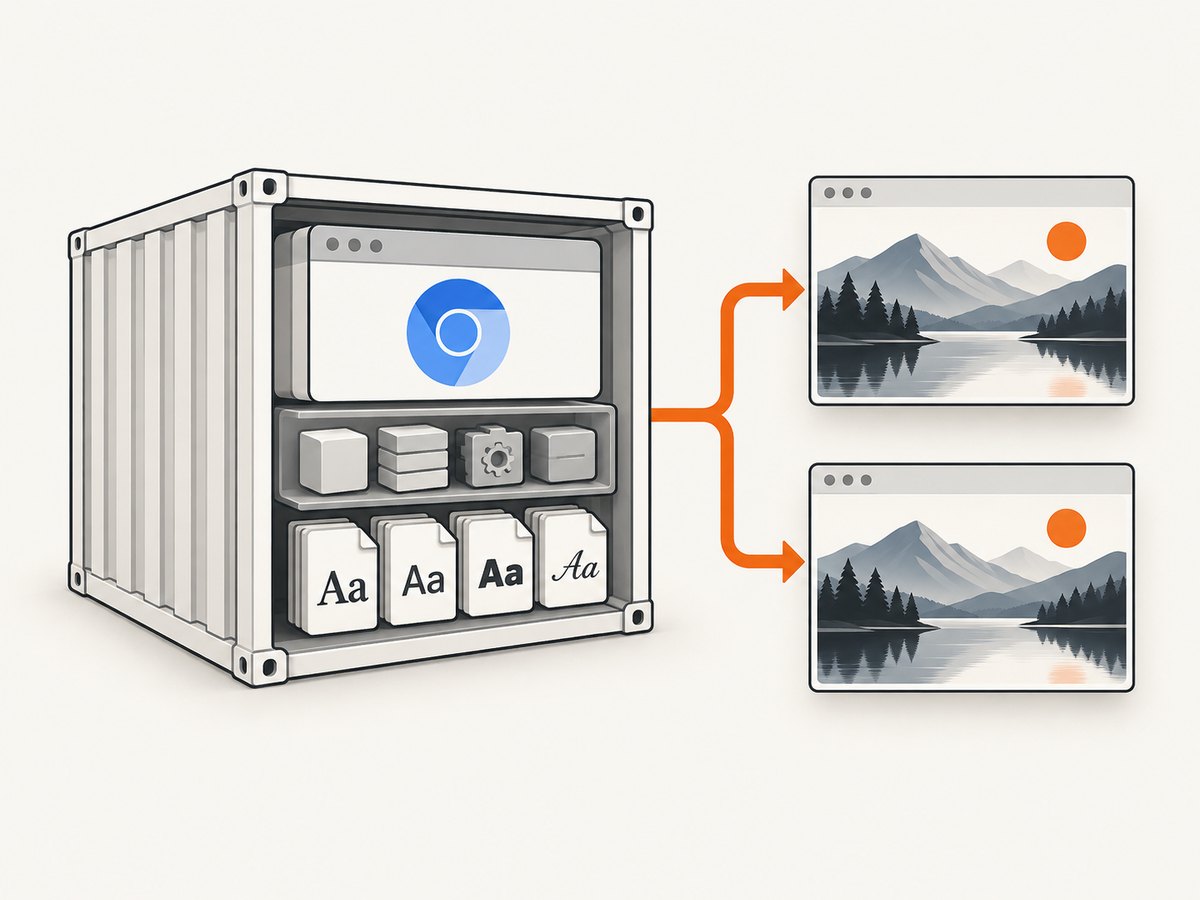
Playwright uses open-source Chromium builds by default. The browser guide documents installing browsers and operating-system dependencies with the CLI. For a Debian or Ubuntu based build stage, install project dependencies first, then run:
npm ci
npx playwright install --with-deps
If you only need Chromium, use the Chromium-specific form:
npx playwright install --with-deps chromiumFor headless-only CI, the browser guide also documents:
npx playwright install --with-deps --only-shellFor the newer Chromium headless mode, the documented option is:
npx playwright install --with-deps --no-shellUse the option that matches the mode your project actually runs. Keep the Playwright package version explicit in package.json and commit the lockfile. A mutable package range can change the browser revision expected by your code.
The official browser documentation covers the installation commands: Playwright browsers.
3. Use a version-matched official Docker image
A pinned official image is often the simplest production baseline because it bundles a compatible browser and Linux dependency set. The Docker guide publishes Ubuntu-based tags, including Ubuntu 22.04 (jammy), Ubuntu 24.04 (noble), and Ubuntu 26.04 (resolute). Match the image version to the Playwright version used by the project, and pin the image to a specific version when possible.
FROM mcr.microsoft.com/playwright:v1.55.0-noble

WORKDIR /app
COPY package*.json ./
RUN npm ci
COPY . .

CMD ["node", "capture.js"]
The exact tag must match the Playwright version you selected; treat the example tag as a pattern, not a universal version. If the image and project versions do not match, Playwright may be unable to locate the browser executables.
Run Chromium with Docker settings recommended by the official guide:
docker run --init --ipc=host your-image:tag--init gives the container an init process so child processes receive appropriate signal handling. --ipc=host gives Chromium more shared memory; without it, Chromium can run out of memory and crash. For unusual local launch errors, the Docker guide suggests trying --cap-add=SYS_ADMIN during development while diagnosing the container.
Read the complete guidance in the Playwright Docker documentation.
4. Make application web fonts available in production
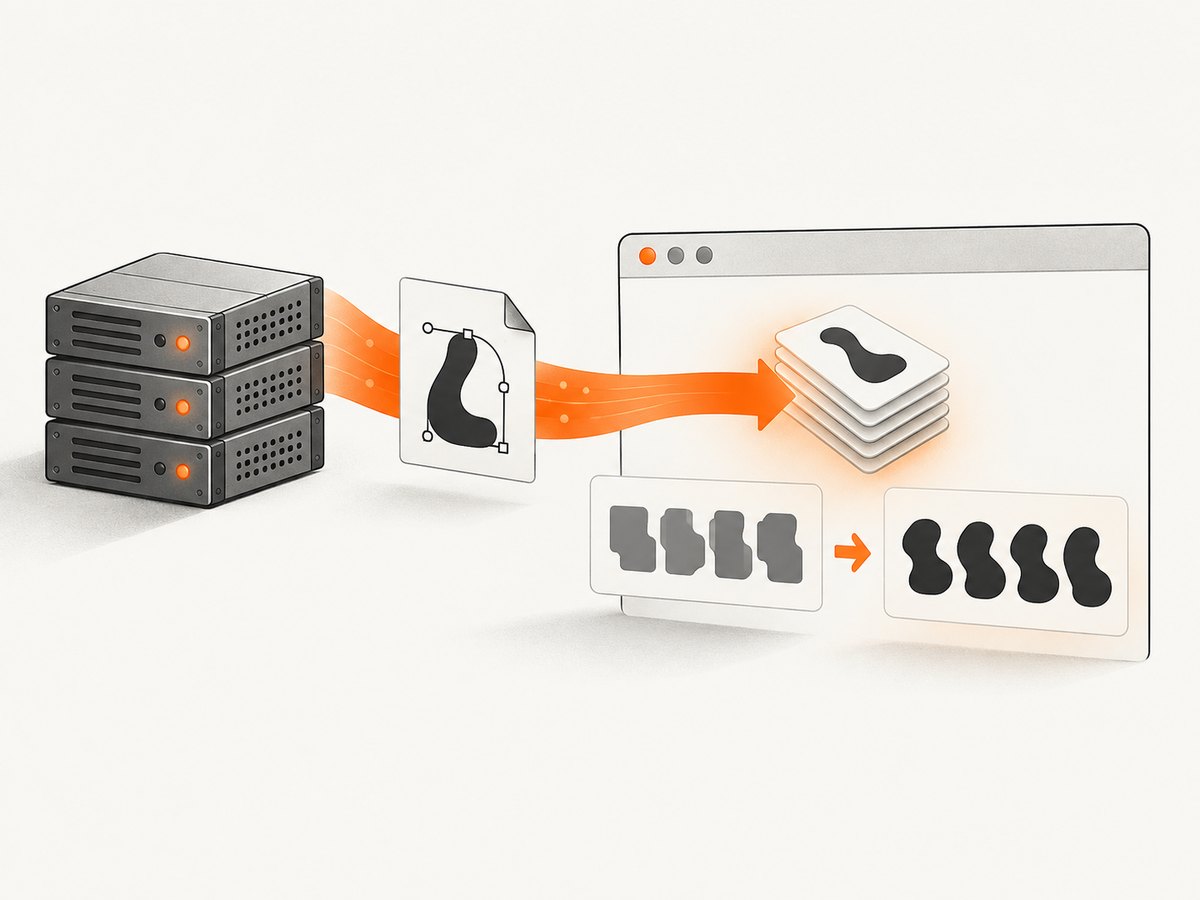
Installing OS dependencies does not fix a missing application font file. Check the application artifact and the deployed origin separately.
4.1 Copy font files into the production artifact
For a static application, ensure the build output contains every referenced font:
public/fonts/Inter-Regular.woff2
public/fonts/Inter-600.woff2
If a multi-stage Docker build produces the site in one stage and serves it in another, copy the font directory explicitly:
FROM node:22-bookworm AS build
WORKDIR /src
COPY package*.json ./
RUN npm ci
COPY . .
RUN npm run build

FROM nginx:stable-bookworm
COPY --from=build /src/dist /usr/share/nginx/html
4.2 Verify font requests from the deployed origin
Use Playwright to log font responses and failed requests:
import { chromium } from 'playwright';

const browser = await chromium.launch({ headless: true });
const page = await browser.newPage();

page.on('response', response => {
  const type = response.request().resourceType();
  if (type === 'font') {
    console.log(response.status(), response.url());
  }
});
page.on('requestfailed', request => {
  if (request.resourceType() === 'font') {
    console.error('FONT FAILED', request.url(), request.failure());
  }
});

await page.goto(process.env.TARGET_URL, { waitUntil: 'networkidle' });
await page.screenshot({ path: 'production.png', fullPage: true });
await browser.close();
A successful status alone is not enough. Confirm the response has the expected font MIME type, the file is not an HTML error page, and the production Content Security Policy permits the font origin. Cross-origin font files also need the appropriate CORS policy.
4.3 Wait until the font is usable
Do not capture immediately after navigation when the page loads fonts asynchronously. Wait for the browser’s font set:
await page.goto(url, { waitUntil: 'domcontentloaded' });
await page.evaluate(async () => {
  await document.fonts.ready;
});
await page.screenshot({ path: 'shot.png', fullPage: true });
For a specific family, check its status:
const loaded = await page.evaluate(() => document.fonts.check('600 16px "Inter"'));
if (!loaded) throw new Error('Inter 600 is not available');
This catches a missing weight that would otherwise silently fall back to another face.
5. Reproduce in the exact deployment image
A developer laptop can have hundreds of system fonts that are absent from a minimal Linux container. Reproduce the screenshot in the same image, as the same user, with the same URL and browser mode used in production.
- Record the base image and distribution.
- Record the Playwright package version and browser channel.
- Record whether the run is headless and which headless option is used.
- Run the capture inside the deployment image.
- Compare font requests, computed styles, and installed font inventories.
Branded Chrome and Edge are separate Playwright channels. If your project selects one of those channels, install and test that channel explicitly instead of assuming the default open-source Chromium build behaves identically.
Linux CI agents should use the official Docker image or install dependencies with the CLI. The CI guide shows npx playwright install --with-deps for JavaScript, Python, Java, and .NET projects: Playwright CI documentation.
6. A complete diagnostic capture script
The following script records browser launch details, font responses, failed requests, and the final font check:
import { chromium } from 'playwright';

const url = process.env.TARGET_URL || 'https://example.com';
const browser = await chromium.launch({ headless: true });
const page = await browser.newPage({
  viewport: { width: 1440, height: 900 },
  deviceScaleFactor: 1
});

page.on('response', response => {
  if (response.request().resourceType() === 'font') {
    console.log(JSON.stringify({
      status: response.status(),
      url: response.url(),
      contentType: response.headers()['content-type'] || ''
    }));
  }
});
page.on('requestfailed', request => {
  console.error(JSON.stringify({
    failed: request.url(),
    type: request.resourceType(),
    error: request.failure()
  }));
});

await page.goto(url, { waitUntil: 'networkidle', timeout: 60_000 });
await page.evaluate(() => document.fonts.ready);

const fontState = await page.evaluate(() => ({
  status: document.fonts.status,
  faces: [...document.fonts].map(font => ({
    family: font.family,
    weight: font.weight,
    status: font.status
  }))
}));
console.log(JSON.stringify(fontState, null, 2));

await page.screenshot({ path: 'diagnostic.png', fullPage: true });
await browser.close();
Run it in the deployment image with browser diagnostics enabled:
DEBUG=pw:browser TARGET_URL=https://your-production-site.example node diagnose-fonts.jsThe CI guide specifically documents DEBUG=pw:browser for investigating “Failed to launch browser” errors. If the browser launches and the font requests fail, focus on the application origin, artifact, CSP, CORS, and CSS.
7. Docker and Linux edge cases
Musl-based images
The Docker documentation warns that Alpine and other musl-based distributions are not supported for Playwright’s Firefox and WebKit builds. Chromium behavior should be validated separately, but a supported Debian or Ubuntu base is the safer choice when predictable production rendering matters.
Non-root users
Install browsers and dependencies during the image build, then run the capture as the same user used in production. A browser installed into one user’s cache may not be visible to another user. If the runtime user differs, set the browser cache path deliberately or use the official image setup.
Sandbox and permissions
A launch error caused by sandbox permissions is different from missing fonts. Preserve the normal sandbox where your container permits it. Diagnose the launch failure with DEBUG=pw:browser and container logs before changing security flags.
8. Troubleshooting checklist
| Error or symptom | Cause | Fix |
|---|---|---|
Executable doesn't exist |
Browser was not installed or the image/package versions differ | Pin Playwright, run npx playwright install --with-deps, or use a matching official image |
Failed to launch browser |
Missing OS dependency, shared memory exhaustion, or container process setup | Enable DEBUG=pw:browser; use --init and --ipc=host |
| Font request returns 404 | Font was not copied into the deployment artifact | Inspect the build output and static server path |
| Font request is blocked | CSP or CORS disallows the font origin | Permit the origin in production policy and verify response headers |
| Request returns 200 but text falls back | Wrong MIME type, corrupt file, unsupported format, or CSS mismatch | Inspect headers, decode the file, and check the family and weight declarations |
| Only one weight is wrong | The requested weight file is absent | Load that weight explicitly and verify with document.fonts.check() |
| Screenshot is taken too early | Fonts are still loading | Wait for document.fonts.ready and, when needed, a specific selector |
| Local and CI line breaks differ | Different system font inventory or browser/image version | Use one pinned image and compare computed styles inside it |
9. Performance, reliability, and cost considerations
Browser installation belongs in the image build, not in every capture request. This removes repeated download time and avoids failures caused by a changing browser revision. Reusing one browser process for multiple pages is usually faster than launching a process per URL, while isolated contexts preserve cookies and viewport settings between jobs.
Waiting for networkidle can be expensive on pages with analytics or long-lived connections. A practical capture sequence is to wait for the main navigation, wait for document.fonts.ready, and then wait for a stable application selector. Set an explicit navigation timeout so a broken third-party request cannot hold a worker forever.
For reliable output, pin the image, Playwright package, lockfile, viewport, device scale factor, locale, timezone, and browser channel. Record the image digest in CI. Treat a font change as a visual regression that deserves a review, because different metrics change wrapping and page height.
10. Or skip the browser setup
If your goal is a clean website screenshot rather than operating Chromium yourself, ScreenshotNeo provides a one-request screenshot API and an MCP server. Its capture pipeline accepts cookie and consent banners as a visitor and removes more than 60 known consent platforms, newsletter popups, and chat widgets before the shot. Each step can be turned off.
Only clean shots are billed. Bot checks or CAPTCHAs, blank pages, timeouts, failed loads, and cache hits cost nothing, and the response reports the result through X-Page-Verdict and X-Billed headers. The MCP server includes take_screenshot, get_page_info, and capture_pdf tools for Claude, Cursor, and other MCP clients.
See the ScreenshotNeo API documentation for all options. The basic call is:
cURL
curl -G "https://api.screenshotneo.com/v1/shot" \
  -d access_key=YOUR_API_KEY \
  --data-urlencode url=https://stripe.com \
  -o shot.webp
Python
import requests

r = requests.get(
    "https://api.screenshotneo.com/v1/shot",
    params={"access_key": "YOUR_API_KEY", "url": "https://stripe.com"},
    timeout=90,
)
r.raise_for_status()
open("shot.webp", "wb").write(r.content)
Node.js
const q = new URLSearchParams({ access_key: 'YOUR_API_KEY', url: 'https://stripe.com' });
const res = await fetch(`https://api.screenshotneo.com/v1/shot?${q}`);
if (!res.ok) throw new Error(`${res.status} ${await res.text()}`);
const fs = await import('node:fs/promises');
await fs.writeFile('shot.webp', Buffer.from(await res.arrayBuffer()));
ScreenshotNeo supports PNG, JPEG, WebP, PDF, full-page capture with lazy images loaded, CSS element capture, dark mode, device presets, custom viewports, retina scale, custom CSS and JavaScript, clicks, selector waits, delays, network-idle waits, request blocking, headers, cookies, user agents, authorization, timezone, geolocation, transparent backgrounds, resizing, caching with a chosen TTL, signed links, asynchronous jobs with signed webhooks, bulk capture for up to 100 URLs per call, a usage API, and an OpenAPI specification. Parameter names used by other screenshot APIs also work, which can simplify migration.
The Free plan includes 1,000 shots per month without a card. Paid plans start at $5 for 3,000 shots; yearly billing gives two months free. Sign up free for ScreenshotNeo and start with the 1,000 monthly screenshots.
11. FAQ
Does playwright install install my website’s fonts?
No. It installs Playwright browser binaries and, with --with-deps, supported operating-system dependencies. Your application’s web-font files still need to be present and reachable from the deployed origin.
Should I install branded Chrome instead?
Only when your project requires it. Playwright’s default is an open-source Chromium build; branded Chrome and Edge are separate channels and should be installed and tested explicitly.
Why does the screenshot differ when both environments have Chromium?
Font inventory, browser revision, CSS, locale, device scale factor, and font loading timing can differ. Compare those values inside the exact production image and wait for the required fonts before capture.
Can I solve this by adding a random font package to the image?
That can mask a missing system font, but it does not prove that the intended application web font works. First verify the font request, response, CSS declaration, and document.fonts state.


