How to Fix Playwright Sites That Fail to Load in AWS Lambda
Diagnose Playwright failures in AWS Lambda by separating browser launch, network, and timeout problems, then apply targeted fixes.
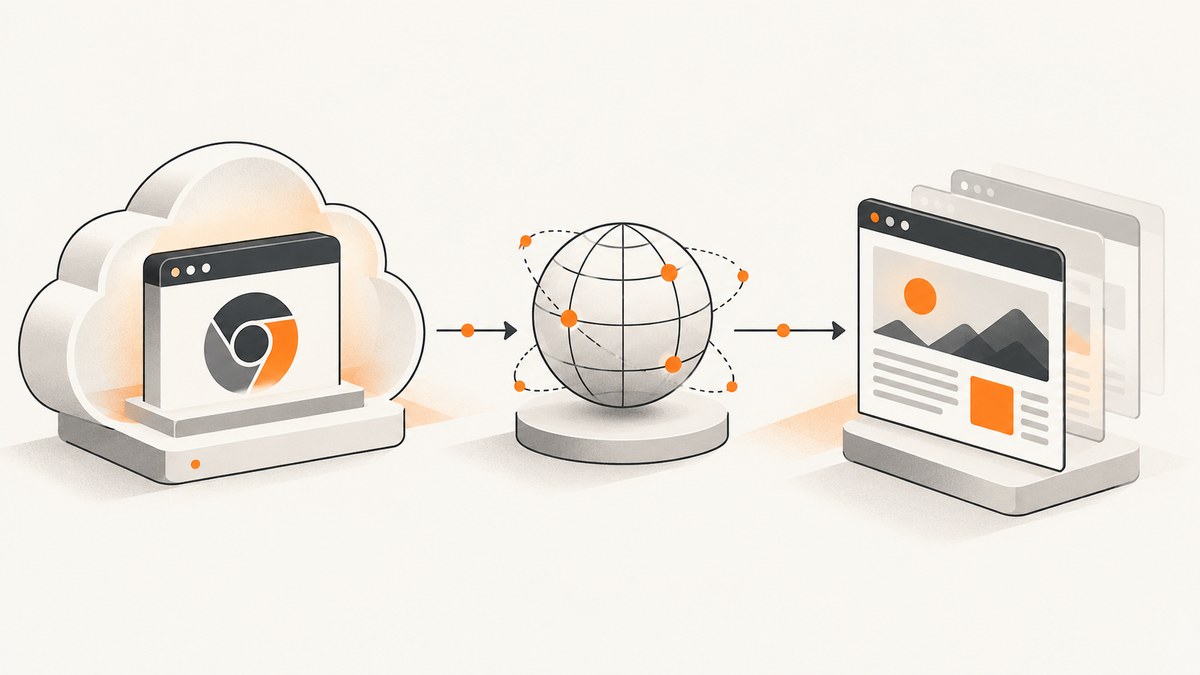
When a Playwright site fails to load in AWS Lambda, the message is usually a symptom rather than a diagnosis. The failure normally occurs in one of three stages: Chromium never launches, Chromium launches but cannot connect to the URL, or navigation works but Lambda times out before the page becomes usable.
Start by identifying the stage in your logs. Then apply the matching fix:
- Chromium failed to launch: package the browser build that matches your Playwright version and include its Linux dependencies.
- Navigation failed or timed out: check VPC routes, NAT access, security rules, network ACLs, and DNS.
- The page is usable locally but Lambda expires: tune memory, timeout, temporary storage, and page-wait logic for the actual workload.
There is no single Lambda setting that fixes every Playwright version, runtime, architecture, and packaging method. The sections below give a repeatable diagnostic path and a complete Node.js example.
1. Capture the exact failure before changing settings
Log the complete error, not only “page failed to load.” Record the URL, Playwright version, browser version, Lambda runtime and architecture (x86_64 or arm64), deployment type (ZIP/layer or container image), memory, timeout, ephemeral storage, and whether the function is attached to a VPC. AWS groups failures into initialization, invocation, configuration, downstream-resource, and permission problems, so this context determines the next check.
import { chromium } from 'playwright';

export const handler = async (event, context) => {
  const url = event.url;
  const started = Date.now();
  let browser;

  try {
    console.log(JSON.stringify({
      phase: 'start',
      url,
      playwright: process.env.npm_package_dependencies_playwright,
      arch: process.arch,
      memoryMb: context.memoryLimitInMB,
      remainingMs: context.getRemainingTimeInMillis()
    }));

    browser = await chromium.launch({ headless: true });
    console.log(JSON.stringify({ phase: 'browser-launched' }));

    const page = await browser.newPage();
    page.on('requestfailed', request => {
      console.warn(JSON.stringify({
        phase: 'request-failed',
        url: request.url(),
        failure: request.failure()
      }));
    });

    const response = await page.goto(url, {
      waitUntil: 'domcontentloaded',
      timeout: 45000
    });
    console.log(JSON.stringify({
      phase: 'navigated',
      status: response?.status(),
      finalUrl: page.url(),
      elapsedMs: Date.now() - started
    }));

    await page.waitForLoadState('networkidle', { timeout: 15000 }).catch(error => {
      console.warn(JSON.stringify({ phase: 'networkidle-timeout', message: error.message }));
    });

    return { statusCode: 200, body: JSON.stringify({ title: await page.title() }) };
  } catch (error) {
    console.error(JSON.stringify({
      phase: 'failed',
      name: error.name,
      message: error.message,
      stack: error.stack,
      elapsedMs: Date.now() - started,
      remainingMs: context.getRemainingTimeInMillis()
    }));
    throw error;
  } finally {
    await browser?.close();
  }
};
The phase immediately before the error is useful evidence. If browser-launched never appears, investigate packaging. If it appears but navigated does not, investigate networking or the target site. If navigation succeeds and the function still expires, investigate waits and Lambda resources.
2. Fix Chromium launch and packaging failures
Keep Playwright and the browser build in lockstep
Playwright releases are tied to specific browser builds. Install the browser through the same Playwright release that your deployment uses; a browser downloaded on a developer laptop does not prove that the Lambda artifact contains the required executable. Follow the official browser installation guidance at Playwright browser management documentation.
npm ci
npx playwright install chromium
npx playwright --version
Build the deployment artifact in an environment compatible with Lambda’s Linux runtime and architecture. Verify that the browser directory is inside the ZIP or image, and confirm the runtime can discover it. If you change the browser location, keep installation and runtime configuration consistent with PLAYWRIGHT_BROWSERS_PATH.
Include Linux dependencies
The executable alone may not start. Chromium also needs shared libraries and fonts. Playwright documents installing these dependencies with:
npx playwright install --with-deps chromiumThat command runs during your build. The resulting libraries must still be present in the final Lambda artifact. If you use layers, inspect the layer contents and library paths rather than assuming a layer made for another Playwright version is compatible.
Choose full Chromium or headless shell deliberately
For supported headless-only workloads, Playwright can install only the headless shell:
npx playwright install --with-deps --only-shell chromiumUse this only when your launch mode and browser channel support it. Playwright distinguishes the older headless shell from newer Chromium headless mode and from headed or channel-based launches. Test the exact mode in Lambda.
ZIP, layer, or container image?
| Choice | What it controls | Checks |
|---|---|---|
| ZIP | Simple function deployment | Artifact size, executable paths, native libraries, architecture |
| Layer | Reuse browser files across functions | Layer compatibility with runtime, Playwright version, and architecture |
| Container image | More control over OS packages and build steps | Base image, entrypoint, browser files, native dependencies, architecture |
A container image is useful when you need more build control or custom runtime configuration. AWS supports both formats; its documentation does not establish that one format is always faster or more reliable. Choose the format that lets you reproduce the same browser and dependency set on every build.
3. Fix navigation and network failures
If Chromium launches but a public URL cannot be reached, inspect Lambda networking before changing Playwright waits.
Check VPC attachment and outbound routing
Lambda functions that are not attached to your VPC have managed connectivity. When you attach a function to a customer VPC, you become responsible for routes and egress. A private subnet generally needs a route to a NAT gateway in a public subnet to reach public websites. Confirm route tables, NAT availability, and subnet association using AWS’s Lambda networking troubleshooting guidance.
Review security groups and network ACLs
Allow outbound HTTPS and DNS as required by your design. If subnet network ACLs are restrictive, allow return traffic on the ephemeral port range AWS documents for VPC Lambda connections: 1024–65535. Missing return ports can appear as intermittent navigation timeouts.
Diagnose DNS from the error
For name-resolution errors such as UNKNOWNHOSTEXCEPTION, inspect VPC DNS settings and resolver health. AWS documents a 20-concurrent-TCP-connection DNS limit and notes that configuration or degraded DNS infrastructure can cause resolution failures. Do not treat that limit as an explanation for every DNS problem; use the actual error and traffic pattern.
You can test DNS and HTTPS from a diagnostic Lambda that uses the same subnets and security groups:
import dns from 'node:dns/promises';

export const handler = async () => {
  const address = await dns.lookup('example.com');
  const response = await fetch('https://example.com', { redirect: 'manual' });
  return { address, status: response.status };
};
4. Fix pages that exceed the Lambda timeout
Set waits around page readiness
waitUntil: 'networkidle' can be unsuitable for pages with analytics, live updates, advertisements, or long-lived connections. Start with domcontentloaded, then wait for the specific selector your workflow needs. Use a bounded timeout for every wait.
await page.goto(url, { waitUntil: 'domcontentloaded', timeout: 45000 });
await page.waitForSelector('main article', { state: 'visible', timeout: 15000 });
When a page has lazy-loaded images, scroll or wait for a known completion condition instead of sleeping for an arbitrary long period. Avoid waiting until the full browser idle state unless the page’s behavior requires it.
Increase memory to obtain more CPU
AWS allocates CPU in proportion to configured memory. AWS’s current guidance identifies approximately 1.8 GB for one vCPU and 10,240 MB for six vCPUs. These are service allocation facts, not a universal Playwright recommendation. Increase memory, then measure cold start, browser launch, navigation, and rendering time for your workload.
Set a realistic timeout
Standard Lambda timeout is configurable from 1 to 900 seconds. Set it above the combined cold start, browser launch, navigation, and processing time, while staying below the deadline imposed by the service invoking Lambda. A timeout cannot repair a blocked route or missing shared library.
Use /tmp storage for files, not missing libraries
Ephemeral storage is configurable from 512 MB to 10,240 MB. Increase it when browser downloads, PDFs, screenshots, or temporary profiles fill /tmp. It does not install missing Linux dependencies or provide internet access. Remember that temporary data can remain in a reused execution environment; clean up files or use unique names.
5. A deployment checklist
- Pin the Playwright version in your lockfile.
- Install the matching Chromium build during the build.
- Install and package required Linux dependencies.
- Verify executable and library paths inside the final ZIP, layer, or image.
- Build separately for the selected Lambda architecture.
- Log launch, navigation, response status, final URL, failed requests, and remaining time.
- Test from the same VPC subnets and security groups used in production.
- Use selector-based readiness checks and bounded waits.
- Measure after changing memory, timeout, or /tmp size.
- Reproduce with a minimal URL before adding your complete scraping or capture flow.
6. Common errors and targeted fixes
| Error or symptom | Likely cause | Fix |
|---|---|---|
Executable doesn't exist |
Browser was not packaged or path differs | Install with the deployed Playwright version; inspect artifact and PLAYWRIGHT_BROWSERS_PATH. |
error while loading shared libraries |
Linux dependency missing | Run install --with-deps during build and include resulting libraries. |
| Browser exits immediately | Architecture, channel, or headless mode mismatch | Use a compatible build and test the exact launch options in Lambda. |
net::ERR_NAME_NOT_RESOLVED |
DNS or VPC resolver issue | Check VPC DNS settings, resolver errors, and concurrent DNS behavior. |
| Navigation timeout only in Lambda | No NAT route, blocked egress, NACL return ports, or slow target | Test a diagnostic function in the same subnet; verify NAT, routes, security groups, and NACLs. |
| Works until screenshot or PDF step | Memory, /tmp, or processing time exhausted | Inspect remaining time and disk usage; tune memory, timeout, and ephemeral storage. |
| Function waits forever on network idle | Persistent analytics or streaming requests | Use domcontentloaded plus a specific selector or bounded delay. |
7. Performance, reliability, and cost considerations
Browser startup is often the largest cold-start component. Reuse a browser within one invocation when processing multiple pages, but create isolated contexts for separate sessions. Close pages and contexts, and always close the browser in a finally block. Reuse of a warm execution environment is an optimization, not a guarantee.
Keep retries bounded. Retrying a blocked URL increases duration and can amplify outbound traffic. Distinguish DNS failures, connection resets, HTTP errors, and page-level bot checks before deciding whether a retry is useful. Record status codes and final URLs so redirects and access-denied pages are visible in metrics.
Lambda cost depends on configured memory, execution duration, requests, and related networking resources such as NAT gateways. The research sources do not provide a Playwright-specific benchmark or a universal memory setting. Measure representative URLs, including heavy JavaScript pages and pages that fail, before selecting production defaults.
8. Or skip the browser setup
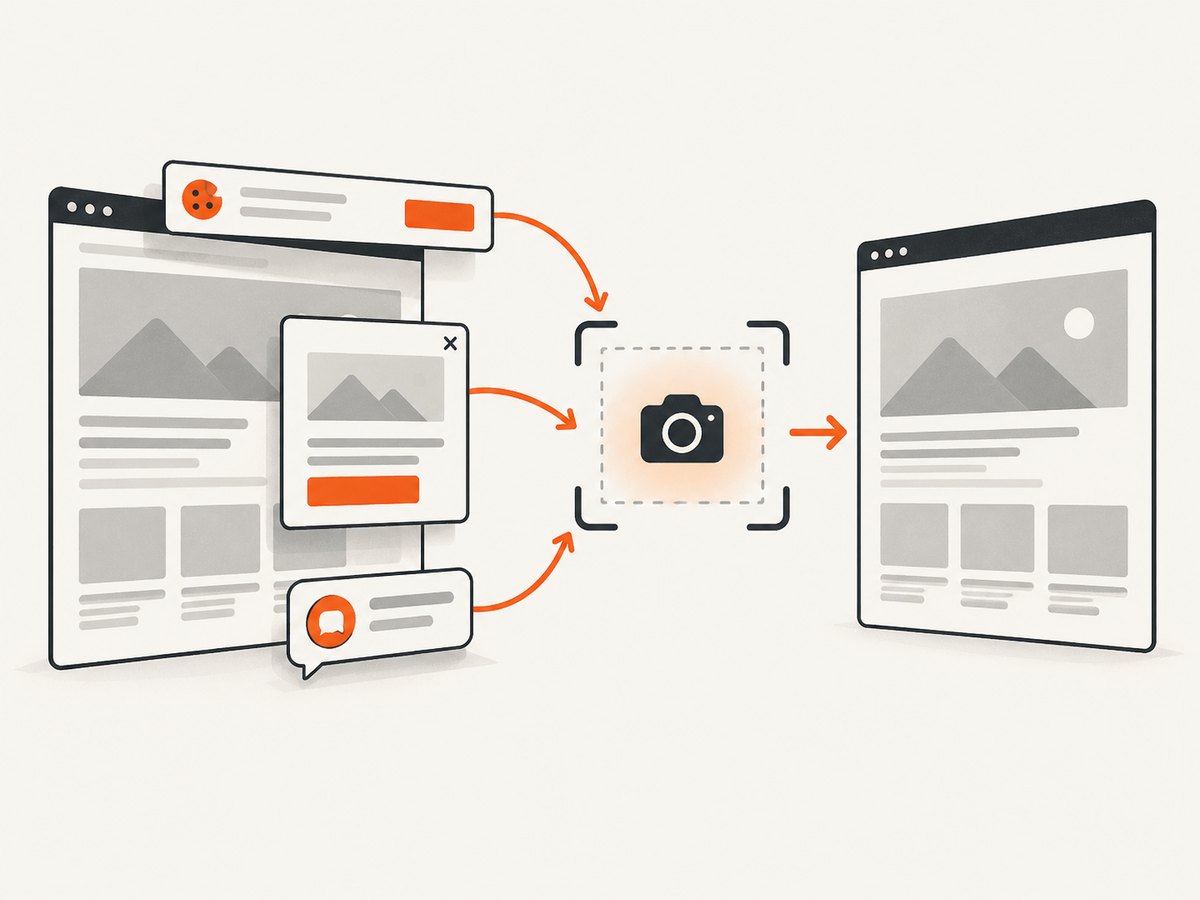
If your goal is a dependable screenshot or PDF rather than maintaining Chromium packaging in Lambda, ScreenshotNeo provides a single GET request. Its API accepts the URL and returns PNG, JPEG, WebP, or PDF. Cookie and consent banners are accepted before capture, and more than 60 known consent platforms, newsletter popups, and chat widgets are removed. Bot checks, blank pages, timeouts, failed loads, and cache hits cost nothing; response headers identify the page verdict and whether it was billed.
See the ScreenshotNeo API documentation for all options. A minimal call:
curl -G 'https://api.screenshotneo.com/v1/shot' \
  -d access_key=YOUR_API_KEY \
  --data-urlencode url=https://stripe.com \
  -o shot.webp
import requests
r = requests.get('https://api.screenshotneo.com/v1/shot', params={'access_key': 'YOUR_API_KEY', 'url': 'https://stripe.com'}, timeout=90)
r.raise_for_status()
open('shot.webp', 'wb').write(r.content)const q = new URLSearchParams({ access_key: 'YOUR_API_KEY', url: 'https://stripe.com' });
const res = await fetch(`https://api.screenshotneo.com/v1/shot?${q}`);
if (!res.ok) throw new Error(`HTTP ${res.status}`);
const data = Buffer.from(await res.arrayBuffer());
await import('node:fs/promises').then(fs => fs.writeFile('shot.webp', data));ScreenshotNeo also supports full-page capture with lazy images loaded, CSS-selector element capture, dark mode, device presets, arbitrary viewports, retina scale, custom CSS and JavaScript, clicks, selector or network-idle waits, request blocking, headers, cookies, user agents, authorization, timezone, geolocation, transparent backgrounds, resizing, caching with your chosen TTL, signed links, asynchronous jobs with signed webhooks, bulk capture for up to 100 URLs per call, usage reporting, and an OpenAPI specification. Its MCP server gives AI agents tools named take_screenshot, get_page_info, and capture_pdf.
There are 1,000 screenshots per month free with no card. Paid plans start at $5 for 3,000 shots; every feature is available on every plan. Create a free ScreenshotNeo account.
9. FAQ
Should I always move Playwright Lambda functions to containers?
No. Containers provide more control over OS packages and build reproducibility. ZIPs and layers remain valid when their browser, dependencies, architecture, and paths are verified.
Does increasing /tmp fix Chromium launch errors?
Only when the browser or output genuinely runs out of temporary disk. Missing executables and shared libraries require packaging fixes.
Is networkidle required for a screenshot?
No. Many modern pages keep connections open. Use DOM content plus a selector, a bounded delay, or another page-specific readiness condition.
Why does a URL work outside the VPC but fail inside it?
VPC attachment changes outbound routing. Check private-subnet NAT routes, security-group egress, network ACL return ports, and DNS configuration.
Can Lambda limits tell me the correct Playwright settings?
No. AWS documents ranges and allocations, but the right memory, timeout, and storage values depend on the browser version, page weight, actions, and deployment artifact. Measure your workload.


