BlogScreenshots on your device
How to Fix `PrintWindow` Capturing Zoomed Images on a Second Monitor
Fix zoomed PrintWindow captures by aligning DPI awareness, window bounds, and bitmap pixels across mixed-DPI monitors.
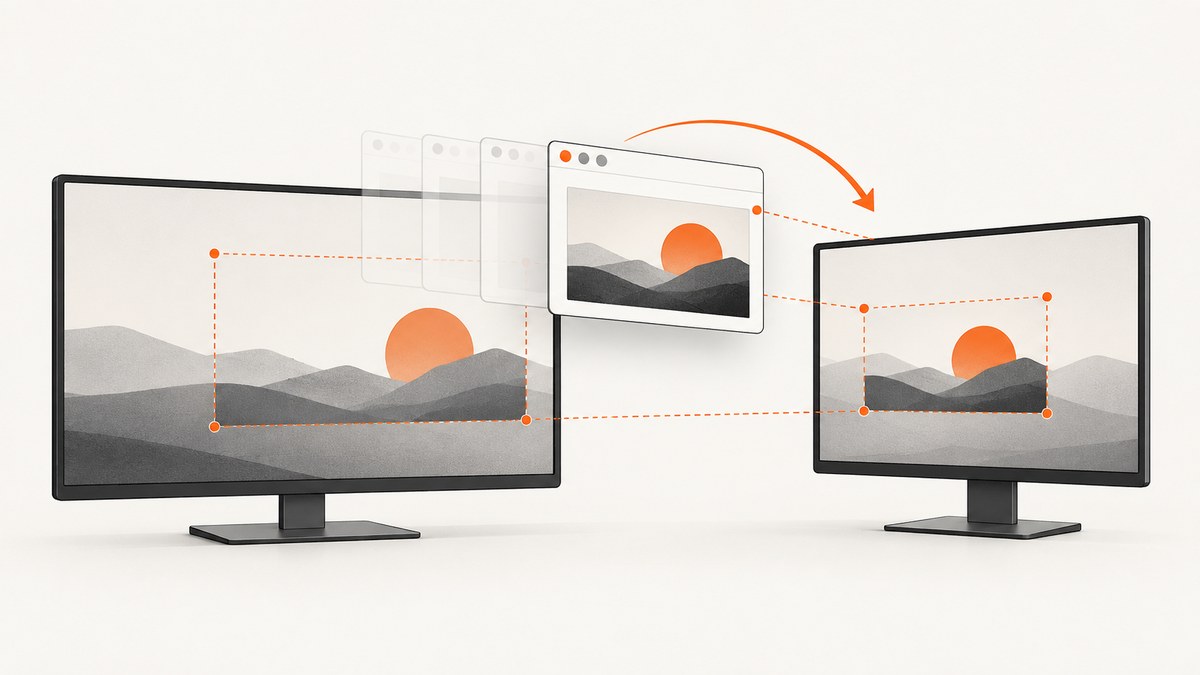
Short answer: a zoomed PrintWindow result on a second monitor usually means the target window’s DPI-awareness context, the rectangle you measured, and the destination bitmap’s pixel dimensions are in different coordinate spaces. Log all three, capture into a bitmap sized for the intended pixels, and handle per-monitor DPI changes. PrintWindow asks the target application to render into your HDC through WM_PRINT (or WM_PRINTCLIENT with PW_PRINTCLIENT); a nonzero return means the request completed, not that the target rendered at the scale you expected. See Microsoft’s PrintWindow documentation.
Why does PrintWindow capture a zoomed image on my second monitor?
Windows can report and use different DPI values for a DPI-unaware, system-aware, or per-monitor-aware window. GetDpiForWindow returns 96 for a DPI-unaware window, the system DPI for a system-aware window, and the DPI of the monitor containing a per-monitor-aware window. If your code measures a logical rectangle but allocates a bitmap in physical pixels (or the reverse), the saved image is commonly stretched or cropped.
The target application owns the drawing. It receives the print request and renders into the HDC you supply, so changing a caller-side scale cannot repair target code that lays itself out incorrectly for WM_PRINT. A second monitor exposes the mismatch because its scale often differs from the primary display.
Diagnostic checklist
- Record the target HWND, whether you want the full window or client area, and the rectangle returned by
GetWindowRectorGetClientRect. - Record
GetDpiForWindow(hwnd), the target awareness, the thread awareness used for DPI-sensitive calls, and the bitmap width, height, stride, and pixel format. - Check whether the target handles
WM_PRINT/WM_PRINTCLIENTand whether it draws at a different scale for those messages. - Compare the saved file’s dimensions and visible bounds with the measured target rectangle on each monitor.
- Repeat with the window moved to every monitor. A change that follows the window indicates a DPI transition; a change that follows the capture process points to the caller’s awareness context or allocation.
Complete Win32 capture example (C++)
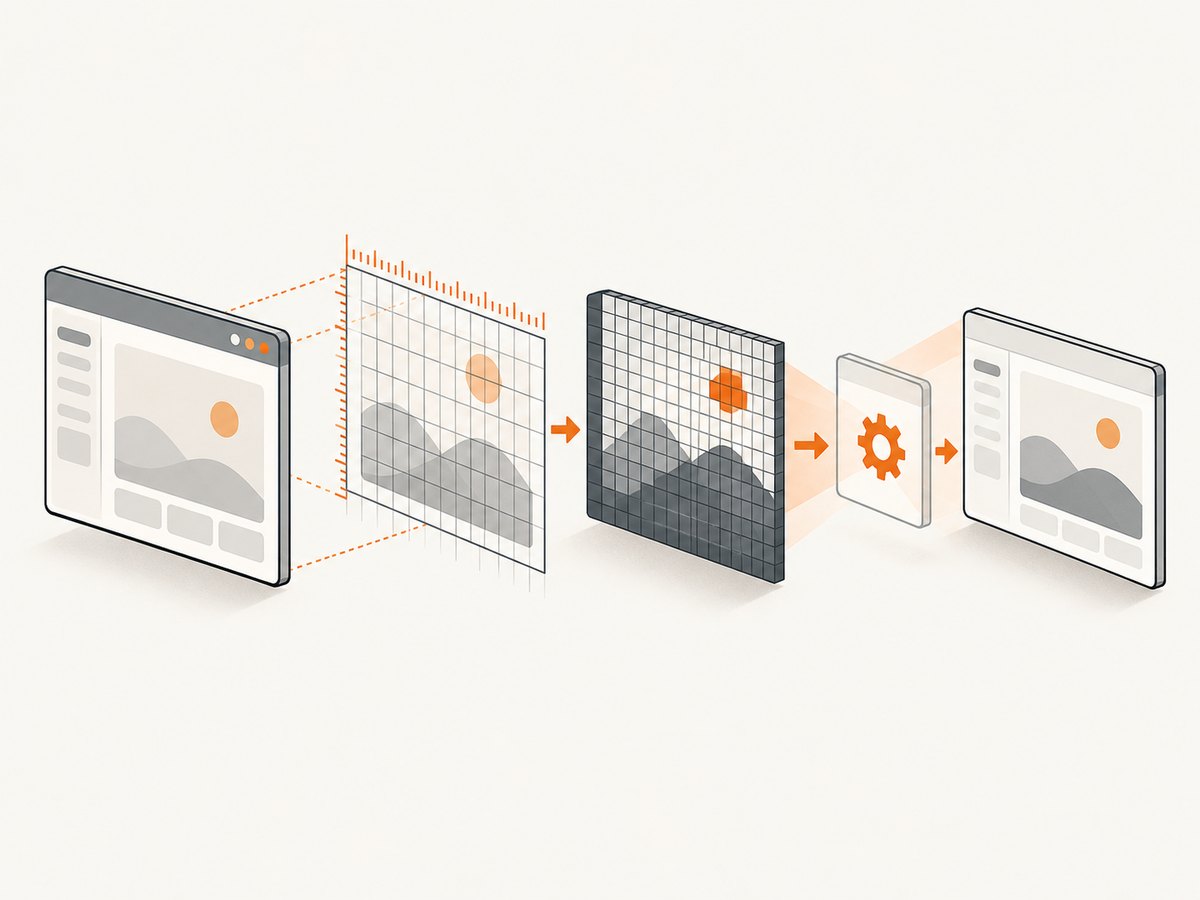
This example captures the full window into a 32-bit top-down DIB, logs the values that matter, temporarily uses a per-monitor-v2 thread context when available, and writes a BMP. Compile as a Unicode Windows desktop program with user32 and gdi32 (for example, cl /std:c++17 capture.cpp user32.lib gdi32.lib). Pass a window handle as the first argument, or replace the lookup with your own HWND.
#define UNICODE
#define _UNICODE
#include <windows.h>
#include <cstdio>
#include <cstdint>
#include <string>

static bool SaveBmp(const wchar_t* path, HBITMAP bmp, int width, int height) {
    BITMAPINFO bi{};
    bi.bmiHeader.biSize = sizeof(BITMAPINFOHEADER);
    bi.bmiHeader.biWidth = width;
    bi.bmiHeader.biHeight = -height; // top-down
    bi.bmiHeader.biPlanes = 1;
    bi.bmiHeader.biBitCount = 32;
    bi.bmiHeader.biCompression = BI_RGB;
    void* bits = nullptr;
    HDC screen = GetDC(nullptr);
    HDC dc = CreateCompatibleDC(screen);
    HBITMAP old = (HBITMAP)SelectObject(dc, bmp);
    int stride = width * 4;
    std::uint32_t bytes = static_cast<std::uint32_t>(stride * height);
    std::uint8_t* pixels = new std::uint8_t[bytes];
    bool ok = GetDIBits(dc, bmp, 0, height, pixels, &bi, DIB_RGB_COLORS) == height;
    SelectObject(dc, old); DeleteDC(dc); ReleaseDC(nullptr, screen);
    if (!ok) { delete[] pixels; return false; }
    BITMAPFILEHEADER fh{};
    fh.bfType = 0x4D42;
    fh.bfOffBits = sizeof(BITMAPFILEHEADER) + sizeof(BITMAPINFOHEADER);
    fh.bfSize = fh.bfOffBits + bytes;
    HANDLE file = CreateFileW(path, GENERIC_WRITE, 0, nullptr, CREATE_ALWAYS, FILE_ATTRIBUTE_NORMAL, nullptr);
    if (file == INVALID_HANDLE_VALUE) { delete[] pixels; return false; }
    DWORD written = 0;
    WriteFile(file, &fh, sizeof fh, &written, nullptr);
    WriteFile(file, &bi.bmiHeader, sizeof bi.bmiHeader, &written, nullptr);
    WriteFile(file, pixels, bytes, &written, nullptr);
    CloseHandle(file); delete[] pixels; return true;
}

int wmain(int argc, wchar_t** argv) {
    if (argc < 2) { wprintf(L"usage: capture.exe <window-title>\n"); return 2; }
    HWND hwnd = FindWindowW(nullptr, argv[1]);
    if (!hwnd) { wprintf(L"FindWindow failed: %lu\n", GetLastError()); return 3; }

    RECT r{};
    if (!GetWindowRect(hwnd, &r)) { wprintf(L"GetWindowRect failed: %lu\n", GetLastError()); return 4; }
    UINT dpi = GetDpiForWindow(hwnd);
    DPI_AWARENESS_CONTEXT targetCtx = GetWindowDpiAwarenessContext(hwnd);
    DPI_AWARENESS targetAwareness = GetAwarenessFromDpiAwarenessContext(targetCtx);
    wprintf(L"hwnd=%p rect=%ld,%ld-%ld,%ld size=%ldx%ld dpi=%u awareness=%d\n",
            hwnd, r.left, r.top, r.right, r.bottom, r.right-r.left, r.bottom-r.top,
            dpi, (int)targetAwareness);

    int width = r.right - r.left;
    int height = r.bottom - r.top;
    if (width <= 0 || height <= 0) return 5;

    DPI_AWARENESS_CONTEXT previous =
        SetThreadDpiAwarenessContext(DPI_AWARENESS_CONTEXT_PER_MONITOR_AWARE_V2);
    HDC screen = GetDC(nullptr);
    HDC mem = CreateCompatibleDC(screen);
    BITMAPINFO bi{};
    bi.bmiHeader.biSize = sizeof(BITMAPINFOHEADER);
    bi.bmiHeader.biWidth = width;
    bi.bmiHeader.biHeight = -height;
    bi.bmiHeader.biPlanes = 1;
    bi.bmiHeader.biBitCount = 32;
    bi.bmiHeader.biCompression = BI_RGB;
    void* bits = nullptr;
    HBITMAP bmp = CreateDIBSection(screen, &bi, DIB_RGB_COLORS, &bits, nullptr, 0);
    HGDIOBJ old = bmp ? SelectObject(mem, bmp) : nullptr;
    BOOL printed = bmp && PrintWindow(hwnd, mem, 0); // add PW_CLIENTONLY for client area
    if (old) SelectObject(mem, old);
    DeleteDC(mem); ReleaseDC(nullptr, screen);
    SetThreadDpiAwarenessContext(previous);
    if (!printed) { wprintf(L"PrintWindow failed: %lu\n", GetLastError()); if (bmp) DeleteObject(bmp); return 6; }
    bool saved = SaveBmp(L"capture.bmp", bmp, width, height);
    DeleteObject(bmp);
    return saved ? 0 : 7;
}
The dimensions in this sample are deliberately taken after entering a known thread context. Keep the previous context and restore it; do not change the process default after creating windows. The PW_CLIENTONLY flag requests only the client area, so its expected size differs from GetWindowRect.
If the captured program is yours
Use per-monitor DPI awareness and update layout when Windows sends WM_DPICHANGED. Microsoft recommends GetDpiForWindow for desktop apps; Per Monitor v2 is available starting with Windows 10 version 1703. Resize controls and recompute cached dimensions from the suggested rectangle in WM_DPICHANGED. Do not cache a primary-monitor scale for the lifetime of the process.
If you capture another program
You cannot force that program’s print handler to use your preferred layout. Confirm whether it supports WM_PRINT, test full-window and client-only requests, and treat a successful return as completion of the request rather than proof of pixel-perfect output.
Choosing the right DPI and coordinate values
| Value | What it means | Common mistake |
|---|---|---|
GetWindowRect |
Window bounds in the caller’s coordinate space | Assuming its units always equal bitmap pixels |
GetClientRect |
Client bounds, origin at (0,0) | Using it with a full-window capture |
GetDpiForWindow |
DPI interpreted through target awareness | Treating it as a universal monitor query |
| Destination DIB size | Actual pixels written to the HDC | Multiplying by 96/dpi twice or not at all |
For a per-monitor-aware target, a scale factor is typically dpi / 96.0, but apply it only when converting a value that is known to be logical. Measure the rectangle and allocate the bitmap in the same context; never blindly rescale both.
Common errors and fixes
“PrintWindow returns TRUE but the image is zoomed”
TRUE only reports that the request completed. Log awareness, DPI, rectangle, and bitmap dimensions; then inspect target-side handling of WM_PRINT. A caller-side stretch cannot fix target rendering.
“The second monitor has a different scale”
Move the window and recapture after processing WM_DPICHANGED. Use GetDpiForWindow for the target and a deliberate thread context for capture setup.
“The image is cropped or has blank borders”
You mixed client and full-window sizes, or included non-client borders in one measurement only. Pair PW_CLIENTONLY with client dimensions, or omit it and use full-window bounds.
“GetDpiForWindow always returns 96”
That is expected for a DPI-unaware target. For a system-aware target it returns system DPI; only a per-monitor-aware target gets the monitor-specific value. The API is documented for Windows 10 version 1607 and Windows Server 2016 or later.
“The UI freezes during capture”
PrintWindow is synchronous and can block while the target renders. Run it on a worker thread, use a timeout policy around the job, and keep the UI thread responsive. Do not kill a target process merely because one capture is slow.
“SetThreadDpiAwarenessContext is unavailable”
Load the function dynamically or require a supported Windows version. Per Monitor v2 is unavailable before Windows 10 version 1703. Keep a fallback path that captures in the process’s existing context and records the limitation.
Performance, reliability, and support boundaries
- Capture off the UI thread because rendering is synchronous.
- Reuse a memory DC and DIB when dimensions stay constant, but recreate them after a DPI or size change.
- Validate width, height, stride, and integer overflow before allocating; reject minimized or zero-sized windows.
- Test mixed-DPI arrangements, monitor order, maximized windows, borders, layered windows, and applications that decline or partially implement
WM_PRINT. - Record Windows version, target framework, awareness contexts, flags, rectangle, DPI, and output dimensions with each failure so a bug is reproducible.
Or skip the browser setup
If your actual goal is a web page image rather than a desktop HWND, ScreenshotNeo gives you a single HTTP request. It removes cookie and consent banners, newsletter popups, and chat widgets before capture. Bot checks, blank pages, failed loads, timeouts, and cache hits are not billed, and response headers identify the page verdict and billing result. Its MCP server provides take_screenshot, get_page_info, and capture_pdf for Claude, Cursor, and other MCP clients.
See the ScreenshotNeo API documentation for all options. This request saves a WebP file:
curl -G "https://api.screenshotneo.com/v1/shot" -d access_key=YOUR_API_KEY --data-urlencode url=https://stripe.com -o shot.webpimport requests
r = requests.get("https://api.screenshotneo.com/v1/shot", params={"access_key": "YOUR_API_KEY", "url": "https://stripe.com"}, timeout=90)
open("shot.webp", "wb").write(r.content)const q = new URLSearchParams({ access_key: 'YOUR_API_KEY', url: 'https://stripe.com' });
const res = await fetch(`https://api.screenshotneo.com/v1/shot?${q}`);There are 1,000 shots per month free with no card. Paid plans start at $5 for 3,000 shots, and every feature is included on every plan. Create a free ScreenshotNeo account.
FAQ
Does GetDpiForWindow return the monitor DPI for every window?
No. Its result depends on the window’s awareness: 96 for DPI-unaware, system DPI for system-aware, and monitor DPI for per-monitor-aware windows.
Should I switch to another capture API?
First isolate awareness, coordinates, bitmap allocation, and target handling. Microsoft does not document a universal replacement for this symptom.
Can I fix a foreign application’s rendering from my caller?
Not reliably. The target application performs the drawing in response to WM_PRINT; you can correct your HDC and dimensions, but not its internal print renderer.
Which Windows versions support the APIs here?
GetDpiForWindow requires Windows 10 version 1607 or Windows Server 2016 or later. Per Monitor v2 starts with Windows 10 version 1703.


