How to Fix Puppeteer Full-Page Screenshots in Headful Mode
Fix headful Puppeteer full-page screenshot flicker, viewport changes, and layout shifts with the right options and diagnostics.
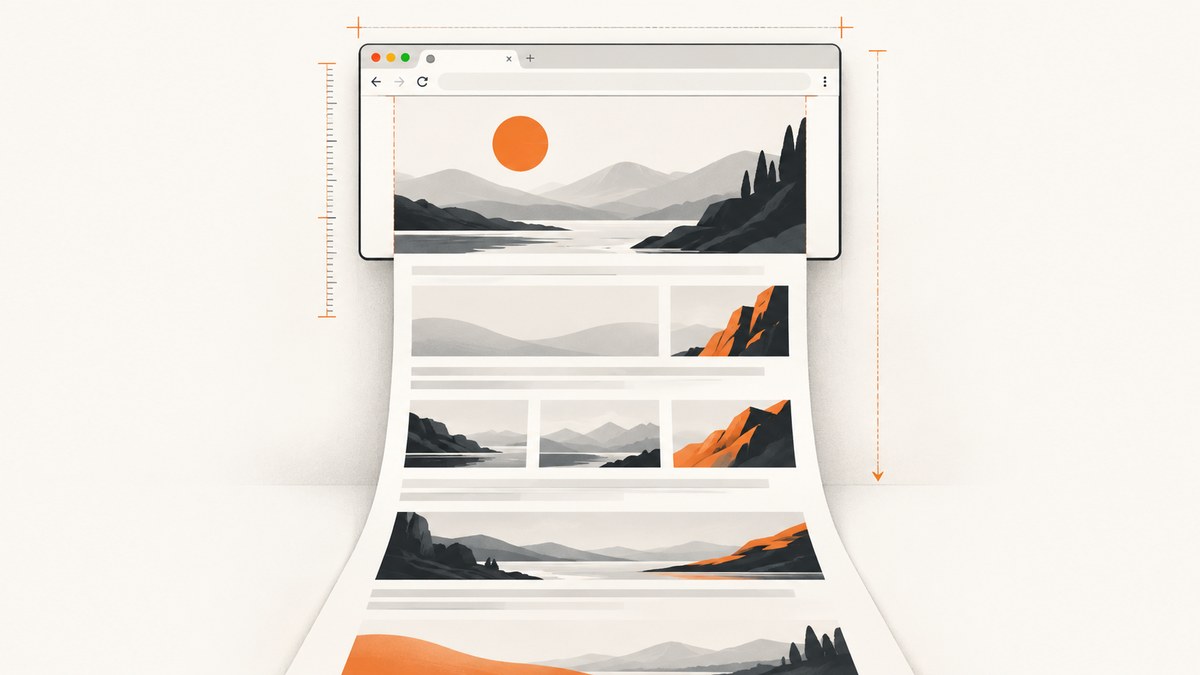
Use fullPage: true for a document screenshot. If a visible (headful) browser resizes, flickers, or produces a viewport-sensitive layout during capture, explicitly try captureBeyondViewport: false and compare the result with a normal viewport screenshot. That option solved one reported Puppeteer 8.0.0 headful case, but it is a workaround to evaluate in your own browser and site, not a universal fix.
This guide explains how full-page capture works, provides runnable code, and gives you a methodical way to diagnose changed element positions, vh/vw differences, lazy-loaded content, and version-specific behavior.
1. The minimal headful fix
Install Puppeteer, launch Chromium with headless: false, set a known viewport, and request a full-page screenshot:
npm install puppeteerconst puppeteer = require('puppeteer');
(async () => {
const browser = await puppeteer.launch({
headless: false,
defaultViewport: { width: 1440, height: 900 },
});
const page = await browser.newPage();
await page.goto('https://example.com', { waitUntil: 'networkidle2' });
await page.screenshot({
path: 'page.png',
fullPage: true,
captureBeyondViewport: false,
});
await browser.close();
})();The current Puppeteer screenshot reference documents fullPage as a full-page document capture and lists captureBeyondViewport as a separate option. See the Puppeteer ScreenshotOptions reference for the version you have installed.
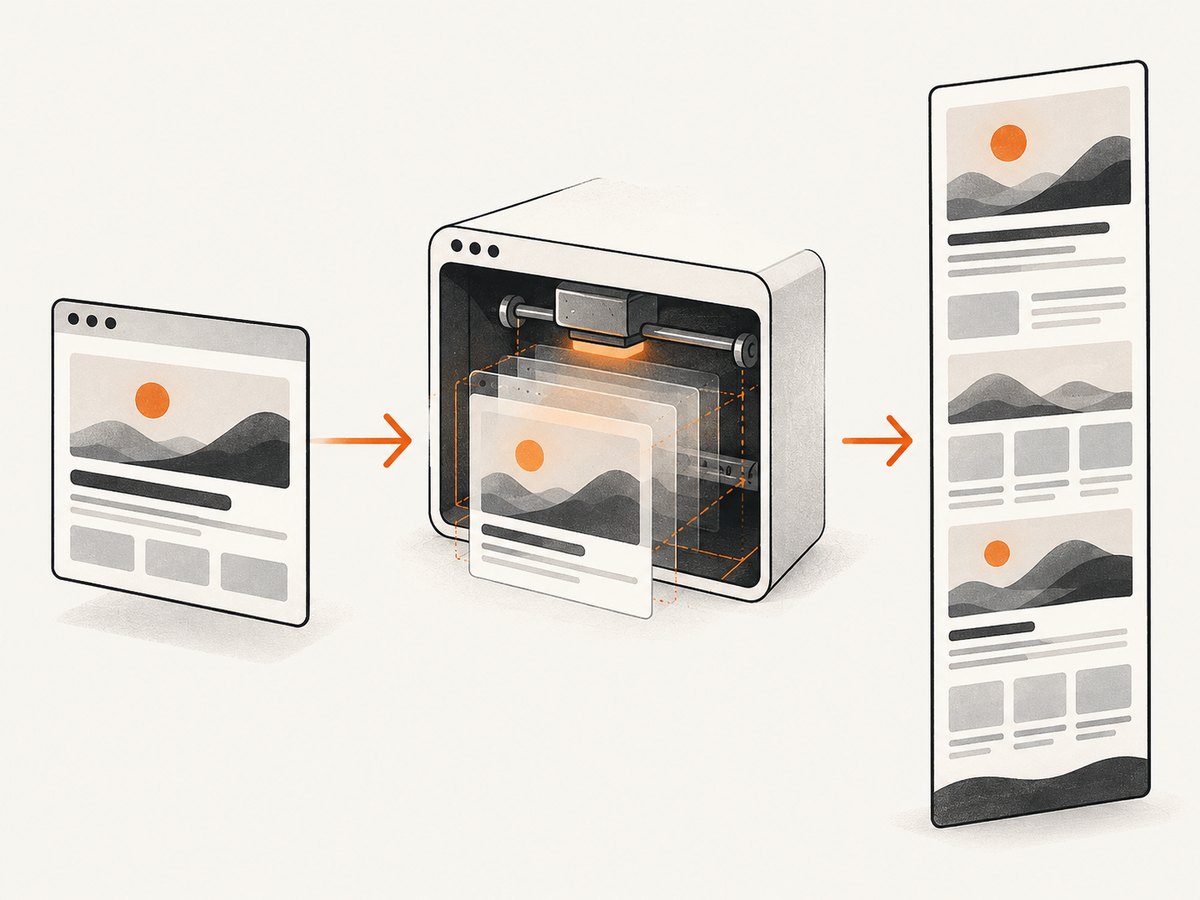
Start with fullPage: true. Add captureBeyondViewport: false when the visible browser appears to change size or when the page lays out differently while the screenshot is being taken. Keep the browser open long enough to observe what happens; a headless run can hide the visual symptom.
2. A diagnostic script you can run unchanged
Before changing application code, capture the viewport and document dimensions at several points. This tells you whether the problem is a real viewport change, a document-size calculation, or normal responsive behavior.
const puppeteer = require('puppeteer');

(async () => {
  const browser = await puppeteer.launch({
    headless: false,
    defaultViewport: { width: 1366, height: 768 },
    // slowMo makes an on-screen resize easier to see while diagnosing
    slowMo: 40,
  });

  const page = await browser.newPage();
  await page.setViewport({ width: 1366, height: 768, deviceScaleFactor: 1 });

  const url = process.argv[2] || 'https://example.com';
  await page.goto(url, { waitUntil: 'domcontentloaded', timeout: 60000 });

  const before = await page.evaluate(() => ({
    innerWidth: window.innerWidth,
    innerHeight: window.innerHeight,
    documentWidth: document.documentElement.scrollWidth,
    documentHeight: document.documentElement.scrollHeight,
    bodyWidth: document.body ? document.body.scrollWidth : null,
    bodyHeight: document.body ? document.body.scrollHeight : null,
    dpr: window.devicePixelRatio,
  }));
  console.log('before screenshot', before);

  await page.screenshot({
    path: 'diagnostic.png',
    fullPage: true,
    captureBeyondViewport: false,
  });

  const after = await page.evaluate(() => ({
    innerWidth: window.innerWidth,
    innerHeight: window.innerHeight,
    documentWidth: document.documentElement.scrollWidth,
    documentHeight: document.documentElement.scrollHeight,
  }));
  console.log('after screenshot', after);

  await browser.close();
})();
Run it with node capture.js https://your-site.example. If innerWidth or innerHeight changes, investigate browser configuration, device emulation, window management, and page scripts. If only document dimensions change, the page may still be loading content or fonts.
3. What full-page capture actually means
fullPage: true asks Puppeteer to produce an image covering the page’s document area rather than only the currently visible viewport. It is different from:
- A viewport screenshot: omit
fullPage; only the visible area is captured. - A clip: pass
clipwithx,y,width, andheightto capture a rectangle. - An element screenshot: locate an element and call its screenshot method, or calculate its bounding box and use
clip.
Do not substitute an element or clip workflow when you need the complete document. Conversely, do not use fullPage when the requirement is a fixed viewport or a single component.
Capture a fixed viewport for comparison
await page.screenshot({
  path: 'viewport.png',
  fullPage: false,
});
Save both viewport.png and full-page.png. If cards wrap, a sticky header moves, or a hero uses a different height, compare computed styles and viewport metrics at the same URL and state.
Capture one element
const card = await page.locator('.pricing-card');
await card.screenshot({ path: 'pricing-card.png' });
Element capture avoids document-height issues, but it does not answer a full-page requirement. An element can also move while web fonts, images, or client-side data load, so wait for its final state first.
4. Why headful pages appear to resize or flicker
Viewport-relative CSS
Rules using vh, vw, svh, fixed positioning, or media queries respond to the viewport, not the document’s total height. A full-page implementation can temporarily use a different capture geometry, and a page that depends on viewport dimensions may therefore render differently from a normal screenshot.
Inspect suspicious rules in DevTools or with JavaScript:
const viewportStyles = await page.evaluate(() => {
  const selectors = ['header', '.hero', '.modal', '.sticky'];
  return selectors.map(selector => {
    const element = document.querySelector(selector);
    if (!element) return { selector, found: false };
    const style = getComputedStyle(element);
    const rect = element.getBoundingClientRect();
    return {
      selector,
      found: true,
      position: style.position,
      height: style.height,
      width: style.width,
      top: style.top,
      rect: { x: rect.x, y: rect.y, width: rect.width, height: rect.height },
    };
  });
});
console.log(viewportStyles);
Late layout changes
Images without dimensions, web fonts, advertisements, hydration, and infinite-scroll code can change the document after goto resolves. Use an appropriate wait strategy, then verify that the height is stable:
await page.goto(url, { waitUntil: 'networkidle2' });
await page.evaluate(() => document.fonts.ready);

let previous = 0;
for (let i = 0; i < 5; i++) {
  const current = await page.evaluate(() => document.documentElement.scrollHeight);
  if (current === previous) break;
  previous = current;
  await new Promise(resolve => setTimeout(resolve, 300));
}
This is a stabilization check, not a guarantee that an application has no ongoing updates. For pages that intentionally load content as you scroll, scroll in controlled increments before capturing.
Headful window and browser configuration
A visible browser is affected by the operating system window, display scaling, browser chrome, and any code that calls page.setViewport or emulates a device. Set the viewport once, record it, and avoid mixing emulation modes during a capture. Record the Puppeteer and Chromium versions with every bug report; historical reports involved older releases and do not establish that the same behavior exists in current versions.
5. A reliable capture sequence
- Choose the target geometry. Set width, height, and device scale factor explicitly.
- Navigate and wait. Use
domcontentloaded,load, ornetworkidle2according to the site’s behavior. - Handle consent and overlays. Close dialogs that obscure content before measuring height.
- Wait for fonts and critical selectors. Confirm the content you need exists.
- Stabilize layout. Check document height more than once and ensure images have loaded.
- Capture with explicit options. Start with
fullPage: true; testcaptureBeyondViewport: falsewhen headful flicker occurs. - Compare outputs. Keep a viewport image and a full-page image from the same run.
const puppeteer = require('puppeteer');

async function capture(url, output) {
  const browser = await puppeteer.launch({
    headless: false,
    defaultViewport: { width: 1440, height: 900 },
  });
  try {
    const page = await browser.newPage();
    await page.setViewport({ width: 1440, height: 900, deviceScaleFactor: 1 });
    await page.goto(url, { waitUntil: 'networkidle2', timeout: 90000 });
    await page.evaluate(() => document.fonts.ready);
    await page.waitForSelector('body');
    await new Promise(resolve => setTimeout(resolve, 500));

    await page.screenshot({
      path: output,
      fullPage: true,
      captureBeyondViewport: false,
    });
  } finally {
    await browser.close();
  }
}

capture(process.argv[2] || 'https://example.com', 'page.png')
  .catch(error => { console.error(error); process.exitCode = 1; });
6. Troubleshooting checklist
| Symptom | Likely cause | Fix |
|---|---|---|
| Visible window flickers or changes size | Full-page geometry interacts with headful viewport behavior | Try captureBeyondViewport: false; log viewport metrics before and after. |
| Cards or columns move in the full-page image | vh/vw, media queries, or viewport-relative positioning |
Compare computed styles and capture at a fixed viewport; review viewport-dependent CSS. |
| Bottom content is missing | Lazy loading or content added after navigation | Wait for a selector, fonts, network activity, and stable document height; scroll if the site requires it. |
| Screenshot is blank | Navigation failed, page is still loading, or a bot check blocked rendering | Check the URL response, console errors, navigation timeout, and visible page state before capture. |
| Fixed header repeats or covers content | Sticky/fixed positioning during document capture | Decide whether the repeated header is desired; temporarily hide it with page CSS only for an intentional print-style output. |
| Different results between machines | Browser, Puppeteer, fonts, OS scaling, or device scale factor differ | Pin versions, set viewport and scale factor, install required fonts, and record environment details. |
| Timeout while waiting | Never-ending requests, analytics, or long polling | Use a targeted selector or bounded delay instead of waiting forever for global network idle. |
7. Performance, reliability, and cost considerations
Full-page images consume more memory than viewport captures. Very tall documents can exceed image dimension or encoding limits, and a page with thousands of nodes takes longer to paint and encode. Reduce unnecessary work by blocking nonessential resources, using a realistic viewport, and capturing only the required element when a document image is not needed.
For repeatable output, pin the Puppeteer version, use the Chromium revision it supports, fix the viewport and device scale factor, wait for the same readiness condition, and keep animations from changing the frame. A diagnostic log should include URL, timestamp, Puppeteer version, browser version, viewport, device scale factor, and the measured document dimensions.
Do not infer a universal performance win from captureBeyondViewport. The available evidence describes option semantics and a historical report, not a benchmark. Measure your own pages if capture latency matters.
8. Or skip the browser setup
ScreenshotNeo provides a website screenshot API when you do not want to maintain Chromium, viewport workarounds, and page-cleanup code. It accepts one GET request and returns PNG, JPEG, WebP, or PDF. The API supports full-page capture, lazy-image loading, element selectors, device presets, custom viewports, retina scale, waits, custom CSS and JavaScript, cookies, headers, user agents, geolocation, time zones, request blocking, caching, asynchronous jobs, bulk capture, and signed links. See the ScreenshotNeo API documentation for the option names and response details.

curl -G "https://api.screenshotneo.com/v1/shot" \
  -d access_key=YOUR_API_KEY \
  --data-urlencode url=https://stripe.com \
  -o shot.webp
import requests
r = requests.get(
"https://api.screenshotneo.com/v1/shot",
params={"access_key": "YOUR_API_KEY", "url": "https://stripe.com"},
timeout=90,
)
r.raise_for_status()
open("shot.webp", "wb").write(r.content)const q = new URLSearchParams({ access_key: 'YOUR_API_KEY', url: 'https://stripe.com' });
const res = await fetch(`https://api.screenshotneo.com/v1/shot?${q}`);
if (!res.ok) throw new Error(`HTTP ${res.status}`);
require('fs').writeFileSync('shot.webp', Buffer.from(await res.arrayBuffer()));Cookie banners, newsletter popups, and chat widgets are removed before the shot. Bot checks, blank pages, failed loads, timeouts, and cache hits are not billed, and response headers identify the page verdict and whether it was billed. ScreenshotNeo also has an MCP server with take_screenshot, get_page_info, and capture_pdf tools for Claude, Cursor, and other MCP clients. The free plan includes 1,000 screenshots per month with no card; paid plans start at $5 for 3,000 shots.
Create a free ScreenshotNeo account and start with the 1,000 monthly shots.
9. FAQ
Should I always set captureBeyondViewport: false?
No. Begin with the documented fullPage: true behavior. Add the setting when you are diagnosing visible headful resizing or flicker, then compare the rendered output in your environment.
Does headless mode avoid the problem?
It can hide a visual flicker, but it does not prove that viewport-sensitive CSS or late layout changes are correct. Test the mode your users or CI system actually runs.
Why does a full-page image differ from scrolling and stitching screenshots?
They are different capture strategies. Stitching can preserve a fixed viewport but introduces seams, duplicate fixed elements, and scroll-triggered state changes. Use it only when the page or browser behavior requires it.
What should I include in a bug report?
Include the Puppeteer and Chromium versions, operating system, headful/headless mode, viewport and device scale factor, URL or a reproducible page, screenshot options, before/after viewport metrics, and whether captureBeyondViewport: false changes the result.


