How to Fix Incomplete Puppeteer PDFs and Unloaded Leaflet Tiles
Make Puppeteer wait for Leaflet’s final visible tiles, then generate complete PDFs with the right media, background, and pagination settings.
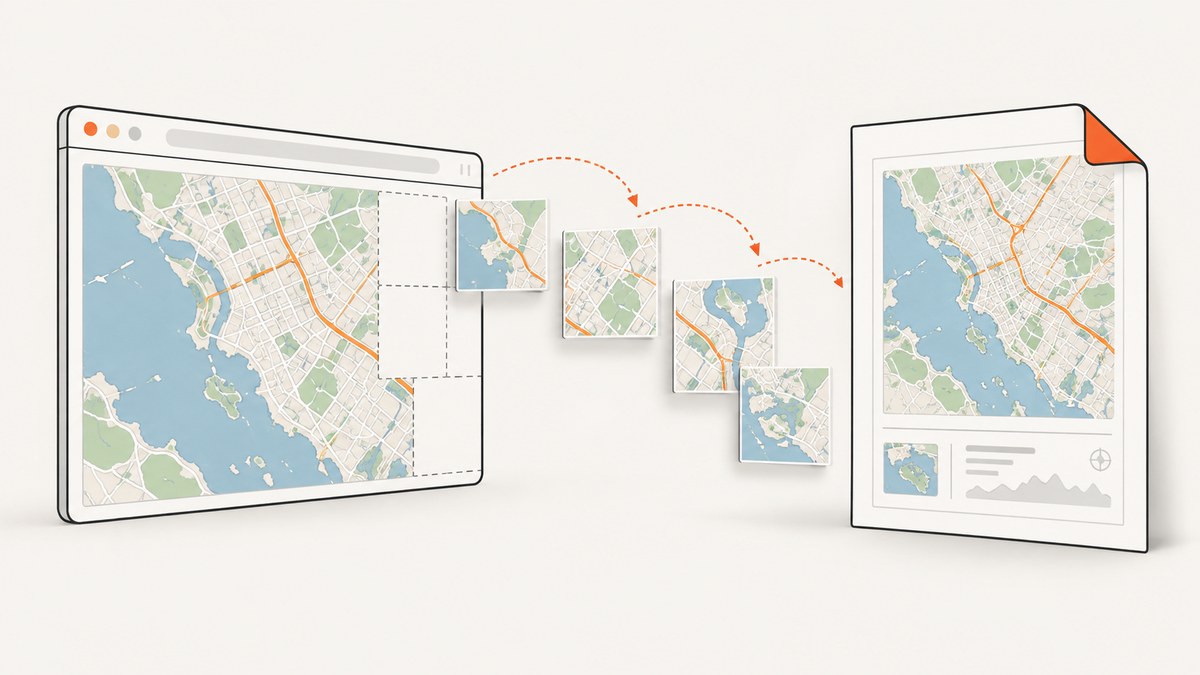
Direct answer: wait for Leaflet’s visible tile layer to finish loading after the map reaches its final center and zoom, then call page.pdf(). Puppeteer’s networkidle2 navigation condition and its default font wait solve different problems; neither proves that a JavaScript map has finished drawing its current tiles. Listen for Leaflet’s load and tileerror events, confirm isLoading() is false, and only then create the PDF.
Incomplete PDFs usually have two independent causes. The document may be printed before application work finishes, or print CSS may change the layout so content is hidden, clipped, or paginated differently. A reliable fix separates navigation readiness, map readiness, and print configuration.
What “ready” means
Puppeteer’s PDF guide demonstrates navigation with waitUntil: 'networkidle2', followed by page.pdf(). The guide also says that PDF generation waits for fonts by default. Those guarantees concern the browser page and fonts, not Leaflet’s asynchronous tile layer. See the Puppeteer PDF generation guide.
Leaflet’s GridLayer API defines a load event that fires when all visible tiles in that layer have loaded. It also exposes loading, tileloadstart, tileload, tileerror, and isLoading(). See the Leaflet GridLayer reference.
| Signal | What it tells you | What it does not tell you |
|---|---|---|
domcontentloaded |
Initial HTML has been parsed. | That JavaScript, fonts, or map tiles are ready. |
networkidle2 |
At most two connections were active for the idle window. | That the final map view has loaded every visible tile. |
| Font wait | Fonts required by the PDF have loaded. | That Leaflet, charts, or other application work is complete. |
Leaflet load |
The selected grid layer has loaded all visible tiles. | That another layer, overlay, or later map movement is ready. |
Build a complete Puppeteer PDF
1. Navigate, then prepare the final map view
Install Puppeteer and run this example with Node.js:
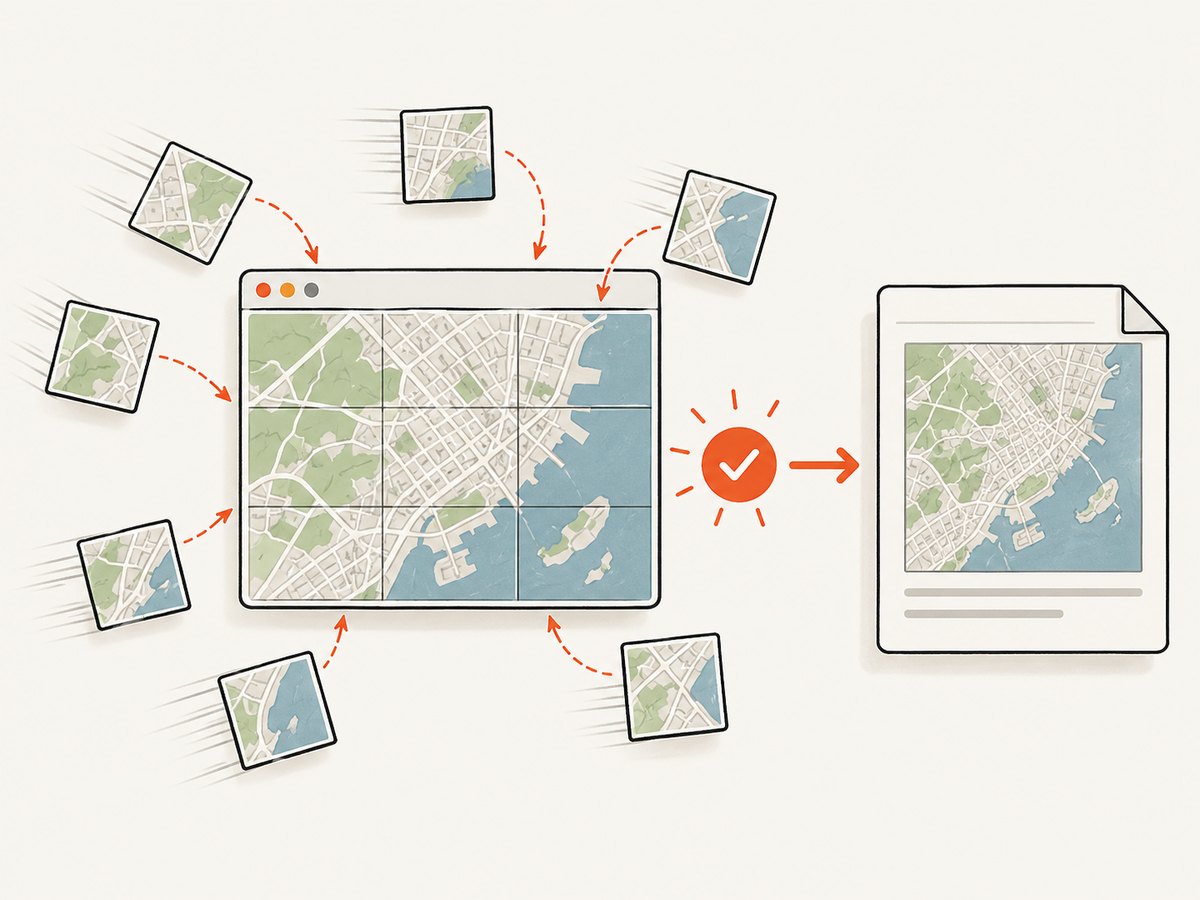
npm install puppeteerThe page must expose the exact Leaflet layer you want to check. In this example it is window.myTileLayer. Adapt that reference to your application.
const puppeteer = require('puppeteer');

(async () => {
  const browser = await puppeteer.launch({
    headless: true,
    args: ['--no-sandbox', '--disable-setuid-sandbox']
  });

  try {
    const page = await browser.newPage();
    await page.setViewport({ width: 1440, height: 1000, deviceScaleFactor: 1 });

    await page.goto('https://your-site.example/map', {
      waitUntil: 'networkidle2',
      timeout: 60_000
    });

    // Cause the final map state before installing the wait below in production.
    // Replace this with your own application action when needed.
    await page.evaluate(() => {
      if (window.map) {
        window.map.setView([40.7128, -74.0060], 12);
      }
    });

    await page.evaluate(async () => {
      const layer = window.myTileLayer;
      if (!layer) throw new Error('window.myTileLayer was not found');

      if (layer.isLoading()) {
        await new Promise((resolve, reject) => {
          const timeout = setTimeout(() => {
            cleanup();
            reject(new Error('Leaflet tiles did not finish within 30 seconds'));
          }, 30_000);

          const onLoad = () => {
            clearTimeout(timeout);
            cleanup();
            resolve();
          };

          const onError = (event) => {
            console.error('Leaflet tile error', event);
            // Decide whether your application can accept a partial map.
          };

          const cleanup = () => {
            layer.off('load', onLoad);
            layer.off('tileerror', onError);
          };

          layer.on('load', onLoad);
          layer.on('tileerror', onError);
        });
      }

      if (layer.isLoading()) {
        throw new Error('Leaflet layer is still loading');
      }
    });

    // PDF() uses print media by default. Use screen media only when required.
    await page.emulateMediaType('screen');
    await page.pdf({
      path: 'map.pdf',
      format: 'A4',
      printBackground: true,
      preferCSSPageSize: true,
      margin: { top: '12mm', right: '12mm', bottom: '12mm', left: '12mm' }
    });
  } finally {
    await browser.close();
  }
})();
For a map update that can trigger new requests, install the listeners before changing the center or zoom. Otherwise the layer may finish between the action and listener registration, or you may observe the completion of the previous view.
2. Wait for the final view, not an earlier view
Pan, zoom, resize, and layer replacement can change the visible tile set. Repeat the readiness wait after each operation that changes the map. A fixed sleep such as await new Promise(r => setTimeout(r, 5000)) can help expose a race during diagnosis, but it is not a readiness contract: fast pages waste time and slow pages still produce incomplete output.
For a production helper, register listeners before the action and add a bounded timeout:
async function waitForLayerAfter(layer, action, timeoutMs = 30_000) {
  return new Promise(async (resolve, reject) => {
    let timer;
    const errors = [];
    const cleanup = () => {
      clearTimeout(timer);
      layer.off('load', onLoad);
      layer.off('tileerror', onError);
    };
    const onError = event => errors.push(event);
    const onLoad = () => {
      if (layer.isLoading()) return;
      cleanup();
      resolve({ tileErrors: errors });
    };

    layer.on('load', onLoad);
    layer.on('tileerror', onError);
    timer = setTimeout(() => {
      cleanup();
      reject(new Error(`Leaflet timeout; tile errors: ${errors.length}`));
    }, timeoutMs);

    try {
      await action();
      if (!layer.isLoading()) onLoad();
    } catch (error) {
      cleanup();
      reject(error);
    }
  });
}

await page.evaluate(async () => {
  await waitForLayerAfter(window.myTileLayer, () => {
    window.map.setZoom(13);
  });
});
If waitForLayerAfter runs inside page.evaluate, the helper must already exist in the page context. Alternatively, perform the event wiring in one evaluate call and invoke your application’s map action there.
Fix print CSS and pagination
Page.pdf() renders with print CSS media by default. Use page.emulateMediaType('screen') when the PDF must match screen styles. If print output is intended, inspect your @media print rules instead of overriding them.
PDF backgrounds are disabled by default. Set printBackground: true when tile containers, legends, or other meaningful graphics depend on CSS backgrounds. Browser color adjustment can also change the result; CSS such as -webkit-print-color-adjust: exact requests exact colors where supported.
- Check
@pagesize and margins. - Remove accidental
pageRangeswhen all pages should be emitted. - Look for fixed heights and
overflow: hiddenon the map and its parent. - Inspect
break-before,break-after, and olderpage-break-*rules. - Make sure the map has an explicit height before Leaflet initializes.
- Check whether print CSS hides the map, legend, controls, or content below the first page.
Puppeteer’s PDF options reference documents page size, margins, page ranges, backgrounds, and font waiting. A historical issue titled “Only getting single page PDF” described one environment and version; it is a symptom example, not evidence of a universal current defect.
Leaflet-specific failure cases
Tile errors and partial maps
A tileerror can be followed by the layer’s load event, so decide explicitly whether a partial map is acceptable. Log the event, URL, status information available to your tile provider, and the final map center and zoom. Treat authentication failures, rate limits, blocked mixed content, and provider outages differently from a single optional tile.
Custom GridLayer implementations
If you implement a custom layer, its asynchronous createTile function must call Leaflet’s done callback when drawing or loading completes, including failure. If it never calls the callback, Leaflet cannot know that the tile finished and isLoading() may remain true indefinitely. Follow Leaflet’s custom layer example.
Multiple layers and overlays
Waiting on one base layer does not cover a second tile layer, weather overlay, heatmap, or application-rendered canvas. Keep references to every layer that contributes to the PDF and wait for each relevant readiness condition. For canvas or SVG overlays, expose an application promise such as window.mapRenderReady and await it alongside the tile-layer checks.
Troubleshooting checklist
| Symptom | Likely cause | Fix |
|---|---|---|
| Blank map in PDF | PDF generated before tiles or map initialization completed. | Wait for the final layer’s load, then verify isLoading(). |
| Some tiles missing | Tile request errors, rate limits, or a view change after the wait. | Capture tileerror, wait after the final movement, and inspect provider responses. |
| Map looks different from browser | Print media changed CSS or backgrounds were omitted. | Choose print or screen media deliberately and enable printBackground when needed. |
| Only the first page appears | Print CSS, fixed height, overflow, page range, or page-break rules. | Inspect computed print styles, remove accidental ranges, and review container dimensions. |
| Wait never resolves | Wrong layer reference or custom createTile never calls done. |
Expose the exact layer, log loading events, and fix the callback contract. |
| PDF hangs around fonts | Environment-specific font loading issue or unreachable font. | Record browser, Puppeteer, OS, and font configuration; verify font requests and reproduce on the deployed versions. |
Performance and reliability
Use one browser instance for a batch and create a fresh page per capture. Reuse a page only when you can reset cookies, storage, viewport, media type, and application state. Set explicit navigation and tile-readiness timeouts so a dead provider cannot consume a worker indefinitely.
Keep the viewport and device scale factor stable when comparing PDFs. A larger viewport can require more visible tiles; a retina scale can increase image memory and PDF size. Prefer the smallest viewport that contains the required map. Cache browser binaries and avoid launching unnecessary extensions.
For retries, distinguish navigation failures, tile errors, and PDF serialization errors. Retry transient network failures with a limit and backoff. Do not blindly retry deterministic 401, 403, or invalid URL responses. Record the final center, zoom, layer names, tile-error count, media type, page options, and elapsed time with each job.
There is no published failure-rate benchmark in the available documentation. Treat event-based readiness as an engineering choice tied to Leaflet’s state API, not as a measured performance claim.
Or skip the browser setup
ScreenshotNeo provides a website screenshot API and MCP server. It can capture a page as PNG, JPEG, WebP, or PDF with one request, while handling browser setup for you. Cookie and consent banners are accepted and 60+ known consent platforms, newsletter popups, and chat widgets are removed before the shot; each step can be turned off.
For a PDF or image of a map page, start with the API call below. Full options are documented at ScreenshotNeo’s API documentation.
curl -G "https://api.screenshotneo.com/v1/shot" \
  -d access_key=YOUR_API_KEY \
  --data-urlencode url=https://your-site.example/map \
  -o map.webp
import requests
r = requests.get(
"https://api.screenshotneo.com/v1/shot",
params={"access_key": "YOUR_API_KEY", "url": "https://your-site.example/map"},
timeout=90,
)
r.raise_for_status()
open("map.webp", "wb").write(r.content)const q = new URLSearchParams({
access_key: 'YOUR_API_KEY',
url: 'https://your-site.example/map'
});
const res = await fetch(`https://api.screenshotneo.com/v1/shot?${q}`);
if (!res.ok) throw new Error(`HTTP ${res.status}`);
const fs = await import('node:fs/promises');
await fs.writeFile('map.webp', Buffer.from(await res.arrayBuffer()));ScreenshotNeo reports X-Page-Verdict and X-Billed headers. Bot checks or CAPTCHAs, blank pages, timeouts, failed loads, and cache hits cost nothing. Its MCP server exposes take_screenshot, get_page_info, and capture_pdf for Claude, Cursor, and other MCP clients. You can also set viewport and device presets, full-page capture, custom CSS and JavaScript, waits, headers, cookies, user agents, geolocation, blocking rules, PDF paper and margin options, caching TTL, signed links, asynchronous webhooks, bulk capture, and usage reporting.
There is a free tier of 1,000 screenshots per month with no card. Paid plans start at $5 for 3,000 shots; yearly billing gives two months free, and every feature is available on every plan. Create a free ScreenshotNeo account and try the map capture without installing Chromium.
FAQ
Should I wait for networkidle0 instead?
It may be stricter for network activity, but it still does not express Leaflet’s visible-tile state. Use the layer’s events and isLoading() for the map.

Can I use a fixed delay as a quick fix?
Only as a diagnostic aid. A delay has no relationship to the actual tile completion state and will vary with network and provider latency.
Why does the PDF omit map colors?
PDF backgrounds are off by default and print media may apply different styles. Enable printBackground and select the intended media type.
Do I need to wait for every tile error to recover?
No. Decide whether partial output is acceptable, record the errors, and fail or continue according to the map’s purpose.
When is an API preferable to Puppeteer?
Use an API when you need repeatable captures without maintaining Chromium, readiness code, browser workers, and retry logic. Keep Puppeteer when you need application-specific interaction or internal browser state that your API call cannot supply.


