BlogScreenshots on your device
How to Fix PyAutoGUI Screenshots That Do Not Cover the Entire Screen
Find out why PyAutoGUI captures only part of your screen and fix region, monitor, DPI-scaling, and Pillow issues with runnable checks.
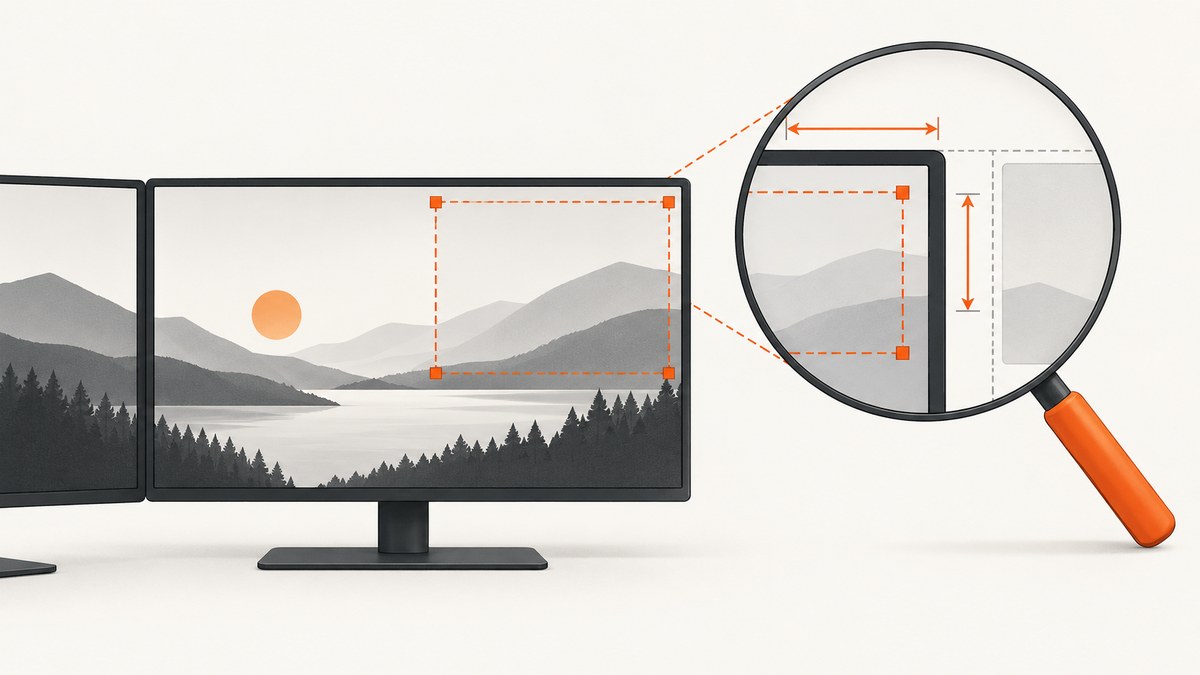
Start with three checks: did your call pass region, is the missing area on a second monitor, or is the returned pixel size different from the display size because of scaling? The correct fix depends on which branch applies.
pyautogui.screenshot() returns a Pillow Image. With no region it captures the full area PyAutoGUI supports on that system. A region is a four-item tuple: (left, top, width, height). PyAutoGUI currently supports the primary monitor only, so content on a secondary display is outside the documented capture scope.
1. Run a minimal diagnosis first
Save an image and print every dimension involved. This distinguishes a crop requested by your code from a capture that is smaller than expected.
import platform
import sys

import pyautogui
from PIL import Image

image = pyautogui.screenshot()
image.save("pyautogui-diagnosis.png")

print("image size:", image.size)  # (width, height)
print("pyautogui.size():", pyautogui.size())
print("python:", sys.version)
print("platform:", platform.platform())
print("pyautogui:", getattr(pyautogui, "__version__", "unknown"))
print("pillow:", Image.__version__)
Compare image.size with the dimensions your application expects. Open pyautogui-diagnosis.png and identify whether the missing pixels are at an edge, outside the primary monitor, or absent because the image is scaled.
2. Remove an unintended region
The documented call accepts region=(left, top, width, height). Any region deliberately limits the capture, including a region left over from an earlier test or calculated with the wrong coordinate system.
import pyautogui

# Full supported capture: no region argument.
full = pyautogui.screenshot()
full.save("full-supported-area.png")

# Rectangle capture: left, top, width, height.
part = pyautogui.screenshot(region=(0, 0, 800, 600))
part.save("rectangle.png")
print("full:", full.size)
print("rectangle:", part.size)
Search the call site, helper functions, and configuration for region=. Temporarily remove it, then print the returned image size. If the full image is correct, fix the rectangle calculation rather than changing display settings.
For example, this common mistake treats right and bottom coordinates as width and height:
# Wrong when right=1600 and bottom=900:
# pyautogui.screenshot(region=(left, top, right, bottom))

# Correct:
region = (left, top, right - left, bottom - top)
image = pyautogui.screenshot(region=region)
3. Check whether the omitted area is on another monitor
PyAutoGUI’s FAQ states: “No, right now PyAutoGUI only handles the primary monitor.” See the PyAutoGUI FAQ and screenshot documentation.
If your desktop spans two displays, a full-desktop expectation cannot be met by assuming screenshot() includes both. Confirm which display is primary in the operating system, move a test window to each display, and capture again. If the secondary display is the missing area, use a platform-specific multi-monitor capture API or capture each monitor with a tool that explicitly supports it.
Do not assume that a negative coordinate, a larger region, or a different pyautogui.size() value adds secondary-monitor support. Validate the coordinates and backend provided by the platform API you choose.
4. Investigate Windows display scaling and DPI behavior
A primary-monitor capture can still have fewer pixels than expected when Windows display scaling, process DPI awareness, the Python runtime, and Pillow’s capture path disagree. Compare the physical pixel dimensions reported by the operating system with both pyautogui.size() and image.size.
- Record the Windows scaling percentage for the affected display.
- Run the diagnosis script in the exact Python environment used by the application.
- Check whether the mismatch is consistent (for example, every dimension is reduced by the same factor) or whether content is clipped.
- Repeat after updating or pinning the Python, PyAutoGUI, and Pillow versions used in production.
An old Windows 10 PyAutoGUI issue reports a compatibility-setting workaround for a high-DPI mismatch. That is historical, user-reported evidence from 2016, not a universal current fix. Treat it as a diagnostic lead and verify behavior in your own Windows, Python, PyAutoGUI, and Pillow versions before adopting any compatibility setting.
5. Verify Pillow and the platform capture path
Screenshot support requires Pillow. The documentation describes different capture paths and dependencies by operating system. Install or repair the package in the same interpreter that runs your script:
python -m pip install --upgrade pyautogui pillow
python -c "import pyautogui; from PIL import Image; print(pyautogui.screenshot().size); print(Image.__version__)"
On Linux, check the desktop session and the capture utility required by your platform. On macOS, check screen-recording permission for the interpreter or terminal launching Python. On Windows, check display scaling and process DPI behavior. Collect OS, Python, PyAutoGUI, and Pillow versions with every bug report.
6. Experimental multi-screen alternatives
A separate multi-monitor discussion around Pillow’s ImageGrab mentions an all_screens option as a workaround proposal. The discussion does not establish that PyAutoGUI officially supports overriding its monitor scope. If you experiment with Pillow directly, treat it as version-dependent and validate desktop coordinates, image origin, and scaling carefully.
# Experimental example; verify support in your installed Pillow version.
from PIL import ImageGrab

image = ImageGrab.grab(all_screens=True)
image.save("all-screens-experimental.png")
print(image.size)
This bypasses PyAutoGUI’s normal wrapper, so behavior can differ across operating systems and Pillow releases. Keep a separate test and do not silently substitute it for a documented PyAutoGUI guarantee.
7. Build a reproducible capture script
The following script records the requested region, returned dimensions, and environment while preserving the image for inspection.
import json
import platform
import sys
from pathlib import Path

import pyautogui
from PIL import Image

region = None  # Set to (left, top, width, height) only when needed.
out = Path("capture-debug.png")
image = pyautogui.screenshot(region=region)
image.save(out)

report = {
    "image_size": image.size,
    "requested_region": region,
    "pyautogui_size": pyautogui.size(),
    "python": sys.version,
    "platform": platform.platform(),
    "pyautogui": getattr(pyautogui, "__version__", "unknown"),
    "pillow": Image.__version__,
    "output": str(out.resolve()),
}
print(json.dumps(report, indent=2))
Attach the report and image when asking for help. A maintainer can then tell whether the problem is a crop, monitor limitation, scaling mismatch, or missing dependency.
8. Troubleshooting by symptom
| Symptom | Likely cause | Fix |
|---|---|---|
| Image is exactly the requested rectangle | region is set |
Remove region; otherwise calculate (left, top, width, height) correctly. |
| Only the primary display appears | Documented PyAutoGUI monitor scope | Use a multi-monitor-capable platform API or capture displays separately. |
| Image dimensions are smaller on Windows | DPI or display scaling mismatch | Compare image and display pixels, record versions, and test process DPI behavior. Do not assume an old compatibility workaround is universal. |
| Capture fails with an import or backend error | Pillow or an OS capture dependency is missing | Install Pillow in the active interpreter and follow the platform prerequisites in the screenshot documentation. |
| Image is blank or stale | Desktop permission, locked session, or capture backend issue | Test an interactive session, verify screen-recording permissions, and save a fresh sample. |
| Window capture is expected | PyAutoGUI captures screen areas rather than promising a specific-window API | Use a window-aware platform API and validate its coordinates separately. |
9. Performance, reliability, and cost
The PyAutoGUI documentation gives an approximate capture time of “roughly 100 milliseconds” for a 1920 × 1080 screen. Treat that as a documentation estimate, not a benchmark for your machine. Larger displays, remote desktops, OS security checks, image encoding, and repeated disk writes can change latency.
- Capture only when needed; avoid taking screenshots in a tight polling loop.
- Reuse a single diagnostic image when debugging instead of writing many files.
- Record dimensions and environment on failures so scaling changes are visible.
- For unattended jobs, handle permission failures, locked sessions, and backend errors explicitly.
- Local PyAutoGUI capture has no ScreenshotNeo API charge, but it depends on a running desktop session and its platform capture permissions.
10. Or skip the browser setup
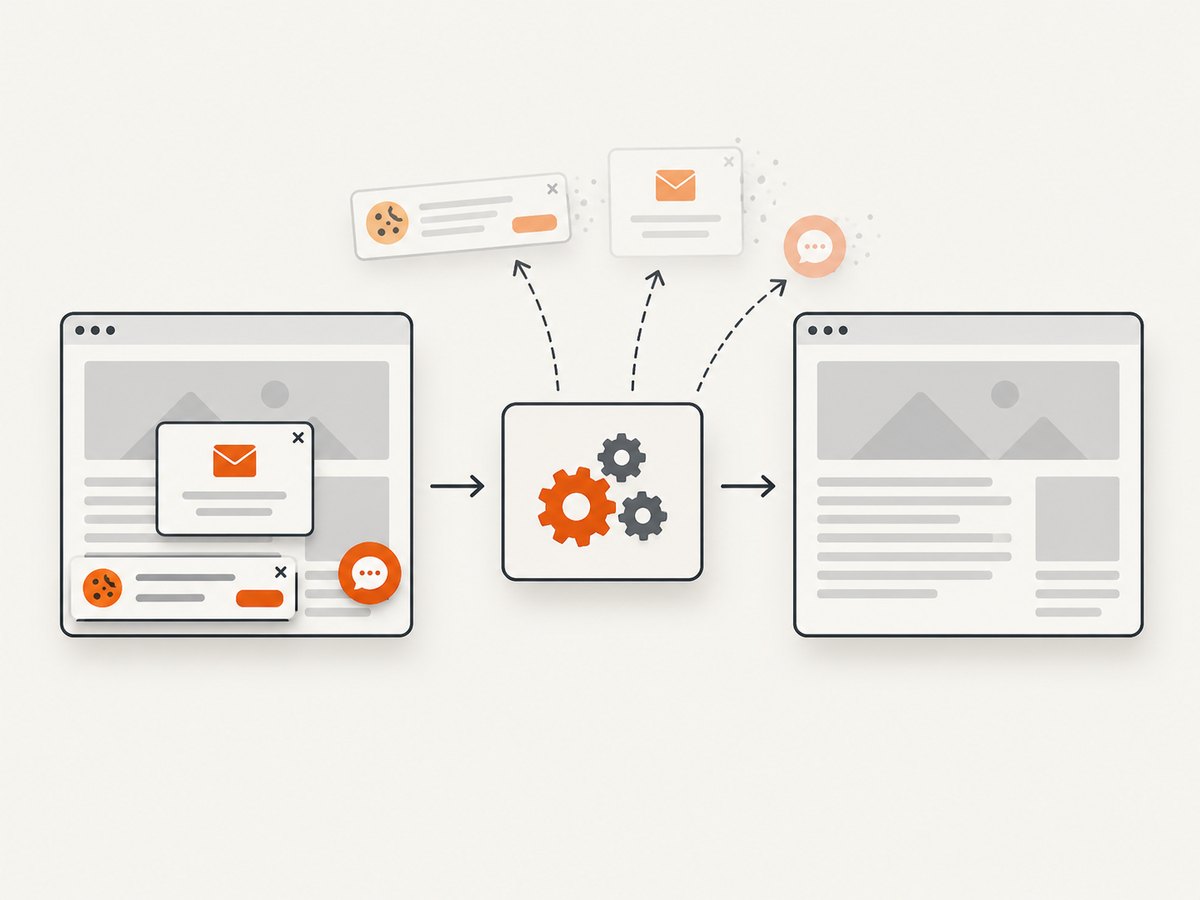
If what you need is a reliable screenshot of a web page rather than the local desktop, ScreenshotNeo provides a URL-based capture API. It removes cookie and consent banners, newsletter popups, and chat widgets before the shot. Bot checks, blank pages, failed loads, timeouts, and cache hits are not billed, and responses identify the page verdict and billing result in headers.
See the ScreenshotNeo API documentation for the complete option list, including full-page capture, lazy-image loading, CSS-selector element capture, device presets, custom viewports, retina scale, dark mode, PDF output, custom CSS and JavaScript, clicks, waits, request blocking, headers, cookies, user agents, authorization, timezone, geolocation, transparent backgrounds, resizing, caching, signed links, asynchronous jobs, webhooks, bulk capture, and usage reporting.
cURL
curl -G "https://api.screenshotneo.com/v1/shot" -d access_key=YOUR_API_KEY --data-urlencode url=https://stripe.com -o shot.webpPython
import requests
r = requests.get("https://api.screenshotneo.com/v1/shot", params={"access_key": "YOUR_API_KEY", "url": "https://stripe.com"}, timeout=90)
open("shot.webp", "wb").write(r.content)
Node.js
const q = new URLSearchParams({ access_key: 'YOUR_API_KEY', url: 'https://stripe.com' });
const res = await fetch(`https://api.screenshotneo.com/v1/shot?${q}`);
ScreenshotNeo has an MCP server with take_screenshot, get_page_info, and capture_pdf tools for Claude, Cursor, and other MCP clients. The free plan includes 1,000 screenshots per month with no card; paid plans start at $5 for 3,000 screenshots. Create a free ScreenshotNeo account.
11. FAQ
Does increasing region capture every monitor?
No. A larger rectangle does not change PyAutoGUI’s documented primary-monitor scope.
Should I always enable a Windows compatibility setting?
No. An old issue reports one workaround, but it is historical and environment-specific. Diagnose current scaling and versions first.
Can PyAutoGUI capture a specific window?
Do not assume so from the basic screenshot API. Use a platform window-capture API when window boundaries matter.
What is the fastest way to prove a crop is caused by my code?
Call pyautogui.screenshot() without region, print image.size, and compare that file with the regional capture.


