BlogScreenshots on your device
How to Fix Python ImageGrab Screenshots That Miss Input
Fix ImageGrab screenshots that miss clicks, keystrokes, cursors, or the wrong monitor with a platform-aware diagnostic guide and working Python code.
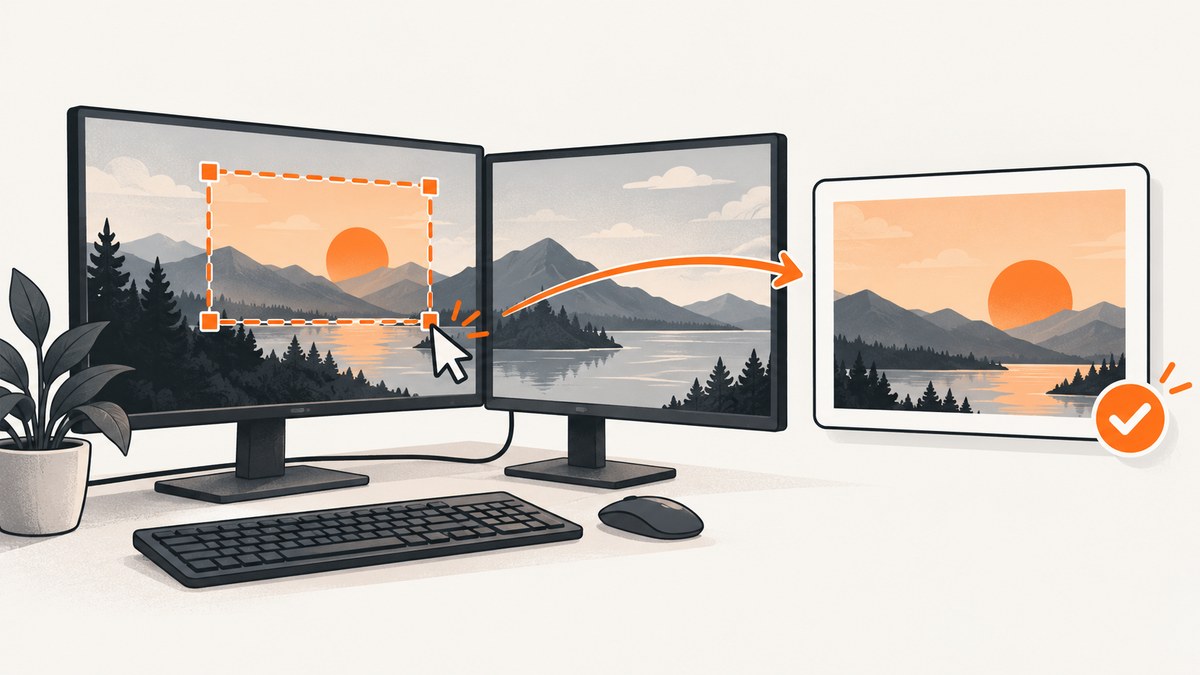
ImageGrab does not record keyboard or mouse events. It takes a snapshot of pixels on the screen. “Miss input” can therefore mean three different problems:
- The click or keystroke never changed the visible application state.
- The state changed, but the saved screenshot does not show it yet.
- The screenshot captured the wrong rectangle or monitor because input coordinates and capture coordinates use different coordinate systems.
Diagnose those cases separately. First verify that the application visibly changed, then capture a full screen, then narrow the capture to a bounding box. On Windows with multiple monitors, test all_screens=True and keep cursor coordinates, bounding-box coordinates, and the captured desktop in the same coordinate space. The official ImageGrab documentation describes screen and clipboard capture; it does not promise input-event recording or mouse-pointer inclusion.
1. Confirm what “missed input” means
- Perform the click or keystroke with your automation library.
- Wait until the application visibly reflects it.
- Look at the screen manually or save a full-screen image.
- Only then investigate
bbox, monitor offsets, scaling, or platform capture support.
If the application did not change before capture, investigate focus, permissions, event delivery, overlays, and application timing. ImageGrab cannot repair an input event that was never delivered.
2. Minimal full-screen capture
Install or upgrade Pillow, then capture the entire default screen. Omitting bbox avoids most crop-coordinate mistakes.
python -m pip install --upgrade Pillowfrom pathlib import Path
from PIL import ImageGrab
output = Path("screen.png")
image = ImageGrab.grab()
image.save(output)
print(f"saved {output} ({image.width}x{image.height})")Open screen.png. If the visible result of the input is present here, the capture pipeline works and your crop or coordinate conversion is the likely cause.
3. Capture a precise region safely
bbox is a pixel rectangle in the capture coordinate system: (left, top, right, bottom). Normalize points before passing them to Pillow so dragging in any direction produces a valid rectangle.
from pathlib import Path
from PIL import ImageGrab


def normalized_bbox(first, second):
    x1, y1 = first
    x2, y2 = second
    left, right = sorted((x1, x2))
    top, bottom = sorted((y1, y2))
    if left == right or top == bottom:
        raise ValueError("capture rectangle must have non-zero width and height")
    return (left, top, right, bottom)

# Replace these with coordinates from the same desktop coordinate system.
start = (100, 100)
end = (900, 700)
bbox = normalized_bbox(start, end)

image = ImageGrab.grab(bbox=bbox)
image.save(Path("region.png"))
print(f"saved region.png: bbox={bbox}, size={image.size}")
Do not mix logical coordinates from a GUI toolkit with physical pixel coordinates from another API without converting them. Display scaling and Retina rendering can make those values differ.
4. Windows multi-monitor coordinates
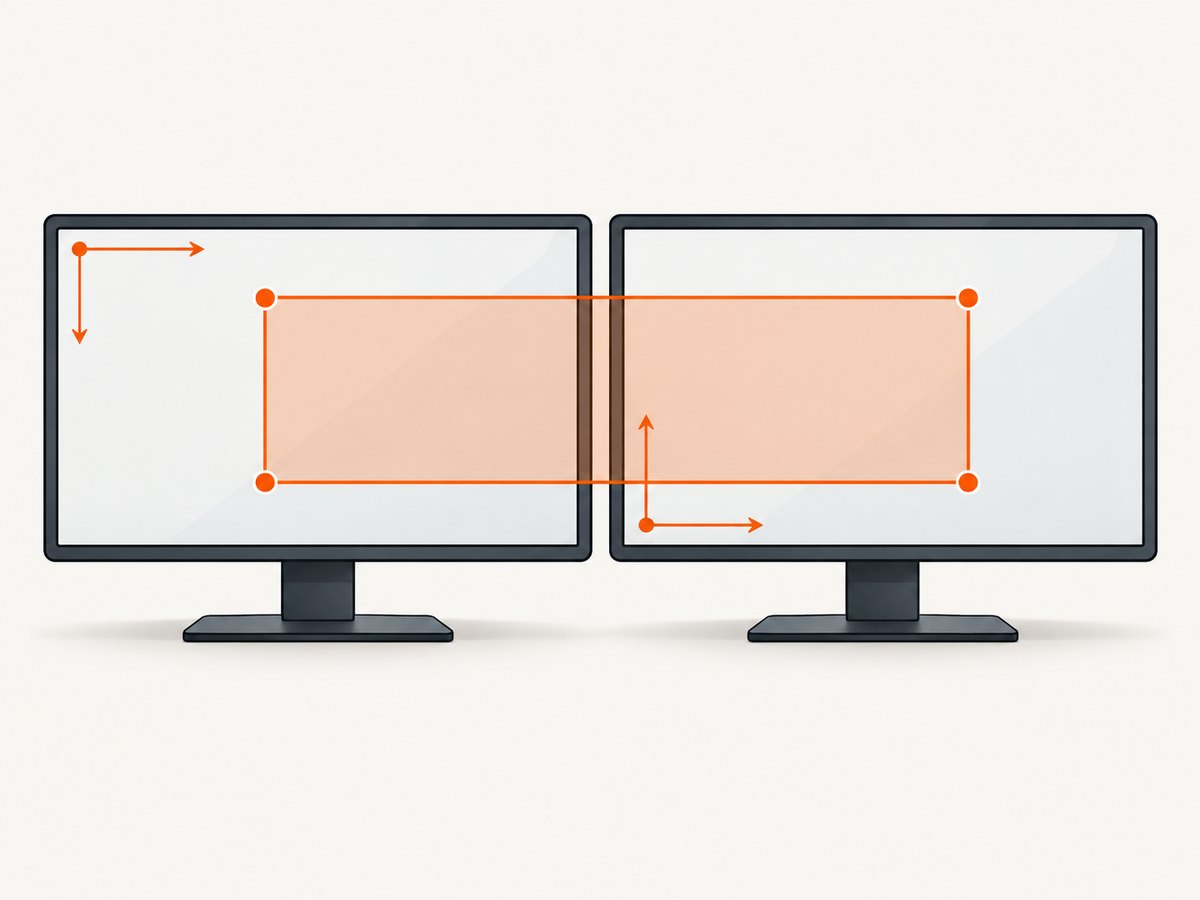
On Windows, all_screens=True captures the virtual desktop. Pillow documents that the virtual desktop’s top-left can be negative when a monitor sits left of or above the primary display. The current implementation obtains a desktop offset and crops the bounding box relative to that offset; your coordinates still need to describe the same virtual desktop.
from PIL import ImageGrab

# Windows only: include every monitor in the virtual desktop.
image = ImageGrab.grab(all_screens=True)
image.save("all-monitors.png")
print(image.size)
When coordinates come from GetCursorPos() or mouse clicks:
- Use the same screen-coordinate origin for both points and the capture.
- Expect negative
xoryvalues for monitors positioned left or above the primary display. - Normalize the two corners before calling
grab(bbox=...). - Log the cursor position, bbox, monitor layout, and resulting image size.
Pillow issue #7898 reports an inaccurate bbox on a Windows 11 system with an external monitor. It is useful evidence that display configuration and coordinate conversion matter, not proof of a universal Pillow defect.
5. Layered windows, pointer, and redraw timing
Layered Windows
On Windows, include_layered_windows=True is narrowly intended to include layered windows.
from PIL import ImageGrab

image = ImageGrab.grab(include_layered_windows=True)
image.save("layered.png")
This option does not capture keyboard events, force a redraw, fix delayed application updates, or guarantee that every missing visual element appears.
Mouse pointer
The ImageGrab documentation does not promise pointer inclusion. Do not treat all_screens, include_layered_windows, or scale_down as cursor-capture flags. If the pointer itself is required, collect the OS, Pillow version, desktop session, and a minimal reproduction before choosing a platform-specific capture method.
Wait for the application to repaint
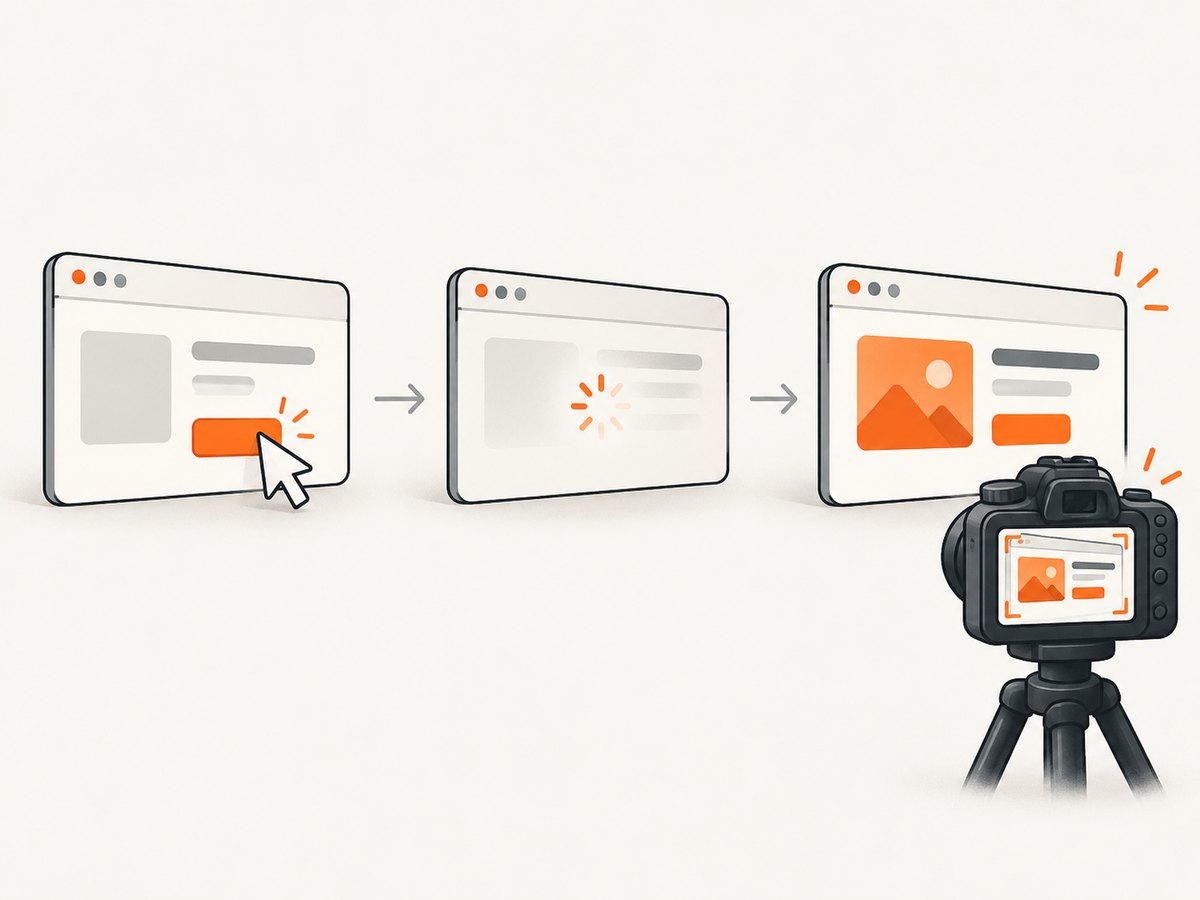
A click can be delivered before a menu, animation, or network result is painted. Wait for a visible condition when your automation framework supports it; otherwise use a short delay and verify the result with a diagnostic full-screen capture.
import time
from PIL import ImageGrab

# Replace with a state-aware wait when possible.
time.sleep(0.25)
ImageGrab.grab().save("after-input.png")
6. macOS Retina and Pillow versions
Pillow says Retina captures are 2x by default. In Pillow 12.3.0, keyword-only scale_down=True prevents the 2x result for bbox captures.
from PIL import ImageGrab

bbox = (100, 100, 900, 700)
image = ImageGrab.grab(bbox=bbox, scale_down=True)
image.save("retina-region.png")
Check your installed version before using newer parameters:
import PIL
print(PIL.__version__)
Window capture support was added on macOS in Pillow 12.1.0 and on Windows in 11.2.1. Older installations will reject those arguments or behave differently.
7. Linux sessions and capture backends
Pillow supports Linux from version 7.1.0. With xdisplay=None, if the default X11 screen cannot return a snapshot, Pillow may fall back to an installed gnome-screenshot, grim, or spectacle. Passing xdisplay="" disables that fallback.
from PIL import ImageGrab, features

print("XCB support:", features.check_feature("xcb"))
image = ImageGrab.grab()
image.save("linux-screen.png")
Verify the display session, permissions, and installed screenshot utility. Wayland desktops and applications can differ from X11 behavior; the documented fallback is not a guarantee that every Wayland surface will be captured identically.
8. A diagnostic script you can run
import argparse
import platform
from pathlib import Path

from PIL import ImageGrab, features


def main():
    parser = argparse.ArgumentParser()
    parser.add_argument("--output", default="diagnostic.png")
    parser.add_argument("--all-screens", action="store_true")
    parser.add_argument("--layered", action="store_true")
    args = parser.parse_args()

    print("OS:", platform.platform())
    print("Pillow XCB support:", features.check_feature("xcb"))

    kwargs = {}
    if args.all_screens:
        kwargs["all_screens"] = True
    if args.layered:
        kwargs["include_layered_windows"] = True

    image = ImageGrab.grab(**kwargs)
    output = Path(args.output)
    image.save(output)
    print("saved:", output.resolve())
    print("size:", image.size)


if __name__ == "__main__":
    main()
python diagnostic.py --output full.png
# Windows virtual desktop
python diagnostic.py --all-screens --output monitors.png
# Windows layered windows
python diagnostic.py --layered --output layered.png9. Troubleshooting checklist
| Symptom | Likely cause | Fix |
|---|---|---|
| Click result is absent everywhere | Focus, permissions, event delivery, or application timing | Verify the visible state before capture; fix automation and wait for repaint |
| Full screen is correct, crop is wrong | Bbox coordinates use another origin, scale, or monitor | Capture all screens, normalize corners, and keep coordinate systems consistent |
| External monitor causes an offset | Virtual desktop has negative coordinates or mixed DPI scaling | Use all_screens=True; log offsets and convert coordinates |
| Layered overlay is missing on Windows | Layered window not included | Try include_layered_windows=True |
| macOS crop is twice the expected size | Retina backing pixels | Use Pillow 12.3.0+ with scale_down=True for bbox captures |
| Linux capture is blank or errors | Display/session/backend or missing utility | Check XCB, display variables, permissions, and fallback utilities |
| Pointer is absent | ImageGrab does not document pointer inclusion | Use a platform-specific pointer-capable method after identifying the OS/session |
| Argument is rejected | Pillow version is too old | Check PIL.__version__ and upgrade where appropriate |
10. Performance, reliability, and cost
- Performance: Full-screen and all-monitor images consume memory proportional to pixel count. Crop after you have validated coordinates, and save an appropriate image format for your workflow.
- Reliability: Record OS, Pillow version, monitor arrangement, scaling, session type, bbox, and image dimensions with failures. This makes display-specific bugs reproducible.
- Timing: Prefer waiting for a UI condition over a fixed sleep. A fixed delay is only a fallback for animations or applications without observable state.
- Permissions: macOS screen-recording permissions, Linux display access, Windows desktop isolation, and application security policies can prevent pixels from being available.
- Cost: Pillow is a local library; the capture itself has no API request cost. Your operational costs are CPU, memory, storage, and any hosted desktop or CI runner.
11. Or skip the browser setup
If you need a screenshot of a public web page rather than the local desktop, ScreenshotNeo returns a clean PNG, JPEG, WebP, or PDF from one GET request. Its consent step accepts cookie banners and removes more than 60 known consent platforms, newsletter popups, and chat widgets before capture. Bot checks, blank pages, timeouts, failed loads, and cache hits are not billed, and the response identifies the result with X-Page-Verdict and X-Billed headers. See the ScreenshotNeo API documentation for all options.
cURL
curl -G "https://api.screenshotneo.com/v1/shot" -d access_key=YOUR_API_KEY --data-urlencode url=https://stripe.com -o shot.webpPython
import requests

r = requests.get("https://api.screenshotneo.com/v1/shot", params={"access_key": "YOUR_API_KEY", "url": "https://stripe.com"}, timeout=90)
open("shot.webp", "wb").write(r.content)
Node.js
const q = new URLSearchParams({ access_key: 'YOUR_API_KEY', url: 'https://stripe.com' });
const res = await fetch(`https://api.screenshotneo.com/v1/shot?${q}`);
ScreenshotNeo also provides an MCP server for Claude, Cursor, and other MCP clients, with take_screenshot, get_page_info, and capture_pdf tools. The Free plan includes 1,000 screenshots per month without a card; paid plans start at $5 for 3,000 screenshots. Create a free ScreenshotNeo account.
12. FAQ
Does ImageGrab capture keyboard or mouse events?
No. It captures pixels. Use an input-automation library for events and verify the resulting visual state separately.
Why does a bbox work on one monitor but not another?
The monitors may have different origins, negative virtual-desktop coordinates, or display scaling. Capture all screens and keep every coordinate in one system.
Should I always enable all_screens=True?
No. Use it on Windows when you need the virtual desktop or when diagnosing monitor offsets. A default full-screen capture is simpler for a single display.
Can scale_down=True fix a missing cursor?
No. It addresses Retina bbox dimensions in Pillow 12.3.0 and later; it is not a pointer option.
How do I know whether Linux is using X11?
Inspect the session environment and check Pillow’s XCB feature support. Also verify the documented external screenshot utilities when fallback capture is involved.


