BlogScreenshots on your device
How to Fix Black Screens from Robot.createScreenCapture on Windows 8.1
Diagnose black Robot.createScreenCapture images on Windows 8.1 by checking coordinates, desktop sessions, permissions, and runtime details.
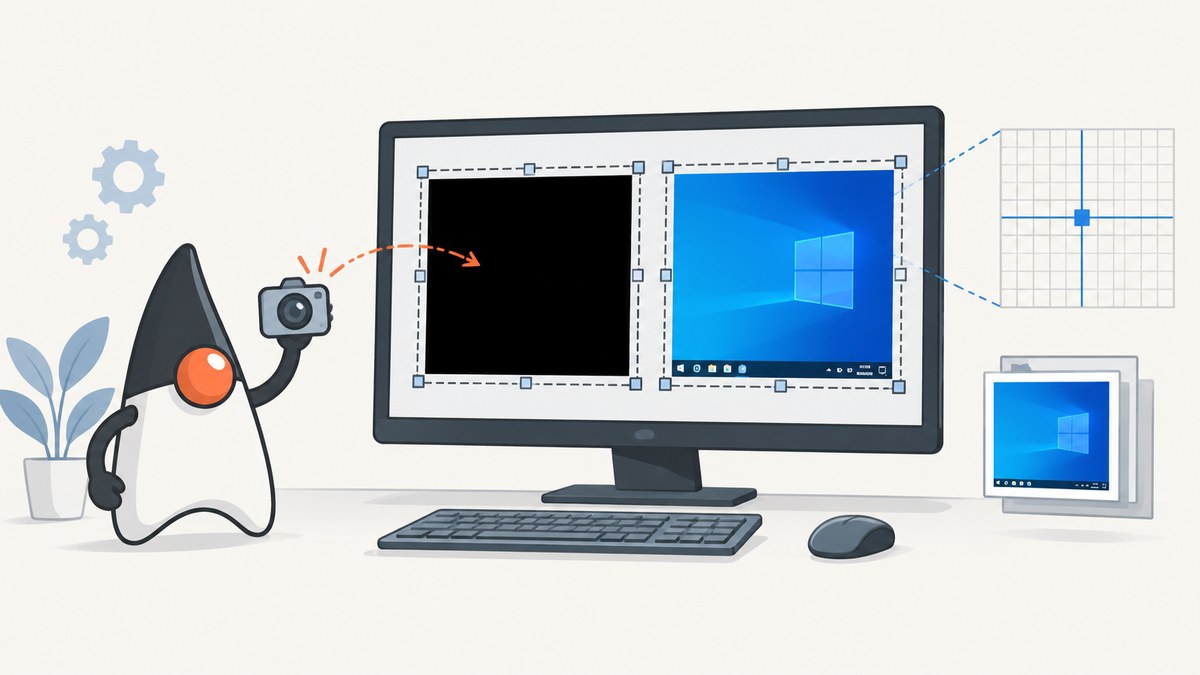
A black BufferedImage from Robot.createScreenCapture does not identify one universal Windows 8.1 fix. Diagnose it in this order: verify the rectangle and monitor coordinates, confirm the process has access to the interactive desktop session, compare manual and automated launch paths, record Java and display details, then test graphics or driver variables one at a time.
Java documents that createScreenCapture(Rectangle) reads pixels from screen coordinates. It also warns that desktop restrictions can cause a SecurityException or undefined image contents. See the Java SE 8 Robot API and the current Robot API.
1. Confirm what “black” means
First distinguish these cases:
- Exception: construction or capture throws, especially
SecurityException. Record the complete stack trace. - All pixels are black: the call returned an image, but the captured region contains zero or near-zero values.
- Only one monitor or region is black: suspect coordinates, monitor topology, scaling, or a display-specific issue.
- The saved file looks black but the image is valid: inspect the file dimensions, color model, and a few pixel values before assuming capture failed.
2. Run a minimal diagnostic program
Use a small visible rectangle first. This program logs every display’s bounds, captures the primary display’s upper-left area, checks pixel values, and writes a PNG.
import java.awt.AWTException;
import java.awt.Color;
import java.awt.GraphicsDevice;
import java.awt.GraphicsEnvironment;
import java.awt.Rectangle;
import java.awt.Robot;
import java.awt.image.BufferedImage;
import java.io.File;
import javax.imageio.ImageIO;

public class RobotCaptureDiagnostic {
    public static void main(String[] args) throws Exception {
        System.out.println("Java: " + System.getProperty("java.version"));
        System.out.println("VM: " + System.getProperty("java.vm.name"));
        System.out.println("OS: " + System.getProperty("os.name") + " "
                + System.getProperty("os.version") + " "
                + System.getProperty("os.arch"));

        GraphicsEnvironment ge = GraphicsEnvironment.getLocalGraphicsEnvironment();
        GraphicsDevice[] devices = ge.getScreenDevices();
        for (GraphicsDevice device : devices) {
            Rectangle bounds = device.getDefaultConfiguration().getBounds();
            System.out.println("Display " + device.getIDstring() + " bounds=" + bounds);
        }

        GraphicsDevice primary = ge.getDefaultScreenDevice();
        Rectangle display = primary.getDefaultConfiguration().getBounds();
        int width = Math.min(400, display.width);
        int height = Math.min(300, display.height);
        Rectangle captureArea = new Rectangle(display.x, display.y, width, height);
        if (captureArea.width <= 0 || captureArea.height <= 0) {
            throw new IllegalArgumentException("Capture rectangle has non-positive size: " + captureArea);
        }

        System.out.println("Capturing " + captureArea + " on " + primary.getIDstring());
        Robot robot = new Robot(primary);
        BufferedImage image = robot.createScreenCapture(captureArea);
        ImageIO.write(image, "png", new File("robot-diagnostic.png"));

        int[] sample = {
            image.getRGB(0, 0),
            image.getRGB(image.getWidth() / 2, image.getHeight() / 2),
            image.getRGB(image.getWidth() - 1, image.getHeight() - 1)
        };
        for (int i = 0; i < sample.length; i++) {
            Color c = new Color(sample[i], true);
            System.out.printf("sample%d=%d,%d,%d,%d%n", i,
                    c.getRed(), c.getGreen(), c.getBlue(), c.getAlpha());
        }
        System.out.println("Wrote robot-diagnostic.png (" + image.getWidth()
                + "x" + image.getHeight() + ")");
    }
}
Compile and run it while signed in and looking at a known visible region:
javac RobotCaptureDiagnostic.java
java RobotCaptureDiagnostic
3. Check the rectangle and coordinate system
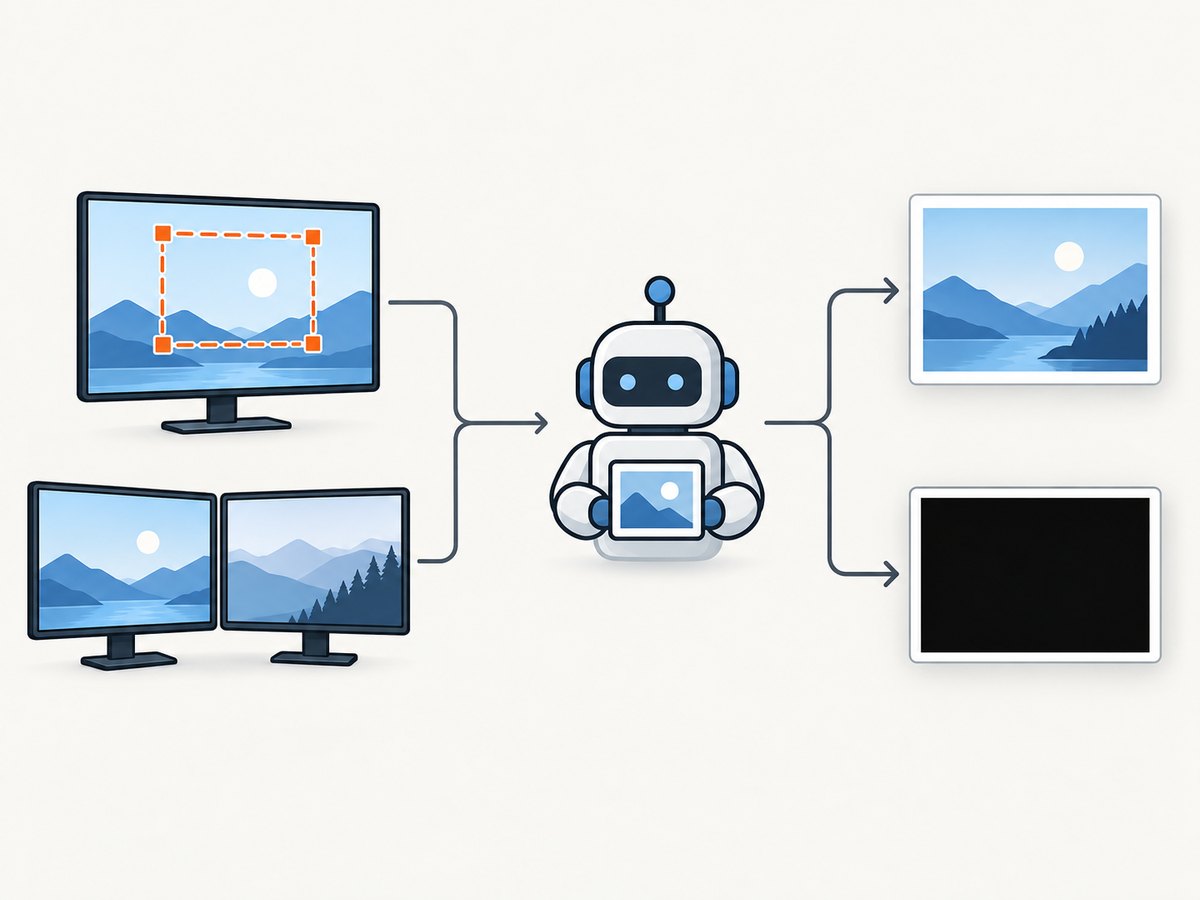
The rectangle is expressed in screen coordinates, not coordinates relative to your application window. A multi-monitor desktop can have negative x or y values when a display is positioned left of or above the primary display. The Robot(GraphicsDevice) constructor uses the selected device's coordinate system.
| Check | What to verify |
|---|---|
| Size | width > 0 and height > 0; avoid overflow when calculating dimensions. |
| Origin | x and y fall inside the intended display bounds. |
| Extent | x + width and y + height do not unintentionally miss the display. |
| Device | Use the GraphicsDevice whose bounds contain the target region. |
| Scaling | Record Windows display scaling and Java runtime; do not silently convert logical window coordinates to screen pixels. |
Capture the whole primary display and then a small rectangle that is visibly occupied. If the primary display works but a secondary display is black, focus on device bounds and virtual-desktop placement before changing JVM or driver settings.
4. Verify the desktop session and launch context
Robot captures the desktop available to the process. Compare these two runs:
- Open a command prompt in the signed-in Windows 8.1 desktop and start the Java program manually.
- Start the same command through the real launcher: a C++ helper, scheduled task, service wrapper, IDE, or other automation.
If manual launch produces pixels but the automated path produces black output, log the account, session, window station, integrity level, working directory, Java executable, and environment variables for both paths. A historical Oracle forum report described black output when Java was started by a separate C++ utility while a manually started batch file worked. That report is an old anecdote, not proof of a Windows 8.1 cause, but it makes launch-context comparison a useful experiment.
Do not run the capture as a background Windows service and expect it to see the interactive user's desktop. Test with the same signed-in user and desktop session first. If a scheduled task is required, compare its “run only when user is logged on” and “run whether user is logged on or not” contexts as separate variables.
5. Check access restrictions and exceptions
The Robot API says a desktop environment may restrict screen capture. Missing permission can result in a SecurityException or undefined image contents; an all-black image alone does not prove access denial. Catch and log exceptions without replacing them with a generic “black screen” message.
try {
    Robot robot = new Robot();
    BufferedImage image = robot.createScreenCapture(new Rectangle(0, 0, 200, 150));
} catch (SecurityException e) {
    System.err.println("Desktop capture permission was denied or restricted");
    e.printStackTrace();
} catch (AWTException e) {
    System.err.println("AWT could not create a Robot for this environment");
    e.printStackTrace();
}
Also check whether the desktop is locked, disconnected, running in a remote session, or showing a secure desktop prompt. Record these states in your reproduction notes; do not infer a specific Windows 8.1 policy without evidence.
6. Record a reproducible environment
For every test, save:
- Windows 8.1 edition and whether the session is local, RDP, or another remote connection.
- Java vendor, exact version/build, and 32-bit versus 64-bit process.
- JVM command line and the path to
java.exe. - Monitor count, resolution, arrangement, scaling percentage, and graphics adapter/driver version.
- Selected
GraphicsDevice, reported bounds, rectangle, image dimensions, color model, and sample pixel values. - Whether the program was launched manually or by its production launcher.
This information is necessary because the reviewed documentation does not identify one Java build, driver, or Windows 8.1 configuration as the universal cause.
7. Test graphics and driver variables last
Oracle's Java troubleshooting guide discusses Windows Java 2D pipelines and driver-related rendering problems. It does not establish that a particular pipeline flag, driver update, or replacement library fixes black createScreenCapture output on Windows 8.1.
After coordinates, permissions, and launch context are verified, change one variable at a time:
- Run the same class with the exact same rectangle on a second Java build.
- Test the current graphics driver and one controlled driver update or rollback.
- If you evaluate a Java 2D pipeline option, record the complete command line and revert it after the test.
- Repeat on the primary and secondary displays.
Keep the diagnostic PNG and logs for each run. A change is evidence only if the same reproduction becomes reliable across repeated captures.
8. Common errors and fixes
| Symptom | Likely area | Action |
|---|---|---|
IllegalArgumentException or invalid image size |
Rectangle calculation | Log and validate x, y, width, and height before constructing the rectangle. |
SecurityException |
Desktop permission or restricted session | Run in the signed-in interactive desktop and inspect security policy and launcher context. |
AWTException |
AWT environment or display access | Confirm a desktop display exists and the process is not running headless. |
| Primary display works; secondary is black | Virtual coordinates or device selection | Print every device's bounds and capture using the matching GraphicsDevice. |
| Manual launch works; wrapper fails | Session or environment difference | Compare user, session, Java path, bitness, and command line. |
| Every capture is black with no exception | Undefined contents, inaccessible desktop, or graphics path | Use the visible-region test, inspect pixels, then vary runtime/driver one change at a time. |
| Only the saved file appears black | Encoding or viewer issue | Check file size, dimensions, color model, and open the PNG in a second viewer. |
9. Performance and reliability considerations
- Capture the smallest rectangle that meets your requirement while diagnosing; full-display captures cost more memory and take longer to encode.
- Reuse a
Robotinstance for repeated captures when the display context is unchanged. - Write diagnostic files asynchronously in production so disk I/O does not block the capture loop.
- Do not treat one successful frame as proof of reliability. Run repeated captures after display changes, unlocks, and launcher restarts.
- For unattended jobs, record a verdict (success, exception, blank, or unexpected dimensions) and retain failed artifacts for comparison.
10. Or skip the browser setup
If your goal is a screenshot of a web page rather than the Windows desktop, ScreenshotNeo removes the local browser and desktop-session variables. Its API accepts one GET request and returns PNG, JPEG, WebP, or PDF. Before capture it accepts cookie/consent banners and removes more than 60 known consent platforms, newsletter popups, and chat widgets; each step can be turned off. Bot checks, blank pages, timeouts, failed loads, and cache hits are not billed, and the response identifies the result with X-Page-Verdict and X-Billed headers.

See the ScreenshotNeo API documentation for all options, including full-page and element capture, device presets, custom CSS and JavaScript, waits, blocking rules, headers, cookies, geolocation, caching, signed links, asynchronous jobs, bulk capture, and usage reporting.
curl -G "https://api.screenshotneo.com/v1/shot" -d access_key=YOUR_API_KEY --data-urlencode url=https://stripe.com -o shot.webpimport requests
r = requests.get("https://api.screenshotneo.com/v1/shot", params={"access_key": "YOUR_API_KEY", "url": "https://stripe.com"}, timeout=90)
open("shot.webp", "wb").write(r.content)const q = new URLSearchParams({ access_key: 'YOUR_API_KEY', url: 'https://stripe.com' });
const res = await fetch(`https://api.screenshotneo.com/v1/shot?${q}`);ScreenshotNeo also provides an MCP server with take_screenshot, get_page_info, and capture_pdf tools for Claude, Cursor, and other MCP clients. The Free plan includes 1,000 screenshots per month with no card; paid plans start at $5 for 3,000 shots. Create a free ScreenshotNeo account.
11. FAQ
Does Windows 8.1 have a single known fix?
No verified universal fix is established by the available Java documentation. The cause depends on coordinates, desktop access, runtime, display setup, and launch context.
Is an all-black image proof of a permission problem?
No. Java documents permission-related exceptions or undefined contents, but black pixels alone do not identify the cause.
Should I immediately add a JVM graphics flag?
No. Test rectangle, monitor, session, and runtime variables first. If you test a graphics option, change only that option and record the result.
Can Robot capture a locked Windows desktop?
Do not assume it can. A locked, disconnected, or non-interactive session is a separate condition that must be tested and documented.
When should I use a web screenshot API?
Use one when the target is a URL and you do not need pixels from the local Windows desktop. It avoids desktop-session and monitor-coordinate issues.


