BlogScreenshots on your device
How to Fix Screenshots That Don’t Capture the Full Screen
Fix cropped screenshots by choosing the right full-screen or scrolling capture method on Windows, Mac, iPhone, Android, and browsers.
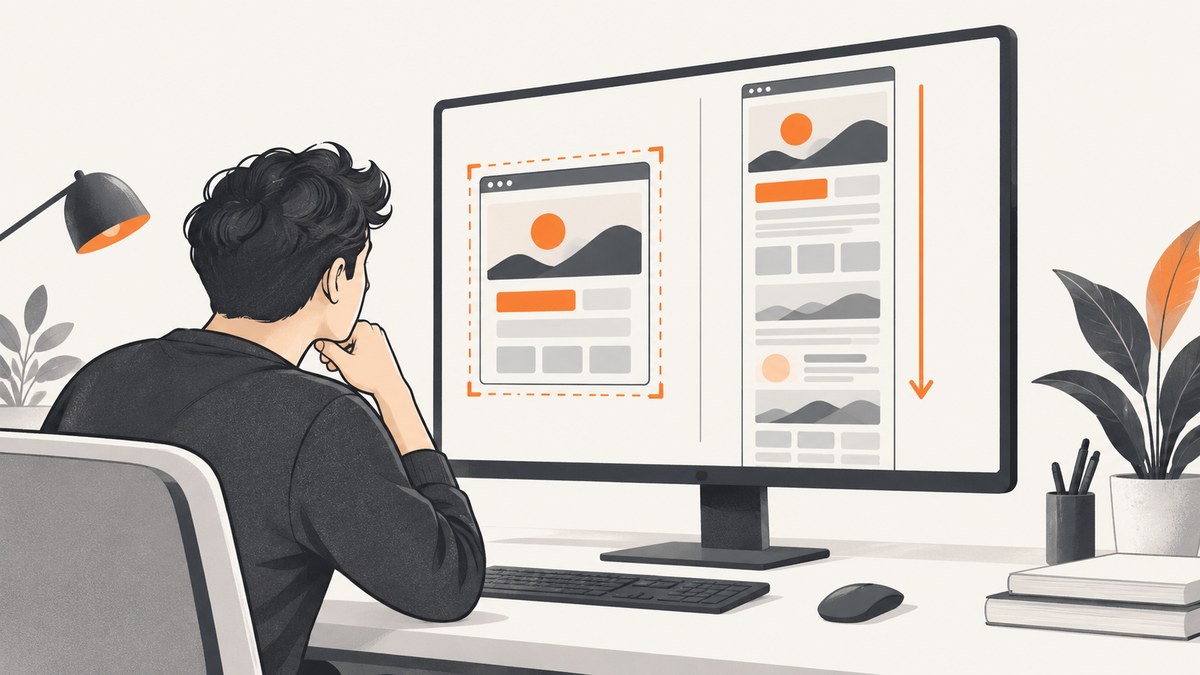
First, identify what “full screen” means. A display screenshot captures only what is visible on your monitor or phone. A full-page or scrolling screenshot captures content that continues below the viewport. If the missing content was below the fold, changing from a rectangle to a full-display shortcut will not solve it; you need a scrolling or full-page capture.
Use the platform instructions below, then verify that the saved file or clipboard image contains the area you intended. For automated website captures, you can use ScreenshotNeo to request a full-page image or PDF from one API call.
1. Decide which kind of capture you need
| Problem | Correct method | Typical symptom |
|---|---|---|
| Only part of the monitor is captured | Whole-display capture | The image stops at a selection box or one window |
| A window is missing or cropped | Window capture or whole-display capture | Desktop or another app is absent |
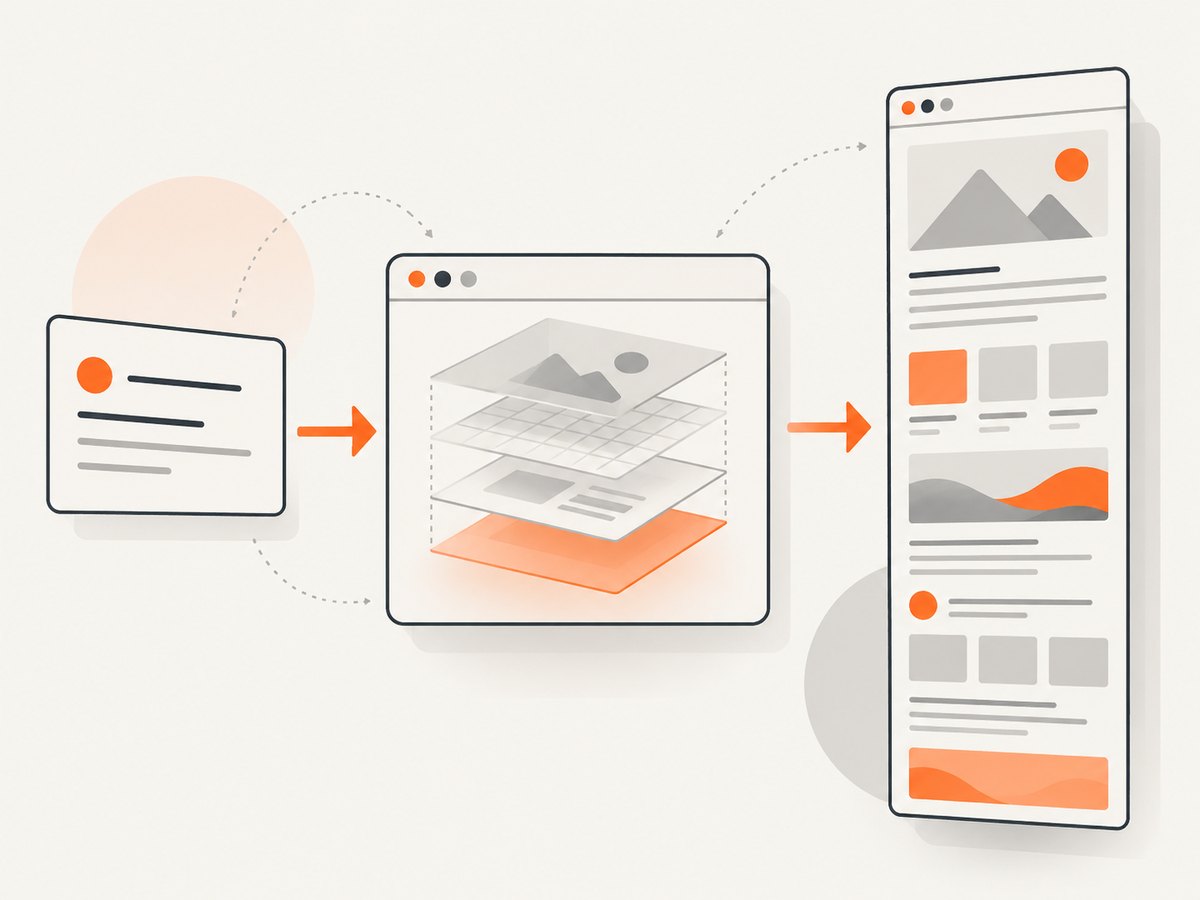
| A webpage continues below the visible area | Full-page or scrolling capture | The screenshot ends at the bottom of the viewport |
| An app refuses to appear | Check app-level restrictions | Only one protected app or video window is blank |
2. Windows: choose Full screen in Snipping Tool
Microsoft’s Snipping Tool provides Full screen, Window, Rectangle, and Freeform modes. Rectangle and Freeform intentionally capture only a selected area. Open the tool with Windows+Shift+S, select the capture mode, and choose Full screen when you need the entire display. Microsoft also documents PrtSc as an entire-screen snapshot copied to the clipboard. See Microsoft’s Snipping Tool instructions.
- Press Windows+Shift+S.
- In the capture toolbar, select the full-screen option instead of Rectangle or Freeform.
- Open the notification or paste the clipboard into an image editor to confirm the complete display is present.
- If you used PrtSc, paste with Ctrl+V; the image may not be saved as a file until you choose Save.
Windows troubleshooting
- It is still cropped: reopen the overlay and inspect the selected mode and frame. A rectangle selection cannot include pixels outside its frame.
- The wrong monitor appears: move the target window to the intended display or use a window/full-display mode appropriate to your monitor setup.
- You cannot find the file: check the Snipping Tool notification and the save location you selected; clipboard captures require a paste operation.
3. Mac: use the shortcut that matches the required area
Apple documents three primary Mac shortcuts: Shift+Command+3 captures the entire screen, Shift+Command+4 selects an area, and Shift+Command+5 opens Screenshot controls. A normal screenshot is saved to the desktop unless you changed the destination. Read Apple’s Mac screenshot guide.
- Press Shift+Command+3 for the complete display.
- Use Shift+Command+4 only when you want a selected portion.
- Press Shift+Command+5 to choose a window, display, timer, or save location.
- Open the saved image from the desktop or the configured destination and check its dimensions.
Some applications do not permit screenshots of their windows. Apple specifically notes that certain apps, including Apple TV, may block capture. If only one app is missing while other windows work, treat it as an application restriction rather than a general shortcut failure.
4. iPhone: choose Full Page for a long webpage
On iPhone, take a normal screenshot first, tap its preview, then choose Full Page when that option is available. This captures a webpage extending beyond the display instead of only the visible portion. Apple’s instructions distinguish visible-screen, full-page, and selected-portion captures; availability can depend on the app. See Apple’s iPhone screenshot guide.
- Capture the screen using your iPhone model’s screenshot buttons.
- Tap the thumbnail before it disappears.
- Select Full Page.
- Scroll the preview to confirm the required content is included, then save or share it.
If Full Page is absent, the current app may expose only a visible-screen capture. Try the same steps in a supported webpage or use the app’s own export function.
5. Android: use Capture more on supported scrollable screens
Google documents a regular screenshot followed by Capture more for scrolling screenshots on most scrollable screens running Android 12 or newer. Google’s qualification is precise: “These steps work on devices running Android 12 and up on most screens that allow you to scroll.” See Google Android Help.
- Press Power and Volume Down together on supported devices.
- Tap Capture more in the screenshot controls.
- Extend the selection through the page, then save the result.
The control may be missing because of the device manufacturer, Android version, the app, or a screen that cannot scroll. In those cases, follow the manufacturer’s screenshot instructions or capture separate sections.
6. Browser webpages: use full-page capture
For a long webpage, use a browser feature designed to scroll. Microsoft Edge’s Screenshot tool can capture a full page or a selected area, including long webpages. Availability and functionality can vary by device, market, and browser version; check Microsoft Edge’s Screenshot tool page for the current controls.
- Open the page at its final URL and wait for visible content to load.
- Open the browser’s Screenshot tool.
- Choose full-page capture rather than a selected region.
- Review the resulting image for lazy-loaded sections, sticky headers, cookie banners, and clipped elements.
Other browsers and extensions use different names and shortcuts. Get the browser name and version before giving exact instructions. A normal display screenshot cannot include content that has not been scrolled or rendered.
7. When full-page capture still misses content
Long pages can contain lazy images, infinite scroll, sticky elements, animations, consent dialogs, chat widgets, or content that appears only after interaction. Check these conditions:
- Lazy loading: scroll through the page once, or use a capture tool that waits and loads lazy images.
- Sticky headers: a fixed header may repeat over every segment of a stitched image.
- Infinite scroll: there may be no fixed end; capture a defined range or export the content another way.
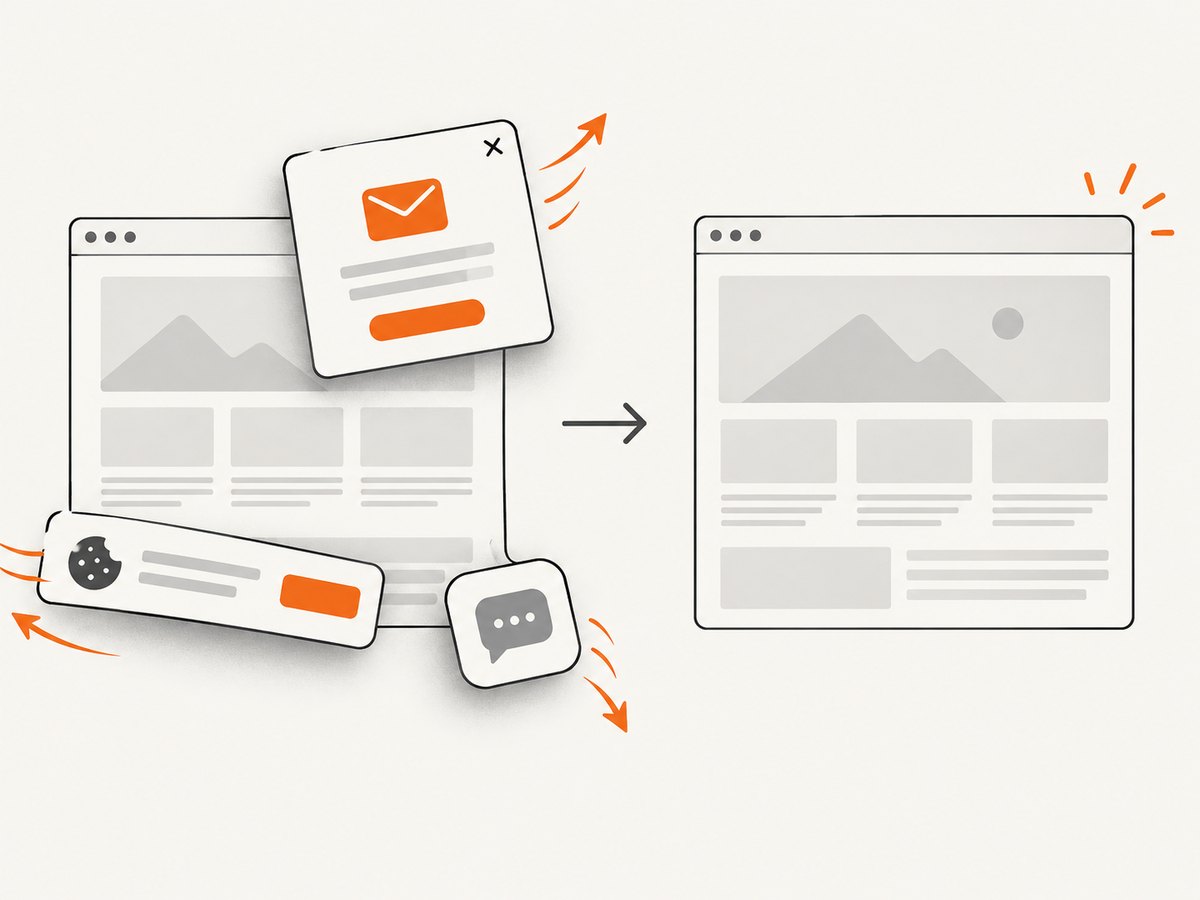
- Popups and consent banners: dismiss them before capturing so they do not cover the page.
- Protected content: an app or browser may intentionally block capture.
- Viewport versus document size: confirm that your tool is set to full page, not merely a larger viewport.
8. Or skip the browser setup
For automated website screenshots, ScreenshotNeo turns one GET request into a PNG, JPEG, WebP, or PDF. Its full-page capture loads lazy images, and you can also target one CSS selector, set a viewport or device preset, use dark mode and retina scale, wait for a selector, delay, or network idle, hide selectors, block ads or resource types, provide headers/cookies/user agents, set timezone or geolocation, resize images, cache with a chosen TTL, submit async jobs with signed webhooks, or capture up to 100 URLs per call. See the ScreenshotNeo API documentation.
cURL
curl -G "https://api.screenshotneo.com/v1/shot" -d access_key=YOUR_API_KEY --data-urlencode url=https://stripe.com -o shot.webpPython
import requests

r = requests.get(
    "https://api.screenshotneo.com/v1/shot",
    params={"access_key": "YOUR_API_KEY", "url": "https://stripe.com"},
    timeout=90,
)
r.raise_for_status()
open("shot.webp", "wb").write(r.content)
Node.js
const q = new URLSearchParams({ access_key: 'YOUR_API_KEY', url: 'https://stripe.com' });
const res = await fetch(`https://api.screenshotneo.com/v1/shot?${q}`);
if (!res.ok) throw new Error(`HTTP ${res.status}`);
const data = Buffer.from(await res.arrayBuffer());
require('fs').writeFileSync('shot.webp', data);
ScreenshotNeo accepts the cookie or consent banner like a visitor and removes more than 60 known consent platforms, newsletter popups, and chat widgets; each cleanup step can be turned off. Bot checks or CAPTCHAs, blank pages, timeouts, failed loads, and cache hits cost nothing. Responses identify the result with X-Page-Verdict and X-Billed headers. An MCP server provides take_screenshot, get_page_info, and capture_pdf tools for Claude, Cursor, and other MCP clients. One thousand screenshots per month are free without a card; paid plans start at $5 for 3,000. Create a free ScreenshotNeo account.
9. Troubleshooting checklist
| Symptom | Likely cause | Fix |
|---|---|---|
| Only a rectangle appears | Selection mode was active | Choose Full screen, full display, or full page. |
| Below-the-fold content is absent | Visible-screen capture was used | Use scrolling/full-page capture. |
| One app is black or missing | Application capture restriction | Check the app’s policy or export feature; do not assume a shortcut can bypass it. |
| Android has no Capture more | Unsupported OS, device, app, or non-scrollable screen | Check Android version and manufacturer guidance. |
| Webpage sections are blank | Lazy loading, timeout, blocked resource, or unfinished render | Wait for a selector or network idle, scroll first, and inspect resource blocking. |
| Screenshot was captured but cannot be found | It was copied to the clipboard or saved elsewhere | Paste clipboard content or check the configured save location. |
| API response is not an image | Authentication or request error | Check the access key, URL encoding, HTTP status, and response headers before writing the body to a file. |
10. Reliability, performance, and cost considerations
- Reliability: wait for a meaningful selector or network idle when the page renders asynchronously. For repeat jobs, use caching with a deliberate TTL and inspect verdict headers.
- Performance: full-page captures take longer and produce larger files than viewport captures. Block unnecessary ads, trackers, or resource types when they are not part of the page you need.
- Consistency: set a fixed viewport, device preset, timezone, geolocation, user agent, and custom headers when comparing captures over time.
- Cost: built-in operating-system tools have no API charge. ScreenshotNeo bills only clean shots; failed loads, bot checks, blank pages, timeouts, and cache hits are not billed. The free plan includes 1,000 shots per month without a card.
- Large workloads: use async jobs with signed webhooks or bulk capture for up to 100 URLs per call instead of holding one process open for every page.
11. Quick verification checklist
- Did you need the whole display or the whole scrollable document?
- Did you choose Full screen/full page instead of Rectangle, Freeform, Window, or visible area?
- Is the content inside an app that restricts screenshots?
- Did lazy content, a popup, sticky header, or infinite scroll alter the result?
- Did you verify the saved file or clipboard contents?
- For automation, did you wait for the right selector and check the response status and verdict?
12. FAQ
Why does my screenshot only capture part of my screen?
Usually the capture tool is in Rectangle, Freeform, Window, or selected-area mode. Choose the whole-display mode. If the missing area is below the viewport, use a scrolling capture instead.
How do I screenshot the whole webpage?
Use your browser’s full-page tool, or on iPhone choose Full Page after taking the screenshot. On Android, use Capture more when supported. For code, request a full-page capture from a screenshot API.
Can a normal screenshot include content below the fold?
No. A normal display screenshot records the current viewport. A scrolling or full-page method must render additional content and combine it into one result.
Why is full-page capture unavailable?
The device, operating system, browser, app, or page may not support scrolling capture. Android’s Capture more is limited to supported scrollable screens, and some apps block screenshots entirely.
Should I use PNG, JPEG, WebP, or PDF?
Use PNG for sharp interface details, JPEG for smaller photographic images, WebP for compact web delivery, and PDF when the result is intended for printing or document sharing.


