BlogScreenshots on your device
How to Fix Screenshots Not Working in Microsoft Windows
Screenshots not working in Windows? Find the failing step—shortcut, clipboard, file save, or OneDrive—and fix it with this diagnostic guide.
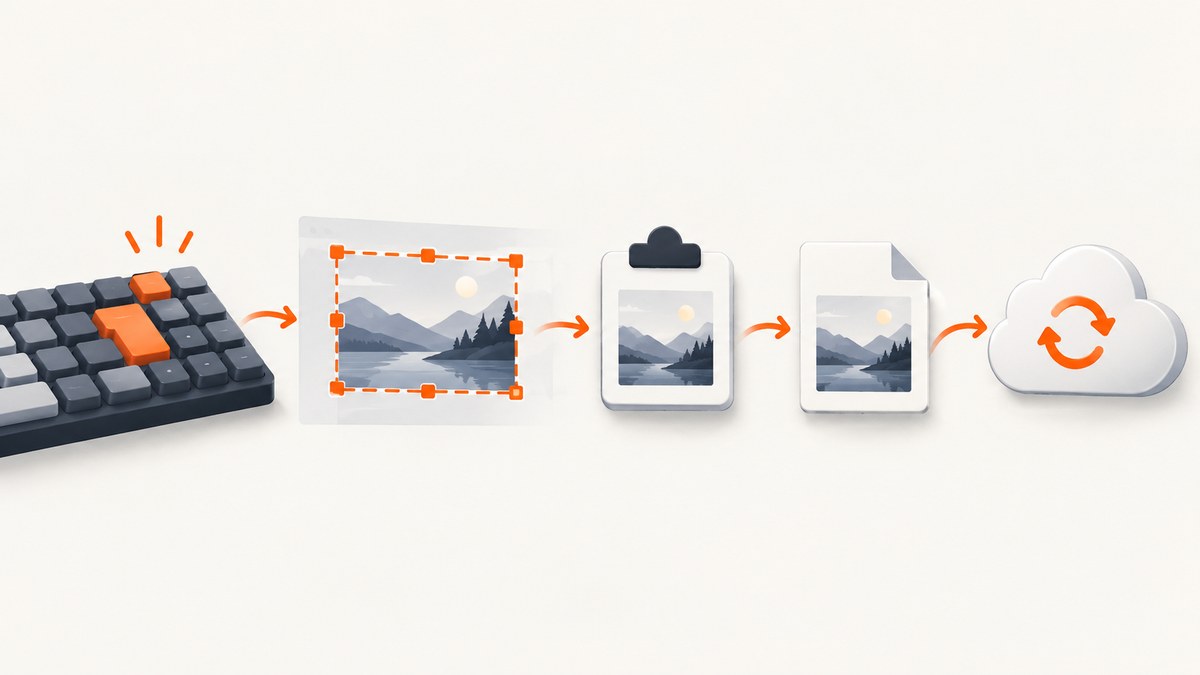
When screenshots stop working in Windows, identify which stage fails: the shortcut does nothing, the screen is selected but no image appears, the image is on the clipboard but not saved, or a saved image does not reach OneDrive. Each symptom has a different fix.
Start with Windows logo key + Shift + S. If the snipping overlay opens, select a region and check for the Snipping Tool notification. If that works, the capture system is available and the problem is probably the Print Screen key, clipboard handling, saving, or syncing. If nothing happens, open Snipping Tool from the Start menu to separate an application problem from a keyboard-shortcut problem.
1. Identify the failing screenshot step
Use this quick decision table before changing settings:
| What you observe | Likely layer | First test |
|---|---|---|
| No overlay, dimming, or notification | Shortcut, keyboard, or Snipping Tool launch | Open Snipping Tool from Start, then try Win+Shift+S |
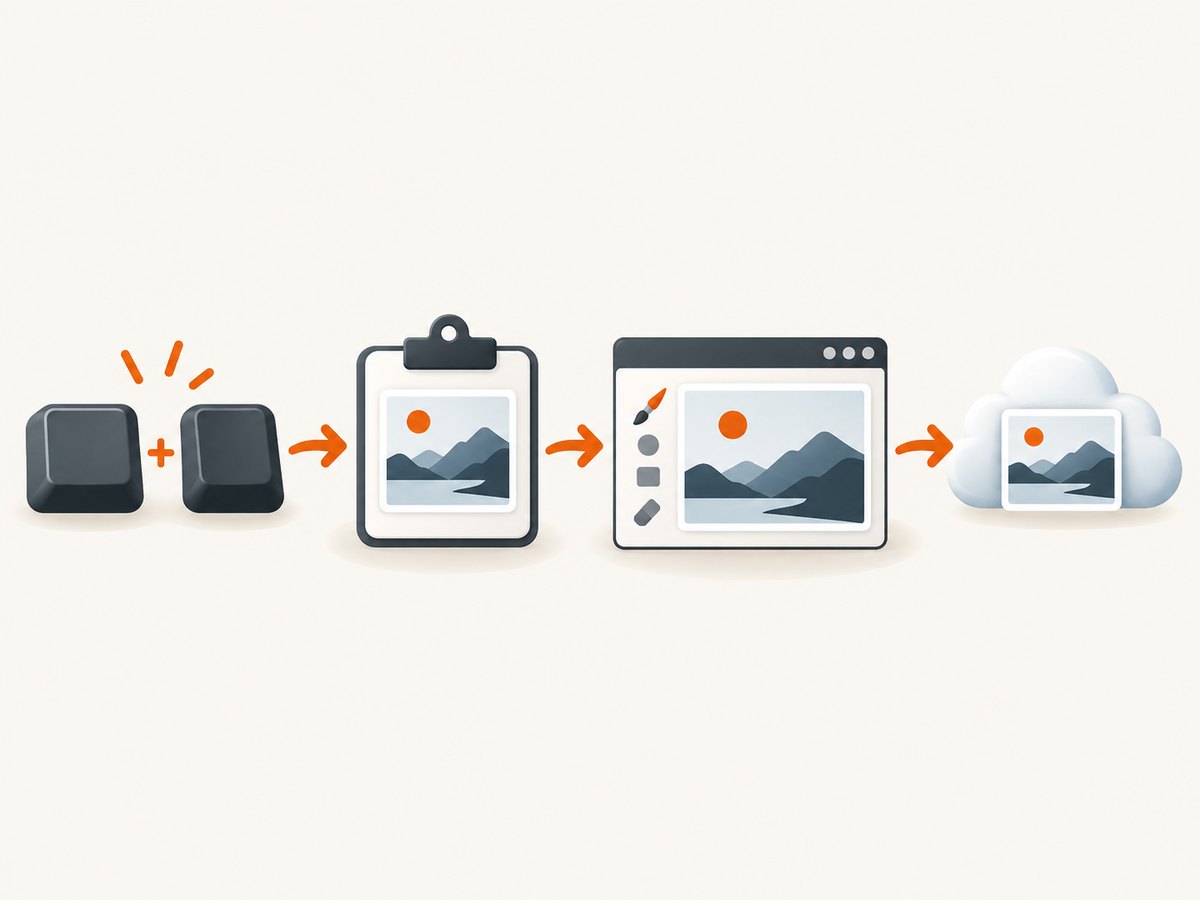
| Screen dims, but no visible file | Clipboard or Snipping Tool editor | Paste into Paint with Ctrl+V |
| Print Screen behaves differently from Win+Shift+S | Print Screen setting or hardware key | Check Settings > Accessibility > Keyboard |
| Image exists locally but not in OneDrive | OneDrive backup or sync | Find the local file and check Pictures backup |
| Only one laptop key combination fails | Fn layer or keyboard layout | Inspect the key legend and device instructions |
Microsoft’s Windows support documentation describes Snipping Tool, keyboard shortcuts, clipboard behavior, and OneDrive backup as separate workflows. Treat them as separate tests rather than assuming every failure has the same cause.
2. Test Windows logo key + Shift + S
- Press Win+Shift+S.
- Wait for the screen to dim and the snipping toolbar to appear.
- Choose rectangular, free-form, window, or full-screen capture when those modes are offered.
- Select the area.
- Look for the Snipping Tool notification and open it.
- Use Save or Save As to choose a known folder such as Pictures\Screenshots.
This shortcut tests the snipping overlay without depending on the Print Screen key. If it works, you can continue using it while repairing the Print Screen path.
If the shortcut appears to do nothing
- Open Start, search for Snipping Tool, and launch it directly. Choose New and capture a region or window.
- Try the Print Screen key separately. Windows can be configured so Print Screen opens screen snipping.
- Press the keys one at a time and check whether another application is intercepting the shortcut.
- On a laptop, inspect the key legends. The screenshot key may require an Fn combination, and the exact combination varies by hardware and keyboard layout. There is no universal Fn shortcut.
- Try an external keyboard as a diagnostic. If the external key works while the laptop key does not, investigate the laptop keyboard or Fn-lock state.
3. Repair Print Screen behavior
Print Screen and Win+Shift+S are distinct tests. Print Screen may copy the full screen to the clipboard, or it may open the screen-snipping workflow depending on your Windows setting.
- Open Settings.
- Go to Accessibility > Keyboard.
- Find Use the Print Screen button to open screen snipping.
- Turn the setting on if you want Print Screen to launch the snipping overlay.
- Turn it off if you want to test the traditional clipboard capture behavior.
After changing the setting, test Print Screen and Win+Shift+S independently. A working Print Screen key may still appear to “do nothing” because it copied an image into memory instead of creating a file.
Active-window captures
Use Alt+Print Screen to copy the active window. This is useful when a full-screen capture fails or when you need to determine whether the key can capture a smaller target. Paste the result into Paint with Ctrl+V.
4. Check the clipboard before looking for a file
Print Screen commonly places the image on the clipboard. It does not necessarily save a PNG in Pictures automatically.
- Open Paint from Start.
- Press Ctrl+V.
- If the screenshot appears, choose File > Save As and select PNG or JPEG.
- Give the file a clear name and save it to Pictures\Screenshots or another known folder.
Clipboard history is a separate feature. Press Win+V to open it. If history has never been enabled, Windows prompts you to turn it on. An empty Win+V panel does not prove that no screenshot was captured; test ordinary Ctrl+V in Paint first.
When clipboard paste fails
- Capture again and immediately paste into Paint. Some applications replace clipboard contents quickly.
- Close clipboard-manager utilities temporarily if they are filtering images.
- Try Alt+Print Screen to test an active-window capture.
- Use Snipping Tool’s editor and Save button. That bypasses clipboard history entirely.
5. Save the screenshot reliably
Once a snip is captured, use the Snipping Tool notification to open the editor. Select Save or Save As and choose a folder you can locate. If you rely on automatic saving, inspect the Screenshots folder under Pictures and confirm the exact path in the Save dialog.
For repeatable work, create a dedicated folder such as C:\Users\<your-name>\Pictures\Screenshots. You can create it in PowerShell:
New-Item -ItemType Directory -Force "$env:USERPROFILE\Pictures\Screenshots"Then save test captures there and verify that the file opens in Photos or Paint. A file that opens locally confirms that capture and saving work; any remaining issue is in sync or the destination application.
6. Fix “Screenshot not saving to OneDrive”
OneDrive is a separate layer from capture. First locate and open the screenshot on the local computer. If the file is missing locally, repair Snipping Tool, Print Screen, clipboard, or the save path before troubleshooting OneDrive.
Microsoft states that “The ‘Save screenshots to OneDrive’ feature is no longer available in the OneDrive settings.” The current approach is to include the Pictures folder in OneDrive folder backup.
- Open OneDrive from Start if its taskbar icon is absent.
- Open OneDrive settings and locate folder backup or backup management.
- Include Pictures in the folders being backed up.
- Save a new screenshot in Pictures and wait for the OneDrive status icon to show that syncing is complete.
- Check the OneDrive web view or another signed-in device.
Work or school accounts may be governed by an administrator, so available backup controls can differ. Do not reset OneDrive as the first step. Microsoft’s reset procedure performs a full sync and resets sync connections; use it only when OneDrive itself is failing after you have checked account status, storage, and folder backup.
OneDrive diagnostic checklist
- Is OneDrive running? Launch it from Start if necessary.
- Is the screenshot present in the local Pictures folder?
- Does the file have a cloud, syncing, or checkmark status icon?
- Is the account signed in and within its storage limit?
- Is Pictures included in folder backup?
- Is a work or school policy controlling backup settings?
7. Common errors and fixes
| Error or symptom | Cause to investigate | Fix |
|---|---|---|
| Win+Shift+S has no response | Snipping Tool is not launching or shortcut is intercepted | Open Snipping Tool from Start; then test the shortcut again |
| Print Screen appears inactive | Image went to clipboard | Paste into Paint with Ctrl+V |
| Win+V is empty | Clipboard history is disabled or no history exists | Enable history when prompted, but also test Ctrl+V directly |
| Only the laptop screenshot key fails | Fn layer, Fn lock, or keyboard layout | Check the key legend and device-specific instructions; test another keyboard |
| Screen dims but notification is missed | Snipping Tool captured successfully | Open the notification, edit, and save from the Snipping Tool window |
| Local file exists, OneDrive copy does not | Pictures backup or OneDrive sync | Run OneDrive, include Pictures in backup, and wait for sync |
| Capture works in Snipping Tool but not in one app | App-specific shortcut or permission behavior | Use Snipping Tool directly and save the result; check the app’s own shortcuts |
8. A repeatable Windows troubleshooting sequence
- Open Snipping Tool from Start and capture a small region.
- Save it to Pictures\Screenshots.
- Open the saved file.
- Try Win+Shift+S and compare the result.
- Try Print Screen, then paste into Paint.
- Try Alt+Print Screen for the active window.
- Press Win+V only if you need clipboard history.
- Confirm OneDrive is running and Pictures backup is enabled.
- Capture a second file and verify its cloud status.
This sequence identifies the first failing layer without changing unrelated settings. Record which step fails if you need to contact IT support.
9. Browser screenshots without Windows capture problems
If your goal is a screenshot of a web page rather than your Windows desktop, an API avoids keyboard, clipboard, and OneDrive issues. ScreenshotNeo accepts one GET request and returns a PNG, JPEG, WebP, or PDF. It removes cookie and consent banners, newsletter popups, and chat widgets before capture; bot checks, blank pages, timeouts, failed loads, and cache hits cost nothing, and response headers identify the page verdict and billing status.

Or skip the browser setup
Use the ScreenshotNeo endpoint with the options documented at the ScreenshotNeo API docs. The following examples are runnable after replacing the key and URL.
cURL
curl -G "https://api.screenshotneo.com/v1/shot" \
  -d access_key=YOUR_API_KEY \
  --data-urlencode url=https://stripe.com \
  -o shot.webp
Python
import requests

r = requests.get(
    "https://api.screenshotneo.com/v1/shot",
    params={"access_key": "YOUR_API_KEY", "url": "https://stripe.com"},
    timeout=90,
)
r.raise_for_status()
open("shot.webp", "wb").write(r.content)
Node.js
const q = new URLSearchParams({
  access_key: 'YOUR_API_KEY',
  url: 'https://stripe.com'
});
const res = await fetch(`https://api.screenshotneo.com/v1/shot?${q}`);
if (!res.ok) throw new Error(`HTTP ${res.status}`);
const data = Buffer.from(await res.arrayBuffer());
require('fs').writeFileSync('shot.webp', data);
ScreenshotNeo has full-page capture with lazy images loaded, CSS-element capture, dark mode, device presets, custom viewports, retina scale, PDF paper and margin controls, custom CSS and JavaScript, clicks, selector or network-idle waits, request and resource blocking, headers, cookies, user agents, Authorization, timezone, geolocation, transparent backgrounds, resizing, configurable caching, signed public links, asynchronous jobs with signed webhooks, bulk capture for up to 100 URLs per call, usage reporting, and an OpenAPI specification. Existing parameter names used by other screenshot APIs also work, which can simplify migration.
An MCP server provides take_screenshot, get_page_info, and capture_pdf for Claude, Cursor, and other MCP clients. Free accounts include 1,000 screenshots per month with no card; paid plans start at $5 for 3,000 shots. Create a free ScreenshotNeo account to try the browser capture path.
10. Performance, reliability, and cost considerations
- Local capture: Win+Shift+S and Print Screen are immediate and work offline, but you must handle clipboard contents and file organization yourself.
- OneDrive: Sync adds a second dependency. A local file can be correct while cloud backup is delayed or disabled.
- Browser automation: Dynamic pages may need a selector wait, delay, or network-idle wait. Blocking ads, trackers, or unnecessary resource types can reduce page work.
- Caching: Choose a cache TTL when repeated URLs do not need a fresh render. Cache hits are not billed by ScreenshotNeo.
- Billing: ScreenshotNeo bills only clean shots. Bot checks, blank pages, timeouts, failed loads, and cache hits are not billed, and
X-Page-VerdictandX-Billedreport the outcome. - Scale: Use asynchronous jobs and signed webhooks for long or high-volume captures; use bulk capture for up to 100 URLs per call.
11. FAQ
Why does Print Screen not create a file?
Its traditional behavior is to copy the screen to the clipboard. Paste into Paint, then save the image.
Is Win+V required for screenshots?
No. Win+V opens optional clipboard history. Ctrl+V tests the basic clipboard directly.
Why does OneDrive not show “Save screenshots to OneDrive”?
Microsoft has discontinued that setting. Include Pictures in OneDrive folder backup instead.
What is the correct Fn shortcut on a laptop?
There is no universal combination. Check the key legends and the device documentation.
Can I capture a web page without a Windows keyboard?
Yes. Use ScreenshotNeo’s API or MCP server to capture a URL and save the returned image or PDF.
Will a failed web capture consume a ScreenshotNeo shot?
Bot checks, blank pages, timeouts, failed loads, and cache hits are not billed. The response headers identify the verdict and billing result.


