BlogScreenshots on your device
Free Screenshot Apps for Windows 11
Compare Windows 11’s free screenshot tools, learn the right shortcuts, and choose between Snipping Tool, ShareX, Greenshot, and ScreenshotNeo.
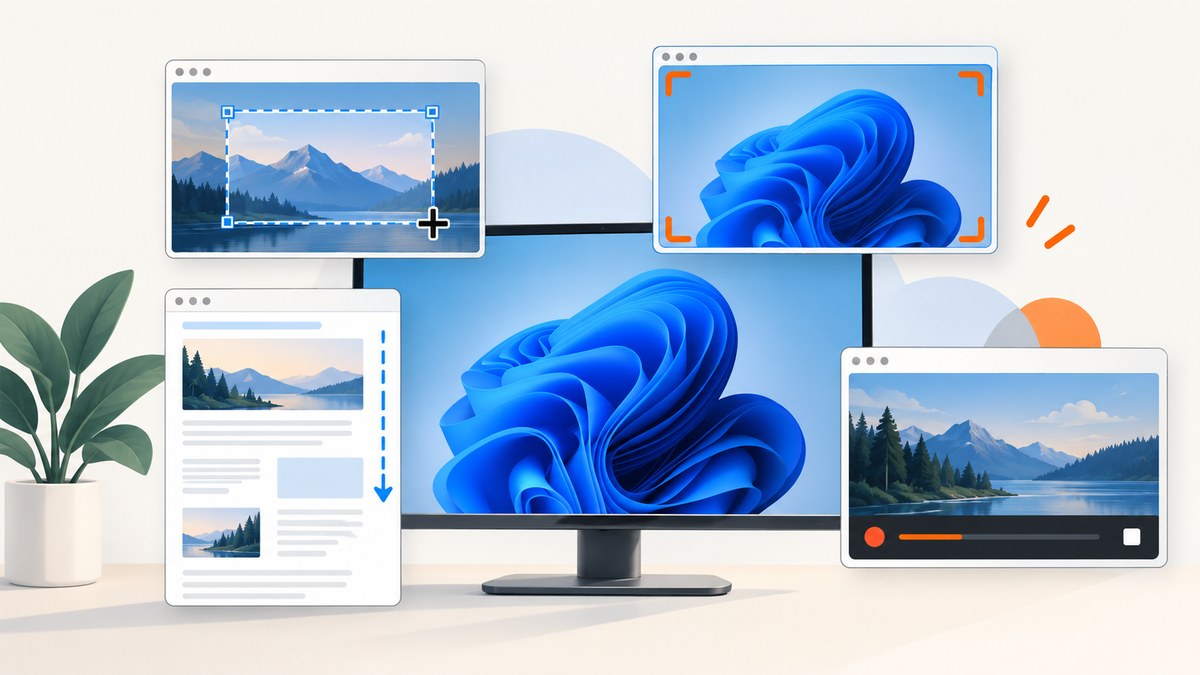
Short answer: Start with Windows 11’s built-in Snipping Tool. It handles rectangular, freeform, window, full-screen, and video captures, then lets you mark up, crop, extract text, redact selected information, save, and share. Choose ShareX when you need detailed automation, uploads, scrolling captures, recording, or configurable hotkeys. Choose Greenshot for a lightweight, productivity-focused open-source tool.
This guide explains what each app can do, which workflow fits your needs, how to capture and redact safely, and when a website screenshot API such as ScreenshotNeo is a better fit than a desktop app.
1. What Windows 11 already provides
You do not need to install anything for ordinary screenshots. Microsoft includes Snipping Tool with Windows 11.
| Task | Shortcut or action | Result |
|---|---|---|
| Image snip | Windows + Shift + S | Opens the capture overlay for freeform, rectangle, window, or full-screen selection. |
| Video snip | Windows + Shift + R | Opens the video capture overlay. |
| Full screen to clipboard | Print Screen | Copies the entire screen so you can paste it into another app. |
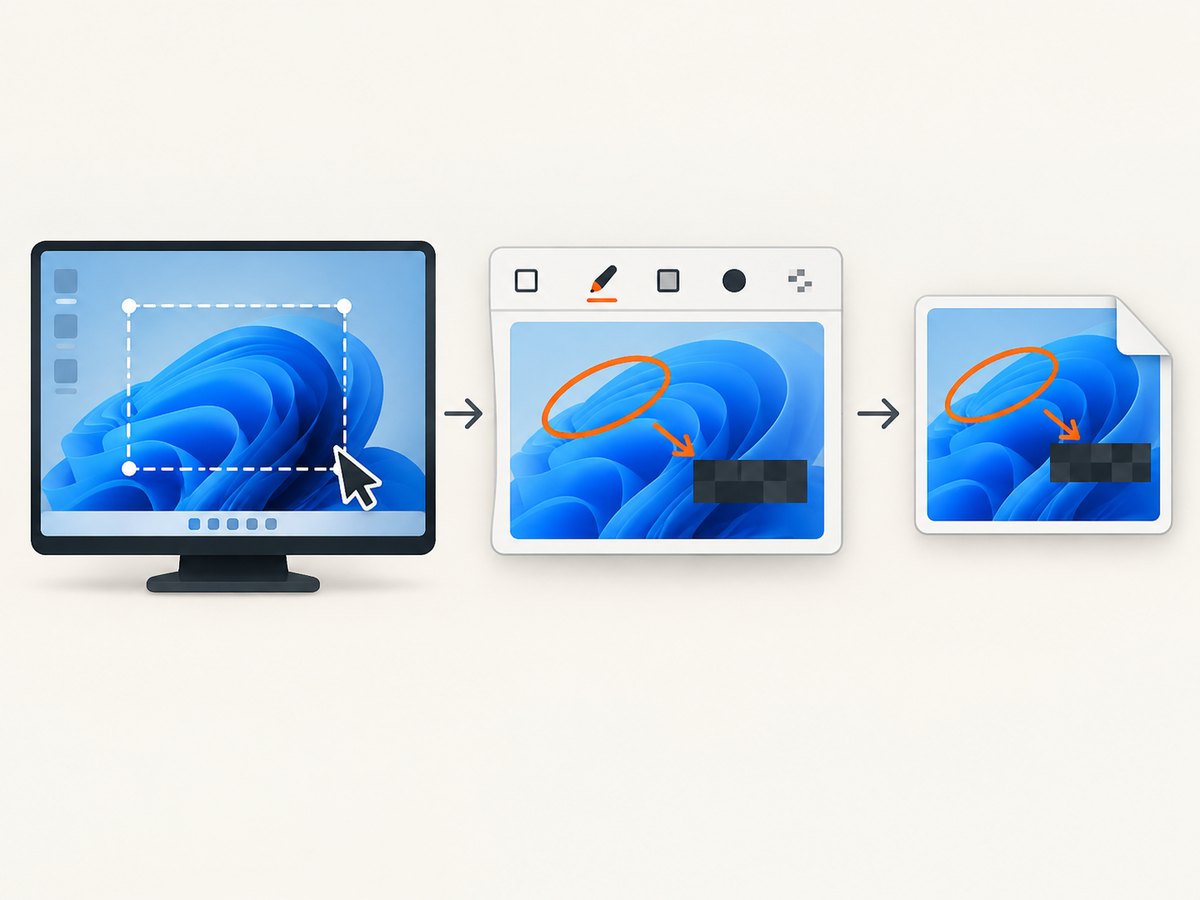
After an image capture, Windows copies the result into the Snipping Tool window. You can draw with a pen or highlighter, add shapes, crop, save, and share. Snipping Tool also offers text extraction (OCR) and quick redaction for detected email addresses and phone numbers. Microsoft documents that recognition and redaction happen locally on the device. See Microsoft’s Windows support documentation for current interface details.
Capture an image step by step
- Press Windows + Shift + S.
- Select Rectangle for a precise box, Freeform for an irregular shape, Window for one application window, or Full screen for every monitor output.
- Drag or click to make the selection. A notification appears when the image is ready.
- Open the notification to edit, extract text, redact detected contact details, copy, save, or share.
Record a short video
Press Windows + Shift + R, select the region, and start recording. This is useful for showing a reproducible UI problem or a short interaction. For longer recordings, GIF output, or more post-capture actions, ShareX provides more documented controls.
2. Snipping Tool: the best starting point
Snipping Tool is the sensible default when you want a free screenshot app with no setup. It covers the common capture modes and keeps the workflow close to Windows’ clipboard, notification, and sharing features.
Where it fits well
- One-off screenshots of an app window, region, or complete desktop.
- Quick annotations before sending an image to a colleague.
- Extracting text from a screenshot without uploading it to a service.
- Redacting detected email addresses and phone numbers before sharing.
- Short video snips when a still image cannot explain the issue.
Limits to consider
The built-in tool is less suitable when you need a repeatable upload pipeline, complex after-capture actions, extensive hotkey configuration, or specialized scrolling capture. Some newer features, including Perfect Screenshot and Color Picker, are limited to Copilot+ PCs; do not assume they are available on every Windows 11 computer.
3. ShareX: advanced capture and automation
ShareX is free and open source. Its official site and repository describe a broad workflow: full-screen, active-window, monitor, region, and scrolling captures; screen recording and GIF creation; annotations; blur and pixelation; OCR; uploads; configurable after-capture tasks; and custom hotkeys. The repository also documents that an account is not required for the application itself.
Choose ShareX when you need
- Scrolling capture: capture a long document or webpage beyond the visible viewport.
- Repeatable automation: run actions after every capture, such as saving, copying, uploading, or opening an editor.
- Privacy editing: blur or pixelate sensitive regions before sharing.
- Recording: create a video or GIF from a selected region.
- Keyboard-driven work: assign hotkeys to specific capture modes and destinations.
A practical ShareX workflow
- Install ShareX from its official site or repository.
- Open Task settings and decide where files should be saved.
- Configure After capture tasks for copying, editing, uploading, or opening the file.
- Set hotkeys for region, active window, scrolling capture, and recording.
- Use blur or pixelation before uploading an image that contains credentials, customer data, or internal URLs.
ShareX gives you more knobs, so spend a few minutes checking the after-capture and upload settings before using it for sensitive work. A capture can be copied or uploaded automatically depending on your configuration.
4. Greenshot: a focused open-source option
Greenshot describes itself as a lightweight Windows screenshot tool optimized for productivity. It is free and open source. Its downloads page lists Windows release 1.3.315 dated March 20, 2026, and mentions an optional $1.99 contribution to cover project costs; the contribution is not a required app price.
Greenshot is a good middle ground if Snipping Tool is too limited but ShareX’s larger configuration surface is unnecessary. Review its capture, editor, and destination settings after installation so your files go to the folder and applications you expect.
5. Comparison: which free screenshot app should you use?
| Need | Best fit | Reason |
|---|---|---|
| Fast region, window, or full-screen image | Snipping Tool | Already included with Windows 11 and opened with a shortcut. |
| OCR and quick contact-detail redaction | Snipping Tool | Text extraction and redaction are built into the editor and run locally according to Microsoft. |
| Scrolling pages, uploads, recording, and automation | ShareX | Its documented feature set includes these capture and after-capture workflows. |
| Lightweight productivity capture | Greenshot | The project positions it as a lightweight, productivity-oriented Windows utility. |
| Automated screenshots of websites | ScreenshotNeo | A URL-based API handles browser rendering, cleanup, and delivery without desktop setup. |
6. Privacy and redaction checklist
- Check the whole frame for passwords, tokens, email addresses, phone numbers, customer names, and private URLs.
- Use Snipping Tool’s local OCR and quick redaction where its detected fields match your content.
- Use ShareX blur or pixelation for arbitrary regions, then inspect the saved file at full size.
- Do not rely on cropping alone if the original image is still available in a shared folder or clipboard history.
- Confirm whether an after-capture task uploads automatically before sending a screenshot outside your organization.
- For regulated or confidential material, follow your organization’s retention and sharing policy.
7. Troubleshooting common problems
The shortcut does nothing
Open Snipping Tool from the Start menu and try the capture button. If that works, another application may have claimed the keyboard shortcut. Check keyboard utilities, accessibility software, and gaming overlays. You can also use Print Screen for a full-screen clipboard capture.
The screenshot is black or shows a protected video
Some applications and protected-media paths prevent ordinary screen capture. Try capturing a non-protected window or use the application’s own export function. A desktop screenshot app cannot bypass content-protection rules.
Text extraction misses words
OCR quality depends on resolution, contrast, font size, and whether text is obscured by scaling or motion blur. Capture a larger region at native scale, avoid compressing it before extraction, and verify every copied character.
Scrolling capture has seams or misses content
Keep the page stable, close floating overlays, and wait for content to finish loading. Infinite-scroll pages and animated elements can change while the tool is stitching frames. For a repeatable webpage image, an API that waits for a selector or network idle can be easier to control.
ShareX uploads somewhere unexpected
Review its destination and after-capture task settings. Disable upload actions if you only want local files, and test with a harmless image before using the workflow for private material.
The capture has the wrong monitor or scale
Windows display scaling and multiple-monitor layouts affect coordinates. Select the target window or monitor explicitly, and confirm the result at 100% zoom before sharing.
8. Performance, reliability, and cost
All three desktop options are free to use according to the cited project documentation. Their responsiveness depends on the application being captured, display scaling, video encoding, and disk or upload destinations. A local capture avoids a network round trip, while upload or cloud-sharing steps add network and privacy considerations.
For recurring website captures, reliability depends on page load timing, consent banners, lazy-loaded images, bot checks, and changing layouts. Record the URL, viewport, capture mode, and timestamp in your own job logs so you can explain differences between runs. If you need many URLs, a browser automation script or screenshot API is easier to schedule than a human-operated desktop shortcut.
9. Or skip the browser setup
Desktop apps are ideal for capturing what is on your screen. If your input is a URL and you need repeatable website images, ScreenshotNeo’s API documentation shows the request options. One GET request returns PNG, JPEG, WebP, or PDF output.
curl -G 'https://api.screenshotneo.com/v1/shot' -d access_key=YOUR_API_KEY --data-urlencode url=https://stripe.com -o shot.webpimport requests
r = requests.get('https://api.screenshotneo.com/v1/shot', params={'access_key': 'YOUR_API_KEY', 'url': 'https://stripe.com'}, timeout=90)
open('shot.webp', 'wb').write(r.content)const q = new URLSearchParams({ access_key: 'YOUR_API_KEY', url: 'https://stripe.com' });
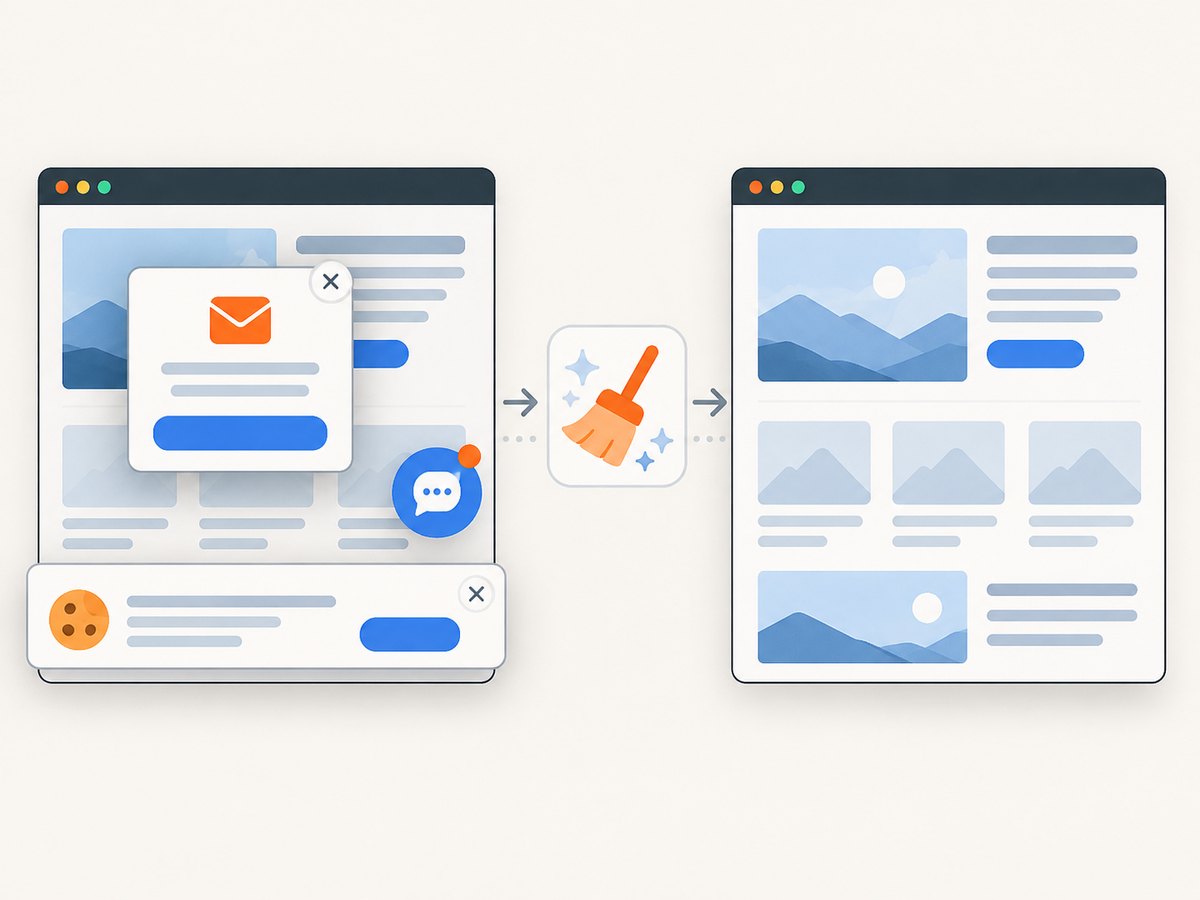
const res = await fetch(`https://api.screenshotneo.com/v1/shot?${q}`);ScreenshotNeo removes cookie and consent banners, newsletter popups, and chat widgets before the capture. Bot checks, blank pages, failed loads, timeouts, and cache hits are not billed; response headers identify the page verdict and whether the shot was billed. Its MCP server provides take_screenshot, get_page_info, and capture_pdf tools for Claude, Cursor, and other MCP clients. You get 1,000 screenshots a month free with no card; paid plans start at $5 for 3,000 shots. Features include full-page and element capture, device presets, custom CSS and JavaScript, waits, request blocking, headers and cookies, geolocation, PDF controls, caching, signed links, async jobs, bulk capture, and a usage API. Create a free ScreenshotNeo account.
10. FAQ
Is Snipping Tool free?
Yes. It is included with Windows 11, so there is no separate app purchase for the documented capture features.
Can Snipping Tool capture a scrolling webpage?
The documented modes cover freeform, rectangle, window, full-screen, and video snips. Use ShareX or a browser-specific workflow when you need scrolling capture.
Which app is open source?
ShareX and Greenshot are described by their official projects as free and open source. Snipping Tool is the Windows built-in app.
Can I capture a website without opening it manually?
Yes. Use a browser automation script or a URL screenshot API such as ScreenshotNeo when you need scheduled or repeatable captures.
Does OCR send my screenshot to the cloud?
Microsoft states that Snipping Tool text recognition and redaction are performed locally on the device.
11. Decision checklist
- Choose Snipping Tool if you need an immediate, local image or short video.
- Choose ShareX if you need scrolling capture, recording, uploads, annotations, and automation.
- Choose Greenshot if you want a lightweight open-source productivity tool.
- Choose ScreenshotNeo if your workflow starts with URLs, needs clean automated captures, or must run from code or an AI agent.
For most Windows 11 users, install nothing first: press Windows + Shift + S and see whether Snipping Tool covers the job. Move to ShareX or Greenshot when your workflow needs more control, and use ScreenshotNeo when screenshots need to be generated reliably from URLs.


