BlogScreenshots on your device
How to Capture a Full Browser Environment Screenshot
Capture a full webpage, viewport, element, or browser window with Playwright, Firefox DevTools, and ScreenshotNeo.

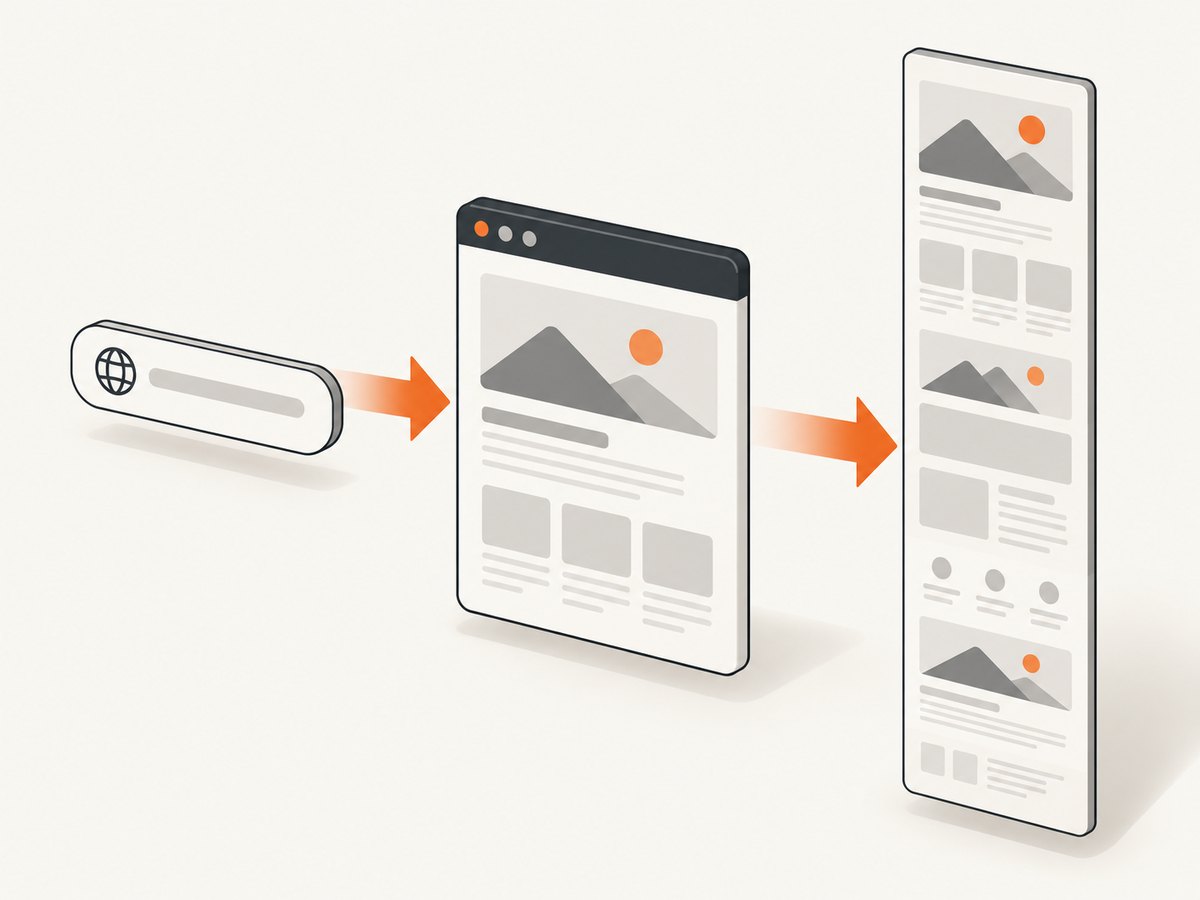
Short answer: decide what “full browser environment” means first. A full-page screenshot captures the entire scrollable webpage. A viewport screenshot captures only what is visible. An element screenshot captures one component. Capturing the browser’s tabs, toolbar, or the surrounding desktop is a separate operating-system screen-capture task.
For repeatable webpage screenshots, Playwright’s fullPage option captures the whole scrollable page as if it were displayed on a very tall screen. Firefox Developer Tools can capture a full page manually after its full-page button is enabled. If you need an API instead of maintaining a browser, ScreenshotNeo returns a screenshot or PDF from one GET request.
Choose the capture target
| Target | What you get | Best method |
|---|---|---|
| Full webpage | The complete scrollable document, including content below the fold | Playwright fullPage: true, Firefox full-page capture, or ScreenshotNeo |
| Viewport | The currently visible browser content area | Regular browser or Playwright screenshot |
| Element | One selected component such as a card or chart | Firefox Inspector “Screenshot Node” or Playwright element capture |
| Browser window | Webpage plus tabs, address bar, and browser controls | Operating-system screen-capture tools |
| Desktop | The browser and other applications around it | Operating-system screen-capture tools |
The reviewed browser documentation covers webpage, viewport, and element capture. It does not define one universal cross-platform method for capturing browser chrome or the desktop, so use your operating system’s screen-capture feature for those targets.
Capture a full webpage with Playwright
Playwright’s screenshot API supports fullPage: true in JavaScript and full_page=True in Python. You can save the image to a path or obtain screenshot bytes for further processing. See the Playwright screenshots guide and the Page API.
JavaScript (Node.js)
const { chromium } = require('playwright');

(async () => {
  const browser = await chromium.launch();
  const page = await browser.newPage({ viewport: { width: 1440, height: 900 } });
  await page.goto('https://example.com', { waitUntil: 'networkidle' });
  await page.screenshot({ path: 'full-page.png', fullPage: true });
  await browser.close();
})();
Python
from playwright.sync_api import sync_playwright

with sync_playwright() as p:
    browser = p.chromium.launch()
    page = browser.new_page(viewport={"width": 1440, "height": 900})
    page.goto("https://example.com", wait_until="networkidle")
    page.screenshot(path="full-page.png", full_page=True)
    browser.close()
Save bytes instead of a file
const bytes = await page.screenshot({ fullPage: true });
// Send bytes to storage or an image-processing pipeline.
Use fullPage only when you need the complete document. A normal screenshot omits content outside the current viewport. For compact output, choose CSS-pixel scaling; for device-resolution detail, choose device-pixel scaling where supported. Playwright documents the scale choice as css or device; device scale can produce larger images on high-DPI displays. See the screenshot parameters.
Capture a page manually in Firefox
- Open the page in Firefox.
- Open Developer Tools.
- Open toolbox settings and enable the full-page screenshot button under Available Toolbox Buttons.
- Click the screenshot button to capture the complete page.
To capture one element, open Inspector, select the node, and use Screenshot Node. Mozilla documents both workflows in Taking screenshots.
When you need the tabs and toolbar
A full webpage image does not include browser tabs, the address bar, extensions, or desktop surroundings. Use your operating system’s screen-capture command for those areas. Browser automation generally targets the page content, so confirm the required boundary before building a capture pipeline.
Or skip the browser setup
ScreenshotNeo provides a one-request webpage screenshot API. This example captures a full page; the response is written to a WebP file.
curl -G "https://api.screenshotneo.com/v1/shot" -d access_key=YOUR_API_KEY --data-urlencode url=https://stripe.com -o shot.webpPython
import requests
r = requests.get("https://api.screenshotneo.com/v1/shot", params={"access_key": "YOUR_API_KEY", "url": "https://stripe.com"}, timeout=90)
open("shot.webp", "wb").write(r.content)
Node.js
const q = new URLSearchParams({ access_key: 'YOUR_API_KEY', url: 'https://stripe.com' });
const res = await fetch(`https://api.screenshotneo.com/v1/shot?${q}`);
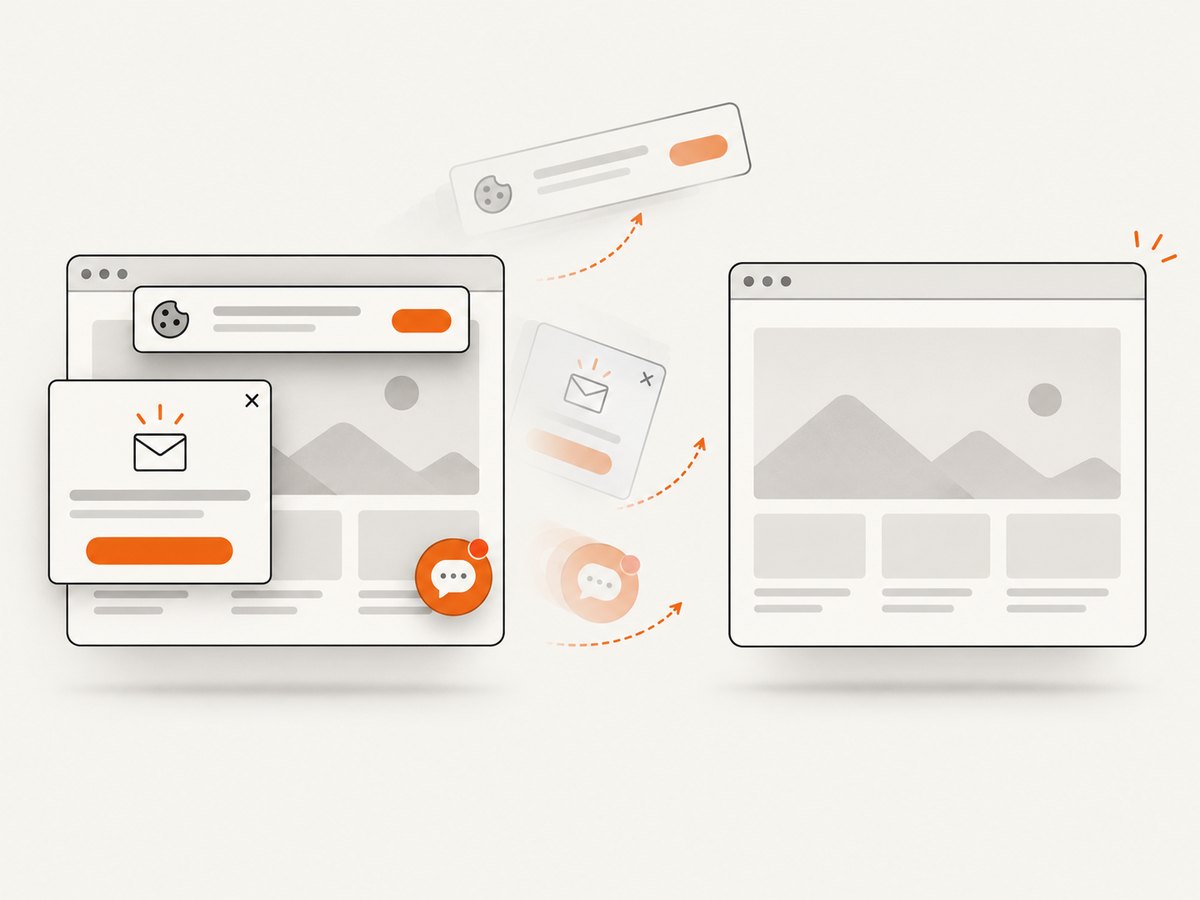
ScreenshotNeo accepts cookie and consent banners before capture and removes more than 60 known consent platforms, newsletter popups, and chat widgets; each step can be disabled. Bot checks, CAPTCHAs, blank pages, timeouts, failed loads, and cache hits are not billed. Response headers identify the page verdict and whether the request was billed with X-Page-Verdict and X-Billed. Its MCP server exposes take_screenshot, get_page_info, and capture_pdf for Claude, Cursor, and other MCP clients.
The API also supports full-page capture with lazy images loaded, CSS-selector element capture, dark mode, device presets and custom viewports, retina scale, PDF output, custom CSS and JavaScript, clicks, selector or network-idle waits, request blocking, headers, cookies, user agents, authorization, timezone, geolocation, transparent backgrounds, resizing, configurable caching, signed links, asynchronous jobs with signed webhooks, bulk capture of up to 100 URLs per call, a usage API, and an OpenAPI specification. Parameter names used by other screenshot APIs are accepted to ease migration.
Plans include 1,000 screenshots per month free with no card; paid plans start at $5 for 3,000 shots. Yearly billing provides two months free, and every feature is available on every plan. Create a free ScreenshotNeo account.
Reliable full-page capture checklist
- Define whether you need the page, viewport, element, browser window, or desktop.
- Set a fixed viewport so layout changes do not alter the result.
- Wait for the page state your users should see before capturing.
- Use full-page mode only for the complete scrollable document.
- Choose CSS-pixel scale for compact images or device-pixel scale for detail.
- Save bytes directly when the image goes into another service.
- Check long pages for sticky headers, lazy content, animations, and fixed overlays.
- Keep credentials out of URLs and source control.
Common problems and fixes
| Symptom | Likely cause | Fix |
|---|---|---|
| Only the visible section appears | Viewport capture was used | Set fullPage: true or full_page=True. |
| Images or cards are missing below the fold | Lazy loading has not been triggered | Wait for the page to finish loading; use a capture service that loads lazy images for full-page shots. |
| The screenshot includes a cookie banner or chat bubble | The page state was captured before cleanup | Accept or dismiss the banner in automation, hide the widget, or use ScreenshotNeo’s consent and cleanup steps. |
| Output is unexpectedly huge | Device-pixel scaling on a high-DPI setup | Use CSS-pixel scale when physical device detail is unnecessary. |
| The result is blank or times out | The page failed to load, requires interaction, or is protected by a bot check | Inspect navigation and wait conditions; verify the URL and authentication. ScreenshotNeo reports these outcomes and does not bill failed loads, blank pages, timeouts, or bot checks. |
| Browser tabs are absent | Page capture excludes browser chrome | Use the operating system’s window or desktop capture. |
| Different runs produce different layouts | Responsive layout, fonts, animations, or changing content | Fix the viewport and browser environment, disable or wait for animations, and capture at a known page state. |
Performance, reliability, and cost
Full-page images require more pixels and can take longer than viewport captures, especially on very long documents or high device scales. Limit the viewport width to the layout you need, avoid unnecessary device-pixel output, and process screenshot bytes without extra disk I/O when possible. For repeat jobs, caching can reduce repeated work; ScreenshotNeo lets you choose a cache TTL and identifies cache hits in the response.
For production pipelines, record the URL, viewport, scale, wait condition, timestamp, and outcome. Retry transient navigation failures with a bounded policy. Treat a successful HTTP response as insufficient proof that the page is usable: inspect the image and, when using ScreenshotNeo, read X-Page-Verdict and X-Billed.
FAQ
Does full-page mode capture browser tabs?
No. It captures the scrollable webpage. Use an operating-system window or desktop capture for tabs and toolbars.
Can I capture only one component?
Yes. Firefox Inspector offers Screenshot Node, and Playwright can capture an element instead of the whole page.
Should I use CSS or device scale?
CSS scale keeps output compact at one pixel per CSS pixel. Device scale preserves high-DPI detail but can create larger files.
Can an AI agent take the screenshot?
Yes. ScreenshotNeo includes an MCP server with screenshot, page-info, and PDF tools for MCP clients such as Claude and Cursor.
What happens when a target page is blocked?
Diagnose the URL, authentication, and wait conditions. ScreenshotNeo identifies bot checks and other failed outcomes, and those failed captures are not billed.


