BlogScreenshots on your device
Full-Page Screenshot Add-On for Chrome: Complete Guide
Capture an entire webpage in Chrome with GoFullPage or DevTools, handle permissions and edge cases, and automate screenshots with ScreenshotNeo.

Short answer: A full-page screenshot add-on for Chrome scrolls through a webpage, captures each visible section, and assembles the sections into one image or PDF. GoFullPage is the most direct extension workflow: open the page, activate the toolbar button or press Alt+Shift+P, wait for the capture to finish, review it, and export. Chrome DevTools also includes a built-in full-size screenshot command if you cannot install an extension.
For repeatable, automated captures, an API is more reliable than a browser tab. After the browser methods below, this guide shows how to use ScreenshotNeo to capture a URL with one request.
1. What a full-page screenshot captures
A normal screenshot records only the current viewport. A full-page capture records content below the fold by scrolling through the page and combining the visible portions into one output. This is useful for documentation, visual QA, sharing a long article, archiving a landing page, and reviewing responsive layouts.
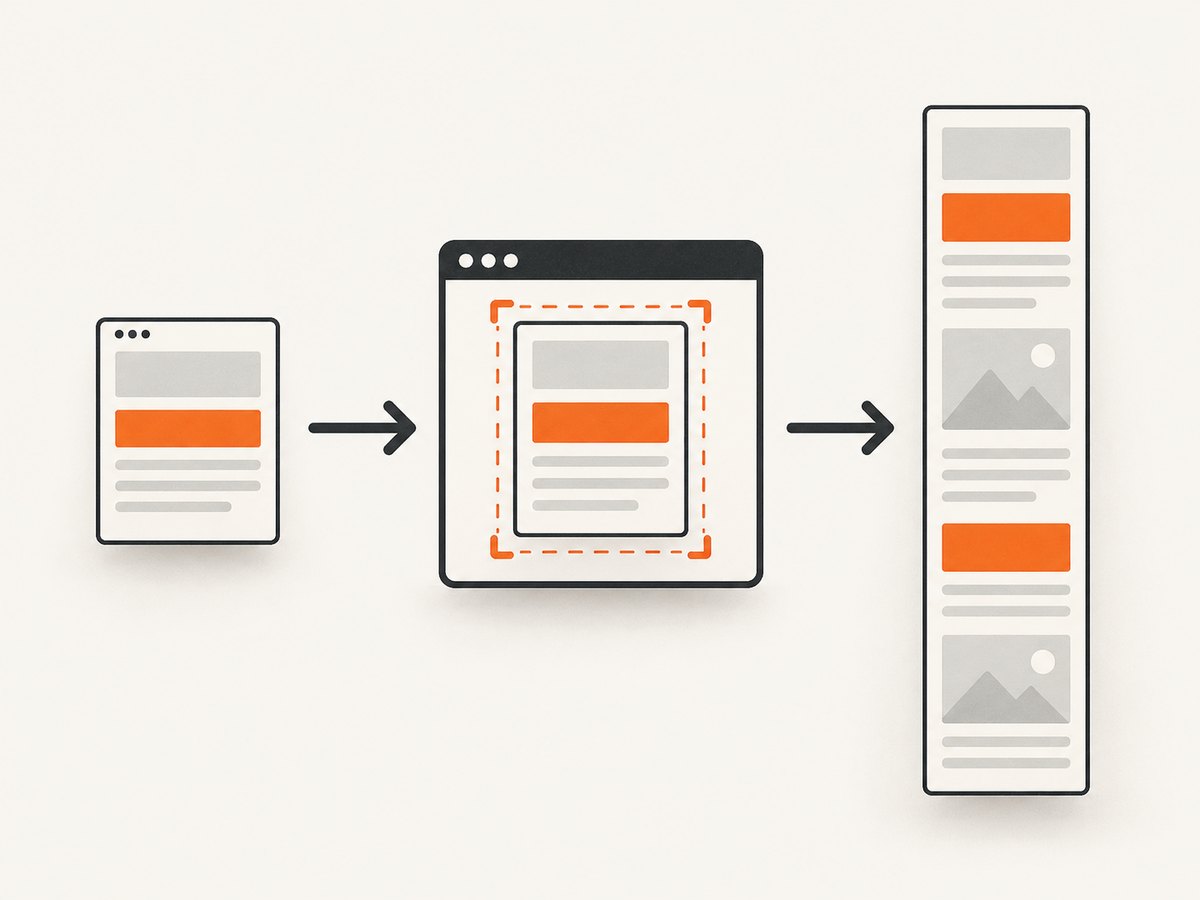
There are two practical Chrome choices:
| Method | Best for | Considerations |
|---|---|---|
| GoFullPage extension | Fast, repeatable captures from the toolbar or keyboard | Requires an extension; exports PNG, JPEG, and configurable PDF; very large captures can split into multiple images. |
| Chrome DevTools | One-off captures when extensions are not allowed | Requires opening DevTools and using its command interface; exact menus can vary by Chrome version. |
2. Capture a full page with the GoFullPage Chrome add-on
Step 1: Install the extension
Open the GoFullPage Chrome Web Store listing and add the extension to Chrome. Review the permissions shown by Chrome before installing.
Step 2: Open the page you want to capture
Navigate to the final URL and wait for the page’s initial content to render. If the page loads content only after interaction or scrolling, note that before starting the capture.
Step 3: Start the full-page capture
- Click the GoFullPage icon in Chrome’s toolbar, or press Alt+Shift+P.
- Leave the tab active while the extension scrolls and assembles the image.
- When processing finishes, inspect the resulting capture for missing sections, duplicated content, sticky headers, and unloaded images.
- Export the result as PNG, JPEG, or PDF. The listing also describes a premium crop and annotation editor.
Step 4: Check the output
- Confirm the top and bottom of the page are present.
- Look for repeated fixed navigation bars at every scroll segment.
- Check lazy-loaded images and video posters near the bottom.
- Verify that cookie dialogs, chat bubbles, and newsletter popups did not obscure content.
- For very long pages, check whether the extension split the result into multiple images because of Chrome storage limits.
3. Capture a full-size screenshot with Chrome DevTools
Chrome can capture a full-size page without installing an extension. This workflow is useful on managed computers where extensions are blocked.
- Open the target page in Chrome.
- Open DevTools with Ctrl+Shift+I on Windows/Linux or Cmd+Option+I on macOS.
- Open the DevTools command menu with Ctrl+Shift+P (Windows/Linux) or Cmd+Shift+P (macOS).
- Type
Capture full size screenshot. - Select the command and save the generated image.
The full-size command is identified as a built-in alternative in feature documentation; verify the wording in your Chrome version if the command does not appear. Chrome’s official DevTools documentation is available in the DevTools documentation.
4. Extension permissions and privacy
GoFullPage’s Web Store listing says the developer does not collect or use user data. That is a developer disclosure, not an independent security audit. The publisher’s permissions guide explains that downloading requires Downloads permission. Capturing iframe content may request tabs, webNavigation, and host permissions. Review each permission and your organization’s extension policy before installing.
5. Output formats and page-specific limitations
PNG, JPEG, and PDF
The listing advertises PNG, JPEG, and configurable PDF output. PNG preserves crisp text and transparency where supported by the page; JPEG produces smaller files for photographic content. PDF is convenient for distribution, but inspect page breaks and scaling before treating it as a print-ready document.
PDFs and custom scrolling
The publisher FAQ calls out PDFs and pages that control scrolling through custom JavaScript as cases that can be problematic. If the target is a PDF viewer, a canvas application, or a page with an internal scroll container, test a short sample first.
Large pages
Very large captures can exceed Chrome storage limits and be split into multiple images. Reduce the page length, capture sections separately, or use an automated service that can return a controlled image or PDF response.
6. Common problems and fixes
| Symptom | Likely cause | Fix |
|---|---|---|
| Only the visible viewport is captured | The normal screenshot command was used instead of a full-page command. | Use GoFullPage’s toolbar/keyboard action or DevTools’ Capture full size screenshot. |
| Bottom sections are blank | Lazy-loaded content did not load before the capture reached it. | Scroll through the page once first, wait for images, then capture again. |
| Sticky header appears many times | The header is fixed while the extension stitches scroll segments. | Hide the header with page CSS if you control the site, or crop/clean the output afterward. |
| Chat or cookie banner covers content | A consent dialog or widget remained visible during capture. | Dismiss it manually, use a clean profile, or remove the element with temporary CSS before capturing. |
| Iframe content is missing | The frame needs additional extension permissions or is blocked by its origin. | Review the requested permissions and test whether the frame can be captured; do not grant broader access on an untrusted profile. |
| Capture fails on a PDF or app-like page | The page uses a PDF viewer or custom JavaScript scrolling. | Use the source document directly, capture sections, or try an API/browser workflow that supports the target page. |
| Output is split | The image is larger than Chrome’s practical storage limits. | Capture sections, reduce scale, or produce a PDF/API response instead. |
| DevTools command is unavailable | Chrome version, focus, or command wording differs. | Open the command menu while the page is focused, search for full size screenshot, and update Chrome if needed. |
7. Quality, performance, and reliability checklist
- Wait for real content: confirm fonts, images, and client-rendered sections have loaded.
- Control state: use a consistent viewport, zoom level, logged-in state, and browser profile.
- Disable distractions: close popups and chat widgets before starting.
- Inspect seams: stitched captures can expose duplicated fixed elements or changes between scroll positions.
- Plan for long pages: expect more processing time and larger files as page height increases.
- Keep originals: save the unedited capture before annotating or cropping.
- Respect access controls: do not capture pages or frames you are not authorized to view.
8. GoFullPage listing details (dated snapshot)
When accessed on September 29, 2026, the Chrome Web Store listing showed version 8.9, 11,000,000 users, 84.2K ratings, and a displayed 4.9/5 rating. The store says ratings update daily and may lag newer reviews, so treat these as a dated listing snapshot rather than a quality guarantee. The listing also recorded a September 24, 2026 Chromium 153 URL requirement update.
9. Or skip the browser setup
ScreenshotNeo captures a URL with one GET request and returns PNG, JPEG, WebP, or PDF. See the ScreenshotNeo API documentation for the complete option list.

cURL
curl -G "https://api.screenshotneo.com/v1/shot" -d access_key=YOUR_API_KEY --data-urlencode url=https://stripe.com -o shot.webpPython
import requests

r = requests.get(
    "https://api.screenshotneo.com/v1/shot",
    params={"access_key": "YOUR_API_KEY", "url": "https://stripe.com"},
    timeout=90,
)
r.raise_for_status()
open("shot.webp", "wb").write(r.content)
Node.js
const q = new URLSearchParams({ access_key: 'YOUR_API_KEY', url: 'https://stripe.com' });
const res = await fetch(`https://api.screenshotneo.com/v1/shot?${q}`);
if (!res.ok) throw new Error(`Screenshot failed: ${res.status}`);
const fs = await import('node:fs/promises');
await fs.writeFile('shot.webp', Buffer.from(await res.arrayBuffer()));
ScreenshotNeo supports full-page capture, lazy-image loading, CSS-selector element capture, dark mode, device presets and custom viewports, retina scale, PDF paper sizes and margins, custom CSS and JavaScript, clicks, selector or network-idle waits, ad/tracker/request blocking, custom headers and cookies, user-agent and Authorization headers, timezone and geolocation, transparent backgrounds, resizing, cache TTLs, signed image links, asynchronous jobs with signed webhooks, bulk capture for up to 100 URLs per call, a usage API, and an OpenAPI specification.
Cookie and consent banners, newsletter popups, and chat widgets can be removed before capture, with each cleanup step controllable. Bot checks, blank pages, timeouts, failed loads, and cache hits are not billed; response headers identify the page verdict and whether the request was billed. An MCP server provides take_screenshot, get_page_info, and capture_pdf tools for Claude, Cursor, and other MCP clients.
The Free plan includes 1,000 screenshots per month with no card. Paid plans start at $5 for 3,000 screenshots; yearly billing gives two months free, and every feature is included on every plan. Create a free ScreenshotNeo account.
10. FAQ
Does a full-page screenshot include content below the fold?
Yes. The capture process scrolls through the page and combines the sections into a single image or document.
Can I capture a full page without installing an extension?
Yes. Use Chrome DevTools and search its command menu for Capture full size screenshot.
Why is my full-page image split into files?
Extremely large captures can exceed Chrome storage limits, so the extension may split them. Capture sections or use a PDF/API workflow.
Will an extension capture every iframe?
Not necessarily. Iframe capture can require additional permissions and may still be limited by the frame’s origin or page behavior.
Is an API better for scheduled screenshots?
For recurring jobs, an API avoids keeping a browser tab open and provides request-level controls, status information, and automation hooks. Choose based on the page, output, and access requirements.


