BlogScreenshots on your device
How to Capture Full-Page Website Screenshots with a Chrome Extension
Capture an entire webpage in Chrome with DevTools or a full-page extension, then automate reliable screenshots with ScreenshotNeo.

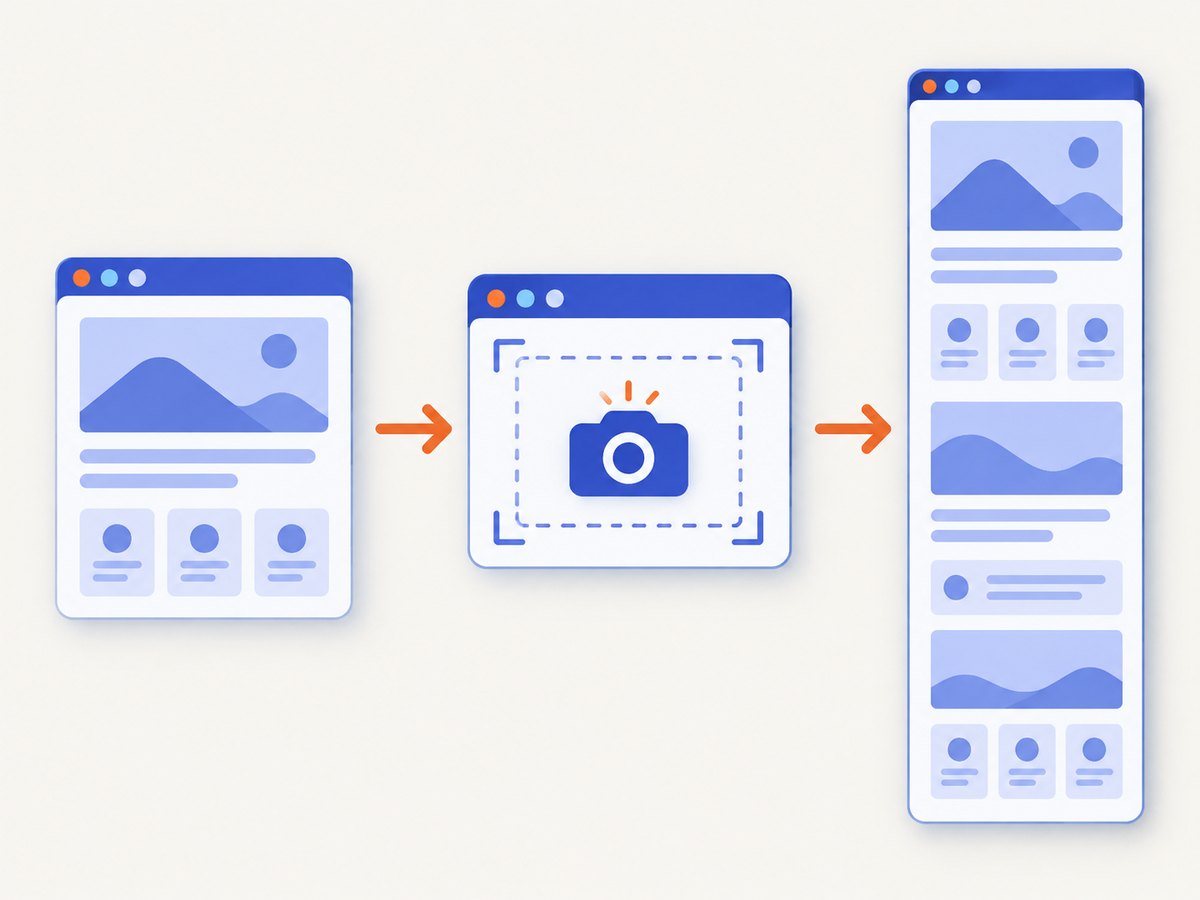
How do I take a full-page screenshot in Chrome? For a one-off capture, use Chrome DevTools: open Device Mode, open the More options menu, and choose Capture a full size screenshot. Chrome captures content below the visible viewport. For repeated captures, annotations, redaction, or PDF export, a full-page screenshot extension may be more convenient. Review the extension’s current Chrome Web Store listing, permissions, publisher identity, and privacy information before installing.
This guide explains both workflows, how to handle lazy-loaded and very long pages, why captures sometimes differ from what you see, and when an API is a better fit for automation.
1. Capture a full page with Chrome DevTools
Chrome includes a built-in full-size screenshot command. It does not require an extension and is useful when you need a quick image from a page you are already inspecting.
Step-by-step
- Open the page you want to capture in Chrome.
- Open DevTools with
F12,Ctrl+Shift+Ion Windows/Linux, orCmd+Option+Ion macOS. - Turn on Device Mode by clicking the phone-and-tablet icon, or press
Ctrl+Shift+M(Windows/Linux) orCmd+Shift+M(macOS). - Set the viewport, device preset, and zoom you want represented in the output. A responsive layout can change substantially between desktop and mobile widths.
- Open the DevTools More options menu (the three-dot button).
- Choose Capture a full size screenshot. Chrome saves an image containing content outside the visible viewport.
Chrome’s Device Mode documentation describes this command and its full-size behavior in detail: Device Mode and full-size screenshots. Google introduced full-page screenshots in the Chrome 59 DevTools release notes, describing the result as a capture “from the top of the viewport to the bottom.” That release note is historical context; use the current Device Mode documentation for today’s interface.
Finding screenshot commands
DevTools has a Command Menu. Press Ctrl+Shift+P on Windows/Linux or Cmd+Shift+P on macOS, then type screenshot. The menu exposes available screenshot commands, including area capture. For a full-size page, the documented route is still Device Mode → More options → Capture a full size screenshot. See Google’s Command Menu documentation.
Before you capture
- Wait for content: Let client-side rendering finish. If a page loads more cards after scrolling, scroll through it first so those requests can run.
- Choose a stable width: Record the viewport width when you need reproducible captures. A breakpoint can move navigation, tables, and images.
- Close transient UI: Dismiss cookie notices, chat bubbles, newsletter dialogs, and browser translation prompts if they should not appear in the result.
- Check sticky elements: Fixed headers can be repeated or overlap content in a stitched image. Temporarily collapse them with the page’s own controls or inspect the result and adjust.
- Save the original: Keep the PNG Chrome creates if you may need lossless detail for later annotation or comparison.
2. Use a Chrome full-page screenshot extension
An extension can reduce the number of DevTools steps and may add annotation, redaction, keyboard shortcuts, or image/PDF export. Chrome Web Store listings describe different scroll-and-capture implementations, so behavior varies by extension and page.
Choosing an extension safely
- Open the extension’s current Chrome Web Store listing, not an old download mirror.
- Confirm the publisher identity and read the permissions requested.
- Read the listing’s privacy section and understand whether page content is processed locally or sent to a service.
- Look for the exact output formats you need: PNG, JPEG, WebP, or PDF.
- Check whether the listing mentions annotation, redaction, custom shortcuts, or long-page handling.
- Review recent updates and user reports for pages similar to yours. Store descriptions are publisher claims, not independent performance tests.
Examples include GoFullPage and Full Page Screen Capture. A separate FullPage Capture listing describes a custom keyboard shortcut. Verify current features and permissions at installation time.
Typical extension workflow
- Install the extension from its current Chrome Web Store page.
- Pin it to the toolbar so the capture action is easy to find.
- Open the target page and wait for its visible content to settle.
- Click the extension icon and choose its full-page or scrolling capture action.
- Allow the extension to scroll the page and stitch the captured sections. Keep the tab active if the extension instructs you to do so.
- Use its editor to crop, annotate, blur, or redact sensitive information if those tools are provided.
- Export to the format you need and open the file to check the bottom of the page, fixed headers, lazy images, and interactive widgets.
Very long pages may be split into multiple images, depending on the extension. If the output is incomplete, capture the page in sections or use DevTools with a controlled viewport. The vendor documentation for Full Page Capture describes uses such as articles, dashboards, and bug reports, but it does not establish independent success rates for every page type: vendor overview and how it works.
3. Full-page capture edge cases
Lazy-loaded images and infinite scroll
Many pages request images only when an element approaches the viewport. A screenshot tool that simply reads the initial HTML can miss those assets. With a manual capture, scroll from top to bottom once, pause at sections that load slowly, and then capture. Infinite-scroll pages may never have a final height; stop at a defined item or date and capture in sections.
Sticky headers, video, and animations
A fixed header can appear in every stitched segment or cover content. Pause carousels and videos when possible. If an animation changes the layout during capture, wait for a stable frame or disable motion in the site’s settings. Capture a second copy when visual accuracy matters.
Cross-origin frames and protected pages
Embedded content from another origin, authenticated dashboards, and pages protected by bot checks may not behave like ordinary documents. A browser extension runs in the context allowed by Chrome and the site’s security policy; it cannot bypass an authentication wall you do not have access to. Confirm that you are signed in, and avoid capturing secrets that could be written to an exported file.
Huge dimensions and memory
A full-page image can be extremely tall. Decoding and stitching several high-resolution segments consumes memory, and an editor may become sluggish. Reduce the viewport width, export in sections, or choose JPEG/WebP when lossless PNG is unnecessary. Keep the original page URL and capture time with the file so later reviewers can reproduce the context.
4. Troubleshooting checklist
| Symptom | Likely cause | Fix |
|---|---|---|
| Only the visible viewport is saved | The normal screenshot command was used | Enable Device Mode and choose Capture a full size screenshot, or select the extension’s full-page action. |
| Bottom sections are blank | Lazy loading has not triggered | Scroll through the page first, wait for images, then capture again. |
| Images repeat or are missing | Stitching conflicts with fixed or virtualized content | Disable sticky UI where possible, capture sections, or try DevTools and compare outputs. |
| The extension cannot run | Chrome blocks access on a special page, PDF viewer, or restricted frame | Open the actual HTTPS page in a normal tab. Check the extension’s permissions and supported-page notes. |
| Capture stops halfway | Page height, memory, or a script error exceeded the tool’s limits | Split the page, close other heavy tabs, reduce scale, and retry after the page settles. |
| Cookie or chat popup covers the result | The page displayed a consent or promotional overlay | Dismiss it before capture, or use a capture workflow that can hide selectors or remove known overlays. |
| Text looks blurry | The image was downscaled or exported at low quality | Use a larger device scale, export PNG for text-heavy pages, and avoid repeated recompression. |
| Output differs between runs | Responsive breakpoints, ads, time-based content, or animations changed | Keep viewport, locale, timezone, login state, and capture timing consistent; pause motion and record the URL. |
5. Repeatable captures for teams and CI
Extensions are designed for an interactive browser session. If you need hundreds of URLs, scheduled captures, signed delivery, or identical settings in CI, an API gives you a request you can store and replay. Define the viewport, wait condition, authentication headers or cookies, output format, and cache policy as configuration rather than relying on a person’s browser state.
For a browser-based pipeline, keep these practices:
- Use a dedicated test account and remove secrets from screenshots before sharing.
- Wait for a specific selector or network idle instead of sleeping for an arbitrary time when your tool supports it.
- Set a maximum page height or split very long documents.
- Retry transient navigation failures with backoff, but do not retry a deterministic 401 or 403 without fixing credentials.
- Store a capture manifest containing URL, viewport, locale, timestamp, output hash, and error details.
- Compare images with a tolerance for dynamic regions such as clocks, ads, and rotating recommendations.
6. Or skip the browser setup
ScreenshotNeo is a website screenshot API and MCP server. One GET request returns a PNG, JPEG, WebP, or PDF. It can capture a full page with lazy images loaded, capture one CSS-selected element, set a device preset or custom viewport, use retina scale, apply dark mode, run custom CSS or JavaScript, click an element, wait for a selector, delay, or network idle, hide selectors, block ads/trackers/requests/resource types, and provide custom headers, cookies, user agent, Authorization, timezone, and geolocation. PDF options include paper size, margins, landscape mode, and page ranges. It also supports HTML/CSS to image, transparent backgrounds, resizing, chosen cache TTLs, signed links for public <img> tags, asynchronous jobs with signed webhooks, bulk capture of up to 100 URLs per call, a usage API, and an OpenAPI specification. Parameter names used by other screenshot APIs also work, which can simplify migration.

Use the ScreenshotNeo documentation for the complete option reference. The basic request is:
cURL
curl -G "https://api.screenshotneo.com/v1/shot" -d access_key=YOUR_API_KEY --data-urlencode url=https://stripe.com -o shot.webpPython
import requests

r = requests.get(
    "https://api.screenshotneo.com/v1/shot",
    params={"access_key": "YOUR_API_KEY", "url": "https://stripe.com"},
    timeout=90,
)
r.raise_for_status()
open("shot.webp", "wb").write(r.content)
Node.js
const q = new URLSearchParams({ access_key: 'YOUR_API_KEY', url: 'https://stripe.com' });
const res = await fetch(`https://api.screenshotneo.com/v1/shot?${q}`);
if (!res.ok) throw new Error(`Screenshot failed: ${res.status}`);
const fs = await import('node:fs/promises');
await fs.writeFile('shot.webp', Buffer.from(await res.arrayBuffer()));
ScreenshotNeo accepts cookie and consent banners like a visitor and removes more than 60 known consent platforms, newsletter popups, and chat widgets before the capture; each step can be turned off. Only clean shots are billed. Bot checks or CAPTCHAs, blank pages, timeouts, failed loads, and cache hits cost nothing, and each response reports the result in X-Page-Verdict and X-Billed headers. An MCP server provides take_screenshot, get_page_info, and capture_pdf tools for Claude, Cursor, and other MCP clients.
The Free plan includes 1,000 shots per month with no card. Paid plans are Starter $5 for 3,000, Growth $15 for 15,000, Pro $39 for 60,000, Scale $99 for 250,000, and Business $249 for 1,000,000; yearly billing gives two months free, and every feature is on every plan. Sign up for 1,000 free screenshots a month with no card.
7. Performance, reliability, and cost notes
- Manual speed: DevTools is fastest for one capture because there is no installation. Extensions save clicks when you repeat the same action and may include editing in the same workflow.
- Page complexity: Large DOMs, video, animations, cross-origin frames, and infinite scroll increase capture time and memory use.
- Reproducibility: APIs are easier to run with fixed viewport, cookies, headers, locale, wait rules, and output settings.
- Cost control: For ScreenshotNeo, cache hits and unsuccessful loads are not billed; choose a cache TTL that matches how often the page changes and inspect the verdict headers.
- Batch work: ScreenshotNeo bulk capture handles up to 100 URLs per call, while asynchronous jobs and signed webhooks avoid keeping a process open for every page.
8. FAQ
Does Chrome’s built-in tool capture content below the fold?
Yes. The Device Mode command Capture a full size screenshot includes content outside the visible viewport.
Do I need an extension for one full-page screenshot?
No. DevTools is sufficient for a one-off capture. An extension is useful when its shortcuts, annotation, redaction, or export workflow saves time.
Why is my full-page screenshot different from the page I saw?
Responsive breakpoints, delayed requests, lazy loading, animations, ads, and login state can change between viewing and capture. Stabilize those inputs and capture again.
Can I capture a single element instead of the whole page?
DevTools and extensions may offer area or element workflows. ScreenshotNeo can target one element by CSS selector when an API request is a better fit.
What should I check before installing an extension?
Read the current Chrome Web Store listing, permissions, publisher identity, privacy information, supported formats, and recent update history. Store descriptions are not independent audits.
Is an API better than an extension for scheduled jobs?
Usually. An API can keep capture settings in code, run without an interactive browser, process many URLs, and return machine-readable status for retries and reporting.