BlogScreenshots on your device
How to Take a Full-Page Screenshot in Chrome on Windows
Capture an entire webpage in Chrome on Windows with DevTools, troubleshoot missing content, and automate screenshots with ScreenshotNeo.
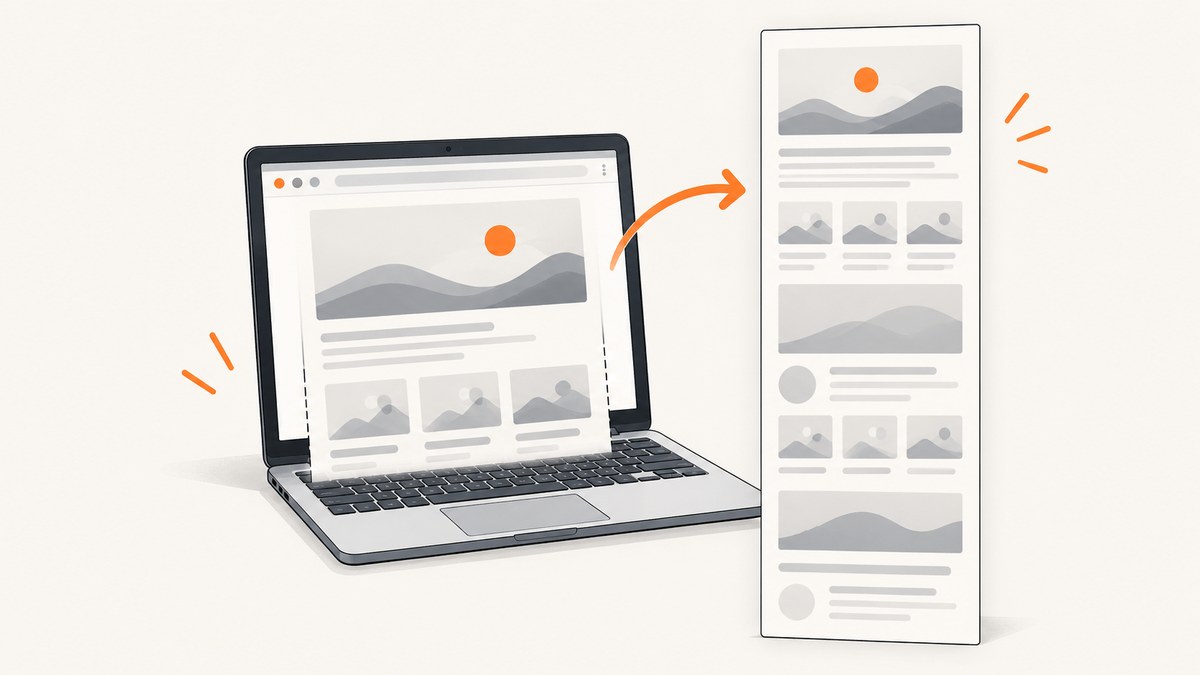
Use Chrome DevTools’ Capture full size screenshot command. Open the page in Chrome, press F12 or Ctrl+Shift+I, open the Command Menu with Ctrl+Shift+P, search for screenshot, and choose Capture full size screenshot. This captures content below the visible viewport. The similarly named Capture screenshot command captures only what is currently visible.
Chrome documents both commands in its DevTools screenshot guide. The steps below cover dynamic pages, missing content, very long documents, and automated alternatives.
Take a full-page screenshot in Chrome on Windows
- Open the page. Navigate to the URL in Chrome and wait for the content you need to appear. If the page loads sections only after scrolling, scroll through it once before capturing so those sections have a chance to load.
- Open DevTools. Press F12 or Ctrl+Shift+I. If your keyboard maps F12 to another function, use the Ctrl+Shift+I shortcut.
- Open the Command Menu. Press Ctrl+Shift+P. Chrome lists this shortcut for Windows, Linux, and ChromeOS in its documentation.
- Find the capture command. Type
screenshot. - Capture the whole page. Select Capture full size screenshot. Do not select Capture screenshot; that command captures only the current viewport.
- Find the downloaded file. Chrome uses your configured download behavior and location. Check the download shelf or your Chrome download history, then open the file from the location shown there.
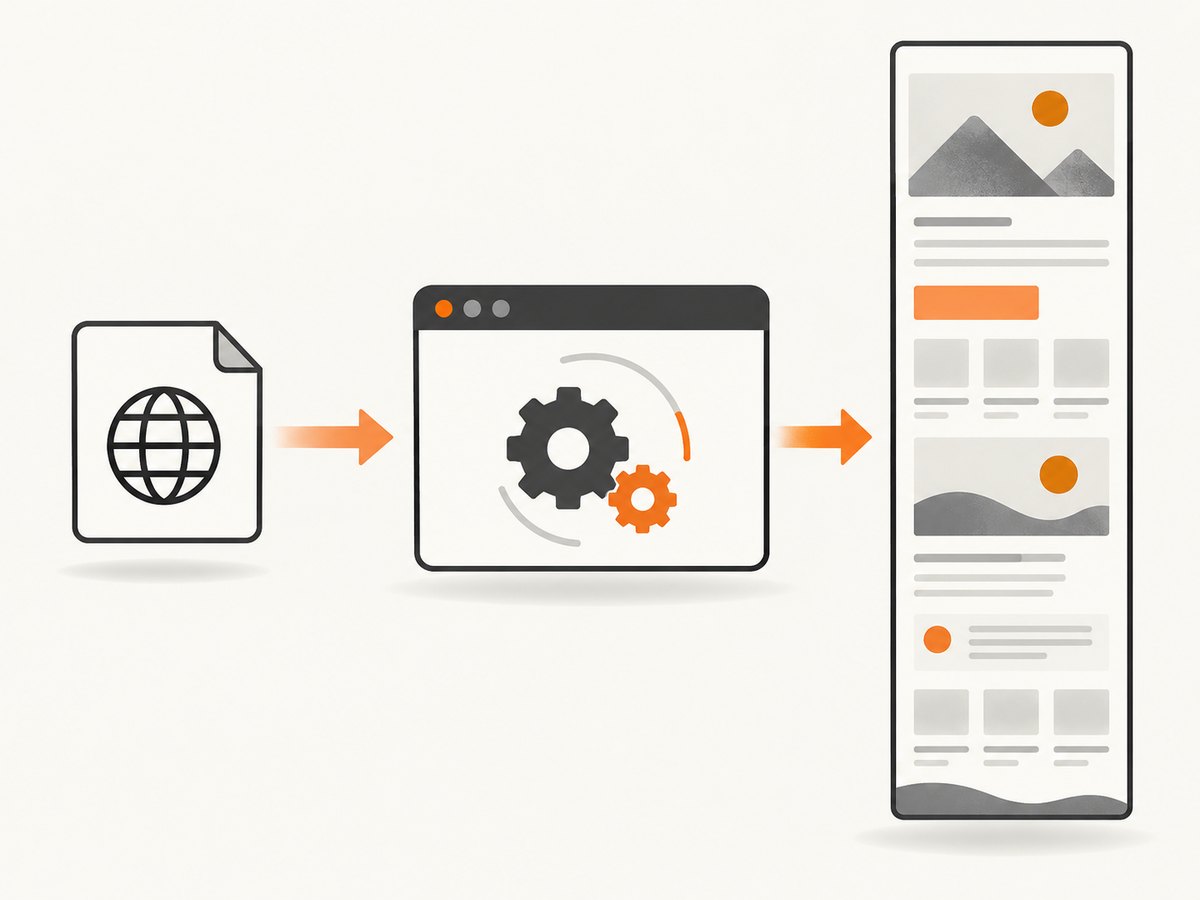
Full-page versus viewport screenshots
| Command | What it captures | Use it when |
|---|---|---|
| Capture screenshot | The part of the page currently visible in the viewport | You need a single screen, hero section, or current state |
| Capture full size screenshot | The whole page, including content outside the viewport | You need an article, landing page, documentation page, or other complete webpage |
The command name is the important distinction: “full size” means Chrome captures the page beyond the visible screen. The Chrome documentation does not promise one universal filename, folder, or output format, so describe the result by checking Chrome’s download UI or configured Downloads location.
Prepare a page before capturing
Let lazy content load
Some pages request images, cards, or embedded sections only as they approach the viewport. Scroll down the page first, wait for visible sections to finish loading, then return to the top and run the full-size command. This is practical preparation rather than a guarantee for every site.
Stop transient UI when possible
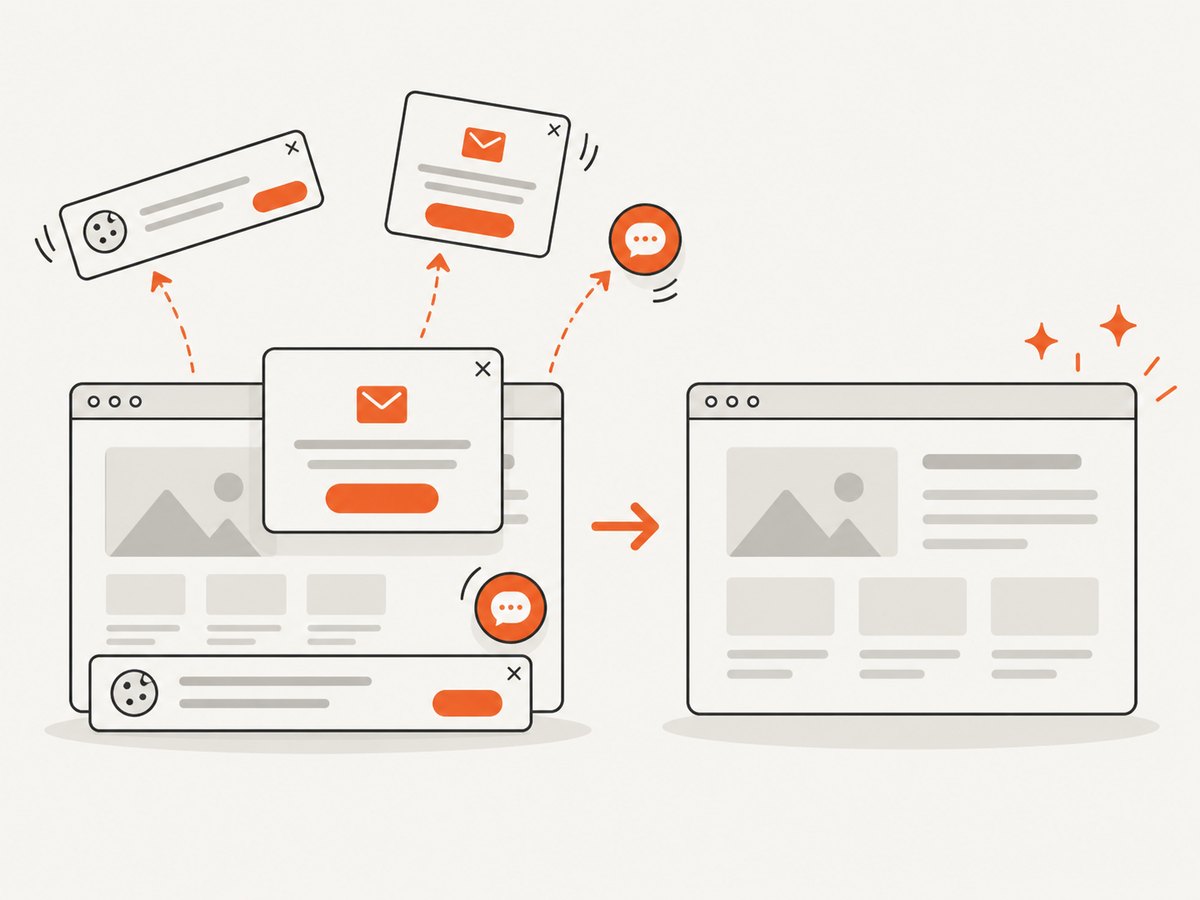
Cookie dialogs, newsletter forms, chat launchers, and sticky headers can obscure content. Close them before opening the Command Menu. If a dialog blocks the page and has no close control, try dismissing it with Esc or adjust the site’s own consent settings.
Choose a stable page state
Animations, carousels, live counters, and personalized content can change while Chrome captures. Pause media, wait for a carousel slide you want, and avoid capturing while the page is still reflowing.
What to do when the full-page result is incomplete
- Images are blank: scroll through the page first, wait for images to load, and capture again.
- Lower sections are missing: verify that you selected Capture full size screenshot, not Capture screenshot. Then reload the page and retry.
- A sticky header repeats or covers content: close overlays and, if the site provides one, switch to a reader or print view. Chrome’s documented command does not guarantee a particular treatment of sticky elements.
- The page is extremely long: capture after the page settles, close unrelated tabs to reduce resource pressure, and consider an automated screenshot service for repeatable jobs.
- Content requires login: sign in in the same Chrome profile, confirm the page is actually accessible, and then capture. Never share exported images that contain private data without reviewing them.
- The result looks stale: reload, wait for network activity to finish, and capture again. A cached or partially loaded page can produce an incomplete image.
Common errors and fixes
| Symptom | Likely cause | Fix |
|---|---|---|
| Command Menu does not open | Shortcut was intercepted or DevTools is not focused | Click inside DevTools, then press Ctrl+Shift+P. Use the DevTools menu if your keyboard software remaps shortcuts. |
| No screenshot commands appear | The search term or DevTools context is wrong | Type screenshot exactly in the Command Menu and ensure DevTools is open for the target tab. |
| Only the visible screen was saved | The viewport command was selected | Run the command again and choose Capture full size screenshot. |
| Download cannot be found | Chrome’s download directory or prompt differs from your expectation | Open Chrome’s download history and follow the file location shown there. |
| Text or layout changes between attempts | Responsive layout, animation, personalization, or late network requests | Keep the viewport consistent, wait for the page to settle, disable or pause moving content where possible, and retry. |
Performance and reliability considerations
- Page length: a tall document contains more pixels and can take longer to render and write to disk than a viewport capture.
- Network dependency: Chrome can capture only what has loaded. Slow APIs, blocked resources, and client-side errors appear as missing or blank regions.
- Repeatability: the DevTools workflow is excellent for an occasional manual capture. Scheduled jobs, many URLs, authenticated headers, or consistent device settings are easier with an API.
- Review: inspect the top, middle, and bottom of a long result. A successful download does not prove that every lazy-loaded section rendered.
- Cost: Chrome’s built-in capture has no API charge. Automation may add browser hosting, maintenance, and storage costs.
Or skip the browser setup
ScreenshotNeo provides a website screenshot API and MCP server. One GET request returns a PNG, JPEG, WebP, or PDF. See the ScreenshotNeo API documentation for parameters and response details.
curl -G "https://api.screenshotneo.com/v1/shot" -d access_key=YOUR_API_KEY --data-urlencode url=https://stripe.com -o shot.webpimport requests
r = requests.get(
"https://api.screenshotneo.com/v1/shot",
params={"access_key": "YOUR_API_KEY", "url": "https://stripe.com"},
timeout=90,
)
r.raise_for_status()
open("shot.webp", "wb").write(r.content)const q = new URLSearchParams({ access_key: 'YOUR_API_KEY', url: 'https://stripe.com' });
const res = await fetch(`https://api.screenshotneo.com/v1/shot?${q}`);
if (!res.ok) throw new Error(`Screenshot failed: ${res.status}`);
const data = Buffer.from(await res.arrayBuffer());
require('fs').writeFileSync('shot.webp', data);ScreenshotNeo can load full pages and lazy images, select one element with CSS, set a viewport or device preset, use retina scale, apply custom CSS or JavaScript, click an element, wait for a selector, delay, or network idle, hide selectors, block ads or resource types, provide headers, cookies, a user agent, Authorization, timezone, and geolocation, resize images, cache with a chosen TTL, create signed links, run asynchronous jobs with signed webhooks, capture up to 100 URLs per bulk call, and export PDFs with paper, margin, landscape, and page-range settings.
It also removes cookie and consent banners, newsletter popups, and chat widgets from more than 60 known platforms before capture; each step can be turned off. Bot checks or CAPTCHAs, blank pages, timeouts, failed loads, and cache hits are not billed as clean shots. The response identifies the result with X-Page-Verdict and X-Billed headers. Claude, Cursor, and other MCP clients can use its take_screenshot, get_page_info, and capture_pdf tools.
The Free plan includes 1,000 screenshots each month without a card. Paid plans start at $5 for 3,000 shots; yearly billing provides two months free, and every feature is included on every plan. Create a free ScreenshotNeo account.
FAQ
Does Chrome’s full-page command include content below the fold?
Yes. Capture full size screenshot includes page content outside the current viewport.
Why does Chrome show two screenshot commands?
Capture screenshot is viewport-only. Capture full size screenshot captures the entire page.
Can I choose the saved filename or folder from the DevTools command?
The reviewed Chrome documentation does not establish a universal filename, folder, or format. Use Chrome’s download UI and settings to locate the result.
Is an extension required?
No. Chrome DevTools includes the full-page capture command.
When should I use an API instead?
Use an API when captures must run repeatedly, at scale, with controlled headers or cookies, or from an AI workflow. ScreenshotNeo adds those controls and reports whether a response was billed.


