BlogScreenshots on your device
How to Capture a Full-Page Screenshot on a Chromebook
Capture an entire scrolling webpage on a Chromebook with Chrome DevTools, extensions, or ScreenshotNeo, including troubleshooting and automation options.
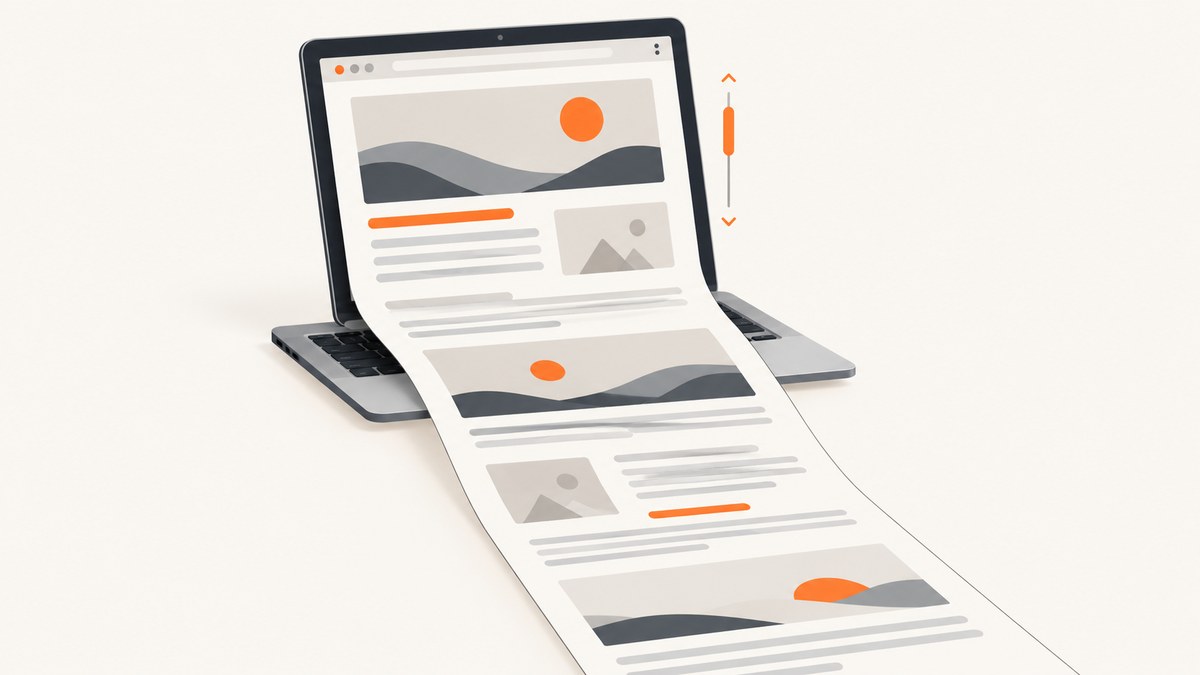
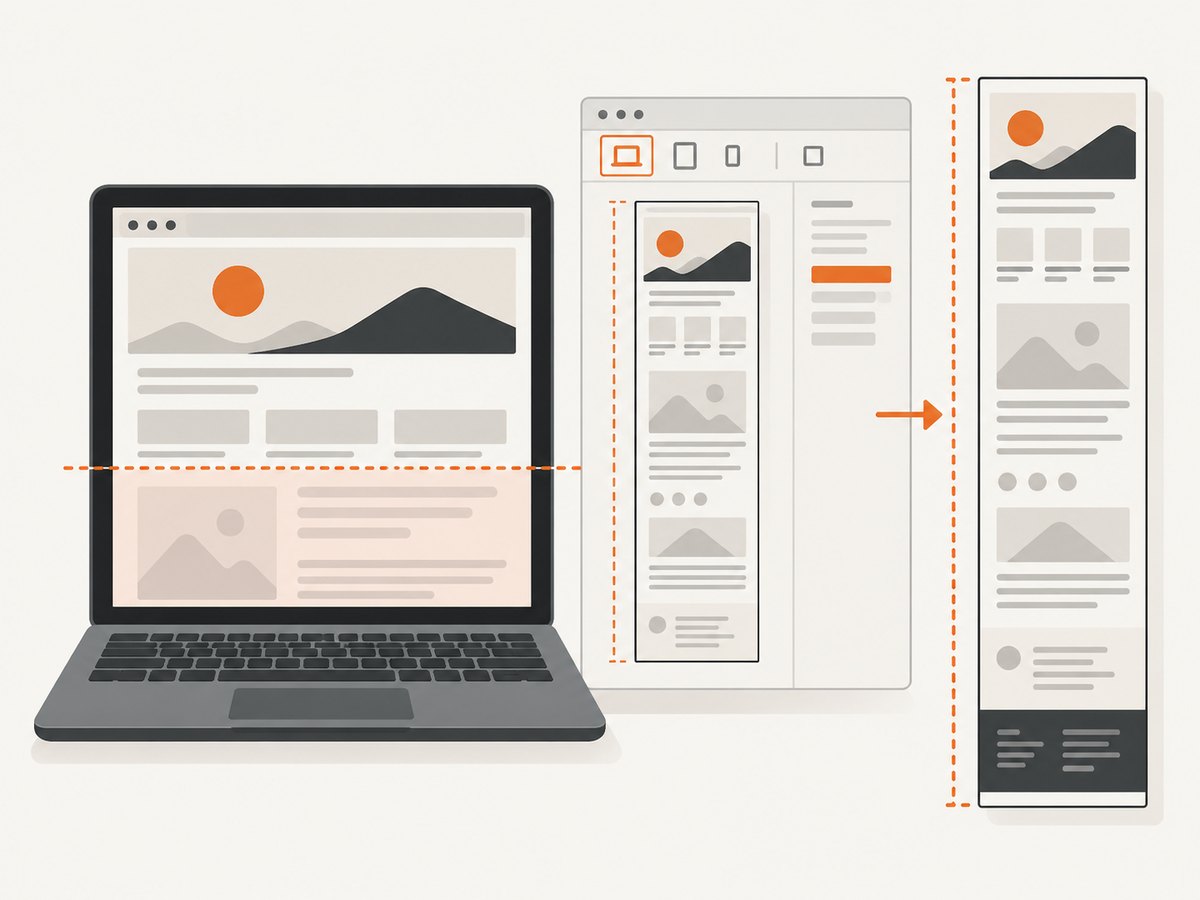
To capture an entire scrolling webpage on a Chromebook, open the page in Chrome, launch DevTools, enable device mode, open the device-mode More options menu, and choose Capture a full size screenshot. Chrome saves the resulting image to your Downloads folder by default. This captures content below the visible viewport, unlike the Chromebook’s ordinary full-screen, partial, or window screenshot tools. Chrome’s DevTools documentation describes this command as capturing the whole page, including content that is not currently visible.
Full-screen versus full-page screenshots
These terms describe different captures:
| Capture type | What it includes | Chromebook route |
|---|---|---|
| Full screen | Everything currently visible on the display | Built-in Screen Capture tool |
| Partial | A selected visible rectangle | Built-in Screen Capture tool |
| Window | A selected application window | Built-in Screen Capture tool |
| Full page | The whole webpage, including content below the viewport | Chrome DevTools device mode |
Google’s Chromebook instructions list full-screen, partial, and window captures. They do not describe those controls as automatically scrolling through a webpage. Use DevTools for a webpage-length image.
Method 1: Chrome DevTools (recommended)
- Open the webpage in Chrome and wait for the content you need to appear.
- Open Chrome DevTools using the Chrome menu’s More tools and Developer tools commands. Keyboard shortcuts can vary by Chromebook model, browser version, and administrator policy.
- In DevTools, turn on the device toolbar by selecting the phone-and-tablet icon. This is called device mode.
- Open the device-mode More options menu. It is separate from the browser’s main three-dot menu.
- Select Capture a full size screenshot.
- Open the Files app and look in Downloads. Chromebook captures are saved there by default. You can choose another folder in Screen Capture settings.
The output is an image of the page’s full document height. If the page changes while Chrome is capturing it, repeat the capture after the page has settled.
Before you capture
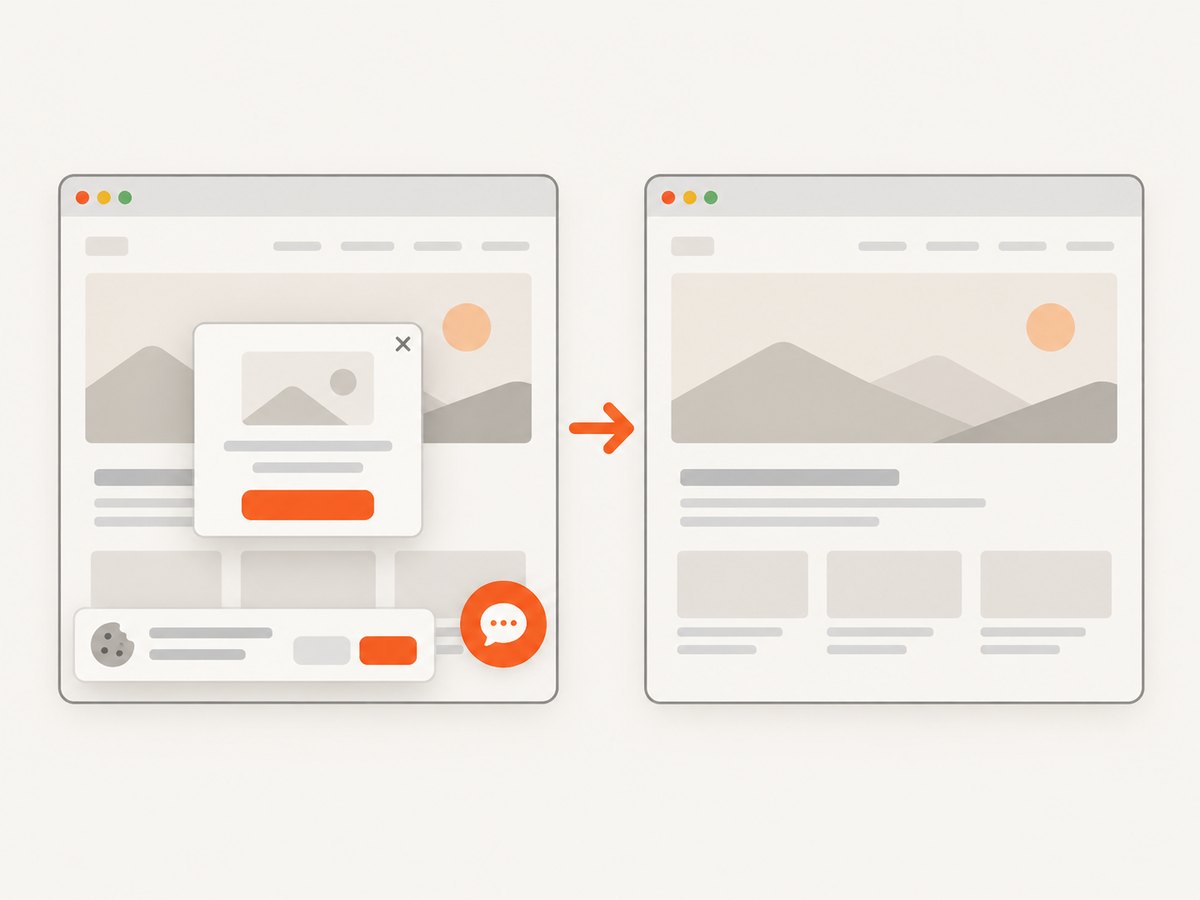
- Dismiss sign-in prompts or overlays that cover content you want in the image.
- Scroll through the page once if important sections load only after scrolling.
- Wait for fonts, images, charts, and embedded content to finish loading.
- Close DevTools panels or resize the emulated viewport if they obscure the page preview.
Dynamic pages and edge cases
Lazy-loaded images
Some pages load images only when they approach the viewport. A full-size capture may therefore include placeholders if the page has not loaded those images yet. Scroll through the document first, wait for images to appear, then capture again.
Fixed headers and sticky elements
A sticky navigation bar can appear repeatedly or cover content in a stitched image. There is no universal DevTools setting that removes every site-specific sticky element. If the result is unusable, try the page’s print view, temporarily hide the element with DevTools, or use a capture service that supports custom CSS.
Nested scrolling areas
A page can contain a table, chat panel, or other element with its own scrollbar. Full-page capture follows the document, but it may not expand every nested scroller. Capture the nested element separately when it contains required content.
Infinite scroll
Infinite-scroll pages do not have a stable final height. Load the section you need, stop additional requests where practical, and capture at a known point. For a complete archive, export the data or use a workflow that can drive scrolling and define a stopping condition.
Cross-origin frames and embedded apps
Embedded documents, videos, maps, and cross-origin application frames can render differently from the surrounding page. Their content may remain interactive or may appear as a bounded frame rather than expanding to its full internal height.
Very long pages
Extremely tall pages can create large image files and may exceed memory or image-viewer limits. Capture separate sections when you need to share or edit the result, or export a PDF if a paginated document is more useful.
Method 2: a Chrome extension
A Chrome Web Store extension is an alternative if you want a toolbar button. The listing for FullPage Capture – Full Page Screenshot advertises scrolling capture that stitches page sections and supports PNG, JPEG, and PDF export. That description comes from the extension publisher; it was not independently tested for this guide.
- Review the extension’s current listing, requested permissions, publisher information, and your organization’s installation policy.
- Install it from the Chrome Web Store if permitted.
- Open the target page, select the extension button, and follow its capture workflow.
- Check the resulting file for missing lazy-loaded content, repeated sticky elements, and clipped embedded frames.
Use DevTools when you want Chrome’s documented native command or cannot grant an extension additional browser access.
Where the screenshot is saved
Chromebook screenshots normally appear in Downloads. In the Screen Capture controls, choose the settings option for the save location if you want captures sent to another folder. If you cannot find a file, sort Downloads by date and check whether your organization redirects or restricts local storage.
Or skip the browser setup
ScreenshotNeo provides a website screenshot API and MCP server. One request returns a PNG, JPEG, WebP, or PDF, and its full-page option can capture a scrolling webpage without configuring Chromebook DevTools.
See the ScreenshotNeo API documentation for all parameters. Replace the example URL with the page you need.
cURL
curl -G "https://api.screenshotneo.com/v1/shot" -d access_key=YOUR_API_KEY --data-urlencode url=https://example.com -o shot.webpPython
import requests
r = requests.get("https://api.screenshotneo.com/v1/shot", params={"access_key": "YOUR_API_KEY", "url": "https://example.com"}, timeout=90)
open("shot.webp", "wb").write(r.content)
Node.js
const q = new URLSearchParams({ access_key: 'YOUR_API_KEY', url: 'https://example.com' });
const res = await fetch(`https://api.screenshotneo.com/v1/shot?${q}`);
const fs = await import('node:fs/promises');
await fs.writeFile('shot.webp', Buffer.from(await res.arrayBuffer()));
ScreenshotNeo removes cookie and consent banners, newsletter popups, and chat widgets before the capture. Bot checks, blank pages, failed loads, timeouts, and cache hits are not billed, and response headers identify the page verdict and billing result. Its MCP server includes take_screenshot, get_page_info, and capture_pdf for Claude, Cursor, and other MCP clients. You get 1,000 screenshots per month free with no card; paid plans start at $5 for 3,000 screenshots. Create a free ScreenshotNeo account.
Troubleshooting
| Problem | Likely cause | Fix |
|---|---|---|
| There is no full-size option | Device mode is not enabled, or the menu opened is the browser menu | Open DevTools, enable the device toolbar, then open its More options menu. |
| The image contains only the visible screen | The Chromebook Screen Capture tool was used | Use DevTools’ Capture a full size screenshot command. |
| Images are blank or missing | Lazy loading, slow network, or blocked requests | Scroll through the page, wait for assets, and capture again. |
| Content is covered repeatedly | Sticky headers, cookie banners, or chat widgets | Dismiss or hide the element before capture, or use ScreenshotNeo’s cleanup and hide-selector options. |
| The page stops at an inner panel | The content uses a nested scrollbar | Capture that element separately or export its data. |
| The file is too large to open | The document is unusually tall or image-heavy | Capture sections, reduce the viewport scale, or create a PDF. |
| The extension is unavailable | Administrator policy or permissions | Use the native DevTools method or request an approved extension. |
Performance, reliability, and cost
- Performance: Capture time increases with page height, image count, scripts, and network activity. Let the page settle before invoking capture.
- Reliability: Results depend on the page’s current state. Dynamic ads, animations, authentication, embedded frames, and infinite scrolling can change between captures.
- Storage: Tall PNG files consume more space than JPEG or WebP files. Use the format and resolution appropriate for your destination.
- Cost: Chrome DevTools and the Chromebook capture tool do not add a service charge. Extensions may have their own terms. ScreenshotNeo has 1,000 free shots monthly with no card, then plans from $5 for 3,000; only clean shots are billed.
Checklist
- Confirm that you need a full webpage, not a full-screen display image.
- Open the page in Chrome and let required content load.
- Enable DevTools device mode.
- Choose Capture a full size screenshot.
- Inspect the file for lazy-loaded images, sticky elements, nested scrollers, and clipped frames.
- Save or move the image from Downloads.
FAQ
Can the Chromebook’s normal screenshot shortcut capture a whole webpage?
No. The built-in capture choices cover the visible screen, a selected area, or a window. Use Chrome DevTools for webpage-length capture.
Does full-page capture include content below the fold?
Chrome’s DevTools command is specifically documented to include content that is not currently visible in the viewport.
Can I capture a full page as a PDF?
Chrome can print webpages to PDF, and ScreenshotNeo’s API includes PDF capture with paper size, margins, orientation, and page-range controls.
What if DevTools is blocked on my managed Chromebook?
Ask your administrator about the policy, use an approved extension if available, or capture the page through an authorized service such as ScreenshotNeo.


