BlogScreenshots on your device
How to Take a Full-Page Screenshot on a Desktop
Capture an entire webpage, including content below the fold, with Firefox, Edge, DevTools, or ScreenshotNeo.

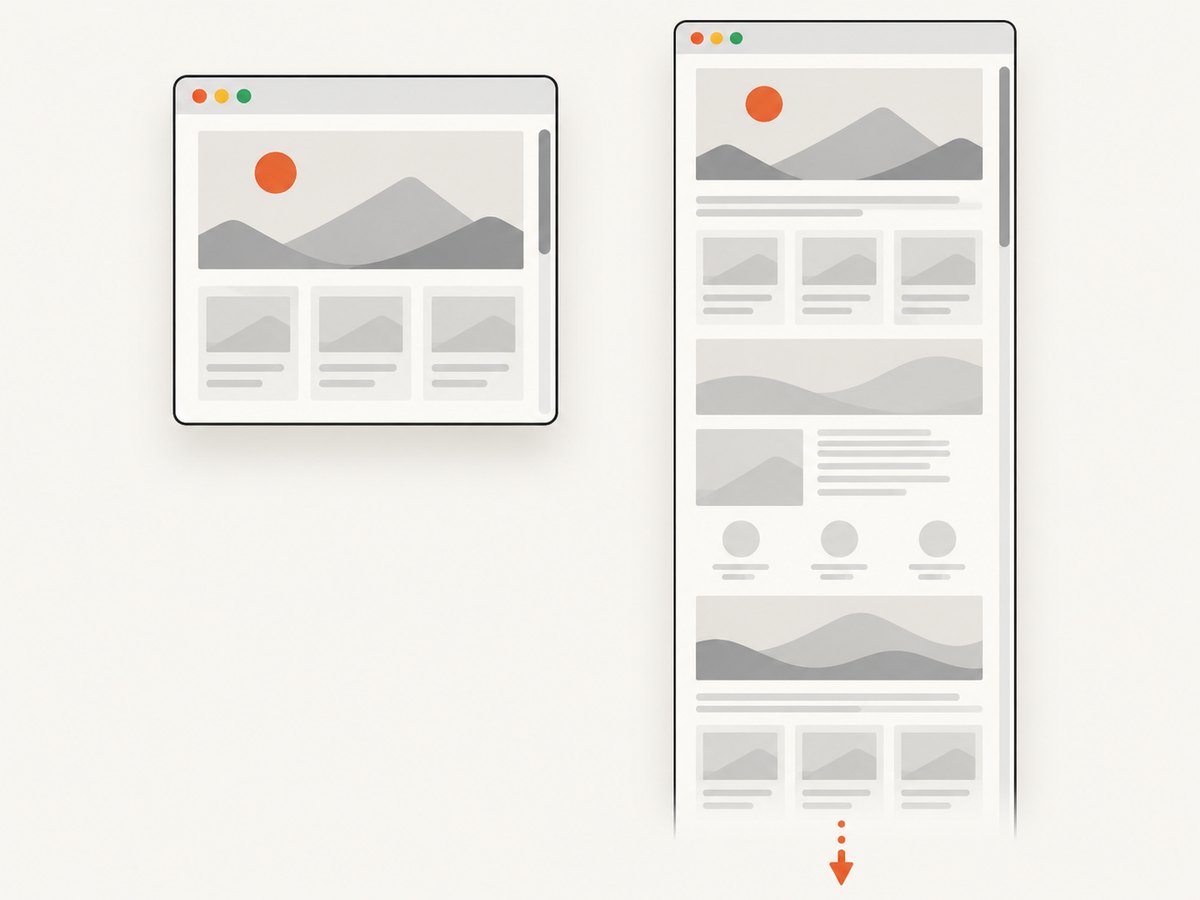
A full-page screenshot captures the entire webpage, including content below the visible browser window. It is different from a normal screen or window capture, which records only what is currently visible.
For a quick desktop capture, use Firefox’s Take Screenshot → Save full page or Edge’s Screenshot → Capture full page. Firefox DevTools adds delay, device-pixel-ratio, filename, and CSS-selector controls.
1. Take a full-page screenshot in Firefox
- Open the webpage in Firefox.
- Right-click an empty part of the page and select Take Screenshot. You can also hold Control while clicking.
- Use Ctrl+Shift+S on Windows or Linux, or Command+Shift+S on macOS, to open the screenshot tool.
- Choose Save full page in the upper-right corner.
- Select Download to save the image, or Copy to place it on the clipboard.
Firefox also offers visible-area and selection modes. Select Save full page when you need content below the fold.
2. Take a full-page screenshot in Microsoft Edge
- Open the webpage in Edge.
- Right-click the page and choose Screenshot, or press Ctrl+Shift+S.
- Choose Capture full page.
- Optionally mark up the result, then copy or save it.
Microsoft notes that Screenshot availability and behavior can vary by device, market, and browser version. If the menu or shortcut is missing, update Edge and check its current menus.
3. Use Firefox DevTools for advanced captures
DevTools is useful when a normal full-page capture is not enough—for example, when you need a delay, a specific element, a device-pixel ratio, or a predictable filename.
Enable the full-page screenshot button
- Open Firefox DevTools.
- Open DevTools settings.
- Under Available Toolbox Buttons, enable Take a screenshot of the entire page.
- Click the new screenshot button. Firefox saves the image to the Downloads directory.
Capture from the Web Console
Firefox’s screenshot helper supports a full-page flag and additional options:
:screenshot --fullpageUseful documented options include:
| Option | Use |
|---|---|
--delay |
Wait before capture so a menu, hover state, animation, or late content can settle. |
--dpr |
Set the device-pixel ratio for the output. |
--filename |
Choose the output filename. |
--selector |
Capture a specific element and its descendants instead of the whole document. |
4. Full-page versus visible-area screenshots
| Capture type | Includes | Use it for |
|---|---|---|
| Visible area | Only the portion currently shown in the browser window | A quick record of the current state |
| Full page | The document, including content reached by scrolling | Documentation, reviews, archives, and design checks |
| Element or selection | A chosen region or DOM element | Components, charts, receipts, and targeted QA |
A full-page webpage capture is not the same as an operating-system screenshot of the desktop. Browser tools understand the page layout and can include material outside the current viewport.
5. Prepare a page before capturing it
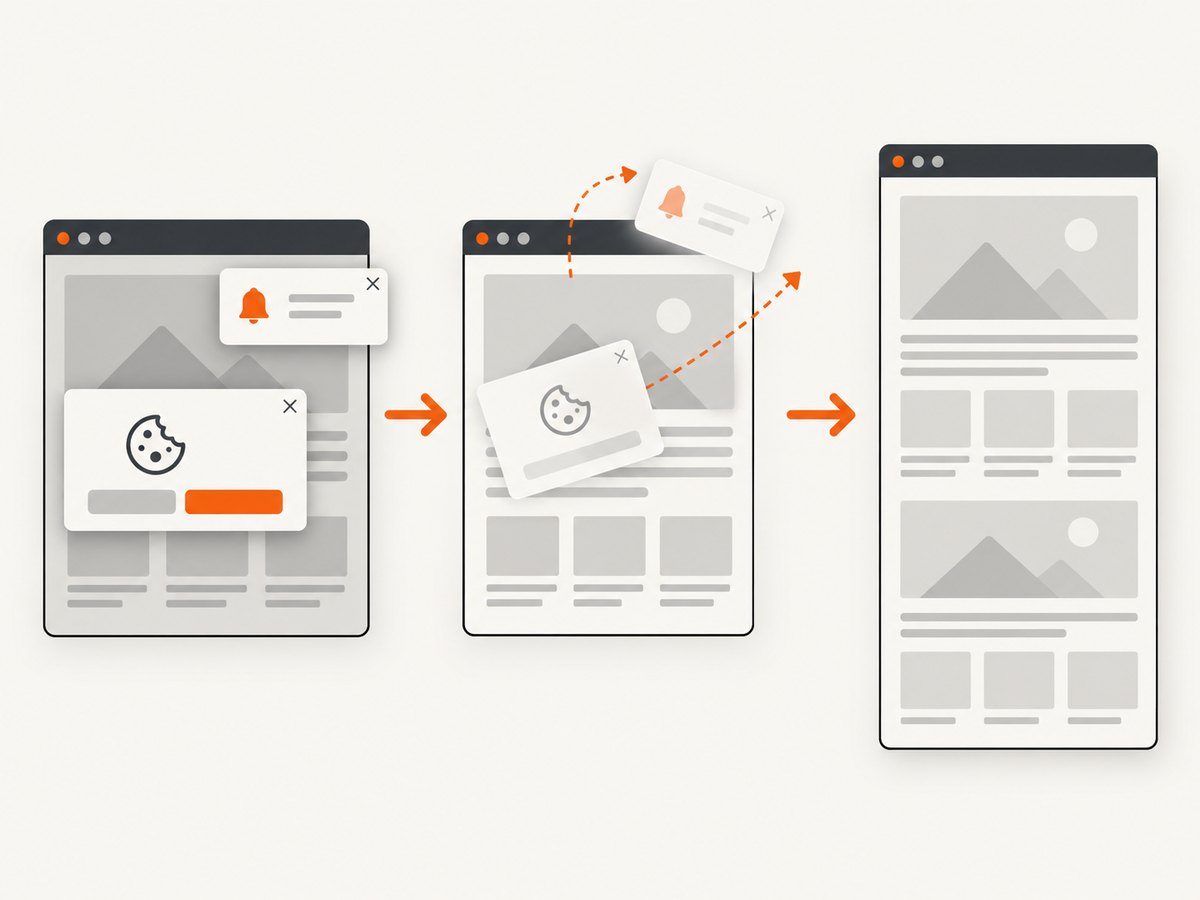
Long pages often contain lazy-loaded images, cookie banners, newsletter popups, chat widgets, animations, or sticky headers. Before capturing:
- Wait for the page to finish loading.
- Dismiss consent dialogs and popups.
- Scroll through the page if images load only after entering the viewport.
- Pause animations when a stable frame matters.
- Check that a fixed header is not covering content.
- Use a selector capture when only one component is needed.
6. Troubleshooting full-page captures
Only the visible viewport was captured
Cause: The visible-area mode was selected.
Fix: In Firefox choose Save full page; in Edge choose Capture full page.
The menu item or shortcut is missing
Cause: Browser version, device, market, or menu configuration differences.
Fix: Check the browser’s current menus and update it. Edge specifically documents that feature availability and functionality can vary.
Images are missing lower on the page
Cause: The site uses lazy loading and those images were never requested.
Fix: Scroll through the page first, wait for images to appear, then capture. For repeatable automated work, use a capture workflow that can load lazy content before taking the shot.
A cookie banner, popup, or chat bubble covers the page
Cause: The overlay is part of the page state at capture time.
Fix: Dismiss it manually, or use an automated service with consent and overlay handling.
The screenshot contains a menu or hover state you did not want
Cause: The pointer or page state changed while the capture started.
Fix: Move the pointer away, close menus, or use Firefox DevTools with --delay to capture a controlled state.
The page changes while it is being captured
Cause: Animations, rotating content, live data, or delayed network requests.
Fix: Wait for a stable state, disable or pause animations where possible, and capture at a consistent time.
7. Automate full-page captures with ScreenshotNeo
For recurring captures, CI jobs, documentation pipelines, or pages that need cleanup before capture, ScreenshotNeo provides a website screenshot API and MCP server. Its API accepts one GET request and returns PNG, JPEG, WebP, or PDF output. See the ScreenshotNeo documentation for the complete parameter reference.
cURL
curl -G "https://api.screenshotneo.com/v1/shot" \
  -d access_key=YOUR_API_KEY \
  --data-urlencode url=https://stripe.com \
  -o shot.webp
Python
import requests

r = requests.get(
    "https://api.screenshotneo.com/v1/shot",
    params={"access_key": "YOUR_API_KEY", "url": "https://stripe.com"},
    timeout=90,
)
r.raise_for_status()
open("shot.webp", "wb").write(r.content)
Node.js
const q = new URLSearchParams({
  access_key: 'YOUR_API_KEY',
  url: 'https://stripe.com'
});
const res = await fetch(`https://api.screenshotneo.com/v1/shot?${q}`);
if (!res.ok) throw new Error(`HTTP ${res.status}`);
const data = Buffer.from(await res.arrayBuffer());
await import('node:fs/promises').then(fs => fs.writeFile('shot.webp', data));
Options for a complete-page capture
- Full-page capture with lazy images loaded.
- Any viewport or one of 12 device presets.
- Retina scale and image resizing.
- Dark mode, timezone, geolocation, custom user agent, headers, cookies, and Authorization.
- Custom CSS and JavaScript, click-before-capture actions, hidden selectors, and waits for a selector, delay, or network idle.
- Blocking for ads, trackers, requests, or resource types.
- Transparent backgrounds and caching with a TTL you choose.
- PDF output with paper size, margins, landscape mode, and page ranges.
- Async jobs with signed webhooks, bulk capture for up to 100 URLs per call, signed links for public
<img>tags, a usage API, and an OpenAPI specification.
ScreenshotNeo accepts the parameter names used by other screenshot APIs, which can simplify migrations. Its consent step accepts cookie banners like a visitor and removes more than 60 known consent platforms, newsletter popups, and chat widgets; each step can be turned off.
Or skip the browser setup
Use the one-call example above when you need repeatable captures. Cookie banners, popups, and chat widgets are removed before the shot; bot checks, blank pages, timeouts, failed loads, and cache hits are never billed. Each response reports its result with X-Page-Verdict and X-Billed headers. An MCP server provides take_screenshot, get_page_info, and capture_pdf tools for Claude, Cursor, and other MCP clients. The Free plan includes 1,000 screenshots each month with no card, and paid plans start at $5 for 3,000 screenshots. Create a free ScreenshotNeo account.
8. Performance, reliability, and cost considerations
- Performance: Full-page images are larger than viewport captures. Use WebP or JPEG when a smaller file matters, and resize output when the original page dimensions are excessive.
- Reliability: Wait for a selector or network idle when content arrives asynchronously. Use a delay for menus or hover states. Async jobs and signed webhooks help when a capture does not need to finish inside a request timeout.
- Repeatability: Set the viewport, device scale, timezone, geolocation, headers, cookies, and user agent explicitly when comparing pages over time.
- Billing: ScreenshotNeo bills only clean shots. Bot checks, CAPTCHAs, blank pages, timeouts, failed loads, and cache hits cost nothing. Caching with a chosen TTL can also avoid repeated work for unchanged URLs.
- Volume: Bulk capture supports up to 100 URLs per call. Check usage through the usage API before scheduling large jobs.
9. Practical checklist
- Choose full-page mode, not visible-area mode.
- Confirm that lazy-loaded images have appeared.
- Dismiss or remove consent banners, popups, and chat widgets.
- Wait for dynamic content and animations to settle.
- Use a selector when the whole document is unnecessary.
- Check the output dimensions and file format.
- For automation, set viewport and page-state options explicitly.
10. FAQ
Does a full-page screenshot include content below the fold?
Yes. It captures the webpage beyond the part currently visible in the browser window.
Is there one universal desktop shortcut?
No universal operating-system shortcut was established here. Firefox and Edge provide browser-specific commands, and their menus can vary by version.
Can I capture just one element?
Yes. Firefox DevTools supports a CSS selector option, and ScreenshotNeo supports capture by CSS selector.
Can I save a full webpage as a PDF instead?
Browser print workflows can create PDFs, while ScreenshotNeo provides PDF capture with paper size, margins, landscape mode, and page ranges.
Which option should I use for repeated captures?
Use an automated API when captures run on a schedule, in CI, or across many URLs. Set page-state options so each run is consistent.


