BlogScreenshots on your device
How to Take Full-Page Screenshots in Express
Use Scroll Capture in Adobe Express Photos on Windows to save a long webpage as one image, or automate clean captures with ScreenshotNeo.

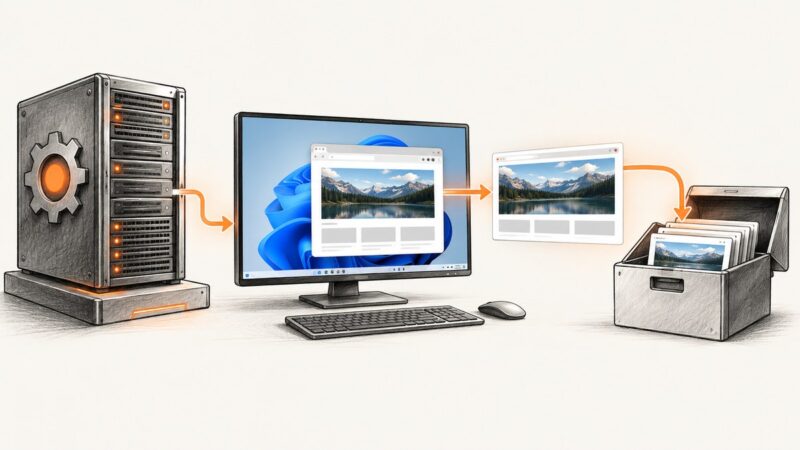
To take a full-page screenshot in Adobe Express, use Scroll Capture in Adobe Express Photos on Windows. Open the webpage, press PrtScn or Win+Shift+S, choose Scroll in the floating toolbar, select the browser window, and let Express scroll and capture the page. The result is saved in the Screenshots folder and copied to your clipboard.
This is different from Adobe Express’s Fullscreen screenshot control, which captures only the visible screen. It is also different from Adobe Express web’s Export webpage as PDF workflow, which creates a PDF for webpages designed in Adobe Express. Scroll Capture is the Adobe feature for making one image from long, scrollable content.
What Adobe Express Scroll Capture does
Adobe describes Scroll Capture in Adobe Express Photos as a way to capture long-form content in a single seamless image. It can work with browser windows, documents, spreadsheets and many desktop applications that contain scrollable content. Adobe’s current instructions specify Windows availability and describe the feature as free to use.
| Workflow | Captures | Output | Use it when |
|---|---|---|---|
| Scroll Capture | Scrollable page or document, including content below the fold | One long image | You need a full-page visual record |
| Fullscreen screenshot | The currently visible display | Screen image | You need the desktop or viewport exactly as shown |
| Export webpage as PDF | A webpage designed in Adobe Express | You are exporting an Express web design for distribution or printing |
Scroll Capture ends when you select Stop capture or when Express reaches its maximum scroll length. Adobe’s documentation does not publish a numerical maximum, so very long pages may need to be captured in sections or handled with an automation service.
Step-by-step: capture a full webpage in Express
- Open the content. Load the webpage, document or other scrollable window you want to capture. Put the window in a stable state first: finish navigation, dismiss transient dialogs and wait for images to appear.
- Open the capture toolbar. Press PrtScn or Win+Shift+S. Adobe Express Photos opens its floating screenshot toolbar.
- Select Scroll. Choose Scroll, rather than the ordinary screenshot or Fullscreen option.
- Choose the target window. Select the browser or application containing the page. Express automatically scrolls through the window while assembling the capture.
- Stop early if needed. Select Stop capture when the desired section is complete. Otherwise, Express continues until it reaches its maximum scroll length.
- Retrieve the image. Adobe says the screenshot is automatically saved in the Screenshots folder and copied to the clipboard. Paste it into an editor, message or document to confirm that the full content is present.
Before you start
- Use a maximized browser window if you want consistent width from top to bottom.
- Close cookie banners, chat bubbles and sticky promotions that would otherwise appear in every captured segment.
- Allow lazy-loaded images to finish loading. A page that loads media only after scrolling can produce missing or partially loaded sections.
- Keep the page at the zoom level and window size you want in the final image.
Fullscreen screenshots are not full-page screenshots
Adobe Express Photos also provides ordinary screenshot capture. Its Fullscreen control records the entire visible screen at one moment. It does not scroll through a webpage, so it cannot include content below the current viewport.
Use Fullscreen when you need a desktop state, a dialog, a browser tab as currently displayed or a troubleshooting report. Use Scroll Capture when the requirement is “the whole webpage in one image.” If you need a repeatable capture at a fixed viewport, a specific device size or a scheduled time, use an automated browser or screenshot API instead.
Scroll Capture versus Adobe Express PDF export
Adobe Express web includes an Export webpage as PDF workflow for webpages designed in Adobe Express. You select Download, optionally add a timestamp, choose whether accessibility tags remain enabled, and download a PDF. That process exports an Express webpage design; it is not a method for taking a screenshot of an arbitrary external webpage.
Choose the format based on the job:
- PNG, JPEG or WebP image: use Scroll Capture or an image screenshot API.
- Printable, multipage document: use the PDF workflow when the page is an Adobe Express design, or a browser PDF tool for other sites.
- Visible-screen evidence: use Fullscreen capture.
Common problems and fixes
| Problem | Likely cause | Fix |
|---|---|---|
| Scroll is not shown | The toolbar opened in ordinary screenshot mode, or the feature is unavailable in the current environment. | Confirm that Adobe Express Photos is being used on Windows, reopen the toolbar with PrtScn or Win+Shift+S, and look for Scroll. |
| Only the visible screen is captured | Fullscreen or another screenshot mode was selected. | Repeat the capture and explicitly choose Scroll. |
| The bottom of the page is missing | Express reached its maximum scroll length or capture was stopped early. | Capture a shorter section, stop and combine sections in an editor, or use an automated API for very long pages. |
| Images are blank or missing | Lazy loading, slow network requests or an image blocked by the site. | Wait for the page to settle, scroll manually once to trigger lazy loading, then run Scroll Capture again. |
| Sticky headers repeat down the image | The page’s fixed-position elements remain visible during scrolling. | Hide or close the element before capture, or remove it afterward in an image editor. |
| Cookie dialogs or chat widgets cover content | Overlays were still open when capture began. | Dismiss them first. For recurring automated work, use a service that removes known consent banners and widgets before capture. |
| The image width changes between sections | The window was resized or the page layout changed during capture. | Maximize the window, keep zoom fixed and avoid interacting with the page while capture runs. |
| The clipboard is empty | The capture completed but the clipboard was replaced by another copy action. | Look in the Screenshots folder first, then repeat the capture and copy the result immediately. |
Quality, performance and reliability considerations
Dynamic pages
News feeds, dashboards and storefronts can change while they are being captured. A long capture may contain sections rendered at different times. Freeze the page where possible, wait for network activity to settle and avoid scrolling manually while Express is working.
Lazy-loaded content
Many websites request images only when they approach the viewport. Scroll Capture may trigger those requests, but a slow or failed request can leave a blank area. Let the page finish loading and repeat the capture if necessary. For controlled automation, wait for a selector, a delay or network idle before taking the image.
Very long pages
A single tall bitmap consumes more memory than a normal screenshot. Browser tabs can also change layout as content is appended. Adobe documents a maximum scroll length but does not state its numerical value. If the page exceeds that limit, split it into sections or use a capture service that supports full-page rendering and image resizing.
Repeatability
Manual Scroll Capture is suitable for occasional documentation. It is less suitable for regression testing, monitoring, catalog generation or hundreds of URLs because the operator must select the window and retrieve each result. An API can standardize viewport, device scale, waits, headers and output format.
Or skip the browser setup
ScreenshotNeo provides a one-request website screenshot API when you need repeatable captures. It supports full-page images with lazy images loaded, CSS-selector element capture, dark mode, 12 device presets or any viewport, retina scale, custom CSS and JavaScript, click actions, selector or network-idle waits, request blocking, cookies, headers, user agents, authorization, timezone, geolocation, transparent backgrounds, resizing, caching, signed links, asynchronous jobs, bulk capture of up to 100 URLs per call and PDFs.
Before capture, ScreenshotNeo accepts cookie or consent banners and removes more than 60 known consent platforms, newsletter popups and chat widgets. Each step can be disabled. Bot checks or CAPTCHAs, blank pages, timeouts, failed loads and cache hits are not billed; the response identifies the result with X-Page-Verdict and X-Billed headers. It also provides an MCP server with take_screenshot, get_page_info and capture_pdf tools for Claude, Cursor and other MCP clients.
See the ScreenshotNeo documentation for the complete option list and OpenAPI specification.
cURL
curl -G "https://api.screenshotneo.com/v1/shot" -d access_key=YOUR_API_KEY --data-urlencode url=https://stripe.com -o shot.webpPython
import requests

r = requests.get(
    "https://api.screenshotneo.com/v1/shot",
    params={"access_key": "YOUR_API_KEY", "url": "https://stripe.com"},
    timeout=90,
)
r.raise_for_status()
open("shot.webp", "wb").write(r.content)
Node.js
const q = new URLSearchParams({ access_key: 'YOUR_API_KEY', url: 'https://stripe.com' });
const res = await fetch(`https://api.screenshotneo.com/v1/shot?${q}`);
if (!res.ok) throw new Error(`Screenshot failed: ${res.status}`);
const fs = await import('node:fs/promises');
await fs.writeFile('shot.webp', Buffer.from(await res.arrayBuffer()));
Useful automation choices
- Full page: enable full-page capture when the target is longer than the viewport.
- One component: pass a CSS selector to capture an article, chart or product card instead of the entire document.
- Stable timing: combine a selector wait, delay or network-idle wait with a fixed viewport.
- Clean output: enable consent, popup and chat removal; hide any remaining selectors with custom CSS.
- Access-controlled pages: provide custom headers, cookies, a user agent or an Authorization header.
- Cost control: choose a cache TTL for repeated URLs and inspect
X-Billedbefore storing usage records.
Performance and cost notes for ScreenshotNeo
Use caching when the same URL does not need a fresh render on every request. Use bulk capture for batches of up to 100 URLs per call, and asynchronous jobs with signed webhooks when a workflow can finish in the background. For public image tags, signed links avoid exposing an API key in the page URL. For high-volume jobs, the usage API helps reconcile requests with billed results.

The Free plan includes 1,000 shots per month with no card. Starter is $5 for 3,000 shots, Growth is $15 for 15,000, Pro is $39 for 60,000, Scale is $99 for 250,000 and Business is $249 for 1,000,000. Yearly billing gives two months free, and every feature is included on every plan.
Checklist for a dependable full-page capture
- Confirm that you need one long image rather than a visible-screen screenshot or PDF.
- Use Adobe Express Photos Scroll Capture on Windows for an occasional manual capture.
- Dismiss cookie banners, popups and chat widgets before starting.
- Wait for lazy-loaded images and dynamic content.
- Keep window size and browser zoom fixed.
- Check the Screenshots folder and clipboard after capture.
- For repeatable or high-volume work, set viewport, waits, selectors and output format explicitly.
- Inspect whether the result was billed when using an API.
FAQ
Does Adobe Express Scroll Capture work on macOS?
Adobe’s current documentation specifies Scroll Capture for Windows. It does not document the same workflow for macOS.
Can Scroll Capture save a webpage as a PDF?
No. Scroll Capture creates a long image. Adobe Express’s webpage PDF export is a separate workflow for webpages designed in Adobe Express.
Is there a published maximum page length?
Adobe says capture continues until its maximum scroll length but does not publish a numerical maximum in the referenced documentation.
Can I capture only one element?
Scroll Capture targets a scrollable window. For selector-based element capture, use an automation tool or ScreenshotNeo’s element capture option.
How do I automate captures for many URLs?
Use a screenshot API with explicit waits, viewport settings, caching and asynchronous or bulk requests. ScreenshotNeo supports bulk capture for up to 100 URLs per call and signed webhooks for asynchronous jobs.
For occasional Windows work, the path is PrtScn → Scroll → choose the window. For production workflows, create a free ScreenshotNeo account: 1,000 screenshots per month are included with no card.