BlogScreenshots on your device
Full Page Screenshot Extension for Opera
Learn Opera’s built-in screenshot and PDF options, when to install an extension, and how to capture reliable full-page images with ScreenshotNeo.
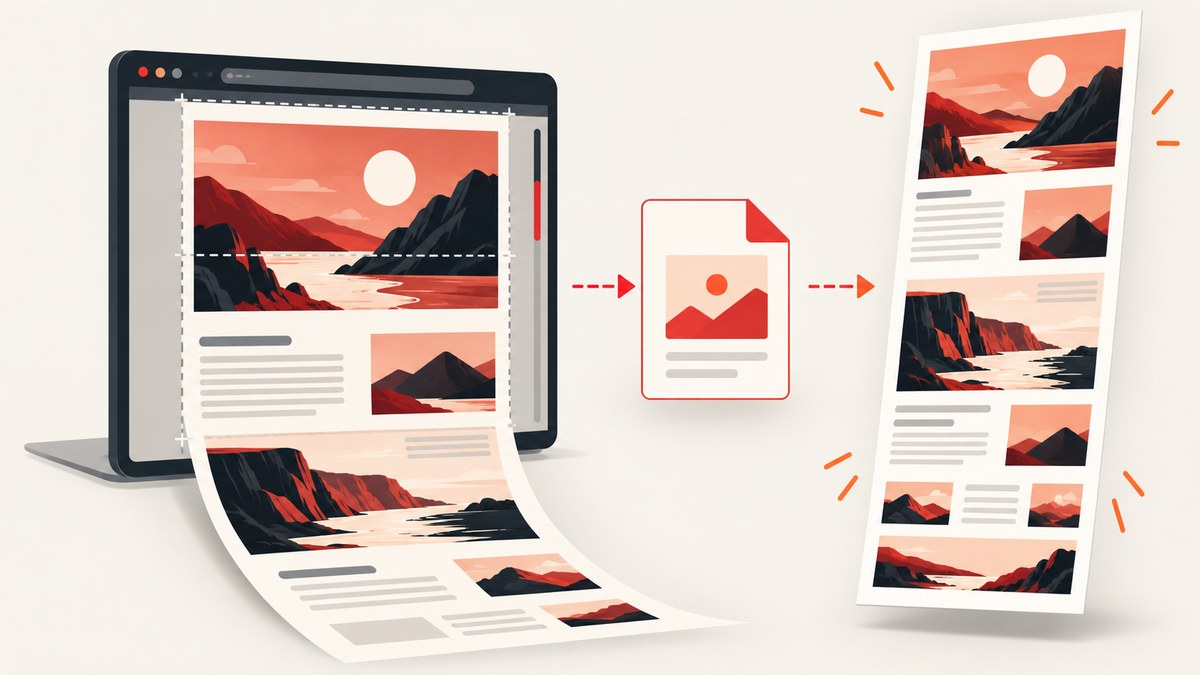
Short answer: Opera already includes Snapshot, so you do not need an extension for a visible screenshot, a selection, annotations, clipboard sharing, or a full-page PDF. Opera’s Capture Full Screen command captures the page currently visible in the viewport. To save the whole page from top to bottom using Opera itself, choose Save page as PDF. If you specifically need the entire page as a PNG or JPEG image, install a current full-page screenshot extension from Opera Add-ons after reviewing its output formats and permissions.
This guide explains the difference between a viewport capture and a full-page capture, gives exact Opera steps, compares the extension choices documented by Opera Add-ons, covers long and wide pages, and shows a browser-free API workflow with ScreenshotNeo.
What “full page” means in Opera
There are two different deliverables that are often called a full-page screenshot:
| Deliverable | What you get | Opera’s documented method |
|---|---|---|
| Viewport image | The part of the page currently visible on your screen | Snapshot → Capture Full Screen |
| Entire-page document | The page from top to bottom, including content below the fold | Snapshot → Save page as PDF |
| Entire-page image | One tall PNG or JPEG containing the page | A dedicated extension such as Page Screenshot or FireShot |
Opera Help explicitly defines Capture Full Screen as the visible viewport and documents Save page as PDF for saving the full page from top to bottom. That distinction matters: a viewport PNG is not evidence that the entire document was captured. See Opera’s Snapshot documentation and the Snapshot feature page.
Use Opera Snapshot without installing an extension
Snapshot is already part of Opera. It is the quickest choice when the required output is the visible page, a selected region, or a PDF.
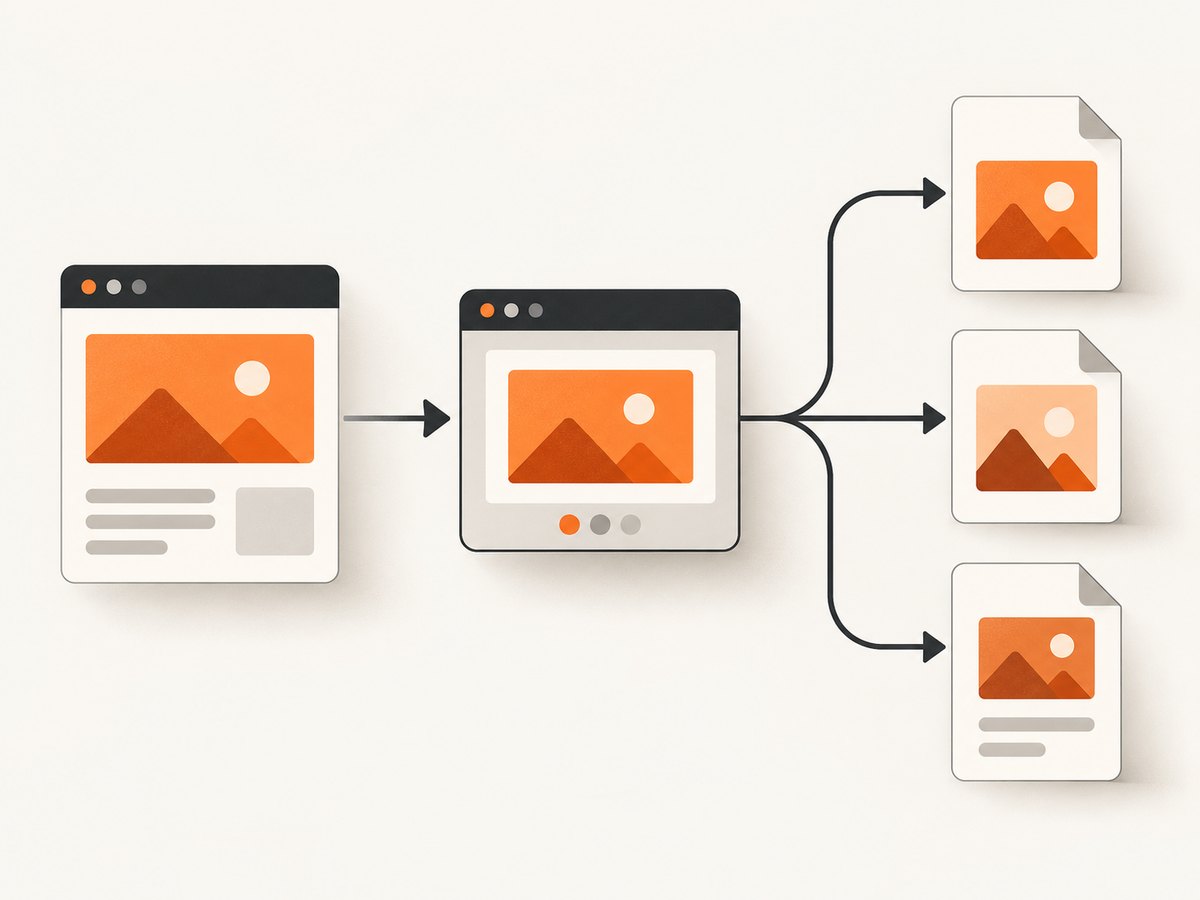
1. Capture the visible viewport
- Open the page in Opera and scroll to the region you want to show.
- Press Ctrl+Shift+5 on Windows or Linux. On macOS, press Command+Shift+2.
- Alternatively, click the camera icon in Opera’s toolbar to open Snapshot.
- Choose Capture Full Screen. The result is the page currently visible on screen.
- Use Snapshot’s editor if you need to mark up the image, then save or copy it.
This method is useful for bug reports, short documentation snippets, and sharing a state of a page. It does not automatically scroll through the document.
2. Capture a selected region
Open Snapshot from the shortcut or camera icon and choose the selection tool. Drag around the exact region you need, adjust the selection, then save or copy it. Selection capture avoids producing a very tall image when only one component matters.
3. Save the complete page as a PDF
- Open Snapshot.
- Select Save page as PDF.
- Choose a download location when Opera asks where to save the file.
The PDF route is preferable for a report, archival copy, or document that must remain printable. It is not the same as a single raster image: text may remain selectable, page breaks are handled as a document, and the result can be easier to email or print.
When an Opera extension is necessary
Install an extension when your deliverable must be one full-height image, or when you need extension-specific editing and export controls. Before installing, decide:
- Output: PNG, JPEG, PDF, clipboard, or a download.
- Scope: the complete page, the visible page, or a selected element.
- Editing: whether arrows, highlights, cropping, and annotations are required.
- Page shape: whether the page is unusually long, lazy-loaded, embedded, or wider than the viewport.
- Access: which websites, tabs, browsing data, or external programs the extension can access.
Marketplace listings and permissions can change. Read the current Opera Add-ons page and the permission prompt for the exact version you install.
Page Screenshot: a simple full-height image extension
Opera Add-ons describes Page Screenshot as an extension that scrolls vertically through a long page, saves the result to the browser’s download location, and lets you adjust image format and quality.
Typical workflow
- Install Page Screenshot from Opera Add-ons.
- Reload any tab that was already open before installation; the listing says existing tabs need reloading.
- Open the target page and wait for its content to appear.
- Invoke the extension from Opera’s extensions menu.
- Choose the full-page capture and output settings, then save the image.
The listing says wide pages are not captured horizontally. If the page extends farther sideways than the viewport, check the resulting image carefully or use a PDF workflow instead. The listing currently identifies version 0.1.5 and an October 17, 2022 update date; store metadata is subject to change.
FireShot: full page, selection, PDF, and editing tools
Capture Webpage Screenshot — FireShot lists full-page, visible-page, and selection capture. Its listed output formats include PDF, PNG, and JPEG, with annotation and editing features.
The Opera listing requests access to data on all websites, access to tabs and browsing activity, and the ability to exchange messages with programs outside Opera. FireShot’s privacy policy says settings are stored locally and that the extension does not send personal information. That is the publisher’s statement, not independent verification. Review the current permissions and policy before granting access.
The listing identifies version 1.11.25 and a February 23, 2023 update date. Those values may change in the store. Choose FireShot when its listed export and annotation workflow matches your requirement and its requested access is acceptable to you.
Choosing between Snapshot, an extension, and PDF
| Need | Best first option | Reason |
|---|---|---|
| Visible screenshot with no installation | Opera Snapshot | Built into Opera and available from a shortcut or toolbar camera icon. |
| Whole page for printing or records | Save page as PDF | Opera documents it as the top-to-bottom page export. |
| One tall PNG or JPEG | Page Screenshot or FireShot | These listings describe full-page image capture. |
| Annotations and several export formats | FireShot | The listing describes editing, annotations, PDF, PNG, and JPEG. |
| Automated captures in a build or script | ScreenshotNeo | A URL request returns an image or PDF without browser setup. |
Long pages, lazy content, and wide layouts
Full-page capture is more difficult than taking one viewport image. Pages can load images only after scrolling, replace content while the capture is running, or contain fixed headers that repeat in every segment. An extension may scroll vertically but still have limits on horizontal width, as the Page Screenshot listing states.
For the most predictable manual result:
- Wait for the initial page to finish loading.
- Scroll through the page once so lazy content has an opportunity to load.
- Close transient popups where possible.
- Capture at a consistent browser zoom level.
- Inspect the top, middle, and bottom of the saved image for seams, missing images, or duplicated fixed navigation.
Embedded frames, authenticated sections, infinite-scroll feeds, animations, and very wide tables may not reproduce perfectly in a single image. The researched Opera listings do not establish universal compatibility, so treat each result as something to review rather than assuming every site will capture identically.
Privacy and permissions checklist
A screenshot extension can read the page it captures. Opera’s extension guidance explains permission concepts such as activeTab, which grants temporary access when you invoke an extension, and page-capture permissions. The exact permissions shown for an extension and version are what matter.
- Install from the official Opera Add-ons listing.
- Read every requested permission before accepting.
- Use a separate browser profile for sensitive internal sites if appropriate.
- Do not capture passwords, private customer data, or secret tokens into downloaded images.
- Review the extension’s current privacy policy and update history.
- Remove extensions you no longer use.
Opera’s extension customization help and permissions documentation provide additional context.
Or skip the browser setup
If you need repeatable captures in a script, CI job, backend service, or AI workflow, ScreenshotNeo accepts one GET request and returns a PNG, JPEG, WebP, or PDF. The API can capture a full page with lazy images loaded, a single element by CSS selector, a chosen device or viewport, dark mode, retina scale, custom CSS and JavaScript, clicks, waits, blocked resources, headers, cookies, user agents, authorization, timezone, geolocation, transparent backgrounds, resizing, caching, signed public links, asynchronous jobs, webhooks, bulk requests, and usage data. Every feature is available on every plan.
See the ScreenshotNeo API documentation for the current parameter reference. The following examples use the documented endpoint and are runnable after replacing the key and URL.
cURL
curl -G "https://api.screenshotneo.com/v1/shot" \
  -d access_key=YOUR_API_KEY \
  --data-urlencode url=https://stripe.com \
  -o shot.webp
Python
import requests

r = requests.get(
    "https://api.screenshotneo.com/v1/shot",
    params={"access_key": "YOUR_API_KEY", "url": "https://stripe.com"},
    timeout=90,
)
r.raise_for_status()
open("shot.webp", "wb").write(r.content)
Node.js
const q = new URLSearchParams({
  access_key: 'YOUR_API_KEY',
  url: 'https://stripe.com'
});
const res = await fetch(`https://api.screenshotneo.com/v1/shot?${q}`);
if (!res.ok) throw new Error(`HTTP ${res.status}`);
const fs = await import('node:fs/promises');
await fs.writeFile('shot.webp', Buffer.from(await res.arrayBuffer()));
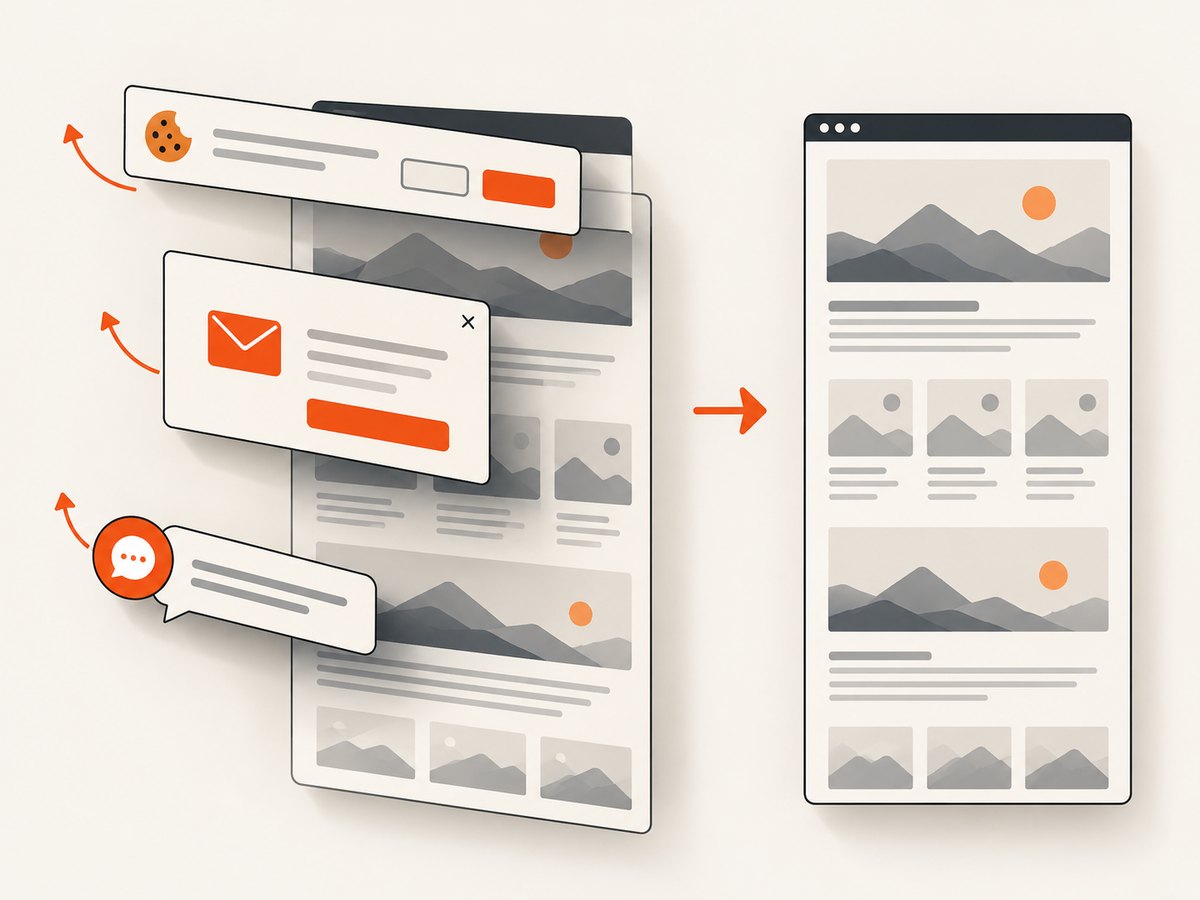
ScreenshotNeo removes cookie and consent banners, newsletter popups, and chat widgets before the shot. Bot checks or CAPTCHAs, blank pages, timeouts, failed loads, and cache hits cost nothing; response headers identify the page verdict and whether the request was billed with X-Page-Verdict and X-Billed. Its MCP server provides take_screenshot, get_page_info, and capture_pdf tools for Claude, Cursor, and other MCP clients.
The Free plan includes 1,000 screenshots each month with no card. Paid plans start at $5 for 3,000 shots; yearly billing gives two months free. Create a free ScreenshotNeo account to try the API.
Troubleshooting
The shortcut does nothing
Check that you are using the operating-system shortcut for your platform: Ctrl+Shift+5 on Windows/Linux or Command+Shift+2 on macOS. You can also open Snapshot from the toolbar camera icon. If a keyboard utility intercepts the shortcut, use the toolbar.
The “full screen” image contains only what I can see
That is the documented behavior of Capture Full Screen: it captures the viewport. Use Save page as PDF for the entire page, or install an extension intended for full-height image output.
The extension misses the bottom of the page
Reload the tab after installing, wait for content to load, and try again. Page Screenshot’s listing specifically says already-open tabs need reloading. Very long, dynamically changing, or infinite-scroll pages may require a PDF or an automated capture with explicit waits.
The image is cut off on the right
Page Screenshot’s listing says wide pages are not captured horizontally. Reduce page width where possible, use a PDF, or choose a capture system that accepts an explicit viewport.
A private page shows a login screen
The capture runs in the context available to the tool. Confirm that the page is authenticated in the same tab and that the extension has the required site access. For API automation, supply the supported cookies, headers, user agent, or Authorization settings instead of embedding credentials in a URL.
A page contains a cookie banner or chat bubble
Dismiss those controls manually before a local capture. ScreenshotNeo removes more than 60 known consent platforms, newsletter popups, and chat widgets before capture, with controls to turn each cleanup step off.
Performance, reliability, and cost considerations
Local captures consume browser memory as the page is rendered and stitched. Tall pages can create large files, and PNG is usually larger than JPEG or WebP. Resize the result when a downstream system only needs a thumbnail. For repeat jobs, avoid recapturing unchanged pages by using a cache with a TTL or by storing the output keyed by URL and content version.
PDF is often more practical than a huge raster image for review and printing. A full-page image is better when a design review, visual diff, social preview, or image-only upload requires pixels. For automated reliability, define a wait condition, wait for network idle where appropriate, block ads or trackers that make loads unpredictable, and inspect response status and verdict headers. Keep timeouts long enough for real pages but bounded so one broken URL cannot stall a batch.
ScreenshotNeo’s billing model counts only clean shots. Failed loads, blank pages, bot checks, timeouts, and cache hits are not billed, and the response says which case occurred. Bulk capture supports up to 100 URLs per call, while asynchronous jobs and signed webhooks help move slow work out of a request timeout.
FAQ
Is there a built-in full-page image screenshot in Opera?
Opera documents Snapshot’s Capture Full Screen as a viewport capture. For a top-to-bottom built-in export, Opera documents Save page as PDF. A full-height PNG or JPEG generally requires an extension or an API.
Do I need an extension to take any screenshot in Opera?
No. Snapshot is built in and supports visible captures, selections, editing, copying, and PDF export.
Which format should I choose?
Choose PDF for documents and printing, PNG for lossless diagrams or text, JPEG for smaller photographic images, and WebP when your pipeline supports it and file size matters.
Can an extension capture pages I am logged into?
It may, depending on its permissions and the site context. Inspect the current permission prompt, keep sensitive data out of screenshots, and verify the result before sharing it.
Can I automate Opera screenshots?
You can automate a browser with your own tooling, but a screenshot API removes browser installation and orchestration. ScreenshotNeo’s endpoint, async jobs, bulk capture, and MCP tools are designed for scripted and agent-driven workflows.


